
In an increasingly fragmented streaming landscape, services like Paramount Plus have become essential for accessing a wealth of content, from exclusive series and movies to live sports and news. However, the experience can quickly turn frustrating when you can’t locate the app on your beloved smart TV. This common predicament, far from being a mere anomaly, often stems from a combination of technical factors ranging from device compatibility to network issues. Understanding these underlying causes is the first step toward resolving the problem and diving back into your favorite shows.
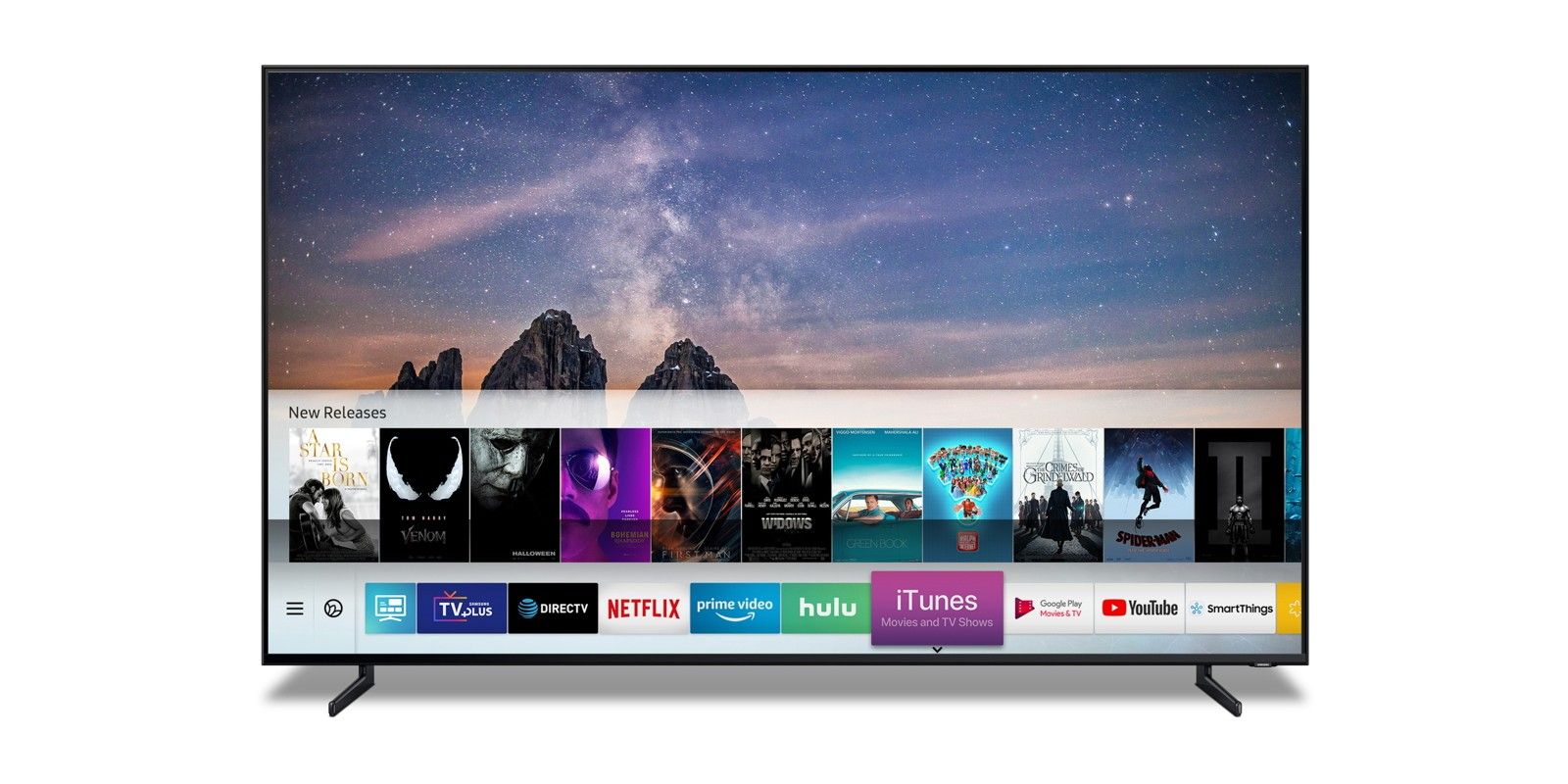
This comprehensive guide will delve into the technical reasons behind a missing Paramount Plus app on your television, offering insightful troubleshooting steps and expert advice to get you streaming without further delay. We’ll explore common hurdles, platform-specific nuances, and best practices for ensuring your streaming setup is primed for optimal performance.
Understanding Paramount Plus Availability and Compatibility
Before embarking on detailed troubleshooting, it’s crucial to establish the foundational requirements for running Paramount Plus on your television. Not all smart TVs or streaming devices are created equal, and compatibility plays a significant role in app availability.
Device Compatibility Checklist
Paramount Plus is designed to run on a wide array of smart TVs and dedicated streaming devices, but there are specific models and operating systems (OS) that are officially supported. If your TV or streaming gadget falls outside these parameters, the app simply won’t appear or function correctly.
- Smart TVs: Major brands typically supported include Samsung (Tizen OS, 2017 models or newer), LG (webOS, 2017 models or newer), Vizio (SmartCast, certain models), Hisense, and Philips (with Android TV built-in). Roku TVs and Amazon Fire TVs also have native support.
- Streaming Devices: Extremely popular for their broad compatibility, devices like Roku players, Amazon Fire TV Sticks, Apple TV (4th generation or newer), Google Chromecast (with Google TV), and Android TV devices are generally well-supported.
- Gaming Consoles: Xbox (One, Series X/S) and PlayStation (4, 5) consoles also offer the Paramount Plus app.
If your device is significantly older or runs a proprietary OS that isn’t widely supported by major app developers, it might be the primary reason for the app’s absence. Always check Paramount Plus’s official support page for an up-to-date list of compatible devices.
Regional Restrictions and Content Licensing
Another critical, often overlooked, factor is geographical availability. Paramount Plus, like many streaming services, operates under content licensing agreements that vary by region. This means the service might not be available in all countries or territories.
- Geo-blocking: If you are traveling or attempting to access the service from a region where Paramount Plus is not officially launched, the app might not appear in your TV’s app store. Your TV’s region settings or your IP address can reveal your geographical location.
- VPN Usage: While Virtual Private Networks (VPNs) can sometimes bypass geo-restrictions, they can also interfere with app store functionality or the streaming service’s ability to verify your location. If you’re using a VPN, try disabling it temporarily to see if the app appears.
Ensure your TV’s region settings align with a country where Paramount Plus is officially available, and your IP address reflects this region.
Minimum Software/OS Requirements
Even if your TV brand is supported, the underlying operating system version can be a bottleneck. App developers frequently update their applications to leverage newer OS features and security patches, often dropping support for older OS versions.
- Outdated OS: An older version of Tizen, webOS, Android TV, or Roku OS might not be compatible with the current version of the Paramount Plus app. The app store on your TV might filter out incompatible applications, making them invisible.
- Firmware Updates: Manufacturers regularly release firmware updates for smart TVs that improve performance, add features, and update the OS. These updates are crucial for maintaining app compatibility.
Always ensure your TV’s operating system and firmware are updated to the latest available version. This can often resolve mysterious app disappearances.
Common Troubleshooting Steps for Missing Apps
Once you’ve confirmed basic compatibility, it’s time to delve into practical troubleshooting techniques. These steps are standard for resolving most app-related issues on smart TVs and streaming devices.
Checking Your TV’s App Store/Platform
The most straightforward explanation for a missing app is often that it simply hasn’t been searched for or installed correctly.
- Thorough Search: Don’t just browse the featured apps. Go to your TV’s dedicated app store (e.g., Samsung Smart Hub, LG Content Store, Roku Channel Store, Google Play Store) and use the search function to explicitly look for “Paramount Plus.” Typographical errors can prevent the app from appearing.
- Verify Installation Status: If you’ve searched and found the app, ensure it hasn’t been accidentally uninstalled or hidden. The app store will typically show an “Install” or “Get” button if it’s not present, or an “Open” button if it is.
Sometimes, the app might be installed but not visible on your main home screen. Check your ‘My Apps’ or ‘Downloaded Apps’ section, and then consider adding it to your favorites or home screen for easier access.
Updating Your TV’s Software/Firmware
As mentioned earlier, an outdated operating system is a common culprit for app incompatibility.
- Access Settings: Navigate to your TV’s settings menu. The exact path varies by brand but typically involves “Support,” “System,” or “About TV.”
- Software Update Option: Look for an option like “Software Update,” “System Update,” or “Check for Updates.”
- Perform Update: Allow your TV to search for and install any available updates. This process might require your TV to restart multiple times. Ensure your internet connection is stable throughout.
Keeping your TV’s software current is not just about app compatibility; it also ensures optimal performance, security, and access to new features.
Restarting Your TV and Network Equipment
The classic “turn it off and on again” advice is a staple in tech support for a reason – it often works. A simple power cycle can clear temporary glitches, refresh network connections, and resolve software hang-ups.
- TV Restart: Don’t just turn off your TV with the remote. Unplug it from the power outlet for at least 60 seconds. This performs a hard reset, clearing temporary memory. Plug it back in and power it on.
- Router/Modem Restart: Your internet connection plays a vital role in app store access and streaming. Unplug your router and modem (if separate) from their power sources for 60 seconds. Plug the modem back in first, wait for it to fully boot (indicated by stable lights), then plug in the router and wait for it to boot. This ensures your network connection is fresh and stable.
Performing both a TV and network equipment restart can often resolve connectivity issues that prevent app stores from loading correctly or apps from appearing.
Reinstalling the App (if previously installed)
If Paramount Plus was previously working but has suddenly disappeared or stopped functioning, a clean reinstallation can often resolve corrupted data or installation errors.
- Uninstall: Go to your TV’s app management section (often within settings or by selecting the app icon and choosing “Uninstall” or “Remove”). Confirm the uninstallation.
- Restart TV: Perform a full power cycle of your TV as described above.
- Reinstall: Go back to the app store and search for and reinstall Paramount Plus.
This process ensures you get a fresh, uncorrupted version of the app.
Clearing Cache and Data
Apps, over time, accumulate cache and data that can sometimes become corrupted, leading to performance issues or preventing the app from launching or appearing.
- Access App Settings: On most smart TVs and streaming devices, you can access individual app settings. This is typically found within the TV’s main settings menu under “Apps,” “Applications,” or “Storage.”
- Clear Cache/Data: Locate Paramount Plus within the list of installed apps. You should see options to “Clear Cache” and “Clear Data” (or “Clear Storage”).
- Clear Cache: This removes temporary files. It’s generally safe and doesn’t affect your login or settings.
- Clear Data/Storage: This resets the app to its factory state, similar to an uninstall, but without removing the app itself. You will likely need to log back in after clearing data.
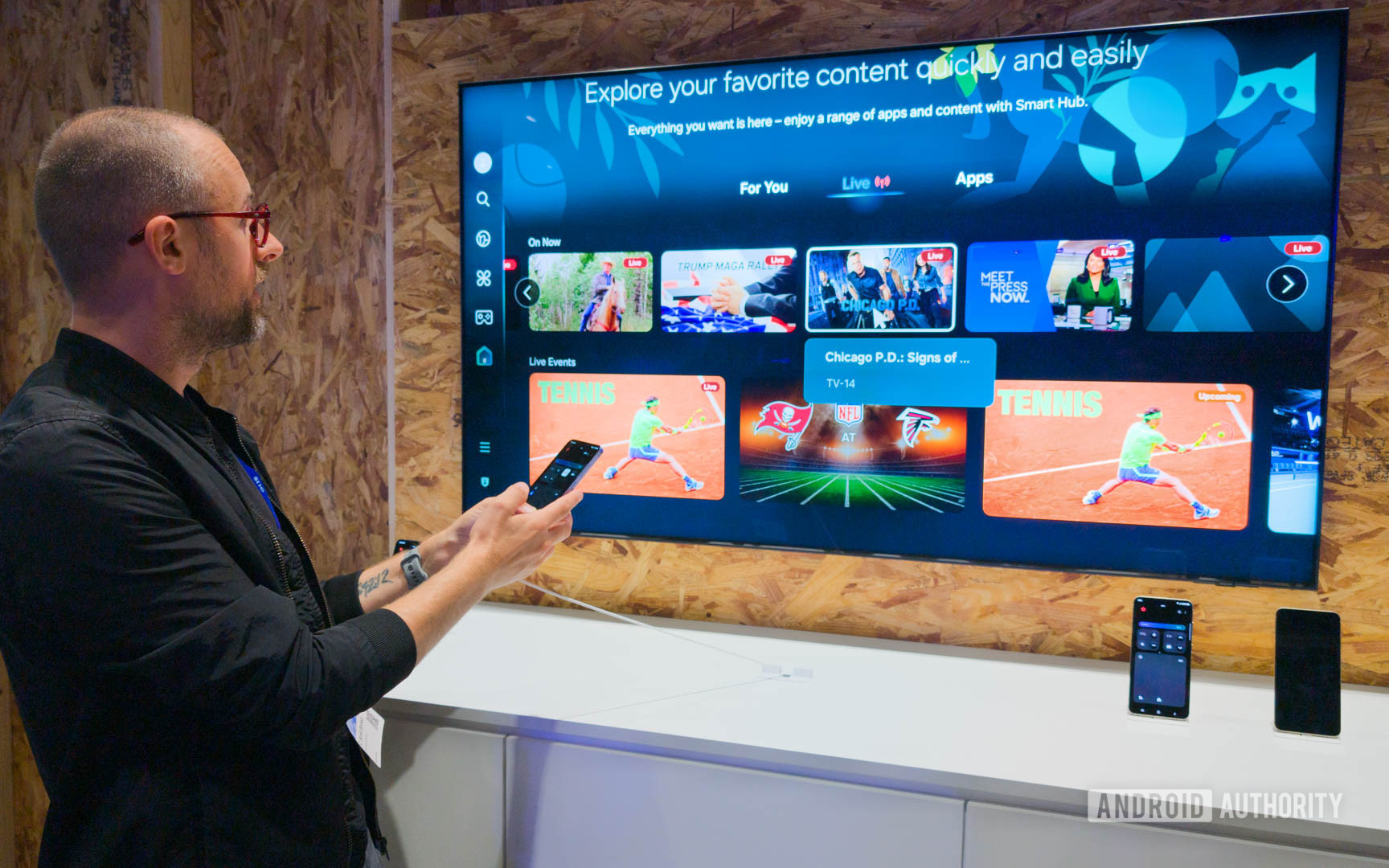
Clearing both cache and data can resolve deep-seated app issues that a simple reinstall might miss.
Network and Account-Related Hurdles
Sometimes, the issue isn’t directly with the TV or the app, but with the broader ecosystem—your internet connection or your Paramount Plus subscription status.
Verifying Internet Connection Stability
A poor or intermittent internet connection can prevent your TV from accessing the app store or downloading app data.
- Run Network Test: Most smart TVs have a built-in network test utility in their settings menu. Run this to check your connection speed and stability.
- Check Other Apps: Try launching other internet-dependent apps (e.g., Netflix, YouTube) on your TV. If they also struggle, the issue is likely with your internet connection, not just Paramount Plus.
- Wired vs. Wireless: If you’re on Wi-Fi, consider connecting your TV directly to your router with an Ethernet cable, if possible. A wired connection is generally more stable and faster than Wi-Fi. If this resolves the issue, your Wi-Fi signal might be weak or congested.
Ensure your internet connection meets the minimum speed requirements for streaming (Paramount Plus recommends at least 5 Mbps for HD streaming).
Logging In and Account Status
While the app’s presence isn’t directly tied to your login status, an expired or problematic subscription can certainly prevent you from using the service, leading to frustration that might be misdiagnosed as an app issue.
- Subscription Active: Log into your Paramount Plus account on a web browser (via a computer or smartphone) to verify that your subscription is active, your payment method is up-to-date, and there are no outstanding issues.
- Incorrect Credentials: If the app is installed but you can’t log in, double-check your username and password. Use the “Forgot Password” option if necessary.
A valid, active subscription is a prerequisite for enjoying Paramount Plus content, even if the app itself is correctly installed.
Geo-blocking and VPN Considerations
Reiterating the earlier point, if you suspect geo-restrictions are at play, addressing them directly is key.
- Disable VPN/Smart DNS: If you’re using a VPN or a Smart DNS service on your router or TV, disable it temporarily. These services can sometimes mask your true location or route your traffic through servers that Paramount Plus detects as problematic, preventing access to the app store or the service itself.
- Check TV Region Settings: Confirm your TV’s regional settings match your actual location and a region where Paramount Plus is available. Incorrect region settings can affect which apps appear in your local app store.
Specific TV Brand Considerations
While many troubleshooting steps are universal, specific smart TV platforms have their quirks and unique interfaces.
Roku TV Ecosystem
Roku TVs (from brands like TCL, Hisense, Sharp) use the Roku OS.
- Roku Channel Store: Paramount Plus is found in the Roku Channel Store. Ensure your Roku device is linked to the correct Roku account, as channel availability can be tied to account settings.
- System Restart: On Roku, a system restart can be performed via
Settings > System > Power > System Restart. - Software Update:
Settings > System > Software Update.
Amazon Fire TV Interface
Amazon Fire TV devices (Sticks, Cubes, Fire TVs) use Fire OS.
- Appstore: Search for Paramount Plus directly in the Amazon Appstore.
- Manage Installed Applications: Navigate to
Settings > Applications > Manage Installed Applicationsto clear cache/data or uninstall. - Restart:
Settings > My Fire TV > Restart.
Samsung Tizen and LG webOS
These proprietary smart TV operating systems are widely used.
- Samsung Smart Hub/LG Content Store: Access these respective app stores to search.
- App List: On Samsung, check the ‘Apps’ section for all installed applications. On LG, press the ‘Home’ button and scroll through the app ribbon.
- Hard Reset: For persistent issues on both, consider a “soft reset” or “factory reset” from the TV settings, but be aware this will wipe all settings and installed apps. Try less drastic measures first.
Android TV/Google TV Devices
Devices like Sony Android TVs, Chromecast with Google TV, and NVIDIA Shield TV.
- Google Play Store: Paramount Plus is available via the Google Play Store.
- Clear Cache/Data: Go to
Settings > Apps > See all apps > Paramount Plus > Clear cache / Clear data. - System Update:
Settings > System > About > System update.
When to Seek Further Assistance
If you’ve diligently followed all the above troubleshooting steps and Paramount Plus remains elusive or dysfunctional, it’s time to escalate the issue.
Contacting Paramount Plus Support
The service provider itself is often the best source of information regarding their app and known issues.
- Official Support Channels: Visit the Paramount Plus help center on their website. They usually offer FAQs, community forums, live chat, or email support.
- Provide Details: When contacting them, be prepared to provide details about your TV model, operating system version, the specific steps you’ve already taken, and any error messages you’ve encountered. This information will help them diagnose the problem more efficiently.
They may be aware of specific bugs affecting certain device models or regional outages that are not publicly advertised.

Reaching Out to Your TV Manufacturer
If Paramount Plus support confirms that their app should be compatible with your device, but you’re still experiencing issues that affect other apps or the TV’s app store functionality, the problem might lie with your television’s software or hardware.
- TV Manufacturer Support: Contact your TV’s manufacturer (e.g., Samsung, LG, Sony, Roku).
- Detail the Problem: Explain that you’ve followed streaming service-specific troubleshooting and suspect a broader TV-related issue, such as an inability to update software or access the app store. They might have specific diagnostic tools or firmware updates unique to your TV model.
Ultimately, finding Paramount Plus on your TV is a journey that often requires systematic troubleshooting. By understanding the technical underpinnings of app compatibility, network connectivity, and device management, you can effectively diagnose and resolve most issues. The goal is a seamless streaming experience, and with these insights, you’re well-equipped to achieve it.
aViewFromTheCave is a participant in the Amazon Services LLC Associates Program, an affiliate advertising program designed to provide a means for sites to earn advertising fees by advertising and linking to Amazon.com. Amazon, the Amazon logo, AmazonSupply, and the AmazonSupply logo are trademarks of Amazon.com, Inc. or its affiliates. As an Amazon Associate we earn affiliate commissions from qualifying purchases.