
The digital streaming landscape has undergone a significant transformation over the last decade, transitioning from a niche market to the primary medium for global entertainment consumption. At the forefront of this evolution is Paramount+, a robust platform that integrates a vast library of content from CBS, Nickelodeon, MTV, BET, Comedy Central, and Paramount Pictures. For users looking to integrate this service into their home entertainment ecosystem, understanding the technical requirements, platform compatibility, and optimization strategies is essential. This guide provides a deep dive into the software architecture, device support, and installation procedures necessary to access Paramount+.

Understanding the Paramount+ Technical Infrastructure and Device Compatibility
Before initiating the setup process, it is critical to understand the hardware and software environments that support Paramount+. Unlike early-generation streaming apps, Paramount+ is built on a high-concurrency framework designed to handle millions of simultaneous streams, requiring modern hardware to function at peak performance.
Smart TVs and Dedicated Streaming Hardware
The most common way to access Paramount+ is through a dedicated television interface. The platform supports a wide array of Smart TV operating systems. For users with Samsung TVs, the app is compatible with models from 2017 or later running the Tizen OS. Similarly, LG TVs utilizing webOS 4.0 or higher can download the native app from the LG Content Store.
For those without integrated smart features, dedicated streaming devices offer a more powerful processing environment. The Paramount+ application is fully optimized for:
- Roku: Including Roku Premiere, Streaming Stick+, and Ultra models.
- Amazon Fire TV: Supporting the Fire TV Stick 4K, Fire TV Cube, and smart TVs with Fire OS built-in.
- Apple TV: Specifically 4th Generation (Apple TV HD) and Apple TV 4K models running tvOS.
- Android TV: Various devices including the Nvidia Shield and Sony Bravia models.
Mobile Ecosystems: iOS and Android
On the mobile front, Paramount+ maintains high-performance applications for both iOS and Android. To ensure security and feature parity, the application generally requires iOS 14.0 or later for iPhones and iPads. On the Android side, devices running Android 5.0 (Lollipop) or higher are compatible, though newer versions of the OS are recommended to take advantage of improved video codecs and background refresh capabilities.
Gaming Consoles and Desktop Browsers
Paramount+ extends its reach into the gaming sector, offering native applications for the PlayStation 4, PlayStation 5, Xbox One, and Xbox Series X/S. These versions often leverage the console’s superior GPU to provide a smoother UI experience. For desktop users, the service is accessible via web browsers. To maintain high-definition playback, users should utilize the latest versions of Google Chrome, Mozilla Firefox, Microsoft Edge, or Safari on macOS.
Step-by-Step Installation and Account Configuration
Once the hardware compatibility is confirmed, the next phase involves the actual deployment of the software and the configuration of the user account. This process varies slightly depending on whether you are subscribing directly or through a third-party digital aggregator.
Initial App Deployment
The first technical step is the installation of the software package. On most devices, this involves navigating to the respective app store (Google Play, Apple App Store, Amazon Appstore) and searching for “Paramount+.” Once located, the “Install” or “Get” command triggers the download of the application binaries. It is important to ensure that the device has sufficient internal storage—typically around 100MB to 200MB—for the initial installation, though cached data will require more space over time.
Choosing the Software Tier and Registration
Paramount+ operates on a tiered subscription model, which impacts the technical features available to the user.
- Paramount+ Essential: This tier includes limited commercial interruptions and provides standard high-definition streaming.
- Paramount+ with SHOWTIME: This premium tier eliminates most ads (except for live TV and select shows) and unlocks advanced technical features such as 4K UHD, HDR10, Dolby Vision, and Dolby Atmos.

During the registration process, users are required to create a unique identifier (email) and an encrypted password. From a digital security perspective, it is recommended to use a complex password and, if available through your account management dashboard, enable multi-factor authentication to protect billing information.
Integrating with Third-Party Providers
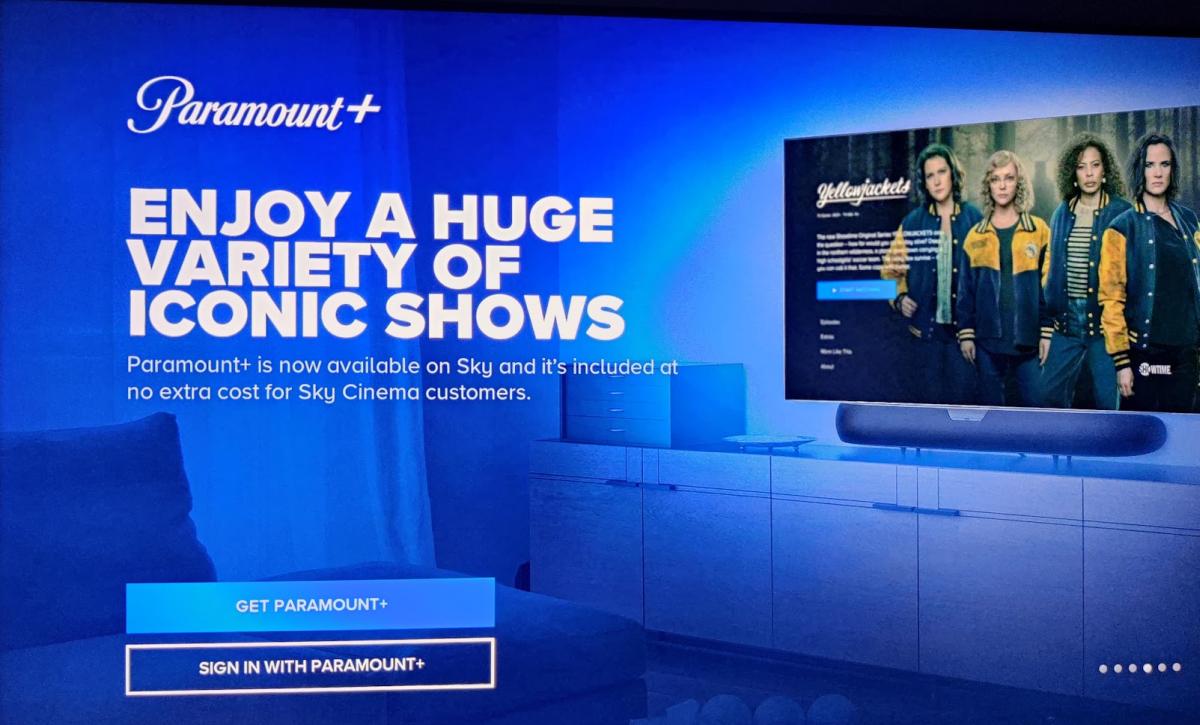
Many users “get” Paramount+ through existing ecosystems like Amazon Prime Video Channels, Apple TV Channels, or as part of a cable provider bundle (such as Xfinity or Cox). In these instances, the “installation” is often a matter of linking accounts. For example, if subscribing via Amazon Prime, the Paramount+ content is ingested directly into the Prime Video UI, utilizing Amazon’s player API rather than the standalone Paramount+ app. However, users can also use their third-party credentials to log into the native Paramount+ app by selecting “Link Provider” in the settings menu.
Maximizing the User Experience and Tech Features
Simply having the app installed is only the baseline. To truly leverage the technology, users must configure the internal settings to match their hardware capabilities and network bandwidth.
Leveraging 4K UHD and High Dynamic Range (HDR)
For users on the “Paramount+ with SHOWTIME” plan, the platform supports 4K resolution, which offers four times the detail of standard 1080p. To enable this, the entire hardware chain must be compatible. This includes a 4K-capable streaming device, a high-speed HDMI 2.0 or 2.1 cable, and a display that supports HDCP 2.2. Within the app, the software automatically detects the maximum supported resolution, but users should ensure their internet download speed is at least 25 Mbps to maintain a consistent 4K stream without downscaling.
Audio Configuration and Dolby Atmos
Sound is a critical component of the technical experience. Paramount+ supports 5.1 surround sound and, on select titles, Dolby Atmos. To achieve Atmos, the streaming device must be connected to an Atmos-compatible soundbar or A/V receiver via an HDMI ARC/eARC port. Users should navigate to the device’s audio settings to ensure bitstream output is enabled, allowing the external hardware to decode the high-fidelity audio data sent by the Paramount+ app.
Data Management and Offline Downloads
For mobile users, managing data consumption is a priority. The Paramount+ app includes a “Download” feature for offline viewing, available on the premium tier. This allows users to cache encrypted video files locally on their device. In the app settings, users can choose between “Standard Definition” and “High Definition” for downloads. Standard definition takes up significantly less space and is faster to download, making it ideal for devices with limited storage or for users on restricted data plans.
Technical Troubleshooting and Network Optimization
Even with a perfect setup, users may encounter technical hurdles such as buffering, app crashes, or authentication errors. Understanding how to diagnose these issues is key to maintaining a seamless experience.
Addressing Buffering and Connectivity Issues
Buffering is usually a symptom of network congestion or insufficient bandwidth. The first step in troubleshooting is a network speed test. If the speed is adequate, the issue may lie in the local network’s latency. For fixed devices like Smart TVs or gaming consoles, a wired Ethernet connection is always superior to Wi-Fi. If Wi-Fi is the only option, ensuring the device is connected to the 5GHz band rather than the 2.4GHz band can significantly reduce interference from other household electronics.
App Updates and Cache Management
Software bugs are often resolved through version updates. Most modern OSs handle this automatically, but users can manually check for updates in their device’s app store. If an app becomes unresponsive, clearing the cache (on Android and some Smart TVs) or performing a clean reinstallation (on iOS and Roku) can resolve corrupted local data. This flushes the temporary files and forces the app to re-authenticate with the Paramount+ servers, often fixing “stuck” login screens or UI glitches.
Security Protocols and Geo-Blocking
Paramount+ utilizes geographical licensing, meaning content availability varies by region. The app uses IP-based geolocation to determine which library to display. If a user is traveling or using a network with a non-local IP (such as a corporate VPN), the app may return a “Content Not Available” error. To ensure continuous access, it is vital to ensure that no high-latency proxies or incorrectly configured VPNs are masking the user’s actual location, as Paramount+ employs sophisticated detection algorithms to block known VPN server ranges to comply with international licensing agreements.
By meticulously selecting the right hardware, configuring the software for peak visual and audio performance, and understanding the underlying network requirements, users can ensure they are getting the most out of the Paramount+ platform. The integration of high-end tech features like 4K HDR and Dolby Atmos, combined with a robust cross-platform presence, makes it a centerpiece of the modern digital home.
aViewFromTheCave is a participant in the Amazon Services LLC Associates Program, an affiliate advertising program designed to provide a means for sites to earn advertising fees by advertising and linking to Amazon.com. Amazon, the Amazon logo, AmazonSupply, and the AmazonSupply logo are trademarks of Amazon.com, Inc. or its affiliates. As an Amazon Associate we earn affiliate commissions from qualifying purchases.