
In the ever-evolving landscape of digital finance, the security of your online accounts is paramount. PayPal, as one of the world’s leading online payment platforms, holds sensitive financial information, making its protection an absolute necessity. Changing your password, a seemingly simple task, is one of the most fundamental and effective steps you can take to safeguard your account against unauthorized access. This comprehensive guide will walk you through the process, underscore the importance of robust password practices, and equip you with the knowledge to maintain a high level of digital security for your PayPal account.

The Imperative of Regular Password Updates
Maintaining a secure online presence extends beyond initial setup; it requires continuous vigilance and proactive measures. Regularly updating your passwords, especially for critical financial platforms like PayPal, is not merely a recommendation but a foundational element of digital hygiene.
Fortifying Your Digital Defenses
Think of your password as the primary lock on your digital vault. Over time, even the strongest locks can become vulnerable due to various factors. Data breaches on other services you use might expose your credentials, or sophisticated hacking techniques could eventually compromise weaker passwords. A periodic password change acts as a fresh re-keying of that lock, effectively nullifying any previously acquired or guessed credentials. It creates a moving target for potential attackers, making their efforts to gain unauthorized access significantly more challenging and often futile. This proactive approach minimizes the window of opportunity for attackers who might possess older, compromised credentials. It’s a fundamental layer of defense that strengthens your overall security posture against a myriad of cyber threats.
Responding to Security Incidents
While proactive measures are crucial, knowing how to react to potential threats is equally important. If you ever receive a security alert from PayPal, suspect unusual activity on your account, or become aware of a data breach on another service where you might have used the same or a similar password, changing your PayPal password immediately becomes a critical incident response. This rapid action can prevent further damage, block unauthorized users, and restore the integrity of your account. It’s a responsive measure that cuts off potential attackers at the pass, preventing them from exploiting newly acquired information. Furthermore, even if you are unsure about the legitimacy of an alert, a quick password change is a harmless and beneficial precaution.
Step-by-Step Guide: Changing Your PayPal Password
Whether you’re on a desktop computer or using the mobile app, PayPal offers straightforward pathways to update your password. Familiarizing yourself with both methods ensures you can secure your account from any device.
Via the PayPal Website
Changing your password on the PayPal website is the most common method and provides a comprehensive interface for managing your security settings.
- Log In to Your Account: Begin by navigating to the official PayPal website (
www.paypal.com) and log in using your current email address and password. Always double-check the URL to ensure you are on the legitimate site to avoid phishing scams. - Access Security Settings: Once logged in, click on the Gear icon (Settings) located in the top right corner of the page. This will take you to your account settings overview.
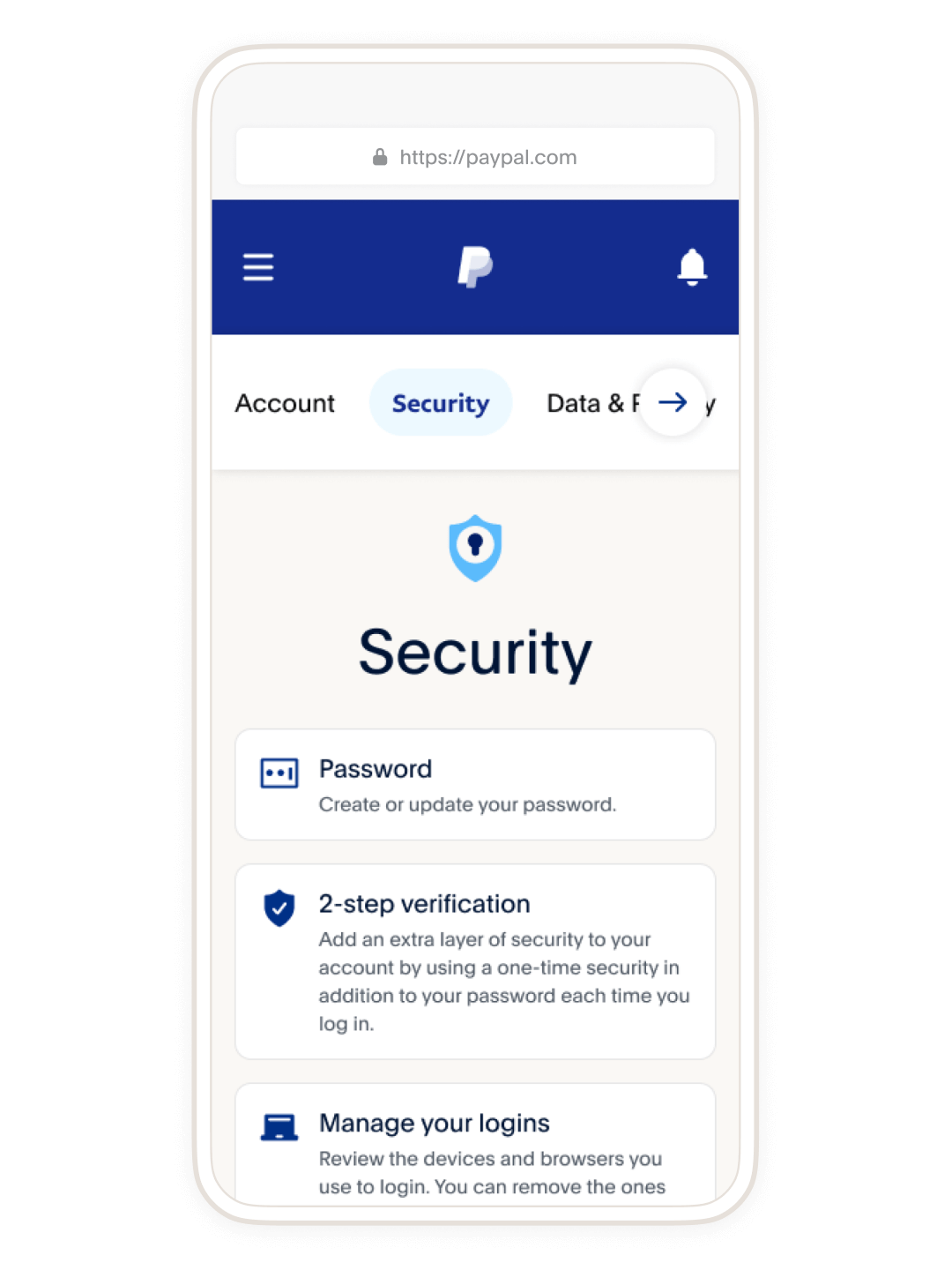
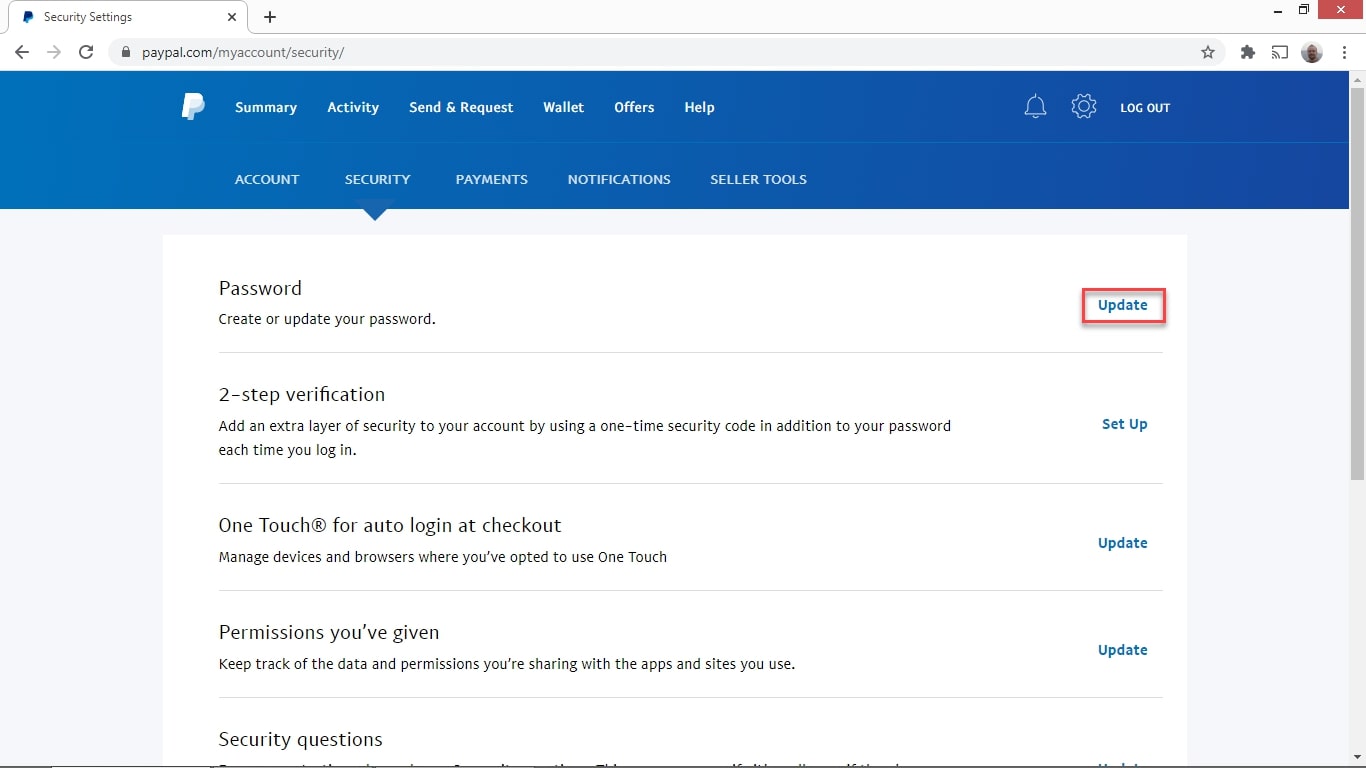
- Navigate to Security: Within the settings page, you’ll see several tabs. Click on the Security tab. This section is dedicated to all aspects of your account security, including password management, 2-Step Verification, and security questions.
- Initiate Password Change: Under the “Password” section, you will find an option to “Change your password” or “Update your password.” Click on this link.
- Enter Current and New Password: PayPal will prompt you to enter your current password for verification purposes. This step is crucial to confirm your identity and prevent unauthorized password changes. After verifying, you will then be asked to enter your new password twice – once in the “New password” field and again in the “Confirm new password” field.
- Confirm Change: Once you’ve entered and confirmed your new password, click the Change Password or Update Password button. PayPal will process the change, and you should receive a confirmation message on screen and possibly an email notification informing you of the successful update.
Using the PayPal Mobile App
For users who primarily manage their finances on the go, the PayPal mobile app offers a streamlined process for password changes.
- Open the PayPal App: Launch the PayPal app on your smartphone or tablet and log in if you’re not already.
- Access Settings: Tap the Gear icon (Settings) typically found in the top right corner or sometimes within a “hamburger” menu (three horizontal lines) in the top left or right corner, depending on your app version.
- Select Security: In the settings menu, scroll down and tap on Login and Security or Security. This section consolidates all security-related options.
- Find Password Option: Look for the “Password” section and tap on Change password.
- Enter Credentials: Similar to the web version, you will first be asked to enter your current password to authenticate. Then, enter your desired new password twice in the provided fields.
- Complete the Process: Tap Change Password or Done to finalize the update. You’ll receive an on-screen confirmation.
Troubleshooting Common Issues
While the process is generally smooth, you might encounter minor hurdles.
- “Incorrect Current Password”: Double-check your typing. If you’re certain it’s correct but it’s still failing, you might be remembering an older password. In this case, you’ll need to use the “Forgot your password?” option.
- “Password Does Not Meet Requirements”: PayPal has specific password strength requirements (e.g., minimum length, use of upper/lower case letters, numbers, and symbols). Ensure your new password adheres to these guidelines.
- Browser/App Glitches: If you’re experiencing unusual behavior, try clearing your browser’s cache and cookies, or reinstalling the PayPal app. Sometimes, simply restarting your device can resolve temporary software issues.
What to Do If You’ve Forgotten Your PayPal Password
Forgetting a password can be a frustrating experience, but PayPal has a robust recovery mechanism designed to help you regain access securely.
The Account Recovery Process
If you’ve forgotten your PayPal password, do not attempt to create a new account. Instead, utilize PayPal’s built-in account recovery features:
- Initiate Password Reset: On the PayPal login page (either website or app), click on the “Forgot your password?” or “Having trouble logging in?” link.
- Enter Your Email: You will be prompted to enter the email address associated with your PayPal account. This is the primary identifier for your account.
- Choose Verification Method: PayPal will offer several ways to verify your identity. Common options include:
- Receive a code via text message to your registered phone number.
- Receive a code via email to your registered email address.
- Answer your security questions.
- Confirm via a recent transaction (less common, but sometimes an option).
- Receive a call to your registered phone number.
- Follow Verification Steps: Select the most convenient and secure method available to you and follow the instructions. This usually involves entering a one-time code sent to you or correctly answering the security questions you set up.
Verifying Your Identity
The verification step is crucial for security. PayPal must ensure that the person attempting to reset the password is the legitimate account holder. If you don’t have access to your registered phone or email, or can’t remember your security answers, the process might become more complex, potentially requiring you to contact PayPal customer support directly. They will then guide you through a more thorough identity verification process, which might involve providing personal details, recent transaction information, or even photo identification. This rigorous process, while sometimes time-consuming, is essential to protect your financial assets from unauthorized access.
Elevating Your PayPal Security Beyond Simple Password Changes
While changing your password is a critical step, comprehensive digital security for your PayPal account involves multiple layers of defense. Adopting additional best practices can significantly enhance your protection.
Crafting Strong, Unique Passwords
The strength of your password is its first line of defense. A strong password should be:
- Long: Aim for at least 12-16 characters. Longer passwords are exponentially harder to crack.
- Complex: Incorporate a mix of uppercase letters, lowercase letters, numbers, and symbols. Avoid predictable sequences or dictionary words.
- Unique: Never reuse passwords across different online services. If one service is breached, all accounts using that password become vulnerable. A password manager can be an invaluable tool to generate and store unique, complex passwords for all your accounts. These applications encrypt and secure your credentials, requiring you to remember only one master password.
Embracing Two-Factor Authentication (2FA)
Two-Factor Authentication (also known as 2-Step Verification) adds a crucial second layer of security beyond just your password. With 2FA enabled, even if an attacker manages to steal your password, they still won’t be able to access your account without the second factor. PayPal typically offers 2FA via:
- SMS codes: A unique code is sent to your registered mobile number each time you log in.
- Authenticator Apps: Apps like Google Authenticator or Authy generate time-based one-time passwords (TOTP) that refresh every 30-60 seconds. This method is generally considered more secure than SMS as it’s not vulnerable to SIM-swapping attacks.
- Security Keys: Physical hardware keys that plug into your device, offering the highest level of security.
Enabling 2FA for your PayPal account is one of the most impactful security enhancements you can make. It significantly reduces the risk of unauthorized access, even in the event of a password compromise.
Vigilance Against Phishing and Scams
Technological solutions are only as effective as the user’s awareness. Phishing attacks, where scammers attempt to trick you into revealing your login credentials or personal information, remain a pervasive threat. Always be suspicious of:
- Emails or messages with urgent or threatening language: PayPal will never demand immediate action under threat or punishment.
- Links that seem slightly off: Always hover over links to check the URL before clicking. Ensure it directs to
paypal.comor a legitimate subdomain. - Requests for personal information: PayPal will never ask for your full password, bank details, or credit card numbers via email or text.
- Attachments from unknown senders: These can contain malware.
If you suspect a phishing attempt, do not click any links or open attachments. Instead, log in to your PayPal account directly through the official website or app to check for any alerts or messages. Report suspicious emails to PayPal’s security team to help them combat these threats. Your vigilance is a critical component of your overall digital security strategy.
By consistently implementing these practices – regular password changes, strong unique passwords, 2FA, and heightened awareness against scams – you can build a formidable defense for your PayPal account, ensuring your financial security in the digital realm.
aViewFromTheCave is a participant in the Amazon Services LLC Associates Program, an affiliate advertising program designed to provide a means for sites to earn advertising fees by advertising and linking to Amazon.com. Amazon, the Amazon logo, AmazonSupply, and the AmazonSupply logo are trademarks of Amazon.com, Inc. or its affiliates. As an Amazon Associate we earn affiliate commissions from qualifying purchases.