
In an increasingly digital world, the way we consume entertainment has undergone a dramatic transformation. Gone are the days of linear television schedules and limited content options. Today, the power is in your hands, with on-demand streaming services offering an unparalleled library of movies, TV shows, music, and more. At the forefront of this revolution is the Amazon Fire TV Stick – a compact, powerful, and remarkably affordable device that has redefined home entertainment for millions. If you’ve recently acquired one, or are considering making the leap into smart TV streaming, understanding how to properly install and optimize it is your first step towards unlocking a world of digital content.
This guide will walk you through everything you need to know, from the initial unboxing to advanced tips that enhance your privacy, productivity, and even help you save money. We’ll explore the technical setup, dive into the software experience, and touch upon how this small gadget aligns with broader technology trends, digital security best practices, and savvy personal finance strategies.
Unlocking Entertainment: What is an Amazon Fire TV Stick?
Before we delve into the installation specifics, let’s understand what exactly an Amazon Fire TV Stick is and why it has become such a ubiquitous presence in modern homes. Essentially, it’s a media streaming device that plugs into your TV’s HDMI port, transforming any television into a smart TV. Powered by Amazon’s Fire OS (a modified version of Android), it provides access to a vast ecosystem of streaming apps, games, and other digital content.
The Fire TV Stick comes in several variants, from the entry-level Fire TV Stick Lite to the more powerful Fire TV Stick 4K Max, each offering different levels of performance, resolution support, and features like Wi-Fi 6 compatibility. Regardless of the model, their core function remains the same: to stream content from the internet directly to your big screen.
Why Choose a Fire TV Stick?
The popularity of the Fire TV Stick isn’t accidental; it’s a result of a compelling combination of features and benefits that resonate with today’s tech-savvy, budget-conscious consumers:
- Vast Content Library: Access thousands of apps including Netflix, Hulu, Disney+, Prime Video, HBO Max, YouTube, Spotify, and many more, giving you an almost limitless choice of entertainment. This aligns perfectly with technology trends favoring content on demand.
- Affordability: Compared to upgrading to a new smart TV or some competing streaming devices, the Fire TV Stick offers an extremely cost-effective entry point into the world of smart streaming. This plays directly into personal finance and smart spending.
- Portability: Its compact size makes it incredibly easy to unplug and take with you. Traveling, visiting friends, or moving between rooms – your entertainment ecosystem can come along.
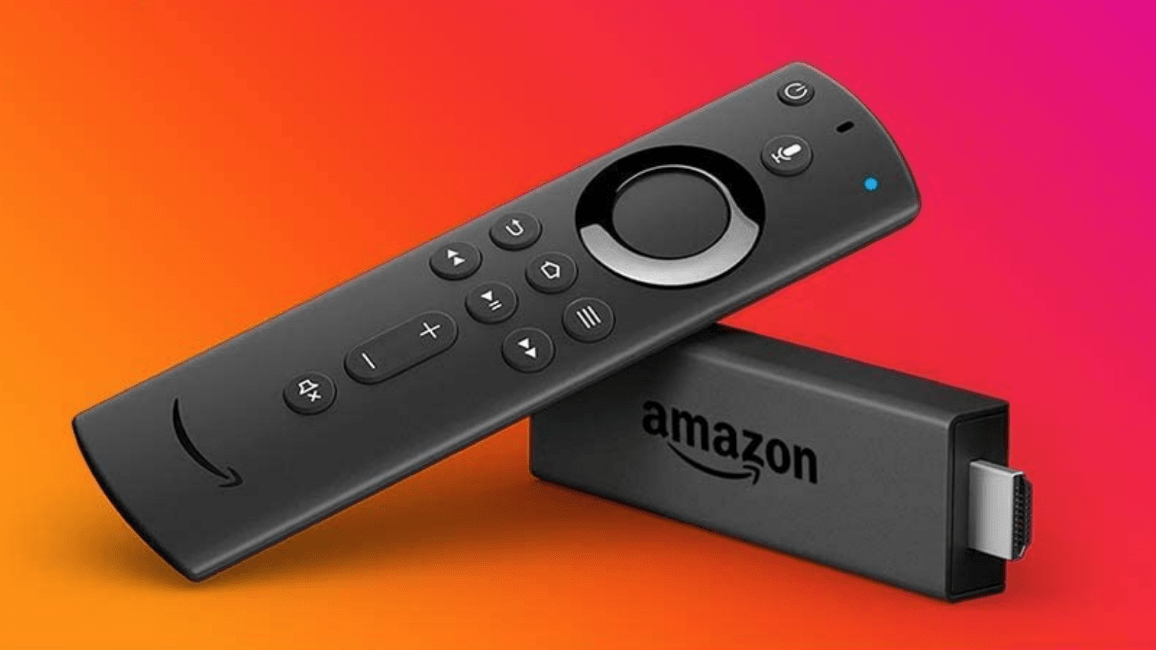
- Alexa Voice Remote: Most Fire TV Stick models include a voice-enabled remote, allowing you to search for content, launch apps, control playback, and even manage smart home devices with simple voice commands. This showcases the integration of AI tools and enhances productivity.
- Ease of Use: Amazon’s user-friendly interface ensures that navigating and finding content is intuitive, even for those new to streaming.
- Cord-Cutting Potential: For many, the Fire TV Stick is a cornerstone of their “cord-cutting” strategy, allowing them to ditch expensive cable subscriptions in favor of more affordable, customizable streaming services. This is a significant “Money” topic, offering substantial long-term savings.
The Step-by-Step Installation Journey
Getting your Fire TV Stick up and running is a straightforward process, designed to be accessible to everyone, regardless of technical prowess. Follow these steps for a smooth installation.
Pre-Installation Checklist: What You’ll Need
Before you begin, ensure you have the following components and information readily available:
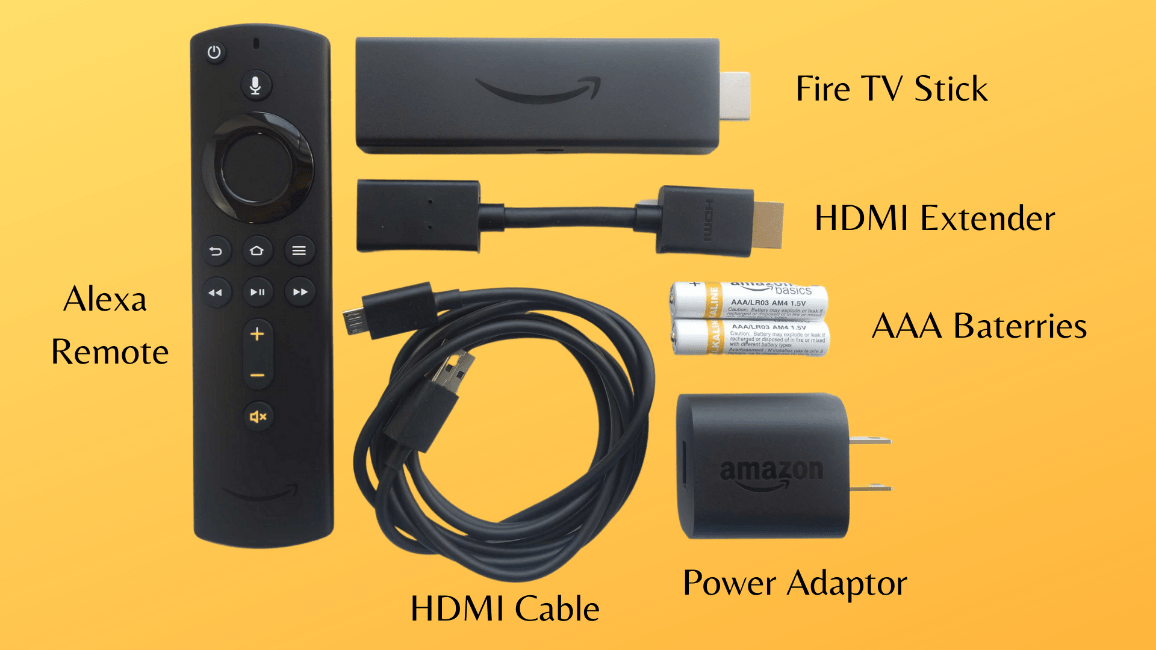
- Your Amazon Fire TV Stick: The device itself, its power adapter, and the Alexa Voice Remote (if included).
- A Television with an HDMI Port: Most modern TVs have at least one. Note down which HDMI port you use.
- A Power Outlet: For the Fire TV Stick’s power adapter.
- A Stable Wi-Fi Connection: You’ll need your network name (SSID) and password. A strong internet connection is crucial for seamless streaming.
- Your Amazon Account Credentials: Your email address and password associated with your Amazon account. If you don’t have one, you’ll need to create one during setup.
- Optional: HDMI Extender (often included in the box) if your TV’s HDMI ports are too close together or hard to access.
Physical Connection: Plugging In Your Firestick
This is the easiest part.
- Locate an HDMI Port on Your TV: These are typically found on the back or side of your television. Choose an easily accessible one.
- Plug in the Fire TV Stick: Gently insert the Fire TV Stick directly into an available HDMI port. If space is tight or the Firestick is blocking other ports, use the provided HDMI extender cable.
- Connect the Power Adapter: Plug the smaller end of the USB cable into the Fire TV Stick and the larger end into the power adapter. Then, plug the power adapter into a wall outlet. While some TVs have USB ports that can power the Firestick, using the dedicated power adapter is highly recommended for stable performance and to avoid power-related issues.
- Insert Batteries into the Remote: Open the back of the Alexa Voice Remote and insert the included AAA batteries, ensuring correct polarity.
Powering Up and Initial Setup
With everything physically connected, it’s time to bring your Fire TV Stick to life.
- Turn On Your TV: And switch the input source to the HDMI port where your Fire TV Stick is plugged in (e.g., HDMI 1, HDMI 2).
- Fire TV Stick Boot-Up: You should see the Amazon logo appear on your screen, followed by the Fire TV Stick boot animation. This process may take a few moments.
- Pair Your Remote: The Fire TV Stick remote should automatically pair. If it doesn’t, press and hold the Home button (the one with the house icon) for about 10 seconds until you see an on-screen confirmation.
- Select Your Language: Use the remote to navigate and select your preferred language.
Connecting to Your Wi-Fi Network
A strong and stable internet connection is the backbone of your streaming experience.
- Scan for Networks: The Fire TV Stick will automatically scan for available Wi-Fi networks in your vicinity.
- Select Your Network: Choose your home Wi-Fi network from the list.
- Enter Your Password: Use the on-screen keyboard to carefully enter your Wi-Fi password. Passwords are case-sensitive.
- Connect: Once connected, the Fire TV Stick will verify the connection and proceed to the next step. If you encounter issues, double-check your password and ensure your router is within range.
Amazon Account Registration and Device Updates
This step links your Fire TV Stick to your Amazon account, personalizing your experience and granting access to your purchases and subscriptions.
- Amazon Account Sign-In: You’ll be prompted to sign in with your existing Amazon account. Enter your email address/phone number and password. If you don’t have an Amazon account, you’ll be guided to create one. This is essential for accessing Prime Video, purchasing apps, and managing subscriptions.
- Device Registration: After signing in, your Fire TV Stick will register to your account.
- Check for Updates: The device will then automatically check for and download any available software updates. This is a crucial step for digital security and ensuring optimal performance, as updates often include bug fixes and new features. Allow the updates to complete, and the device may restart several times during this process. Do not unplug the Fire TV Stick during an update.
- Parental Controls (Optional): You’ll be given the option to enable parental controls, allowing you to restrict content access based on ratings and set PIN protection for purchases. This is a valuable feature for families, enhancing digital security within your household.
- Data Preferences: You might be asked about data collection preferences. Review these settings to align with your personal privacy comfort level.
- Tutorial Video: Finally, the Fire TV Stick might offer a short tutorial video on how to use the remote and navigate the interface. It’s recommended to watch it if you’re new to the platform.
Post-Setup Essentials: Customizing Your Firestick Experience
Once installed, the real fun begins: personalizing your Fire TV Stick to match your entertainment habits and maximizing its utility.
Navigating the Interface and Finding Content
The Fire TV Stick’s home screen is designed for easy navigation. It features a main menu bar at the top with categories like “Home,” “Find,” “Live,” “Apps,” and “Settings.”
- Home: Your personalized dashboard, showing recommended content, recently used apps, and sponsored suggestions.
- Find: A powerful search function where you can look for movies, TV shows, actors, or apps using text input or Alexa voice commands.
- Live: Access to live TV streaming services you subscribe to (e.g., Sling TV, YouTube TV, Freevee).
- Apps: Your library of installed applications and access to the Appstore.
- Settings: Where you can configure various device options, which we’ll cover next.
Use the directional pad on your remote to move between sections and the center select button to choose an option.
Discovering and Installing Your Favorite Apps
The Amazon Appstore is your gateway to a world of content.
- Access the Appstore: From the “Home” screen, navigate to “Apps” or use the “Find” menu to search for specific apps.
- Browse or Search: Browse categories, top charts, or use the search function to find your desired streaming services (Netflix, Disney+, Spotify, etc.), utility apps, or games.
- Download and Install: Select an app, then choose “Get” or “Download.” The app will download and install automatically. Once installed, it will appear on your “Home” screen under “Your Apps & Channels” or in your full “Apps” library.
- Sign In to Apps: After launching a new app, you’ll typically need to sign in with your existing subscription credentials for that service.
Essential Settings and Personalization
Diving into the “Settings” menu allows you to fine-tune your Fire TV Stick for optimal performance and privacy.
- Network: Re-scan or switch Wi-Fi networks. Essential for troubleshooting connectivity.
- Display & Audio: Adjust display resolution, calibrate your screen, and manage audio output settings (e.g., surround sound).
- Applications: Manage installed apps, clear cache/data for individual apps (useful for troubleshooting), and control app permissions.
- Remotes & Bluetooth Devices: Pair new remotes, game controllers, or Bluetooth headphones.
- Preferences: Set up parental controls, configure notification settings, and manage data monitoring. This is where you can further enhance digital security and privacy by reviewing options like “Privacy Settings” (Device Usage Data, Collect App Usage Data, Interest-Based Ads).
- My Fire TV: Access important device information, check for system updates (though it usually does this automatically), restart or reset your device, and enable developer options for advanced users (more on this later).
Voice Control with Alexa: A Seamless Experience
The Alexa Voice Remote is one of the Fire TV Stick’s standout features, integrating AI tools directly into your entertainment.
- Activate Alexa: Press and hold the blue microphone button on your remote.
- Speak Your Command: While holding the button, speak clearly. You can say things like:
- “Open Netflix”
- “Find action movies”
- “Play The Office”
- “Fast forward 30 seconds”
- “Show me the weather”
- “Turn off the TV” (if compatible with HDMI-CEC or paired smart home devices)
- Release the Button: Release the button when you’re done speaking. Alexa will process your request.
This hands-free control significantly improves the user experience, making content discovery and device interaction more intuitive and efficient.
Optimizing Your Firestick: Advanced Tips for Power Users
While the basic setup provides a great experience, there are several ways to further optimize your Fire TV Stick, enhancing its capabilities, protecting your privacy, and leveraging its full potential as a tech gadget.
Enhancing Privacy and Security with a VPN
For many users, digital security is paramount. A Virtual Private Network (VPN) is a powerful tool to encrypt your internet traffic and mask your IP address, offering several benefits for Fire TV Stick users:
- Online Privacy: Prevents your Internet Service Provider (ISP) and other third parties from monitoring your online activities.
- Geo-Unblocking: Access streaming content that might be geographically restricted in your region. This allows you to explore libraries from other countries, greatly expanding your entertainment options.
- ISP Throttling Prevention: Some ISPs might intentionally slow down (throttle) streaming traffic. A VPN can help bypass this by encrypting your data, making it harder for the ISP to identify and throttle.
How to Install a VPN: Many popular VPN services offer dedicated apps in the Amazon Appstore. Simply search for your preferred VPN provider, download their app, sign in (you’ll need a subscription), and connect to a server. This is a critical step for anyone serious about digital security and privacy when streaming.
Expanding Your Horizons: Sideloading Apps
The Fire TV Stick’s Android-based OS allows for “sideloading” – installing apps from outside the Amazon Appstore. This opens up a world of possibilities for applications not officially available.
Caution: Sideloading carries risks. Only download APK files from trusted sources, as malicious apps can compromise your device’s security.
- Enable Developer Options: Go to
Settings > My Fire TV > About. Click on your device name (e.g., “Fire TV Stick 4K Max”) seven times rapidly. You’ll see a message confirming “Developer Options” have been enabled. - Allow Apps from Unknown Sources: Go to
Settings > My Fire TV > Developer Options. Toggle “Apps from Unknown Sources” to ON. - Install a Downloader App: From the Amazon Appstore, search for and install a “Downloader” app. This app allows you to download APK files directly from web URLs.
- Download and Install: Use the Downloader app to enter the URL of the APK file you wish to install. Follow the on-screen prompts to complete the installation.
Sideloading can significantly enhance your Firestick’s utility, allowing access to specialized media players, alternative app stores, or niche streaming services, thus boosting your productivity in content consumption.
Managing Storage and Performance
Like any digital device, your Fire TV Stick can slow down if storage is full or too many apps are running in the background.
- Clear Cache and Data: For individual apps, go to
Settings > Applications > Manage Installed Applications. Select an app and choose “Clear Cache” (recommended for minor glitches) or “Clear Data” (resets the app to its fresh install state, requiring re-login). - Uninstall Unused Apps: Regularly review and uninstall apps you no longer use to free up storage space.
- Restart Your Fire TV Stick: A simple restart can often resolve minor performance issues and clear temporary files. Go to
Settings > My Fire TV > Restart.
Integrating with Smart Home Devices
The Fire TV Stick, especially with its Alexa integration, can act as a central hub for your smart home.
- View Security Cameras: If you have compatible smart security cameras (e.g., Ring, Arlo), you can use Alexa voice commands to view their live feed on your TV (e.g., “Alexa, show me the front door camera”).
- Control Smart Lights and Thermostats: Link your smart home devices to your Alexa account, and you can then use your Fire TV Stick remote to control lights, adjust thermostats, and more, blending entertainment with home automation. This aligns with broader technology trends in smart living and IoT.
Troubleshooting Common Issues and Maximizing Value
Even with the best preparation, you might encounter minor hiccups. Knowing how to troubleshoot and understanding the Fire TV Stick’s long-term value proposition is key.
Solving Connectivity and Performance Problems
- No Power/Black Screen: Ensure the Fire TV Stick is properly plugged into a power outlet using its dedicated adapter. Try a different HDMI port.
- Wi-Fi Connection Issues: Go to
Settings > Network. Check if your network is visible and try re-entering your password. Move your Fire TV Stick closer to your router or consider using a Wi-Fi extender. - Buffering/Lagging: This is usually a network speed issue. Run an internet speed test on your Fire TV Stick (
Settings > Network). If speeds are low, restart your router and modem. Close other bandwidth-intensive applications on your network. Consider upgrading your internet plan if issues persist. - Remote Not Working: Ensure batteries are fresh and correctly inserted. Try re-pairing the remote by holding the Home button for 10 seconds near the Fire TV Stick.
- Apps Crashing/Freezing: Try clearing the app’s cache (as described in storage management) or uninstalling and reinstalling the app. A full device restart can also help.
Firestick Alternatives and Value Proposition
While the Fire TV Stick offers fantastic value, it’s worth noting its competitors. Devices like Roku Streaming Sticks, Google Chromecast with Google TV, and Apple TV each offer unique interfaces, features, and app ecosystems. The Fire TV Stick generally excels in its tight integration with the Amazon ecosystem, powerful Alexa voice control, and aggressive pricing, making it a strong contender for those who prioritize these aspects.
From a “Brand” perspective, Amazon has successfully positioned the Fire TV Stick as a user-friendly, affordable gateway to a vast content library, leveraging the strength of its existing customer base and Prime services.

The Long-Term Benefits: Saving Money on Entertainment
The initial investment in a Fire TV Stick (typically $30-$50) is quickly recouped when considering the potential for savings. By enabling “cord-cutting,” the Fire TV Stick empowers users to:
- Eliminate Cable Bills: Replace expensive traditional cable packages with a curated selection of streaming services, often costing significantly less per month.
- Access Free Content: Utilize ad-supported free streaming apps like Freevee, Tubi, Pluto TV, and more, providing a wealth of entertainment without additional subscription costs.
- Maximize Existing Subscriptions: Ensure you’re getting the most out of services like Amazon Prime Video (included with a Prime subscription), often overlooked by those who haven’t fully embraced streaming devices.
The Fire TV Stick is not just a gadget; it’s a strategic component of modern personal finance, allowing for more control over entertainment spending and greater flexibility in content consumption.
By following this comprehensive guide, you’re not just installing a device; you’re setting up a powerful entertainment hub that embraces current technology trends, prioritizes digital security, boosts your entertainment productivity, and offers tangible financial benefits. Enjoy your enhanced streaming experience!
aViewFromTheCave is a participant in the Amazon Services LLC Associates Program, an affiliate advertising program designed to provide a means for sites to earn advertising fees by advertising and linking to Amazon.com. Amazon, the Amazon logo, AmazonSupply, and the AmazonSupply logo are trademarks of Amazon.com, Inc. or its affiliates. As an Amazon Associate we earn affiliate commissions from qualifying purchases.