
In today’s interconnected digital landscape, the Apple TV stands as a central hub for entertainment, information, and even productivity within many households. Far from its humble beginnings as a simple streaming box, the modern Apple TV, powered by tvOS, has evolved into a sophisticated platform, largely thanks to its vibrant App Store. Whether you’re looking to stream the latest movies, dominate in a casual game, track your fitness, or manage smart home devices, apps are the gateway to unlocking the full potential of your Apple TV. This comprehensive guide will walk you through every step of installing, managing, and optimizing your apps, ensuring you can tailor your Apple TV experience to your exact needs and preferences, all while subtly touching upon the broader technological, branding, and financial implications of this powerful ecosystem.
Understanding the Apple TV App Ecosystem: A Gateway to Digital Living
Before diving into the “how-to,” it’s beneficial to grasp the foundation of the Apple TV’s app-driven philosophy. Introduced with the 4th generation Apple TV in 2015, the tvOS App Store revolutionized what the device could do, transforming it from a content consumption device into a versatile interactive platform. This shift aligned Apple TV with its mobile counterparts (iPhone, iPad), bringing a familiar, user-friendly app interface to the biggest screen in your home.
The App Store for Apple TV mirrors the robust selection found on other Apple devices, albeit curated for the living room experience. Here, you’ll find a plethora of applications spanning various categories:
- Streaming Services: The obvious cornerstone, including Netflix, Disney+, Hulu, HBO Max, YouTube, Amazon Prime Video, and Apple TV+, providing endless hours of on-demand content.
- Gaming: From casual puzzles and arcade classics to more graphically intensive titles, many offering cross-platform play with iOS devices.
- Fitness & Wellness: Apps that guide you through workouts, meditation, or provide lifestyle tips directly on your TV.
- News & Information: Stay updated with dedicated apps from major news outlets.
- Utility & Smart Home: Tools for controlling smart lights, thermostats, security cameras, and other HomeKit-enabled devices, transforming your TV into a central control panel.
- Educational Content: Apps designed for learning, from documentaries to interactive courses.
This expansive ecosystem isn’t just about content; it represents a significant technological leap, offering developers a powerful platform to reach users and providing consumers with unparalleled choice. It highlights Apple’s commitment to creating seamless experiences across its hardware and software, reinforcing the “walled garden” approach that often leads to superior integration and performance. From a Tech perspective, the tvOS platform emphasizes ease of use, robust security, and consistent performance, leveraging Apple’s powerful A-series chips to deliver high-fidelity video, fluid animations, and responsive gaming.
The Straightforward Path: Installing Apps via the Apple TV App Store
The process of installing apps on your Apple TV is remarkably intuitive, designed to be accessible to users of all technical proficiencies. It mirrors the experience of downloading apps on an iPhone or iPad, making it a familiar process for many.
Navigating the App Store
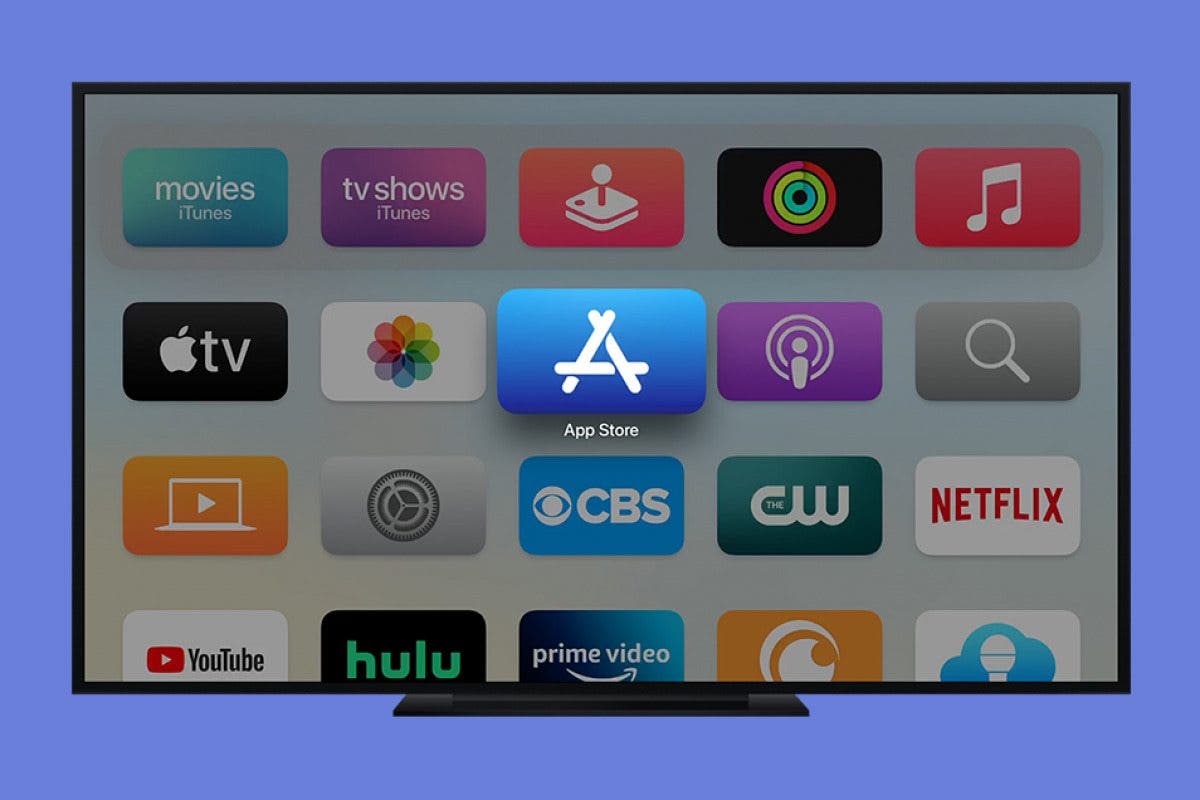
Your journey begins on the Apple TV Home Screen. Here’s how to get to the App Store:
- Wake Your Apple TV: Ensure your Apple TV is powered on and connected to your TV.
- Locate the App Store Icon: Using your Siri Remote (or a connected compatible controller), navigate through the rows of app icons until you find the “App Store” icon. It typically features a white ‘A’ on a light blue background.
- Select the App Store: Click the touch surface (or press the center button) on your Siri Remote to open the App Store.
Once inside the App Store, you’ll be presented with a beautifully organized interface. Typically, you’ll see featured apps, new releases, and curated collections designed to help you discover exciting content. This curated presentation is a testament to strong Brand strategy, both from Apple’s side in showcasing quality applications and from individual app developers vying for visibility.
Searching and Discovering Apps
There are several ways to find the apps you’re looking for within the App Store:
- Search Function: This is the most direct method if you know the name of the app.
- On the App Store home screen, navigate to the “Search” tab, usually found at the top of the screen.
- Select it, and a keyboard will appear. You can input the app’s name using the Siri Remote’s touch surface (swiping to select letters) or, more conveniently, by holding down the Siri button on your remote and dictating the app’s name. For example, “Netflix” or “Asphalt 9.”
- As you type or speak, results will appear in real-time. Select the correct app from the list.
- Categories: If you’re browsing for new content or a specific type of app, categories are your friend.
- Navigate to the “Categories” tab within the App Store.
- You’ll see a list of categories like “Entertainment,” “Games,” “Lifestyle,” “Health & Fitness,” etc.
- Select a category to browse apps relevant to that topic. This is an excellent way to discover new content that aligns with your interests, often highlighting emerging Tech trends in specific niches.
- Featured & Top Charts: The App Store also provides sections for “Featured” apps (Apple’s recommendations) and “Top Charts” (showing the most popular free and paid apps). These sections are excellent for seeing what’s currently trending or highly rated by other users, often indicating strong Brand recognition and user satisfaction.
Downloading and Installation Process
Once you’ve found an app you wish to install, the process is straightforward:
- Select the App: Click on the app’s icon to open its product page.
- Review App Details: On the product page, you’ll find important information such as:
- Description: A summary of the app’s features and functionality.
- Screenshots/Videos: Visuals to give you a sense of the app’s interface and experience.
- Ratings and Reviews: Feedback from other users, which can be invaluable in deciding whether to download.
- Compatibility: Ensure the app is compatible with your Apple TV model and tvOS version.
- Price: Crucially, whether the app is “Free” or has a specific price. This is where the Money aspect becomes apparent.
- In-App Purchases: Many “free” apps offer additional content or features through in-app purchases, which will be clearly indicated.
- Initiate Download/Purchase:
- For Free Apps: Click the “Get” button.
- For Paid Apps: Click the button displaying the app’s price.
- Authentication: You may be prompted to enter your Apple ID password or use a pre-authenticated device (like an iPhone or iPad) if you have Two-Factor Authentication enabled. This security measure ensures that only authorized users can download or purchase content.
- Installation: Once authenticated, the app will begin downloading and installing automatically. A progress circle will appear over the app icon on the home screen. The download time will vary depending on the app’s size and your internet connection speed.
- Launch the App: After installation, the app icon will appear on your Apple TV’s Home Screen. Simply select it to launch and start using it.
Pro Tip: If you’ve previously purchased an app on another Apple device (iPhone, iPad) that also has an Apple TV version, you might find it under the “Purchased” tab in the App Store, allowing you to download it to your Apple TV without re-purchasing. This cross-device compatibility showcases Apple’s integrated Tech ecosystem designed for user convenience.
Mastering Your App Library: Management and Organization
As you accumulate more apps, organizing them effectively becomes crucial for a streamlined and enjoyable user experience. tvOS provides intuitive tools to manage your app library, similar to how you would on an iOS device.
Rearranging and Creating Folders

Keeping your most-used apps readily accessible and grouping similar apps together can significantly enhance navigation.
- Enter Jiggle Mode: Highlight an app icon on your Home Screen using the Siri Remote. Press and hold the touch surface (or center button) until the icon starts to “jiggle” (move slightly). All other app icons will also begin to jiggle.
- Rearrange Apps: While in jiggle mode, swipe on the touch surface to move the highlighted app to a new position.
- Create Folders: To create a folder, simply drag one jiggling app icon over another. A new folder will be automatically created containing both apps. You can then drag other apps into this folder.
- Rename Folders: To rename a folder, highlight the folder while in jiggle mode, then swipe up on the touch surface. A “Rename” option will appear. Select it and use the on-screen keyboard or Siri dictation to enter a new name.
- Exit Jiggle Mode: Once you’re done rearranging and organizing, press the “Menu” or “TV” button on your Siri Remote to exit jiggle mode and save your changes.
Thoughtful organization not only makes your Apple TV easier to use but also reflects a personalized Brand experience, where you curate your digital space to suit your workflow and entertainment preferences.
Deleting and Offloading Unused Apps
Sometimes, an app no longer serves its purpose, or you simply need to free up storage space. tvOS offers two primary ways to remove apps:
- Deleting an App: This permanently removes the app and all its associated data from your Apple TV.
- Enter jiggle mode (as described above).
- Highlight the app you wish to delete.
- Swipe up on the touch surface. A “Delete” option will appear.
- Select “Delete” and confirm your choice.
- Offloading an App: This is a smart storage-saving feature, especially useful for larger apps or games you might want to use again in the future. Offloading removes the app itself but keeps its documents and data on your Apple TV. The app icon remains on your Home Screen, often with a small cloud symbol next to it, indicating it’s offloaded. When you select an offloaded app, it will quickly re-download, allowing you to pick up where you left off.
- Go to Settings > Apps > Offload Unused Apps to enable or disable this feature automatically.
- Alternatively, you can manually offload an app: Enter jiggle mode, highlight the app, swipe up, and select “Offload App.”
From a Tech standpoint, efficient storage management is crucial for optimal device performance, and offloading is a clever solution to balance storage with app accessibility.
Keeping Apps Up-to-Date
App developers frequently release updates to introduce new features, fix bugs, improve performance, or address security vulnerabilities. Keeping your apps updated ensures you have the best and most secure experience.
- Automatic Updates (Recommended):
- Go to Settings > Apps.
- Ensure “Automatically Update Apps” is toggled On. This is the simplest way to stay current, as your Apple TV will download and install updates in the background.
- Manual Updates: If you prefer to manually control updates, or if you disabled automatic updates, you can check for updates in the App Store:
- Open the App Store.
- Navigate to the “Purchased” or “Updates” tab (if available, this tab might not always show if there are no pending updates).
- Look for any apps with an “Update” button next to them. Select it to initiate the update.
Staying updated is not just about new features; it’s also a vital part of digital security and performance, demonstrating good Tech hygiene and often improving the overall value derived from an app – a subtle Money consideration as you maximize your investment in the app or subscription.
Elevating Your Experience: Beyond Basic Installation
Beyond the fundamental steps of installing and managing apps, there are several nuances and advanced considerations that can further enhance your Apple TV experience. These often touch upon the broader themes of technology, brand perception, and financial decision-making in the digital entertainment space.
Troubleshooting and Common Queries
Even with Apple’s user-friendly interface, occasional issues can arise. Here are quick solutions to common problems:
- App Not Downloading/Stuck:
- Check your internet connection: Go to Settings > Network. Ensure you’re connected to Wi-Fi or Ethernet.
- Restart your Apple TV: Go to Settings > System > Restart. A simple reboot can often resolve temporary glitches.
- Check Apple System Status: Visit Apple’s System Status page online to see if there are any widespread App Store outages.
- App Crashing or Not Responding:
- Force Quit the App: Double-press the “TV” button on your Siri Remote to bring up the App Switcher. Swipe left or right to find the problematic app, then swipe up on its preview to force quit it.
- Delete and Reinstall: If the issue persists, try deleting the app (as described above) and then reinstalling it from the App Store. This can resolve corrupted app files.
- “Not Enough Storage” Error:
- Offload or Delete Unused Apps: Review your app library and remove apps you no longer need or use the offloading feature.
- Clear App Data: For some apps, clearing cached data might help. This is often done within the app’s own settings.
Understanding these troubleshooting steps empowers you to maintain a smooth experience, leveraging your Tech knowledge to keep your entertainment hub running efficiently.
Strategic App Choices: Tech, Brand, and Budgetary Considerations
The Apple TV App Store is more than just a marketplace; it’s a reflection of technological innovation, brand competition, and evolving monetization strategies. When choosing which apps to install, consider these broader implications:
- Tech Innovations: Look for apps that leverage the latest tvOS features, such as enhanced Siri integration, multi-user profiles, SharePlay, or those offering cutting-edge streaming quality (4K HDR, Dolby Vision, Dolby Atmos). Apps integrating with smart home technologies via HomeKit also represent significant Tech advancements, making your TV a central command center. Pay attention to reviews regarding app performance, stability, and responsiveness – indicators of robust development.
- Brand Loyalty and Experience: The apps you choose contribute to your overall “brand” experience with Apple TV. Major streaming services (Netflix, Disney+, HBO Max) represent powerful media brands, each offering exclusive content and a distinct user interface. Gaming companies leverage the platform to build brand loyalty. Even smaller, niche apps contribute to this, offering unique experiences. Consider how well an app’s brand aligns with your personal preferences and values. The quality of an app’s design, its ease of use, and its consistency with Apple’s design language often reflect a strong Brand commitment from its developer.
- Money Matters: Maximizing Value and Budgeting: The Money aspect is ever-present.
- Free vs. Paid: Many essential apps are free, but premium experiences often come with a one-time purchase. Weigh the cost against the expected utility and longevity of the app.
- Subscriptions: The vast majority of entertainment apps operate on a subscription model. Scrutinize these costs. Are you getting enough value to justify multiple subscriptions? Are there bundled deals or student discounts? A common financial pitfall is subscribing to services you rarely use. Regularly review your subscriptions (which can be managed via Settings > Users and Accounts > [Your Account] > Subscriptions) to ensure you’re not overspending.
- In-App Purchases (IAPs): Especially prevalent in games, IAPs can range from cosmetic upgrades to essential gameplay elements. Be mindful of parental controls for IAPs if children use the Apple TV.
- Value Proposition: Consider the total value an app brings to your life. Is it saving you money elsewhere (e.g., a fitness app replacing a gym membership)? Is it providing unique entertainment you can’t get otherwise? Making informed decisions about your app spending is key to a healthy financial relationship with your digital entertainment.
By considering these factors, you’re not just installing apps; you’re strategically curating a digital environment that reflects your technological preferences, brand affinities, and financial prudence.

Conclusion
The Apple TV, with its rich tvOS App Store, is far more than a simple streaming device; it’s a highly customizable entertainment and utility hub designed to seamlessly integrate into your digital lifestyle. Installing apps is a straightforward process, enabling you to transform your television into a personalized portal for movies, TV shows, games, fitness routines, smart home control, and much more.
From the initial navigation of the App Store to the intricate details of managing your ever-growing library, the steps outlined in this guide empower you to take full control of your viewing experience. By understanding the underlying technology, appreciating the power of brand, and making financially savvy choices, you can unlock the true potential of your Apple TV, ensuring it remains a valuable and enjoyable component of your home’s digital ecosystem for years to come. So go ahead, explore the vast world of apps, and customize your Apple TV to perfectly suit your world.
aViewFromTheCave is a participant in the Amazon Services LLC Associates Program, an affiliate advertising program designed to provide a means for sites to earn advertising fees by advertising and linking to Amazon.com. Amazon, the Amazon logo, AmazonSupply, and the AmazonSupply logo are trademarks of Amazon.com, Inc. or its affiliates. As an Amazon Associate we earn affiliate commissions from qualifying purchases.