
In the rapidly evolving world of technology, keeping your hardware drivers up-to-date is not merely a recommendation; it’s a fundamental practice for ensuring peak performance, system stability, and access to the latest features. For users of NVIDIA graphics cards, whether you’re a hardcore gamer, a professional content creator, or simply someone who appreciates a smooth computing experience, regularly updating your NVIDIA drivers is paramount. These drivers are the crucial software bridge between your operating system and your graphics card, dictating how effectively they communicate and, by extension, how well your system handles graphics-intensive tasks.
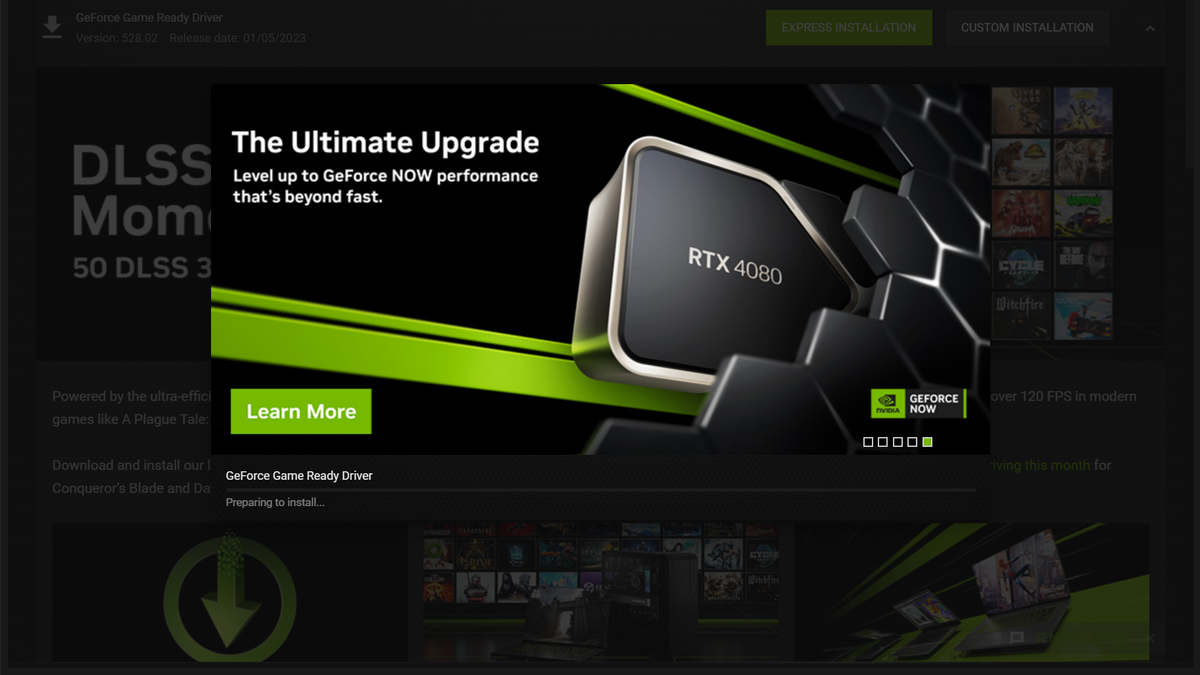
This comprehensive guide will walk you through the various methods of updating your NVIDIA drivers, explaining the benefits, the preparation steps, and how to troubleshoot common issues. Our goal is to empower you with the knowledge to maintain your NVIDIA graphics card in its best possible state, ensuring you’re always getting the most out of your hardware investment.
Why Keeping Your NVIDIA Drivers Updated Matters
The reasons to keep your NVIDIA drivers current extend far beyond simple maintenance; they directly impact your daily computing experience. Neglecting driver updates can lead to a myriad of issues, from performance bottlenecks to critical system instabilities. Understanding the “why” behind driver updates can motivate you to integrate this essential practice into your routine.
Unlocking Peak Gaming Performance
For gamers, this is arguably the most significant benefit. NVIDIA frequently releases Game Ready Drivers that are specifically optimized for the latest game titles. These updates often include performance enhancements, bug fixes related to specific games, and support for new gaming technologies like DLSS (Deep Learning Super Sampling) or Ray Tracing. Without these updates, you might experience lower frame rates, graphical glitches, or even be unable to run certain games at all, putting you at a distinct disadvantage. Each new driver release can potentially boost your FPS, reduce stuttering, and provide a smoother, more immersive gaming experience.
Enhancing System Stability and Reliability
Outdated or corrupted drivers are a common culprit behind system crashes, freezes, and the dreaded Blue Screen of Death (BSOD). NVIDIA’s driver updates often include crucial bug fixes that address stability issues, memory leaks, and conflicts with other system components or software. Keeping your drivers current ensures that your graphics card operates harmoniously with your operating system and other applications, leading to a more reliable and consistent computing environment. This stability is particularly important for professionals working with demanding applications where unexpected crashes can lead to significant loss of work.
Accessing New Features and Technologies
NVIDIA is continuously innovating, introducing new features and technologies designed to improve visual fidelity, productivity, and overall user experience. These advancements, such as new display technologies, advanced rendering techniques, or specialized tools for content creation, are often unlocked or optimized through driver updates. For instance, new CUDA cores features for scientific computing or AI applications, or enhancements to NVIDIA Broadcast for streamers, typically require the latest drivers to function correctly and efficiently. Updating your drivers ensures you’re not left behind and can leverage the full potential of your NVIDIA hardware.
Patching Security Vulnerabilities
While less common than performance or stability issues, drivers can also contain security vulnerabilities. Malicious actors can exploit these weaknesses to gain unauthorized access, compromise system integrity, or launch attacks. NVIDIA, like all major hardware manufacturers, regularly releases driver updates that patch identified security flaws. Keeping your drivers updated is therefore an important aspect of maintaining a secure computing environment, protecting your data and your system from potential threats.
Preparing for Your Driver Update
Before diving into the update process, a few preparatory steps can ensure a smooth, hassle-free experience. These actions help you identify your hardware, understand your current software state, and take precautions against potential issues.
Identifying Your NVIDIA Graphics Card Model
Knowing your exact graphics card model is crucial for downloading the correct drivers. Installing the wrong driver can lead to instability or non-functionality.
There are several ways to check this:
- System Information: In Windows, type “dxdiag” into the search bar and press Enter. Navigate to the “Display” tab to see your NVIDIA card’s name.
- Device Manager: Right-click on the Start button, select “Device Manager,” expand “Display adapters,” and you’ll see your NVIDIA card listed.
- NVIDIA Control Panel: If you already have NVIDIA drivers installed, right-click on your desktop, select “NVIDIA Control Panel,” then go to “Help” > “System Information.”
- Physical Inspection: If you built your PC, you might remember the model, or you can physically inspect the card inside your PC (though this is less convenient).
Checking Your Current Driver Version
It’s good practice to know what driver version you’re currently running. This information can be found through “dxdiag,” Device Manager (under “Driver” tab for your graphics card), or the NVIDIA Control Panel (“System Information”). This helps you confirm if the update was successful and aids in troubleshooting if you encounter issues after an update.
Backing Up Important Data (Optional, but Recommended)
While driver updates are generally safe, any significant system change carries a small risk. For critical systems or if you have sensitive data, performing a quick backup of essential files or creating a system restore point is a prudent step. This provides a safety net, allowing you to revert your system to a previous state if something goes wrong.
Deciding on a Clean Installation
Many NVIDIA driver updates offer a “Clean Installation” option. This process removes all previous NVIDIA driver files and settings before installing the new ones. While not strictly necessary for every update, a clean installation is highly recommended if you’re experiencing performance issues, graphical glitches, or are upgrading from a very old driver version. It helps prevent conflicts and ensures a fresh slate for the new driver.
Method 1: The Easiest Way – NVIDIA GeForce Experience
For most users, especially gamers, NVIDIA GeForce Experience is the most convenient and recommended method for keeping drivers updated. It streamlines the entire process, from detection to installation.
Installing GeForce Experience (if not already present)
If you haven’t already, download and install NVIDIA GeForce Experience from NVIDIA’s official website. It’s a free application that not only manages drivers but also optimizes game settings, records gameplay, and offers other useful features.
Automatic Driver Detection and Download
Once installed and logged in (an NVIDIA account is required, which is free), GeForce Experience automatically detects your NVIDIA graphics card and scans for available driver updates. When a new driver is released, you’ll typically receive a notification within the application or via a desktop pop-up.
- Open GeForce Experience.
- Navigate to the “Drivers” tab.
- If an update is available, it will be prominently displayed.
One-Click Installation Process
GeForce Experience simplifies the installation significantly:
- Click the “Download” button next to the available driver.
- Once downloaded, you’ll have two installation options:
- Express Installation: This is the default and recommended option for most users. It automatically installs the new driver and necessary components without requiring much input.
- Custom Installation: This allows you to select specific components to install (e.g., driver, PhysX, GeForce Experience itself) and also offers the “Perform a clean installation” checkbox. For troubleshooting or ensuring maximal cleanliness, custom with clean installation is preferred.
- Follow the on-screen prompts. Your screen might flicker or go black momentarily during the installation, which is normal.
- Once complete, a notification will confirm the successful installation. A system reboot might be required.
Custom vs. Express Installation
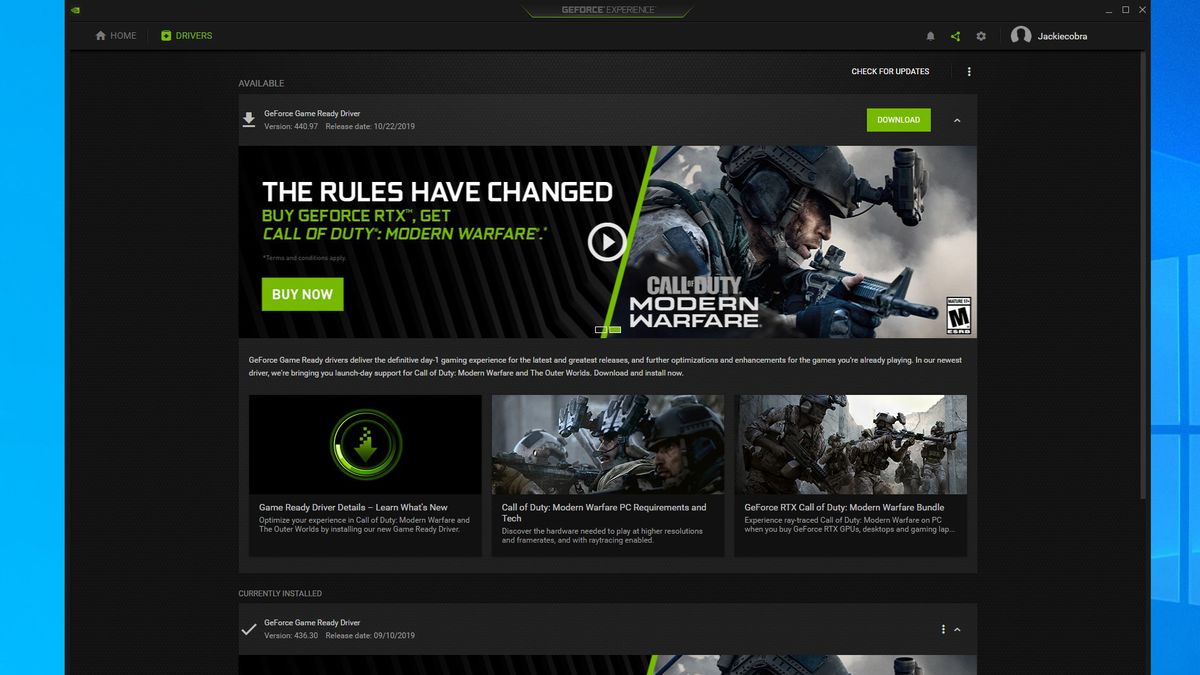
While Express is quicker, Custom offers more control. If you’ve had issues in the past or want to ensure no old files interfere, choose Custom and tick the “Perform a clean installation” box. This essentially runs a Display Driver Uninstaller (DDU)-like process before installing the new driver, providing a pristine driver environment.
Method 2: Manual Update via NVIDIA’s Website
For users who prefer more control, don’t want GeForce Experience installed, or are troubleshooting, manually downloading and installing drivers from NVIDIA’s website is a robust alternative.
Navigating the NVIDIA Driver Download Page
- Open your web browser and go to the official NVIDIA Driver Downloads page (usually
www.nvidia.com/drivers). - You’ll see a search interface where you need to input details about your graphics card.
Manually Selecting Your Graphics Card and OS
This is where knowing your exact graphics card model from the preparation step comes in handy.
- Product Type: Select “GeForce” for consumer cards.
- Product Series: Choose your card’s series (e.g., “GeForce RTX 40 Series”).
- Product: Select your specific card model (e.g., “GeForce RTX 4080”).
- Operating System: Choose your Windows version (e.g., “Windows 11 64-bit”).
- Download Type: Usually, “Game Ready Driver (GRD)” is what most users need. “Studio Driver (SD)” is for creators and offers stability over cutting-edge game optimizations.
- Click “Search.”
Downloading the Correct Driver Package
After clicking “Search,” NVIDIA will present you with the latest compatible driver.
- Review the driver version, release date, and supported products to ensure it matches your requirements.
- Click “Get Download” and then “Download” again to start the download. The file will be a large executable (.exe) file.
Running the Installer and Following Prompts
Once the download is complete:
- Locate the downloaded .exe file (usually in your “Downloads” folder) and double-click it to run the installer.
- The installer will first extract its contents. You can choose a temporary location or use the default.
- Accept the NVIDIA Software License Agreement.
- You will then be presented with the “Installation Options” screen, similar to GeForce Experience:
- Express (Recommended): The easiest way, installs all components.
- Custom (Advanced): Allows you to select components and perform a clean installation. Again, for thoroughness, “Custom” with “Perform a clean installation” is often preferred.
- Follow the on-screen instructions. The installation process might cause screen flickering.
- Once finished, you might be prompted to restart your computer. It’s always a good idea to reboot after a driver installation to ensure all changes take effect.
Method 3: Updating Through Windows Device Manager (Less Recommended for Gaming)
This method uses Windows’ built-in functionality to update drivers. While it can update some drivers, it’s generally less effective for NVIDIA graphics drivers, especially for accessing the latest Game Ready features. Windows Update or Device Manager often provides older, generic, or WHQL-certified drivers rather than the cutting-edge versions released by NVIDIA.
Accessing Device Manager
- Right-click on the Start button.
- Select “Device Manager” from the context menu.
Locating Your Display Adapter
- In the Device Manager window, expand the “Display adapters” category.
- You should see your NVIDIA graphics card listed there (e.g., “NVIDIA GeForce RTX 4080”).
- Right-click on your NVIDIA graphics card.
- Select “Update driver.”
Initiating the Update Driver Software Process
- You’ll be given two options:
- “Search automatically for drivers”: Windows will attempt to find a driver on your computer and online. This often leads to Windows stating you already have the best driver, even if a newer one exists on NVIDIA’s website.
- “Browse my computer for drivers”: This option is useful if you have a specific driver file you downloaded manually. You can point Windows to the folder containing the extracted NVIDIA driver files (usually in
C:NVIDIADisplayDriver<DriverVersion><OS>International).
- Follow any subsequent prompts.
Why This Method Might Be Insufficient
For NVIDIA graphics cards, relying solely on Device Manager or Windows Update typically means you won’t get the latest Game Ready Drivers, which contain critical optimizations for new games and features. Windows tends to prioritize stability with WHQL-certified drivers that might be several versions behind NVIDIA’s direct releases. Therefore, for optimal gaming and feature support, using GeForce Experience or manual downloads from NVIDIA’s website is always the preferred approach.
Post-Update Checks and Troubleshooting
After updating your drivers, it’s essential to confirm everything is working correctly and know how to address potential issues.
Verifying the New Driver Installation
- NVIDIA Control Panel: Right-click on your desktop, select “NVIDIA Control Panel,” then go to “Help” > “System Information.” Check the “Driver version” field.
- GeForce Experience: Open GeForce Experience and check the “Drivers” tab. It should show that you have the latest driver installed.
- Dxdiag: Run “dxdiag” (Windows search), go to the “Display” tab, and verify the driver version.
- Test Your Applications: Launch a demanding game or a graphics-intensive application to ensure it runs smoothly and without issues.
Common Issues After Updates (Black Screen, Performance Drops)
Occasionally, a driver update might introduce unexpected problems:
- Black Screen/No Display: This can happen during or immediately after an update. Wait a few minutes; sometimes, the display driver is just reinitializing. If it persists, try booting into Safe Mode (press F8 or Shift+Restart during boot) and uninstalling the problematic driver.
- Performance Drops/Stuttering: This is rare but can occur. Ensure you did a clean installation. Check task manager to see if any background processes are consuming excessive resources.
- Graphical Glitches: Artifacts, flickering, or unusual colors. This might indicate a corrupted installation or a rare driver bug.
Rolling Back to a Previous Driver Version
If you encounter significant issues after an update, Windows allows you to roll back your driver:
- Right-click on the Start button, select “Device Manager.”
- Expand “Display adapters” and right-click on your NVIDIA card.
- Select “Properties,” then navigate to the “Driver” tab.
- Click “Roll Back Driver.” This option will only be available if there’s a previous driver to revert to.
Performing a Clean Driver Reinstallation with DDU (Display Driver Uninstaller)
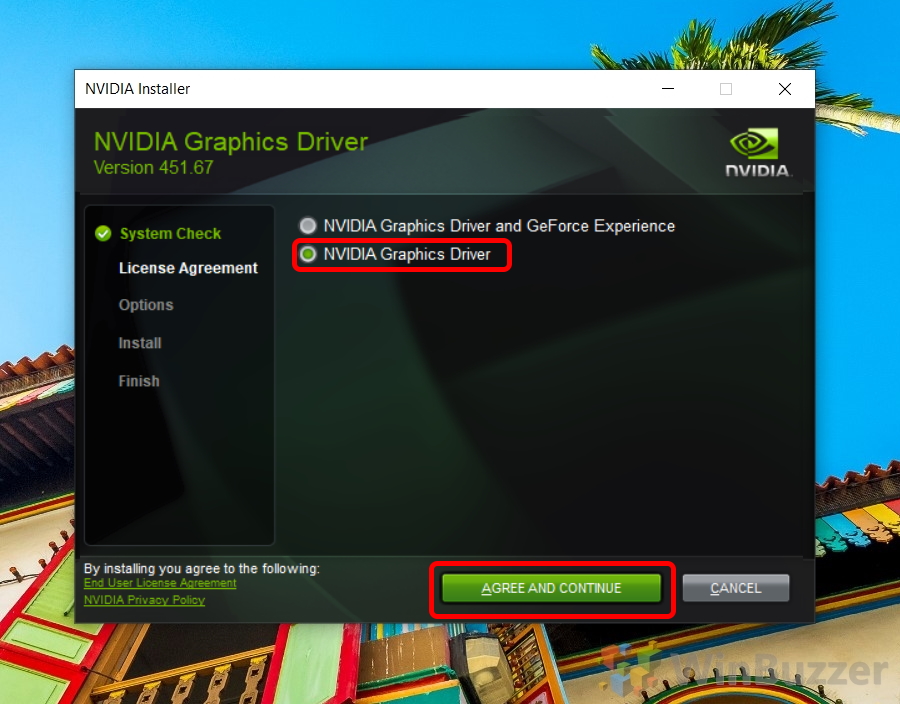
For persistent or severe driver-related issues, a completely clean reinstallation using Display Driver Uninstaller (DDU) is often the definitive solution. DDU is a third-party tool that thoroughly removes all traces of NVIDIA drivers from your system, including registry entries and files that standard uninstallers might miss.
- Download DDU from its official source (e.g., Guru3D).
- Boot your PC into Windows Safe Mode. This is crucial for DDU to work effectively.
- Run DDU, select “NVIDIA” as the device type, and choose “Clean and restart (Recommended).”
- Once your PC restarts, download the latest driver from NVIDIA’s website (Method 2) and perform a custom, clean installation.
Keeping your NVIDIA drivers updated is a simple yet critical step in maintaining a high-performing, stable, and secure computing environment. By following the methods outlined in this guide, you can ensure your NVIDIA graphics card is always operating at its best, ready to tackle the demands of modern games and applications. Regular maintenance translates into a smoother, more enjoyable digital experience, making the small effort of updating your drivers well worth the reward.
aViewFromTheCave is a participant in the Amazon Services LLC Associates Program, an affiliate advertising program designed to provide a means for sites to earn advertising fees by advertising and linking to Amazon.com. Amazon, the Amazon logo, AmazonSupply, and the AmazonSupply logo are trademarks of Amazon.com, Inc. or its affiliates. As an Amazon Associate we earn affiliate commissions from qualifying purchases.