
In the dynamic world of computing, where technological advancements are constant, keeping your system optimized is paramount. Among the many components that contribute to a seamless digital experience, the graphics driver plays a surprisingly central role. Often overlooked until an issue arises, graphics drivers are critical software interfaces that allow your operating system and applications to communicate effectively with your graphics processing unit (GPU). Whether you’re a hardcore gamer seeking the highest frame rates, a professional designer demanding accurate rendering, or simply a casual user wanting a stable and responsive desktop, understanding how and why to update your graphics driver is essential.

Outdated drivers can lead to a host of problems, from performance bottlenecks and system instability to compatibility issues with new software and games. Conversely, a properly updated driver can unlock new features, enhance security, and dramatically improve overall system performance. This comprehensive guide will walk you through the process, demystifying what might seem like a complex task and empowering you to maintain your system’s visual prowess with confidence.
Why Updating Your Graphics Driver Matters
The significance of an updated graphics driver extends far beyond merely fixing bugs; it’s about unlocking the full potential of your hardware and ensuring a robust, secure, and future-proof computing experience. Ignoring driver updates is akin to driving a high-performance car with underinflated tires – you’re simply not getting the intended experience.
Enhanced Performance and Stability
One of the most immediate and tangible benefits of updating your graphics driver is the boost in performance. Graphics card manufacturers like NVIDIA, AMD, and Intel constantly release new drivers that include optimizations for popular games and demanding applications. These optimizations can translate into higher frame rates, smoother gameplay, and faster rendering times for creative tasks. Beyond raw speed, updated drivers often contain crucial stability fixes, reducing the likelihood of crashes, freezes, and graphical glitches that can disrupt your workflow or gaming session. A stable system is a productive system, and updated drivers are a cornerstone of that stability.
Access to New Features and Technologies
Graphics technology evolves rapidly, and often, new features aren’t just hardware-dependent; they also require corresponding software support through drivers. Technologies like real-time ray tracing, DLSS (Deep Learning Super Sampling), FSR (FidelityFX Super Resolution), and new display standards (e.g., HDMI 2.1, DisplayPort 2.0) often rely on the latest driver versions to function correctly or to deliver their full capabilities. Updating your drivers ensures that your GPU can take advantage of these cutting-edge innovations, providing you with better visuals, improved efficiency, and compatibility with the newest hardware and software standards. It’s how your existing hardware remains relevant and competitive in an ever-changing landscape.
Critical Bug Fixes and Security Patches
Like any complex software, graphics drivers can have vulnerabilities and bugs. Manufacturers actively work to identify and patch these issues. A new driver release often contains fixes for specific game crashes, display errors, or compatibility problems with recent operating system updates. More critically, driver updates can also include security patches that address vulnerabilities which, if exploited, could potentially compromise your system. Staying current with your drivers is a fundamental aspect of digital security, safeguarding your system against potential threats and ensuring a smooth, uninterrupted user experience free from known software flaws.
Preparing to Update Your Graphics Driver
Before you dive into the update process, a few preparatory steps can save you significant headaches. Proper preparation ensures that you download the correct driver, minimizes potential conflicts, and provides a safety net should anything go awry. This proactive approach is crucial for a smooth and successful driver update.
Identifying Your Current Graphics Card
The first and most critical step is to accurately identify your graphics card. Installing the wrong driver can lead to system instability, display issues, or even prevent your computer from booting correctly.
- For Windows users:
- Right-click on the Start button and select “Device Manager.”
- Expand the “Display adapters” section. Here you will see the name of your graphics card (e.g., NVIDIA GeForce RTX 3080, AMD Radeon RX 6700 XT, Intel Iris Xe Graphics).
- Alternatively, you can type “dxdiag” into the Windows search bar and run the DirectX Diagnostic Tool. Under the “Display” tab, you’ll find detailed information about your graphics card.
- Note down the exact model name. This information will be vital when searching for drivers.
Backing Up Your System (Optional but Recommended)
While driver updates are generally safe, unexpected issues can sometimes occur. Creating a system restore point or a full system backup before a major driver update is a highly recommended precaution.
- System Restore Point (Windows): Search for “Create a restore point” in the Windows search bar. In the System Properties window, ensure system protection is on for your main drive, then click “Create…” Give your restore point a descriptive name (e.g., “Pre-Graphics Driver Update”). This allows you to revert your system to a previous working state if the new driver causes problems.
- Full System Backup: For critical systems, consider a full system image backup using Windows Backup and Restore or a third-party utility. This provides the ultimate safety net.
Downloading the Correct Drivers
Once you know your graphics card model, you can proceed to download the latest drivers. Always download drivers directly from the official manufacturer’s website to ensure authenticity, stability, and security. Avoid third-party driver download sites, as they may offer outdated or modified drivers that could introduce malware or instability.
- NVIDIA: Visit www.nvidia.com/drivers. Use their manual search by selecting your product type, series, and operating system, or use their automatic driver detection tool.
- AMD: Go to www.amd.com/support. Similar to NVIDIA, you can manually select your product from a list or download their “Auto-Detect and Install” tool.
- Intel: Navigate to www.intel.com/support/drivers. Intel also offers an automatic driver update utility or manual selection.
- Match your operating system (Windows 10, Windows 11) and its architecture (64-bit) precisely. Download the recommended “Game Ready” or “Studio” (for NVIDIA) or “Adrenalin” (for AMD) software package, which includes the driver.
Methods for Updating Graphics Drivers
With your preparations complete and the correct driver downloaded, you’re ready to perform the update. There are several methods, each suitable for different situations, ranging from simple automatic updates to more thorough clean installations.
Automatic Update via Device Manager (Windows)
This is the simplest method and often sufficient for minor updates or if you prefer Windows to manage most of your hardware.
- Right-click the Start button and select “Device Manager.”
- Expand “Display adapters.”
- Right-click on your graphics card and select “Update driver.”
- Choose “Search automatically for drivers.” Windows will then search your computer and the internet for the latest compatible driver.
This method is convenient but often doesn’t find the very latest drivers directly from the manufacturer, as Windows Update often lags behind.
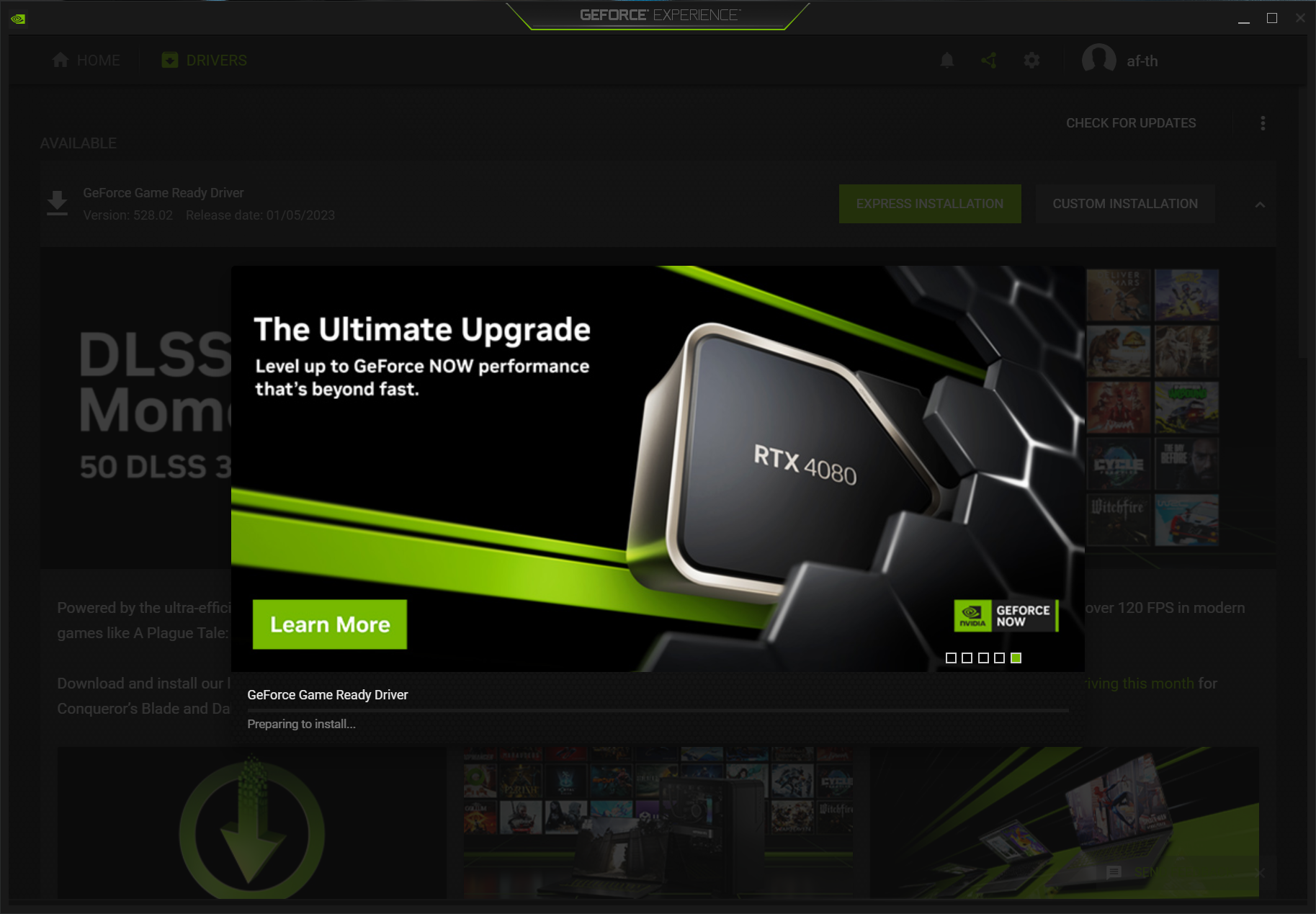
Manual Update via Manufacturer’s Website (NVIDIA, AMD, Intel)
This is the most common and recommended method for ensuring you have the absolute latest driver directly from your GPU manufacturer.
- Locate the driver package you downloaded from the official manufacturer’s website. It’s usually an executable file (
.exe). - For a standard installation: Double-click the
.exefile to start the installer. Follow the on-screen prompts, agreeing to the license terms. The installer will typically detect your existing driver and replace it. - For a clean installation (recommended): During the installation process, look for an option that specifies “Custom” or “Advanced” installation. Within this, there should be a checkbox or option to perform a “clean installation” (NVIDIA’s “Perform clean installation” checkbox or AMD’s “Factory Reset” option). Selecting this will remove previous driver files and settings before installing the new one, minimizing potential conflicts and ensuring a fresh start. This is particularly beneficial when upgrading between major driver versions or experiencing issues.
Using Manufacturer’s Software (GeForce Experience, AMD Radeon Software)
NVIDIA and AMD provide dedicated software suites that simplify driver management and offer additional features.
- NVIDIA GeForce Experience: If you have an NVIDIA card, installing GeForce Experience (usually bundled with the driver download) allows you to check for, download, and install new Game Ready Drivers with a few clicks. It also offers game optimization, ShadowPlay recording, and other features.
- AMD Radeon Software Adrenalin Edition: For AMD users, Radeon Software provides similar functionality, allowing you to manage drivers, optimize games, and access various display and performance settings.
Both tools offer user-friendly interfaces to keep your drivers up-to-date, often notifying you when new versions are available. They streamline the process by automatically detecting your card and operating system.
Troubleshooting Common Update Issues
Even with careful preparation, driver updates can sometimes throw a curveball. Knowing how to troubleshoot common problems can help you quickly resolve issues and get your system back on track.
Screen Flickering or Resolution Problems
After an update, your screen might flicker, display at an incorrect resolution, or show corrupted graphics.
- Solution: Often, this is a temporary issue as the new driver initializes. Give it a minute. If it persists, try restarting your computer. If the problem continues, ensure you installed the correct driver for your specific GPU model and operating system. If unsure, perform a clean installation. If the display is completely unusable, try booting into Safe Mode (Windows Key + R, type
msconfig, go to Boot tab, check Safe boot, restart) to uninstall the problematic driver.
Driver Installation Failures
Sometimes the installer fails to complete, citing errors or an inability to find compatible hardware.
- Solution:
- Check for conflicting software: Temporarily disable any antivirus or anti-malware software during the installation.
- Run as Administrator: Right-click the driver installer
.exefile and select “Run as administrator.” - Clean Driver Uninstallation: Use a utility like Display Driver Uninstaller (DDU) in Safe Mode to completely remove all traces of previous graphics drivers. This is a powerful tool to resolve persistent installation issues by ensuring a truly clean slate before reinstalling the new driver. After running DDU, restart your PC and then attempt the driver installation again.
- Download integrity: Re-download the driver file; corruption during download can cause installation failures.
Performance Degradation After Update
In rare cases, a new driver might negatively impact performance or introduce new bugs.
- Solution: Check online forums or the manufacturer’s support pages for known issues with the specific driver version you installed. Sometimes, a “hotfix” driver is released quickly, or users report better stability with an older, proven driver. If widespread issues are reported, it might be advisable to revert to the previous driver version.
Reverting to a Previous Driver Version
If a new driver causes irreparable problems, you can roll back to a prior, stable version.
- Right-click the Start button and select “Device Manager.”
- Expand “Display adapters” and right-click on your graphics card.
- Select “Properties.”
- Go to the “Driver” tab and click “Roll Back Driver” (if available). Follow the prompts.
If “Roll Back Driver” is greyed out or doesn’t resolve the issue, you will need to manually uninstall the current driver (using DDU for a clean removal) and then install an older, known-stable driver version downloaded from the manufacturer’s website. Manufacturers usually keep archives of previous driver releases.
Maintaining Your Graphics Drivers and System
Updating your graphics driver isn’t a one-time event; it’s an ongoing aspect of PC maintenance. Regular attention ensures your system remains performant, stable, and secure in the long run. Establishing a routine and understanding the broader context of driver management will serve you well.
Regular Checks and Update Cadence
How often should you update? There’s no single answer, as it depends on your usage.
- Gamers: Should check for new Game Ready Drivers frequently, especially before playing new AAA titles, as these often come with day-one driver optimizations. A monthly check is a good baseline.
- Creative Professionals: May prefer “Studio Drivers” (NVIDIA) or specific workstation drivers (AMD), which prioritize stability and compatibility with professional software over raw gaming performance. Update less frequently, perhaps quarterly, or when major software updates for your creative applications are released.
- General Users: Can update less often, perhaps every few months, or if experiencing specific issues.
The key is to strike a balance between having the latest features/fixes and maintaining system stability. Always read the driver release notes to understand what changes or fixes are included before updating.
Understanding Driver Release Cycles
Graphics card manufacturers follow distinct release cycles.
- NVIDIA: Tends to release “Game Ready Drivers” every few weeks, often coinciding with major game launches. They also offer “Studio Drivers” which are less frequent and certified for creative applications.
- AMD: Releases “Adrenalin Software” updates monthly or bi-monthly, often with similar game optimizations and bug fixes.
- Intel: Releases drivers less frequently, focusing on stability and compatibility for integrated graphics, which are often used in laptops and business machines.
Knowing these cycles helps you anticipate updates and understand the focus of each release. Don’t feel compelled to update every single time a new driver drops, especially if your system is running perfectly fine.
Keeping Your Operating System Updated
While this guide focuses on graphics drivers, it’s crucial to remember that your GPU drivers don’t exist in isolation. They interact closely with your operating system. Ensuring your operating system (Windows, Linux) is fully updated is just as important. OS updates often include critical security patches, performance enhancements, and compatibility fixes that can indirectly affect how your graphics driver functions. An outdated OS might conflict with a newer graphics driver, leading to unexpected behavior. Maintain a holistic approach to system updates for optimal performance and stability.
By following these guidelines and regularly maintaining your graphics drivers, you’ll ensure your computer’s visual capabilities are always at their best, delivering a smooth, high-performance, and reliable experience for all your digital endeavors.
aViewFromTheCave is a participant in the Amazon Services LLC Associates Program, an affiliate advertising program designed to provide a means for sites to earn advertising fees by advertising and linking to Amazon.com. Amazon, the Amazon logo, AmazonSupply, and the AmazonSupply logo are trademarks of Amazon.com, Inc. or its affiliates. As an Amazon Associate we earn affiliate commissions from qualifying purchases.