
In the fast-evolving world of personal computing, the graphics processing unit (GPU) stands as a cornerstone for everything from immersive gaming and professional video editing to sophisticated CAD designs and machine learning tasks. While the hardware itself is a marvel of engineering, its true potential is unlocked and maintained through software – specifically, its drivers. Keeping these drivers up-to-date isn’t merely a suggestion; it’s a critical maintenance task that can significantly impact performance, stability, and access to the latest features. This comprehensive guide will demystify the process, ensuring your graphics card operates at its peak efficiency.

Why Keeping Your GPU Drivers Current Is Crucial
Many users overlook driver updates until they encounter a problem. However, understanding the underlying benefits can transform this chore into a proactive part of your system maintenance routine. GPU drivers are the essential communication bridge between your operating system and your graphics card, and neglecting them can lead to a host of avoidable issues.
Enhanced Performance and Stability
One of the most immediate and tangible benefits of updating your GPU drivers is the potential for significant performance gains. Graphics card manufacturers like NVIDIA, AMD, and Intel constantly optimize their drivers to extract more power from their hardware. This often translates to higher frame rates in games, faster rendering times in creative applications, and smoother overall system responsiveness. Beyond raw performance, updated drivers also bring stability improvements. They address bugs, resolve conflicts with new software, and prevent crashes or freezes that can disrupt your workflow or gaming session. A stable system is an efficient system, saving you from frustrating downtime and potential data loss.
Bug Fixes and Compatibility
Software is rarely perfect, and GPU drivers are no exception. New versions frequently include critical bug fixes that address issues ranging from minor graphical glitches to major system instabilities. Furthermore, as new games, applications, and operating system updates are released, older drivers might struggle with compatibility. Developers design new drivers to ensure seamless integration with the latest software environments, preventing errors, crashes, and performance bottlenecks that arise from outdated communication protocols. This is particularly vital for gamers, as new game titles often demand specific driver versions for optimal performance and to enable game-specific features.
New Features and Optimizations
Driver updates often introduce new features, tools, and optimizations that enhance the user experience. For example, NVIDIA’s Game Ready Drivers and AMD’s Radeon Software updates frequently include optimizations for newly released games, allowing for day-one performance improvements and stability. They might also introduce advanced functionalities like improved ray tracing performance, new upscaling technologies (e.g., DLSS, FSR), or enhanced control panel options for fine-tuning your graphics settings. For professional users, this could mean support for new APIs, improved computational capabilities, or better integration with industry-standard software suites. Staying current ensures you’re leveraging your hardware’s full suite of capabilities.
Security Vulnerability Patches
While less common than performance or stability updates, GPU drivers can sometimes contain security vulnerabilities that, if exploited, could compromise your system. Manufacturers are diligent in identifying and patching these flaws, releasing updates that close potential backdoors. Ensuring your drivers are current is therefore a component of a holistic digital security strategy, protecting your system from potential exploits and malware that might target known driver weaknesses.
Identifying Your Graphics Card and Current Driver Version
Before you can update your GPU drivers, you need to know what graphics card you have and what driver version is currently installed. This information is crucial for downloading the correct drivers and verifying a successful update. There are several straightforward methods to achieve this, suitable for both beginners and experienced users.
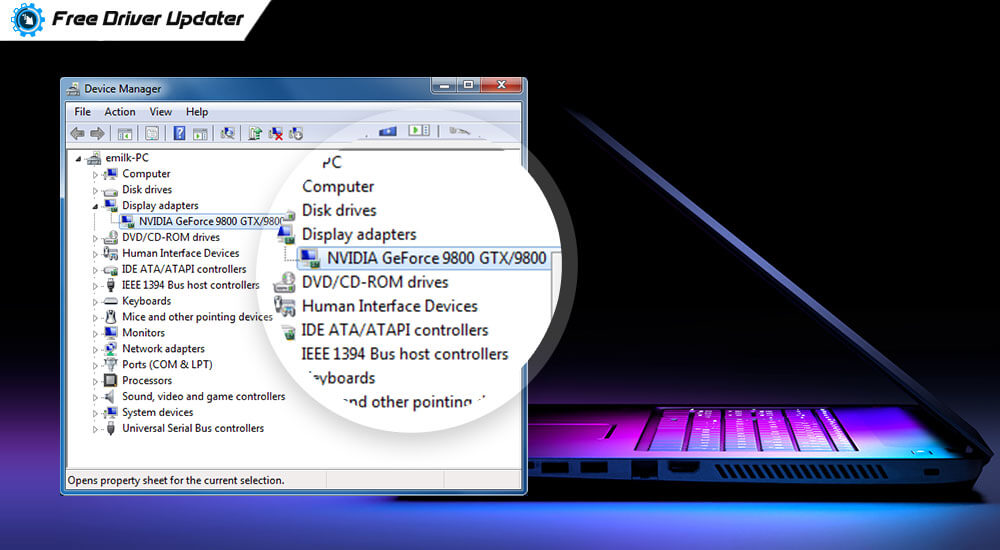
Using Device Manager (Windows)
The Device Manager is a fundamental Windows utility that provides a centralized view of all the hardware components connected to your system.
- Open Device Manager: You can typically do this by right-clicking the Start button and selecting “Device Manager,” or by typing “Device Manager” into the Windows search bar.
- Locate Display Adapters: In the Device Manager window, expand the “Display adapters” section. This will list all graphics cards detected by your system. You might see one (e.g., NVIDIA GeForce RTX 3080) or two (if you have both integrated graphics like Intel UHD and a dedicated GPU).
- Identify Your GPU: Note down the name of your primary graphics card.
- Check Driver Version: Right-click on your graphics card’s name, select “Properties,” and then navigate to the “Driver” tab. Here you will find details like the “Driver Provider,” “Driver Date,” and “Driver Version.” This information is vital for comparing against the latest available drivers.
Utilizing Manufacturer Software
Both NVIDIA and AMD provide proprietary software suites that not only offer robust control over your GPU settings but also serve as excellent tools for identifying your hardware and managing driver updates.
- NVIDIA GeForce Experience: If you have an NVIDIA card, GeForce Experience is likely already installed. Launch the application, and navigate to the “Drivers” tab. It will display your current driver version, whether an update is available, and details about your specific NVIDIA GPU. The “Home” or “System Information” sections also typically provide detailed hardware specifications.
- AMD Radeon Software: For AMD users, the Radeon Software (formerly Radeon Adrenalin Edition) provides similar functionality. Launch the software, usually by right-clicking on your desktop and selecting “AMD Radeon Software.” Within the application, you can find your GPU information and driver version under the “System” or “Settings” tab. It also usually has a prominent section indicating driver updates.
Intel Driver & Support Assistant
For systems relying on Intel integrated graphics, the Intel Driver & Support Assistant is a highly recommended tool. Once installed, it automatically scans your system for Intel hardware, identifies your graphics solution, and notifies you of any available driver updates directly from Intel, streamlining the process significantly.
The Step-by-Step Guide to Updating Your Drivers
Once you know your GPU model, the update process is relatively straightforward. While the exact steps vary slightly between manufacturers, the core principle remains consistent: download the latest official driver and install it.
NVIDIA Graphics Cards
NVIDIA offers two primary methods for updating drivers: via GeForce Experience (recommended for most users) or through a manual download from their website.
- Using GeForce Experience (Recommended):
- Open the GeForce Experience application.
- Navigate to the “Drivers” tab.
- If a new driver is available, it will be prominently displayed. Click “Download.”
- Once downloaded, you’ll have two installation options: “Express Installation” (recommended for most users, which performs a standard update) or “Custom Installation” (allows you to select specific components or perform a clean installation). For a typical update, “Express Installation” is sufficient.
- Follow the on-screen prompts. Your screen may flicker or go black briefly during the installation.
- Restart your computer if prompted.
- Manual Download from NVIDIA Website:
- Go to the official NVIDIA Driver Download page (nvidia.com/drivers).
- Manually select your “Product Type” (e.g., GeForce), “Product Series” (e.g., GeForce RTX 30 Series), “Product” (e.g., GeForce RTX 3080), and your “Operating System.”
- Click “Search.”
- Review the latest driver details, ensuring it’s newer than your current version, and click “Download.”
- Once the executable file is downloaded, run it.
- Choose “Express Installation” or “Custom Installation” and follow the prompts.
- Restart your computer if requested.
AMD Graphics Cards
AMD’s update process is similar to NVIDIA’s, utilizing their Radeon Software or manual downloads.
-
Using Radeon Software (Recommended):
- Open the AMD Radeon Software application (right-click desktop -> AMD Radeon Software).
- Click on the gear icon (Settings) in the top right corner.
- Navigate to the “System” tab.
- Under “Graphics,” you’ll see your current driver version and a “Check for Updates” button. Click it.
- If an update is available, click “Download” and then “Install.”
- You’ll typically be given options for “Express Install” or “Custom Install.” “Express Install” is usually fine. There might also be an option for a “Factory Reset,” which performs a clean installation (more on this later).
- Follow the on-screen instructions. Your screen may flicker.
- Restart your PC when prompted.
-
Manual Download from AMD Website:
- Visit the official AMD Drivers and Support page (amd.com/en/support).
- You can use the “Auto-Detect and Install” tool for Windows (recommended) or manually select your product from the list (e.g., “Graphics,” then your specific series and model).
- Once you’ve located your GPU, find the latest driver for your operating system and click “Download.”
- Run the downloaded executable file.
- Choose your preferred installation method (Express or Custom) and proceed.
- Restart your system.
Intel Integrated Graphics
For Intel integrated graphics, the process is streamlined by the Intel Driver & Support Assistant.
-
Using Intel Driver & Support Assistant (Recommended):
- If not already installed, download and install the Intel Driver & Support Assistant from Intel’s official website.
- Run the assistant. It will automatically scan your system.
- If an Intel graphics driver update is available, it will be listed. Click “Download” and then “Install.”
- Follow the on-screen instructions.
- Restart your computer if necessary.
-
Manual Download from Intel Website:
- Go to the Intel Download Center (downloadcenter.intel.com).
- Search for your specific Intel graphics model (e.g., Intel Iris Xe Graphics, Intel UHD Graphics 750).
- Filter by “Drivers” and your operating system.
- Download the latest graphics driver package.
- Run the installer and follow the prompts.
- Restart your system.
Best Practices and Troubleshooting Tips
While updating GPU drivers is generally a smooth process, adhering to best practices and knowing how to troubleshoot can save you from potential headaches.
Clean Installation vs. Standard Update
A “clean installation” removes all previous driver files and settings before installing the new ones. This is often recommended when:
- You’re experiencing driver-related issues with your current installation.
- You’re upgrading your graphics card from one manufacturer to another (e.g., NVIDIA to AMD).
- You want to ensure there are no lingering conflicts from old driver files.
NVIDIA GeForce Experience and AMD Radeon Software offer a “Custom” or “Factory Reset” option during installation that includes a clean install. For a truly thorough clean, you can use a third-party tool like Display Driver Uninstaller (DDU) in Windows Safe Mode before installing new drivers. For most routine updates, an “Express” or standard update is sufficient and quicker.
Backing Up Your System (Restore Point)
Before undertaking any significant system changes, including driver updates, it’s wise to create a system restore point. This allows you to revert your system to a previous working state if the driver update causes unforeseen issues.
- Search for “Create a restore point” in Windows.
- Select your system drive (usually C:), click “Create,” and give the restore point a descriptive name.
What to Do If Things Go Wrong
In rare cases, a driver update might lead to display issues (e.g., black screen, flickering, low resolution) or system instability.
- Safe Mode: If your display is problematic, boot into Windows Safe Mode (search online for instructions for your Windows version). From Safe Mode, you can uninstall the problematic driver via Device Manager or run DDU.
- Rollback Driver: In Device Manager, under your graphics card’s properties (“Driver” tab), there might be a “Roll Back Driver” option. This will revert to your previously installed driver.
- System Restore: Use the system restore point you created earlier to return your PC to its state before the update.
- Reinstall Old Driver: If all else fails, you might need to download a known stable, older driver version from your GPU manufacturer’s website and install it.
Setting Up Automatic Updates
While manual updates give you control, both NVIDIA GeForce Experience and AMD Radeon Software offer options to automatically check for and sometimes download (or even install) new drivers in the background. This can be a convenient way to stay updated, though some users prefer manual control to ensure driver stability before installation.
Driver Update Frequency and Considerations
The question of “how often” to update drivers doesn’t have a one-size-fits-all answer. It largely depends on your usage patterns and risk tolerance.
When to Update
- New Game Releases: If you’re an avid gamer, update your drivers for major new game releases, as manufacturers often release “Game Ready” or optimized drivers alongside them.
- Performance Issues: If you start noticing unexplained performance drops, stutters, or crashes in your applications, a driver update should be one of your first troubleshooting steps.
- New Features: If a new driver promises features you want to use (e.g., DLSS 3, new creative tool optimizations), then it’s worth updating.
- Security Patches: Always prioritize security updates when they become available.

When to Wait (New Driver Stability)
Sometimes, brand new driver releases can introduce new bugs for a small subset of users or specific hardware configurations.
- Early Adopter Caution: If you rely on your system for critical work and stability is paramount, you might consider waiting a week or two after a new major driver release. This allows early adopters to report any widespread issues, which manufacturers often address with hotfixes or subsequent rapid updates.
- Stable System, No Issues: If your system is performing flawlessly, and you’re not encountering any issues, waiting for a few minor driver releases to accumulate before updating isn’t inherently risky. However, eventually, an update will be beneficial for the reasons outlined above.
Regularly updating your GPU drivers is a fundamental aspect of maintaining a healthy, high-performing computer. By understanding the benefits, knowing how to identify your hardware, and following the straightforward update procedures, you can ensure your graphics card always delivers its best, providing a smoother, more responsive, and secure computing experience.
aViewFromTheCave is a participant in the Amazon Services LLC Associates Program, an affiliate advertising program designed to provide a means for sites to earn advertising fees by advertising and linking to Amazon.com. Amazon, the Amazon logo, AmazonSupply, and the AmazonSupply logo are trademarks of Amazon.com, Inc. or its affiliates. As an Amazon Associate we earn affiliate commissions from qualifying purchases.