
In an increasingly interconnected digital world, the lines between operating systems often blur, yet specific software requirements or unique user experiences can still tie us to one platform over another. For many Mac users, the elegance and security of macOS are paramount. However, there comes a time when the need to run Windows applications – perhaps for specialized professional software, high-performance gaming, or specific development environments – becomes undeniable. This guide is your definitive resource for navigating the process of installing and running Windows on your Apple hardware, offering two primary methodologies to achieve this cross-platform synergy.

This capability isn’t just about technical wizardry; it’s about expanding your technological horizons, boosting your productivity, and making the most of your existing investment in Apple hardware. Whether you’re a tech enthusiast, a creative professional, or someone looking to diversify their digital toolkit, understanding how to integrate Windows into your Mac ecosystem is a valuable skill that enhances your device’s versatility and, by extension, your own digital prowess.
Why Consider Running Windows on Your Mac?
The decision to install a second operating system on your Mac isn’t made lightly. It typically stems from a clear need to access functionalities or software exclusive to the Windows environment. Understanding these motivations highlights the strategic value this integration brings to your tech arsenal, linking directly to productivity, professional adaptability, and smart resource management.
Software Compatibility and Professional Applications
One of the most common drivers for running Windows on a Mac is software compatibility. Many niche professional applications, particularly in engineering, architecture, finance, and specialized scientific research, are exclusively developed for Windows. While alternatives exist on macOS, they might lack certain features, industry-standard file formats, or direct integration with specific hardware.
For professionals whose personal brand is built on delivering high-quality, industry-compliant work, being able to seamlessly switch to a Windows environment on their Mac ensures they never miss a beat. This flexibility means you can leverage the powerful hardware of your Mac while still meeting client requirements or industry standards that mandate Windows-specific tools. It’s about enhancing your professional toolkit without the significant financial investment of purchasing a separate Windows machine, thereby optimizing your “tech money” allocation.
Gaming and Specific Hardware Needs
While macOS has made strides in supporting games, the vast majority of AAA titles and specialized gaming hardware (like VR headsets or specific joysticks) are still optimized primarily for Windows. Gamers often find themselves limited by the macOS game library. By installing Windows, your Mac transforms into a formidable gaming rig capable of running the latest titles at their best performance, especially on powerful Macs.
Beyond gaming, certain legacy hardware peripherals, like specific industrial scanners, older printers, or specialized diagnostic tools, might only have drivers compatible with Windows. For businesses or individuals relying on such hardware, a Windows environment on their Mac becomes indispensable, extending the useful life of existing equipment and avoiding unnecessary upgrades.
Boosting Productivity and Workflow Flexibility
The ability to switch between macOS and Windows isn’t just about necessity; it’s about empowering a more flexible and productive workflow. Some users simply prefer the user interface or specific features of Windows for certain tasks, while appreciating macOS for others. Developers, for instance, might need to test applications across both operating systems or work with Windows-specific development kits.
This dual-OS capability also fosters digital security and privacy by allowing you to segregate activities. You might use macOS for sensitive personal banking or creative work, and switch to Windows for less secure online browsing or specific software testing. This strategic separation can protect your primary macOS environment from potential threats encountered in the Windows domain. In essence, you’re investing in a more robust and adaptable personal computing strategy, making your time and technology more efficient.
Essential Preparations Before Installation
Before embarking on the installation journey, meticulous preparation is key. Rushing this phase can lead to frustrating roadblocks or, worse, data loss. Think of this as laying a solid financial foundation before making a major investment – a careful assessment of resources and potential risks.
Hardware Requirements and System Checks
Not all Macs are created equal, especially when it comes to supporting Windows. Apple’s Boot Camp Assistant, the tool for natively installing Windows, has specific compatibility requirements. Generally, most Intel-based Macs from 2012 onwards are supported. Newer Apple Silicon (M1, M2, M3) Macs do not support Boot Camp, and require virtualization software (which we’ll cover later).
Regardless of your Mac’s age, ensure it meets the minimum hardware specifications for the version of Windows you intend to install (e.g., Windows 10 or 11). This includes sufficient RAM (8GB recommended, 16GB ideal), processor speed, and graphics capabilities. Verify your Mac’s model and year by clicking the Apple menu () > “About This Mac.” Ensure your macOS is up to date, as Boot Camp Assistant is updated with macOS versions to support newer Windows releases.
Obtaining Your Windows Installation Media
You’ll need a legitimate copy of Windows. This typically comes in the form of a Windows ISO file, which is an exact copy of the installation disc. You can legally download official Windows 10 or Windows 11 ISO files directly from Microsoft’s website. You’ll also need a valid Windows product key to activate your copy of Windows, though you can install it without one and activate it later. Be wary of unofficial sources for ISO files, as they may contain malware or modified software, posing a significant digital security risk and potentially compromising your personal data.
For Boot Camp installations, an external USB flash drive (16GB or larger) might be required, especially for older Macs, to create a bootable installer. Newer Macs often allow Boot Camp Assistant to download and prepare the necessary files directly. For virtual machine installations, the ISO file is usually mounted directly within the virtual machine software.
Crucial Backup and Disk Space Management
This step cannot be stressed enough: back up your entire Mac before you begin. Installing another operating system involves partitioning your hard drive, a process that carries an inherent, albeit small, risk of data loss. Use Time Machine, iCloud, or a third-party backup solution to safeguard all your important files, photos, and documents. This is a critical investment in digital security and peace of mind.
Next, ensure you have ample free disk space. For a Boot Camp installation, Microsoft recommends at least 64 GB for Windows 10 and 11, but 128 GB or more is highly recommended for optimal performance and future updates, especially if you plan to install applications or games. For virtual machines, you’ll specify a virtual disk size, again, aiming for at least 100 GB for usability. Free up space by deleting unnecessary files, emptying your trash, and uninstalling unused applications. This foresight in managing your digital assets is a hallmark of good tech hygiene and effective financial planning for your storage.
Dual-Booting with Apple Boot Camp Assistant
Boot Camp Assistant is Apple’s native utility for installing Windows on Intel-based Macs. It creates a separate partition on your hard drive, allowing Windows to run directly on your Mac’s hardware at full speed. This is the preferred method for performance-intensive tasks like gaming or using demanding software.
Initiating Boot Camp: Partitioning Your Drive
- Close All Applications: Ensure all programs are closed to prevent conflicts.
- Open Boot Camp Assistant: Navigate to
Applications > Utilities > Boot Camp Assistant. - Introduction and Setup: The assistant will walk you through the initial steps. It will ask you to select the Windows ISO file you downloaded.
- Create a Windows Partition: This is the most critical step. The assistant will present a slider allowing you to allocate space between macOS and Windows. Drag the divider to assign the desired amount of storage for your Windows partition. As recommended, aim for at least 128 GB. Once this partition is created, resizing it later can be complex, so choose wisely.
- Start Installation: Click “Install.” Boot Camp Assistant will then download necessary Windows support software (drivers for your Mac’s hardware), partition your disk, and restart your Mac.
The Windows Installation Procedure via Boot Camp
After your Mac restarts, it will boot directly into the Windows installer.
- Select the BOOTCAMP Partition: When prompted “Where do you want to install Windows?”, select the partition labeled “BOOTCAMP.” Do not select any other partition, as this could erase your macOS installation. Click “Format” if prompted, then “Next.”
- Windows Installation: The installation process will proceed as it would on any PC. Follow the on-screen prompts to choose your language, region, and accept the license terms.
- Create User Account: Set up your user account, password, and privacy settings.
- Multiple Restarts: Windows will restart several times during the installation. Do not interrupt this process. Your Mac should automatically boot back into the Windows installation.
Post-Installation: Drivers and Optimization
Once Windows is fully installed and you’re at the desktop, the first thing you’ll notice is the “Boot Camp Installer” automatically launching.
- Install Boot Camp Drivers: This critical step installs all the necessary drivers for your Mac’s hardware (Wi-Fi, Bluetooth, trackpad, keyboard, graphics card, etc.) to function correctly within Windows. Follow the prompts to complete the installation. Your Mac will likely restart.
- Windows Updates: Open Windows Update (
Settings > Update & Security > Windows Update) and check for and install all available updates. This ensures your system has the latest security patches and performance enhancements. - Apple Software Update: On the Windows side, search for “Apple Software Update” in the Start menu and run it. This will provide further driver updates specific to your Mac hardware, ensuring optimal integration and performance.
- Customize and Optimize: Install your preferred web browser, antivirus software, and any essential applications. Adjust display settings, power options, and notifications to suit your preferences.
To switch between macOS and Windows, simply restart your Mac and hold down the Option (Alt) key during startup. This will bring up the Startup Manager, allowing you to choose which operating system to boot into.
Seamless Integration with Virtual Machines (VMs)
For users who need to run Windows applications without the need to constantly reboot, virtual machine (VM) software offers a seamless solution. VMs allow you to run Windows as a “guest” operating system within a window on your macOS desktop, simultaneously with your other macOS applications. This approach leverages the power of your Mac to host a complete, virtualized Windows environment.
Exploring Virtualization Software: Parallels, VMware, and VirtualBox
Several robust virtualization solutions are available, each with its own strengths:
- Parallels Desktop: Often considered the most user-friendly and highly integrated solution for Mac users, Parallels offers excellent performance and features like Coherence mode, which lets Windows apps appear directly on your macOS desktop. It’s a premium product, representing a financial investment, but often justified by its smooth user experience and performance for professionals.
- VMware Fusion: A strong competitor to Parallels, VMware Fusion is known for its robust features, excellent network configurability, and strong performance, particularly for users with enterprise or development needs. It also has a commercial license, though a free “Player” version is available for non-commercial use.
- Oracle VirtualBox: This is a free and open-source virtualization solution. While it might require a bit more technical setup and doesn’t offer the same level of seamless integration as its commercial counterparts, VirtualBox is an excellent, cost-effective option for basic Windows usage, development environments, or when budget is a primary concern. It’s a great way to explore virtualization without an initial financial outlay.
For Apple Silicon (M1, M2, M3) Macs, virtualization is currently the only way to run Windows. Parallels Desktop and VMware Fusion have been optimized to run Windows 11 (ARM version) with impressive performance on these newer Macs, taking full advantage of the chip’s architecture.
Step-by-Step VM Setup for Windows
While specific steps vary slightly between Parallels, VMware, and VirtualBox, the general process is similar:
- Install VM Software: Download and install your chosen virtualization software (e.g., Parallels Desktop, VMware Fusion, or VirtualBox) on your macOS.
- Create a New Virtual Machine: Launch the VM software and select “Create New Virtual Machine” (or similar option).
- Select OS Installer: The wizard will prompt you to select your Windows ISO file. You can usually drag and drop it, or browse to its location. The software will often automatically detect the Windows version.
- Allocate Resources: This is where you assign virtual hardware to your Windows VM.
- Processor Cores: Allocate 2-4 cores for a smooth experience.
- RAM: Assign at least 4 GB of RAM, but 8 GB or more is recommended, especially for Windows 11. Remember, this RAM is “borrowed” from your Mac while the VM is running.
- Virtual Hard Disk: Create a virtual hard disk file. For Windows, allocate at least 100 GB, set to “dynamically allocated” (grows as needed) or a fixed size for better performance.
- Name and Save: Give your VM a descriptive name and choose where to save its files on your Mac.
- Start Installation: The VM will power on, and Windows will begin installing as if it were on a physical computer. Follow the standard Windows setup prompts.
- Install Guest Tools/Additions: Once Windows is installed within the VM, you’ll need to install the VM software’s “Guest Tools” or “Guest Additions” (e.g., Parallels Tools, VMware Tools). This package installs crucial drivers that enhance performance, enable seamless mouse/keyboard integration, shared folders, and dynamic screen resizing between macOS and the VM.
- Windows Updates: Run Windows Update within your VM to ensure it’s fully patched.
Advantages and Limitations of Virtualization
Advantages:
- Simultaneous Use: Run macOS and Windows side-by-side without rebooting.
- Flexibility: Easily create, clone, or delete VMs. Test software in isolated environments.
- Portability: VMs are files that can be easily backed up, moved, or shared.
- Resource Management: You can dynamically adjust the resources (RAM, CPU) allocated to the VM.
Limitations:
- Performance: While good, VM performance generally won’t match a native Boot Camp installation, especially for graphically intensive tasks or high-performance gaming, as resources are shared with macOS.
- Resource Demands: Running two operating systems simultaneously requires more RAM and CPU from your Mac.
- Cost: Parallels Desktop and VMware Fusion are paid software, though the investment can be justified by the increased productivity and convenience.
Choosing Your Path: Boot Camp vs. Virtualization
Deciding between Boot Camp and virtualization hinges on your specific needs, performance expectations, and willingness to invest in software. This choice impacts everything from your daily workflow to the return on investment you get from your Mac.
Performance Demands and Resource Allocation
- Boot Camp: If raw performance is your top priority – think high-end gaming, video editing in Windows-specific software, or running resource-intensive engineering applications – Boot Camp is the undisputed winner. Windows runs directly on your Mac’s hardware, leveraging all its power without the overhead of another operating system running simultaneously. The trade-off is that you must reboot your Mac to switch between macOS and Windows.
- Virtualization: For convenience and multi-tasking, VMs are superior. You can have Windows applications open right next to your macOS apps. However, performance will be inherently lower than Boot Camp because your Mac’s CPU, RAM, and graphics resources are split between macOS and the virtualized Windows environment. This makes VMs ideal for general productivity, web browsing, email, and less demanding Windows-only software.
Cost, Convenience, and Long-Term Flexibility
- Cost:
- Boot Camp: Primarily involves the cost of a Windows license. Boot Camp Assistant itself is free.
- Virtualization: Involves the cost of a Windows license plus the cost of premium VM software like Parallels Desktop or VMware Fusion (unless you opt for free VirtualBox). This is a direct financial investment, but for many, the time saved and increased productivity make it a worthwhile expenditure.
- Convenience:
- Boot Camp: Less convenient for frequent switching, as it requires a full restart.
- Virtualization: Highly convenient, allowing instant switching between operating systems. Shared folders and clipboard features further enhance this seamless workflow, saving precious time.
- Long-Term Flexibility:
- Boot Camp: Less flexible in terms of configuration once set up, particularly with partition resizing. Only one Windows installation per Mac.
- Virtualization: Highly flexible. You can create multiple VMs, each with different versions of Windows or other operating systems, easily back them up, move them to another Mac, or delete them without affecting your primary macOS installation. This modularity contributes to digital resilience and adaptability for future needs.
For Apple Silicon Mac users, the choice is simpler: virtualization is currently the only viable option for running Windows. However, the performance of Windows 11 (ARM) in optimized virtualizers like Parallels Desktop on M-series chips is remarkably good for most use cases, often rivaling or exceeding Intel-based Mac performance.
Troubleshooting and Optimizing Your Windows-on-Mac Experience
Even with careful setup, you might encounter minor hurdles. Knowing how to troubleshoot and optimize can save you time and frustration.
- Drivers Not Installing (Boot Camp): Ensure your macOS is fully updated, as Boot Camp Assistant downloads specific drivers based on your macOS version. Try manually running the
setup.exefile located in the Boot Camp folder on your Windows partition if the installer doesn’t auto-launch. - Boot Issues: If your Mac always boots into macOS or Windows, restart and hold the Option (Alt) key to bring up the Startup Manager. To set a default, go to
System Settings > General > Startup Diskin macOS orControl Panel > Boot Campin Windows. - Performance Lags (VMs):
- Increase allocated RAM and CPU cores if your Mac has sufficient resources.
- Ensure Guest Tools/Additions are fully installed and updated.
- Allocate more disk space to your virtual hard drive.
- Close unnecessary applications on both macOS and within the VM.
- Wi-Fi or Bluetooth Problems: Check that the Boot Camp drivers are fully installed and updated in Windows, and ensure macOS updates are also applied.
- Windows Activation: If you face activation issues, double-check your product key and ensure your internet connection is active. Microsoft’s support pages offer detailed activation troubleshooting.
Optimization Tips:
- Regular Updates: Keep both macOS and Windows (and your VM software) updated.
- Disk Cleanup: Periodically run Windows Disk Cleanup tool to remove temporary files.
- Antivirus: Install reputable antivirus software on your Windows partition/VM.
- Resource Management (VMs): Pause or shut down VMs when not in use to free up your Mac’s resources.
Conclusion: Harnessing the Best of Both Worlds
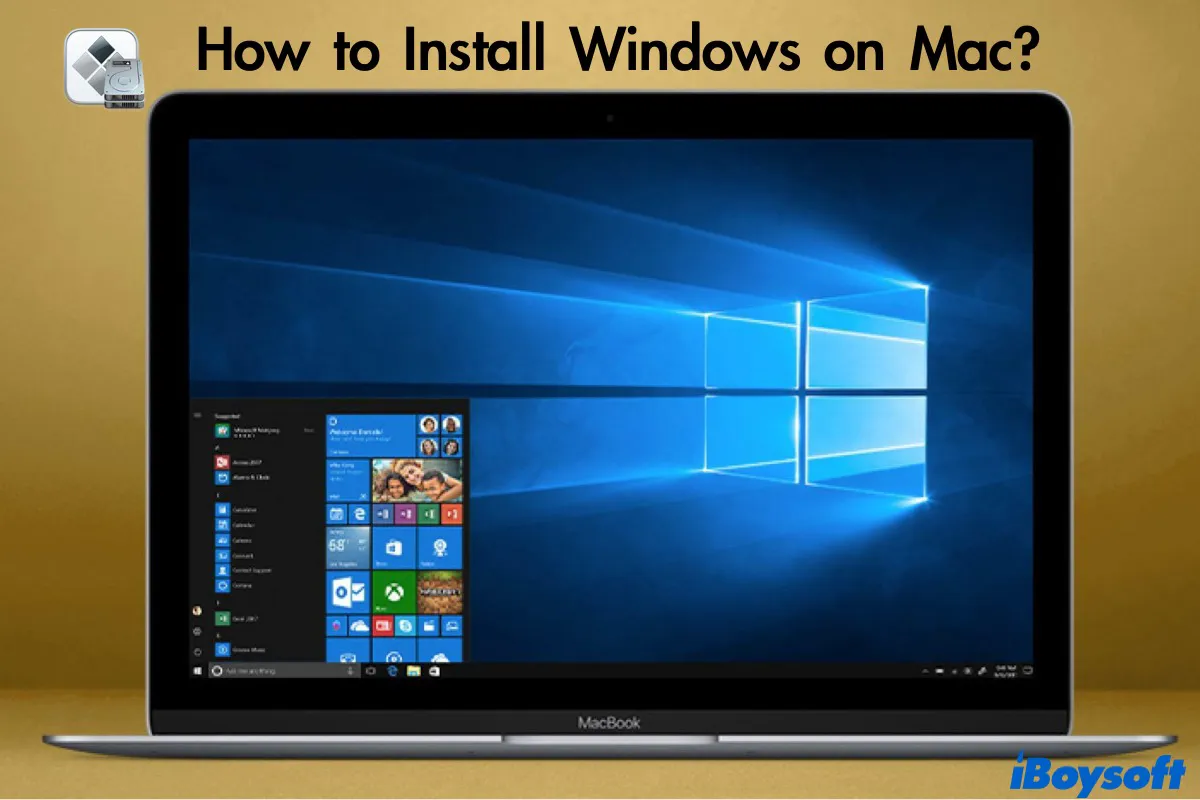
Installing Windows on your Mac is more than just a technical feat; it’s a strategic move to unlock the full potential of your hardware and expand your digital capabilities. Whether you opt for the raw power of a dual-boot setup with Boot Camp or the fluid multitasking of a virtual machine, you are effectively creating a versatile computing environment that caters to a broader spectrum of needs.
This ability to seamlessly transition between macOS and Windows empowers you to tackle any software requirement, indulge in Windows-exclusive gaming, or streamline professional workflows that demand specific applications. It’s an investment in your productivity, enhancing your personal brand by ensuring you’re always equipped with the right tools for the job, and a smart financial decision that maximizes the utility of your existing Apple ecosystem without purchasing additional hardware.
By following the steps outlined in this comprehensive guide, you’ve not only mastered the intricacies of cross-platform installation but also gained a valuable understanding of how to manage and optimize this dual-OS setup. Embrace the power of choice, and leverage the best of both worlds right from your Mac. Your journey towards ultimate digital versatility starts now!
aViewFromTheCave is a participant in the Amazon Services LLC Associates Program, an affiliate advertising program designed to provide a means for sites to earn advertising fees by advertising and linking to Amazon.com. Amazon, the Amazon logo, AmazonSupply, and the AmazonSupply logo are trademarks of Amazon.com, Inc. or its affiliates. As an Amazon Associate we earn affiliate commissions from qualifying purchases.