
In an increasingly mobile and connected world, the ability to access our favorite entertainment on demand is not just a luxury but often a necessity. Amazon Prime Video, a cornerstone of the Prime subscription, offers an expansive library of movies, TV shows, and original content. While streaming directly over an internet connection is the primary mode of consumption, there are countless scenarios where offline viewing becomes indispensable. From long flights and daily commutes to areas with spotty Wi-Fi or simply conserving mobile data, downloading content from Amazon Prime Video provides a robust solution, empowering users to enjoy their entertainment anytime, anywhere. This guide delves into the technical intricacies and user-friendly steps involved in leveraging Prime Video’s download capabilities, optimizing your viewing experience, and understanding the underlying technology that makes it all possible.
Understanding Amazon Prime’s Download Features
The functionality to download content is a significant perk of an Amazon Prime subscription, distinguishing it from basic streaming services that might not offer comprehensive offline access. However, this feature comes with specific technical requirements and parameters designed to manage digital rights and ensure a consistent user experience across various platforms. Understanding these foundational aspects is crucial for a smooth and uninterrupted download journey.
Eligibility and Device Compatibility
Not all Amazon video content is created equal, nor are all devices capable of downloading it. The primary criterion for downloading is an active Amazon Prime membership or a standalone Prime Video subscription. Without it, the download option will typically be unavailable for Prime-included content. For rented or purchased titles, the download functionality is generally available regardless of Prime membership, as long as you’ve acquired the rights to view them.
Device compatibility is another key factor. Amazon Prime Video offers dedicated applications for a wide range of devices, and it’s these apps that facilitate the downloading process.
- Mobile Devices: iOS iPhones and iPads, as well as Android smartphones and tablets, are fully supported. The Prime Video app is readily available on the Apple App Store and Google Play Store.
- Desktop Computers: Windows PCs and macOS computers can download content via the official Amazon Prime Video desktop application. This app was introduced to provide a more robust experience, including offline viewing, compared to browser-based streaming.
- Other Devices: Smart TVs, gaming consoles, and streaming sticks (like Fire TV devices) are primarily designed for streaming and typically do not support direct content downloads for offline viewing due to their inherent design and storage limitations. The download feature is specifically tailored for devices with local storage meant for personal media consumption.
Download Limits and Expiry
Amazon employs a sophisticated Digital Rights Management (DRM) system to protect copyrighted content, which translates into specific limitations on downloads. These aren’t arbitrary restrictions but rather industry-standard practices to balance user convenience with content owner requirements.
- Number of Downloads: While not strictly advertised with a fixed global number, users generally face a limit on the total number of titles they can have downloaded simultaneously across all registered devices. If you reach this limit, you’ll need to delete some existing downloads before acquiring new ones. There’s also often a limit on the number of unique titles that can be downloaded to a single account within a specific timeframe (e.g., 15-25 titles per account).
- Time Limits for Viewing: Downloaded content isn’t permanent.
- Once downloaded, most Prime-included titles remain accessible for a certain period, often 30 days, as long as your Prime membership is active.
- However, once you start playing a downloaded title, you typically have a shorter window – often 48 hours – to finish watching it before it expires and you need to download it again (or stream it online).
- For rented content, the viewing window after starting playback is usually also around 24-48 hours, and the overall availability period (from the time of rental) is typically 30 days.
- Geographical Restrictions: While downloads allow offline viewing, the initial download must often occur within the geographical region where the content is licensed. If you travel outside this region, you might not be able to download new content, and sometimes even existing downloads might become unavailable if their license is strictly geo-fenced. These restrictions are a direct result of content licensing agreements with studios and distributors.
Step-by-Step Guide to Downloading Content
The process of downloading content from Amazon Prime Video is designed to be intuitive, leveraging the familiar interface of their dedicated applications. Whether you’re using a smartphone, tablet, or desktop computer, the core steps remain largely consistent, focusing on ease of access and control over your media.
On Mobile Devices (iOS/Android)
Downloading content to your smartphone or tablet is arguably the most common use case for offline viewing, providing entertainment on the go.
- Open the Prime Video App: Ensure you have the latest version of the Amazon Prime Video app installed on your device and are logged in with your Amazon account.
- Find Your Content: Browse or search for the movie or TV show you wish to download. You can use the search bar, explore categories, or check your Watchlist.
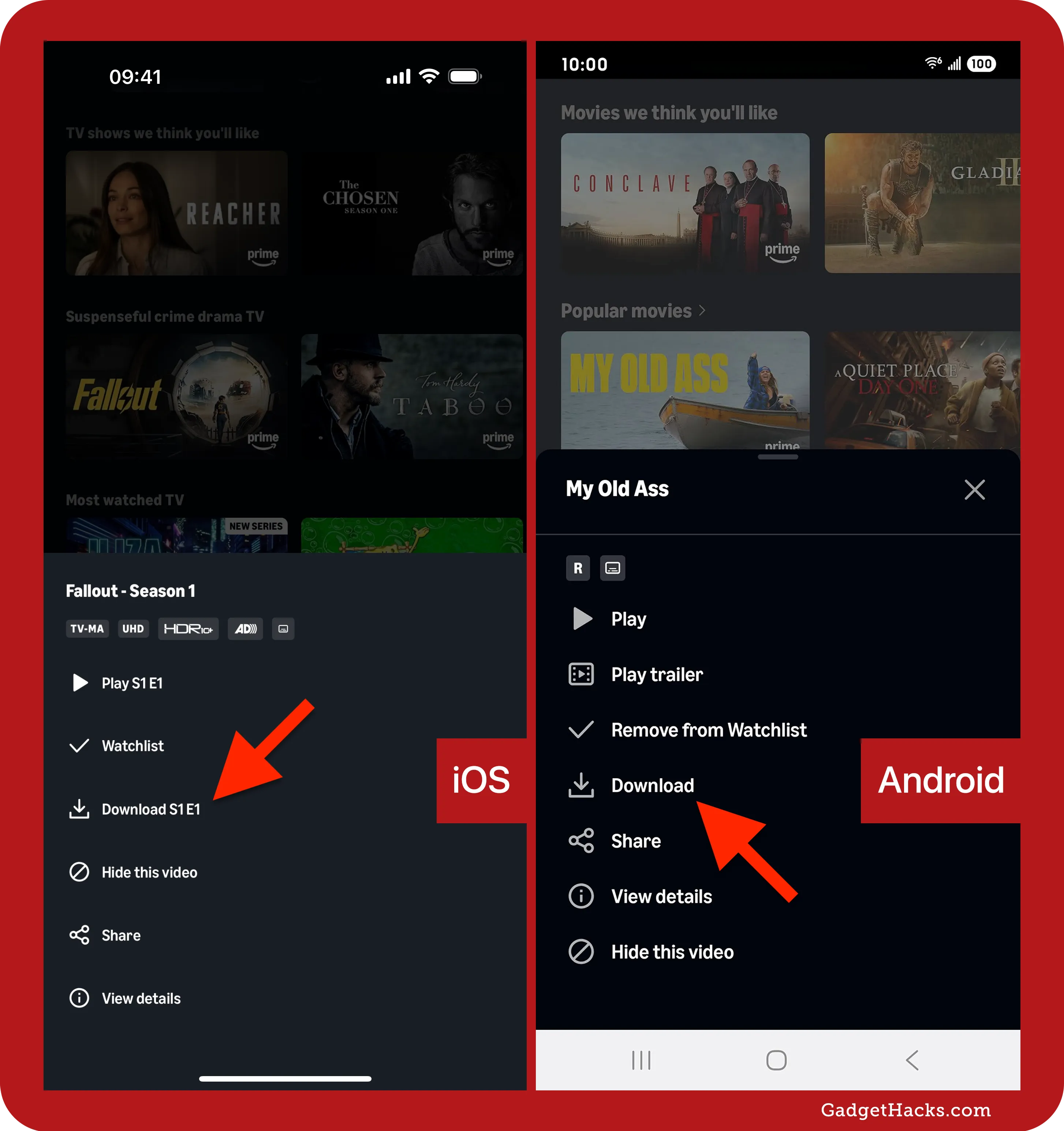
- Identify Downloadable Content: On the content detail page, look for a “Download” button. For TV series, this button usually appears next to individual episodes. For movies, it’s typically a prominent button on the main detail screen. Content that is not included with Prime, or is otherwise unavailable for download, will lack this button.
- Select Download Quality (Optional): Before initiating the download, the app might prompt you to choose a download quality (e.g., “Good,” “Better,” “Best”). Higher quality means a larger file size and longer download time but offers a superior viewing experience. You can also set a default download quality in the app’s settings (usually under
Settings > Stream & Download > Download Quality). - Initiate the Download: Tap the “Download” button. A progress indicator will appear, showing the status of your download. You can often navigate away from the detail page while the download continues in the background.
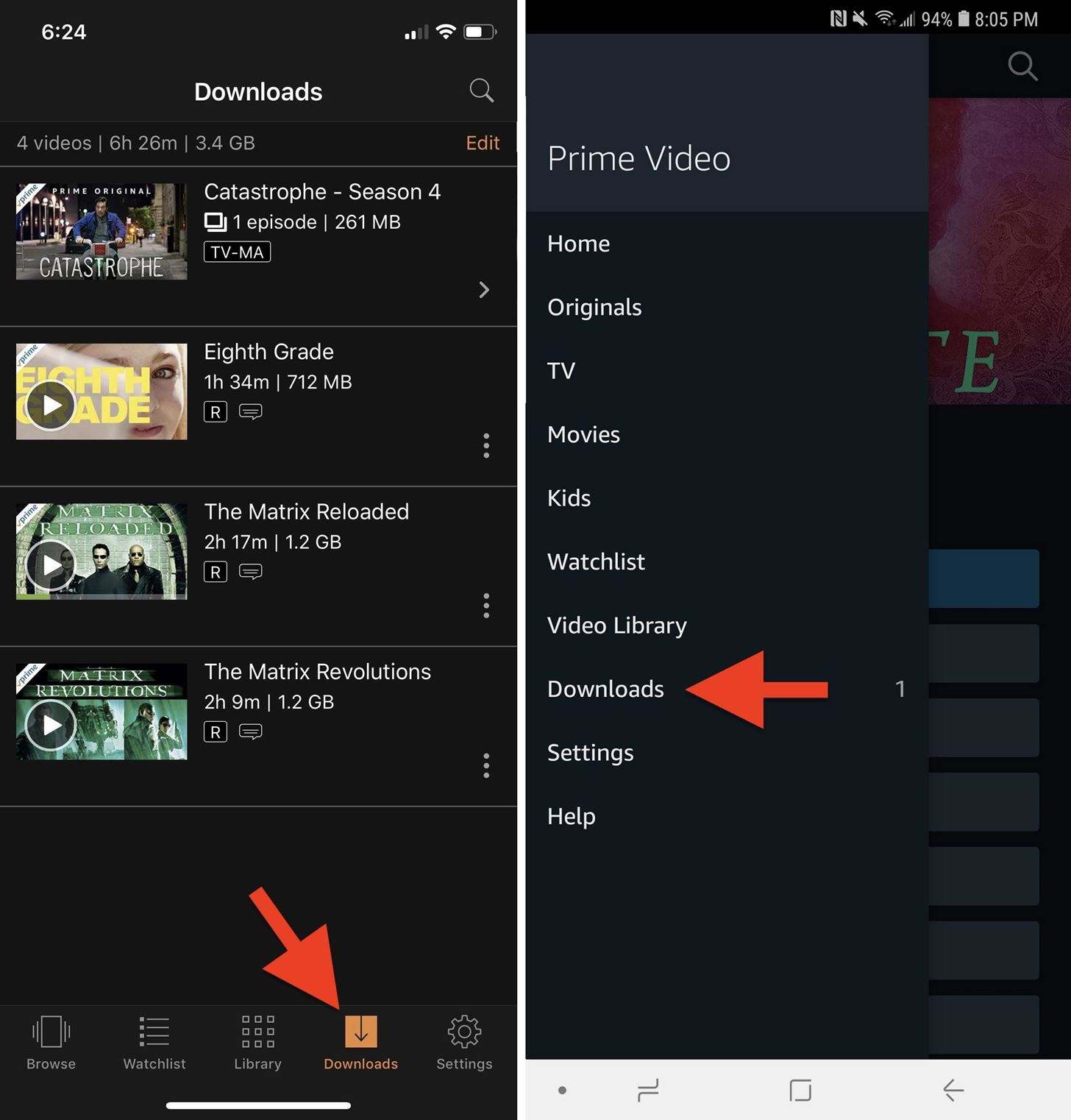
- Access Downloaded Content: Once the download is complete, you can find your content by navigating to the “Downloads” section within the Prime Video app (usually accessible from the bottom navigation bar or a menu icon). From here, you can play, manage, or delete your downloaded titles.
On Desktop Computers (Windows/macOS via Prime Video App)
The Amazon Prime Video desktop application brings the full functionality, including downloads, to your personal computer, offering a robust alternative to mobile devices, especially for longer viewing sessions or when preparing for travel.
- Install the Prime Video App: First, download and install the official Amazon Prime Video app from the Microsoft Store (for Windows) or the Mac App Store (for macOS). Log in with your Amazon account credentials.
- Navigate the Interface: The desktop app mirrors the mobile experience in many ways. You’ll find a similar layout for browsing content, searching, and accessing your library.
- Locate and Download Content:
- Browse or search for your desired movie or TV show.
- On the content’s detail page, look for the “Download” button (often represented by a downward arrow icon).
- For TV series, click on the season and then select individual episodes to download.
- Choose Download Quality: Similar to mobile, the app will likely offer options for download quality, influencing file size and visual fidelity. You can also configure default download quality in the app’s settings.
- Monitor and Manage Downloads: Once initiated, downloads will progress in the background. You can usually access a “Downloads” section or icon within the app to monitor their status, pause, resume, or cancel downloads.
- Offline Playback: To watch your downloaded content, simply go to the “Downloads” section in the app. No internet connection is required once the download is complete, making it ideal for offline environments.
Optimizing Your Download Experience
While the core download process is straightforward, a few technical considerations and best practices can significantly enhance your experience, ensuring you get the most out of Amazon Prime Video’s offline capabilities. These optimizations revolve around efficient resource management and proactive troubleshooting.
Managing Storage Space
Downloaded content, especially in higher resolutions, can consume a substantial amount of local storage. Proactive management of this resource is key to preventing download failures and maintaining device performance.
- Check Available Space: Before embarking on a downloading spree, always verify your device’s available storage. On mobile devices, this is typically found in the device’s main
Settings > Storagesection. For desktop, check your drive properties. Insufficient space is a common reason for failed downloads. - Delete Watched Downloads: Get into the habit of deleting content you’ve already watched. In the Prime Video app’s “Downloads” section, you can usually long-press (mobile) or right-click (desktop) on a title and select “Delete Download.” This frees up valuable space for new content.
- Change Download Location (Desktop): The desktop Prime Video app often allows you to specify a different download location, such as an external hard drive, if your primary drive is running low on space. This setting is usually found within the app’s preferences or settings menu.
Choosing Download Quality
Amazon Prime Video typically offers several quality settings for downloads, balancing visual fidelity with file size. Making an informed choice here can save you data, storage, and download time.
- Impact on File Size and Data Usage: “Best” quality downloads offer the sharpest image but consume the most data during the download process and take up the largest amount of storage space. “Good” or “Better” qualities reduce these demands, making them suitable for devices with limited storage or when you’re downloading over a slower internet connection.
- Balancing Quality with Storage: For a large collection of episodes on a tablet with finite storage, choosing a “Good” or “Better” quality might allow you to store more content. For a single movie you plan to watch on a large laptop screen, “Best” quality might be preferable if space permits. Consider your viewing device and storage capacity when making this choice.
Troubleshooting Common Download Issues
Even with careful planning, technical glitches can occur. Being aware of common issues and their solutions can help you quickly resolve problems.
- “Download Failed” Errors: These can stem from several causes.
- Insufficient Storage: The most common culprit. Check your device’s available space and delete old downloads.
- Network Connectivity: A fluctuating or weak Wi-Fi signal can interrupt downloads. Try moving closer to your router or switching to a more stable network.
- Content Licensing: Some content may not be available for download due to licensing restrictions. The download button will usually be absent in such cases.
- App Glitch: Sometimes, simply restarting the Prime Video app or even your device can resolve temporary software issues.
- Content Not Available for Download: As mentioned, not all titles on Prime Video are downloadable. This is often due to content licensing agreements. You’ll notice the absence of the download icon or button. There’s no workaround for this limitation.
- Downloads Expiring Prematurely: Double-check your Prime membership status. If it has lapsed, downloaded content included with Prime will become inaccessible. Also, be mindful of the 48-hour viewing window once playback begins.
The Broader Benefits of Offline Viewing
Beyond the immediate technical steps, understanding the strategic advantages of downloading content from Amazon Prime Video reveals its true value within the digital entertainment ecosystem. It’s a feature that significantly enhances the user experience, particularly for modern, mobile lifestyles.
Entertainment Anywhere, Anytime
The most obvious and compelling benefit of offline viewing is the freedom it offers. In an increasingly interconnected world, there are still vast stretches of time and numerous locations where reliable internet access is either unavailable, prohibitively expensive, or simply undesirable.
- Travel and Commutes: Whether it’s a long-haul flight, a train journey through tunnels, a subway commute, or a road trip through rural areas, downloaded content ensures your entertainment is uninterrupted. It transforms otherwise idle time into enjoyable viewing sessions.
- Remote Areas: For those who live in or frequently visit areas with poor cellular reception or limited broadband infrastructure, downloads become the primary means of accessing high-quality video content without frustrating buffering or pixelation.
- Saving Mobile Data: Streaming high-definition video consumes significant amounts of mobile data. By downloading content over Wi-Fi at home, users can dramatically reduce their mobile data consumption, leading to cost savings and preventing unexpected overage charges.
Enhancing User Experience
Offline viewing isn’t just about accessibility; it’s about elevating the quality and reliability of the viewing experience itself.
- Reliability Without Internet: The most robust internet connection can fail. During power outages, network issues, or simply when your ISP experiences downtime, downloaded content remains perfectly accessible, offering a reliable source of entertainment.
- Buffering Elimination: Buffering is the bane of any streamer’s existence. It disrupts the flow, breaks immersion, and often leads to frustration. Downloads completely eliminate buffering, as the entire file is stored locally, allowing for seamless, uninterrupted playback at its intended quality.
- Consistent Quality: When streaming, video quality can dynamically adjust based on network conditions. A strong signal might give you 4K, but a weak one could drop you to standard definition. Downloads, once completed at a chosen quality, maintain that fidelity throughout playback, ensuring a consistent and high-quality viewing experience.

Digital Rights Management (DRM) and User Convenience
While DRM can sometimes feel like a restriction, it’s the underlying technological framework that allows content providers like Amazon to offer downloads in the first place. Without it, securing licensing agreements for offline access would be far more challenging, if not impossible.
- Balancing Content Protection: DRM systems prevent unauthorized copying and distribution of copyrighted material. The limitations on downloads – such as expiry dates, device limits, and geo-restrictions – are direct implementations of DRM policies. These are put in place to satisfy content owners and studios, who need assurance that their intellectual property is protected.
- Facilitating User Flexibility: Despite these protections, the system is designed to offer a significant degree of user convenience. The ability to download and watch content offline, even with expiry windows, represents a major leap forward from a time when home entertainment was entirely reliant on physical media or constant internet connections. It’s a carefully calibrated balance between protecting creator rights and providing consumers with unprecedented flexibility in how and where they consume media. The technology enabling this intricate balance is continuously evolving, aiming to make the digital rights ecosystem more seamless for legitimate users while maintaining robust security.
In conclusion, downloading from Amazon Prime Video is a powerful, user-centric feature that greatly enhances the value of a Prime subscription. By understanding the technical requirements, mastering the step-by-step process, and optimizing your approach to storage and quality, you unlock a world of entertainment free from the constraints of internet connectivity. It’s a testament to how modern tech solutions are designed to cater to the dynamic needs of today’s digital consumers, ensuring your favorite stories are always within reach, ready to be enjoyed on your terms.
aViewFromTheCave is a participant in the Amazon Services LLC Associates Program, an affiliate advertising program designed to provide a means for sites to earn advertising fees by advertising and linking to Amazon.com. Amazon, the Amazon logo, AmazonSupply, and the AmazonSupply logo are trademarks of Amazon.com, Inc. or its affiliates. As an Amazon Associate we earn affiliate commissions from qualifying purchases.