
In an increasingly connected world, the ability to disconnect without losing access to your favorite entertainment has become a highly valued feature. Amazon Prime Video, a titan in the streaming industry, understands this need implicitly. Whether you’re embarking on a long flight, commuting through areas with spotty signal, or simply trying to conserve mobile data, downloading content from Amazon Prime Video offers unparalleled flexibility and ensures your binge-watching sessions remain uninterrupted. This comprehensive guide will walk you through every step of the process, ensuring you can master offline viewing across your preferred devices.
The utility of downloading content extends beyond mere convenience; it’s a strategic advantage for modern consumers. Imagine being able to enjoy critically acclaimed series or blockbuster movies without the buffering woes associated with unreliable Wi-Fi or cellular networks. For travelers, students, and anyone with limited or expensive data plans, the download feature transforms Prime Video from a streaming service into a portable, on-demand entertainment library. We’ll delve into the specific methodologies for both mobile and desktop platforms, explore the nuances of download management, and equip you with the knowledge to troubleshoot common issues, making your offline viewing experience seamless and enjoyable.
Mastering Downloads on Mobile Devices: iOS and Android
Mobile devices—smartphones and tablets—are often our primary companions for on-the-go entertainment. Amazon Prime Video’s mobile application is designed to make downloading content intuitive and efficient, ensuring your library is always ready, even when your internet isn’t.
Navigating the Prime Video App for Downloads
The journey to offline entertainment begins within the Amazon Prime Video app, available on both iOS and Android platforms. The app’s user interface is streamlined to guide you effortlessly from browsing to downloading.
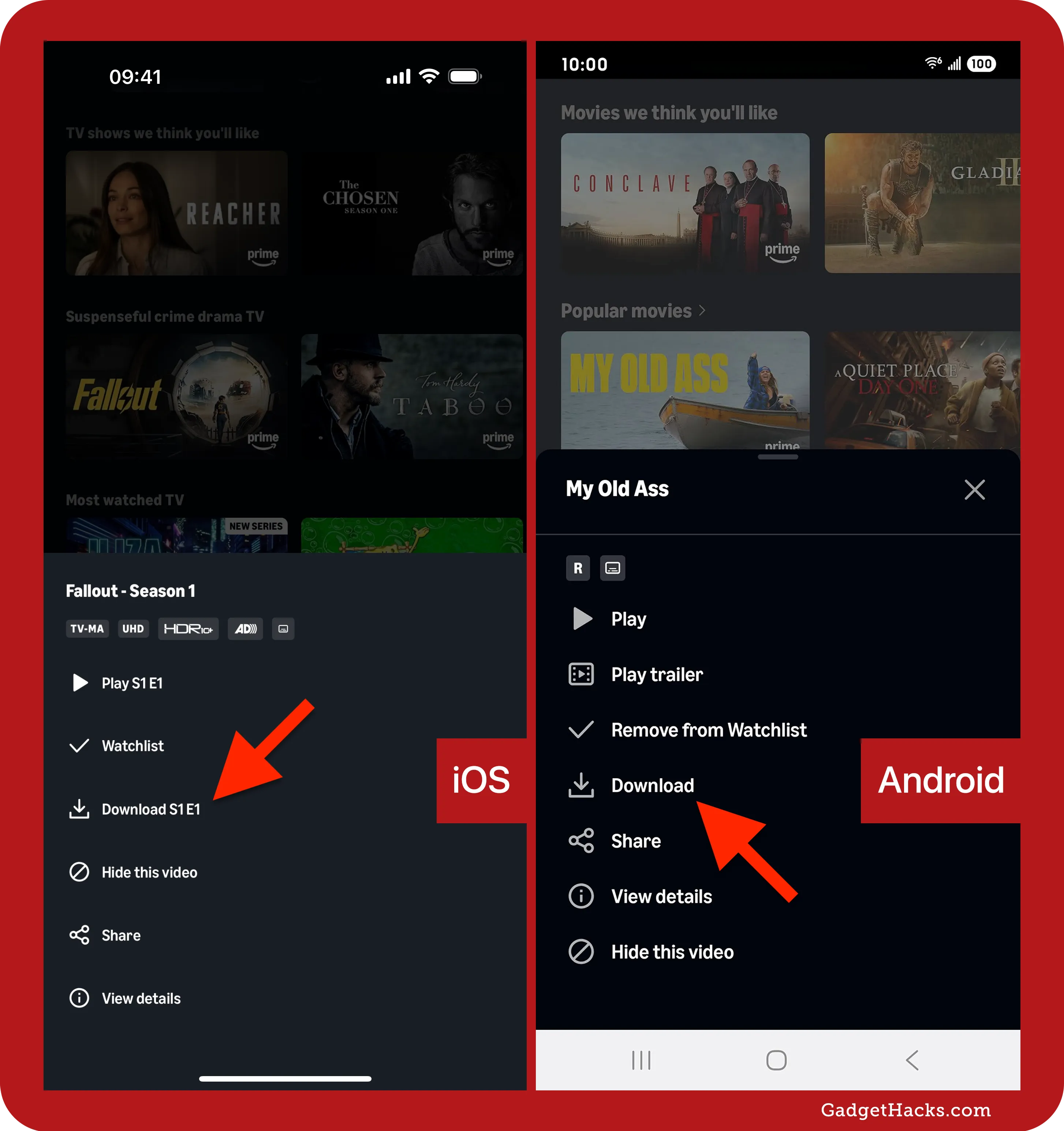
- Locating Desired Content: Open the Prime Video app and browse or search for the movie or TV show you wish to download. It’s important to note that not all content on Prime Video is available for download due to licensing agreements. Titles available for download will typically display a download icon.
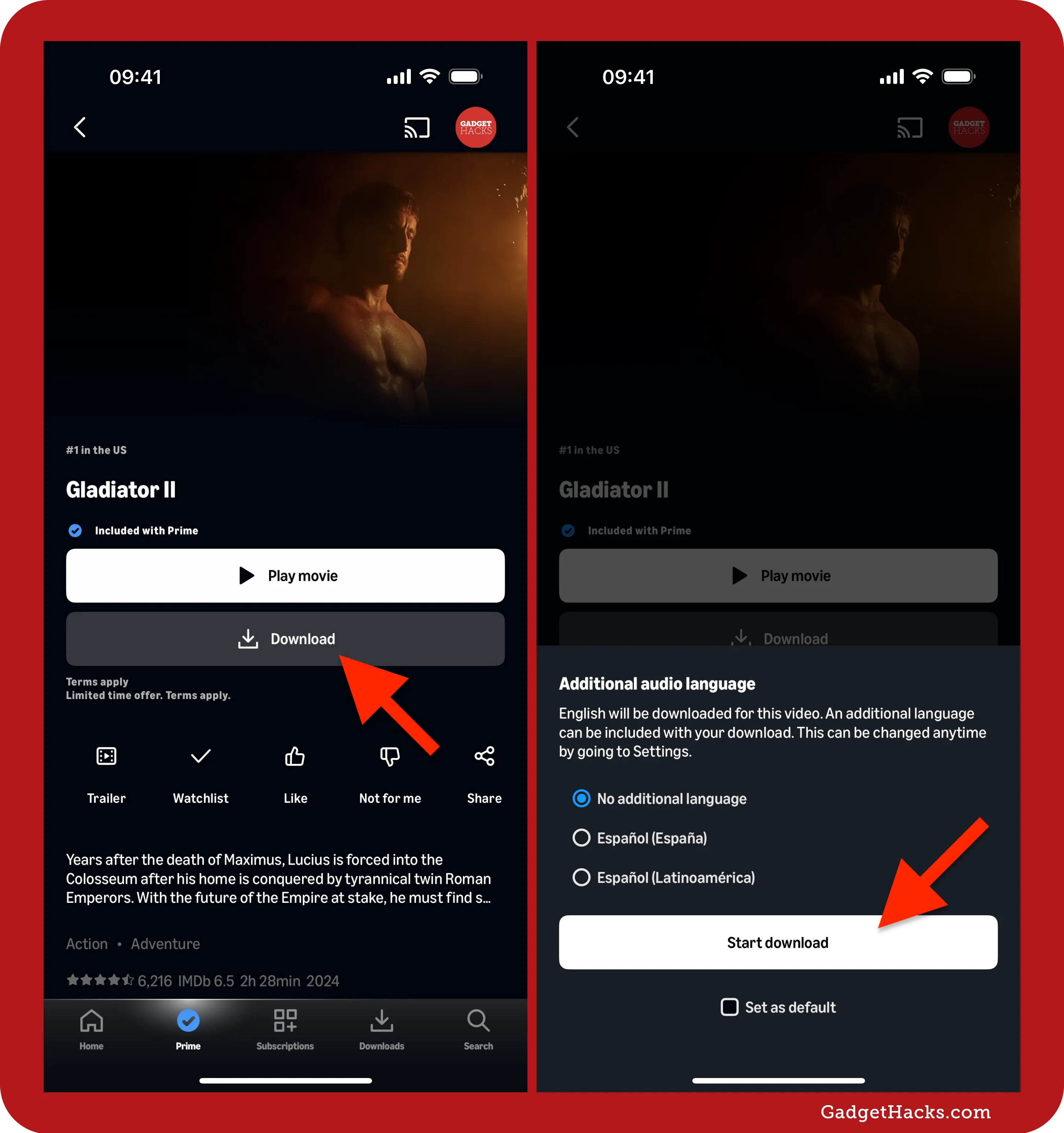
- Accessing the Download Option: Once you’ve selected a title, navigate to its detail page. For movies, you’ll usually find the download icon (a downward arrow) positioned prominently next to the “Watch Now” or “Add to Watchlist” buttons. For TV series, you’ll see the download icon next to individual episodes or sometimes an option to download an entire season.
- Selecting Download Quality: Before the download commences, the app will often prompt you to choose your preferred download quality. Options typically include “Best,” “Better,” and “Good,” or specific resolutions like SD (Standard Definition) or HD (High Definition). This choice directly impacts file size and therefore the storage space consumed on your device and the speed of the download. Opting for “Good” or SD will result in smaller files, ideal for devices with limited storage or when downloading over slower connections. “Best” or HD offers superior visual fidelity but requires more storage and a faster internet connection.
- Initiating and Monitoring Downloads: After selecting the quality, tap the download button, and the process will begin. You can monitor the progress of your downloads in the “Downloads” section of the app, typically accessible from the main menu or a dedicated tab at the bottom of the screen. This section shows ongoing downloads and lists all completed content, ready for offline playback.
Managing Your Downloaded Library
An organized downloaded library ensures you can quickly find what you want to watch and manage your device’s storage effectively.
- Accessing Downloaded Videos: All your downloaded content is conveniently stored in the “Downloads” section of the Prime Video app. From here, you can tap on any title to begin watching it offline.
- Deleting Downloads to Free Up Space: To remove a downloaded title, navigate to the “Downloads” section. On iOS, you can swipe left on the title and tap “Delete,” or tap “Edit” in the top right corner to select multiple items. On Android, long-press the title or tap the three-dot menu next to it and select “Delete Download.” Regularly clearing out watched content is a good practice to prevent your device’s storage from being unnecessarily consumed.
- Adjusting Download Settings: Within the Prime Video app’s settings (usually accessible via the gear icon or your profile icon), you can customize various download preferences. These often include setting a default download quality, choosing whether to download over Wi-Fi only (highly recommended to avoid unexpected mobile data charges), and managing where downloads are stored if your device supports external storage.
Accessing Downloads on Desktop and Laptops
While mobile devices excel in portability, desktop and laptop computers offer larger screens and often more robust storage capacities, making them ideal for a different kind of offline viewing experience. Amazon Prime Video facilitates downloads on these platforms through its dedicated application, available for Windows.
The Prime Video Desktop Application
Unlike many other streaming services that might allow browser-based downloads, Amazon Prime Video requires its official desktop application for downloading content on Windows. For Mac users, the process is slightly different as there isn’t a native Prime Video desktop app for downloading content directly from Amazon in the same way. However, specific third-party solutions or workarounds might exist, though these are outside the scope of official Prime Video functionality.
- Downloading and Installing the App (Windows): For Windows users, the first step is to download the “Amazon Prime Video for Windows” application from the Microsoft Store. Install it just like any other application.
- Signing In: Once installed, launch the app and sign in with your Amazon Prime account credentials.
- Finding and Downloading Content: The interface of the desktop app largely mirrors its mobile counterpart. Browse or search for titles. Look for the familiar download icon on the detail page of movies or next to individual episodes of TV shows.
- Selecting Download Quality: Similar to mobile, you’ll be prompted to choose a download quality before the content starts downloading. Consider your storage space and internet speed when making this selection.
- Monitoring and Managing Downloads: All active and completed downloads are found in the “Downloads” section of the desktop app. Here, you can pause, resume, or delete downloads to manage your local storage. The desktop app provides a convenient way to build a robust offline library on your computer, perfect for travel or for households with inconsistent internet access.

Understanding Download Limitations and Optimizations
While the download feature is incredibly convenient, it’s crucial to understand the limitations and specificities imposed by Amazon and content providers. These rules are in place due to licensing agreements and Digital Rights Management (DRM).
Key Download Restrictions and Considerations
- Content Availability: Not every title on Amazon Prime Video is available for download. Licensing agreements with studios dictate which movies and shows can be downloaded for offline viewing. Always look for the download icon before assuming a title is downloadable.
- Viewing Period and Expiration: Downloaded content isn’t permanent. Most downloads have an expiration period, typically 30 days from the date of download. Once you start watching a downloaded title, you usually have 48 hours to finish it before it expires. After expiration, the content will need to be re-downloaded (if still available) or streamed with an active internet connection.
- Device Limits: Amazon Prime Video usually allows you to download content on a limited number of devices (e.g., two or three) concurrently. Attempting to download on more devices than allowed may require you to remove content from one device before adding it to another.
- Storage Requirements: Downloads, especially in higher quality, consume significant storage space. Always check your device’s available storage before initiating large downloads.
- Geographical Restrictions: While downloaded content can be watched offline anywhere, the initial download must often occur within your home country or the region where your Amazon Prime subscription is active. Traveling abroad might prevent new downloads, though existing ones will remain accessible for their validity period.
Optimizing Your Download Experience
To make the most of the Prime Video download feature, consider these optimization tips:
- Utilize Wi-Fi: Always prioritize downloading over a stable Wi-Fi connection. This prevents excessive mobile data usage and typically results in faster download speeds.
- Schedule Downloads: If you have data caps or slower internet during peak hours, consider initiating large downloads overnight or during off-peak times when internet traffic is lower.
- Manage Storage Proactively: Regularly review your downloaded content and delete titles you’ve already watched or no longer need. This ensures sufficient space for new content and keeps your device performing optimally.
- Choose Appropriate Quality: Balance your desire for high-quality video with your device’s storage capacity and your download speed. For smaller screens or limited storage, “Good” or SD quality might be perfectly adequate.
- Troubleshooting Common Issues: If a download fails, check your internet connection, ensure sufficient storage, and try restarting the Prime Video app or your device. Sometimes, a simple restart can resolve temporary glitches.
The Undeniable Benefits of Offline Viewing
The ability to download Amazon Prime Video content is more than just a convenience; it’s a feature that significantly enhances the user experience and broadens the accessibility of your entertainment.
Uninterrupted Entertainment, Anywhere
The most apparent benefit is the freedom from internet dependency. Whether you’re on a transcontinental flight, stuck in a remote cabin, or experiencing a power outage that affects your internet, your downloaded Prime Video library remains fully accessible. This guarantees that your entertainment is truly portable and resilient to external disruptions.
Data Conservation and Cost Savings
For users with limited mobile data plans, downloading content over Wi-Fi is a game-changer. It eliminates the need to stream over cellular networks, preventing costly overage charges and ensuring your data allowance is preserved for essential online activities. This is particularly valuable for commuters who frequently watch videos during their journeys.
Enhanced Viewing Quality and Reliability
Streaming quality can fluctuate dramatically depending on network congestion, signal strength, and bandwidth availability. Downloaded content, however, offers a consistent viewing experience at the quality you selected, free from buffering, pixelation, or sudden drops in resolution. This reliability ensures that critical plot points and stunning visuals are never compromised by a temperamental internet connection.
Conclusion
The “how to download Amazon Prime Video” feature is an indispensable tool for anyone seeking flexible, reliable, and data-efficient access to their favorite movies and TV shows. By mastering the simple steps on mobile and desktop platforms, understanding the minor limitations, and adopting smart management practices, you transform Prime Video from a mere streaming service into a personalized, portable entertainment hub. Embrace the freedom of offline viewing, and ensure your next journey, commute, or quiet evening at home is filled with uninterrupted, high-quality entertainment, all thanks to the power of downloads. Dive in, download your favorites, and redefine your viewing experience today.
aViewFromTheCave is a participant in the Amazon Services LLC Associates Program, an affiliate advertising program designed to provide a means for sites to earn advertising fees by advertising and linking to Amazon.com. Amazon, the Amazon logo, AmazonSupply, and the AmazonSupply logo are trademarks of Amazon.com, Inc. or its affiliates. As an Amazon Associate we earn affiliate commissions from qualifying purchases.