
In an era dominated by digital entertainment, the allure of streaming services on the biggest screen in your home remains undiminished. Amazon, a titan in e-commerce, has also carved out a significant niche in the streaming landscape with Amazon Prime Video, offering a vast library of movies, TV shows, and original content. Whether you’re a long-time Prime subscriber or new to Amazon’s entertainment offerings, getting that content onto your television for an immersive viewing experience is often a primary goal. This guide delves into the various technological pathways available, ensuring you can seamlessly transition from browsing to binging on your big screen.

The journey to watching Amazon content on your TV is more accessible than ever, thanks to the proliferation of smart TVs, dedicated streaming devices, and versatile casting technologies. Understanding the different methods, their advantages, and how to set them up is key to unlocking a world of entertainment. This article will break down the most popular and effective ways to bring Amazon’s extensive catalog, from blockbuster films to critically acclaimed series, directly to your living room.
Understanding Amazon’s TV Ecosystem and Content
Before diving into the “how-to,” it’s beneficial to grasp the different types of Amazon content and the technological infrastructure that supports its delivery to your television. Amazon’s streaming services are primarily delivered through the Amazon Prime Video application, which is widely available across a multitude of devices.
The Scope of Amazon Content
Amazon’s content ecosystem is rich and varied:
- Amazon Prime Video: This is the core streaming service, included with an Amazon Prime subscription. It offers thousands of movies, TV shows, and Amazon Originals like “The Lord of the Rings: The Rings of Power” and “The Marvelous Mrs. Maisel,” all available for unlimited streaming.
- Rentals and Purchases: Beyond the Prime Video library, Amazon allows users to rent or purchase a vast selection of new release movies and TV show seasons à la carte. These titles are then accessible through the Prime Video app, even without a Prime subscription.
- Amazon Channels: This feature allows Prime subscribers to add premium subscription channels (like HBO Max, Showtime, Starz, Paramount+, etc.) directly through Amazon. The content from these channels is then integrated into the Prime Video app, simplifying billing and access.
The Technological Backbone
Watching Amazon on TV fundamentally relies on an internet connection and a device capable of running the Amazon Prime Video application or receiving a casted signal. The device acts as an intermediary, fetching the digital stream from Amazon’s servers and rendering it onto your television screen. This could be your TV itself (if it’s a smart TV), a dedicated streaming player, a gaming console, or even your smartphone/tablet. The key is compatibility and a stable network.
Direct Methods: Smart TVs and Amazon Fire TV Devices
The most straightforward and often preferred methods involve devices explicitly designed for seamless integration with streaming services. These options offer dedicated interfaces and remote controls, making navigation intuitive and user-friendly.
Smart TVs with Built-in Apps
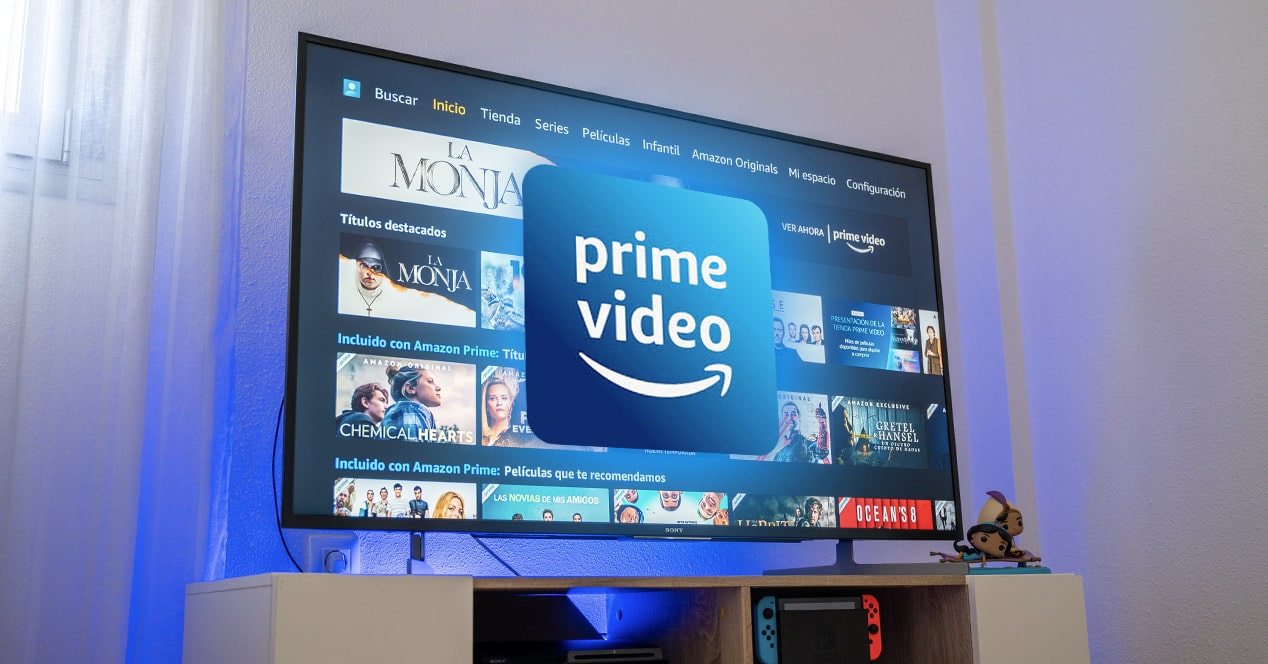
Most modern smart TVs come equipped with an operating system that supports a wide array of streaming applications, including Amazon Prime Video. This is arguably the simplest method as it requires no additional hardware beyond your television itself.
- Setup:
- Ensure your smart TV is connected to the internet, either via Wi-Fi or an Ethernet cable.
- Navigate to your TV’s app store or “Smart Hub” (terminology varies by brand, e.g., LG webOS, Samsung Tizen, Sony Google TV).
- Search for and download the “Amazon Prime Video” app.
- Open the app and follow the on-screen instructions to sign in with your Amazon account credentials. You might be asked to visit a URL on a computer or mobile device and enter a code, or sign in directly within the app.
- Once signed in, you can browse and start watching content immediately.
- Advantages: No extra devices, fewer cables, integrated remote control.
- Considerations: App updates are managed by the TV manufacturer, and older smart TVs might experience slower performance or lack support for newer features.
The Amazon Fire TV Stick, Cube, and Smart TVs
Amazon’s own line of Fire TV devices is purpose-built for streaming Amazon content, offering the most integrated and optimized experience. This includes Fire TV Sticks (dongles that plug into an HDMI port), Fire TV Cubes (more powerful streaming devices with integrated Echo speaker functionality), and even smart TVs with Fire TV built-in.
- Setup (for Fire TV Stick/Cube):
- Plug the Fire TV Stick/Cube into an available HDMI port on your TV.
- Connect the power adapter to the Fire TV device and then to a wall outlet.
- Switch your TV’s input source to the corresponding HDMI port.
- Follow the on-screen setup instructions to connect to your Wi-Fi network.
- Sign in with your Amazon account. If you purchased the device from Amazon, it might come pre-registered to your account, simplifying this step.
- The Fire TV interface prominently features Amazon Prime Video content, making it incredibly easy to access.
- Advantages: Deep integration with Amazon services (including Alexa voice commands), user-friendly interface, consistent updates from Amazon, access to a vast app store.
- Considerations: Requires an available HDMI port and power outlet. If you have an older Fire TV device, you might consider upgrading for better performance and 4K/HDR support.
Alternative Approaches: Gaming Consoles, Streaming Sticks, and Mobile Casting
Beyond Amazon’s native hardware and smart TVs, several other popular devices offer robust support for Amazon Prime Video, providing flexibility for different setups and preferences.
Gaming Consoles (PlayStation, Xbox)
Modern gaming consoles are multimedia powerhouses, capable of much more than just playing games. PlayStation (PS4, PS5) and Xbox (Xbox One, Xbox Series X/S) consoles all feature the Amazon Prime Video app.
- Setup:
- Ensure your console is connected to the internet.
- Navigate to the console’s store (PlayStation Store or Microsoft Store).
- Search for and download the “Amazon Prime Video” app.
- Launch the app and sign in with your Amazon account.
- Advantages: Utilizes existing hardware for gamers, often powerful enough for smooth 4K streaming.
- Considerations: Can consume more power than dedicated streaming devices; interface designed around gaming might be less intuitive for pure streaming.
Other Popular Streaming Devices (Roku, Apple TV, Chromecast)
Many other non-Amazon streaming devices have robust app ecosystems that include Prime Video, offering excellent alternatives for those already invested in another platform.
- Roku Devices: Roku offers a range of streaming sticks, boxes, and even Roku-enabled smart TVs. The Amazon Prime Video channel is readily available.
- Setup: Connect Roku, power it on, connect to Wi-Fi. Go to the “Channel Store,” search for “Amazon Prime Video,” add the channel, and sign in.
- Apple TV: Apple’s streaming box is a premium option, known for its sleek interface and tight integration with Apple’s ecosystem, but it also supports Prime Video.
- Setup: Connect Apple TV, power it on, connect to Wi-Fi. Go to the “App Store,” search for “Amazon Prime Video,” download, and sign in.
- Google Chromecast: Chromecast devices are unique as they primarily rely on casting content from a mobile device or computer rather than having a built-in interface. Newer Chromecast with Google TV models, however, feature a full Android TV interface.
- Setup (Older Chromecast): Plug Chromecast into TV, power it, set up via Google Home app on a mobile device. Open the Prime Video app on your phone/tablet, tap the Cast icon (usually a rectangle with a Wi-Fi symbol), select your Chromecast, and start playing content.
- Setup (Chromecast with Google TV): This works much like a Fire TV Stick or Roku. Plug it in, connect to Wi-Fi, sign in with your Google account, then download and sign in to the Prime Video app from the Google Play Store.
- Advantages: Wide variety of devices to choose from, often good performance, access to other streaming services.
- Considerations: Interface and remote control might differ from what you’re used to if coming from an Amazon-centric device.
Casting from Mobile Devices or Computers
For situations where a dedicated streaming device or smart TV app isn’t an option, casting offers a flexible way to project content from a smaller screen to your television. This typically involves technologies like Chromecast (as mentioned above) or AirPlay (for Apple devices).
- Casting via Chromecast (from Prime Video Mobile App):
- Ensure your Chromecast is set up and both your mobile device (phone/tablet) and Chromecast are on the same Wi-Fi network.
- Open the Amazon Prime Video app on your mobile device.
- Find the content you want to watch.
- Tap the “Cast” icon (a rectangle with a Wi-Fi symbol, usually in the top right corner) and select your Chromecast device.
- The content will begin playing on your TV, controlled from your mobile device.
- Casting via AirPlay (from Apple Devices to Apple TV or AirPlay 2 compatible Smart TVs):
- Ensure your Apple device (iPhone, iPad, Mac) and your Apple TV or AirPlay 2 compatible smart TV are on the same Wi-Fi network.
- Open the Amazon Prime Video app on your Apple device or website on your Mac.
- Find the content you want to watch.
- Tap the AirPlay icon (a rectangle with an upward-pointing arrow) and select your Apple TV or AirPlay 2 TV.
- The content will then mirror or stream to your TV.
- Advantages: Uses devices you likely already own, good for spontaneous viewing or when traveling.
- Considerations: Can drain mobile device battery, performance depends on network stability and device power, some limitations on 4K/HDR via casting depending on source and target device.
Optimizing Your Viewing Experience
Once you’ve successfully connected your Amazon content to your TV, a few adjustments can significantly enhance your viewing pleasure, from picture quality to sound and network performance.
Ensuring Optimal Internet Speed and Connectivity
Streaming high-definition (HD) or ultra-high-definition (4K UHD) content requires a stable and sufficiently fast internet connection.
- Speed Recommendations:
- SD (Standard Definition): 1-2 Mbps
- HD (High Definition): 3-5 Mbps
- 4K UHD (Ultra High Definition): 15-25 Mbps
- Wired vs. Wireless: Whenever possible, use an Ethernet cable to connect your streaming device directly to your router. This provides a more stable and faster connection than Wi-Fi, reducing buffering and improving picture quality, especially for 4K content.
- Router Placement: If using Wi-Fi, ensure your router is centrally located and not obstructed, minimizing distance to your streaming device.
- Minimizing Congestion: Avoid heavy internet usage on other devices (e.g., large downloads, online gaming) while streaming, as this can compete for bandwidth.
Picture and Sound Settings
Modern TVs and streaming devices offer a wealth of settings that can be tweaked to get the best visual and auditory experience from your Amazon content.
- TV Picture Modes: Explore your TV’s picture settings. Modes like “Cinema,” “Movie,” or “Standard” are often more accurate than “Vivid” or “Dynamic” for film and TV content. For HDR (High Dynamic Range) content (Dolby Vision, HDR10+), ensure your TV is set to a mode that activates HDR processing.
- Resolution Output: Most modern streaming devices will automatically detect and output the highest resolution supported by your TV (e.g., 4K, 1080p). Verify this in your device’s display settings if you suspect issues.
- Audio Settings: If you have a soundbar or home theater system, ensure your TV and streaming device are configured to output audio correctly (e.g., Dolby Digital, DTS). Check your streaming device’s audio settings and your TV’s audio output settings to ensure the best possible sound quality.
- Refresh Rate Matching: Some streaming devices and TVs offer options to match the display’s refresh rate to the content’s frame rate (e.g., 24fps for movies), which can result in smoother motion.
Troubleshooting Common Issues
Even with the best setup, technical glitches can occasionally occur. Here are some common problems and their solutions to help you get back to your show.
Login and App Problems
- Incorrect Credentials: Double-check your Amazon account username and password. Remember, your Amazon Prime Video login is the same as your main Amazon shopping account.
- App Updates: Ensure the Amazon Prime Video app is updated to the latest version. Outdated apps can cause compatibility issues.
- App Cache: On many smart TVs and streaming devices, you can clear the app’s cache (found in the device’s settings under “Apps” or “Storage”). This can resolve minor performance issues.
- Reinstallation: As a last resort, try uninstalling and reinstalling the Prime Video app.
Network Connectivity Issues
- Check Internet Connection: First, verify that your internet service is working. Try browsing a website on another device or performing a speed test.
- Restart Router/Modem: A classic solution. Unplug your internet router and modem from power for 30-60 seconds, then plug them back in and wait for them to fully restart.
- Restart Streaming Device: Power cycle your streaming device or smart TV. Unplug it from the power outlet for a minute, then plug it back in.
- Wi-Fi Signal Strength: If you’re on Wi-Fi, check the signal strength in your device’s network settings. A weak signal can lead to buffering and low-quality streams. Consider moving your router closer or using a Wi-Fi extender.
Device Compatibility and Performance Checks
- HDMI Port Issues: If you’re not getting a picture, ensure your HDMI cable is securely connected to both the TV and the streaming device, and that your TV is on the correct HDMI input. Try a different HDMI port or cable.
- Firmware Updates: Ensure your smart TV or streaming device’s firmware is up to date. Manufacturers regularly release updates that improve performance and fix bugs.
- Low Resolution Streaming: If content is consistently playing in a lower resolution, check your Amazon Prime Video app settings for streaming quality preferences. Also, confirm your internet speed meets the requirements for HD or 4K.
- HDR/Dolby Vision Not Activating: For 4K HDR content, ensure your TV’s specific HDMI port (often labeled “Enhanced” or similar) is configured to handle HDR signals, and that your HDMI cable is rated for high-bandwidth 4K HDR.
Watching Amazon content on your television offers a superior viewing experience compared to smaller screens, bringing your favorite movies and shows to life with better picture and sound. By understanding the diverse range of devices and methods available, from smart TV apps and Fire TV devices to gaming consoles and mobile casting, you can select the setup that best suits your home entertainment needs. With a little technical know-how and some basic troubleshooting, you’ll be enjoying Amazon’s vast entertainment library on your big screen in no time, immersing yourself in captivating stories and stunning visuals.
aViewFromTheCave is a participant in the Amazon Services LLC Associates Program, an affiliate advertising program designed to provide a means for sites to earn advertising fees by advertising and linking to Amazon.com. Amazon, the Amazon logo, AmazonSupply, and the AmazonSupply logo are trademarks of Amazon.com, Inc. or its affiliates. As an Amazon Associate we earn affiliate commissions from qualifying purchases.