
In today’s digitally driven world, a functioning printer is an indispensable tool for both personal and professional tasks. Whether you’re a student printing assignments, a home user managing household documents, or a business owner producing marketing materials, a reliable printer is key. However, the journey to seamless printing often encounters a crucial, and sometimes perplexing, hurdle: the printer driver. This vital piece of software acts as the translator between your operating system and your printer, ensuring they can communicate effectively to produce your desired output.
This guide will walk you through the entire process of installing printer drivers, from understanding what they are and why they are essential, to troubleshooting common issues and keeping your drivers up-to-date. We’ll cover a range of scenarios, ensuring you can get your printer up and running, regardless of your technical expertise.
Understanding the Crucial Role of Printer Drivers
Before we dive into the installation process, it’s important to grasp why printer drivers are so important. Think of it this way: your computer speaks a general language (like English), but your printer speaks a very specific dialect. Without a translator, they can’t understand each other. The printer driver is that translator.
What Exactly is a Printer Driver?
A printer driver is a software program that allows your operating system (like Windows, macOS, or Linux) to send commands and data to your printer. It essentially converts the generic print commands from applications into a format that your specific printer model can understand and execute. This includes instructions on things like:
- Print resolution: How sharp and detailed the printed image will be.
- Color management: How colors are reproduced.
- Paper type and size: Ensuring the correct settings are applied for the paper loaded.
- Duplex printing (double-sided): Whether to print on one or both sides.
- Ink or toner usage: Optimizing the use of consumables.
Why are Drivers Essential for Printing?
Without the correct printer driver, your computer won’t know how to interact with your printer. This can lead to a variety of problems, from your computer not recognizing the printer at all to documents printing with garbled text, incorrect formatting, or missing colors.
- Enabling Communication: The driver establishes the communication channel, allowing your OS to send print jobs to the printer.
- Interpreting Commands: It translates the general print requests from your software into specific instructions for your printer’s hardware.
- Unlocking Features: Correct drivers unlock the full functionality of your printer, allowing you to utilize advanced features like scanning, faxing, or specific print quality settings.
- Ensuring Compatibility: Drivers are specific to your printer model and your operating system version, guaranteeing compatibility and optimal performance.
The evolution of technology means that printer drivers are constantly being updated. These updates often address bugs, improve performance, enhance security, and introduce support for new operating system features. This is why staying informed about driver updates is a crucial aspect of printer maintenance.
Installing Printer Drivers: Step-by-Step Guidance
The process of installing a printer driver can vary slightly depending on your operating system and whether you’re installing a new printer or reinstalling an existing one. However, the general principles remain the same. We’ll cover the most common methods.
Method 1: Automatic Installation via Operating System Updates
For many modern printers, especially those connected via USB, your operating system is often intelligent enough to detect the printer and automatically install the necessary drivers. This is the most convenient method, and it’s worth trying first.
Steps for Windows:
- Connect your printer: Ensure your printer is powered on and connected to your computer via USB or your network.
- Wait for detection: Windows should automatically detect the new hardware. A notification may appear indicating that it’s searching for and installing a driver.
- Follow on-screen prompts: If prompted, follow any on-screen instructions.
- Test print: Once the installation is complete, try printing a test page from your printer’s properties or a simple document.
Steps for macOS:
- Connect your printer: Ensure your printer is powered on and connected to your Mac.
- Open System Preferences/Settings: Click on the Apple menu and select “System Preferences” (or “System Settings” on newer macOS versions).
- Navigate to Printers & Scanners: Click on the “Printers & Scanners” icon.
- Add Printer: Click the “+” button to add a printer. Your Mac should automatically detect connected printers.
- Select your printer: Choose your printer from the list. macOS will often automatically download and install the appropriate driver.
- Test print: After the printer is added, print a test page.
If your operating system cannot automatically find and install the driver, don’t worry. We have other methods.
Method 2: Installing Drivers from the Manufacturer’s Website (Recommended)
This is the most reliable and recommended method for ensuring you have the latest and most accurate drivers for your printer. Manufacturers regularly update their drivers to improve performance, fix bugs, and ensure compatibility with new operating system versions.
Steps for Windows and macOS:
- Identify your printer model: This is crucial. You’ll find the model number on the front, top, or back of your printer.
- Visit the manufacturer’s support website: Open your web browser and go to the official website of your printer manufacturer (e.g., HP, Canon, Epson, Brother, etc.).
- Navigate to the Support or Downloads section: Look for a “Support,” “Downloads,” “Drivers,” or “Customer Service” link.
- Enter your printer model: On the support page, you’ll typically find a search bar or a way to select your printer model. Enter the model number you identified earlier.
- Select your operating system: It’s vital to choose the correct operating system and version (e.g., Windows 10 64-bit, macOS Ventura). If you’re unsure of your OS version, you can usually find this in your system information.
- Download the driver: You’ll likely see a list of available downloads. Look for the “Driver” or “Full Software Package” option. It’s often best to download the full package, as it includes all necessary software and utilities.
- Run the installer: Once the download is complete, locate the downloaded file (usually in your “Downloads” folder) and double-click it to run the installer.
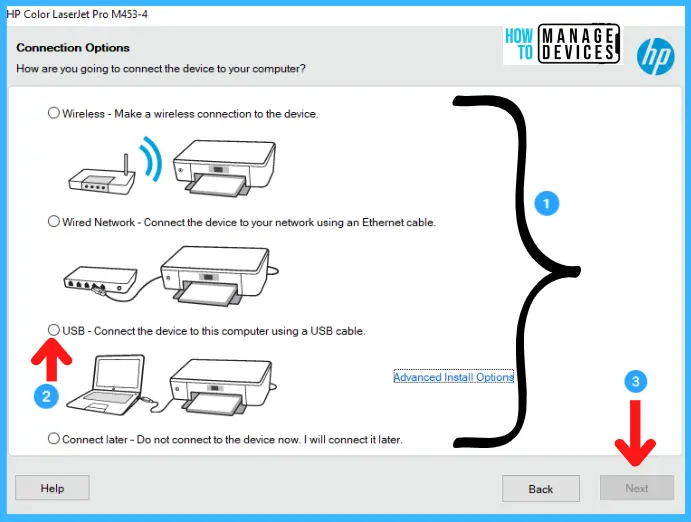
- Follow the on-screen instructions: The installer will guide you through the process. This typically involves agreeing to license agreements, selecting installation options, and connecting your printer (if prompted).
- Restart your computer: It’s often a good idea to restart your computer after driver installation to ensure all changes take effect.
- Test print: Print a test page to confirm everything is working correctly.
Pro-Tip: Always download drivers directly from the official manufacturer’s website. Avoid third-party driver download sites, as these can sometimes bundle malware or outdated drivers.
Method 3: Installing Drivers from the Included CD/DVD (If Available)
Many printers used to come with an installation CD or DVD. While this is becoming less common with newer models, if yours did, it can be a simple way to install the drivers.
Steps:
- Insert the CD/DVD: Place the installation disc into your computer’s CD/DVD drive.
- Autorun or manual launch: Most discs will automatically launch an installation program. If not, open “File Explorer” (Windows) or “Finder” (macOS), navigate to the disc drive, and double-click the setup executable (often named “setup.exe” or “install.exe”).
- Follow on-screen prompts: The installation wizard will guide you through the process.
- Connect your printer: You’ll likely be prompted to connect your printer at a specific stage of the installation.
- Restart your computer: As with other methods, a restart is often recommended.
- Test print: Verify the installation by printing a test page.
Note: Drivers on older CDs may not be the most up-to-date. If you encounter issues, it’s still best to check the manufacturer’s website for newer drivers.
Troubleshooting Common Printer Driver Issues
Even with the best intentions, you might encounter problems when installing or using printer drivers. Here are some common issues and how to resolve them:
Printer Not Detected
- Check Connections: Ensure your printer is powered on and all cables (USB or Ethernet) are securely connected at both ends. For wireless printers, confirm it’s connected to your Wi-Fi network.
- Restart Everything: A simple restart of your printer, your computer, and your router (if it’s a network printer) can often resolve communication glitches.
- Try a Different USB Port: If using a USB connection, try plugging the cable into a different USB port on your computer.
- Verify Printer Status: Check the printer’s display panel for any error messages or blinking lights that indicate a problem with the printer itself.
Incorrect or Corrupted Drivers
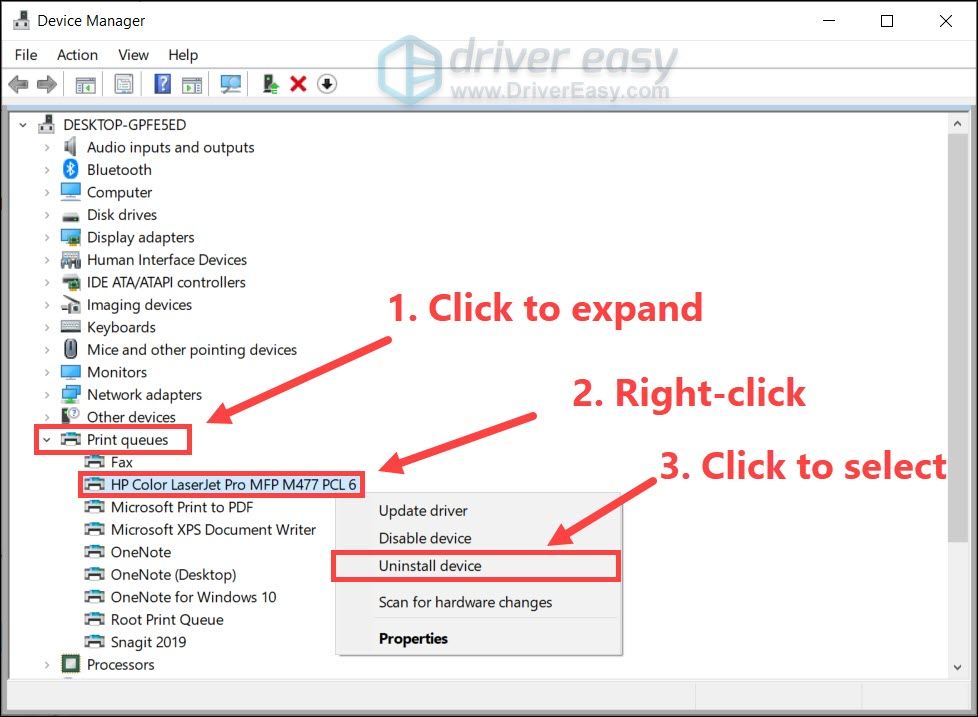
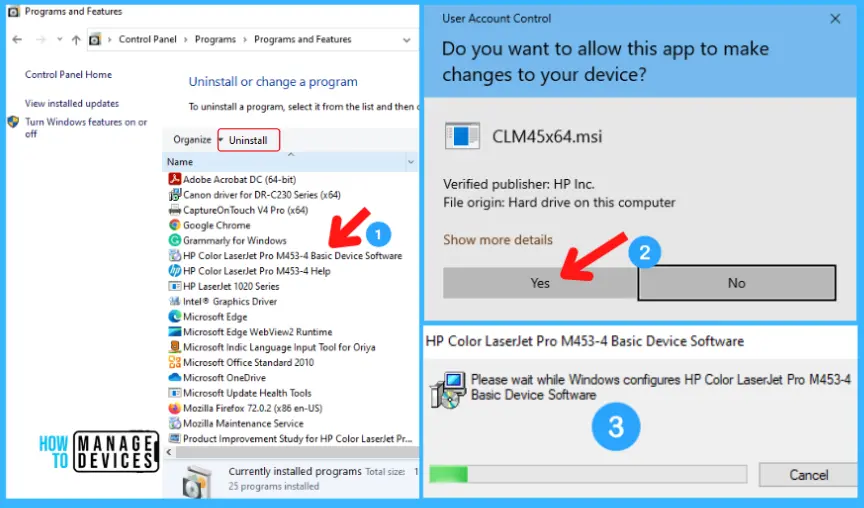
- Uninstall and Reinstall: The most effective solution is often to completely uninstall the existing driver and then reinstall it using the recommended method (from the manufacturer’s website).
- Windows: Go to “Control Panel” > “Programs and Features” (or “Apps & Features” in Settings), find your printer, and uninstall it. Then, go to “Devices and Printers” (or “Printers & Scanners” in Settings), right-click your printer, and select “Remove device.”
- macOS: Go to “System Preferences/Settings” > “Printers & Scanners,” select your printer, and click the “-” button to remove it.
- Clean Driver Uninstallation: For stubborn issues, some manufacturers offer “clean uninstall” utilities on their support websites. These tools remove all remnants of the old driver.
Driver Conflicts
Sometimes, installing a new driver can conflict with existing software.
- System Restore (Windows): If the problem started immediately after a driver installation, you can try using Windows System Restore to revert your system to a point before the issue occurred.
- Check for Malware: Ensure your system is free from malware, which can sometimes interfere with driver installations.
“Access Denied” or Permissions Issues
- Run as Administrator: When running driver installers, right-click the installer file and select “Run as administrator” (Windows). This gives the installer elevated privileges.
Maintaining Your Printer Drivers: Keeping Them Up-to-Date
Once your printer is installed and working, it’s crucial to keep its drivers updated. This isn’t just about preventing problems; it’s about optimizing performance and security.
Why Updates Matter
- Bug Fixes: Developers continuously find and fix bugs that can cause printing errors or unexpected behavior.
- Performance Improvements: Updates can optimize how your printer communicates with your OS, leading to faster printing or better resource management.
- New Feature Support: Manufacturers might release updates to add new features or improve existing ones.
- Security Patches: Like any software, printer drivers can have security vulnerabilities. Updates often include patches to protect against these.
- OS Compatibility: As operating systems evolve, driver updates ensure continued compatibility.
How to Check for and Install Driver Updates
- Manufacturer’s Website: This remains the best method. Periodically visit the support section of your printer manufacturer’s website and check for newer driver versions for your specific model.
- Operating System Updates: Sometimes, your operating system’s built-in update mechanism (Windows Update, macOS Software Update) will offer driver updates. Keep your OS updated.
- Printer Software Utility: Many printer manufacturers provide dedicated software or utilities that run in the background and can notify you of available driver updates. Check your installed printer software for such options.
By following these guidelines, you can confidently install and maintain your printer drivers, ensuring a smooth and hassle-free printing experience for all your needs. Remember, a little attention to your printer’s drivers can save you a lot of frustration down the line.
aViewFromTheCave is a participant in the Amazon Services LLC Associates Program, an affiliate advertising program designed to provide a means for sites to earn advertising fees by advertising and linking to Amazon.com. Amazon, the Amazon logo, AmazonSupply, and the AmazonSupply logo are trademarks of Amazon.com, Inc. or its affiliates. As an Amazon Associate we earn affiliate commissions from qualifying purchases.