
In the ever-evolving landscape of web development and technology, staying agile and efficient is paramount. Whether you’re a seasoned developer, a budding tech enthusiast, or someone looking to streamline their digital workflow, the ability to quickly leverage command-line tools can be a game-changer. This is where npx shines. Often mentioned in the same breath as Node.js and npm, npx isn’t just another piece of software to install; it’s a powerful utility that unlocks a world of immediate command-line tool execution without the hassle of global installation.
This article will demystify npx, explaining what it is, why it’s so valuable, and most importantly, how to get it up and running on your system. We’ll delve into its core functionalities, showcase practical use cases, and explore how it seamlessly integrates with the broader “Tech” category of our website, empowering your productivity and simplifying your development journey.
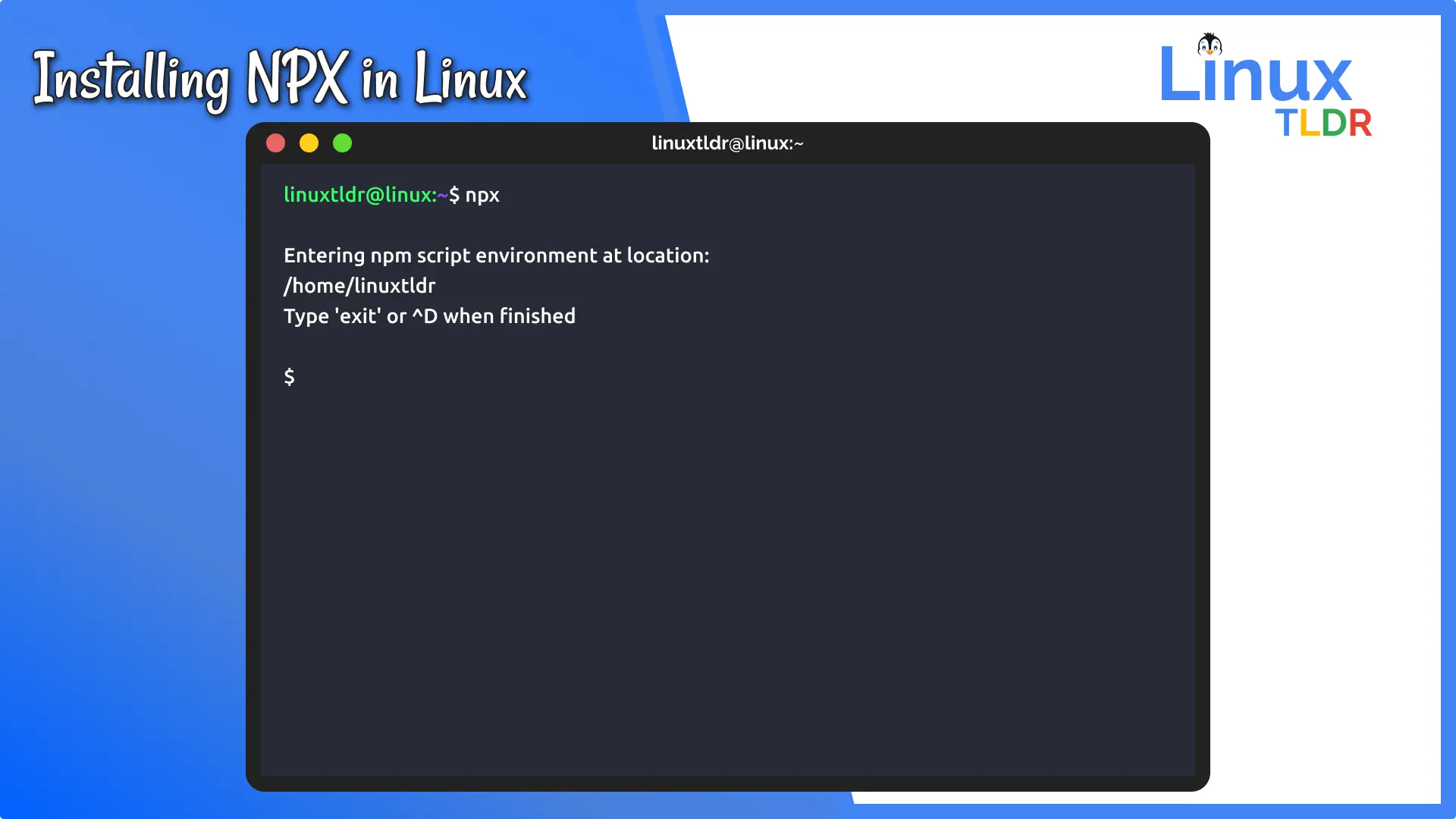
Understanding the “N” in NPX: What Exactly is it?
Before we dive into the “how,” it’s crucial to understand the “what.” npx stands for “Node Package Execute.” At its heart, it’s a package runner tool that comes bundled with npm (Node Package Manager) starting from version 5.2.0. Its primary function is to execute Node.js packages without needing to install them globally or locally on your machine first.
Think of it this way: traditionally, if you wanted to use a command-line tool provided by an npm package (like a linter, a code generator, or a specific utility), you’d typically have to install that package globally using npm install -g <package-name> or locally within a project using npm install <package-name>. This could lead to a cluttered global node_modules directory or require managing dependencies for every single tool you wished to use.
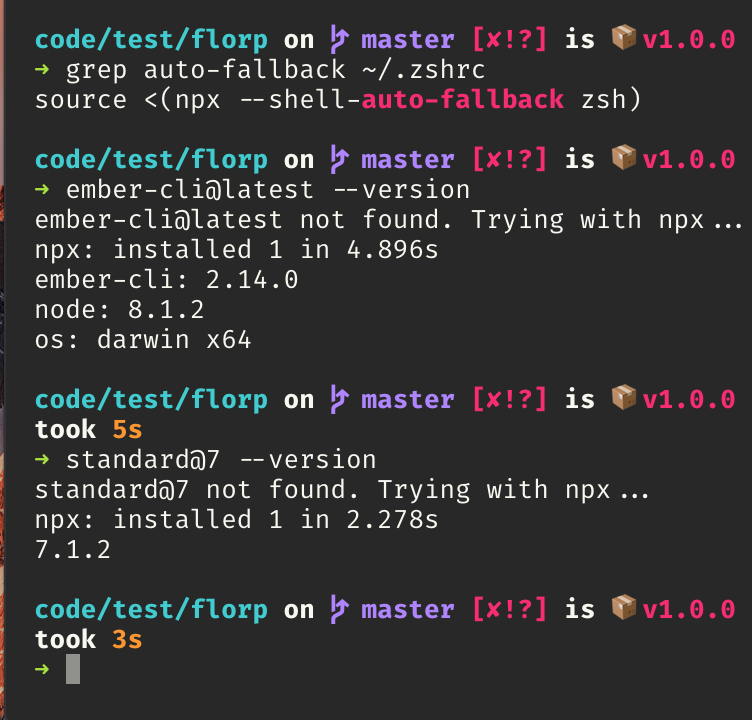
npx elegantly sidesteps this. When you run a command with npx, it first checks if the command is available in your current project’s node_modules/.bin directory. If it’s not found there, npx will then search for the package on the npm registry, download it temporarily, execute the command, and then discard the downloaded package. This “on-demand” execution is its key differentiator and a significant productivity booster.
Why is NPX So Important? The Benefits of On-Demand Execution
The introduction of npx marked a significant step forward in how developers interact with command-line tools. Its benefits are numerous and directly contribute to a more efficient and streamlined workflow, aligning perfectly with our “Tech” focus on productivity and software utilization.
Eliminating Global Installation Clutter
One of the most apparent advantages of npx is its ability to bypass the need for global installations. Many command-line tools are used infrequently or are project-specific. Installing them globally can lead to:
- Namespace Collisions: Different tools might offer commands with the same name, leading to confusion and potential conflicts.
- Dependency Bloat: Your global
node_modulescan become excessively large, making it harder to manage and potentially slowing down your system. - Version Management Issues: Keeping track of specific versions of globally installed tools for different projects can become a tedious task.
npx solves this by treating each execution as a fresh, isolated event. This keeps your global environment clean and ensures that you’re always using the latest available version of a tool unless you explicitly specify otherwise.
Simplified Project Setup and Execution
For new projects, npx makes it incredibly easy to run tools without initial setup. For example, if you want to create a new React application using create-react-app, you can simply run:
npx create-react-app my-app
You don’t need to install create-react-app globally first. npx handles fetching and executing it for you. This drastically reduces the initial friction for developers starting new projects or experimenting with new tools.
Running Packages from Specific Versions
While npx defaults to executing the latest version, it also offers the flexibility to run specific versions of packages. This is invaluable when working with projects that have strict dependency requirements or when you need to test against an older version of a tool. For instance, to run version 1.2.3 of a package:
npx package-name@1.2.3 <command>
This level of control ensures compatibility and allows for precise testing and debugging.
Discovering and Experimenting with New Tools
The ease of use with npx encourages exploration. You can quickly try out new command-line utilities available on the npm registry without committing to a full installation. This is a fantastic way to discover powerful tools that can enhance your productivity or solve specific problems, fitting well within our “Tech” focus on exploring new AI tools and software.
How to Install and Use NPX: A Step-by-Step Guide
The good news is that if you have Node.js installed, you most likely already have npx. npx is bundled with npm version 5.2.0 and later. Therefore, the primary step is to ensure you have a recent version of Node.js installed.
Step 1: Verify Your Node.js and NPM Installation
Before you can use npx, you need Node.js and npm installed on your system. Open your terminal or command prompt and run the following commands:
node -v
npm -v
If these commands output version numbers (e.g., v18.17.0 for Node.js and 9.6.7 for npm), you have them installed. If not, you’ll need to download and install Node.js from the official website: https://nodejs.org/. The Node.js installer typically includes npm.
Important Note on Installation: When you install Node.js, npm (and consequently npx) are installed automatically. You don’t need a separate installation process for npx itself.
Step 2: Checking if NPX is Available
Once Node.js and npm are installed, you can confirm that npx is accessible. In your terminal, type:
npx -v
If npx is installed and accessible in your system’s PATH, this command will display its version number. If you get an error like “command not found,” it usually indicates that either Node.js/npm isn’t installed correctly, or their installation directory isn’t included in your system’s PATH environment variable.
Troubleshooting PATH Issues
If npx -v doesn’t work, here’s a quick guide to common troubleshooting:
- Reinstall Node.js: Sometimes, a fresh installation can resolve PATH issues. Ensure you follow the installation instructions for your operating system carefully.
- Check Environment Variables: On Windows, you might need to manually add the Node.js installation directory (e.g.,
C:Program Filesnodejs) to your system’s PATH. On macOS and Linux, this is usually handled by the installer, but you can manually edit your~/.bashrc,~/.zshrc, or similar shell configuration files. - Restart Your Terminal: After installing Node.js or modifying environment variables, close and reopen your terminal window for the changes to take effect.

Step 3: Using NPX in Practice
Now that you’ve confirmed npx is ready, let’s look at how to use it. The basic syntax is:
npx <command> [arguments]
Where <command> is the name of the package or executable you want to run.
Practical Examples of NPX Usage
To solidify your understanding, let’s explore some common scenarios where npx shines:
1. Creating New Projects with Boilerplates
As mentioned earlier, tools like create-react-app, vue-cli, and angular-cli are excellent examples.
- React:
bash

npx create-react-app my-react-project

cd my-react-project

npm start
- Vue.js:
bash

npx @vue/cli create my-vue-project

cd my-vue-project

npm run serve
- Angular:
bash

npx @angular/cli new my-angular-project

cd my-angular-project

ng serve
These commands download and run the respective scaffolding tools, setting up a new project structure with all the necessary dependencies.
2. Running One-Off CLI Tools
Many utilities are designed for single use or occasional tasks. npx is perfect for these. For instance, if you want to use http-server to quickly spin up a static file server in a directory without installing it globally:
npx http-server
This will download http-server, run it, and you can then access your files through your browser. Once you close the terminal or stop the server, the package is effectively gone from your immediate environment.
3. Executing Scripts from the npm Registry
You can execute any package that exposes a command-line interface directly from the npm registry. For example, to check the size of your project’s dependencies without installing a dedicated tool globally:
npx npm-check-updates -u # (if you wanted to update dependencies, for example)
Or to run a specific script from a package:
npx eslint . # (to lint your current directory with ESLint)
If eslint isn’t installed locally or globally, npx will download it, run the check, and then clean up.
Running NPX with Specific Package Versions
Sometimes, you need to ensure you’re running a particular version of a tool, perhaps for compatibility reasons or to reproduce a specific environment. You can specify the version like this:
npx <package-name>@<version-number> <command>
For example, if you needed to run an older version of eslint:
npx eslint@7.0.0 .
This ensures that your commands are executed with the exact version of the package you intend, providing predictable outcomes.
NPX: A Catalyst for Productivity and Innovation in Tech
The simplicity and power of npx position it as an indispensable tool for anyone working with Node.js and its vast ecosystem. It aligns perfectly with our website’s core themes, especially within the “Tech” category, by:
- Boosting Productivity: By removing the friction of installation,
npxallows developers to focus on writing code and solving problems rather than managing tools. This is a direct win for productivity. - Facilitating Exploration: The ease of trying out new tools encourages experimentation with the latest advancements in AI tools, software libraries, and development methodologies. This fosters innovation and keeps users at the cutting edge of technology.
- Simplifying Workflows: From setting up new projects to running specialized utilities,
npxstreamlines common tasks, making development more accessible and less intimidating for beginners. - Enhancing Digital Security: By running packages on demand and discarding them after use,
npxreduces the attack surface associated with outdated or vulnerable globally installed packages. It encourages the use of specific, often patched, versions for immediate tasks.
Beyond Installation: Leveraging NPX for Broader Tech Adoption
The impact of npx extends beyond just developers. Consider its role in onboarding new team members. With npx, a new developer can join a project, clone the repository, and immediately start running project-specific build or development scripts without needing to meticulously install a dozen global dependencies. This speeds up onboarding and allows them to contribute faster.
For businesses, embracing tools and workflows that leverage npx can lead to:
- Faster Iteration Cycles: Quick setup and execution of tools mean faster feedback loops and quicker delivery of features.
- Reduced Technical Debt: By avoiding global installations,
npxhelps prevent the accumulation of orphaned or outdated global packages that can become security risks or performance bottlenecks over time. - Improved Collaboration: Standardized ways of running tools, even those not explicitly installed, make it easier for team members to collaborate and share their development environments.
In the realm of “Brand” and “Money,” while npx is a technical tool, its implications can ripple outwards. A more efficient development process driven by such tools can lead to faster product launches, improved user experiences, and ultimately, a stronger brand presence. For businesses focused on online income or side hustles, mastering these productivity tools can mean building and deploying their digital products more quickly and cost-effectively.
Conclusion: Embrace the Power of NPX for an Uncluttered and Efficient Workflow
In summary, npx is not an installation; it’s a feature. It’s a built-in utility that has revolutionized how we interact with Node.js packages. By enabling the on-demand execution of commands, it liberates you from the burden of global installations, streamlines project setup, and encourages the exploration of the vast npm ecosystem.
If you’ve been following tutorials or encountering commands that start with npx, you now understand its purpose and significance. Ensure your Node.js installation is up-to-date, and start incorporating npx into your daily workflow. You’ll find that this simple yet powerful tool will contribute significantly to your productivity, keeping your development environment clean and your focus sharp on what truly matters: building and innovating. The next time you see npx, don’t just see a command; see an opportunity for effortless execution and a more efficient path to your technological goals.