
In the dynamic world of web development and software engineering, the command npm install is not just a line of code; it’s a gateway to a universe of packages, libraries, and frameworks that form the building blocks of modern applications. While its name suggests a singular action, understanding npm install involves a deeper dive into Node.js, package management, and the intricate ecosystem that supports it. This comprehensive guide will demystify the process, from the initial setup of Node.js and npm to advanced techniques and best practices, ensuring you can confidently leverage this essential tool.

Understanding the Foundation: Node.js and npm
Before you can wield the power of npm install, it’s crucial to grasp the underlying technologies. At its core, npm (Node Package Manager) is the default package manager for Node.js, an open-source, cross-platform JavaScript runtime environment. Essentially, Node.js allows you to run JavaScript code outside of a web browser, enabling server-side development and a vast array of command-line tools.
What is Node.js?
Node.js revolutionized JavaScript development by providing a robust environment for building scalable network applications. It’s built on Chrome’s V8 JavaScript engine, known for its speed and efficiency. This means you can write JavaScript for both the front-end (in the browser) and the back-end (on a server), fostering a more unified development experience.
What is npm?
npm acts as a bridge between developers and the vast collection of reusable JavaScript code available through the npm registry. The registry hosts hundreds of thousands of packages, each offering specific functionalities. npm simplifies the process of finding, downloading, and integrating these packages into your projects. It manages dependencies, allowing you to specify which versions of packages your project relies on, and automatically handles their installation.
Why is npm install So Important?
The significance of npm install cannot be overstated. It’s the primary command used to:
- Download and Install Packages: This is the most fundamental use. When you need a library for handling dates, making HTTP requests, building a user interface, or performing any other task, you install it using
npm install <package-name>. - Manage Project Dependencies: Every Node.js project typically has a
package.jsonfile. This file lists all the project’s dependencies, along with their version requirements. Runningnpm installwithout any package name reads this file and installs all the necessary dependencies, ensuring that any developer working on the project can replicate the exact environment. - Set Up Development Environments: From frameworks like React and Angular to build tools like Webpack and Babel,
npm installis the starting point for setting up virtually any modern web development project.
Getting Started: Installation and Initial Setup
The journey to mastering npm install begins with ensuring you have the necessary tools installed on your system.
Installing Node.js and npm
The easiest and most recommended way to install both Node.js and npm is to download the official installer from the Node.js website (https://nodejs.org/). The website provides installers for Windows, macOS, and Linux.
Steps for Installation:
-
Visit the Node.js Website: Navigate to https://nodejs.org/.
-
Choose a Version: You’ll typically see two recommended versions:
- LTS (Long-Term Support): This is the most stable version and is recommended for most users. It receives regular updates and bug fixes for an extended period.
- Current: This version includes the latest features but might be less stable and is generally recommended for users who want to test new functionalities.
For most use cases, especially if you’re new to Node.js, the LTS version is the best choice.
-
Download the Installer: Click the download button for your operating system.
-
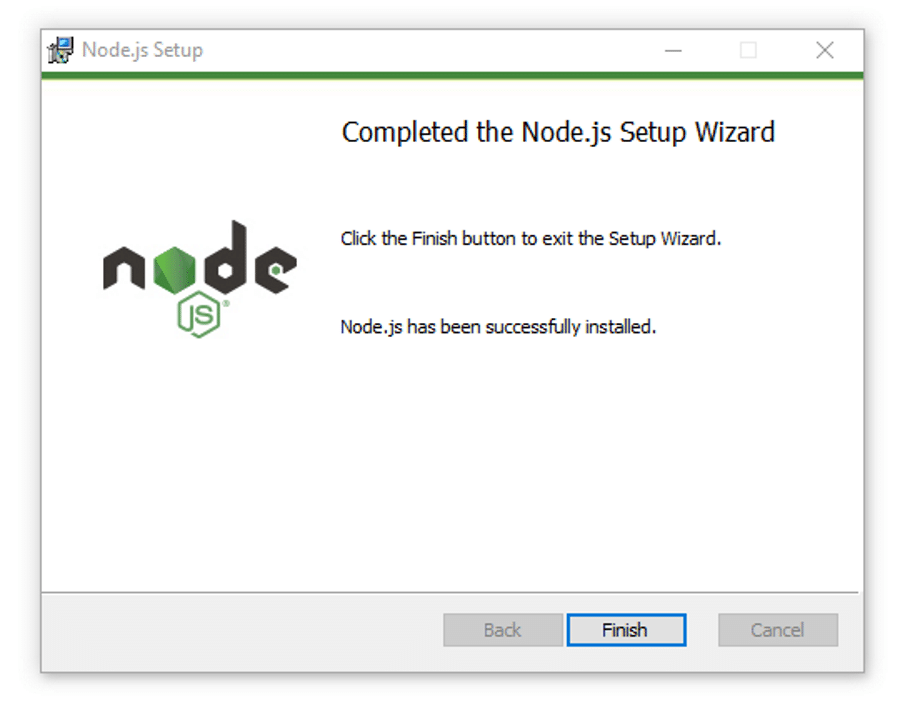
Run the Installer: Execute the downloaded file and follow the on-screen prompts. The installer typically includes npm, so you won’t need to install it separately.
-
Verify Installation: After the installation is complete, open your terminal or command prompt and run the following commands to verify that Node.js and npm have been installed correctly:
node -v
npm -v
These commands should output the installed versions of Node.js and npm, respectively.
Creating Your First Project and package.json
Once Node.js and npm are installed, you’re ready to start your first project.
Steps to Create a Project:
-
Create a Project Directory: Open your terminal and create a new directory for your project:
mkdir my-new-project cd my-new-project -
Initialize npm: Inside your project directory, run the following command to create a
package.jsonfile:npm initThis command will ask you a series of questions about your project (package name, version, description, entry point, etc.). You can press Enter to accept the default values for most of these questions. If you want to skip all the questions and accept the defaults, you can use the
-yflag:npm init -yThe
package.jsonfile is crucial. It serves as the manifest for your project, detailing its metadata, scripts, and, most importantly, its dependencies.
The node_modules Folder
When you run npm install, a new folder named node_modules is created in your project’s root directory. This folder is where npm downloads and stores all the packages your project depends on. It’s essential to understand that this folder can become quite large, especially in complex projects. For this reason, the node_modules folder is almost always included in a project’s .gitignore file, preventing it from being committed to version control systems like Git. Instead, others can recreate the node_modules folder by running npm install on their own machines, using the package.json file.
Mastering npm install: From Basic to Advanced
Now that the foundation is laid, let’s explore the various ways npm install can be used and the concepts behind them.
Installing Packages
The most common use of npm install is to add new packages to your project.
Installing a Specific Package
To install a package and add it to your project’s dependencies in package.json, you use the following syntax:
npm install <package-name>
For example, to install the popular Lodash utility library:
npm install lodash
This command will:
- Download the latest stable version of Lodash from the npm registry.
- Place the downloaded package in the
node_modulesfolder. - Add
lodashas a dependency in yourpackage.jsonfile under thedependenciessection.
Installing Development Dependencies
Some packages are only needed during the development process (e.g., testing frameworks, build tools, linters). These are called development dependencies and are listed separately in package.json. To install a package as a development dependency, use the --save-dev or -D flag:
npm install <package-name> --save-dev
# or
npm install <package-name> -D
For example, to install the Jest testing framework:
npm install jest --save-dev

This will add jest to the devDependencies section of your package.json.
Installing Packages Globally
In some cases, you might want to install a package globally so it can be accessed from anywhere on your system, not just within a specific project. This is common for command-line tools. Use the -g flag for global installation:
npm install <package-name> -g
For example, to install the powerful nodemon tool, which automatically restarts your Node.js application when file changes are detected:
npm install nodemon -g
Caution: Global installations should be used judiciously. Most project-specific dependencies should be installed locally.
Installing All Dependencies from package.json
As mentioned earlier, npm install without any package name is a powerful command. When executed in the root of a project that has a package.json file, it reads the dependencies and devDependencies sections and installs all the required packages. This is the command you’ll run when you clone a project from a repository or when a new team member joins your project.
npm install
Updating Packages
Keeping your project’s dependencies up-to-date is crucial for security and access to new features.
Updating a Specific Package
To update a specific package to its latest version that satisfies the version range specified in package.json, you can simply run npm install again with the package name:
npm install <package-name>
npm will check the registry and update the package if a newer, compatible version is available.
Updating All Packages
There isn’t a single, simple command to update all packages to their absolute latest versions if they fall outside the specified ranges in package.json. This is a deliberate design choice to prevent unintended breaking changes. However, you can use commands like npm outdated to see which packages have newer versions available, and then update them individually or use third-party tools designed for bulk updates.
Understanding package-lock.json and npm ci
For reproducible builds and to ensure that everyone on a team is using the exact same versions of dependencies, npm introduced package-lock.json (or npm-shrinkwrap.json).
What is package-lock.json?
When you run npm install, npm generates or updates a package-lock.json file. This file records the exact versions of every package that was installed, including all their sub-dependencies. This ensures that future npm install commands will install the exact same dependency tree, regardless of minor version updates that might have occurred in the registry.
npm ci vs. npm install
While npm install can be used to update dependencies, npm ci (clean install) is specifically designed for continuous integration (CI) environments and for ensuring reproducible builds.
npm ci:- Deletes the
node_modulesfolder before installing. - Installs dependencies exactly as specified in
package-lock.json. - Will fail if
package-lock.jsonis missing or out of sync withpackage.json. - Is generally faster than
npm installin CI environments.
- Deletes the
npm install:- Can install new packages.
- Can update existing packages based on
package.jsonversion ranges. - May result in different dependency trees if run at different times.
For production builds and collaborative development, using npm ci is often preferred to guarantee consistency.
Advanced Usage and Best Practices
To truly master npm install, consider these advanced techniques and best practices.
Versioning Explained
npm uses semantic versioning (SemVer) for package versioning, which follows a MAJOR.MINOR.PATCH format.
- PATCH: Incremented for backward-compatible bug fixes.
- MINOR: Incremented for backward-compatible new features.
- MAJOR: Incremented for incompatible API changes.
In your package.json, you’ll often see version ranges like ^1.2.3 (caret) or ~1.2.3 (tilde).
^1.2.3: Allows updates that do not change the leftmost non-zero digit (e.g., allows1.3.0but not2.0.0).~1.2.3: Allows only patch-level updates (e.g., allows1.2.4but not1.3.0).
Understanding these ranges is crucial for managing dependencies and avoiding unexpected breaking changes.
Scripting with npm
The scripts section in package.json allows you to define custom commands that can be executed using npm run <script-name>. This is commonly used for tasks like starting your application, running tests, or building your project.
Example package.json script section:
"scripts": {
  "start": "node index.js",
  "test": "jest",
  "build": "webpack --mode production"
}
You would then run these commands as:
npm start
npm test
npm run build
Resolving Installation Issues
Despite its ease of use, you might occasionally encounter issues during npm install. Common problems and solutions include:
- Permissions Errors: If you’re on Linux or macOS and encounter permission errors, you might need to install npm with permissions, or more commonly, set up npm to use a user-owned directory. Avoid using
sudo npm install -gunless absolutely necessary and you understand the implications. - Corrupted Cache: npm maintains a cache of downloaded packages. If you suspect corruption, you can clear the cache:
npm cache clean --force. - Network Issues: Ensure you have a stable internet connection. Firewalls or proxy settings can also sometimes interfere.
- Version Conflicts: These can be tricky.
npm lscan help visualize your dependency tree and identify conflicts. Sometimes, updating a conflicting package or finding an alternative can resolve the issue. node_modulesDeletion: If all else fails, deleting thenode_modulesfolder and runningnpm installagain can often resolve stubborn issues.
Package Management Tools
For more complex projects, consider using package managers like yarn or pnpm. They offer alternative approaches to dependency management, often with performance improvements and different features. However, npm remains the standard and is fully capable for most use cases.
Conclusion
The command npm install is a cornerstone of modern software development, enabling developers to efficiently leverage a vast ecosystem of open-source packages. From the initial setup of Node.js and npm to the nuanced management of dependencies via package.json and package-lock.json, a thorough understanding of this command unlocks the potential for rapid and robust application development. By mastering the basics, understanding advanced concepts like semantic versioning and scripting, and adopting best practices for dependency management, you equip yourself with an indispensable tool in your tech arsenal. Whether you’re building your first web application or contributing to large-scale enterprise software, npm install will be your constant companion, a testament to the collaborative and innovative spirit of the developer community.