
The Apple Watch has evolved far beyond a mere time-telling device; it’s a sophisticated extension of your digital life, a personal assistant, a health monitor, and a communication hub, all conveniently strapped to your wrist. Much of this transformative power lies in its vibrant app ecosystem. From fitness trackers and productivity tools to navigation aids and smart home controls, apps unlock the full potential of your Apple Watch, tailoring its capabilities precisely to your needs and lifestyle.
For newcomers to the Apple Watch, or even seasoned users looking to optimize their experience, understanding how to install, manage, and troubleshoot apps is fundamental. This comprehensive guide will walk you through every step, ensuring you can effortlessly transform your Apple Watch into an indispensable tool that not only keeps pace with technology trends but also enhances your personal brand of efficiency and potentially even your financial well-being through smarter living.
The Apple Watch App Ecosystem: A Gateway to Enhanced Functionality
Before diving into the mechanics of installation, it’s crucial to appreciate the significance of apps on your Apple Watch. They are the software engines that power its diverse functionalities, making it more than just a gadget but a truly integrated part of your daily routine.
Why Apps Matter on Your Wrist
In an age dominated by information and connectivity, convenience is king. Apple Watch apps epitomize this principle, bringing critical information and actionable controls directly to your wrist, eliminating the need to constantly pull out your iPhone. Imagine checking your heart rate during a workout, getting turn-by-turn directions at a glance, replying to a message with a quick voice command, or even controlling your smart home devices – all without breaking stride.
For the tech-savvy individual, apps represent the cutting edge of wearable technology, offering innovative ways to interact with the digital world. For those focused on productivity, they streamline workflows and provide instant access to vital tools. And for health-conscious users, they are invaluable for tracking metrics, offering reminders, and promoting a proactive approach to well-being. Ultimately, apps transform the Apple Watch from a luxurious accessory into a powerful utility, reflecting a user’s commitment to efficiency and smart living – an aspect that subtly contributes to one’s personal brand of capability.
Understanding App Compatibility
Not all apps available on your iPhone automatically have a corresponding Apple Watch version, and even those that do might offer a limited set of features tailored for the smaller screen and specific Watch hardware. Apple’s guidelines encourage developers to create Watch apps that are glanceable, actionable, and contextually relevant, focusing on quick interactions rather than extensive browsing.
When considering an app, always check its compatibility. Most developers will clearly indicate if their app supports Apple Watch, often noting it in the App Store description. Furthermore, specific features might require certain Apple Watch models or watchOS versions. Keeping your Apple Watch’s operating system (watchOS) updated is therefore crucial to ensure you have access to the latest app features and security enhancements. This aligns perfectly with staying abreast of technology trends, ensuring your gadgets are always optimized for peak performance and utility.
Seamless Installation: Two Primary Methods
Installing apps on your Apple Watch is a straightforward process, primarily facilitated through your paired iPhone or, for added convenience, directly from the Watch itself. Both methods offer a user-friendly experience, but understanding the nuances of each can help you choose the most efficient path.
Installing Apps via Your iPhone (The Most Common Approach)
The iPhone remains the primary hub for managing your Apple Watch, and app installation is no exception. This method leverages the iPhone’s larger screen and more robust processing power, making it ideal for browsing, discovering, and installing new applications.
Automatic Installation
By default, when you install an app on your iPhone that also has an Apple Watch counterpart, the Watch version might automatically install. This is designed for convenience, ensuring that your most frequently used iPhone apps are seamlessly extended to your wrist.
To verify or adjust this setting:
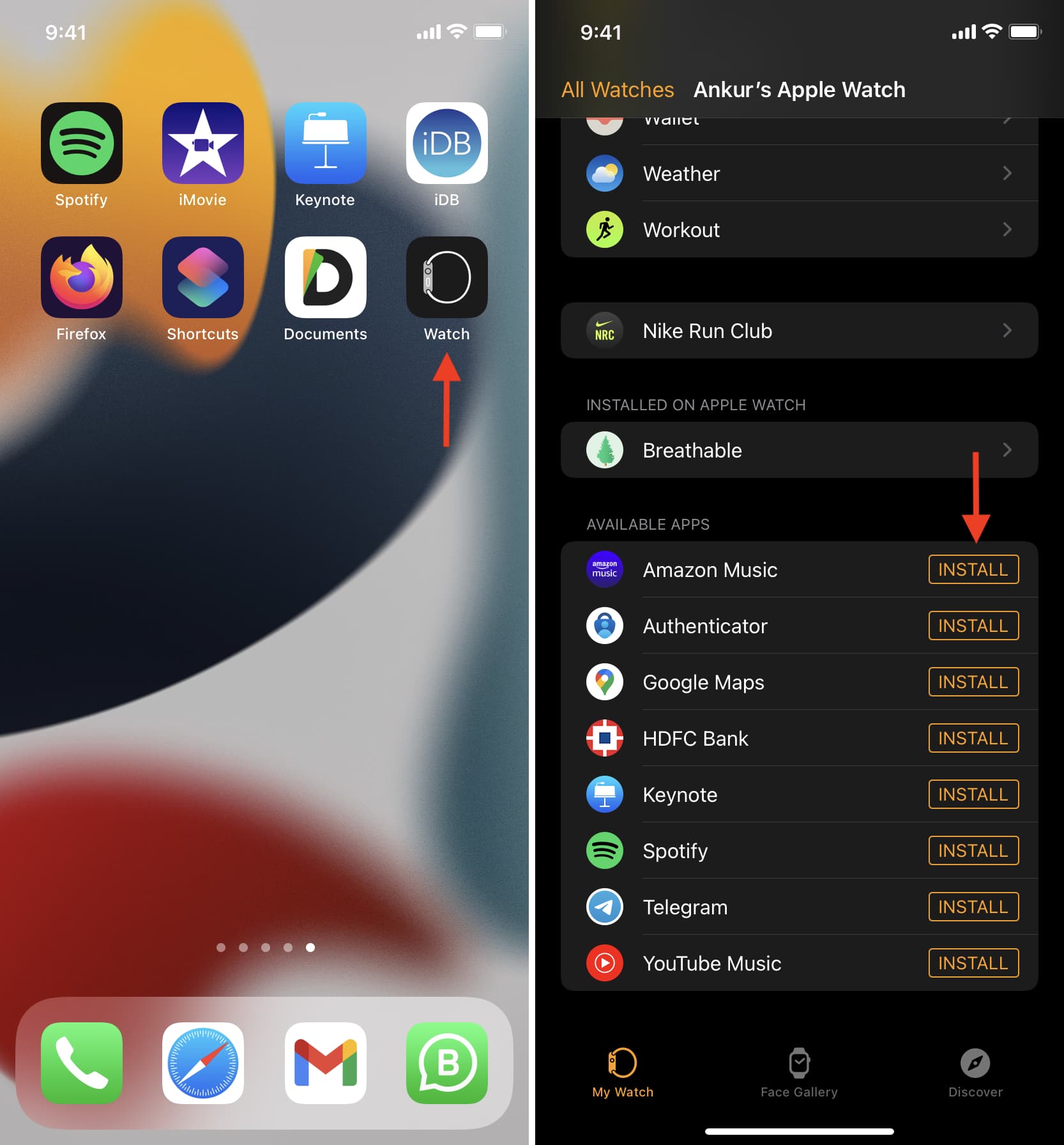
- Open the Watch app on your iPhone. This is the dedicated app for managing your Apple Watch.
- Tap on the “My Watch” tab at the bottom of the screen.
- Scroll down and tap “General.”
- Look for “Automatic App Install.” Ensure this toggle is green (on) if you prefer apps to install automatically. If you want more control over which apps land on your Watch, you can toggle this off and use the manual method.
This automatic process embodies Apple’s commitment to a cohesive user experience, reflecting a strong brand strategy that prioritizes ease of use and ecosystem integration.
Manual Installation using the Watch App
Even with automatic installation enabled, you might prefer to manually select which apps appear on your Watch, or you may have disabled the automatic feature. Manual installation gives you precise control over your Watch’s app library, preventing clutter and conserving storage space.
Here’s how to manually install an app:
- Open the Watch app on your iPhone.
- Tap on the “My Watch” tab.
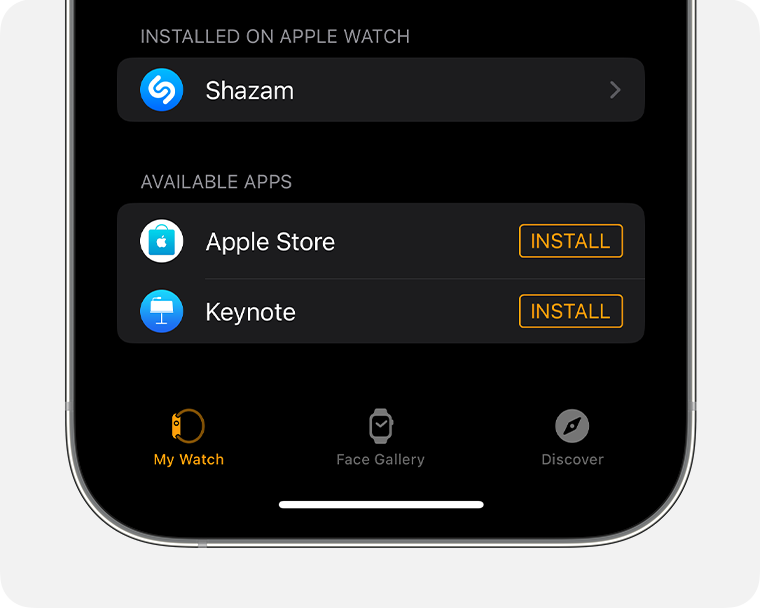
- Scroll down to the “Available Apps” section. This section lists all iPhone apps that have an Apple Watch companion but are not currently installed on your Watch.
- Browse the list and find the app you wish to install. The apps are usually listed alphabetically.
- Tap the “Install” button next to the desired app.
- Wait for the installation to complete. A small circular progress indicator will appear, and once finished, the app will move from “Available Apps” to “Installed on Apple Watch.” You’ll also see the app icon appear on your Apple Watch’s home screen.
This method offers a curated experience, allowing users to make conscious choices about the digital tools they carry on their wrist. It’s an important aspect of digital productivity, ensuring that only relevant apps are consuming valuable resources and attention.
Installing Apps Directly on Your Apple Watch (Watch App Store)
With watchOS 6 and later, Apple introduced a standalone App Store directly on the Apple Watch, significantly enhancing the device’s independence from the iPhone. This feature allows you to discover, search for, and install apps directly from your wrist, making it incredibly convenient when your iPhone isn’t immediately at hand or when you want a truly native Watch app experience.
To install apps directly from your Apple Watch:
- Press the Digital Crown on your Apple Watch to go to the App View (the honeycomb-style screen).
- Tap on the App Store icon. It looks like a blue icon with a white ‘A’ made of lines.
- Browse or search for apps.
- Browse: You can scroll through featured apps, curated collections, or different categories.
- Search: Tap the search icon (magnifying glass) at the top. You can use scribble to type or dictate your search query.
- Select an app to view its description, screenshots, and reviews.
- Tap “Get” (for free apps) or the price (for paid apps).
- Double-click the side button to confirm your purchase or download.
- Wait for the app to install. The app icon will appear on your Watch’s home screen with a progress indicator.
This direct installation capability is a significant technological leap, empowering the Apple Watch as a more self-sufficient device. It’s particularly useful for niche Watch-specific apps or when you want to make impulse downloads without involving your iPhone. While most apps are free, some may require a one-time purchase or a subscription. Being mindful of these costs aligns with sound personal finance principles, ensuring you derive maximum value from your digital investments.
Managing Your Watch Apps: Updates, Uninstallation, and Organization
Installing apps is just the first step. Effective management of your Apple Watch apps ensures optimal performance, security, and a clutter-free user experience. This involves keeping apps updated, removing unnecessary ones, and organizing your app layout for quick access.
Keeping Apps Current: Updates and Auto-Updates
App updates are crucial. They often bring new features, performance improvements, bug fixes, and critical security patches. Running outdated apps can lead to crashes, security vulnerabilities, or simply a less enjoyable experience.
-
Automatic App Updates:
- Open the Watch app on your iPhone.
- Tap “My Watch” > “General.”
- Ensure “Automatic App Updates” is toggled green (on). This will allow apps to update in the background when your Watch is charging and connected to Wi-Fi. This is the recommended setting for most users, ensuring you always have the latest versions without manual intervention.
-
Manual Updates: If you prefer more control or if an app isn’t updating automatically, you can manually check for updates:
- Open the App Store on your Apple Watch.
- Scroll down to the bottom and look for any pending updates. If available, tap “Update All” or update individual apps.
Keeping your apps updated is a best practice in digital security and performance optimization, contributing to a seamless technology experience.
Freeing Up Space: Uninstalling Apps
Over time, you might accumulate apps you no longer use. Deleting these apps is important for several reasons: freeing up storage space (which can impact performance), improving battery life (by reducing background activity), and decluttering your app layout.
You can uninstall apps from either your iPhone or directly from your Apple Watch:
-
Uninstalling via iPhone:
- Open the Watch app on your iPhone.
- Tap the “My Watch” tab.
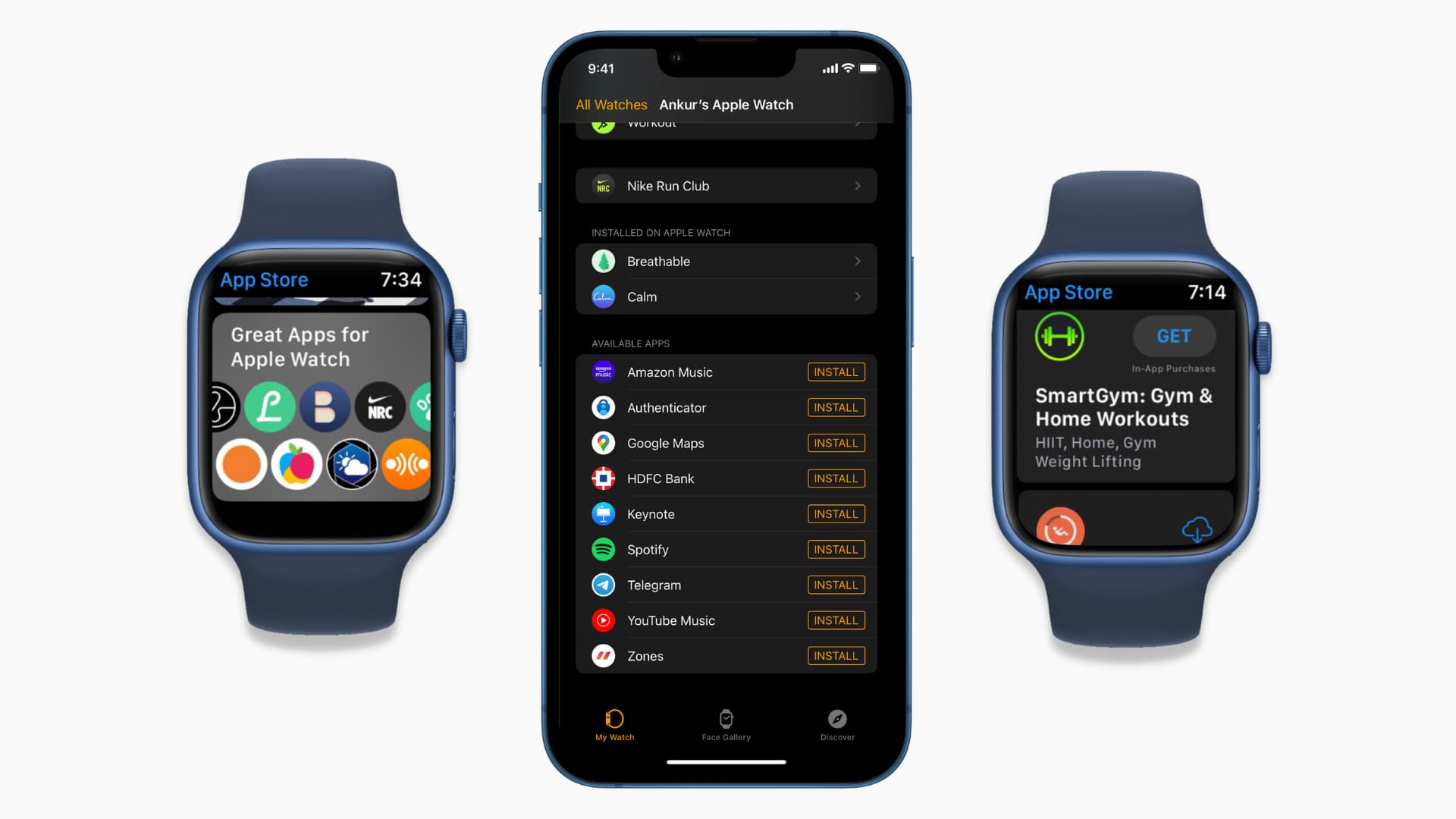
- Scroll down to the “Installed on Apple Watch” section. This lists all apps currently on your Watch.
- Tap on the app you wish to uninstall.
- Toggle off “Show App on Apple Watch.” Confirm by tapping “Delete App.” The app will be removed from your Watch but will remain on your iPhone.
- Alternatively, for some apps, you might see an “Uninstall App” option directly.
-
Uninstalling Directly from Apple Watch:
- Press the Digital Crown to view your apps.
- Lightly press and hold an app icon until all icons start to jiggle (similar to deleting apps on iPhone).
- Tap the ‘X’ icon that appears on the corner of the app you want to remove.
- Tap “Delete App” to confirm.
- Press the Digital Crown again to stop the jiggling.
Regularly reviewing and uninstalling unused apps is a good digital hygiene practice, reflecting a disciplined approach to managing your technology resources. This can indirectly relate to financial discipline by optimizing the performance and longevity of your expensive gadget.
Optimizing Your Watch Face and App Layout
Beyond just installing and uninstalling, how you organize your apps and watch faces significantly impacts your daily efficiency. The Apple Watch offers customizable watch faces, allowing you to add “complications” – small, glanceable pieces of information or quick shortcuts to apps.
- Watch Face Complications: Customize your watch face via the Watch app on your iPhone or directly on the Watch. Choose complications that provide instant access to your most-used apps (e.g., Activity, Weather, Calendar, custom third-party app shortcuts).
- App Layout: On your Apple Watch, you can rearrange app icons.
- Press the Digital Crown to see your app icons.
- Lightly press and hold an app icon until they jiggle.
- Drag the app icon to your desired position.
- Press the Digital Crown to set the new layout.
A well-organized watch face and app layout reduce cognitive load and save precious seconds throughout the day, embodying smart productivity and contributing to a polished personal brand of efficiency.
Troubleshooting Common App Installation Issues
While the installation process is generally smooth, occasional hiccups can occur. Understanding how to troubleshoot common problems can save you frustration and ensure your Apple Watch remains a reliable tool.
Connectivity Checks
Most app installations and updates require a stable connection between your Apple Watch and your iPhone, or directly to Wi-Fi.
- Bluetooth: Ensure Bluetooth is enabled on both your iPhone and Apple Watch.
- Wi-Fi: Make sure both devices are connected to a strong Wi-Fi network. For direct Watch App Store downloads, the Watch itself needs a Wi-Fi connection (or cellular, if your model supports it).
- Airplane Mode: Check that neither device is in Airplane Mode, which disables all wireless connectivity.
A reliable connection is the backbone of the Apple ecosystem, and ensuring it’s robust is the first step in resolving most communication-related issues.
Software Updates and Restarts
Many software-related issues can be resolved with a simple restart or by ensuring your devices are running the latest software.
- Restart Both Devices: Sometimes, a fresh start is all that’s needed.
- iPhone: Turn it off and on again.
- Apple Watch: Press and hold the side button until you see the power off slider, then drag it. After it powers down, press and hold the side button again to turn it back on.
- Update watchOS and iOS: Outdated software can lead to compatibility issues.
- iPhone: Go to
Settings > General > Software Update. - Apple Watch: Go to
Watch app > My Watch > General > Software Update. Ensure both are up to date.
- iPhone: Go to
Keeping software current is a fundamental aspect of digital security and performance, preventing glitches and vulnerabilities that could otherwise disrupt your tech experience.
Re-pairing and Resetting Considerations
If basic troubleshooting doesn’t work, more drastic steps might be necessary.
- Unpair and Re-pair: This is a powerful troubleshooting step that can resolve deeper software glitches. Unpairing your Watch effectively factory resets it but backs up most of its data to your iPhone. When you re-pair, you can restore from this backup.
- Open the Watch app on your iPhone.
- Tap “All Watches” at the top left.
- Tap the ‘i’ icon next to your Watch.
- Tap “Unpair Apple Watch.”
- Follow the on-screen instructions to re-pair it as a new Watch or restore from a backup.
- Factory Reset Apple Watch: If you’re experiencing persistent issues or plan to sell your Watch, a full factory reset (without backup) might be appropriate. This is done directly on the Watch via
Settings > General > Reset > Erase All Content and Settings.
While these are more extreme measures, they are vital for maintaining the long-term usability and value of your Apple Watch, aligning with responsible gadget management.
Maximizing Your Apple Watch Experience: Tips and Best Practices
Installing apps is just the beginning. To truly harness the power of your Apple Watch, consider these additional tips and best practices that touch upon discovery, power management, and digital security.
Discovering Essential Apps
The App Store offers a vast selection, but finding truly essential apps can be daunting.
- Explore Categories: The Watch App Store (both on iPhone and Watch) categorizes apps by fitness, productivity, health, entertainment, etc.
- Read Reviews: User reviews and ratings provide valuable insights into an app’s functionality and reliability.
- Check Apple’s Features: Apple often highlights best-in-class apps in its “Editor’s Choice” or curated collections, which are excellent starting points.
- Community Recommendations: Tech blogs, forums, and social media groups dedicated to Apple Watch often share great app recommendations.
Actively exploring and discovering new apps ensures you’re leveraging the latest technology trends to your advantage, keeping your personal tech ecosystem fresh and relevant.
Battery Life and App Usage
Apps, especially those with background refreshing or frequent notifications, can impact your Apple Watch’s battery life.
- Manage Background App Refresh:
- Open the Watch app on your iPhone.
- Tap “My Watch” > “General” > “Background App Refresh.”
- Toggle off apps that don’t need to update data constantly in the background.
- Limit Notifications: Excessive notifications not only drain battery but also lead to digital fatigue. Customize which apps send notifications to your Watch via the Watch app on your iPhone.
- Choose Efficient Complications: Some complications update more frequently than others, potentially affecting battery life. Be mindful of which ones you choose for your primary watch faces.
Proactive battery management is a critical aspect of device ownership, ensuring your Apple Watch is always ready when you need it. This mindful approach to resource consumption can be likened to prudent financial management, maximizing the return on your gadget investment.
Security and Privacy Considerations
Your Apple Watch handles sensitive personal data, from health metrics to payment information.
- Passcode Protection: Always set a passcode on your Apple Watch. This protects your data if your Watch is lost or stolen. You can set it to automatically lock when you take it off.
- Two-Factor Authentication: Ensure your Apple ID has two-factor authentication enabled for enhanced security.
- Review App Permissions: When installing an app, pay attention to the permissions it requests (e.g., access to location, health data, contacts). Only grant permissions that are essential for the app’s functionality.
- Use Apple Pay Securely: If you use Apple Pay on your Watch, remember to keep your cards secure and use a strong device passcode.
Prioritizing digital security and privacy is paramount in today’s interconnected world, safeguarding your personal information and maintaining trust in the brands and technologies you use.
The Broader Impact: Tech, Brand, and Value
Beyond the mechanics of installation, the Apple Watch app ecosystem significantly intertwines with broader themes of technology, brand, and economic value.
The Technological Edge of Wearable Apps
Apple Watch apps represent a frontier in wearable technology. They push the boundaries of what a small, wrist-worn device can do, leveraging sophisticated sensors, contextual intelligence, and seamless integration with other devices. This continuous innovation, driven by developers worldwide, ensures the Apple Watch remains at the forefront of tech trends, constantly offering new ways for users to interact with their digital lives and the world around them. From advanced health monitoring to innovative accessibility features, these apps embody the spirit of technological progress.
Brand Loyalty and App Design
The quality and breadth of available apps are crucial for maintaining brand loyalty. A rich, well-designed app ecosystem reinforces Apple’s reputation for premium user experience. Developers who create intuitive, fast, and feature-rich Watch apps contribute to both their own brand identity and Apple’s overarching brand image. Apps that seamlessly extend iPhone functionality, offer unique Watch-specific experiences, and prioritize user-friendly interfaces become key differentiators in a competitive market. A strong app presence reinforces the value proposition of the Apple Watch itself, making it a more attractive and sticky product for consumers.
The Financial Value of Productivity and Health Apps
While many apps are free, some premium apps or subscriptions come with a cost. However, the investment can often yield significant returns, particularly in the realms of productivity and health. A productivity app that saves you hours each week through streamlined task management or quick communication can translate into tangible financial benefits, either by freeing up time for income-generating activities or reducing stress-related costs. Similarly, health and fitness apps, by encouraging a healthier lifestyle, can lead to long-term savings on healthcare, improved energy, and enhanced overall well-being – an invaluable form of return on investment. Even a simple meditation app can have a profound impact on mental clarity, indirectly fostering better decision-making in personal finance and professional endeavors. The convenience and real-time data provided by these apps empower users to make smarter, more informed choices, ultimately adding to their personal and financial capital.
In conclusion, installing an app on your Apple Watch is a simple yet powerful step towards unlocking the full potential of this remarkable device. By understanding the various installation methods, mastering app management, and being aware of troubleshooting techniques, you can tailor your Apple Watch to perfectly suit your needs. As you integrate more apps into your daily routine, you’ll not only embrace cutting-edge technology but also enhance your personal productivity, cultivate a stronger personal brand, and potentially realize significant value that transcends the digital realm, impacting your financial well-being and quality of life. The Apple Watch, with its ever-expanding app universe, truly puts power and possibility right on your wrist.
aViewFromTheCave is a participant in the Amazon Services LLC Associates Program, an affiliate advertising program designed to provide a means for sites to earn advertising fees by advertising and linking to Amazon.com. Amazon, the Amazon logo, AmazonSupply, and the AmazonSupply logo are trademarks of Amazon.com, Inc. or its affiliates. As an Amazon Associate we earn affiliate commissions from qualifying purchases.