
In an increasingly interconnected world, our iPhones have become indispensable tools for communication, work, entertainment, and managing our finances. With such a significant portion of our lives digitized and accessible through these devices, the importance of robust digital security cannot be overstated. This is where a Virtual Private Network (VPN) steps in, offering a crucial layer of protection that goes far beyond basic password security. For anyone using an iPhone, understanding how to install and effectively use a VPN is no longer a luxury but a fundamental necessity for safeguarding your online privacy, protecting your digital brand, and ensuring financial security.
This guide will demystify VPNs, walk you through the simple steps of installing one on your iPhone, and highlight how this technology aligns perfectly with contemporary concerns around technology trends, digital security, personal branding, and secure financial management – the core pillars of a well-rounded digital life.
Understanding VPNs and Why Your iPhone Needs One
Before diving into the installation process, it’s essential to grasp what a VPN is and the manifold benefits it brings to your iPhone usage. Think of your iPhone as a digital briefcase carrying sensitive information, and the internet as a vast, unpredictable public highway. A VPN acts as a secure, armored vehicle for that briefcase, shielding it from prying eyes and potential threats as it travels.
What is a VPN and How Does it Work?
At its core, a VPN creates an encrypted connection, often referred to as a “tunnel,” over a less secure network, such as the internet. When you connect your iPhone to a VPN, all your internet traffic – from browsing websites to using apps and communicating via messaging services – is routed through a server operated by the VPN provider. This process involves two main protective mechanisms:
- Encryption: Your data is scrambled, making it unreadable to anyone who might intercept it. This means that even if a hacker, your Internet Service Provider (ISP), or a government agency were to gain access to your data stream, they would only see gibberish.
- IP Address Masking: The VPN server assigns you a new, temporary IP address from its location, effectively masking your real IP address. This makes it incredibly difficult for websites, advertisers, or other third parties to track your online activities back to your actual location or identity.
Essentially, a VPN reroutes your internet traffic through a secure, encrypted server, making your online activities private, anonymous, and protected from monitoring.
Key Benefits of Using a VPN on Your iPhone
The advantages of deploying a VPN on your iPhone are extensive and directly address critical aspects of digital living relevant to technology, brand, and money.
- Enhanced Security & Privacy (Tech & Brand): In an era of rampant data breaches and sophisticated cyber threats, a VPN acts as your personal digital guardian. It encrypts your sensitive data, including login credentials, banking details, personal communications, and browsing history, preventing unauthorized access. For your personal brand, this means your online activities remain private, protecting your reputation from potential misuse of your data by third parties. It’s an invaluable tool for anyone looking to maintain a secure digital footprint.
- Accessing Geo-Restricted Content (Tech): Many streaming services, websites, and online tools restrict access based on geographical location. A VPN allows you to bypass these restrictions by letting you connect through a server in a different country, making it appear as if you are browsing from that location. This opens up a world of content and services, from international Netflix libraries to region-specific news outlets and online apps, enhancing your digital experience and productivity.
- Public Wi-Fi Protection (Tech & Money): Public Wi-Fi networks (at cafes, airports, hotels) are notoriously insecure. They are often unencrypted, making your data vulnerable to “eavesdropping” by cybercriminals. Connecting to a VPN before accessing public Wi-Fi immediately encrypts your connection, protecting your online banking, shopping, and sensitive communications from potential theft or fraud, directly safeguarding your financial assets.
- Bypassing Censorship & Throttling (Tech & Brand): In some regions, internet access is censored, or ISPs intentionally slow down (throttle) certain types of traffic, such as streaming videos or online gaming. A VPN can help you circumvent these restrictions, providing unrestricted internet access and preventing ISPs from monitoring and manipulating your bandwidth, thus ensuring your ability to communicate freely and access information without hindrance – a vital aspect of maintaining a transparent personal or corporate brand.
Choosing the Right VPN for Your iPhone
The market is saturated with VPN providers, each promising the best security and performance. Selecting the right one for your iPhone is crucial for maximizing its benefits. When making your decision, consider these factors that blend technology, security, and cost-effectiveness.
Factors to Consider When Selecting a VPN Provider
- Security Features (Tech): Look for providers that offer robust encryption standards (e.g., AES-256), a strict no-logs policy (meaning they don’t record your online activities), a kill switch (which automatically disconnects your internet if the VPN drops), and DNS leak protection. These features are non-negotiable for genuine privacy.
- Speed & Server Network (Tech): A good VPN should not significantly slow down your internet connection. Opt for providers with a large global network of servers, which generally translates to better speeds and more options for bypassing geo-restrictions. Test server speeds if possible during a free trial.
- Ease of Use & App Quality (Tech): For iPhone users, a dedicated, intuitive, and well-designed iOS app is paramount. The app should be easy to navigate, with quick connect options and clear settings. A clunky app can detract from the overall user experience.
- Pricing & Free Trials (Money): While free VPNs exist, they often come with limitations (data caps, slower speeds) or compromise your privacy by logging your data or injecting ads. Premium VPNs offer superior security and performance. Compare subscription plans, look for deals, and prioritize providers that offer a money-back guarantee or a free trial period, allowing you to test the service before committing.
- Customer Support (Tech): Reliable 24/7 customer support via live chat or email is invaluable for troubleshooting any issues you might encounter.
- Compatibility (Tech): Ensure the VPN service is fully compatible with iOS and offers specific features optimized for iPhone users.
Top Recommended VPNs for iPhone
While specific recommendations can change, some providers consistently rank high due to their robust features, excellent iOS apps, and commitment to privacy. Providers like ExpressVPN, NordVPN, and Surfshark are frequently cited for their strong encryption, extensive server networks, user-friendly iPhone applications, and strict no-logs policies, making them excellent choices for most users. When selecting, check current reviews and consider which features align best with your specific needs, whether it’s unblocking streaming content, extreme security for sensitive work, or simply general browsing privacy.
Step-by-Step Guide to Installing a VPN on Your iPhone
Installing a VPN on your iPhone is generally a straightforward process. The most common and recommended method is via a dedicated VPN application, which simplifies configuration and management. However, manual setup is also an option for specific use cases.
Method 1: Installing via a Dedicated VPN App (Recommended)
This method is by far the easiest and most user-friendly approach for the vast majority of iPhone users.
-
Step 1: Subscribe to a VPN Service (Money & Tech):
- Once you’ve chosen a reputable VPN provider (based on the criteria above), visit their official website on your iPhone or a computer.
- Select a subscription plan that suits your needs and budget. Most providers offer monthly, annual, or multi-year plans, with longer commitments often providing better value.
- Complete the registration process, which typically involves creating an account with your email address and setting up payment.
- Many providers offer a money-back guarantee, allowing you to try the service risk-free for a certain period (e.g., 30 days).
-
Step 2: Download the VPN App (Tech):
- After subscribing, navigate to the Apple App Store on your iPhone.
- Search for your chosen VPN provider’s official app (e.g., “ExpressVPN,” “NordVPN,” “Surfshark”). Be cautious to download only the official app to avoid imposters.
- Tap “Get” and then “Install” (you may need to authenticate with Face ID, Touch ID, or your Apple ID password). The app will download and install on your iPhone.
-
Step 3: Log In and Configure (Tech):
- Open the newly installed VPN app from your iPhone’s home screen.
- You’ll be prompted to log in using the credentials you created during the subscription process.
- The app will typically ask for permission to add VPN configurations to your iPhone’s settings. Tap “Allow” or “Yes.” This is a standard iOS security prompt, enabling the app to create and manage the VPN connection. You might need to authenticate again with Face ID, Touch ID, or your passcode.
- Follow any initial setup prompts within the app. Some apps may offer a quick tour of their features or recommend an optimal server.
-
Step 4: Connect to a Server (Tech):
- Once logged in, the app’s main screen will usually display a prominent “Connect” button or a list of available server locations.
- You can often tap a “Quick Connect” option to automatically connect to the fastest available server (usually one close to your physical location).
- Alternatively, browse the list of countries or cities and select a specific server location based on your needs (e.g., to access geo-restricted content from a particular region).
- Tap the connect button. The app will then establish the encrypted VPN connection. You’ll usually see a “VPN” icon appear in your iPhone’s status bar at the top of the screen, indicating an active VPN connection.
- Step 5: Verify Your Connection (Tech):
- To confirm your VPN is working correctly, open Safari or another web browser on your iPhone.
- Search for “what is my IP address.”
- The IP address displayed should match the location of the VPN server you connected to, and not your actual geographical location. If it does, your VPN is active and protecting your privacy.
Method 2: Manual VPN Setup (For Advanced Users/Specific Cases)
Manual VPN setup is typically used for corporate VPNs, custom configurations, or with providers that don’t offer a dedicated iOS app. It requires obtaining specific configuration details from your VPN provider or IT administrator.
-
When to Use Manual Setup:
- Connecting to your workplace’s private network.
- Using a less common VPN protocol not supported by an app.
- For users who prefer not to install a third-party app.
-
Step 1: Obtain Configuration Details:
- You’ll need specific information from your VPN provider or network administrator. This typically includes:
- Server address (or hostname)
- Remote ID
- User authentication method (Username/Password, Certificate, etc.)
- Username
- Password (or shared secret/certificate details)
- VPN protocol (e.g., IKEv2, IPSec, L2TP/IPSec)
- You’ll need specific information from your VPN provider or network administrator. This typically includes:
-
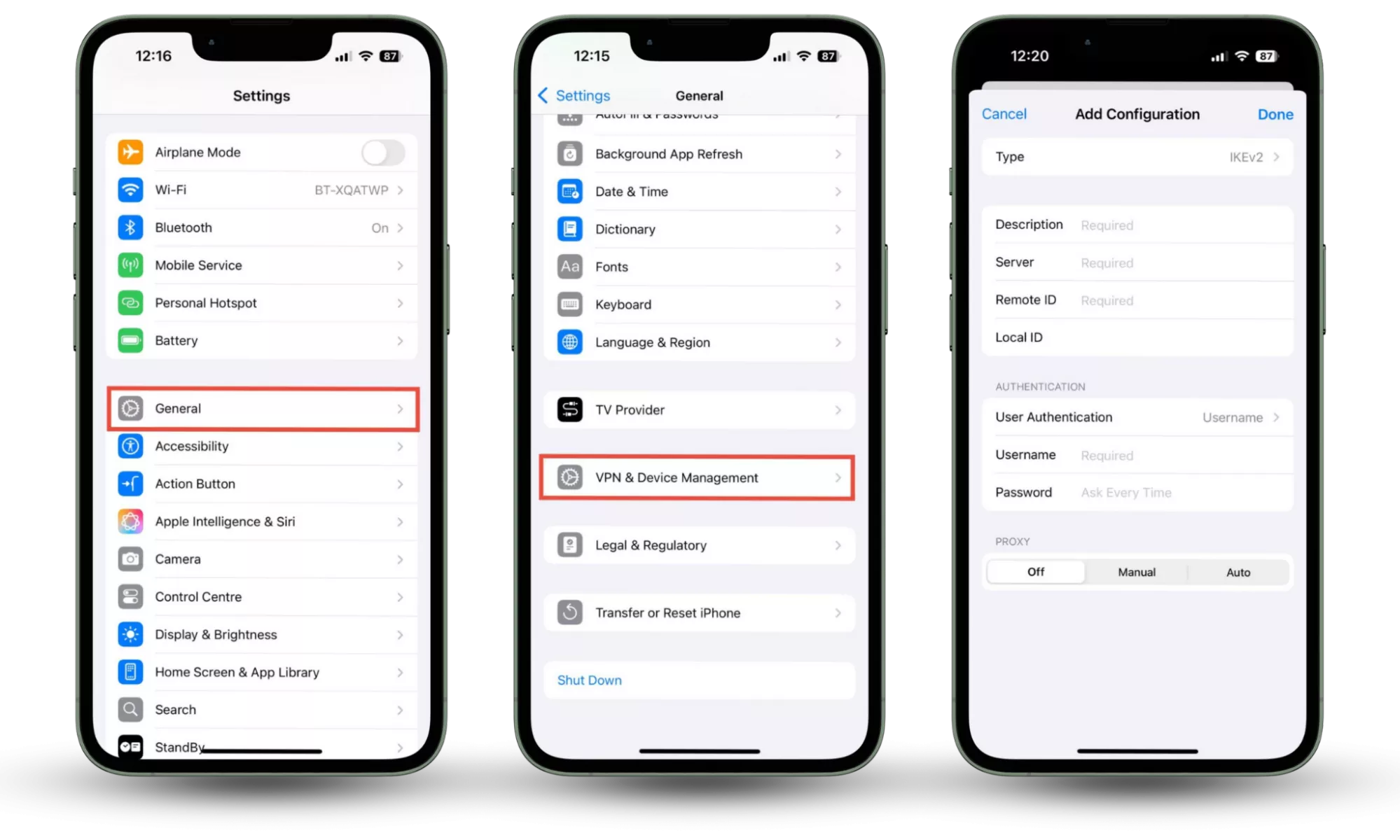
Step 2: Navigate to iPhone Settings:
- Open your iPhone’s “Settings” app.
- Scroll down and tap on “General.”
- Then, tap on “VPN & Device Management” (or “VPN” on older iOS versions).
-
Step 3: Add VPN Configuration:
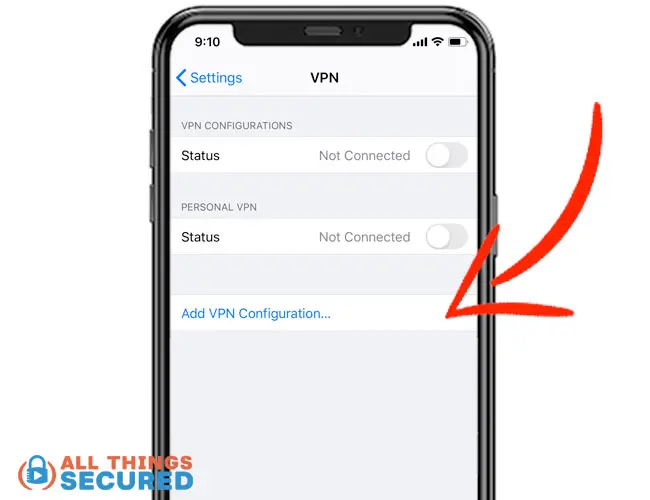
- Tap “VPN” (if not already there) and then “Add VPN Configuration…”
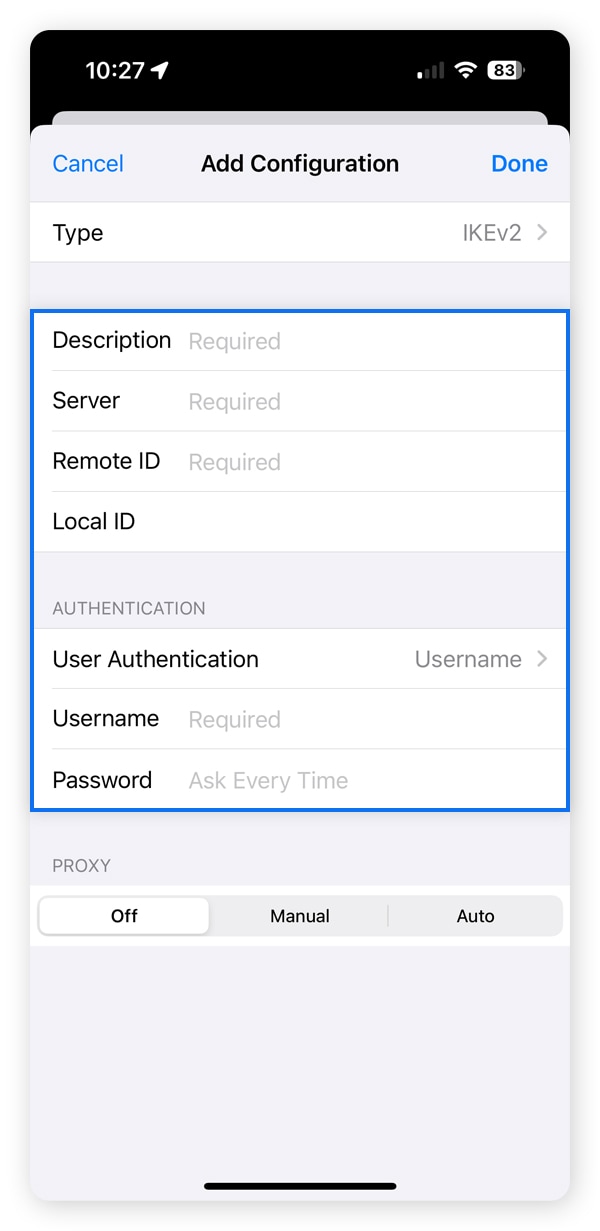
- Under “Type,” select the VPN protocol provided to you (IKEv2, IPSec, or L2TP/IPSec).
- Fill in the required fields:
- Description: A recognizable name for your VPN connection (e.g., “My Work VPN”).
- Server: The server address/hostname.
- Remote ID: The remote identifier.
- Local ID: (Often optional or left blank).
- User Authentication: Select “Username” or “Certificate” as instructed.
- Username: Your VPN username.
- Password: Your VPN password.
- Proxy: Usually “Off” unless your provider specifies otherwise.
- Tap “Done” in the top right corner.
-
Step 4: Connect Manually:
- Back on the “VPN” screen, you’ll see your newly added VPN configuration.
- Toggle the switch next to its name to “On” to connect.
- You’ll see the “VPN” icon in your status bar when connected.
Optimizing Your VPN Experience on iPhone
Installing a VPN is the first step; optimizing its usage ensures you get the most out of your digital security investment. Fine-tuning your VPN settings can enhance performance, maintain continuous protection, and adapt the service to your unique needs.
Managing VPN Settings for Optimal Performance and Security
Most dedicated VPN apps for iPhone offer a range of settings that can significantly improve your experience.
- Always-On VPN (Tech): Many VPN apps offer an “Always-On VPN” or “Auto-Connect” feature. Enabling this ensures your iPhone automatically connects to the VPN whenever it accesses the internet, providing continuous protection without manual intervention. This is particularly crucial for maintaining consistent privacy and security.
- Auto-Connect on Wi-Fi (Tech): Configure your VPN to automatically connect whenever your iPhone joins an unsecured or unknown Wi-Fi network. This is a vital safeguard against potential threats on public hotspots.
- Split Tunneling (if available – Tech): Some advanced VPN apps offer split tunneling, which allows you to choose which apps or websites route their traffic through the VPN and which connect directly to the internet. This can be useful for apps that don’t require VPN protection or to improve performance for local services while securing sensitive data.
- Server Selection Strategy (Tech): Don’t just stick to the quickest server. Experiment with different server locations if you experience slow speeds or connection issues. Closer servers usually offer better speeds, but sometimes a less crowded server further away might perform better. For bypassing geo-restrictions, select a server in the desired country.
- Regular App Updates (Tech): Always keep your VPN app updated to the latest version. Updates often include security patches, bug fixes, and performance enhancements that are crucial for maintaining optimal security and functionality.
Common VPN Issues and Troubleshooting
While VPNs are designed for seamless operation, you might occasionally encounter issues. Here are some common problems and basic troubleshooting steps:
- Connection Drops or Instability:
- Try switching to a different VPN server.
- Restart the VPN app.
- Check your iPhone’s internet connection (Wi-Fi or cellular data).
- Restart your iPhone.
- Slow Speeds:
- Connect to a server closer to your physical location.
- Try a different VPN protocol within the app settings (e.g., IKEv2 might be faster than OpenVPN on some networks).
- Temporarily disable the VPN to see if the issue persists without it, ruling out other network problems.
- Inability to Access Certain Websites/Apps:
- Some services actively block VPN IP addresses. Try connecting to a different VPN server.
- Clear your browser’s cache and cookies, as they might store old location data.
- Ensure the website or app is actually accessible in the region of your chosen VPN server.
- VPN Not Connecting:
- Ensure your internet connection is active.
- Double-check your login credentials in the VPN app.
- Reinstall the VPN app.
- Contact your VPN provider’s customer support for assistance.
The Broader Implications: VPNs for Digital Brand and Financial Security
Beyond individual privacy, the strategic use of a VPN on your iPhone extends to protecting elements vital for personal and professional success: your digital brand and financial well-being. This aligns perfectly with the “Brand” and “Money” aspects of digital literacy.
Protecting Your Personal Brand Online (Brand)
In today’s digital landscape, your online reputation is intrinsically linked to your personal brand. What you do online, what information is accessible about you, and how securely you manage your digital presence can all impact your professional standing, career opportunities, and even social perception.
- Maintaining Anonymity for Reputation Management: A VPN allows you to browse and interact online with an added layer of anonymity. This means your private research, opinion-forming, or discreet online activities cannot be easily tied back to your identity, preventing potential misinterpretations or unwarranted scrutiny that could damage your brand. It empowers you to explore diverse perspectives without fear of digital profiling.
- Preventing Data Breaches that Impact Reputation: Data breaches involving personal information can severely tarnish a brand. By encrypting your data, a VPN significantly reduces the risk of your sensitive information being intercepted and exploited, protecting your identity and reputation from being compromised by cybercriminals.
- Secure Communication for Business and Networking: For professionals, entrepreneurs, or individuals engaged in sensitive discussions, a VPN ensures that your communications (emails, video calls, file transfers) are protected from surveillance. This fosters trust and confidentiality in business dealings and networking interactions, which are critical for building a strong and reliable brand image.
Safeguarding Your Financial Transactions and Investments (Money)
The iPhone is a gateway to your bank accounts, investment portfolios, online shopping, and digital payment systems. The financial implications of an insecure connection can be catastrophic.
- Secure Online Banking and Shopping: When you connect to public Wi-Fi without a VPN, you expose your banking credentials, credit card numbers, and other financial data to potential interception. A VPN encrypts this data, making it unreadable to hackers, thereby safeguarding your online transactions and preventing identity theft or financial fraud. This protection is invaluable for anyone managing their money digitally.
- Protecting Investment Platforms and Cryptocurrency Holdings: For those involved in online investing, stock trading, or managing cryptocurrency wallets, the security of your connection is paramount. A VPN ensures that your login credentials and transactional data remain private, adding a critical layer of defense against sophisticated financial cyberattacks.
- Impact on Online Income and Side Hustles: Many individuals rely on their iPhones for managing online income streams, side hustles, or e-commerce ventures. A VPN ensures that you can securely access payment portals, client communication platforms, and business management tools, even when on the go or using unfamiliar networks, thus protecting your financial livelihood.
Conclusion
Installing a VPN on your iPhone is a proactive and powerful step toward comprehensive digital security. It’s an essential tool that transcends mere technological novelty, embedding itself as a core component of responsible online living. By understanding what a VPN does, carefully choosing a reputable provider, and following the straightforward installation steps, you unlock a world where your online activities are private, secure, and unrestricted.
In an age where technology trends constantly evolve, and the lines between personal branding and financial security blur, a VPN serves as your digital fortress. It empowers you to navigate the internet with confidence, protecting not just your data, but your reputation, your freedom, and your financial well-being. Make the smart choice today and equip your iPhone with the ultimate shield against online threats.
aViewFromTheCave is a participant in the Amazon Services LLC Associates Program, an affiliate advertising program designed to provide a means for sites to earn advertising fees by advertising and linking to Amazon.com. Amazon, the Amazon logo, AmazonSupply, and the AmazonSupply logo are trademarks of Amazon.com, Inc. or its affiliates. As an Amazon Associate we earn affiliate commissions from qualifying purchases.