
LG Smart TVs have revolutionized home entertainment, transforming our televisions into sophisticated hubs for streaming, gaming, and accessing a universe of digital content. At the heart of this digital experience lies the ability to install and manage applications, unlocking a world of possibilities beyond traditional broadcasting. Whether you’re a seasoned tech enthusiast or new to the smart TV landscape, understanding how to navigate the LG Content Store and install your desired apps is crucial. This comprehensive guide will walk you through every step, from basic app installation to more advanced tips and troubleshooting, ensuring you can fully leverage the potential of your LG Smart TV.

Understanding the LG Content Store: Your Gateway to Apps
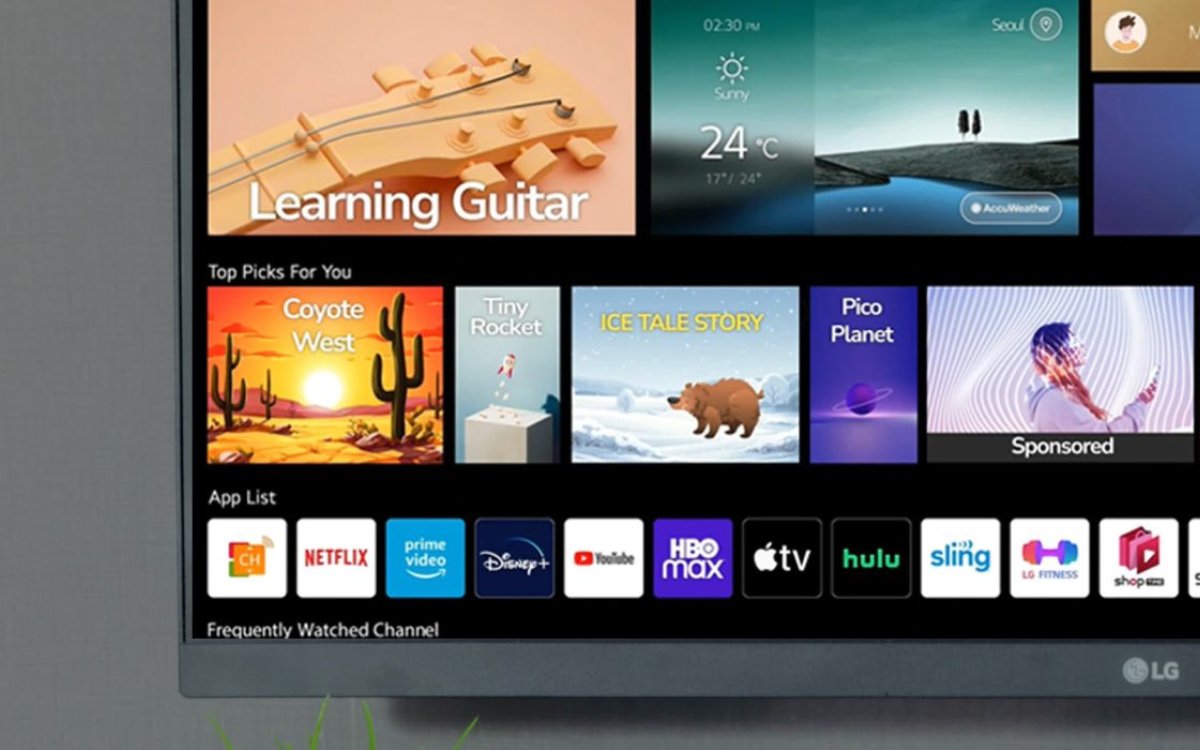
The LG Content Store is the dedicated platform on your LG Smart TV where you can discover, download, and manage applications. Think of it as the App Store for your TV. It’s designed to be intuitive and user-friendly, offering a curated selection of apps ranging from popular streaming services like Netflix, Hulu, and Disney+ to niche entertainment apps, news aggregators, games, and even productivity tools.
The Content Store is categorized to help you find what you’re looking for. You’ll typically find sections for:
- Featured Apps: Highlighting new, popular, or trending applications.
- Categories: Organizing apps by genre, such as Entertainment, Games, Lifestyle, Education, etc.
- Search: Allowing you to directly search for specific app names.
- My Apps: A section where you can view and manage all the apps you have installed on your TV.
Accessing the LG Content Store
Accessing the LG Content Store is straightforward. On your LG Smart TV, locate the dedicated “Content Store” button on your remote control. This button is often represented by an icon resembling a shopping bag or a stylized “LG” logo within a square. Alternatively, you can navigate to it from the Home screen, which is usually accessed by pressing the “Home” button on your remote. Once you’re on the Home screen, you should see the LG Content Store icon clearly displayed. Simply select it to enter the store.
Installing Apps from the LG Content Store: The Standard Method
The most common and recommended way to install apps on your LG Smart TV is directly through the LG Content Store. This process ensures that you are downloading legitimate and compatible applications, minimizing the risk of malware or compatibility issues.
Step-by-Step Installation Process
- Navigate to the LG Content Store: As described above, press the Content Store button on your remote or select it from the Home screen.
- Browse or Search for Your App:
- Browsing: Explore the different categories and featured sections within the Content Store. You can scroll through lists of apps, read descriptions, and view screenshots to get a better understanding of what each app offers.
- Searching: If you know the specific name of the app you want to install, use the search function. This is usually represented by a magnifying glass icon. Type in the app’s name using the on-screen keyboard and your remote.
- Select the App: Once you’ve found the app you’re interested in, click on it to open its detail page. Here, you’ll find more information, including a detailed description, user reviews, ratings, and screenshots.
- Initiate the Download and Installation: On the app’s detail page, you will see an “Install” or “Download” button. Click this button.
- Confirm Installation (if prompted): Some apps may require a confirmation step before proceeding. Follow any on-screen prompts.
- Wait for the Installation to Complete: The app will now download and install onto your TV. The time this takes will depend on the size of the app and your internet connection speed. You’ll usually see a progress bar indicating the status.
- Launch the App: Once the installation is complete, you will typically see an option to “Launch” or “Open” the app directly from the Content Store, or it will be added to your list of installed apps.
Finding Your Installed Apps
After installation, your new app will be accessible from the Home screen or the “My Apps” section within the LG Content Store. The exact location can vary slightly depending on your LG TV model and webOS version, but generally, it will appear as an icon alongside your other installed applications on the Home bar.
Alternative Methods and Advanced Considerations
While the LG Content Store is the primary and safest method, there might be situations where you need to explore alternative routes or consider advanced aspects of app management. It’s important to note that installing apps from unofficial sources can pose security risks and may void your TV’s warranty. Always proceed with caution and ensure you trust the source if you venture outside the official Content Store.
Managing Existing Apps
Beyond installation, managing your apps effectively is key to a smooth user experience.
Updating Apps
LG Smart TVs, like most smart devices, periodically release updates for applications. These updates often include new features, bug fixes, performance improvements, and crucial security patches. Your TV is usually set to update apps automatically, but you can also manually check for updates:
- Navigate to “My Apps”: Access the “My Apps” section within the LG Content Store.
- Check for Updates: Look for an option that says “Check for Updates” or similar. If available, you can select which apps to update or update all of them.
Uninstalling Apps
If you no longer need an app, or if it’s taking up valuable storage space, you can uninstall it:
- Go to “My Apps”: Access the “My Apps” section from the LG Content Store or sometimes directly from the Home screen by holding down a specific button.
- Select the App: Highlight the app you wish to remove.
- Find the Uninstall Option: There should be an option to “Delete,” “Uninstall,” or a similar command. This might be accessed by pressing an options button on your remote or by navigating to an edit mode.
- Confirm Uninstall: You’ll likely be asked to confirm your decision.
Clearing App Cache and Data
Sometimes, apps can become sluggish or exhibit unusual behavior due to corrupted cache files or accumulated data. While not as common as on mobile devices, some LG TV models offer the ability to clear app cache and data:
- Access TV Settings: Navigate to your TV’s main Settings menu.
- Find App Management or Storage: Look for sections related to “Apps,” “Storage,” or “Application Manager.”
- Select the App: Choose the app you want to manage.
- Clear Cache/Data: If available, you will see options to “Clear Cache” and “Clear Data.” Use these with caution, as clearing data will often reset the app to its default state, requiring you to log in again.
Troubleshooting Common Installation Issues
Occasionally, you might encounter problems when trying to install apps. Here are some common issues and their solutions:
Slow Downloads or Installation Failures
- Internet Connection: Ensure your LG Smart TV has a stable and strong internet connection. Try restarting your router and modem, and if possible, connect your TV via an Ethernet cable for a more reliable connection.
- Server Issues: Sometimes, the LG Content Store servers might be experiencing high traffic or maintenance. Try again later.
- Storage Space: Your TV has limited storage. Check if you have enough free space for the app you’re trying to install. Uninstall unused apps to free up space.
- Software Updates: Ensure your TV’s firmware is up to date. Go to Settings > General (or Support) > About This TV > Check for Updates.
App Not Found in the Content Store
- Regional Restrictions: Some apps are not available in all regions.
- App Availability: The app might have been removed by the developer or LG.
- Typo: Double-check the spelling of the app name if you’re using the search function.
App Not Launching After Installation
- Restart the TV: A simple restart can often resolve minor software glitches.
- Uninstall and Reinstall: Remove the problematic app and try installing it again from the Content Store.
- Firmware Update: Ensure your TV’s operating system is updated.
The Broader Context: Apps, Technology, and Your Digital Life
The ability to install apps on your LG Smart TV is a prime example of how technology continues to integrate seamlessly into our daily lives. This convenience, however, also touches upon broader themes within the tech and money sectors.
Tech: The Ever-Expanding App Ecosystem
The landscape of apps available for smart TVs is constantly evolving. New AI-powered tools are beginning to surface, promising more personalized content recommendations and enhanced user experiences. Understanding how to manage these apps contributes to your overall digital literacy, a crucial skill in today’s tech-driven world. Staying updated with new app releases and understanding their functionalities allows you to leverage cutting-edge gadgets and software, enhancing your productivity and entertainment. Digital security is also paramount; always be mindful of the permissions you grant to apps and stick to reputable sources like the LG Content Store to protect yourself from potential threats.
Money: The Economics of Streaming and Digital Content
The primary use of many smart TV apps revolves around streaming services, which have fundamentally altered how we consume media and, consequently, our entertainment budgets. From subscription costs for services like Netflix and HBO Max to the economics of in-app purchases for games or premium features, understanding the financial implications of your app choices is important. For those looking to monetize their digital content creation or explore side hustles related to app development or content curation, the smart TV platform presents a growing avenue. Furthermore, financial tools and productivity apps, though less common on TVs, hint at the potential for smart devices to assist with personal finance management and even online income streams in the future.
By mastering the art of installing and managing apps on your LG Smart TV, you’re not just enhancing your viewing experience; you’re also engaging with the broader trends shaping our digital and financial lives. The LG Content Store is your key to unlocking this potential, offering a safe and accessible platform to tailor your smart TV to your specific needs and preferences.
aViewFromTheCave is a participant in the Amazon Services LLC Associates Program, an affiliate advertising program designed to provide a means for sites to earn advertising fees by advertising and linking to Amazon.com. Amazon, the Amazon logo, AmazonSupply, and the AmazonSupply logo are trademarks of Amazon.com, Inc. or its affiliates. As an Amazon Associate we earn affiliate commissions from qualifying purchases.