
The allure of custom firmware on networking hardware is a powerful one. For enthusiasts and those seeking greater control over their digital domain, OpenWrt represents the pinnacle of open-source router operating systems. It promises enhanced security, advanced features, and the ability to tailor your network to your exact specifications. When it comes to a powerful, modern router like the TP-Link Archer BE6500, the question naturally arises: can this cutting-edge device be liberated from its stock firmware and embrace the OpenWrt ecosystem? This article delves into the technical feasibility, the benefits and drawbacks, and the critical considerations involved in such an endeavor, all within the broader context of technology, branding, and the financial implications of network optimization.
Understanding OpenWrt and its Appeal
OpenWrt is not merely an alternative firmware; it’s a complete Linux distribution designed for embedded devices, primarily routers. Unlike the proprietary firmware that comes pre-installed on most consumer-grade routers, OpenWrt is open-source, meaning its code is publicly available for inspection, modification, and distribution. This transparency is a cornerstone of its appeal, fostering a community of developers and users who contribute to its ongoing improvement and security.
The Power of Open-Source Networking
The primary draw of OpenWrt lies in its extensive feature set and flexibility. Stock firmware, while user-friendly for basic tasks, often lacks the granular control necessary for advanced network management. OpenWrt, on the other hand, empowers users with:
- Enhanced Security: With direct access to the underlying Linux system, users can implement more robust security measures, including advanced firewall configurations, intrusion detection systems, and custom VPN client/server setups. Regular updates from the OpenWrt community can also provide quicker patches for newly discovered vulnerabilities compared to the often slower update cycles of manufacturers.
- Advanced Features: OpenWrt unlocks a world of possibilities beyond basic routing and Wi-Fi. This includes sophisticated Quality of Service (QoS) for prioritizing traffic, advanced DNS features (like AdGuard Home or Pi-hole integration), dynamic DNS services, network monitoring tools, and the ability to run various network-aware applications directly on the router.
- Customization and Control: Users can precisely define network topologies, set up complex routing rules, manage multiple Wi-Fi networks with distinct SSIDs and security policies, and even use the router as a lightweight server for certain tasks. This level of control is invaluable for users with unique network requirements or those who want to experiment with new networking technologies.
- Longevity and Support: For devices that manufacturers may eventually abandon with firmware updates, OpenWrt can breathe new life into older hardware, extending its useful lifespan and ensuring it remains secure and functional.
The TP-Link Archer BE6500: A Technological Marvel
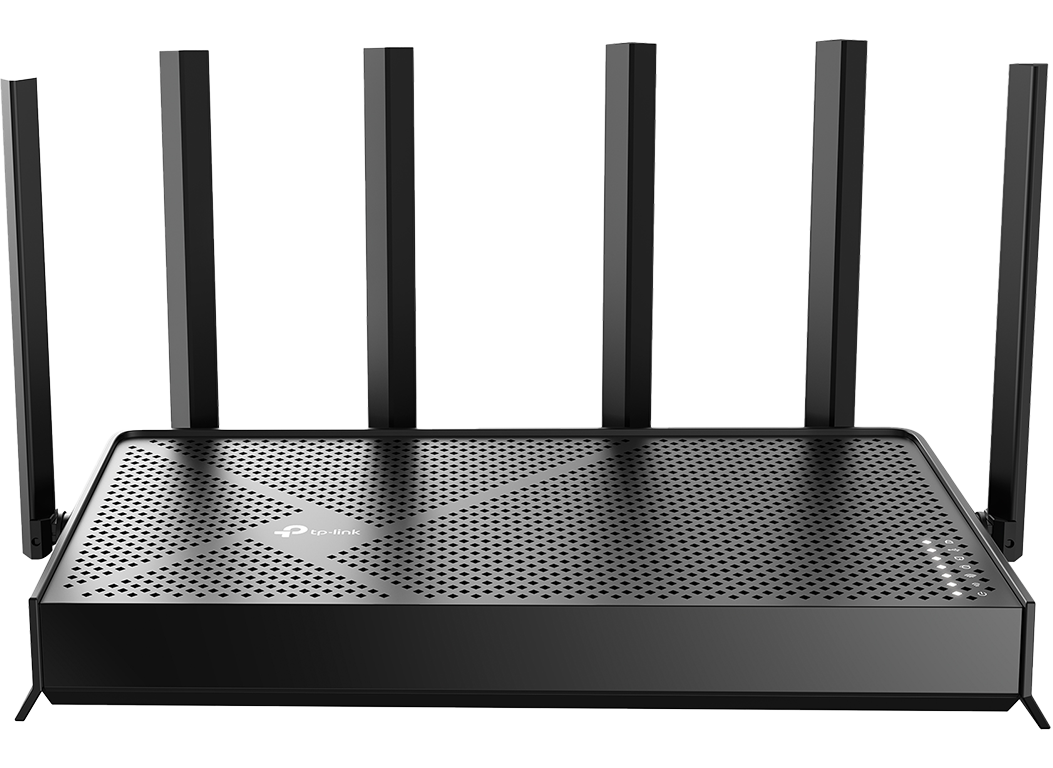
The TP-Link Archer BE6500 is a state-of-the-art Wi-Fi 7 router, signifying a significant leap forward in wireless networking technology. Its advanced features, including multi-band Wi-Fi 7 capabilities, high-speed Ethernet ports, and powerful processing, make it a desirable piece of hardware. However, its cutting-edge nature also means it’s a relatively new device, and its compatibility with custom firmware like OpenWrt is not always guaranteed or immediately available.
Assessing OpenWrt Compatibility for the BE6500
The core question of whether OpenWrt can be installed on the TP-Link Archer BE6500 hinges on several technical factors. The process of porting OpenWrt to new hardware is a complex undertaking that involves understanding the device’s internal architecture, including its System-on-Chip (SoC), memory, flash storage, and peripheral components.
The Role of the SoC and Device Tree
At the heart of any router’s compatibility with OpenWrt is its System-on-Chip (SoC). OpenWrt developers need specific drivers and support for the particular SoC used in the router to function correctly. The BE6500, being a premium Wi-Fi 7 router, likely employs a powerful and potentially custom SoC from manufacturers like MediaTek or Qualcomm. The availability of open-source drivers for these SoCs, or the willingness of the OpenWrt community to reverse-engineer and develop them, is paramount.
Furthermore, the “device tree” plays a crucial role. This is a data structure that describes the hardware components of a system to the operating system. Without a properly defined device tree for the BE6500, OpenWrt would struggle to identify and utilize the router’s various hardware interfaces, such as its Ethernet ports, Wi-Fi radios, and any specialized co-processors.
Community Support and Development Status
The OpenWrt project thrives on community involvement. For a new device like the Archer BE6500, compatibility is usually established through the dedicated efforts of developers. This often involves:
- Initial Porting Efforts: Developers will begin by attempting to boot a basic OpenWrt image on the hardware. This is often the most challenging phase, requiring an understanding of the bootloader and low-level hardware initialization.
- Driver Development: Once a basic boot is achieved, the focus shifts to getting all the hardware components working. This means ensuring Wi-Fi, Ethernet, USB ports, and any other functionalities are recognized and operational within OpenWrt.
- Testing and Stabilization: Once the core functionality is established, the device needs extensive testing to identify and fix bugs, improve performance, and ensure stability under various load conditions.
To determine the current status of OpenWrt support for the TP-Link Archer BE6500, one would typically consult:
- The Official OpenWrt Table of Hardware: This is the definitive list of officially supported devices. If the BE6500 is listed, it signifies that a stable build is available.
- The OpenWrt Developer Mailing Lists and Forums: These are excellent resources for finding discussions about ongoing porting efforts for specific devices. You might find developers actively working on the BE6500 or threads where users are inquiring about its compatibility.
- Third-Party Firmware Repositories and Community Forums: Websites like OpenWrt.org and various enthusiast forums often have unofficial builds or discussions about compatibility for devices not yet on the official table.
It’s crucial to understand that even if official support doesn’t exist yet, it doesn’t mean it’s impossible. Enthusiastic developers might be working on it. However, it also means that users might have to wait for a stable release or be willing to experiment with potentially unstable development builds, which comes with its own risks.

The Strategic and Financial Implications of Custom Firmware
Beyond the technical aspects, the decision to install OpenWrt on a high-end router like the TP-Link Archer BE6500 also has strategic and financial implications. This choice can impact your brand’s digital presence, your personal productivity, and your overall financial investment in your network infrastructure.
Enhancing Digital Security and Brand Reputation
For businesses and individuals who rely heavily on their online presence, network security is paramount. A compromised router can be a gateway for cyberattacks, leading to data breaches, service disruptions, and significant damage to reputation. Installing OpenWrt can be a strategic move to bolster digital security:
- Proactive Threat Mitigation: By having direct control over the router’s software, you can implement a proactive security posture. This includes regularly updating the firmware with the latest security patches from the OpenWrt community, configuring granular firewall rules to block malicious traffic, and setting up VPN tunnels for secure remote access to your network.
- Reduced Attack Surface: OpenWrt’s lean nature often means it has fewer pre-installed services that could be exploited compared to feature-rich, but potentially bloated, stock firmware. This reduction in the attack surface can make your network inherently more resilient.
- Compliance and Auditing: For businesses operating under strict regulatory compliance requirements, the transparency and auditability of OpenWrt can be advantageous. Being able to demonstrate precise control over network security configurations can aid in compliance efforts.
- Personal Branding for Tech-Savvy Individuals: For individuals who position themselves as tech-savvy or knowledgeable in IT, demonstrating the ability to customize and optimize their home network with OpenWrt can be a subtle but effective way to enhance their personal brand and showcase their technical prowess.
The Financial Investment and ROI of OpenWrt
The decision to invest in a premium router like the Archer BE6500 already represents a significant financial outlay. The question then becomes, what is the return on investment (ROI) for further investing time and effort into installing and managing OpenWrt?
- Extended Hardware Lifespan: By revitalizing an older router with OpenWrt, you can potentially avoid purchasing new hardware sooner. This translates to direct cost savings over time. While the BE6500 is new, the principle applies to future router upgrades.
- Cost Savings on Services: Features that might be offered as paid add-ons in some proprietary firmware solutions (e.g., advanced VPN services, network monitoring) can often be implemented for free using OpenWrt and readily available open-source software.
- Productivity Gains: For businesses, a more stable, secure, and efficient network directly translates to increased productivity. Reduced downtime, faster connections, and the ability to prioritize critical applications can have a tangible impact on operational efficiency and revenue.
- The “Hidden” Costs: It’s crucial to acknowledge that OpenWrt installation and management are not without their “hidden” costs. These include the time investment for research, installation, configuration, and ongoing maintenance. For users who are not technically inclined, the learning curve can be steep, and the potential for misconfiguration leading to network issues can be a significant deterrent.
- Potential for Increased Performance: In some cases, OpenWrt can be optimized to squeeze more performance out of the hardware than the stock firmware, leading to faster speeds and better Wi-Fi coverage. While not guaranteed, it’s a potential benefit that contributes to the overall ROI.
Ultimately, the financial decision is a balance between the upfront cost of the hardware, the perceived value of enhanced control and security, and the time commitment required to leverage OpenWrt effectively. For many tech enthusiasts and businesses with specific networking needs, the benefits of OpenWrt far outweigh these costs, leading to a more robust, secure, and cost-effective network infrastructure in the long run.
The Installation Process and Potential Challenges
Assuming that OpenWrt support becomes available for the TP-Link Archer BE6500, the installation process typically follows a general pattern, though specific steps can vary significantly between devices. It’s essential to approach this with caution and thorough preparation.
Pre-Installation Checks and Preparation
Before attempting any firmware flashing, several critical steps are recommended:
- Verify OpenWrt Compatibility: As mentioned, confirm that the BE6500 is listed on the official OpenWrt Table of Hardware or that a reputable community-developed build is available. Look for information specifically mentioning the BE6500, not just a similar model.
- Backup Your Configuration: If you’re flashing a router that’s already in use, meticulously back up your current router configuration. This is vital in case you need to revert to the stock firmware or if the OpenWrt installation doesn’t go as planned.
- Download the Correct Firmware: Ensure you download the specific OpenWrt firmware image designed for the TP-Link Archer BE6500. Using an image for a different model can permanently brick your device. Check for both the “factory” and “sysupgrade” images if applicable. The “factory” image is typically used for the initial installation from stock firmware, while “sysupgrade” is for upgrading an existing OpenWrt installation.
- Understand the Risks: Be fully aware that flashing custom firmware carries the risk of bricking your device. This means rendering your router inoperable, potentially beyond repair. Proceed only if you are comfortable with this risk and have the technical expertise to troubleshoot.
- Gather Necessary Tools: You might need a computer connected via Ethernet cable to the router, a TFTP server (for some devices), and potentially serial console access if things go severely wrong.
Common Installation Methods
The most common methods for installing OpenWrt involve either:
- Web Interface Flashing: Many routers allow you to upload firmware through their web-based administration interface. You would typically log into the BE6500’s stock firmware interface, navigate to the firmware upgrade section, and upload the OpenWrt “factory” image. This is often the simplest method if supported by the stock firmware and OpenWrt’s initial port.
- TFTP Recovery: If the web interface method fails, or if the router has a bootloader that supports TFTP, you might need to use a TFTP server on your computer to push the OpenWrt firmware to the router during its boot process. This method is generally more complex and requires careful timing.
- Serial Console: In advanced scenarios, particularly if the router is bricked, a serial console connection might be necessary to interact with the bootloader or operating system at a very low level to attempt recovery or flashing. This requires specialized hardware and knowledge.

Post-Installation Configuration and Optimization
Once OpenWrt is successfully installed, the real work of customization begins:
- Initial Setup: Access the OpenWrt web interface (usually at 192.168.1.1) and set up your root password.
- Network Configuration: Configure your WAN connection (DHCP, Static IP, PPPoE), set up your LAN IP address range, and configure your DHCP server.
- Wi-Fi Setup: Configure your wireless networks, including SSIDs, security protocols (WPA2/WPA3), and channel selection. For the BE6500, this would also involve configuring the Wi-Fi 7 specific settings if supported.
- Install Additional Packages: Use the OpenWrt package manager (
opkg) to install desired applications like AdGuard Home, VPN clients, network monitoring tools, or dynamic DNS clients. - Security Hardening: Implement advanced firewall rules, disable unnecessary services, and configure any chosen security enhancements.
- Performance Tuning: Experiment with different Wi-Fi settings, QoS configurations, and other parameters to optimize network performance for your specific needs.
The journey to installing OpenWrt on a device like the TP-Link Archer BE6500 is a testament to the power of open-source technology and community collaboration. While the technical hurdles are significant, especially for cutting-edge hardware, the potential rewards in terms of enhanced security, unparalleled control, and extended device lifespan make it a compelling prospect for many. The decision, however, should always be made with a full understanding of the technical requirements, the associated risks, and the strategic and financial considerations that come with taking your network into your own hands.
aViewFromTheCave is a participant in the Amazon Services LLC Associates Program, an affiliate advertising program designed to provide a means for sites to earn advertising fees by advertising and linking to Amazon.com. Amazon, the Amazon logo, AmazonSupply, and the AmazonSupply logo are trademarks of Amazon.com, Inc. or its affiliates. As an Amazon Associate we earn affiliate commissions from qualifying purchases.