
Linux Mint has long been a favorite among users seeking a stable, user-friendly, and powerful desktop operating system. Its Debian-based foundation, coupled with its own unique Cinnamon, MATE, and XFCE desktop environments, offers a familiar yet distinct experience for both new and seasoned Linux users. Whether you’re a tech enthusiast diving into the world of open-source, a creative professional looking for a robust platform, or someone aiming to enhance their digital security and productivity, understanding how to install and manage software on Linux Mint is fundamental. This guide will walk you through the process, focusing on the most common and effective methods, ensuring you can seamlessly integrate new applications into your Mint environment.
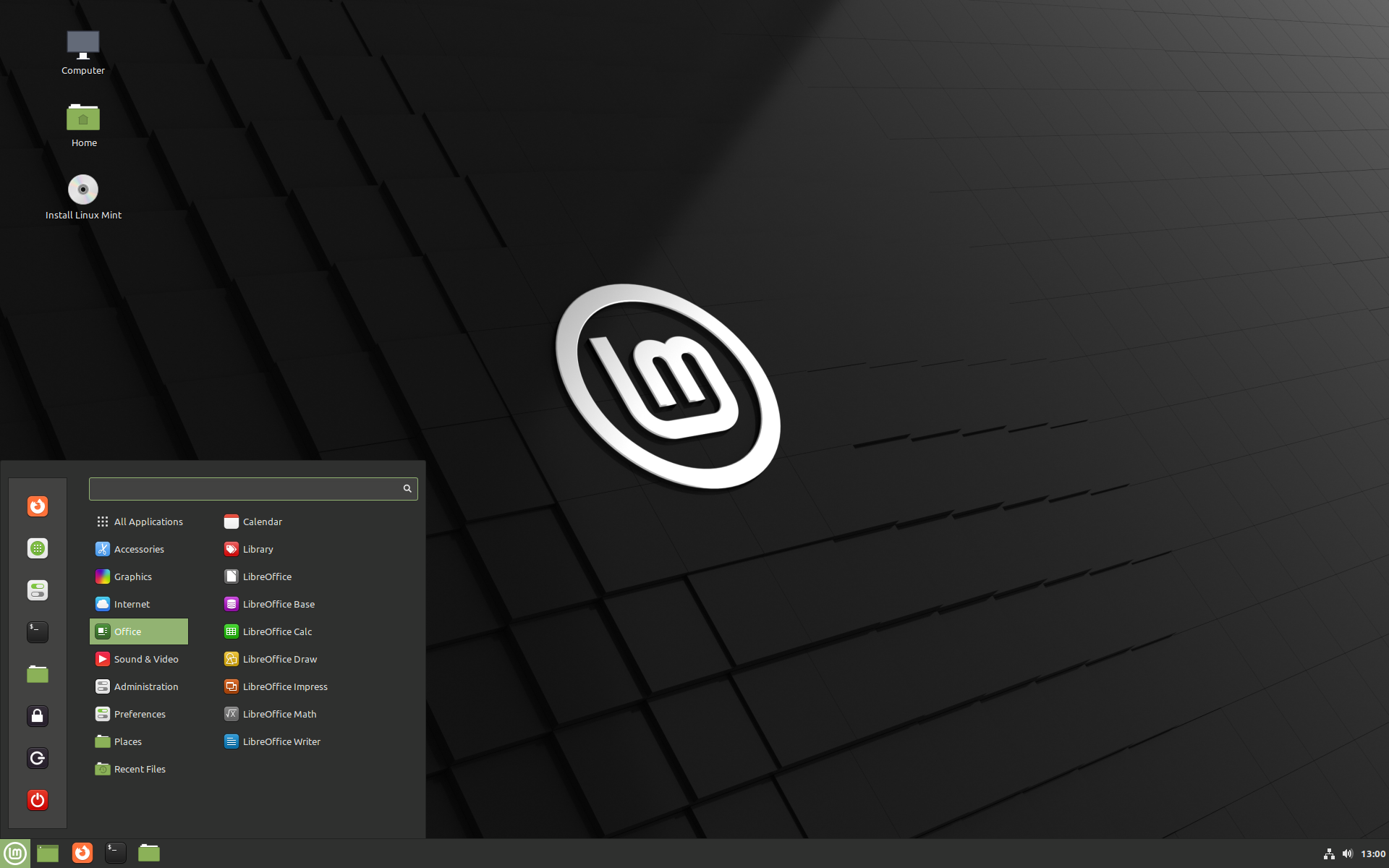
The beauty of Linux Mint lies in its package management system. Unlike proprietary operating systems that often rely on individual application installers, Linux distributions like Mint leverage centralized repositories and package managers. This approach not only simplifies installation but also greatly enhances security and ease of updates. We’ll explore both graphical and command-line methods, giving you the flexibility to choose the approach that best suits your comfort level and the specific software you intend to install.
1. Getting Started: Understanding Linux Mint’s Software Ecosystem
Before we dive into the installation process itself, it’s important to grasp the fundamental concepts that underpin how software is managed on Linux Mint. This understanding will empower you to troubleshoot effectively and make informed decisions about your software choices.
1.1. The Power of Package Managers
At the heart of Linux Mint’s software management lies its package manager. For Debian-based distributions like Mint, this primarily means APT (Advanced Package Tool). APT is a sophisticated system that handles the downloading, installation, configuration, and removal of software packages. It works in conjunction with a vast collection of online repositories, which are essentially servers hosting thousands of pre-compiled software applications.
When you want to install a program, you typically tell APT its name. APT then consults its list of available packages from the configured repositories, finds the correct package, and downloads it along with any other software dependencies it requires. Dependencies are other software components that a program needs to function correctly. APT automatically manages these, preventing the “dependency hell” that can sometimes plague other systems.
1.2. Software Sources and Repositories
Linux Mint, like its Debian and Ubuntu cousins, relies on repositories to provide software. These repositories are organized into several categories:
- Main Repositories: These contain free and open-source software that is officially supported by Ubuntu (which Mint is based on). This is where you’ll find the vast majority of your core applications.
- Restricted Repositories: This section holds proprietary drivers and firmware that are necessary for certain hardware to function correctly (e.g., Wi-Fi cards, graphics cards). While not open-source, they are often essential for a seamless user experience.
- Universe Repositories: This is a community-maintained repository containing a wide range of free and open-source software. It’s a treasure trove for less common or niche applications.
- Multiverse Repositories: This section contains software that is not free to use or distribute, such as certain multimedia codecs or proprietary applications. Use these with caution and be aware of any licensing implications.
Linux Mint provides a user-friendly graphical tool to manage these repositories, allowing you to enable or disable them, add new ones, and refresh your package list. This is crucial for accessing a wider range of software.
1.3. .deb Packages: The Native Format
Software on Debian-based systems like Linux Mint is typically distributed in .deb package files. These are archive files that contain the program’s executable files, libraries, configuration files, and installation scripts. APT is designed to work seamlessly with .deb files, whether they are downloaded directly from repositories or from individual software developer websites.
2. Installing Software: The Graphical Way
For most users, the easiest and most intuitive way to install software on Linux Mint is through its graphical tools. These provide a visual interface that simplifies the process, making it accessible even for those new to Linux.
2.1. The Software Manager: Your App Store for Linux Mint
Linux Mint’s flagship graphical software installation tool is the Software Manager. Think of it as the equivalent of your phone’s app store, but for your desktop operating system. It offers a curated selection of popular and well-tested applications, categorized for easy browsing.
How to Use the Software Manager:
- Launch the Software Manager: You can find it in your Mint menu, usually under “Administration” or by simply searching for “Software Manager.”
- Browse or Search: The Software Manager presents categories like “Editors,” “Graphics,” “Internet,” “Games,” and “Multimedia.” You can browse through these or use the search bar at the top to find a specific application by name.
- View Application Details: Clicking on an application will bring up a detailed page with a description, screenshots, user ratings, and version information.
- Install: If you decide to install an application, simply click the “Install” button.
- Authenticate: You will be prompted to enter your user password to authorize the installation. This is a security measure to ensure only authorized users can make system-level changes.
- Wait for Installation: The Software Manager will download and install the application and its dependencies. A progress bar will indicate the status.
- Launch: Once installed, the application will appear in your Mint menu, ready to be launched.
The Software Manager is excellent for discovering new software and for installing common applications. It ensures that the software you install is compatible with your Mint version and has been vetted by the Mint developers or the broader Ubuntu community.
2.2. Synaptic Package Manager: A More Advanced Graphical Tool
While the Software Manager is great for general use, Synaptic Package Manager offers a more granular and powerful way to manage your installed software. It provides access to all the packages available in your enabled repositories, not just a curated selection.
How to Use Synaptic Package Manager:
- Install Synaptic (if not already present): In newer versions of Linux Mint, Synaptic is usually pre-installed. If not, you can install it via the Software Manager or the terminal using
sudo apt install synaptic. - Launch Synaptic: Find it in your Mint menu, typically under “Administration.”
- Refresh Package Lists: Upon launching, Synaptic will often prompt you to reload the package lists from the repositories. This is crucial to ensure you’re seeing the latest available software.
- Search and Filter: Synaptic offers robust search and filtering capabilities. You can search by package name, description, or even by origin (repository).
- Install, Mark for Upgrade, or Remove:
- To install a package, right-click on it and select “Mark for Installation.”
- To remove a package, right-click and select “Mark for Removal” or “Mark for Complete Removal” (which also removes configuration files).
- To upgrade, you can select packages marked for upgrade or use the “Mark All Upgrades” option.
- Apply Changes: After marking your desired actions, click the “Apply” button. Synaptic will then calculate the necessary changes, including dependencies, and prompt you for confirmation.
- Authenticate: Enter your password to authorize the changes.
Synaptic is particularly useful for advanced users who want to see all available software, manage dependencies more closely, or troubleshoot installation issues. It provides a comprehensive overview of your system’s software landscape.
3. Installing Software: The Command Line Way
For those who prefer the efficiency and power of the terminal, or for situations where a graphical interface isn’t available, the command line offers a direct and often faster way to install software. The primary tool here is APT, accessed through the apt command.
3.1. Using the apt Command
The apt command is a front-end to APT that provides a streamlined interface for package management. You’ll need to open a terminal window to use these commands. You can usually find the Terminal application in your Mint menu.
Essential apt Commands for Installation:
-
Update Package Lists: Before installing anything, it’s always good practice to update your local list of available packages from the repositories. This ensures you’re installing the latest available versions.
sudo apt updatesudo(superuser do) grants you administrative privileges to perform system-level operations.apt updatefetches the latest package information from your configured repositories.
-
Search for Packages: If you’re unsure of the exact package name, you can search for it.
bash

apt search <search_term>
For example, to search for the popular text editornano:
bash

apt search nano
This will list all packages related to your search term, along with brief descriptions.
-
Install a Package: Once you know the package name, you can install it.
sudo apt install <package_name>For example, to install
nano:sudo apt install nanoAPT will show you which packages will be installed (including dependencies) and ask for confirmation (y/n).
-
Install Multiple Packages: You can install several packages at once by listing them separated by spaces.
sudo apt install package1 package2 package3 -
Upgrade Installed Packages: To upgrade all packages that have available updates:
sudo apt upgradeThis command upgrades all installed packages to their latest versions, but it will not remove existing packages or install new ones that aren’t currently installed.
-
Full-Upgrade (Dist-Upgrade): For more comprehensive upgrades, including potentially installing new packages or removing obsolete ones to resolve dependencies, use:
sudo apt full-upgradeThis is often used during system version upgrades but can also be useful for keeping your system fully up-to-date.
-
Remove a Package: To uninstall a package.
sudo apt remove <package_name>This removes the package but leaves its configuration files behind.
-
Remove a Package and its Configuration Files: For a complete removal.
sudo apt purge <package_name> -
Clean Up Unused Dependencies: After removing packages, there might be orphaned dependencies left behind. This command removes them.
bash

sudo apt autoremove
The command line, particularly with apt, offers unparalleled speed and control. It’s essential for scripting, remote server management, and for users who want to master their Linux environment.
3.2. Installing from Downloaded .deb Files
Sometimes, software isn’t available in the official repositories, or you might need a specific version. In such cases, developers often provide .deb files directly for download from their websites.
How to Install a .deb File:
- Download the
.debfile: Navigate to the software’s official website and download the.debfile to your computer (e.g., into your “Downloads” folder). - Method 1: Double-Click (Graphical): In most Linux Mint desktop environments, you can simply double-click the
.debfile. This will usually open it with the GDebi Package Installer (or a similar tool), which is a graphical front-end for APT that handles.debfiles. GDebi will check for dependencies and offer to install the package for you. - Method 2: Using
dpkg(Command Line): You can also use thedpkgcommand, which is the low-level tool that APT uses to manage.debpackages.- Open a terminal and navigate to the directory where you downloaded the file (e.g.,
cd Downloads). - Run the following command:
bash

sudo dpkg -i <package_name>.deb
Replace<package_name>.debwith the actual name of the file you downloaded. - Handling Missing Dependencies: If
dpkgreports missing dependencies, you can often resolve them by running:
bash

sudo apt --fix-broken install
This command will attempt to find and install the missing dependencies from your repositories.
- Open a terminal and navigate to the directory where you downloaded the file (e.g.,
While installing from .deb files is convenient, always ensure you are downloading them from trusted sources to avoid security risks.
4. Advanced Topics and Best Practices
As you become more comfortable with Linux Mint, you’ll encounter more advanced software management techniques and important best practices that will enhance your experience and security.
4.1. Adding Third-Party Repositories (PPAs)
PPAs (Personal Package Archives) are repositories hosted on Launchpad (a platform by Canonical, the company behind Ubuntu) that allow developers to distribute newer versions of software or software not available in the official Ubuntu/Mint repositories.
Adding a PPA:
- Open Software Sources: You can find “Software Sources” in your Mint menu, typically under “Administration.”
- Add a PPA: Go to the “PPAs” tab and click the “Add a new PPA” button.
- Enter PPA Address: You’ll need the PPA address, which usually looks like
ppa:developer/ppa-name. - Authenticate and Refresh: Enter your password and click “Add Source.” The system will then refresh its package lists to include the new PPA.
- Install Software: You can then install software from this PPA using the Software Manager or the
aptcommand.
Caution: While PPAs are convenient, they are not officially supported by Ubuntu or Linux Mint. Use PPAs from reputable developers you trust, as they can sometimes introduce system instability or security vulnerabilities.
4.2. Flatpak and Snap: Universal Package Formats
In recent years, Flatpak and Snap have emerged as universal package formats designed to work across various Linux distributions. They offer several advantages, including:
- Sandboxing: Applications run in isolated environments, enhancing security and preventing them from interfering with the rest of your system.
- Cross-Distribution Compatibility: A single Flatpak or Snap package can often run on any Linux distribution that supports the format.
- Bundled Dependencies: They include most of their dependencies, reducing the likelihood of conflicts with system libraries.
Installing Flatpak Applications:
Linux Mint has excellent support for Flatpak. Many popular applications are available through Flathub, the largest Flatpak repository.
- Enable Flathub: Open “Software Sources,” go to the “PPAs” tab (though it’s not strictly a PPA, it’s managed similarly in Mint), and click “Add a new PPA.” Enter
flathubas the repository name. Then click “Add” and refresh. - Install via Software Manager: The Software Manager in newer Mint versions often integrates with Flathub, allowing you to search for and install Flatpak apps directly.
- Install via Terminal:
bash

flatpak install flathub <application_id>
You can find application IDs on the Flathub website (flathub.org).
Installing Snap Applications:
While Ubuntu heavily promotes Snaps, Linux Mint has historically been more hesitant due to some philosophical differences. However, you can enable Snap support if you wish.
- Install Snapd:
bash

sudo apt update

sudo apt install snapd
- Install Snap Applications:
bash

sudo snap install <application_name>
Flatpak and Snap represent the future of application distribution on Linux and are worth exploring for a wider selection of software and enhanced isolation.
4.3. Digital Security and Software Installation
When installing software, especially from less common sources, digital security should always be a top priority.
- Trustworthy Sources: Always prioritize official repositories, reputable PPA developers, and well-known software websites.
- Verify Downloads: If downloading
.debfiles or other executables, check for checksums (MD5, SHA256) provided by the developer to ensure the file hasn’t been tampered with. - Understand Permissions: Be cautious when granting
sudoprivileges. Only do so for commands and installations you fully understand and trust. - Regular Updates: Keep your system and all installed software up-to-date. This is the most effective way to patch security vulnerabilities. Use
sudo apt update && sudo apt upgraderegularly.
By following these guidelines and understanding the various methods of software installation, you can confidently equip your Linux Mint system with the tools you need, whether for productivity, creativity, or exploring the latest technological advancements. Linux Mint’s robust package management system, coupled with your informed choices, makes it a powerful and secure platform for all your computing needs.
aViewFromTheCave is a participant in the Amazon Services LLC Associates Program, an affiliate advertising program designed to provide a means for sites to earn advertising fees by advertising and linking to Amazon.com. Amazon, the Amazon logo, AmazonSupply, and the AmazonSupply logo are trademarks of Amazon.com, Inc. or its affiliates. As an Amazon Associate we earn affiliate commissions from qualifying purchases.