
In the rapidly evolving landscape of technology, data has emerged as the new oil, driving innovation across every sector from finance to healthcare, artificial intelligence to scientific research. At the heart of this data revolution lies Python, a versatile and user-friendly programming language. And within Python’s vast ecosystem, one library stands out as the cornerstone for numerical operations and scientific computing: NumPy.
NumPy, short for “Numerical Python,” is an open-source library that provides powerful tools for working with arrays and matrices, alongside a collection of high-level mathematical functions to operate on these arrays. It’s an indispensable component for anyone delving into data science, machine learning, deep learning, statistical analysis, or any field requiring efficient computation with large datasets. Whether you’re a budding data analyst, a seasoned software engineer, or an entrepreneur building the next big AI tool, mastering NumPy’s installation and usage is a fundamental step in building your technical toolkit and, indeed, your professional brand in the digital age.
This comprehensive guide will walk you through the essential steps to install NumPy on your system. We’ll cover prerequisites, various installation methods, verification techniques, and common troubleshooting tips. By the end, you’ll not only have NumPy up and running but also understand its critical role in boosting your productivity and opening doors to advanced tech skills that are highly valued in today’s job market, potentially leading to significant financial returns.
Understanding NumPy: The Foundation of Numerical Python
Before we dive into the installation process, let’s briefly explore why NumPy is so crucial. At its core, NumPy provides a high-performance multidimensional array object, called ndarray, and tools for working with these arrays. Unlike Python’s built-in list data structure, NumPy arrays are homogeneous (all elements are of the same type), leading to more efficient storage and processing, especially for large numerical datasets.
Why is NumPy so indispensable?
- Performance: Operations on NumPy arrays are implemented in C and Fortran, making them significantly faster than equivalent operations on Python lists. This speed is critical for tasks involving large matrices, complex calculations, and iterative algorithms common in data science and machine learning.
- Functionality: NumPy offers a vast collection of mathematical functions (linear algebra, Fourier transforms, random number generation, etc.) optimized for array operations. These functions form the backbone of many scientific and analytical applications.
- Foundation for Other Libraries: Many other essential Python libraries in the data science ecosystem, such as SciPy (scientific computing), Pandas (data manipulation and analysis), Matplotlib (plotting), and scikit-learn (machine learning), are built upon NumPy’s
ndarrayobject. Without NumPy, these powerful tools simply wouldn’t exist or would be far less efficient. - Simplicity and Readability: Despite its power, NumPy’s syntax is intuitive and allows for concise, readable code when performing complex numerical tasks. This enhances productivity, a key aspect of any successful tech endeavor.
In essence, NumPy is not just a library; it’s the bedrock upon which much of modern data science and AI innovation stands. Installing and understanding it is not merely a technical task but an investment in your career trajectory and capacity to engage with cutting-edge technology trends.
Prerequisites for a Smooth NumPy Installation
Before you can install NumPy, there are a few foundational components your system needs. Ensuring these are in place will prevent most common installation headaches and set you up for success.
Installing Python: Your First Step
NumPy is a Python library, so having Python installed on your system is non-negotiable. Python 3.x is the current standard, and it’s highly recommended to use a recent stable version (e.g., Python 3.8 or newer) for compatibility and security.
How to check if Python is installed:
Open your command prompt (Windows) or terminal (macOS/Linux) and type:
python --version
or
python3 --version
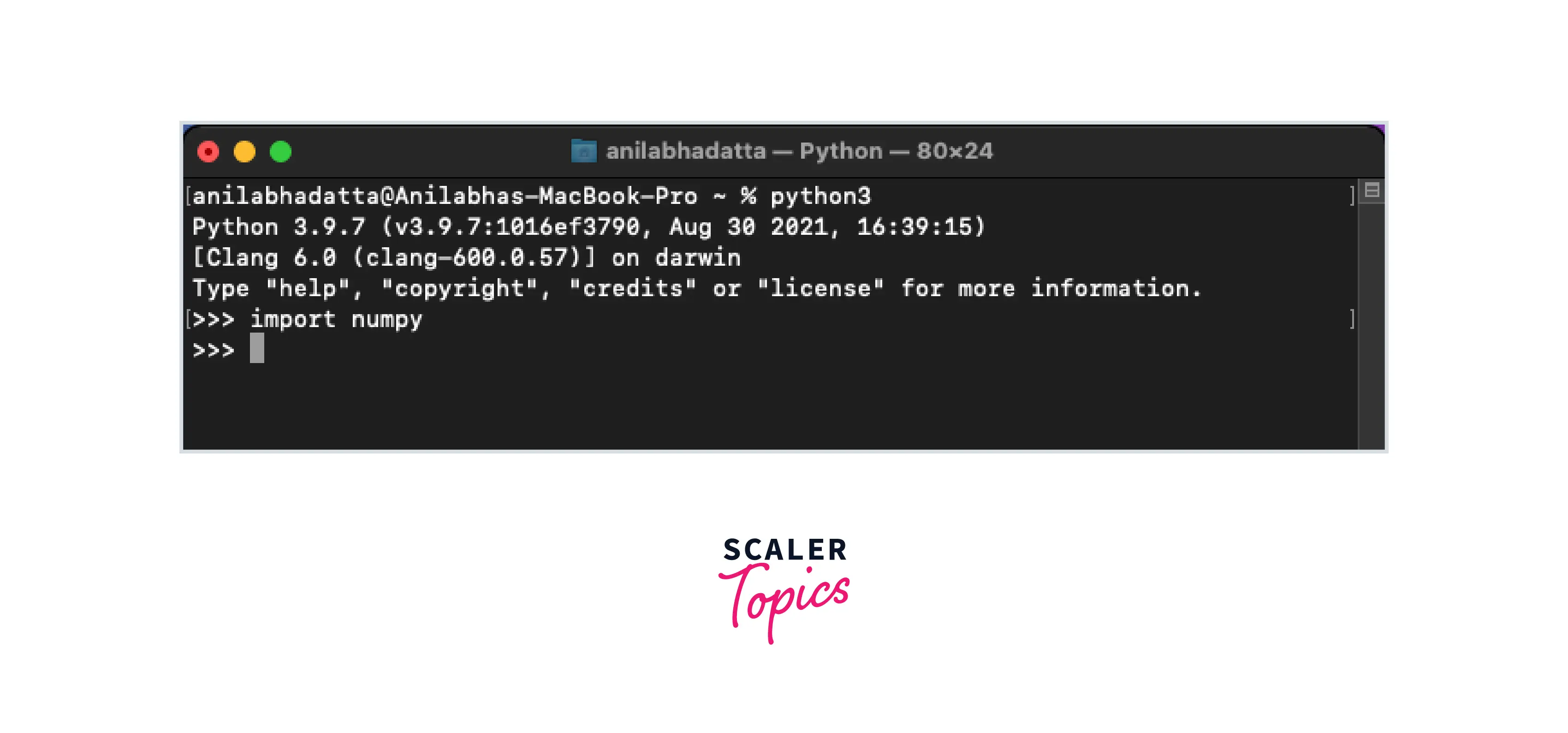
If Python is installed, you’ll see its version number (e.g., Python 3.9.7). If you receive an error like “command not found,” you’ll need to install it.
How to install Python:
- Download: Visit the official Python website (python.org).
- Installer: Download the appropriate installer for your operating system.
- Run Installer:
- Windows: Crucially, during installation, make sure to check the box that says “Add Python to PATH” before proceeding. This allows you to run Python commands from any directory in your command prompt.
- macOS/Linux: Python is often pre-installed, but it might be an older version. It’s generally safer to install a newer version via Homebrew (macOS) or your system’s package manager (Linux) to manage multiple Python versions effectively.
After installation, reopen your terminal/command prompt and verify the installation using the python --version command again.
Verifying Pip: Python’s Package Installer
Pip is Python’s standard package installer. It’s the primary tool you’ll use to install NumPy and most other Python libraries. Pip is usually included with Python installations starting from Python 3.4.
How to check if Pip is installed and up-to-date:
Open your terminal/command prompt and type:
pip --version
or
pip3 --version
You should see output indicating the pip version and its location (e.g., pip 21.2.4 from ...). If pip is outdated, it’s good practice to upgrade it:
python -m pip install --upgrade pip
This command ensures you have the latest version of pip, which can resolve potential compatibility issues during package installations.
The Importance of Virtual Environments
While not strictly required, using virtual environments is a best practice that significantly enhances your productivity and prevents dependency conflicts, a common frustration for developers. A virtual environment creates an isolated Python installation for each project, meaning that libraries installed for one project won’t interfere with another. This concept is vital for maintaining a clean and robust development “brand.”
Why use virtual environments?
- Isolation: Each project can have its specific dependencies without affecting other projects or your global Python installation.
- Dependency Management: Easily manage and share project dependencies using
requirements.txtfiles. - Avoid “Dependency Hell”: Prevents situations where different projects require different versions of the same library, leading to conflicts.
How to create and activate a virtual environment (using venv):
- Navigate to your project directory:
bash

cd /path/to/your/project
- Create a virtual environment (e.g., named
myenv):
bash

python -m venv myenv
- Activate the virtual environment:
- macOS/Linux:
bash

source myenv/bin/activate
- Windows (Command Prompt):
bash

myenvScriptsactivate.bat
- Windows (PowerShell):
bash

myenvScriptsActivate.ps1
- macOS/Linux:
Once activated, your terminal prompt will typically show the environment’s name (e.g., (myenv)). All packages you install now will be confined to this environment. This practice is akin to setting up a dedicated workspace for each task, ensuring clarity, preventing errors, and ultimately saving you time and money by avoiding debugging complex dependency issues.
Step-by-Step NumPy Installation Methods
With your prerequisites in order and, ideally, a virtual environment activated, you’re ready to install NumPy. There are a couple of primary methods, catering to different user preferences and existing setups.
Installing NumPy via Pip (Standard Method)
This is the most common and recommended way to install NumPy for most users. It’s straightforward and works across all operating systems.
-
Open your terminal or command prompt.
-
Ensure your virtual environment is activated (if you’re using one).
-
Run the installation command:
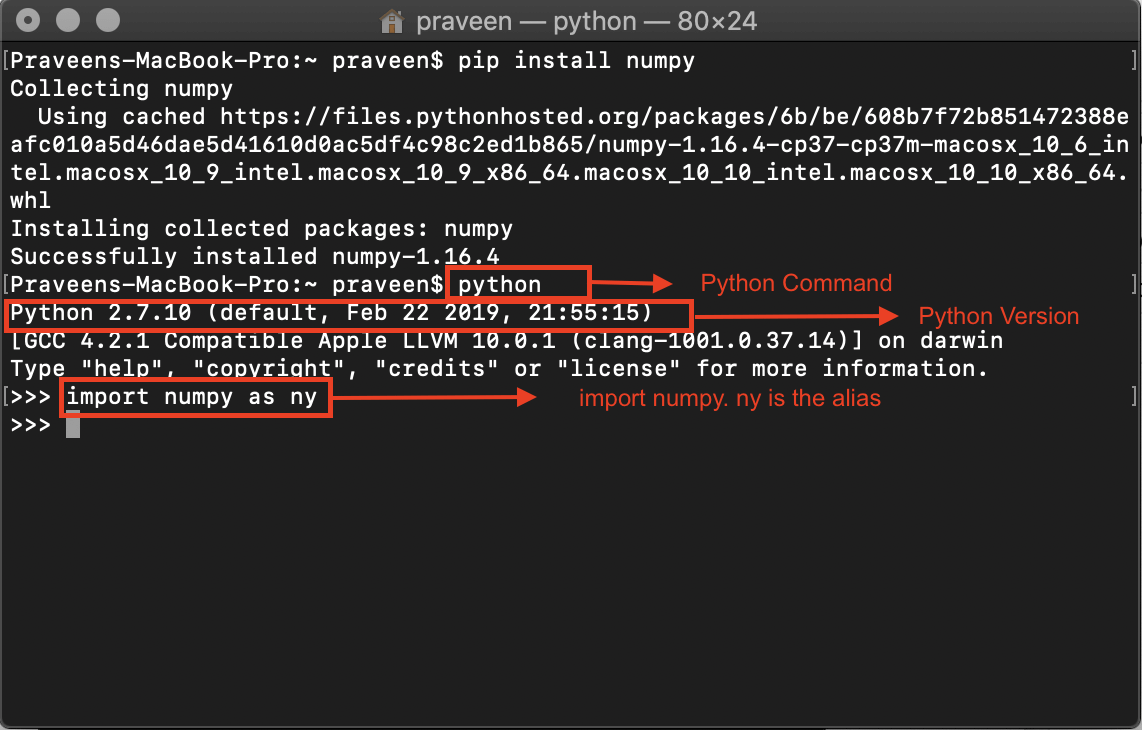
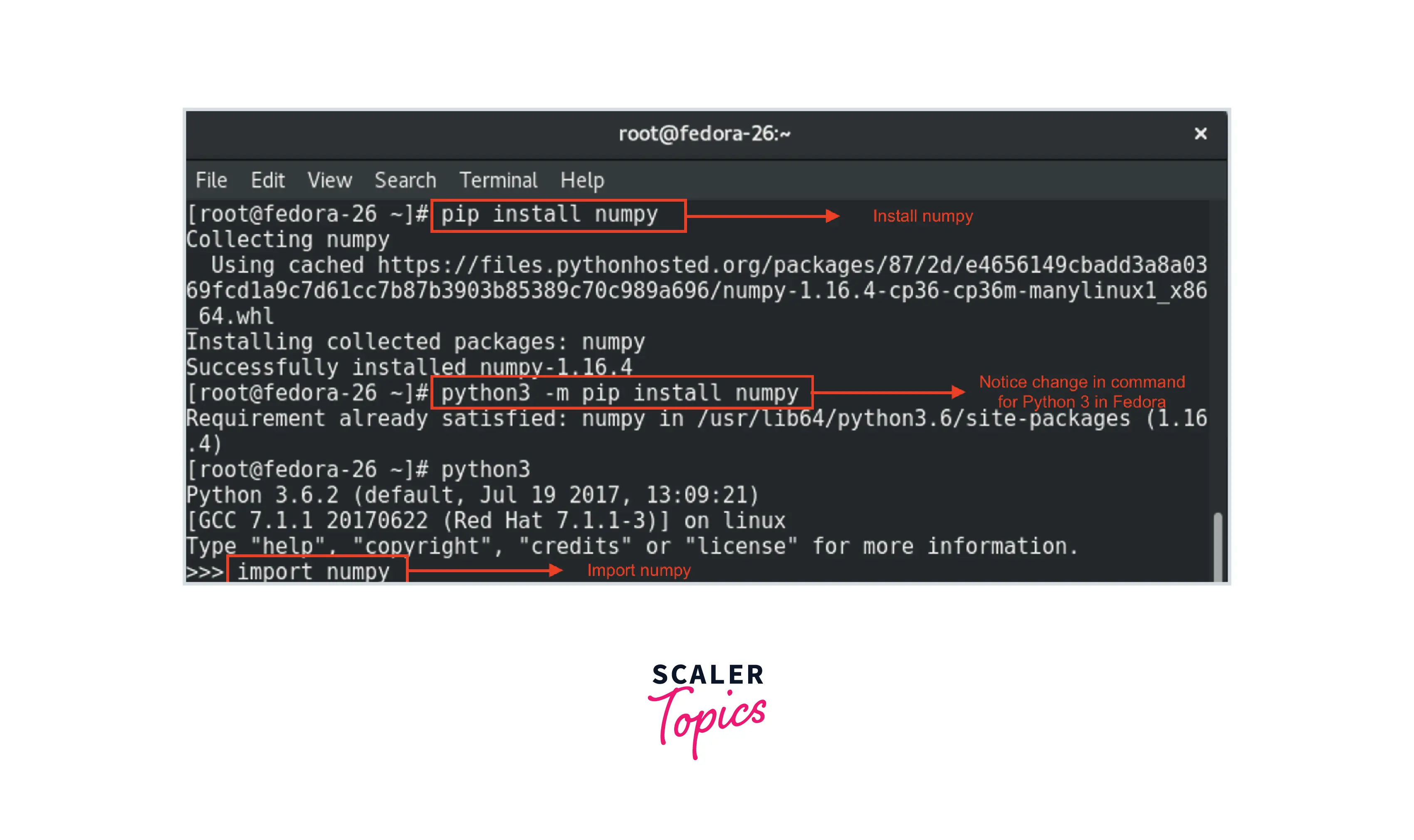
pip install numpyPip will connect to the Python Package Index (PyPI), download the latest stable version of NumPy, and install it along with any necessary dependencies. You’ll see progress messages as files are downloaded and installed.
For specific versions, you can specify them:
pip install numpy==1.22.4(Replace
1.22.4with your desired version.)If you encounter permission errors (especially on Linux/macOS outside a virtual environment), you might need to use
sudo(e.g.,sudo pip install numpy), but this is generally discouraged for system-wide installations and entirely unnecessary within a virtual environment.
Installing NumPy with Anaconda (For Data Science Ecosystem Users)
Anaconda is a popular distribution for scientific computing and data science, which comes with Python, many popular packages (including NumPy), and a powerful package manager called conda. If you’ve chosen Anaconda or Miniconda (a lighter version) as your Python environment, conda is the preferred way to install packages.
- Open your Anaconda Prompt (Windows) or terminal (macOS/Linux).
- Create a new
condaenvironment (optional but recommended):
bash

conda create -n my_ds_env python=3.9

conda activate my_ds_env
This creates an environment namedmy_ds_envwith Python 3.9. - Install NumPy using
conda:
bash

conda install numpy
Condawill resolve dependencies and prompt you to proceed with the installation. Typeyand press Enter.
Installing via Anaconda often provides pre-compiled binaries that are highly optimized for your system, potentially leading to better performance and avoiding compilation issues that can sometimes arise with pip on certain platforms or for complex scientific libraries. This streamlined approach underscores the productivity benefits that professional tools bring.
Manual Installation (Advanced/Specific Use Cases)
Manual installation from source is rarely needed for most users, especially given the robust pip and conda options. However, it might be necessary in specific scenarios such as:
- Installing a bleeding-edge development version.
- Installing on a system without internet access (after downloading the source code elsewhere).
- Building NumPy with specific compiler flags or optimizations not available in pre-compiled binaries.
This process typically involves downloading the NumPy source code, installing a C compiler (like GCC), and then running python setup.py install. This method is complex, prone to errors if not done carefully, and beyond the scope of a general installation guide. For the vast majority of users, pip or conda are the way to go.
Verifying Your NumPy Installation
After the installation process completes, it’s crucial to verify that NumPy has been installed correctly and is accessible to your Python environment. This simple check confirms that your technical foundation is solid.
- Open your Python interpreter:
- Ensure you are still in your activated virtual environment (if applicable).
- Type
pythonorpython3in your terminal/command prompt and press Enter. This will open the Python interactive shell.
- Import NumPy:
In the Python interpreter, type:
python

import numpy as np
If you don’t see any error messages after pressing Enter, NumPy has been successfully imported. The conventionas npis widely used to shorten the library’s name for easier coding. - Check the NumPy version:
You can confirm the installed version using:
python

print(np.__version__)
This will display the version number, confirming that a functional NumPy installation is present. - Perform a simple test (optional but recommended):
To ensure NumPy is fully operational, try a basic operation:
python

arr = np.array([1, 2, 3, 4, 5])

print(arr)

print(arr * 2)
This code creates a simple NumPy array and performs a basic element-wise multiplication. If you see the expected output ([1 2 3 4 5]and[ 2 4 6 8 10]), your NumPy installation is working perfectly.
To exit the Python interpreter, type exit() and press Enter.
Troubleshooting Common NumPy Installation Issues
Even with careful preparation, you might encounter issues during installation. Here are some common problems and their solutions, helping you navigate potential roadblocks and maintain your productivity.
- “Permission Denied” Errors:
- Cause: You’re trying to install packages globally without sufficient administrative privileges.
- Solution: Use a virtual environment! This is the strongest recommendation. If you must install globally (not recommended), try running your terminal/command prompt as an administrator (Windows) or using
sudo(Linux/macOS) with caution (e.g.,sudo pip install numpy).
- “pip is not recognized as an internal or external command” / “pip: command not found”:
- Cause: Python’s scripts directory (which contains
pip.exe) is not in your system’s PATH environment variable. - Solution:
- Ensure you checked “Add Python to PATH” during Python installation on Windows. If not, you might need to reinstall Python or manually add the path.
- On Linux/macOS, ensure Python is correctly installed and its
bindirectory is in your PATH. - As an alternative, always use
python -m pip install numpyinstead of justpip install numpy. This explicitly tells Python to runpipas a module, often bypassing PATH issues.
- Cause: Python’s scripts directory (which contains
- “Could not find a version that satisfies the requirement numpy”:
- Cause:
- Typo in the package name.
- Outdated pip version.
- Network connectivity issues preventing access to PyPI.
- Python version incompatibility (e.g., trying to install a very old NumPy version with a very new Python, or vice-versa).
- Solution:
- Double-check
pip install numpy. - Upgrade pip:
python -m pip install --upgrade pip. - Check your internet connection and proxy settings if applicable.
- Ensure your Python version is compatible with the NumPy version you’re trying to install (usually the latest NumPy is compatible with recent Python versions).
- Double-check
- Cause:
- “Failed building wheel for numpy” / Compilation Errors:
- Cause: This usually means pip tried to compile NumPy from source, but a necessary compiler (like a C/C++ compiler) is missing, or there are specific library dependencies not met.
- Solution: This is rare with modern pip versions as they typically download pre-compiled “wheels.”
- Ensure pip is up-to-date:
python -m pip install --upgrade pip. - If on Windows, ensure you have build tools installed (e.g., from Visual Studio Community Edition).
- Consider using
condaif you’re frequently encountering such issues, ascondaoften provides more robust pre-compiled binaries.
- Ensure pip is up-to-date:
- Existing NumPy conflicts (rare but possible):
- Cause: A broken or partially installed NumPy, or conflicts with other packages.
- Solution: Try uninstalling and reinstalling:
pip uninstall numpythenpip install numpy. - If you’re using a virtual environment, simply deleting the environment and recreating it (
rm -rf myenvthenpython -m venv myenv) is often the quickest fix.
Addressing these issues efficiently not only solves an immediate problem but also hones your debugging skills, an invaluable asset in any tech career and a mark of a resilient and adaptable professional.
Beyond Installation: Leveraging NumPy for Data Science and Beyond
Installing NumPy is just the beginning of your journey into advanced numerical computing. Its true power lies in its application, transforming raw data into actionable insights and robust solutions. This is where your newly acquired technical skill directly impacts your professional trajectory and potential for financial growth.
The “Brand” of a Data Scientist: Why NumPy Matters
In the competitive world of technology, your personal “brand” is paramount. It reflects your expertise, reliability, and what you bring to the table. For anyone aspiring to a role in data science, machine learning, or even advanced software development, a deep understanding of core libraries like NumPy is non-negotiable.
- Credibility: Being proficient in NumPy signals a fundamental understanding of efficient data handling and mathematical operations, which are foundational skills. It shows you’re equipped to tackle real-world data challenges.
- Efficiency and Productivity: Knowing how to leverage NumPy’s optimized functions means you can write cleaner, faster, and more scalable code. This directly translates to higher productivity, making you a more valuable asset to any team or project.
- Foundation for Advanced Tools: As mentioned, NumPy underpins libraries like Pandas and Scikit-learn. Mastery of NumPy allows you to better understand and utilize these higher-level tools, making you a more versatile and adaptable professional in the AI tools and software landscape. Your ability to troubleshoot issues or optimize code often traces back to your foundational NumPy knowledge.
Investing time in mastering NumPy is an investment in your professional identity and how you are perceived in the tech community – a critical element of personal branding.
Financial Returns: How Python Skills Boost Your Career
The demand for professionals skilled in Python and its data science ecosystem is skyrocketing. Companies across industries are looking for talent that can analyze data, build predictive models, and develop intelligent applications. This high demand translates directly into significant financial opportunities.
- Career Advancement: Proficiency in NumPy opens doors to high-paying roles such as Data Scientist, Machine Learning Engineer, Data Analyst, Quantitative Analyst, and Python Developer. These positions are often at the forefront of technological innovation and command competitive salaries.
- Online Income and Side Hustles: With NumPy skills, you can engage in freelance data analysis projects, create custom data processing scripts for businesses, or even develop your own financial analysis tools. These skills empower you to generate online income or launch profitable side hustles, contributing to your personal finance goals.
- Business Intelligence: For entrepreneurs, understanding NumPy allows for powerful business finance analysis, helping to derive insights from sales data, customer behavior, and market trends. This data-driven decision-making can be a significant competitive advantage, leading to more profitable ventures.
NumPy is not just a coding library; it’s a financial tool that enhances your earning potential and provides pathways to diverse income streams in the digital economy.
Next Steps: Exploring NumPy’s Power
Once NumPy is installed and verified, the real learning begins. Dive into its documentation, explore tutorials, and start experimenting with creating arrays, performing operations, and integrating it with other libraries.
- Learn Array Creation and Manipulation: Understand
np.array(),np.zeros(),np.ones(),np.arange(),np.linspace(), and how to reshape, slice, and index arrays. - Explore Universal Functions (ufuncs): Discover element-wise operations like
np.add(),np.subtract(),np.sqrt(), and trigonometric functions. - Delve into Linear Algebra: NumPy offers powerful functions for matrix multiplication, inversions, eigenvalues, and more (
np.dot(),np.linalg). - Integrate with Pandas and Matplotlib: Start using NumPy arrays as the foundation for Pandas DataFrames or as data points for visualizations with Matplotlib.
By embarking on this journey, you’re not just installing a piece of software; you’re equipping yourself with a powerful instrument that will accelerate your learning, enhance your professional capabilities, and unlock new opportunities in the exciting world of technology and data.
aViewFromTheCave is a participant in the Amazon Services LLC Associates Program, an affiliate advertising program designed to provide a means for sites to earn advertising fees by advertising and linking to Amazon.com. Amazon, the Amazon logo, AmazonSupply, and the AmazonSupply logo are trademarks of Amazon.com, Inc. or its affiliates. As an Amazon Associate we earn affiliate commissions from qualifying purchases.