
The annual unveiling of Apple’s latest iOS iteration is always a momentous occasion for tech enthusiasts, developers, and the curious alike. iOS 18, teased with promises of groundbreaking AI features, enhanced customization, and significant performance improvements, is no exception. For many, the desire to experience these advancements firsthand is irresistible, leading them to explore the beta program. Installing the iOS 18 beta, however, is a journey that requires careful preparation, a clear understanding of the risks involved, and a commitment to responsible testing. This comprehensive guide will walk you through every step of the process, from initial readiness checks to successful installation and beyond, ensuring you’re well-equipped to explore the future of iPhone software.
Navigating the bleeding edge of technology offers a unique thrill, but it’s crucial to approach beta software with caution. Unlike stable public releases, beta versions are inherently experimental. They are designed for testing and feedback, meaning they can contain bugs, performance issues, and even data loss risks. Our aim is to provide you with a clear, step-by-step tutorial that minimizes these potential pitfalls, allowing you to participate in the evolution of iOS 18 safely and effectively. Whether you’re a seasoned developer or simply eager to preview the new features, understanding the nuances of beta installation is paramount.
Understanding iOS 18 Beta: What You Need to Know Before Diving In
Before you even think about downloading software, it’s essential to grasp what you’re getting into. The iOS 18 beta is not a finished product; it’s a preview. This distinction is critical and informs every decision you should make regarding its installation. For those deeply interested in technology trends and software development, participating in a beta program offers an unparalleled opportunity to influence the final product and get a sneak peek at features that will define the user experience for millions.
The Allure and Risks of Early Adoption
The appeal of installing iOS 18 beta is undeniable. Imagine being among the first to experiment with new AI capabilities, customize your Home Screen in unprecedented ways, or discover subtle but impactful improvements to core applications. Early adopters gain bragging rights and an exclusive look into Apple’s vision for the year ahead. For developers, it’s a vital period to update apps, ensure compatibility, and leverage new APIs, directly impacting their business and brand presence when the final release rolls out. This early access can translate into a significant competitive edge in the app ecosystem.
However, this allure comes with inherent risks. Beta software is, by definition, unfinished. You might encounter:
- Bugs and Glitches: Apps crashing, features not working as expected, graphical anomalies, or unexpected reboots are common.
- Performance Issues: Slower responsiveness, increased battery drain, or overheating can occur.
- Compatibility Problems: Some third-party apps may not function correctly, or at all, until their developers update them for iOS 18.
- Data Loss: While rare with proper precautions, there’s always a slim chance of data corruption or loss.
- Instability: Your primary device might become unreliable for daily use, impacting productivity and communication.
For these reasons, it is highly recommended that you do not install the iOS 18 beta on your primary device, especially if you rely on it for work, school, or critical communication. If you only have one iPhone, proceed with extreme caution and ensure you have a robust backup strategy in place.
Is Your Device Ready? Compatibility and Prerequisites
To install iOS 18 beta, your device must be compatible. While Apple typically supports a wide range of iPhones, older models may be dropped with each new iOS version. Historically, the cut-off point often aligns with devices that can no longer run the latest stable release efficiently. Always check Apple’s official compatibility list for iOS 18 (usually released during WWDC) to confirm your iPhone is supported. Generally, iPhones from the Xs/XR generation onwards are a safe bet, but this can change.
Beyond compatibility, a few other prerequisites are vital:
- Sufficient Storage: Beta updates are often larger than standard updates. Ensure you have at least 10-15 GB of free storage space on your device. You can check this in Settings > General > iPhone Storage.
- Stable Wi-Fi Connection: Downloading large beta files requires a reliable and fast internet connection to prevent interruptions and data corruption.
- Charged Battery: Your iPhone should be charged to at least 50% or, ideally, connected to a power source throughout the installation process.
- Apple ID: You will need an active Apple ID to enroll in the beta programs and download the software.
The Critical Step: Backing Up Your Data
This cannot be stressed enough: Back up your iPhone before installing any beta software. This is your safety net, allowing you to restore your device to its current stable state if anything goes wrong or if you decide to downgrade. There are two primary methods for backing up:
-
iCloud Backup:
- Connect your iPhone to Wi-Fi.
- Go to Settings > [Your Name] > iCloud > iCloud Backup.
- Tap “Back Up Now.”
- Ensure the “iCloud Backup” toggle is on.
- Verify the backup was successful by checking the “Last Successful Backup” date and time.
- Keep in mind that iCloud backups might not always be compatible for restoring after you’ve been on a beta, especially if you try to restore to an older stable iOS version.
-
Computer Backup (Finder/iTunes):
- Connect your iPhone to your Mac (Finder) or Windows PC (iTunes).
- Open Finder (macOS Catalina or later) or iTunes (Windows PC or macOS Mojave or earlier).
- Select your iPhone when it appears.
- Under the “Backups” section, choose “This Computer” and select “Encrypt local backup” to save health data, passwords, and other sensitive information. Crucially, ensure you remember this password.
- Click “Back Up Now.”
- Once complete, consider archiving this backup to prevent it from being overwritten by future backups. In Finder, right-click the backup and select “Archive.” In iTunes, go to Preferences > Devices, right-click the backup, and select “Archive.”
A local encrypted backup is generally preferred for beta installations because it offers a more robust restore point if you decide to downgrade to an earlier stable iOS version.
Official Methods for Installing iOS 18 Beta
Apple provides two official channels for installing beta software: the Apple Developer Program and the Apple Public Beta Program. Understanding the differences is key to choosing the right path for you.
The Apple Developer Program Route
This program is primarily designed for app developers who need early access to new SDKs and APIs to update their applications. It costs $99 per year. Membership provides immediate access to developer betas, documentation, and tools.
How to get started (assuming you have a developer account):
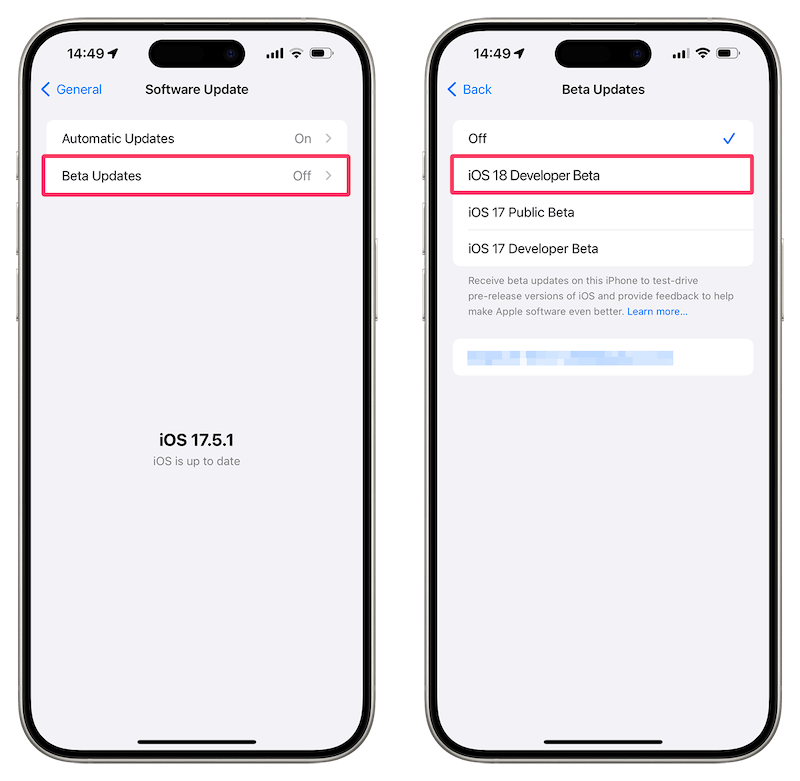
- Enroll Your Device: On your iPhone, go to Settings > General > Software Update > Beta Updates.
- Select iOS 18 Developer Beta: Choose the “iOS 18 Developer Beta” option. If you don’t see this, ensure you are signed in with your Apple ID linked to your developer account.
- Download and Install: Once selected, the iOS 18 Developer Beta profile will appear under Software Update. Tap “Download and Install” and follow the on-screen prompts.
The developer beta is typically released first, often immediately after the WWDC keynote. These initial versions are generally the most unstable and prone to bugs, so they are best suited for secondary devices or for professional developers who need to test their apps.
Joining the Apple Public Beta Program
For the average user who wants to try out new features without being a developer, the Apple Public Beta Program is the preferred route. It’s free to join and provides access to public betas, which are usually released a few weeks after the first developer beta, after some initial bugs have been ironed out. While generally more stable than developer betas, they still carry risks.
How to join and install:
- Sign Up: Go to
beta.apple.comon your iPhone or computer. - Enroll Your Device: Tap “Get Started” or “Enroll Your Devices.” Sign in with your Apple ID.
- Accept Terms: Read and accept the agreement.
- Install Profile (if necessary): In previous years, you would download a configuration profile. For iOS 16 and later, Apple simplified this. Now, you simply go to Settings > General > Software Update > Beta Updates on your enrolled device and select “iOS 18 Public Beta.”
- Download and Install: Once selected, the iOS 18 Public Beta will appear under Software Update. Tap “Download and Install” and follow the on-screen prompts.
Step-by-Step Installation via Software Update (OTA)

Regardless of whether you choose the developer or public beta program, the actual installation process via Over-The-Air (OTA) update is largely the same.
- Ensure Prerequisites are Met: Confirm you have backed up your device, have sufficient storage, and are connected to a stable Wi-Fi network with adequate battery life (or plugged in).
- Navigate to Software Update: On your iPhone, go to Settings > General > Software Update.
- Select Beta Updates: Tap on “Beta Updates” and choose either “iOS 18 Developer Beta” or “iOS 18 Public Beta” based on your enrollment. If you don’t see the option, restart your phone and check again, or ensure you’ve properly enrolled your Apple ID in the respective program.
- Wait for Beta to Appear: Once selected, the iOS 18 beta profile should appear on the main Software Update screen. It may take a few moments to refresh.
- Download and Install: Tap “Download and Install.” You may need to enter your passcode.
- Agree to Terms and Conditions: Read through the terms and conditions, then tap “Agree.”
- Wait for Download: The beta software will begin downloading. This can take a significant amount of time depending on your internet speed and the size of the update.
- Prepare for Installation: Once downloaded, your iPhone will prepare the update.
- Restart and Install: Tap “Install Now” (or it may automatically install after a countdown). Your iPhone will verify the update, then restart to begin the installation process.
- Post-Installation: During the installation, you’ll see an Apple logo with a progress bar. Do not interrupt this process. Your iPhone may restart multiple times. Once complete, your iPhone will boot up to the Lock Screen, now running iOS 18 beta.
After installation, you’ll be prompted to complete a few setup steps, similar to setting up a new iPhone, including agreeing to new beta terms, reviewing privacy settings, and potentially updating some system apps.
Advanced Installation and Troubleshooting
While the OTA method is the most common, understanding potential issues and alternative installation methods, like downgrading, is crucial for any beta tester.
Manual Installation (DFU/Recovery Mode) – For Advanced Users Only
In some rare cases, or if you encounter issues with the OTA update, a manual installation using a computer might be necessary. This typically involves downloading the IPSW (iPhone Software) file for iOS 18 beta from the Apple Developer Portal and restoring it via Finder (on Mac) or iTunes (on Windows). This process is more complex and involves putting your device into DFU (Device Firmware Update) or Recovery Mode.
Important Note: This method usually requires a signed IPSW file, which for beta versions, is only available to developers. Attempting to install unsigned IPSW files can brick your device. This process also typically wipes your device, so a prior backup is absolutely critical.
General Steps (Highly Simplified):
- Download IPSW: From the Apple Developer Portal, download the correct iOS 18 beta IPSW file for your specific iPhone model.
- Connect to Computer: Connect your iPhone to your Mac or Windows PC.
- Enter Recovery Mode/DFU Mode: Follow specific instructions for your iPhone model to put it into Recovery Mode or DFU Mode. (e.g., for newer iPhones: quickly press volume up, then volume down, then press and hold the side button until the Recovery Mode screen appears).
- Restore iPhone: In Finder/iTunes, you will see an option to “Restore iPhone.” Hold the Option (Mac) or Shift (Windows) key and click “Restore iPhone.” Browse to the downloaded IPSW file and select it.
- Follow Prompts: Your computer will then restore your iPhone with the selected iOS 18 beta.
This method should only be attempted by experienced users who are comfortable with the risks and technicalities involved.
Common Issues and How to Resolve Them
Beta software is inherently buggy. Here are some common issues you might face and general troubleshooting tips:
- Excessive Battery Drain: This is very common in early betas. Background processes, indexing, and debug logging can all contribute. Try restarting your phone, checking app usage in Settings > Battery, and disabling unnecessary background app refresh. Subsequent beta updates often improve battery life.
- App Crashes or Non-Functionality: Many third-party apps are not optimized for new iOS betas immediately.
- Solution: Check the App Store for updates. If an app still crashes, try reinstalling it. If it remains broken, report the issue to the app developer and consider if you truly need that app on a beta.
- Performance Lags/Freezes:
- Solution: A simple restart can often resolve temporary slowdowns. Ensure you have enough free storage. If issues persist, it might be an inherent beta bug that will be fixed in future updates.
- Wi-Fi/Bluetooth Connectivity Issues:
- Solution: Toggle Wi-Fi/Bluetooth off and on. Restart your phone. Reset network settings (Settings > General > Transfer or Reset iPhone > Reset > Reset Network Settings – note: this will remove all saved Wi-Fi passwords).
- Update Failed/Stuck on Apple Logo:
- Solution: Force restart your iPhone. If it’s still stuck, you may need to enter Recovery Mode and try to restore/update via Finder/iTunes. If that fails, a full restore might be necessary, potentially to a stable iOS version. This is where your backup becomes invaluable.
- “Unable to Check for Update” Error:
- Solution: Ensure you’re connected to a stable Wi-Fi network. Restart your iPhone. Wait a while and try again; Apple’s servers can sometimes be overloaded during initial beta releases. Check Apple’s System Status page for any server outages.
How to Downgrade from iOS 18 Beta (If Things Go Wrong)
If the beta proves too unstable for your needs, or you simply wish to return to a stable iOS version, you can downgrade. This process will erase your device, so your computer backup is absolutely essential.
Steps to Downgrade:
- Disable Find My iPhone: Go to Settings > [Your Name] > Find My > Find My iPhone, and turn it off (you’ll need your Apple ID password).
- Connect to Computer: Connect your iPhone to your Mac (Finder) or Windows PC (iTunes).
- Enter Recovery Mode: Put your iPhone into Recovery Mode. The steps vary by model (e.g., for newer iPhones, quickly press volume up, then volume down, then press and hold the side button until the Recovery Mode screen appears).
- Restore Your iPhone: In Finder/iTunes, you’ll see a prompt to “Restore” or “Update” your iPhone. Choose “Restore.” This will download and install the latest stable public version of iOS onto your device, erasing all data.
- Restore from Backup: Once your iPhone is restored to the stable iOS version and set up as new, you can then restore your data from the backup you created before installing the iOS 18 beta. Do NOT restore from a backup made while running the iOS 18 beta if you are downgrading to an older stable iOS version, as this can cause compatibility issues.
This process is generally reliable but underscores the importance of that initial, pre-beta backup.
Maximizing Your iOS 18 Beta Experience
Once you’ve successfully installed iOS 18 beta, the real fun begins: exploring its new features and contributing to its development.
Exploring New Features Responsibly
Take your time to explore all the new functionalities iOS 18 has to offer. Dive into the updated Settings app, check out changes to core applications like Photos, Messages, or Mail, and experiment with any new AI capabilities. Pay attention to changes in user interface, performance, and system animations.
- Screenshots and Notes: Take screenshots of new features or interesting observations. Jot down notes about what you like, what you don’t, and any bugs you encounter.
- Patience is Key: Remember that features might be incomplete or change drastically in future beta updates. Not everything you see in the early betas will necessarily make it into the final release.
- Focus on Core Use Cases: Test the functions you use most frequently. How do calling, texting, browsing, and common apps perform? This helps identify critical issues.
Contributing to the Beta Program: Reporting Bugs
One of the primary reasons Apple offers beta programs is to gather feedback and identify bugs before the public release. Your participation in reporting issues is invaluable and helps shape the final product.
- Feedback Assistant App: Apple includes a dedicated “Feedback Assistant” app with beta software. Use this app to report any bugs, performance issues, or provide general feedback.
- Be Detailed: When submitting feedback, be as specific as possible.
- What exactly happened?
- What steps did you take to reproduce the issue?
- What was the expected behavior?
- What was the actual behavior?
- Include screenshots or screen recordings if relevant.
- Check Existing Reports: Before submitting a new report, check if someone else has already reported the same issue. You can often add your observation to an existing thread.
- Privacy: Be mindful of privacy when submitting bug reports, especially with screenshots or recordings that might contain personal information.
By actively reporting bugs, you become an integral part of the iOS development cycle, contributing to a more stable and refined user experience for everyone. This reflects a commitment to quality that aligns with best practices in technology and brand reputation.

Conclusion
Installing the iOS 18 beta is an exciting opportunity to peek into the future of Apple’s mobile operating system. From groundbreaking AI enhancements to deeply personal customization options, the promise of iOS 18 is significant. However, it’s a journey best undertaken with thorough preparation, a clear understanding of the risks, and a commitment to responsible beta testing. By following the steps outlined in this guide—from meticulously backing up your data and ensuring device compatibility to choosing the right beta program and learning how to troubleshoot—you can minimize potential pitfalls and maximize your experience.
Remember that beta software is a work in progress. While the allure of early access is strong, patience and vigilance are your best allies. Embrace the opportunity to explore, experiment, and contribute your valuable feedback through the Feedback Assistant app. Your active participation helps Apple refine iOS 18, ultimately leading to a more stable, powerful, and user-friendly experience for millions worldwide when the official release arrives. Dive in safely, enjoy the ride, and help shape the next generation of iPhone innovation.
aViewFromTheCave is a participant in the Amazon Services LLC Associates Program, an affiliate advertising program designed to provide a means for sites to earn advertising fees by advertising and linking to Amazon.com. Amazon, the Amazon logo, AmazonSupply, and the AmazonSupply logo are trademarks of Amazon.com, Inc. or its affiliates. As an Amazon Associate we earn affiliate commissions from qualifying purchases.