
In the ever-evolving landscape of online gaming, the integrity of competitive play is paramount. Cheating not only sours the experience for legitimate players but can also damage a game’s community and reputation. This is where anti-cheat systems step in, acting as digital guardians ensuring a level playing field. Among the most prevalent and effective solutions is Easy Anti-Cheat (EAC), developed by Epic Games. If you’ve delved into titles like Apex Legends, Fortnite, Rust, or hundreds of others, you’ve likely encountered EAC in action.
As part of our commitment to digital security and providing essential tech tutorials, this guide will walk you through everything you need to know about installing, troubleshooting, and understanding Easy Anti-Cheat. Whether you’re a seasoned veteran or just starting your journey into the world of online multiplayer, ensuring EAC is properly installed and functioning is crucial for a smooth, fair, and enjoyable gaming experience. We’ll demystify the process, offer practical solutions to common hurdles, and empower you to confidently navigate the technicalities of maintaining a secure gaming environment.
Understanding Easy Anti-Cheat: The Guardian of Fair Play
Before diving into the mechanics of installation, it’s vital to grasp what Easy Anti-Cheat is and why it plays such a critical role in modern gaming. It’s more than just a piece of software; it’s a cornerstone of competitive integrity.
What is Easy Anti-Cheat?
Easy Anti-Cheat is an anti-tamper and anti-cheat service designed to prevent hacking and cheating in multiplayer online games. It operates as a client-side anti-cheat solution, meaning it runs directly on your computer alongside the game. Its primary function is to detect and prevent various forms of cheating, including:
- Aimbots: Software that automatically aims for players.
- Wallhacks: Programs that allow players to see enemies through walls or objects.
- Speedhacks: Modifications that increase player movement speed.
- Macros and Scripting: Automated inputs that give an unfair advantage.
- Memory Manipulation: Altering game data in memory to gain advantages.
- Driver-level Cheats: Sophisticated cheats that operate at a deep system level.
EAC employs a multi-layered approach, utilizing heuristics, signature detection, and behavior analysis to identify and ban cheaters. It works diligently in the background, scanning game processes and system memory for suspicious activity.
Why is EAC Essential for Gamers?
The importance of EAC extends beyond just catching cheaters; it fundamentally upholds the integrity of the gaming ecosystem:
- Ensuring Fair Competition: At its core, EAC guarantees that every player competes on an even footing, relying on skill, strategy, and teamwork rather than illicit advantages. This is particularly vital in esports and ranked play, where fair competition is paramount.
- Protecting Developer Investment: Game developers invest immense resources into creating immersive and balanced experiences. Cheating undermines this effort, potentially leading to player exodus and financial losses. EAC helps protect this investment by maintaining a healthy player base.
- Enhancing Player Experience: No one enjoys losing to a cheater. EAC significantly reduces the frequency of such encounters, leading to a more satisfying and less frustrating experience for legitimate players. It fosters a sense of trust within the community.
- Building a Trustworthy Community: When players know that cheating is actively combated, it builds trust within the game’s community. This trust is essential for long-term engagement and the growth of a vibrant player base. Without effective anti-cheat, games can quickly devolve into havens for malicious actors, driving away legitimate players.
The Technology Behind the Shield
EAC’s effectiveness stems from its sophisticated technological architecture. It operates at a kernel level, meaning it has deep access to your system to monitor game processes and prevent tampering. This level of access is common among robust anti-cheat systems, as many advanced cheats also attempt to operate at this level.
The system is constantly updated by Epic Games to combat new cheating methods. This proactive approach ensures that as cheaters develop new exploits, EAC can quickly adapt and deploy countermeasures. It also integrates seamlessly with game launchers and client software, making its presence generally unobtrusive for legitimate players while remaining vigilant against threats. While some users might have concerns about kernel-level access, it’s a necessary component for effective anti-cheat in today’s sophisticated cheating landscape, with reputable services like EAC prioritizing user privacy and system stability.
Preparing for a Smooth Installation
While Easy Anti-Cheat typically installs automatically with your games, ensuring a smooth and error-free setup requires a bit of pre-game preparation. Overlooking these steps can lead to frustrating launch errors or system conflicts down the line.
System Requirements and Compatibility Checks
Before anything else, confirm your system meets both the game’s and EAC’s basic requirements:
- Operating System: Easy Anti-Cheat is compatible with most modern Windows versions (Windows 7 SP1, 8.1, 10, 11). Ensure your OS is up to date with the latest service packs and security patches. While EAC does support some Linux compatibility layers (like Proton for Steam Deck), direct native Linux support is rare and depends on the specific game.
- Game Compatibility: Each game individually integrates EAC. If a game uses EAC, the installer will usually be bundled. There are no universal “EAC system requirements” separate from the game itself, other than a functional Windows environment.
- Sufficient Disk Space: While EAC itself is small, ensure you have enough free disk space for the game and its associated files.
Essential Pre-Installation Steps
These steps are crucial for preventing conflicts and ensuring EAC can function without interruption:
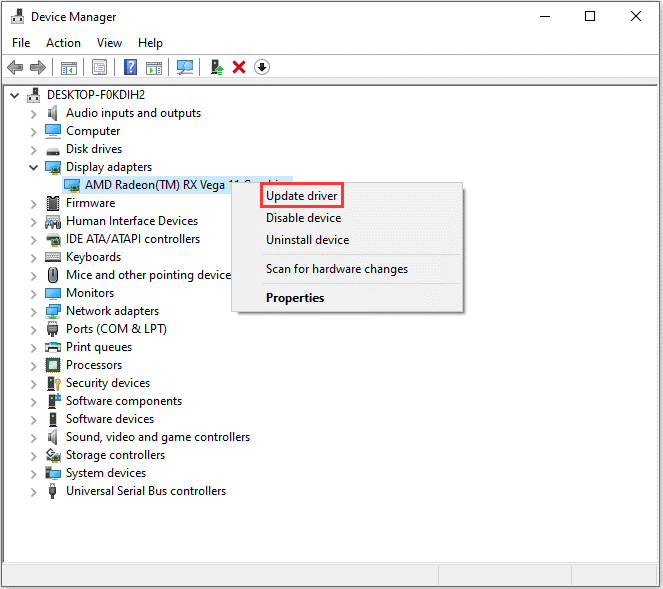
- Update Your Graphics Drivers: Outdated graphics drivers are a common cause of game crashes and can sometimes interfere with anti-cheat systems. Visit your GPU manufacturer’s website (NVIDIA, AMD, Intel) to download and install the latest drivers. A clean installation is often recommended.
- Close Unnecessary Background Applications: Other software running in the background, especially overlays (like Discord, GeForce Experience, Xbox Game Bar) or resource-intensive applications, can sometimes conflict with EAC or consume valuable system resources, leading to performance issues or errors. Close anything not essential before launching your game.
- Verify Game Files (if already installed): If you’re reinstalling EAC or troubleshooting an existing issue, verifying the integrity of your game files through your game launcher (Steam, Epic Games Launcher, Origin/EA App, etc.) is a critical step. This ensures no game files are corrupted or missing, which could prevent EAC from working correctly.
- Steam: Right-click game > Properties > Local Files > Verify integrity of game files.
- Epic Games Launcher: Library > Click three dots on game > Verify.
- EA App: My Collection > Game Title > Manage > Repair.
- Run as Administrator: Ensure you have administrator privileges on your Windows account. When launching games or the EAC installer, right-clicking and selecting “Run as administrator” can resolve permission-related issues.
- Restart Your PC: A simple restart can often resolve minor system glitches or clear temporary files that might be causing conflicts. It’s a fundamental troubleshooting step that should not be overlooked.
Network Considerations
A stable internet connection is vital for online gaming, and it can also impact EAC’s ability to communicate with its servers:
- Stable Internet Connection: EAC needs to connect to its servers for authentication and updates. An unstable or intermittent connection can cause errors.
- Firewall and Antivirus Exemptions: Your antivirus software or Windows Firewall might mistakenly flag EAC components as threats, blocking them from running. It’s often necessary to create exceptions or whitelist the game’s executable and the EAC service in your security software. We’ll delve deeper into this in the troubleshooting section.
By taking these preparatory steps, you significantly reduce the chances of encountering installation or launch issues, paving the way for a smooth and uninterrupted gaming experience.
Step-by-Step Installation Process
Installing Easy Anti-Cheat is typically a straightforward process, often handled automatically by your game launcher. However, understanding the underlying steps and knowing how to manually trigger the installation can be invaluable for troubleshooting or specific scenarios.
Standard Installation via Game Launcher
For the vast majority of games that utilize Easy Anti-Cheat, the installation process is integrated seamlessly with the game itself. You usually won’t need to manually download or run a separate EAC installer.
- First Game Launch: The first time you launch a game that uses EAC, the game launcher (e.g., Steam, Epic Games Launcher, EA App, Ubisoft Connect) will often detect that EAC is not installed or requires an update.
- Automatic Prompt: You will typically see a prompt or a loading screen indicating that Easy Anti-Cheat is being installed or initialized. This process usually involves downloading the necessary EAC files and installing its service on your system.
- User Account Control (UAC) Prompt: Windows might display a User Account Control prompt asking for permission to allow the Easy Anti-Cheat service to make changes to your device. Always click “Yes” to proceed, as this is essential for EAC to function correctly.
- Completion: Once the installation is complete, the game will proceed to launch normally. This entire process usually takes only a few moments.
Manual Installation for Specific Games
While automatic installation is the norm, there are situations where you might need to manually install or repair EAC. This is common when troubleshooting errors, or if a game update requires a specific EAC component refresh.
Locating the EAC Setup File
Most games that use EAC include the installer executable within their game directory. This is usually located in a subfolder.
- Navigate to Your Game’s Installation Directory:
- Steam: Right-click the game in your Library > Manage > Browse local files.
- Epic Games Launcher: Library > Click three dots on game > Manage > Installation > Open Install Location.
- EA App: My Collection > Game Title > Manage > View Properties > Browse.
- Ubisoft Connect: Games > Game Title > Properties > Local Files > Open Folder.
- Locate the EAC Folder: Within the game’s installation directory, look for a folder named
EasyAntiCheat,EAC, or sometimes directly find an executable likeEasyAntiCheat_setup.exe.- Example Path:
C:Program Files (x86)Steamsteamappscommon[Game Name]EasyAntiCheatEasyAntiCheat_setup.exe
- Example Path:
Running the Installer and Selecting the Game
Once you’ve found the EasyAntiCheat_setup.exe file:
- Run as Administrator: Right-click on
EasyAntiCheat_setup.exeand select “Run as administrator.” This ensures the installer has the necessary permissions. - EAC Setup Window: A small window will appear with the Easy Anti-Cheat logo.
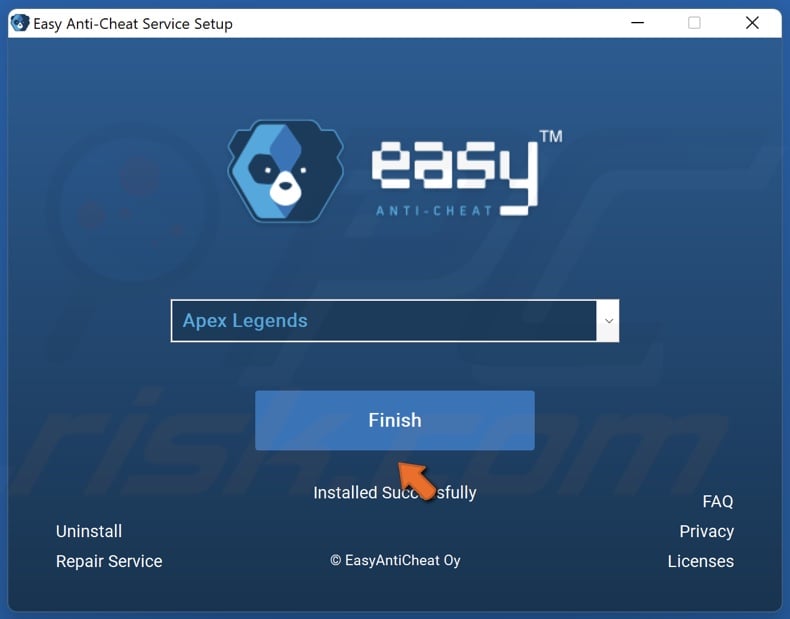
- Verify Game Selection: In the dropdown menu labeled “Game,” ensure that the correct game title is selected. The installer usually detects the game it’s associated with automatically. If you have multiple games using EAC, you might see a list, so pick the one you’re trying to install/repair for.
- Installation/Repair:
- To install, click the “Install” button.
- To repair an existing installation, click the “Repair Service” or “Install” button (it often functions as a repair if already installed).
- To uninstall, you would click the “Uninstall” button (more on this later).
- Complete the Process: Follow any on-screen prompts. Once finished, you should see a “Service installed successfully!” or similar message. Click “Finish” or “Close.”
Verifying a Successful Installation
After the installation process, whether automatic or manual, it’s good practice to verify that EAC is functioning correctly:
- Launch the Game: Start the game as you normally would through its launcher.
- EAC Loading Screen: Pay attention to the initial loading screens. Many games display a small Easy Anti-Cheat splash screen or logo before the game fully loads, indicating that EAC is initializing.
- In-Game Notifications: Some games might display a subtle notification in the corner of the screen once EAC is fully loaded and active.
- Check for Errors: If the game launches without any error messages related to EAC, it’s a strong indication that the installation was successful. If you encounter any errors or the game fails to launch, proceed to the troubleshooting section.
A smooth launch is the best confirmation. Remember that EAC is designed to be unobtrusive, so its successful operation means you likely won’t notice it once you’re in the game, allowing you to focus on the competitive fun.
Troubleshooting Common Easy Anti-Cheat Issues
Even with careful preparation, you might occasionally encounter issues with Easy Anti-Cheat. These problems can prevent your game from launching or cause you to be kicked from servers. Understanding common error messages and their solutions is key to quickly getting back into the action.
“Untrusted System File” or “Launch Error” Messages
These are among the most frequent and frustrating EAC errors. They indicate that EAC has detected a file on your system that it deems modified, corrupted, or otherwise suspicious.
Causes:
- Corrupted Game Files: Files essential for the game or EAC might have become corrupted due to incomplete downloads, disk errors, or unexpected shutdowns.
- Conflicting Software: Other software, especially poorly coded drivers, overlays, or even some legitimate system utilities, can interfere with EAC’s monitoring.
- Malware/Viruses: Malicious software can sometimes modify system files, triggering EAC.
- Outdated Drivers: While less common for direct “untrusted file” errors, outdated drivers can lead to system instability that EAC misinterprets.
- Windows Updates: Occasionally, a Windows update can temporarily cause conflicts until EAC or the game updates to accommodate it.
Solutions:
- Verify Game Files: This is the first and most critical step. Use your game launcher (Steam, Epic, EA App) to verify the integrity of your game files (as described in “Essential Pre-Installation Steps”). This will replace any corrupted or missing files.
- Update Windows and Drivers: Ensure your Windows operating system is fully updated, and all your hardware drivers (especially graphics and chipset) are current.
- Run System File Checker (SFC): This Windows utility can scan for and repair corrupted Windows system files.
- Open Command Prompt as administrator.
- Type
sfc /scannowand press Enter. Let the scan complete.
- Perform a Clean Boot: A clean boot starts Windows with a minimal set of drivers and startup programs, helping you identify if background software is causing the conflict. Search “msconfig” in Windows Start, go to Services, check “Hide all Microsoft services,” then “Disable all.” Restart. If the game launches, re-enable services one by one to find the culprit.
- Scan for Malware: Run a full system scan with reputable antivirus/anti-malware software (e.g., Windows Defender, Malwarebytes).
- Reinstall EAC Manually: Navigate to your game’s EasyAntiCheat folder and run
EasyAntiCheat_setup.exeas administrator. Choose to “Repair” or “Install” the service.
Connection and Server Issues
Sometimes, EAC errors are related to network connectivity, preventing the anti-cheat from properly communicating with its backend servers.
Causes:
- Firewall Blocking: Your Windows Firewall or third-party firewall might be blocking EAC’s outgoing connections.
- Antivirus Interference: Similar to firewalls, antivirus software can sometimes aggressively block network traffic from unfamiliar applications.
- Network Instability: An unstable internet connection can prevent EAC from authenticating correctly.
Solutions:
- Add Firewall Exceptions:
- Windows Firewall: Search “Windows Defender Firewall” in the Start menu. Click “Allow an app or feature through Windows Defender Firewall.” Click “Change settings,” then “Allow another app…” Browse to your game’s executable and the
EasyAntiCheat_setup.exefile, and add them. Ensure both public and private networks are checked. - Third-Party Firewall: Consult your firewall software’s documentation for instructions on how to create exceptions or whitelist programs.
- Windows Firewall: Search “Windows Defender Firewall” in the Start menu. Click “Allow an app or feature through Windows Defender Firewall.” Click “Change settings,” then “Allow another app…” Browse to your game’s executable and the
- Check Antivirus Quarantines: Inspect your antivirus software’s quarantine or history logs. If any EAC files have been quarantined, restore them and add an exception for the game’s directory. Temporarily disabling your antivirus (briefly and with caution) can help determine if it’s the cause, but remember to re-enable it immediately afterward.
- Flush DNS/Reset Network: Open Command Prompt as administrator and run the following commands, pressing Enter after each:
ipconfig /releaseipconfig /renewipconfig /flushdnsnetsh winsock resetnetsh int ip reset- Restart your PC.
- Router/Modem Restart: Power cycle your router and modem by unplugging them for 30 seconds and then plugging them back in.
Antivirus/Firewall Conflicts
This warrants its own detailed section as it’s a very common root cause. EAC, operating at a deep system level, can be mistaken for malicious software by overzealous security programs.
Solutions (Detailed):
- Whitelist the Game and EAC Folder:
- Locate the main game executable (e.g.,
game.exe) and theEasyAntiCheat_setup.exefile within the game directory. - In your antivirus software settings, find the section for “Exclusions,” “Exceptions,” or “Allowed Apps.”
- Add both the specific executables and the entire game installation folder (e.g.,
C:Program Files (x86)Steamsteamappscommon[Game Name]) to the exclusion list. - Also, ensure the
EasyAntiCheatfolder within the game’s directory is whitelisted.
- Locate the main game executable (e.g.,
- Temporarily Disable (for Testing Only): As a last resort for testing, you can temporarily disable your antivirus or firewall. Immediately re-enable it after testing. If the game launches, you’ve identified the conflict, and you should then proceed with proper whitelisting rather than permanent disabling.
Resolving EAC Service Errors
Errors specifically stating issues with the EAC service might require focused attention on the service itself.
Solutions:
- Reinstall EAC Manually: As detailed in the “Manual Installation” section, run
EasyAntiCheat_setup.exefrom the game folder and select “Repair” or “Install.” This will often reinstall or repair the underlying Windows service for EAC. - Check Windows Services:
- Search “Services” in the Windows Start menu and open the application.
- Look for a service named “EasyAntiCheat” (or similar).
- Ensure its “Startup type” is set to “Manual” and its “Status” is “Running.” If not, right-click, go to “Properties,” set “Startup type” to “Manual,” click “Apply,” then right-click the service and select “Start.”
- Run DISM Command: If SFC didn’t fully resolve system file issues, the Deployment Image Servicing and Management (DISM) tool can help.
- Open Command Prompt as administrator.
- Type
DISM /Online /Cleanup-Image /RestoreHealthand press Enter. This can take a while. - After DISM completes, run
sfc /scannowagain.
General Best Practices for Issue Prevention
- Regular Software Updates: Keep your OS, drivers, and game launchers updated.
- Avoid Unauthorized Modifications: Do not use unofficial game clients, mods, or tools that promise advantages, as they will trigger EAC.
- Monitor System Health: Regularly check disk health, run antivirus scans, and ensure your system isn’t overheating, as hardware issues can manifest as software errors.
- Consult Game/EAC Support: If all else fails, reach out to the specific game’s support team or Easy Anti-Cheat’s official support channels for personalized assistance.
By systematically working through these troubleshooting steps, you can resolve the vast majority of Easy Anti-Cheat related issues and ensure your gaming experience remains fair and uninterrupted.
Managing and Uninstalling Easy Anti-Cheat
While Easy Anti-Cheat is designed to be a persistent guardian during your gaming sessions, there might be instances where you need to manage its presence on your system, including its uninstallation. Understanding how to properly remove EAC is as important as knowing how to install it, especially for system maintenance or resolving stubborn conflicts.
When to Uninstall EAC
Uninstallation of Easy Anti-Cheat is generally not required unless you encounter very specific scenarios:
- No Longer Playing Games with EAC: If you’ve stopped playing all games that utilize Easy Anti-Cheat, and you want to free up system resources or simply declutter your machine, you might choose to uninstall it.
- Persistent Troubleshooting Issues: In rare cases where EAC is causing persistent system-wide conflicts or errors that cannot be resolved through repairs or other troubleshooting steps, a clean uninstallation followed by a fresh reinstallation (if needed for a specific game) might be a last resort.
- System Cleanup: As part of a broader system cleanup or when preparing for a major operating system overhaul, uninstalling all non-essential software, including anti-cheat clients, can be beneficial.
It’s important to remember that if you uninstall EAC and then launch a game that requires it, the game launcher will typically prompt you to reinstall it automatically.
The Uninstallation Process
There are two primary methods for uninstalling Easy Anti-Cheat, both of which are straightforward:
-
Using the EAC Installer (Recommended Method): This is the most reliable way to remove EAC, as it uses the same tool that installed it.
- Navigate to Your Game’s Installation Directory: As described in the “Manual Installation” section, find the
EasyAntiCheatfolder within one of your game’s directories. - Locate
EasyAntiCheat_setup.exe: Right-click on this file and select “Run as administrator.” - Select “Uninstall”: In the Easy Anti-Cheat setup window, ensure the correct game is selected from the dropdown menu (if multiple options appear). Then, click the “Uninstall” button.
- Confirm Uninstallation: Follow any prompts to confirm. The service will be removed from your system.
- Repeat for Other Games (if necessary): If you play multiple games that use EAC, the uninstaller for one game might only remove the service associated with that specific game. You might need to repeat this process for other games’ EAC folders if you want to ensure a complete removal of all EAC instances. Often, one uninstallation through the installer is sufficient, as EAC usually installs a single system service that multiple games share. However, if you suspect multiple instances, this granular approach is safer.
- Navigate to Your Game’s Installation Directory: As described in the “Manual Installation” section, find the
-
Using Windows Add or Remove Programs: This method works for many applications, including EAC.
- Open Apps & Features:
- Windows 10/11: Right-click the Start button and select “Apps & Features” (or go to Settings > Apps > Apps & Features).
- Windows 7/8.1: Open Control Panel > Programs > Uninstall a program.
- Search for Easy Anti-Cheat: In the list of installed applications, type “Easy Anti-Cheat” into the search bar or scroll down to find it. You might see entries like “Easy Anti-Cheat (game name)” or just “Easy Anti-Cheat.”
- Uninstall: Select the Easy Anti-Cheat entry and click the “Uninstall” button. Follow any on-screen prompts to complete the removal.
- Open Apps & Features:
Important Considerations Post-Uninstallation
After uninstalling Easy Anti-Cheat, keep these points in mind:
- Impact on Other Games: If you uninstall EAC, any game on your system that requires it will not launch until EAC is reinstalled. The game launcher will likely prompt for a reinstallation the next time you try to play.
- Residual Files: While the uninstaller typically removes the core service, some minor residual files or folders (e.g., empty
EasyAntiCheatdirectories within game folders) might remain. These are usually harmless and can be manually deleted if desired. - System Restart: It’s often a good practice to restart your computer after uninstalling software, including anti-cheat systems, to ensure all changes are fully applied and any lingering processes are terminated.
By understanding these management and uninstallation procedures, you maintain full control over the software on your system, ensuring flexibility and efficiency in your digital environment.

Conclusion: Embracing a Secure and Fair Gaming Experience
Easy Anti-Cheat, like other robust anti-cheat systems, is an indispensable component of the modern online gaming landscape. It stands as a testament to the ongoing battle against unfair play, striving to preserve the competitive spirit and integrity that makes online multiplayer so engaging. For gamers, understanding how to properly install, maintain, and troubleshoot EAC is not merely a technical chore but a commitment to contributing to a healthier and more enjoyable gaming community.
Throughout this guide, we’ve explored the fundamental role EAC plays in digital security within gaming, delving into its technological underpinnings and the direct benefits it provides—ensuring every victory is earned through skill and every defeat is a lesson, not a frustration born of exploitation. We’ve walked through the preparatory steps crucial for a smooth setup, navigated the clear instructions for both automatic and manual installation, and provided a comprehensive arsenal of solutions for the most common troubleshooting hurdles. Finally, we’ve outlined how to effectively manage and, if necessary, uninstall the service, granting you full command over your system.
By diligently following these guidelines – keeping your system updated, being mindful of potential software conflicts, and proactively addressing any errors – you empower yourself to bypass common frustrations and dive straight into the heart of the action. While anti-cheat systems continuously evolve to combat increasingly sophisticated cheating methods, your proactive approach to installation and maintenance remains your first line of defense.
Ultimately, installing and maintaining Easy Anti-Cheat is more than just checking a box; it’s an active participation in fostering an environment where fair play triumphs, skill is rewarded, and the thrill of competition remains untainted. So, arm yourself with this knowledge, ensure your EAC is running smoothly, and step confidently onto the digital battleground, knowing you’re contributing to a fair game for everyone. Happy gaming!
aViewFromTheCave is a participant in the Amazon Services LLC Associates Program, an affiliate advertising program designed to provide a means for sites to earn advertising fees by advertising and linking to Amazon.com. Amazon, the Amazon logo, AmazonSupply, and the AmazonSupply logo are trademarks of Amazon.com, Inc. or its affiliates. As an Amazon Associate we earn affiliate commissions from qualifying purchases.