
The narrative surrounding Chromebooks has undergone a radical transformation over the last decade. Once dismissed as “glified web browsers” suitable only for education and basic administrative tasks, ChromeOS has evolved into a versatile, Linux-based powerhouse. One of the most significant milestones in this evolution is the ability to run Steam, Valve’s premier gaming platform. Whether through official support or technical workarounds, gaming on a Chromebook is no longer a fringe experiment—it is a viable reality for millions of users.
This guide provides a deep dive into the technical pathways for bringing Steam to your Chromebook, the hardware prerequisites necessary for a smooth experience, and the optimization techniques required to turn a lightweight laptop into a functional gaming machine.
The Evolution of ChromeOS: Hardware Requirements and Compatibility
Before diving into the installation process, it is crucial to understand that not every Chromebook is built for gaming. Steam is a resource-intensive application, and the games within its library demand significant CPU power, RAM, and graphical capabilities. Traditionally, Chromebooks utilized low-power ARM processors or entry-level Intel Celeron chips, which are insufficient for modern gaming.
Minimum System Specifications
For a functional Steam experience, your device should ideally meet the following criteria:
- Processor: 11th Gen Intel Core i3, i5, or i7 (or equivalent AMD Ryzen processors) at a minimum. For the best experience, an i5 or higher is recommended.
- RAM: At least 8GB. While 4GB may technically run the Steam client, the actual gameplay will suffer from severe stuttering and crashes.
- Storage: 128GB or more. Modern games are massive, and the lightweight 32GB or 64GB eMMC drives found in budget Chromebooks will fill up instantly.
- Display: 1080p resolution is the standard for a clear visual experience.
Checking for “Borealis” Support
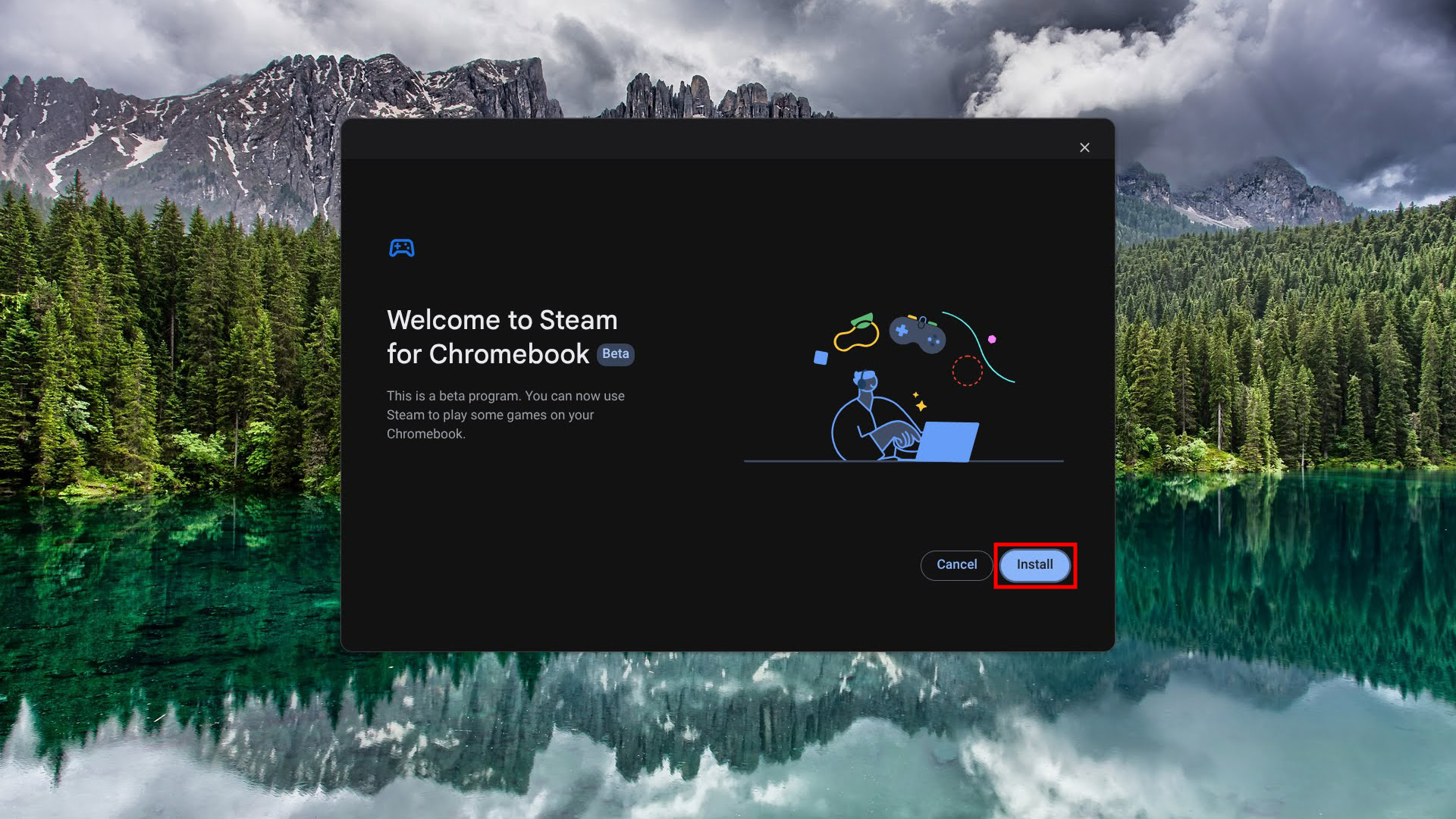
Google and Valve have collaborated on a project code-named “Borealis,” which is the official Steam integration for ChromeOS. This version of Steam runs in a high-performance virtual machine. Currently, this is limited to specific high-end models (such as the Acer Chromebook 516 GE, ASUS Chromebook Vibe CX55 Flip, and others). If your device is on the official “supported list,” the installation process is significantly more streamlined.
Method 1: Installing the Official Steam for ChromeOS (Borealis)
If you own a modern, gaming-tier Chromebook, you likely have access to the official Steam integration. This method is the most stable as it includes optimized drivers and better integration with the ChromeOS kernel.
Enabling the Correct Release Channel
Official Steam support often resides in the “Beta” or “Dev” channels of ChromeOS before reaching the Stable channel. To check or change your channel:
- Navigate to Settings > About ChromeOS > Additional Details.
- Click Change Channel and select Beta.
- Restart your device to apply the update. Note that moving from Beta back to Stable requires a powerwash (factory reset), so ensure your data is backed up.
Activating Steam via Chrome Flags
Even on the Beta channel, you may need to enable specific experimental flags to unlock the Steam installer.
- Open Chrome and type
chrome://flagsin the address bar. - Search for
#borealis-enabled. - Set the flag to Enabled.
- Search for
#exo-pointer-lockand enable it (this ensures your mouse stays within the game window). - Restart ChromeOS. After the restart, search for “Steam” in your App Launcher. Click the icon, and the system will begin downloading the necessary components for the Steam environment.
Method 2: The Linux (Crostini) Installation for Standard Devices
For users whose devices do not support “Borealis,” the most reliable alternative is installing Steam through the Linux Development Environment, often referred to as Crostini. This method uses a Debian-based container to run the Linux version of Steam.
Setting Up the Linux Environment
Before installing software, you must enable the Linux container:
- Go to Settings > Advanced > Developers.
- Next to Linux development environment, click Turn On.
- Follow the prompts to allocate disk space. It is recommended to allocate at least 40GB to allow room for the Steam client and a few games.
- Once the terminal window opens, ensure your package lists are up to date by typing:
sudo apt update && sudo apt upgrade
Installing Steam via the Terminal
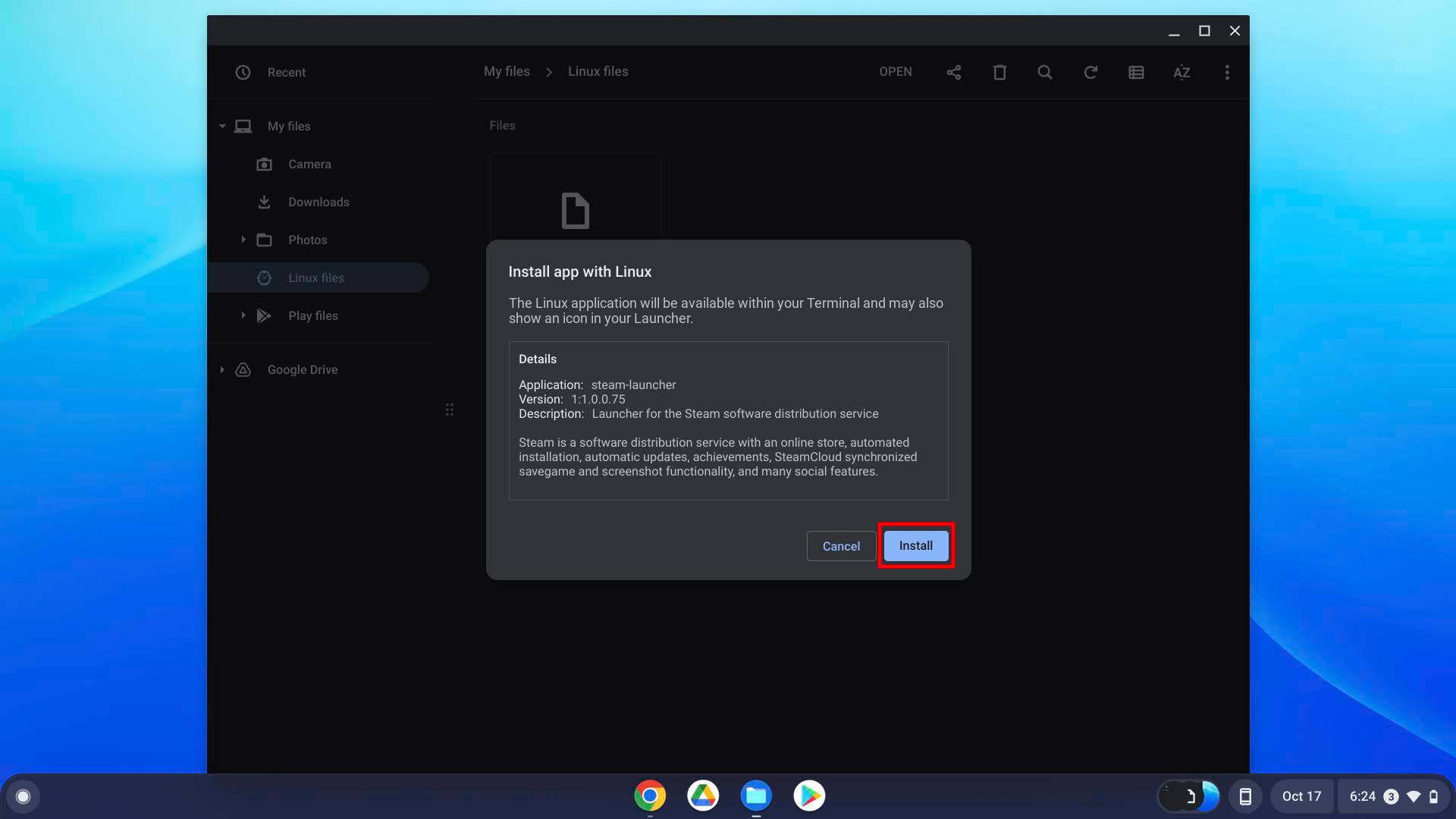
Because the default Debian repositories in ChromeOS may not include the latest Steam package, it is often best to download the official .deb file from Steam’s website.
- Go to the Steam website and download the Linux installer (
steam.deb). - Move the file from your Downloads folder to the Linux files folder in the Files app.
- Right-click the file and select Install with Linux, or use the terminal command:
sudo apt install ./steam.deb - Once installed, you can launch Steam from your App Launcher. The first launch will trigger a series of updates to download the necessary runtime libraries.
Optimizing the Gaming Experience: Proton and Performance Tweaks
Installing Steam is only the first step. Because most Steam games are designed for Windows, you must utilize compatibility layers to run them on the Linux-based ChromeOS. Furthermore, hardware limitations necessitate specific performance tweaks.
Enabling Steam Play (Proton)
Proton is a compatibility layer developed by Valve (based on Wine) that allows Windows games to run on Linux. To enable it for all titles:
- Open Steam and go to Settings > Compatibility.
- Check the box for Enable Steam Play for all other titles.
- Select the latest version of Proton (e.g., Proton Experimental or Proton 8.0). This will allow you to download and play Windows-only games that haven’t been natively ported to Linux.
GPU Acceleration and Micro-Adjustments
ChromeOS handles graphics for Linux apps through a “virtio-gpu” driver. To ensure you are getting the most out of your hardware:
- GPU Support: In the
chrome://flagsmenu, ensure that#crostini-gpu-supportis enabled. - In-Game Settings: Always start with the “Low” graphical preset. Given that Chromebooks often lack a dedicated GPU (relying instead on Intel Iris Xe or UHD graphics), resolution scaling is your best friend. Dropping the resolution from 1080p to 720p can often double your frame rate.
- Pointer Lock: If you are playing first-person shooters, ensure that “Pointer Lock” is enabled in your Chrome flags. Without this, your mouse cursor may “drift” out of the game window during intense movement.
The Future of Gaming on ChromeOS: Native vs. Cloud
While native Steam installation is a major leap forward, it is important to contextualize it within the broader ChromeOS ecosystem. The “Tech” industry is currently at a crossroads between local hardware processing and cloud-based virtualization.
The Hybrid Approach
For many Chromebook users, the best experience may actually be a hybrid approach. While low-demand indie titles (like Stardew Valley or Terraria) run excellently via native Steam on a Chromebook, AAA titles (like Cyberpunk 2077) are still a bridge too far for mobile integrated graphics. In these cases, services like GeForce Now or Xbox Cloud Gaming serve as a perfect complement to a native Steam setup. You can use native Steam for your library of lighter games and cloud services for the heavy hitters.

Continuous Improvements in Borealis
The “Borealis” project is not static. Google continues to push updates that improve the “Vulkan” API support on ChromeOS, which is critical for the performance of Proton. As the kernel is updated and the container overhead is reduced, we are seeing a narrowing gap between native Linux performance and ChromeOS performance. The “Gaming Chromebook” is no longer a marketing gimmick; it is a hardware category defined by high-refresh-rate screens, anti-ghosting keyboards, and specialized Wi-Fi 6E cards designed to minimize latency.
In conclusion, installing Steam on a Chromebook is a gateway to transforming a productivity device into an entertainment hub. By understanding the hardware requirements, choosing the right installation path (Borealis or Crostini), and leveraging compatibility layers like Proton, users can access a library of thousands of games. As ChromeOS continues to mature, the distinction between a “web laptop” and a “gaming laptop” will continue to blur, driven by the ingenuity of Linux integration and the power of the Steam ecosystem.
aViewFromTheCave is a participant in the Amazon Services LLC Associates Program, an affiliate advertising program designed to provide a means for sites to earn advertising fees by advertising and linking to Amazon.com. Amazon, the Amazon logo, AmazonSupply, and the AmazonSupply logo are trademarks of Amazon.com, Inc. or its affiliates. As an Amazon Associate we earn affiliate commissions from qualifying purchases.