
Since its debut, the Apple Watch has evolved from a simple notification accessory into a sophisticated, standalone computing platform. While its design is iconic, the true power of the device lies in its software ecosystem. Understanding how to navigate, install, and manage applications is essential for any user looking to transform their wearable from a basic timepiece into a high-performance productivity, health, and communication hub.
In the current era of watchOS, Apple has streamlined the user experience, offering multiple pathways to populate your device with software. Whether you are using a legacy Series 4 or the latest Ultra 2, the methodology for app management reflects Apple’s broader philosophy of seamless integration between hardware and software.
The Architecture of the watchOS App Ecosystem
Before diving into the “how-to,” it is crucial to understand the “what.” Apple Watch apps generally fall into two categories: companion apps and independent apps. In the early days of watchOS, every watch app required a corresponding “parent” app on an iPhone. The watch served merely as a secondary display for the phone’s processing power.
However, since the introduction of watchOS 6 and the subsequent App Store integration directly on the watch, developers have been able to create independent apps. These are programs that can be downloaded, updated, and run entirely on the watch, often utilizing the device’s built-in Wi-Fi or Cellular connectivity. This shift marked a turning point in wearable technology, allowing the Apple Watch to function as a primary device for fitness tracking, navigation, and even digital payments without the iPhone being within Bluetooth range.
The Role of the Apple ID and Cloud Sync
Installation is governed by your Apple ID. When you install an app on your watch, it is linked to your iCloud account, ensuring that settings, health data, and preferences stay synchronized across your Apple ecosystem. This synchronization is what allows a workout started on your watch to appear instantly in the Fitness app on your iPhone, or a reminder set via Siri on your wrist to pop up on your Mac.
Methods for Installing Apps on Apple Watch
Apple provides three primary methods for installing applications, catering to different user preferences and situational needs.
1. The On-Wrist App Store: Complete Independence
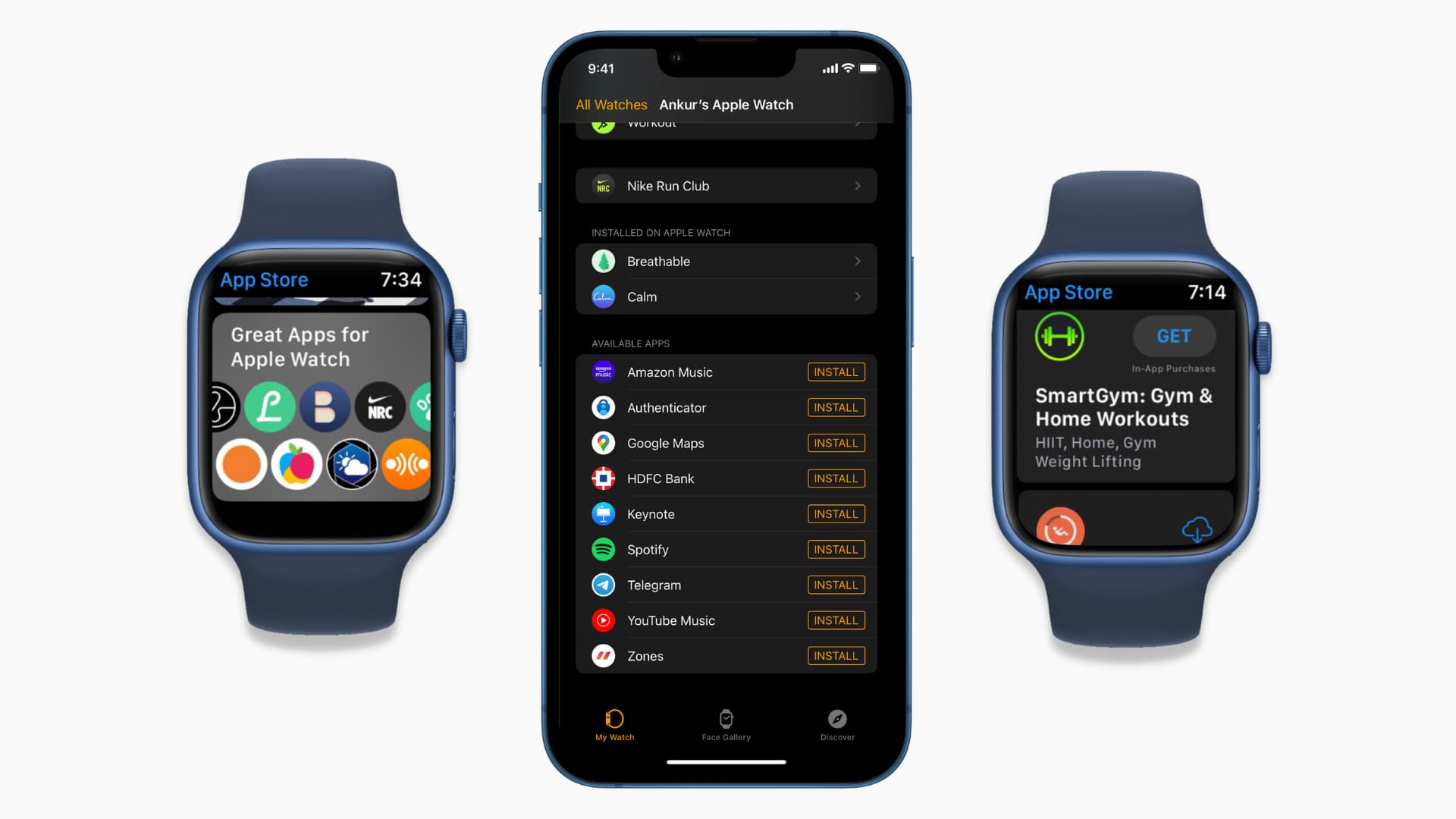
The most direct way to get new software is via the App Store app on the watch itself. This method is ideal for users who want to browse for “watch-first” experiences or those who are away from their iPhones.
- How to Access: Press the Digital Crown to view your apps, then find and tap the App Store icon (the blue “A”).
- Searching: You can use the “Search” bar at the top. Since typing on a tiny screen can be difficult, watchOS offers “Scribble” (writing letters with your finger), Dictation (voice-to-text), or even the QWERTY keyboard on newer models (Series 7 and later).
- Downloading: Once you find an app, tap “Get” or the price button. Double-click the side button when prompted to confirm the installation via Optic ID or passcode.
2. Automatic Installation via iPhone
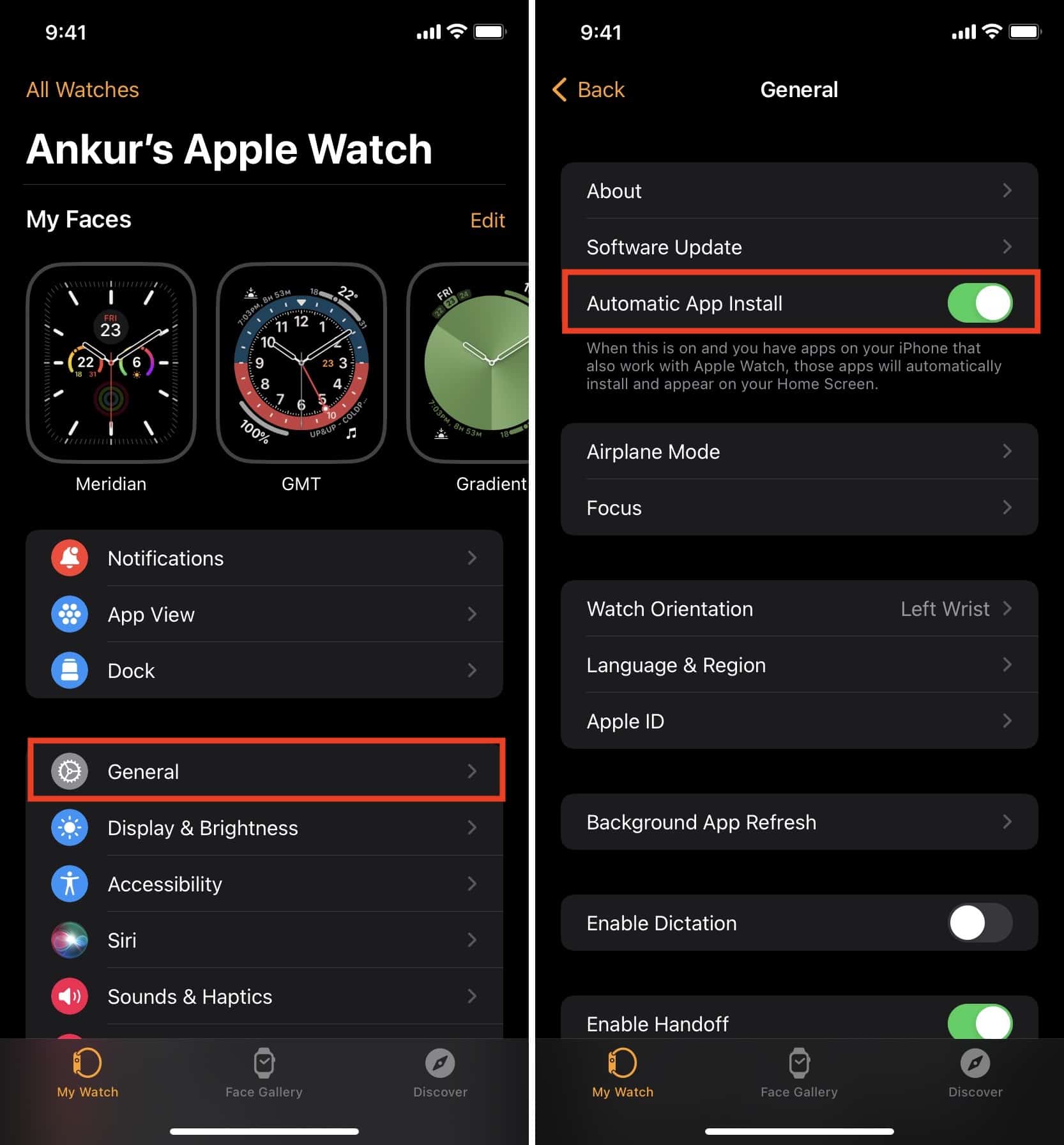
By default, many users prefer their watch to mirror their iPhone’s utility. If you download an app on your iPhone that has a dedicated watchOS version, Apple can automatically install the wearable counterpart.
- Enabling Automatic Downloads: Open the “Watch” app on your iPhone, go to the “My Watch” tab, select “General,” and toggle on “Automatic App Install.”
- Pro-Tip: While convenient, this can quickly clutter your watch face and drain storage. If you are a “power user” with hundreds of iPhone apps, you may want to keep this setting off and choose your watch apps manually.
3. Manual Syncing via the Watch App for iPhone
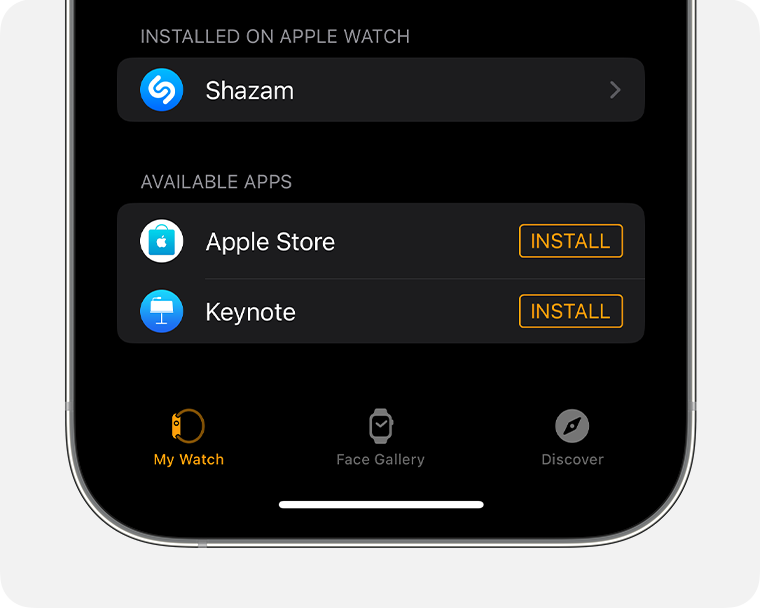
For those who want granular control, the “Watch” app on your iPhone is the most powerful management tool. It allows you to see a list of every app on your phone that could have a watch version but isn’t currently installed.
- The “Available Apps” List: Scroll to the very bottom of the “My Watch” tab. Here, you will see a list of apps under “Available Apps.” Tapping “Install” next to any of these will trigger a wireless transfer to your watch.
- Performance Note: This method is often faster for large apps, as it utilizes the iPhone’s superior processing and download speeds before transferring the package to the watch.
Curating and Organizing Your Digital Space
Installation is only half the battle; organization is what makes the Apple Watch efficient. A cluttered app screen leads to friction, which defeats the purpose of a “glanceable” device.
Grid View vs. List View
Apple offers two ways to view your installed applications.
- Grid View: The classic “honeycomb” layout. It allows you to see many icons at once and is highly aesthetic. You can rearrange these icons by long-pressing any app until they jiggle, then dragging them into a custom order.
- List View: Organized alphabetically. This is often preferred by users who find the grid difficult to navigate. In List View, you simply scroll with the Digital Crown to find the app by name.
To switch between them, open the Settings app on your watch, tap “App View,” and choose your preference.
The Power of Complications
The most efficient way to “use” an app on an Apple Watch isn’t actually opening the app—it’s using complications. Complications are small snippets of data from an app that live directly on your watch face. When you install a weather app, for example, you don’t need to open it to see the temperature; you simply add the weather complication to your watch face.
Effective app management involves choosing software that offers robust complications. High-tier productivity apps like Things 3 or Fantastical are popular precisely because their complications provide instant value without a single tap.
Maintaining Performance: Updates and Storage Management
Just like a computer or smartphone, the Apple Watch requires periodic maintenance to ensure apps run smoothly and the battery remains healthy.
Managing Limited Storage
Unlike iPhones, which can have up to 1TB of storage, Apple Watches generally have between 8GB and 64GB. While app files are small, media like offline music, podcasts, and high-resolution photos can quickly fill the drive, preventing new apps from installing.
- Checking Space: In the iPhone Watch app, go to General > Storage. This provides a breakdown of what is taking up space.
- Deleting Apps: To delete an app directly from the watch, long-press the icon in Grid View and tap the “X,” or swipe left on an app in List View and tap the red trash icon.
Ensuring Software Compatibility
Apps frequently receive updates to fix bugs or add features for new versions of watchOS. While the watch usually updates apps automatically when charging and connected to Wi-Fi, you can manually check by opening the App Store on the watch, scrolling to the bottom, and tapping “Account” followed by “Updates.”
Troubleshooting Common Installation Issues
Occasionally, an app may get “stuck” during installation, showing a dimmed icon with a circular progress bar that never completes.
- Connectivity Check: Ensure both Bluetooth and Wi-Fi are active on your iPhone and Watch. The devices communicate over a low-energy Bluetooth bridge, but for larger app downloads, they switch to Wi-Fi.
- The Restart Cycle: The “turn it off and back on” rule applies here. Restarting both the iPhone and the Apple Watch often clears the cache and jumpstarts a stalled download.
- Apple ID Verification: If an app requires a purchase or has a specific age rating, you may need to check your iPhone for a prompt to enter your Apple ID password or verify your billing information.
- Storage Thresholds: If the watch has less than a few hundred megabytes of free space, it may refuse to initiate new installs. Deleting old workout logs or synced music playlists is the quickest fix.
The Future of the Apple Watch App Experience
As we look toward future iterations of watchOS, the trend is moving toward even greater independence. With the introduction of “Widgets” and the “Smart Stack,” the way we interact with apps is shifting from manual selection to proactive delivery of information.
Installing apps on the Apple Watch is no longer just about adding icons to a screen; it is about building a personalized notification and data engine that sits on your wrist. By mastering the App Store on the watch, leveraging the management tools on the iPhone, and optimizing complications, users can ensure their Apple Watch remains the most valuable tool in their technological arsenal.
Whether you are tracking a marathon, managing a smart home, or staying on top of corporate communications, the right suite of apps—properly installed and organized—is what truly unlocks the potential of the world’s most popular wearable.
aViewFromTheCave is a participant in the Amazon Services LLC Associates Program, an affiliate advertising program designed to provide a means for sites to earn advertising fees by advertising and linking to Amazon.com. Amazon, the Amazon logo, AmazonSupply, and the AmazonSupply logo are trademarks of Amazon.com, Inc. or its affiliates. As an Amazon Associate we earn affiliate commissions from qualifying purchases.