
Chromebooks have carved out a significant niche in the computing landscape, celebrated for their simplicity, security, and affordability. Powered by Google’s lightweight Chrome OS, they excel at web-based tasks, cloud computing, and casual use. However, for many users, particularly those deeply embedded in the tech world or seeking greater control over their computing environment, the inherent limitations of Chrome OS can feel restrictive. This is where Linux enters the picture – a powerful, open-source operating system that, when installed on a Chromebook, transforms it from a web-centric device into a versatile powerhouse capable of handling complex development, creative projects, and a vast array of desktop applications.
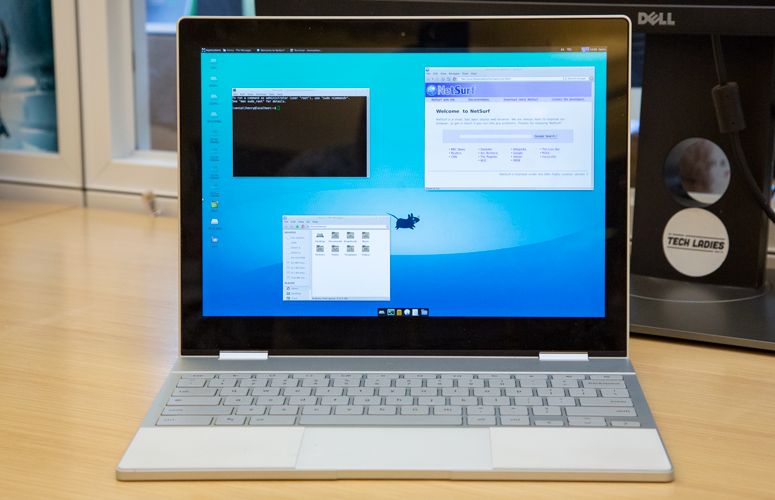
This guide will walk you through the various methods of installing Linux on a Chromebook, helping you understand the benefits, navigate the process, and unlock a new dimension of functionality. Whether you’re a developer seeking a portable coding environment, a student needing specific software, or simply someone looking to breathe new life into an older device, integrating Linux offers unparalleled opportunities to expand your Chromebook’s capabilities.
Unlocking Your Chromebook’s Potential: Why Linux?
The journey to installing Linux on a Chromebook often begins with a fundamental question: Why bother? Chrome OS is designed for ease of use, security, and cloud integration. However, its strengths also define its boundaries. Understanding these gives context to the compelling advantages that a Linux installation can offer.
The Chrome OS Ecosystem: Strengths and Limitations
Chrome OS operates primarily within a web browser, leveraging Google’s extensive suite of services and a robust Android app ecosystem. Its key strengths include:
- Simplicity and Speed: Chrome OS boots up rapidly and maintains a streamlined user interface, making it incredibly easy for anyone to pick up and use.
- Security: With automatic updates, sandboxed applications, and verified boot, Chrome OS is highly resistant to malware and viruses, offering a secure computing experience.
- Affordability: Chromebooks are often significantly cheaper than traditional laptops, making them an accessible option for students, casual users, and those on a budget.
- Cloud Integration: Deep integration with Google Drive and other cloud services ensures that your files are always accessible and backed up.
However, these strengths come with limitations. Chrome OS traditionally lacks support for desktop applications like Adobe Photoshop, Microsoft Office (outside of web versions), or popular integrated development environments (IDEs) like VS Code or PyCharm in their full-fledged desktop forms. While Android apps bridge some gaps, they aren’t always a perfect substitute for desktop-grade software, especially for professional or power users. This is where the open-source world of Linux steps in.
The Power of Linux: Opening New Doors
Linux is a Unix-like operating system known for its stability, security, and unparalleled customizability. It’s the backbone of countless servers, supercomputers, and even Android phones. Bringing Linux to your Chromebook fundamentally alters its character, transforming it from a consumption device into a creation machine.
With Linux, you gain access to:
- Thousands of Free and Open-Source Applications: From powerful office suites like LibreOffice, professional image editors like GIMP, and video editors like Kdenlive, to advanced audio workstations and CAD software – the Linux ecosystem is vast and continually growing.
- A Robust Development Environment: For programmers, Linux is often the preferred OS. You can install a wide array of compilers, interpreters (Python, Java, C++, Ruby), development tools, version control systems (Git), and IDEs, turning your Chromebook into a highly capable coding workstation. This is a game-changer for software engineers, web developers, and data scientists who require full control over their development stack.
- Unrivaled Customization: Linux allows you to tweak almost every aspect of your operating system, from the desktop environment to system-level configurations. This level of control appeals to users who want their machine to truly reflect their workflow and aesthetic preferences.
- Revitalizing Older Hardware: Linux is famously lightweight. Installing a minimalist Linux distribution on an older Chromebook can significantly improve its performance, giving it a new lease on life and extending its utility far beyond what Chrome OS might allow.
Beyond Basic Browsing: Productivity, Development, and Creativity
Integrating Linux into your Chromebook workflow unlocks significant advantages across various domains:
- Tech Prowess: For tech enthusiasts and professionals, Linux provides a playground for experimentation. You can delve into system administration, networking, ethical hacking, or even explore niche areas like embedded systems development, all from your portable Chromebook.
- Enhanced Productivity (Money & Brand): Access to full-featured desktop applications means you’re no longer limited by web-based tools. For instance, a graphic designer can use GIMP or Inkscape for complex projects, a writer can leverage advanced word processors, and a marketing professional can use specific data analysis tools. This increased capability directly translates to higher productivity, potentially enabling side hustles, better project outcomes, and ultimately, contributing to personal brand development through demonstrated technical versatility. By using free, powerful software, you save money on expensive licenses while delivering high-quality work.
- Innovation and Learning: Linux is an excellent platform for learning programming, scripting, and understanding operating system fundamentals. It fosters an environment of curiosity and problem-solving, skills invaluable in today’s digital economy.
The decision to install Linux on a Chromebook is an investment in expanding your device’s utility, your personal skill set, and potentially, your professional capabilities. It’s about breaking free from the sandbox and building your own custom digital workspace.
Understanding Your Options: Methods for Linux on Chromebooks
Installing Linux on a Chromebook isn’t a one-size-fits-all process. There are several distinct methods, each offering different levels of integration, ease of use, and compatibility. Your choice will depend on your Chromebook’s age, your technical comfort level, and your specific needs.
Crostini (Linux Beta): The Official & Easiest Path
For most modern Chromebooks (those released in 2018 or later, with x86 or ARM processors and sufficient RAM/storage), Crostini is the recommended and easiest method. Officially known as “Linux (Beta)” within Chrome OS settings, Crostini provides a secure, virtualized environment to run Linux applications alongside Chrome OS.
How it works: Crostini uses a lightweight virtual machine (VM) and containers to run a Debian-based Linux distribution. This means Linux runs in isolation from Chrome OS, enhancing security and stability. You can launch Linux apps directly from the Chrome OS launcher, and they integrate fairly seamlessly with the rest of your system.
Advantages:
- Official Support: Backed by Google, meaning better compatibility and less risk.
- Security: Runs in a sandbox, separate from Chrome OS, making it very safe.
- Ease of Use: Simple to enable and manage from Chrome OS settings.
- No Developer Mode Required: You don’t need to put your Chromebook into “developer mode,” preserving the default security features and avoiding the “scary boot screen.”
- Seamless Integration: Linux apps can be pinned to the shelf, access shared files, and integrate with the Chrome OS clipboard.
Disadvantages:
- Resource Intensive: Running a VM can consume more RAM and CPU, potentially impacting performance on lower-spec Chromebooks.
- Limited Hardware Access: Linux applications generally don’t have direct access to hardware like GPUs for accelerated graphics, or specialized USB devices.
- Specific Kernel: The Linux kernel within Crostini is optimized for Chrome OS and may not support all kernel modules or features found in a full desktop Linux installation.
Ideal for: Users who want to run desktop Linux applications (like VS Code, GIMP, LibreOffice) without sacrificing Chrome OS’s security or ease of use. It’s perfect for developers, students, and power users who need specific software not available as a web or Android app.
Crouton: A Chroot for Deeper Integration
Crouton (Chromium OS Universal Chroot Environment) is an older, but still viable, method for installing Linux on Chromebooks, especially those that don’t support Crostini. Unlike Crostini’s virtualization, Crouton creates a “chroot” environment.
How it works: A chroot (change root) essentially creates an isolated Linux file system within Chrome OS. It shares the same kernel as Chrome OS but provides a completely separate user space. You can switch between Chrome OS and your Crouton-installed Linux distribution (e.g., Ubuntu, Debian, Kali) using keyboard shortcuts, without needing to reboot.
Advantages:
- Performance: Since it shares the Chrome OS kernel, Crouton often offers better performance and direct hardware access (including GPU acceleration on some devices) compared to Crostini’s VM.
- Flexibility: Supports a wider range of Linux distributions and desktop environments.
- Older Chromebook Compatibility: Many older Chromebooks that can’t run Crostini can still run Crouton.
Disadvantages:
- Requires Developer Mode: This is the biggest drawback. Enabling developer mode significantly reduces your Chromebook’s security by disabling verified boot. You’ll see a warning screen every time you boot up, and accidentally pressing the spacebar can factory reset your device.
- More Complex Installation: Installation involves using the command line and requires a bit more technical know-how.
- Less Secure: Sharing the kernel with Chrome OS means potential security vulnerabilities in one could affect the other. Google does not officially support Crouton.
- Maintenance: Can be more challenging to update and manage than Crostini.
Ideal for: Users with older Chromebooks, those who require direct hardware access or GPU acceleration for tasks like gaming or specific development, and power users comfortable with command-line interfaces who prioritize performance over the highest level of security.
Full Linux Distro (e.g., GalliumOS): For the Ultimate Transformation
This method involves completely replacing Chrome OS with a full-fledged Linux distribution or dual-booting Linux alongside it. This is the most invasive and technically demanding option but offers the ultimate in customization and control. Projects like GalliumOS (a lightweight, Xubuntu-based distro specifically optimized for Chromebook hardware, now largely unmaintained but its spirit lives on in other general distros) represent this approach.
How it works: This typically involves flashing a custom BIOS/UEFI firmware (like MrChromebox’s firmware utility) to your Chromebook, which then allows it to boot standard Linux distributions from USB drives or its internal storage.
Advantages:
- Complete Control: You have a full, uncompromised Linux desktop experience, with full access to hardware and no Chrome OS overhead.
- Performance: Can significantly improve performance, especially on older or lower-spec devices, as the OS is tailored to the hardware.
- Freedom of Choice: Install any Linux distribution you prefer (Ubuntu, Fedora, Mint, Arch, etc.).
Disadvantages:
- Most Complex & Risky: Requires flashing firmware, which can potentially “brick” your device if done incorrectly. It voids your warranty and is not recommended for beginners.
- Loss of Chrome OS: You either lose Chrome OS entirely or have a complex dual-boot setup.
- Driver Issues: While specific distros like GalliumOS attempted to address this, general Linux distros might still have issues with specific Chromebook hardware (touchpads, Wi-Fi, special keys).
- No Official Support: Google offers no support for this method.
Ideal for: Advanced users, Linux enthusiasts, or those looking to completely repurpose an older Chromebook into a dedicated Linux machine. This is for users who demand absolute control and are comfortable with a high degree of technical challenge.
For the purpose of this guide, we will focus on Crostini (Linux Beta), as it’s the most accessible, secure, and officially supported method for the vast majority of current Chromebook users.
Preparing for Installation: Essential Steps and Considerations
Before you embark on installing Linux, especially Crostini, it’s crucial to take a few preparatory steps. These ensure a smooth process, protect your data, and help you set realistic expectations for your newly empowered Chromebook.
Backing Up Your Data: A Crucial First Step
While Crostini is relatively safe as it runs in a virtual environment, and enabling it typically doesn’t erase user data, it’s always wise to back up anything critical. Any software installation, especially one involving operating systems, carries a minuscule risk of unforeseen issues.
What to back up:
- Local Files: Although most Chromebook files reside in Google Drive, you might have some downloads, images, or documents stored locally in the “My Files” section.
- Android App Data: If you rely on specific Android apps for local data storage, ensure that data is synced to the cloud or manually backed up.
- Bookmarks and Settings: While Chrome OS syncs these, a manual export of bookmarks or noting down critical settings is a good habit.

How to back up:
- Google Drive: The easiest method for most Chromebook users. Simply drag and drop local files into your Google Drive folder.
- External Storage: Use a USB drive or SD card to copy important files.
- Cloud Services: If you use other cloud services (Dropbox, OneDrive), upload your critical files there.
This step is primarily for peace of mind. Even though Crostini is designed to be safe, a good backup strategy is a cornerstone of responsible digital security and productivity, aligning with general “Tech” best practices.
Hardware Compatibility and Performance Expectations
Before proceeding, confirm your Chromebook supports Linux (Beta). Most Chromebooks released from 2018 onwards are compatible. You can usually check by going to chrome://version in your browser and looking at your Chrome OS version and build. More specifically, check Google’s official list of supported devices, though this list can sometimes lag behind new device releases.
Key hardware considerations:
- RAM: 4GB of RAM is generally the minimum recommended for a comfortable Crostini experience, especially if you plan to run multiple Linux applications alongside Chrome OS tabs. 8GB or more is ideal.
- Storage: Crostini creates a virtual disk image that grows as you install software and store files. While it starts small, plan for at least 10GB-20GB of available internal storage for your Linux environment and applications. Low storage can severely impact performance.
- Processor: Most modern Intel or ARM processors found in Chromebooks will handle Crostini adequately for general development and productivity tasks. Very old or low-power CPUs might struggle with more demanding Linux applications.
Understanding these factors helps set realistic expectations. While Linux unlocks vast potential, a budget Chromebook won’t suddenly become a high-end workstation. However, it will be significantly more capable than a Chrome OS-only device for its class.
Step-by-Step Guide: Installing Linux Beta (Crostini)
This section details the most straightforward and officially supported method for bringing Linux to your Chromebook.
Initial Setup and Configuration
The process for enabling Linux (Beta) is designed to be user-friendly:
-
Open Chromebook Settings:
- Click on the time/status bar in the bottom-right corner of your screen.
- Click on the gear icon (Settings).
-
Navigate to Linux (Beta):
- In the left-hand sidebar, scroll down and click on “Linux (Beta).”
- If you don’t see this option, your Chromebook might not support Crostini, or you need to update Chrome OS.
-
Turn On Linux (Beta):
- Click the “Turn on” button next to “Linux (Beta).”
- A setup window will appear. Click “Next.”
-
Choose a Username and Disk Size:
- You’ll be prompted to choose a username for your Linux environment. This is usually your Google account username by default, but you can change it.
- You’ll also be asked to allocate a disk size. The default is usually a reasonable starting point (e.g., 10GB), but you can adjust this if you plan to install many large applications or store a lot of files within Linux. Remember that this space is taken from your Chromebook’s internal storage. You can resize it later, but it’s easier to set it generously now.
- Click “Install.”
-
Installation Process:
- Your Chromebook will now download and install the necessary files for the Linux environment. This process can take several minutes, depending on your internet connection and Chromebook’s speed.
- Once complete, a Terminal window will automatically open, providing you with a command-line interface to your new Linux environment. You’ll see a prompt that looks something like
username@penguin:~$.penguinis the default hostname for the Crostini container.
Congratulations! You now have a functional Linux environment on your Chromebook.
Essential Linux Commands and Software Installation
With your terminal open, you’re ready to start using Linux. Here are some fundamental steps and commands:
-
Update Your Linux Environment:
It’s crucial to update the package lists and installed software immediately after installation to ensure you have the latest security patches and application versions.sudo apt update sudo apt upgradesudo: Stands for “superuser do,” which allows you to run commands with administrative privileges. You’ll be prompted for your Chrome OS password.apt: The Advanced Package Tool, used for managing software packages in Debian-based distributions like the one Crostini uses.update: Refreshes the list of available software packages from the repositories.upgrade: Installs newer versions of all currently installed packages.
-
Install a Text Editor (if desired):
While Crostini comes with basic command-line editors likenano, you might want a more user-friendly graphical editor for coding or note-taking.Geditis a good choice for beginners.sudo apt install geditOnce installed, you can launch it from the Chrome OS app launcher (look for “Gedit” in your Linux apps folder) or by typing
geditin the terminal. -
Install a Web Browser (Optional):
Although Chrome OS has Chrome, you might want a native Linux browser for testing or specific features. Firefox is a popular choice:sudo apt install firefox-esr(Note:
firefox-esris the Extended Support Release, which is often more stable and readily available in Debian repositories.) -
Install an IDE for Development (Example: VS Code):
For developers, installing a powerful IDE is a primary reason to use Linux. Visual Studio Code is extremely popular and straightforward to install.- Download the .deb package: Go to the official VS Code website (code.visualstudio.com) and download the
.debpackage for Debian/Ubuntu. - Install from Chrome OS Files app: Once downloaded, open your Chrome OS “Files” app. You’ll see the
.debfile in your Downloads. Right-click on it and choose “Install with Linux (Beta).” The system will handle the installation. - Alternatively, from the Linux terminal, navigate to your Downloads directory (it’s usually mounted under
/mnt/chromeos/MyFiles/Downloads) and install usingdpkg:
bash

cd /mnt/chromeos/MyFiles/Downloads

sudo dpkg -i code_*.deb

sudo apt install -f # To fix any broken dependencies
After installation, VS Code will appear in your Chrome OS app launcher under “Linux apps.”
- Download the .deb package: Go to the official VS Code website (code.visualstudio.com) and download the
-
Accessing Chrome OS Files from Linux:
Your Chrome OS “My Files” directory (including “Downloads”) is automatically mounted within your Linux environment. You can access it via/mnt/chromeos/MyFiles/. This allows for easy sharing of files between your Linux apps and Chrome OS.For example, to list files in your Chrome OS Downloads folder from Linux:
ls /mnt/chromeos/MyFiles/Downloads/ -
Managing Linux Applications:
Once installed, graphical Linux applications will appear in your Chrome OS app launcher, typically within a folder called “Linux apps.” You can pin them to your shelf just like any other app.
This basic setup provides a powerful foundation for a wide range of tasks, from coding to content creation, all within the secure and familiar environment of your Chromebook.
Maximizing Your Linux-Powered Chromebook: Tips, Benefits, and Beyond
Installing Linux on your Chromebook is just the first step. To truly harness its power and integrate it effectively into your digital life, consider these advanced tips and understand the broader implications for your tech proficiency, financial acumen, and personal brand.
Leveraging Linux for Tech-Driven Productivity and Innovation
With Linux running, your Chromebook becomes a highly adaptable platform. Here’s how to get the most out of it:
- Custom Development Environments: Beyond basic IDEs, you can set up complete development stacks for specific languages or frameworks (e.g., Node.js, Ruby on Rails, Django, Docker). Install virtual environments, package managers, and command-line tools unique to your workflow. This is crucial for developers and aligns perfectly with the “Tech” focus of the website.
- Specialized Software: Explore professional-grade software for specific niches. Data scientists can install R or Python with libraries like TensorFlow and scikit-learn. Engineers can use CAD software. Multimedia creators can delve into Kdenlive for video editing or Audacity for audio production. The availability of these tools empowers you to undertake more complex projects directly on your portable device.
- Containerization with Docker: For more advanced users, Docker can be installed within Crostini. This allows you to run applications in isolated containers, ensuring consistent environments across different projects and making your development workflow highly reproducible and scalable.
- Scripting and Automation: Linux’s command-line interface (CLI) is ideal for scripting repetitive tasks using Bash, Python, or Perl. Automate file organization, data processing, or even system maintenance, significantly boosting your productivity.
- Educational Tool: Use Linux to learn about operating systems, command-line usage, and open-source principles. There are countless free resources and tutorials available online that can deepen your technical understanding.
The Financial and Brand Advantages of Open Source
The choice to embrace Linux on a Chromebook resonates strongly with both “Money” and “Brand” aspects:
-
Cost-Effectiveness (Money):
- Hardware Rejuvenation: Giving an older Chromebook new capabilities with Linux extends its lifespan, delaying the need to purchase a new, more expensive laptop. This is a direct financial saving.
- Free Software Ecosystem: The vast majority of Linux software is free and open-source. This eliminates licensing costs for operating systems, office suites, photo/video editors, development tools, and much more. For individuals and small businesses, this can translate into significant savings compared to proprietary software alternatives.
- Enabling Side Hustles: A Linux-powered Chromebook becomes a portable workstation for various online income opportunities. From web development and coding to graphic design for freelance clients, the tools are available without upfront investment in software, lowering the barrier to entry for many side hustles.
-
Building Your Brand (Brand):
- Technical Versatility: Demonstrating proficiency with Linux, especially on unconventional hardware like a Chromebook, showcases a strong technical aptitude and problem-solving ability. This can be a valuable asset for personal branding in tech-related fields.
- Efficiency and Productivity: By leveraging powerful open-source tools, you can often achieve professional results more efficiently. This directly contributes to a reputation for reliability and effectiveness, strengthening your professional brand.
- Innovation and Adaptability: Embracing open-source solutions positions you as forward-thinking and adaptable, qualities highly valued in today’s rapidly evolving digital landscape. It signals an ability to work with diverse technologies and find creative solutions.
- Ethical and Open Source Advocacy: For some, aligning with the open-source movement reflects a commitment to collaboration, transparency, and accessible technology, which can be an important aspect of their personal or corporate identity.
Troubleshooting and Community Support
While Crostini is stable, you might encounter issues. Here are some common tips and resources:
- Restart Linux: If an app freezes or the environment becomes sluggish, simply open your Chrome OS settings, go to “Linux (Beta),” and click “Stop Linux.” Then “Start Linux” again.
- Resize Disk Image: If you run out of space, you can increase the allocated disk size for your Linux environment in Chrome OS settings under “Linux (Beta)” -> “Disk size.”
- Permission Issues: Many commands in Linux require
sudofor administrative privileges. If a command fails, try prefixing it withsudo. - Community Forums: The Linux community is incredibly supportive.
- Chromebook-specific Linux forums: Look for Reddit communities like
r/crostiniorr/chromeos. - General Linux forums: Ubuntu Forums, Stack Overflow, and various distribution-specific communities are excellent resources for troubleshooting general Linux issues.
- Documentation: The Arch Linux Wiki, while specific to Arch, is an unparalleled resource for understanding Linux components and troubleshooting.
- Chromebook-specific Linux forums: Look for Reddit communities like
By actively engaging with these resources, you not only solve problems but also deepen your understanding of Linux and become a more self-reliant tech user.
Conclusion
Installing Linux on a Chromebook is more than just a technical trick; it’s a strategic move to unlock the full potential of your device and expand your capabilities across technology, personal branding, and financial efficiency. From giving new life to an older machine to providing a robust development environment for aspiring coders, the open-source world transforms the humble Chromebook into a formidable workstation.
Whether you opt for the official simplicity of Crostini, the deeper integration of Crouton, or the complete overhaul of a full Linux distro, the journey offers a richer, more customizable computing experience. You gain access to a vast ecosystem of free software, enhance your productivity, save money on proprietary licenses, and build a stronger technical presence that reinforces your personal brand.
Embrace the possibilities, experiment with new tools, and join the millions who benefit from the power and flexibility of Linux. Your Chromebook is ready for its upgrade – are you?
aViewFromTheCave is a participant in the Amazon Services LLC Associates Program, an affiliate advertising program designed to provide a means for sites to earn advertising fees by advertising and linking to Amazon.com. Amazon, the Amazon logo, AmazonSupply, and the AmazonSupply logo are trademarks of Amazon.com, Inc. or its affiliates. As an Amazon Associate we earn affiliate commissions from qualifying purchases.