
The Apple Watch has evolved from a simple companion device to a powerful, indispensable extension of our digital lives. Far beyond merely telling time, it’s a personal trainer, a communication hub, a payment tool, and a productivity booster, all strapped conveniently to your wrist. The true magic, however, lies in its rich ecosystem of applications. Just like your iPhone, the Apple Watch gains immense utility and personalization through apps that cater to every imaginable need, from fitness tracking and heart health monitoring to quick news glances and smart home control. But for newcomers, or even seasoned Apple users making the leap to a smartwatch, the process of discovering, installing, and managing these applications might seem a little different than on their iPhone or iPad.
This comprehensive guide will demystify the process, walking you through every step required to seamlessly install, organize, and troubleshoot apps on your Apple Watch. We’ll delve into the various methods available, ensuring you can harness the full potential of your device, transforming it into a tailored tool that perfectly fits your lifestyle and maximizes your productivity and convenience.
The Apple Watch App Ecosystem: A Gateway to Enhanced Functionality
Before diving into the “how-to,” it’s worth appreciating the unique nature of the Apple Watch app ecosystem. Unlike standalone apps on an iPhone, many Apple Watch applications function as extensions of their iPhone counterparts. This creates a deeply integrated experience, where data and functionalities often sync effortlessly between your devices. However, with the advent of watchOS 6 and later, the Apple Watch also gained its own on-device App Store, allowing for a more independent app discovery and installation process, even when your iPhone isn’t immediately at hand.
This dual approach offers flexibility and caters to different user preferences. Whether you prefer to browse directly on your wrist or manage your apps from the familiar interface of your iPhone, Apple provides intuitive pathways. Understanding these pathways is key to unlocking the full suite of features your Apple Watch has to offer, turning it from a mere accessory into a vital piece of your personal technology arsenal. From tracking your financial well-being with expense trackers to boosting your productivity with quick task managers, the right apps can significantly enhance your daily routine.
Installing Apps on Your Apple Watch: The Primary Methods
There are essentially three main ways to get applications onto your Apple Watch, each offering a different level of convenience and control. Understanding these methods will allow you to choose the best approach based on your current situation and preferences.
Method 1: Installing Directly from the Apple Watch App Store
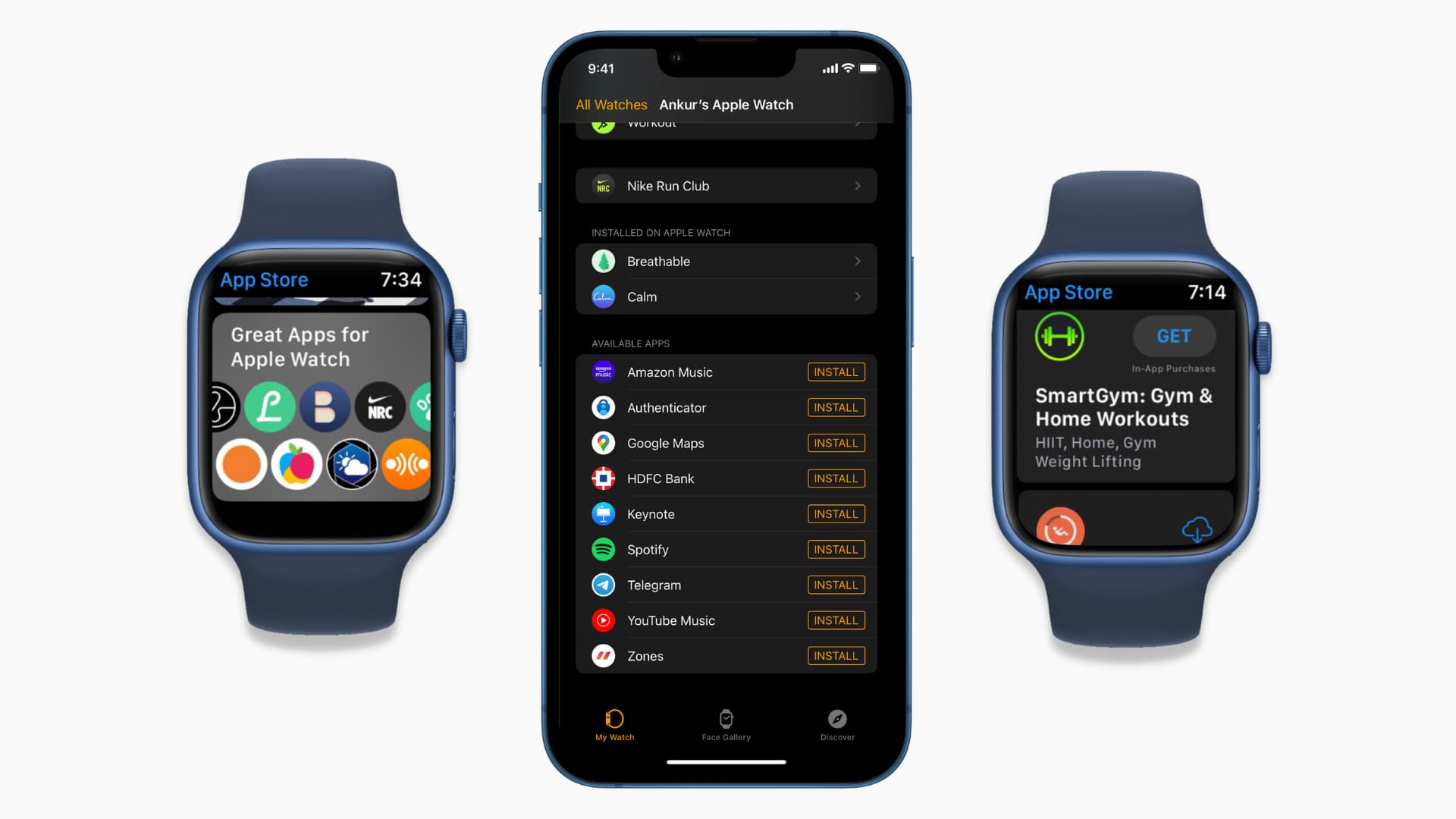
For those who enjoy a more independent experience, or simply don’t have their iPhone immediately available, the on-device App Store is a game-changer. This method allows you to browse, search, and install apps directly from your wrist, leveraging the Watch’s connectivity.
Step-by-Step Guide:
- Open the App Store: Press the Digital Crown on your Apple Watch to go to the App View (or Home screen). Look for the blue App Store icon, which resembles a stylized ‘A’ with a gradient background. Tap it to open.
- Browse or Search:
- Browse: The App Store will display curated selections, categories, and featured apps. You can scroll through these recommendations using the Digital Crown or by swiping on the screen.
- Search: Tap the “Search” button (often represented by a magnifying glass icon) at the top of the App Store screen. You can then use the QWERTY keyboard (available on newer watches, or by swiping up from the dictation option), Scribble (draw letters one by one), or Dictation (speak your search query) to find specific apps.
- Select an App: Once you find an app you’re interested in, tap on its icon to view its product page. Here, you can see screenshots, read a description, check ratings and reviews, and see if it’s compatible with your watch.
- Purchase or Download:
- If the app is free, tap the “GET” button.
- If the app is paid, tap the price button. You will be prompted to double-click the side button (below the Digital Crown) to confirm your purchase, just like on your iPhone.
- Installation: The app will begin downloading and installing on your Apple Watch. You can monitor its progress directly on the App Store page or by looking at your app layout on the Watch’s home screen, where a circular progress indicator will appear around the app icon.
- Launch the App: Once installed, the app will appear among your other apps on the Watch’s home screen. Tap its icon to open and start using it.
This method emphasizes the independence of the Apple Watch, allowing users to discover and install new tools on the fly, whether for quick utility or deeper integration with existing digital services.
Method 2: Installing from Your Paired iPhone
For many users, managing apps through the iPhone’s Watch app remains the most familiar and often preferred method. It offers a larger screen for browsing, easier typing for searches, and a comprehensive overview of all apps, both installed and available.
Step-by-Step Guide:
- Open the Watch App on iPhone: Locate and tap the “Watch” app on your iPhone. This app, with an icon resembling a black Apple Watch, is the central hub for managing all settings and apps for your paired Apple Watch.
- Navigate to the “My Watch” Tab: At the bottom of the Watch app, tap on the “My Watch” tab. This section provides an overview of your watch’s settings, complications, faces, and, most importantly, its app management.
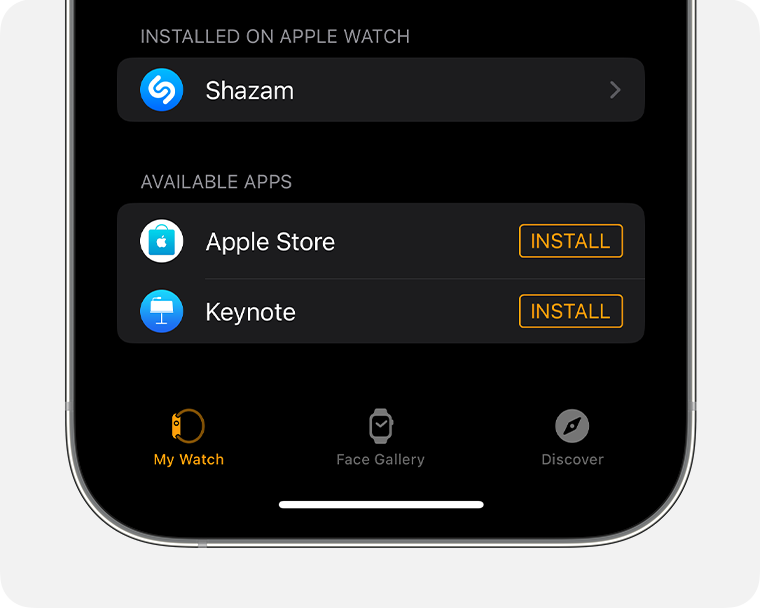
- Scroll to “Available Apps”: Scroll down past the installed apps section until you find the “Available Apps” section. This list displays all iPhone apps that have a companion Apple Watch app but are not yet installed on your watch.
- Install an App:
- Find the app you wish to install in the “Available Apps” list.
- Tap the “INSTALL” button next to the app’s name.
- The app will begin downloading and installing on your Apple Watch. Its icon will move from the “Available Apps” section to the “INSTALLED ON APPLE WATCH” section above, with a loading indicator.
- Verify Installation: Once the installation is complete, the app’s icon will appear on your Apple Watch’s home screen. You can also confirm its presence in the “INSTALLED ON APPLE WATCH” list within the iPhone’s Watch app.
- Configure App Settings (Optional): Many apps allow for specific settings to be configured directly within the iPhone’s Watch app. After installing, you can often tap on the app’s entry in the “INSTALLED ON APPLE WATCH” list to adjust its preferences, notifications, or complications.
This method is particularly efficient when you’re setting up a new watch, or when you want to quickly add several apps without repeatedly interacting with the smaller watch screen.
Method 3: Automatic App Installation
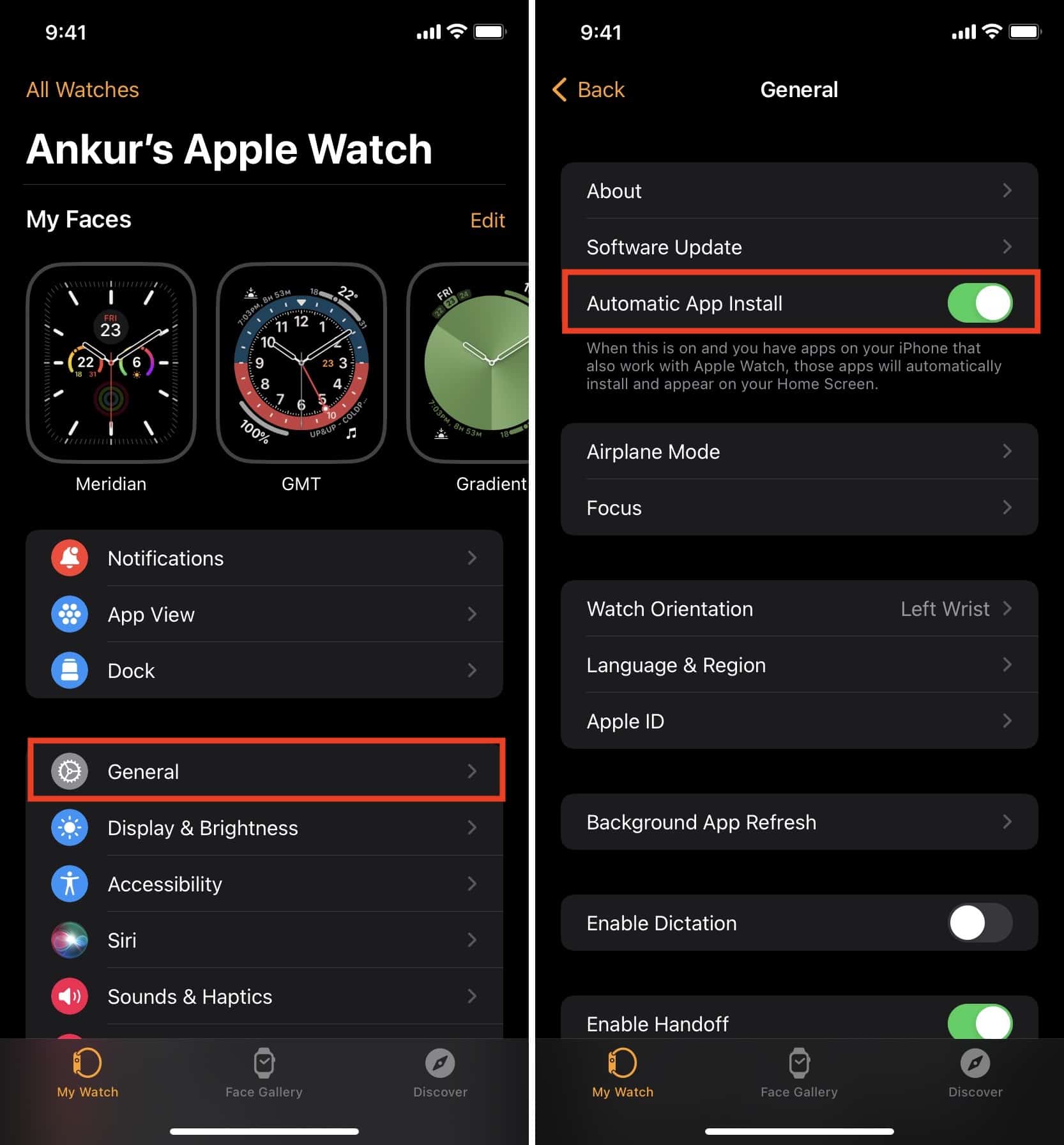
By default, your Apple Watch is often configured to automatically install the watchOS counterparts of certain iPhone apps. This is a convenient feature that ensures seamless integration but can also lead to a cluttered Watch app screen if you don’t use all the associated watch apps.
How it Works:
- When you download an app on your iPhone that has an accompanying Apple Watch app, the Watch app will automatically install itself on your Apple Watch. This happens in the background, assuming your watch is connected to your iPhone and has sufficient storage.
Managing Automatic App Installation:
- Open the Watch App on iPhone: Go to the “Watch” app on your iPhone.
- Navigate to the “My Watch” Tab: Tap on the “My Watch” tab at the bottom.
- Access App Store Settings: Scroll down and tap on “App Store.”
- Toggle Automatic Downloads: Here, you’ll find a toggle switch labeled “Automatic Downloads.”
- Enable (Green): If this is turned on, new apps that you download on your iPhone that have an Apple Watch component will automatically install on your watch.
- Disable (Gray): If you turn this off, you will need to manually install Watch apps from the “Available Apps” section in the “My Watch” tab, as described in Method 2.
Disabling automatic downloads gives you more control over which apps occupy space on your Apple Watch, which can be particularly useful for preserving battery life and managing storage on models with limited capacity.
Managing Your Apple Watch Apps for Optimal Performance
Installing apps is just the first step. To truly get the most out of your Apple Watch, it’s essential to manage your applications effectively. This includes organizing them for quick access, removing those you no longer use, and ensuring they are up-to-date for the best performance and security.
Organizing Apps on Your Watch Face
The way your apps are arranged on your Watch’s home screen can significantly impact your user experience. Apple offers two primary views for your apps: Grid View and List View.
Grid View (Honeycomb Layout):
This is the default view, presenting apps as a cluster of circular icons that you can zoom into or out of using the Digital Crown.
- Rearranging Apps (on Watch):
- On your Apple Watch, press the Digital Crown to go to the app layout screen.
- Tap and hold any app icon until all icons begin to jiggle.
- Drag an app icon to your desired location on the screen. Icons will shift to accommodate the move.
- Press the Digital Crown once to stop jiggling and save the arrangement.
- Rearranging Apps (on iPhone):
- Open the “Watch” app on your iPhone.
- Tap on the “My Watch” tab.
- Tap on “App View.”
- Ensure “Grid View” is selected (if you prefer this layout).
- Tap and hold an app icon, then drag it to its new position. This provides a larger, more precise canvas for organization.
List View:
Introduced in watchOS 4, List View presents your apps in an alphabetical list, which some users find easier to navigate, especially if they have many apps.
- Switching to List View:
- On your Apple Watch, press the Digital Crown to go to the app layout screen.
- Firmly press the screen (Force Touch on older watches, or long-press on newer ones) until you see options for “Grid View” and “List View.”
- Tap “List View.”
- Navigating in List View: Simply scroll through the alphabetical list using the Digital Crown or by swiping on the screen.
Choosing the right view and organizing frequently used apps prominently can save you valuable seconds throughout the day, enhancing your productivity.
Removing Unwanted Apps
Just like on your iPhone, removing unused apps from your Apple Watch frees up storage space, potentially improves performance, and declutters your digital environment.
Method 1: Deleting Directly from Apple Watch:
- Go to App View: Press the Digital Crown to see your apps.
- Activate Jiggle Mode: Tap and hold an app icon until all icons begin to jiggle.
- Delete App: A small ‘x’ will appear on deletable apps. Tap the ‘x’ on the app you want to remove.
- Confirm: Tap “Delete App” when prompted.
- Stop Jiggling: Press the Digital Crown once to stop the jiggling.
Note: Some built-in Apple apps cannot be deleted.
Method 2: Deleting from iPhone’s Watch App:
- Open Watch App on iPhone: Go to the “Watch” app.
- Navigate to “My Watch” Tab: Tap “My Watch.”
- Scroll to “INSTALLED ON APPLE WATCH”: This section lists all apps currently on your watch.
- Select App to Delete: Tap on the app you wish to remove.
- Toggle “Show App on Apple Watch”: On the app’s settings screen, you’ll see a toggle labeled “Show App on Apple Watch.” Turn this toggle off (it will become gray).
- Confirm Deletion: A prompt will appear asking if you want to remove the app from your Apple Watch. Tap “Remove from Apple Watch.”
This method offers a more controlled way to manage apps, especially when deciding which specific functions you need on your wrist versus your phone.
Updating Your Apps
Keeping your apps updated is crucial for security, performance, and accessing the latest features. Updates often include bug fixes, compatibility improvements, and new functionalities.
Automatic Updates:
- Enable on iPhone:
- Open the “Watch” app on your iPhone.
- Tap “My Watch” then “App Store.”
- Ensure “Automatic Updates” is toggled ON (green).
This setting ensures that apps on your Apple Watch automatically update when connected to Wi-Fi and power.
Manual Updates (if Automatic is Off or an Update is Missed):
- Open App Store on Apple Watch: Press the Digital Crown and tap the App Store icon.
- Scroll Down: Scroll to the bottom of the main App Store screen.
- Check for Updates: You might see an “Account” option or simply scroll to find “Updates.” Tap on it.
- Update All or Individually: If updates are available, you can tap “Update All” or choose to update individual apps.
Regularly updating your apps ensures that your Apple Watch remains a reliable, secure, and feature-rich device, maximizing your investment in Apple’s technology.
Troubleshooting Common App Installation Issues
While the Apple Watch app installation process is generally smooth, you might occasionally encounter hiccups. Knowing how to troubleshoot these common problems can save you frustration and get your apps running quickly.
Connectivity Problems and Solutions
A stable connection between your Apple Watch, iPhone, and the internet is paramount for app installation.
- Issue: Apps won’t download or show a spinning wheel indefinitely.
- Solutions:
- Check Bluetooth: Ensure Bluetooth is enabled on your iPhone, and your Apple Watch is connected (look for the green connected icon at the top of the Watch app on iPhone or the connection status in Control Center on the watch).
- Wi-Fi Connection: Make sure both your iPhone and Apple Watch are connected to a stable Wi-Fi network. While an iPhone connection is usually sufficient, Wi-Fi speeds up downloads significantly. For cellular Apple Watch models, ensure you have a strong cellular signal if downloading without Wi-Fi or iPhone.
- Restart Devices: A classic troubleshooting step. Restart both your Apple Watch and your iPhone. This often resolves minor connectivity glitches.
- Bring Devices Closer: Ensure your Apple Watch and iPhone are in close proximity to each other to maintain a strong Bluetooth connection.
Storage Limitations and Management
Apple Watch models have varying storage capacities, and installing many apps, especially those that store a lot of data, can quickly fill it up.
- Issue: “Not Enough Storage” error or apps fail to install.
- Solutions:
- Check Storage:
- On your Apple Watch: Go to Settings > General > Usage > Available.
- On your iPhone: Open the Watch app > My Watch > General > Usage.
- Delete Unused Apps: As described in the “Removing Unwanted Apps” section, delete any apps you no longer need or use regularly. This is often the quickest way to free up significant space.
- Manage Photos & Music: Photos and synced music can also consume considerable storage.
- For Photos: In the iPhone Watch app, go to Photos > Photo Syncing and choose to sync fewer photos or turn off Photo Syncing.
- For Music: In the iPhone Watch app, go to Music > Synced Music and manage playlists or remove downloaded albums.
- Clear App Data: Some apps store data that can be cleared. While there isn’t a universal “clear cache” for Watch apps like on iOS, deleting and reinstalling a problematic app can sometimes clear its associated data.
- Check Storage:
App Not Syncing or Appearing
Sometimes an app might appear installed but doesn’t function correctly or simply doesn’t show up in your app layout.
- Issue: App installed but not visible, or data isn’t syncing between iPhone and Watch.
- Solutions:
- Check “Show App on Apple Watch” Toggle: If you installed via iPhone, ensure the “Show App on Apple Watch” toggle (in the app’s settings within the iPhone Watch app) is indeed turned on.
- Refresh App Layout: Sometimes the Watch’s app layout simply needs a refresh. Try switching between Grid View and List View.
- Force Quit and Reopen App: If the app is visible but not syncing, try force quitting the app on the Watch (press and hold the side button until the power options appear, then press and hold the Digital Crown until the app closes), then reopening it.
- Reinstall the App: As a last resort, delete the problematic app from both your iPhone and Apple Watch, then reinstall it. This often resolves deeper installation or syncing issues.
- Update watchOS and iOS: Ensure both your Apple Watch and iPhone are running the latest versions of watchOS and iOS, respectively. Incompatible or outdated software can lead to app glitches.
Maximizing Your Apple Watch Experience with Essential Apps
With a clear understanding of how to install and manage apps, you’re now equipped to curate a truly personalized Apple Watch experience. The right selection of apps can dramatically enhance your daily life, transforming how you interact with technology, manage your health, and stay connected.
Consider exploring apps that align with your primary needs. For health and fitness enthusiasts, beyond Apple’s native offerings, apps like AutoSleep, Strava, or apps from your gym can provide deeper insights and tracking capabilities. Productivity-focused individuals might benefit from quick note-taking apps like Bear, task managers like Things 3, or communication tools that integrate seamlessly with their workflow. Travelers can leverage apps for quick currency conversion, navigation, or boarding passes directly from their wrist.
The Apple Watch, augmented by its vibrant app ecosystem, is more than just a gadget; it’s a powerful statement about how technology can integrate subtly yet profoundly into our lives. By mastering app installation and management, you’re not just adding software; you’re unlocking new levels of convenience, efficiency, and personal empowerment that Apple’s innovative wearable promises to deliver. Embrace the possibilities, experiment with different apps, and tailor your Apple Watch to be the ultimate companion for your tech-savvy lifestyle.
aViewFromTheCave is a participant in the Amazon Services LLC Associates Program, an affiliate advertising program designed to provide a means for sites to earn advertising fees by advertising and linking to Amazon.com. Amazon, the Amazon logo, AmazonSupply, and the AmazonSupply logo are trademarks of Amazon.com, Inc. or its affiliates. As an Amazon Associate we earn affiliate commissions from qualifying purchases.