
The world of Minecraft modding is vast and ever-expanding, offering players the chance to transform their gameplay experiences in countless ways. From adding new creatures and biomes to introducing complex mechanics and visual enhancements, mods have become an integral part of the Minecraft ecosystem for many. At the heart of many of these transformative mods lies the Fabric API. This powerful library acts as a foundational component, enabling a wide range of mods to interact with the game seamlessly. If you’re eager to dive into the world of Fabric-powered mods, understanding how to install the Fabric API is your essential first step.
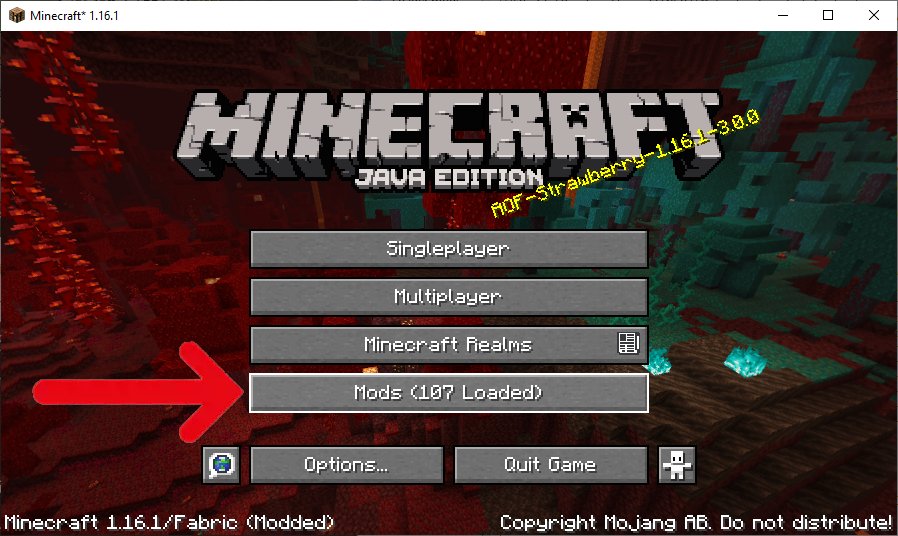
This guide will walk you through the process, ensuring you have a smooth and successful installation. We’ll cover everything from understanding what the Fabric API is and why it’s crucial for modding, to the step-by-step installation process for both the API itself and its accompanying mod loader. By the end of this tutorial, you’ll be well-equipped to start customizing your Minecraft world with your favorite Fabric mods.
Understanding the Fabric API and Mod Loading
Before we jump into the installation, it’s beneficial to understand what the Fabric API and its associated mod loader actually are and why they are so important for Minecraft modding. This knowledge will not only help you troubleshoot potential issues but also appreciate the underlying technology that makes your mods work.
What is the Fabric API?
The Fabric API is not a mod in itself, but rather a library that provides a broad range of functionalities and hooks for other Fabric mods to utilize. Think of it as a standardized toolkit that mod developers can rely on. Instead of each mod needing to reinvent the wheel for common tasks, they can simply reference and use the robust, well-tested features provided by the Fabric API. This leads to more efficient mod development, better compatibility between mods, and ultimately, a more stable modded Minecraft experience.
The API handles a multitude of tasks, including:
- Registering new game elements: This can range from custom blocks, items, and entities to new enchantments and potions.
- Handling game events: Mods often need to react to specific events within the game, such as a player breaking a block, an entity being damaged, or a chunk loading. The Fabric API provides a standardized way for mods to listen and respond to these events.
- Providing networking capabilities: For multiplayer mods, the API facilitates communication between the client and server.
- Offering rendering hooks: This allows mods to draw custom elements on the screen, modify existing rendering processes, or introduce entirely new visual effects.
- Managing data synchronization: Ensuring that custom data added by mods is correctly saved and loaded with your worlds.
Without the Fabric API, many of the popular and sophisticated mods you might want to use simply wouldn’t function. It’s the essential bridge that connects your chosen mods to the core Minecraft game.
What is the Fabric Mod Loader?
While the Fabric API provides the tools, the Fabric Mod Loader is the engine that makes it all run. The mod loader is the program that intercepts the Minecraft game before it fully launches and injects the necessary code for the Fabric API and all your installed Fabric mods to execute.
In essence, the Fabric Mod Loader:
- Loads the Fabric API: It ensures that the API is present and initialized when Minecraft starts.
- Loads Fabric mods: It scans your designated mods folder for compatible Fabric mods and loads them into the game.
- Manages mod dependencies: It helps ensure that mods that require the Fabric API, or other specific mods, are loaded in the correct order.
There are two primary versions of the Fabric Mod Loader:
- Fabric Loader (for the vanilla game): This is the standard version you’ll install directly into your Minecraft client.
- Fabric Server (for dedicated servers): If you plan to host a modded Minecraft server, you’ll need a separate installation for the server environment.
Understanding this distinction is crucial. You install the Fabric Loader to run mods, and the Fabric API is a dependency that the Loader ensures is present for other mods to function.
Installing the Fabric Mod Loader and API
The installation process for the Fabric Mod Loader and API is straightforward and can be completed within a few minutes. It involves downloading the appropriate installer and running it. This installer handles placing the necessary files into your Minecraft directory, setting up the game to recognize and load Fabric.
Step 1: Download the Fabric Installer
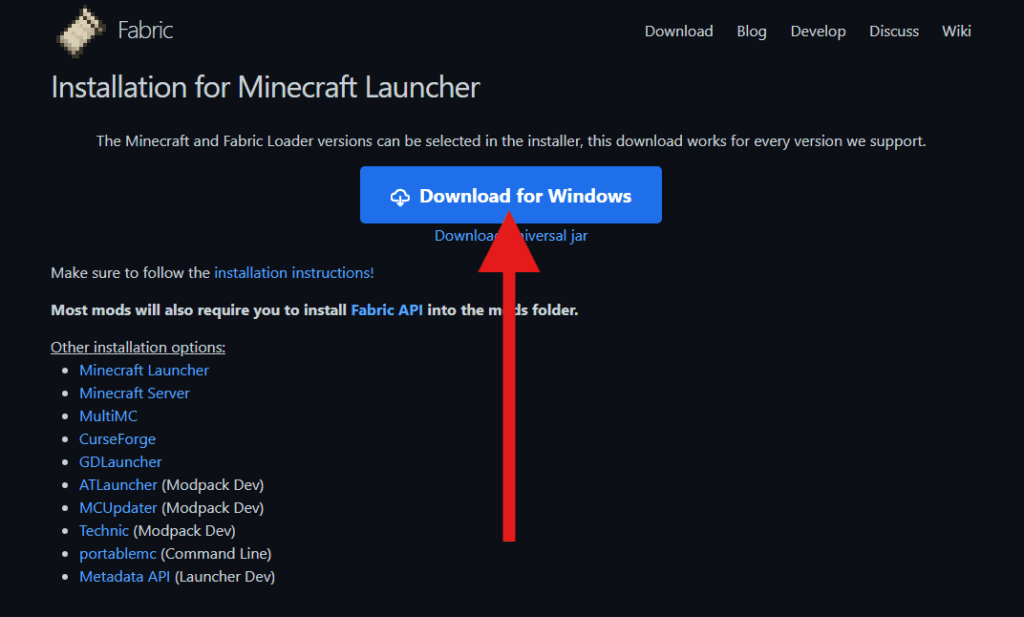
The first and most critical step is to obtain the official Fabric Installer. It’s important to always download software from its official source to avoid malware or corrupted files.
- Navigate to the official Fabric website: Open your web browser and go to
https://fabricmc.net/use/. - Choose the correct installer: On the “Install” page, you will see options for different operating systems. Click the button for your operating system (Windows, macOS, or Linux). This will download the universal installer executable.
The installer is a small, self-contained application that automates the entire setup process.
Step 2: Run the Fabric Installer
Once the installer has downloaded, locate the file (usually in your “Downloads” folder) and double-click it to run.
- Launch the installer: A graphical interface will appear.
- Select the Minecraft version: At the top of the installer window, you’ll see a dropdown menu for the Minecraft version. Select the specific Minecraft version you intend to play with mods. It’s crucial that the Fabric Loader and API version match your chosen Minecraft version for compatibility.
- Choose the installation profile: Under “Install profile,” you’ll typically see an option to install for the “client.” This is what you want for playing on your own computer. If you were setting up a dedicated server, you would choose the “server” option.
- Select the installation directory: The installer will usually detect your default Minecraft installation directory. If your Minecraft is installed elsewhere, click the “…” button to browse and select the correct folder.
- Click “Install”: After verifying your selections, click the “Install” button.
The installer will now download the necessary Fabric Loader and API files for the selected Minecraft version and place them correctly within your Minecraft game directory. You should see a confirmation message once the installation is complete.
Step 3: Launch Minecraft with Fabric
Now that the Fabric Mod Loader and API are installed, you need to configure your Minecraft launcher to use the new Fabric profile.
- Open the Minecraft Launcher: Launch the official Minecraft Launcher.
- Select the Fabric profile: In the bottom-left corner of the launcher, you’ll find a dropdown menu listing your available game versions and profiles. You should see a new profile automatically created named “fabric-loader [version number]” or similar. Select this profile.
- Click “Play”: With the Fabric profile selected, click the “Play” button.
Minecraft will now launch with the Fabric Mod Loader active. You might notice a brief “Fabric” splash screen during the loading process, indicating that it’s working.
Once Minecraft has successfully loaded, you will find a new folder named mods within your Minecraft game directory if it didn’t exist already. This is where you will place all your downloaded Fabric mods.
Adding Fabric Mods to Your Game
With the Fabric Mod Loader and API successfully installed, you are now ready to add your favorite Fabric mods to your Minecraft game. This is where the real customization begins, transforming your vanilla Minecraft experience into something entirely new.
Finding and Downloading Fabric Mods
The first step to modding your game is to find the mods you want. There are numerous websites and communities dedicated to Minecraft modding, but it’s essential to download from reputable sources to ensure you get safe and functional mods.
- CurseForge: This is one of the largest and most popular platforms for Minecraft mods. You can filter by game version and mod loader (select “Fabric”).
- Modrinth: Another excellent platform that is rapidly growing, offering a wide selection of Fabric mods.
- FabricMC Website: The official FabricMC website often links to popular or featured Fabric mods.
When downloading a mod, pay close attention to:
- Minecraft Version: Ensure the mod is compatible with the Minecraft version you are using (the same one you selected during Fabric installation).
- Mod Loader: Confirm that the mod explicitly states it is for Fabric.
- Dependencies: Some mods require other mods or APIs to function. The mod’s description page will usually list any necessary dependencies. The Fabric API itself is a dependency for most Fabric mods, but some might need additional libraries.
Installing Mods
Installing Fabric mods is as simple as placing the downloaded .jar files into the correct folder.
- Locate your Minecraft game directory:
- Windows: Press
Windows Key + R, type%appdata%.minecraft, and press Enter. - macOS: Open Finder, press
Command + Shift + G, type~/Library/Application Support/minecraft, and press Enter. - Linux: Navigate to
~/.minecraft.
- Windows: Press
- Find the
modsfolder: Inside your.minecraftdirectory, you should find a folder namedmods. If it doesn’t exist, create it. - Place mod files: Drag and drop the downloaded Fabric mod
.jarfiles into themodsfolder. - Launch Minecraft: Relaunch Minecraft using the Fabric profile you created earlier in the Minecraft Launcher.
If the mods are compatible and installed correctly, they will load automatically when Minecraft starts. You can usually check if mods are loaded by looking at the main menu screen or by checking the game’s logs.
Important Considerations:
- Mod Conflicts: While the Fabric ecosystem aims for good compatibility, sometimes mods can conflict with each other, leading to crashes or unexpected behavior. If this happens, try removing mods one by one to identify the culprit.
- Performance: Adding many mods can impact your game’s performance. Ensure your computer meets the recommended specifications for running modded Minecraft.
- Updates: Always keep your Fabric Loader, Fabric API, and individual mods updated to the latest compatible versions to ensure stability and security.
Troubleshooting Common Installation Issues
While the Fabric installation process is generally smooth, occasional hiccups can occur. Understanding common issues and their solutions can save you a lot of frustration.
Minecraft Launcher Not Showing Fabric Profile
- Cause: The Fabric installer might not have correctly updated the Minecraft Launcher’s profiles.
- Solution:
- Open the Minecraft Launcher.
- Go to the “Installations” tab.
- Click “New Installation.”
- In the “Version” dropdown, scroll down to find the “fabric-loader [version number]” option.
- Give your installation a name (e.g., “Fabric Mods”) and click “Create.”
- Now, select this new installation from the main launcher screen’s dropdown menu before clicking “Play.”
Game Crashes on Startup
- Cause: This is often due to an incompatible mod version, missing dependencies, or a conflict between mods.
- Solution:
- Check Mod Compatibility: Ensure all your mods are for the exact Minecraft version you are running.
- Verify Dependencies: Double-check the description pages of your mods to see if they require any other specific libraries or mods (like a particular version of the Fabric API or a compatibility mod).
- Isolate the Problem: Temporarily move all your mods out of the
modsfolder. Then, add them back one by one, launching the game after each addition, until the crash occurs. This will help you pinpoint the problematic mod. - Fabric API Version: Ensure you have the correct version of the Fabric API for your Minecraft version. Sometimes, a mod might require a specific, newer version of the API than what the installer initially provided.

“Failed to download file” Error During Installation
- Cause: This usually indicates a problem with your internet connection or restrictions on your computer that are preventing the installer from downloading the necessary files.
- Solution:
- Check Internet Connection: Ensure your internet is stable and that no firewalls or antivirus software are blocking the installer.
- Run as Administrator: Try running the Fabric installer with administrator privileges (right-click the installer file and select “Run as administrator”).
- Manual Installation (Advanced): In rare cases, you might need to download the Fabric Loader JAR and Fabric API JAR files manually and place them into your
.minecraft/librariesand.minecraft/modsfolders respectively. This is a more technical process and usually not necessary.
By following these troubleshooting steps, you can resolve most common issues and enjoy a stable, modded Minecraft experience. Remember to always keep your game and mods updated, and refer to mod-specific documentation for detailed help.
In conclusion, installing the Fabric API and Mod Loader is the gateway to unlocking a universe of possibilities within Minecraft. By following these straightforward steps, you can equip your game with the necessary tools to run a vast array of mods, personalizing your adventures and creating unique gameplay experiences. Whether you’re looking to enhance visuals, add new gameplay mechanics, or explore entirely new dimensions, Fabric provides a robust and flexible platform to achieve your modding goals. Happy modding!
aViewFromTheCave is a participant in the Amazon Services LLC Associates Program, an affiliate advertising program designed to provide a means for sites to earn advertising fees by advertising and linking to Amazon.com. Amazon, the Amazon logo, AmazonSupply, and the AmazonSupply logo are trademarks of Amazon.com, Inc. or its affiliates. As an Amazon Associate we earn affiliate commissions from qualifying purchases.