
The Android operating system has long been celebrated for its open-source nature and the flexibility it offers to users. Unlike some of its competitors, Android allows users to venture beyond the walls of the official Google Play Store to install software. This process, commonly known as “sideloading,” involves the use of APK files. Whether you are looking to access geo-restricted applications, install older versions of a favorite app, or test a beta build of a new tool, understanding how to safely and effectively install APK files is a fundamental skill for any tech enthusiast.
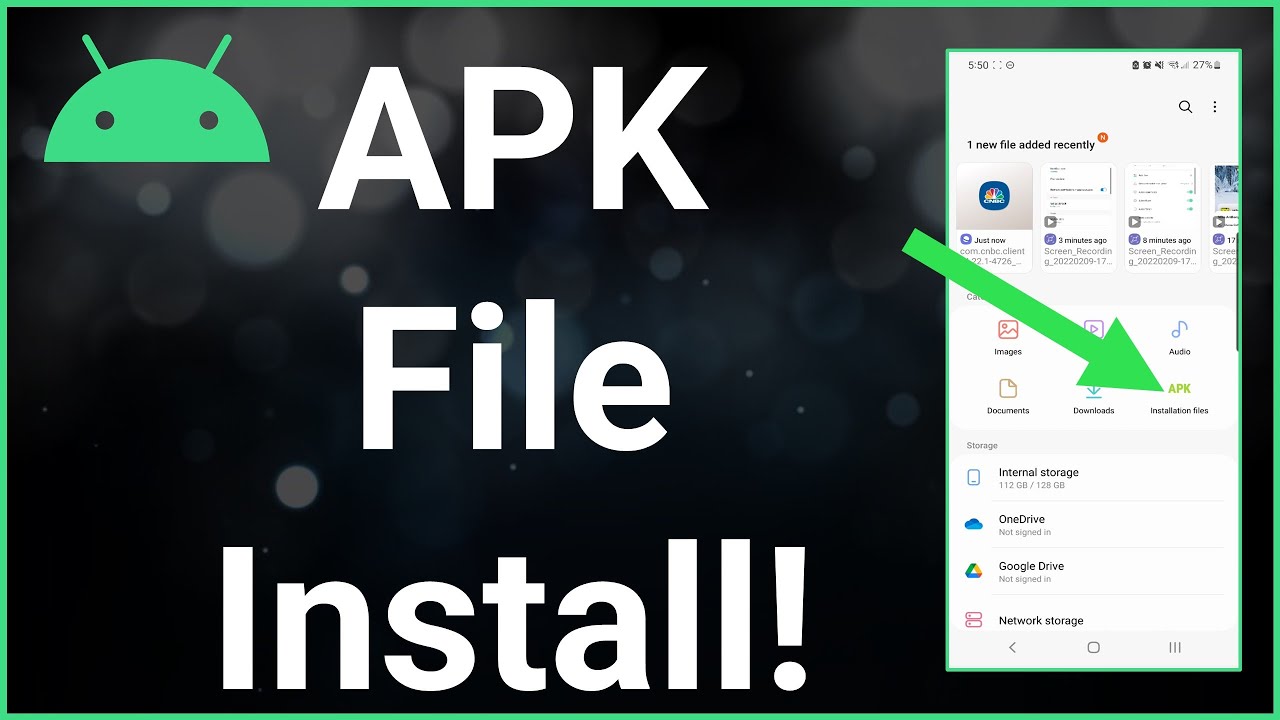
In this comprehensive guide, we will explore the technical nuances of APK files, the security measures you must take, and a step-by-step walkthrough of the installation process across different versions of the Android ecosystem.
Understanding the Architecture and Utility of APK Files
To successfully manage your Android device, it is essential to first understand what an APK file actually is and why it exists within the software hierarchy.
What is an APK File?
APK stands for Android Package Kit (sometimes referred to as Android Application Package). It is the file format used by the Android operating system for the distribution and installation of mobile apps and middleware. Just as Windows uses .exe files and macOS uses .dmg files, Android uses .apk files to bundle all the necessary components of an application into a single, installable container.
Technically, an APK is a ZIP-style archive file based on the JAR format. It contains the application’s compiled code (DEX files), resources (images, layouts), assets, and the AndroidManifest.xml file, which tells the OS how to handle the app.
The Benefits of Sideloading
Why would a user choose to install an APK manually rather than using the Google Play Store? There are several compelling technical and practical reasons:
- Early Access: Developers often release beta versions of their software as APKs before they hit the mainstream store.
- Regional Restrictions: Some apps are only available in specific countries. Sideloading allows users to bypass these geographic “fences.”
- Version Control: If an app update ruins a feature you love, you can uninstall it and manually install an older APK version to restore functionality.
- De-Googled Devices: For users running custom ROMs or devices without Google Mobile Services (GMS), such as newer Huawei phones, APKs are the primary way to populate the device with software.
Preparing Your Device: Navigating Security Protocols
By default, Android restricts the installation of apps from “Unknown Sources” to protect users from malicious software. Before you can install an APK, you must grant the system permission to do so. The method for this has evolved significantly as the Android OS has matured.
Enabling Permissions on Modern Android (Android 8.0 Oreo and Higher)
In older versions of Android, there was a single global toggle to allow unknown sources. However, starting with Android 8.0, Google shifted to a more secure, granular permission model. You now grant permission on a per-app basis.
- Open your device Settings.
- Navigate to Apps (or Apps & Notifications).
- Select Special app access (usually found under an “Advanced” dropdown).
- Tap on Install unknown apps.
- Select the application you will use to download or browse for the APK (usually your web browser like Chrome, or a File Manager).
- Toggle the switch to Allow from this source.
Legacy Method for Older Devices (Android 7.0 and Below)
If you are using an older device or a specific budget tablet running a legacy version of the OS, the process is centralized:
- Go to Settings.
- Tap on Security (or Lock screen and security).
- Find the Unknown Sources option.
- Tap the toggle to enable it and accept the warning prompt.
The Step-by-Step Installation Process
Once the preparatory security configurations are in place, the actual installation of an APK is straightforward. However, the process requires attention to detail to ensure the file is handled correctly by the system.
Step 1: Acquiring the APK File
The first step is obtaining the file. You can download APKs directly through your Android browser or transfer them from a computer via a USB cable.
- Direct Download: Use a browser like Chrome or Firefox to navigate to a reputable repository. Once you click the download link, you will see a warning that the file may harm your device. Confirm that you want to keep the file.
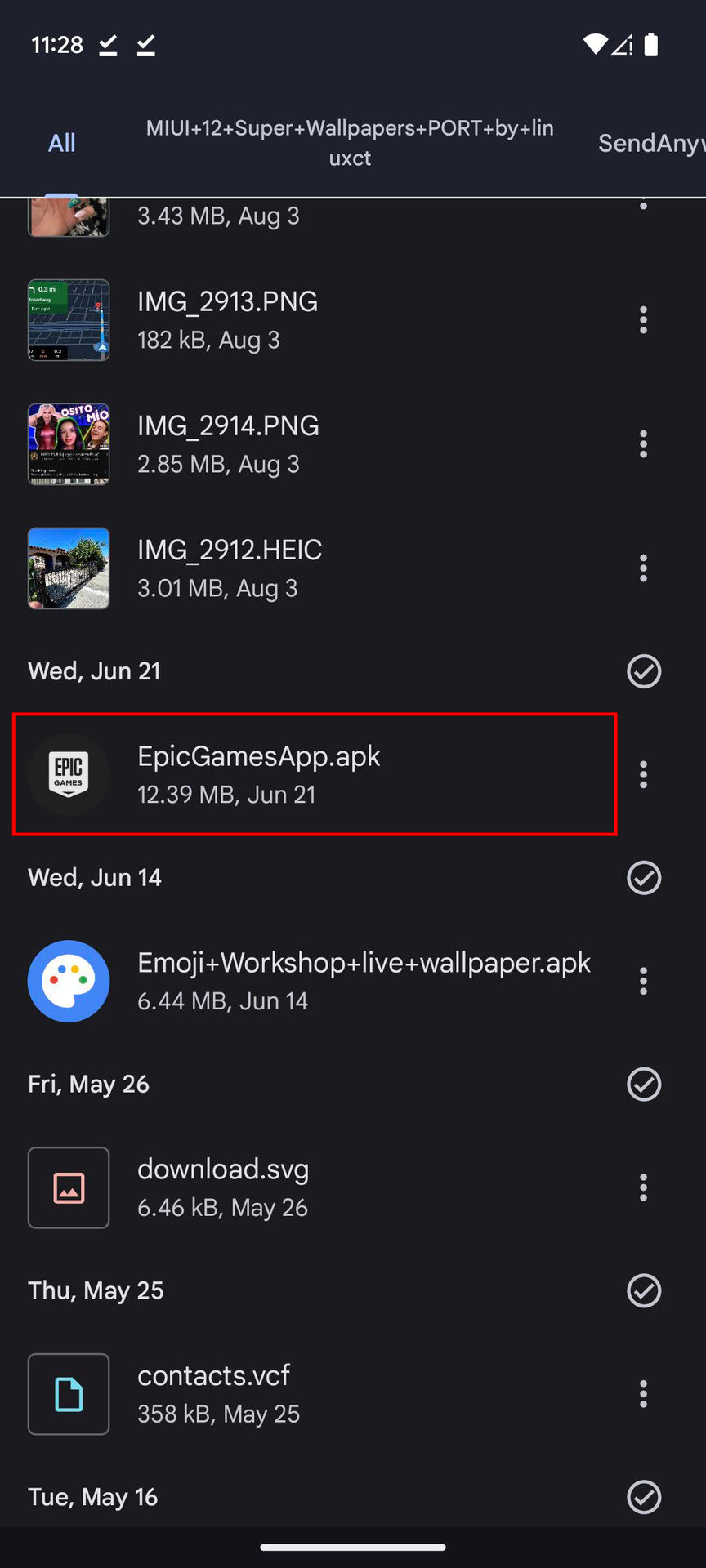
- Transfer from PC: Connect your phone to your PC in “File Transfer” mode. Copy the .apk file from your computer into your phone’s “Downloads” folder or any directory you prefer.
Step 2: Locating the File
After the download is complete, you need to find the file to trigger the installation.
- Via Browser: Most browsers will show a “Download complete” notification with an “Open” button. Tapping this is the fastest way to start.
- Via File Manager: If you missed the notification, open your device’s File Manager (sometimes called “Files,” “My Files,” or “File Explorer”). Navigate to the folder where the APK is stored—typically the Downloads folder.
Step 3: Executing the Installation
Once you tap the APK file, the Android package installer will launch.
- A prompt will appear showing the permissions the app requires. Review these carefully.
- Tap Install at the bottom of the screen.
- The system will display a progress bar. Once finished, you will see a message saying “App installed.”
- You can then tap Done to close the installer or Open to launch the newly installed application immediately.
Safety and Security Best Practices in the Tech Ecosystem
Sideloading offers freedom, but it also carries risks. Because you are bypassing the automated security scans of the Google Play Store, you become the primary line of defense for your digital security.
Identifying Trusted Repositories
Not all APK sites are created equal. Some may inject adware or malware into legitimate apps. To stay safe, only use well-known and community-vetted repositories.
- APKMirror: Widely considered the gold standard for APK safety. They verify all uploads and ensure they are signed by the original developers.
- APKPure: Another popular choice that offers a wide variety of apps, including those not found on the Play Store.
- F-Droid: This is a dedicated repository for Free and Open Source Software (FOSS). It is highly secure and transparent.
Verifying APK Integrity
If you are downloading a highly sensitive app, you can verify its integrity using a checksum (SHA-1 or SHA-256). Advanced users often use tools to compare the hash of the downloaded APK with the official hash provided by the developer. Furthermore, you can upload any suspicious APK to VirusTotal, a web-based service that scans files using dozens of different antivirus engines simultaneously to detect potential threats.
Troubleshooting and Advanced APK Formats
Sometimes, the installation process doesn’t go as planned. Technical hurdles can arise due to hardware compatibility or file corruption.
Common Errors and Solutions
- Parse Error: This usually occurs if the APK file is corrupted during download or if the app is incompatible with your version of Android (e.g., trying to install an Android 12 app on Android 9). Re-downloading the file often fixes this.
- App Not Installed: This is a generic error that often means there is a conflict with an existing version of the app. Try uninstalling the current version of the app (if any) before installing the new APK. It could also mean your device has insufficient storage space.
- Storage Full: Android requires a small amount of “buffer” space to extract and install the package. Ensure you have at least 500MB of free space beyond the size of the APK.

Dealing with XAPK and Split APKs
As Android apps become more complex, developers have started using “Split APKs” or “App Bundles” to reduce file sizes. These are often distributed as .xapk or .apks files.
The standard Android package installer cannot handle these formats directly. To install these, you will need a third-party “Split APKs Installer” (SAI) available on the Play Store or F-Droid. These tools manage the complex task of merging the base APK with the necessary configuration files (like language packs and screen density assets) to ensure the app runs correctly on your specific hardware.
By understanding these technical layers—from the permission structures of the OS to the integrity of the files themselves—you can leverage the full power of the Android platform while maintaining a secure and high-performing digital environment. Sideloading is more than just a workaround; it is a gateway to a truly customized mobile experience.
aViewFromTheCave is a participant in the Amazon Services LLC Associates Program, an affiliate advertising program designed to provide a means for sites to earn advertising fees by advertising and linking to Amazon.com. Amazon, the Amazon logo, AmazonSupply, and the AmazonSupply logo are trademarks of Amazon.com, Inc. or its affiliates. As an Amazon Associate we earn affiliate commissions from qualifying purchases.