
In the vast and ever-evolving landscape of Linux, effective software management is paramount for both seasoned system administrators and aspiring tech enthusiasts. Among the various packaging systems available, RPM (Red Hat Package Manager) stands out as a robust and widely adopted solution, particularly prevalent in distributions like Red Hat Enterprise Linux (RHEL), CentOS, Fedora, AlmaLinux, Rocky Linux, and openSUSE. Understanding how to properly install, manage, and troubleshoot RPM packages is a fundamental skill that enhances productivity, ensures system stability, and contributes to a secure digital environment – all critical aspects aligning with the “Tech” focus of our website.
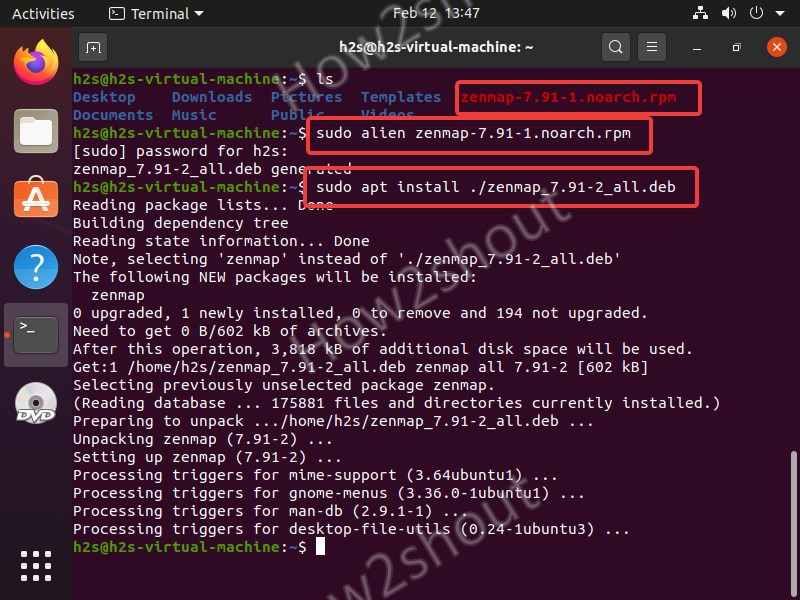
This comprehensive guide will demystify the process of installing RPM packages on Linux systems. We’ll explore what RPMs are, the essential tools used for their management, provide step-by-step instructions for various installation methods, and cover best practices and troubleshooting tips to empower you with confidence in your Linux journey. Whether you’re setting up development tools, deploying server applications, or simply expanding your desktop software, mastering RPM installation is a cornerstone of Linux proficiency.
Understanding RPM Packages and Their Ecosystem
Before diving into the practical steps of installation, it’s crucial to grasp the foundational concepts behind RPM packages and the ecosystem they operate within. This understanding will not only make the installation process clearer but also help you troubleshoot potential issues more effectively.
What is an RPM Package?
At its core, an RPM package is an archive file containing the compiled software, libraries, and resources necessary for a program to run on a Linux system. Think of it as a .exe file for Windows or a .dmg for macOS, but specifically designed for Linux distributions that utilize the Red Hat Package Manager. The .rpm file extension signifies this package format.
Beyond just bundling software, RPM packages are intelligent containers. They include metadata such as the package name, version, architecture (e.g., x86_64), release number, description, and crucially, a list of dependencies. Dependencies are other packages or libraries that the software requires to function correctly. This metadata is vital for automated package managers to handle installations, upgrades, and removals efficiently.
The benefits of using RPMs are manifold:
- Standardization: Provides a consistent method for distributing software.
- Verifiability: Packages are cryptographically signed, allowing users to verify their authenticity and integrity, a key aspect of digital security.
- Dependency Management: Though sometimes challenging, RPMs are designed to declare their dependencies, enabling package managers to resolve and install prerequisite software automatically.
- Clean Uninstallation: When properly managed, RPMs allow for clean removal of software, leaving minimal traces behind.
RPM-based Linux Distributions
The Red Hat family of Linux distributions and their derivatives are the primary users of the RPM packaging system. Understanding this lineage helps contextualize why certain tools and commands are used:
- Fedora: A cutting-edge, community-driven distribution sponsored by Red Hat. It serves as an upstream project for RHEL, pioneering many features that eventually make their way into the enterprise-grade operating system. If you’re using Fedora, you’re on the frontline of RPM development.
- Red Hat Enterprise Linux (RHEL): The commercial, enterprise-grade operating system offered by Red Hat. Known for its stability, long-term support, and robust ecosystem, RHEL is a powerhouse in data centers and corporate environments.
- CentOS: Historically a free, community-supported rebuild of RHEL, aiming for binary compatibility. While CentOS Linux has transitioned to CentOS Stream, its legacy versions heavily influenced the adoption of RPMs in many organizations.
- AlmaLinux & Rocky Linux: These distributions emerged as spiritual successors to CentOS Linux, providing free, open-source, and community-supported alternatives that are binary compatible with RHEL. They are excellent choices for those seeking RHEL stability without subscription costs.
- openSUSE: A community-developed distribution known for its user-friendliness, powerful Yast configuration tool, and commitment to open-source principles. While distinct from the Red Hat family, openSUSE also leverages RPMs for its package management, though it uses
Zypperas its primary front-end tool.
Understanding which distribution you are running is crucial because, while the underlying RPM format is the same, the front-end tools used to interact with these packages can differ slightly (e.g., dnf, yum, zypper).
Why Use RPMs? The Advantages for Software Management
For anyone managing a Linux system, whether for personal use, development, or enterprise deployment, RPMs offer significant advantages that streamline software management:
- Streamlined Installation and Updates: Instead of manually compiling software from source code – a time-consuming and often error-prone process – RPMs allow for quick and consistent installation of pre-compiled binaries. This dramatically reduces setup time and complexity.
- Dependency Resolution: This is perhaps the most significant advantage. Modern RPM front-ends like
DNFandYUMcan automatically identify, locate, and install all necessary prerequisite packages, preventing “dependency hell” where software fails due to missing components. This automated process saves countless hours of manual searching and installation. - Simplified Uninstallation: Just as easily as they are installed, RPM packages can be removed, often taking their dependencies with them (if no other package requires them), ensuring a clean system.
- Security and Integrity: RPMs can be digitally signed using GPG keys. This allows users to verify that a package originated from a trusted source and has not been tampered with since it was created. This is a critical security feature, protecting against malicious software.
- System Consistency: By using a standardized packaging format and official repositories, RPMs help maintain a consistent software environment across multiple systems, which is invaluable for enterprise deployments and fleet management.
- Version Control: RPM packages often include specific version numbers, making it easy to track which version of software is installed and to perform upgrades or rollbacks if necessary.
In essence, RPMs empower users to efficiently and securely manage the software lifecycle on their Linux systems, turning what could be a complex task into a manageable and often automated process.
Essential Tools for RPM Installation
While the .rpm file format is the standard, interacting with these packages requires specific command-line utilities. These tools range from low-level handlers to high-level front-ends that simplify dependency resolution and repository management. Knowing which tool to use, and when, is key to successful RPM installation.
The rpm Command – The Low-Level Utility
The rpm command is the foundational tool for managing RPM packages. It operates directly on .rpm files and does not automatically resolve dependencies. This makes it powerful for specific scenarios but also prone to errors if dependencies are not manually satisfied.
When to use rpm directly:
- When installing a single
.rpmfile and you are absolutely certain there are no dependencies, or you are prepared to resolve them manually. - When performing advanced package queries or verification.
- When troubleshooting dependency issues with higher-level tools.
Common rpm command options:
rpm -i /path/to/package.rpm: Installs a new package. If dependencies are missing, it will fail.rpm -U /path/to/package.rpm: Upgrades a package if an older version is already installed, or installs it if not. This is generally safer than-ifor existing software.rpm -e package_name: Erases (uninstalls) an installed package. Note that you use the package name, not the.rpmfile path.rpm -qa: Queries all installed RPM packages on the system.rpm -qa | grep package_name: Filters the list to find a specific package.rpm -qi package_name: Queries information about an installed package.rpm -ql package_name: Lists all files provided by an installed package.rpm -V package_name: Verifies an installed package, checking for modified files.
Using rpm directly for installation is generally discouraged for beginners due to the lack of automatic dependency resolution. It’s like trying to build a complex Lego set without the instructions or knowing which other sets you need.
YUM – Yellowdog Updater, Modified (Legacy)
YUM was the de-facto package manager for RHEL, CentOS, and Fedora distributions for many years. It acts as a high-level front-end to rpm, providing automatic dependency resolution, repository management, and an overall more user-friendly experience. YUM fetches packages from configured repositories (collections of RPMs) on the internet or local networks.
Key YUM commands:
sudo yum install package_name: Installs a package from configured repositories, automatically resolving and installing dependencies.sudo yum update: Updates all installed packages to their latest versions.sudo yum remove package_name: Removes an installed package and its unnecessary dependencies.yum search keyword: Searches repositories for packages matching a keyword.yum info package_name: Displays detailed information about a package.
While still present on older systems, YUM has largely been superseded by DNF in modern RPM-based distributions.
DNF – Dandified YUM (Modern Standard)
DNF is the next-generation package manager that has replaced YUM as the default in Fedora (since Fedora 18), RHEL (since RHEL 8), CentOS Stream, AlmaLinux, and Rocky Linux. DNF offers improved performance, better dependency resolution algorithms, and a more user-friendly codebase compared to its predecessor. For all intents and purposes, if you’re on a modern RPM-based system, DNF is your primary tool.
Key DNF commands (notice the similarity to YUM):
sudo dnf install package_name: Installs a package and its dependencies. This is the command you will use most often.sudo dnf update: Updates all installed packages.sudo dnf remove package_name: Removes a package.dnf search keyword: Searches repositories for packages.dnf info package_name: Displays package information.sudo dnf autoremove: Removes orphaned dependencies that are no longer needed by any installed package.sudo dnf clean all: Clears theDNFcache.
DNF is robust and intelligent, making it the recommended tool for most RPM management tasks. It’s designed to prevent “dependency hell” and ensure your system remains stable.
Zypper – For openSUSE and SUSE Linux Enterprise
For users of openSUSE and SUSE Linux Enterprise, Zypper is the equivalent high-level package manager, performing the same role as DNF/YUM but with its own syntax and conventions. While it also manages RPM packages, its command structure is distinct.
Key Zypper commands:
sudo zypper install package_name: Installs a package and its dependencies.sudo zypper update: Updates all installed packages.sudo zypper remove package_name: Removes a package.zypper search keyword: Searches for packages.zypper info package_name: Displays package information.
If you are on openSUSE, Zypper will be your primary interface for package management. For the rest of this guide, we will primarily focus on DNF as it covers the majority of the popular RPM-based distributions.
Step-by-Step Guide to Installing an RPM Package
Now that we understand the tools, let’s walk through the practical steps of installing RPM packages. We’ll cover the most common scenarios, from installing software directly from official repositories to handling local .rpm files.
Method 1: Installing via DNF (Recommended for most users)
This method is the most common and recommended way to install software on modern RPM-based systems (Fedora, RHEL 8+, CentOS Stream, AlmaLinux, Rocky Linux) because DNF handles dependencies and retrieves packages from trusted repositories.
Step 1: Update Your System’s Package List and Installed Software
Before installing anything new, it’s a good practice to ensure your system’s package index is up-to-date and all existing software has the latest security patches and bug fixes. This prevents compatibility issues.
sudo dnf update
Enter your password when prompted. This command will download repository metadata and then list any available updates for your currently installed packages. Confirm the update process by typing y and pressing Enter.
Step 2: Search for the Package (Optional but Recommended)
If you’re unsure of the exact package name, or you want to see available versions, use dnf search.
dnf search keyword_or_package_name
For example, to find a web server:
dnf search httpd
This will list packages whose names or descriptions contain “httpd”, helping you identify the correct package (e.g., httpd for Apache web server).
Step 3: Install from Repositories
Once you know the exact package name, use dnf install.
sudo dnf install package_name
For instance, to install the Apache web server:
sudo dnf install httpd
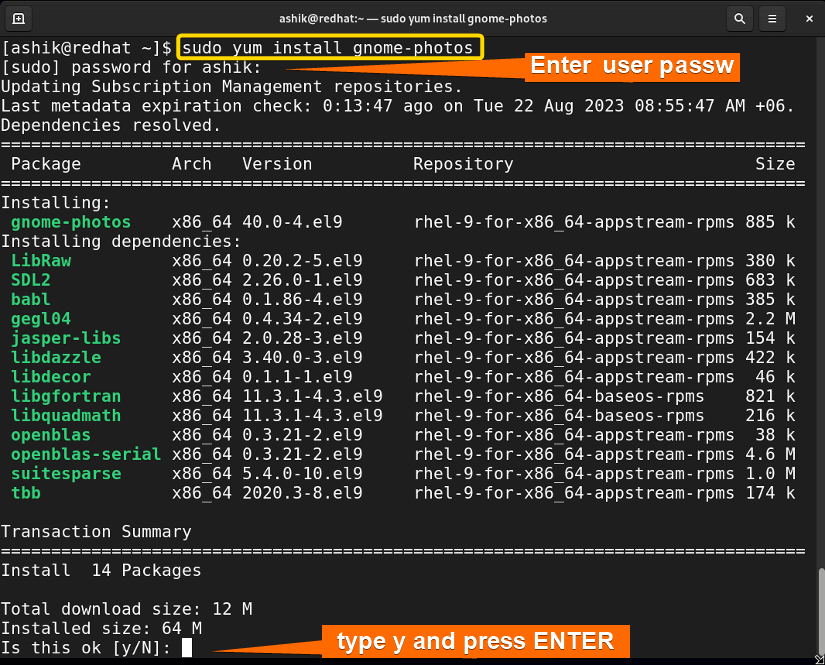
DNF will analyze the request, calculate all necessary dependencies, and present you with a list of packages to be installed (the main package plus all its prerequisites). It will ask for confirmation; type y and press Enter to proceed. DNF will then download and install all the required RPMs.
Step 4: Install a Local .rpm File with DNF
Sometimes, you might download an .rpm file directly from a vendor’s website or a third-party source. While dnf primarily works with repositories, it can also install local .rpm files and still handle dependencies by searching configured repositories.
First, navigate to the directory where you downloaded the .rpm file (e.g., ~/Downloads).
cd ~/Downloads
sudo dnf install ./your_package_name.rpm
The ./ before the filename is important to specify that it’s a local file in the current directory. DNF will attempt to install it, and if it has any missing dependencies, it will try to find and install them from your enabled repositories. This is the preferred method for installing local RPMs because it leverages DNF‘s dependency resolution capabilities.
Method 2: Installing via YUM (For older systems)
If you are working on an older system that still uses YUM as its default package manager (e.g., RHEL 7, CentOS 7), the process is largely identical to DNF, just replacing dnf with yum.
Step 1: Update Your System
sudo yum update
Step 2: Search for the Package (Optional)
yum search keyword_or_package_name
Step 3: Install from Repositories
sudo yum install package_name
Step 4: Install a Local .rpm File with YUM
cd ~/Downloads
sudo yum install ./your_package_name.rpm
YUM, like DNF, will attempt to resolve dependencies for local .rpm files using its configured repositories.
Method 3: Installing via rpm Command (Direct but Cautious)
This method should be used with caution, primarily when you know the package has no external dependencies or when other methods fail and you need to troubleshoot. The rpm command does not resolve dependencies automatically.
Step 1: Navigate to the Directory of the .rpm File
Let’s assume the .rpm file is in your ~/Downloads directory.
cd ~/Downloads
Step 2: Install the .rpm File Directly
Use the rpm -i or rpm -U command. It’s often helpful to add the -v (verbose) and -h (hash marks for progress) options.
sudo rpm -ivh ./your_package_name.rpm
For example:
sudo rpm -ivh ./google-chrome-stable_current_x86_64.rpm
Potential Issues: If your_package_name.rpm has dependencies that are not already installed on your system, the rpm command will fail with “failed dependencies” errors. For instance:
error: Failed dependencies:
        libcurl.so.4()(64bit) is needed by your_package_name-1.0-1.x86_64
        libicu.so.60()(64bit) is needed by your_package_name-1.0-1.x86_64
In such cases, you would either need to manually find and install libcurl and libicu RPMs using rpm, which quickly becomes cumbersome, or ideally, revert to using DNF or YUM to handle the installation and dependency resolution.
Handling Dependencies and Common Issues
Dependencies are the Achilles’ heel of direct .rpm installation. A dependency is simply another piece of software that your desired package needs to function. For example, a graphical application might depend on specific GTK or Qt libraries.
- How
DNF/YUMResolves Them: When you usesudo dnf install package_name(oryum), the package manager first checks the package’s metadata for declared dependencies. Then, it queries its configured repositories to find and include those dependencies in the installation transaction. This automated process is whyDNFandYUMare so powerful. - “Failed Dependencies” Error (with
rpm): If you encounter this when usingrpm -ivh, it means the package requires other software that is not present. The error message will usually tell you exactly what is missing. The solution is almost always to usesudo dnf install /path/to/your_package.rpminstead, asDNFwill sort out the dependencies for you. - “Public Key Not Available” Error: This often occurs when trying to install an RPM from a third-party repository or a downloaded file that hasn’t had its GPG key imported into your system. This is a security feature. We’ll cover how to handle this in the best practices section.
Always prioritize using DNF (or YUM/Zypper) for installing RPMs, even local ones, as it drastically simplifies dependency management and leverages trusted repositories for a smoother and more secure experience.
Best Practices and Troubleshooting
Even with the best tools, managing software can sometimes present challenges. Adopting best practices and knowing how to troubleshoot common issues will significantly improve your experience with RPM packages and contribute to a more secure and stable Linux system.
Verifying Installed RPMs
After installation, or at any time you want to inspect a package, the rpm command offers powerful query and verification options.
-
List all files in an installed package:
rpm -ql package_nameThis shows you where the package’s files (binaries, configuration, documentation) have been placed on your system.
-
Get detailed information about an installed package:
rpm -qi package_nameThis outputs information like version, release, architecture, install date, vendor, summary, and description.
-
Verify the integrity of an installed package:
bash

sudo rpm -V package_name
This command checks the package files against the RPM database for any changes (e.g., file size, permissions, MD5 checksum). If files have been altered (which could indicate corruption or tampering), it will report them. This is a powerful tool for diagnosing issues or checking system integrity.
Removing an RPM Package
Just as important as installation is the ability to cleanly remove software you no longer need. Again, using DNF/YUM is generally preferred for removal.
-
Using
DNF(Recommended):sudo dnf remove package_nameDNFwill identify the package and any other packages that solely depend on it (and are no longer needed by anything else) and offer to remove them as well. This helps keep your system clean.
After removing software, you can also run:sudo dnf autoremoveThis command specifically targets and removes packages that were installed as dependencies but are no longer required by any currently installed software.
-
Using
YUM(Legacy):sudo yum remove package_nameWorks similarly to
dnf remove. -
Using
rpm(Cautious):
bash

sudo rpm -e package_name
This command will remove the specified package. However, if other packages still depend on it,rpmwill refuse to remove it, stating dependency errors. It also won’t automatically remove orphaned dependencies. Use this only ifDNF/YUMfails or for very specific troubleshooting.
Dealing with GPG Keys and Repository Management
GPG (GNU Privacy Guard) keys are critical for the security of RPM packages. They are used to digitally sign packages and repositories, allowing your system to verify the authenticity and integrity of the software you download. This prevents malicious actors from distributing tampered software masquerading as legitimate updates.
-
Importing GPG Keys: When you add a new third-party repository, you often need to import its public GPG key. This key allows your system to trust packages signed by that repository.
Typically, repository configuration files will automatically try to fetch the key. If you encounter a “Public key not available” error, you might need to import it manually:sudo rpm --import /path/to/RPM-GPG-KEY-fileAlways obtain GPG keys from official and trusted sources (e.g., the vendor’s website).
-
Adding Third-Party Repositories: While most software is in official repositories, you might need to add third-party ones for newer software, niche tools, or proprietary applications. Repositories are typically defined in
.repofiles located in/etc/yum.repos.d/or/etc/dnf/repos.d/.
Often, vendors provide a convenient.rpmfile to install their repository configuration. For example, to add the EPEL (Extra Packages for Enterprise Linux) repository:
bash

sudo dnf install epel-release
This single command installs an RPM that contains the.repofile for EPEL, automatically configuringDNFto use it. After adding a new repository, it’s a good idea to runsudo dnf updateto refresh the package metadata.
Common Pitfalls and Solutions
Even with modern package managers, issues can arise. Here are some common problems and their solutions:
- Broken Dependencies: Sometimes, especially after manual
rpminstallations or force removals, your package manager might report broken dependencies.- Solution:
DNFis quite good at fixing this. Trysudo dnf autoremoveto clear orphaned packages, orsudo dnf distro-syncwhich attempts to synchronize installed packages with the versions available in enabled repositories. For specific broken packages,sudo dnf repoquery --deplist package_namecan help identify missing dependencies.
- Solution:
- Conflicting Packages: This occurs when two packages try to provide the same file or fulfill a dependency in incompatible ways.
- Solution: Read the error message carefully to identify the conflicting packages. You might need to remove one before installing the other. Sometimes, specifying the exact version of a package with
dnf install package_name-versioncan help.
- Solution: Read the error message carefully to identify the conflicting packages. You might need to remove one before installing the other. Sometimes, specifying the exact version of a package with
- “Nothing to do” on
dnf updatebut packages are outdated: This usually means your repository metadata is stale.- Solution: Clear
DNF‘s cache:sudo dnf clean alland then runsudo dnf updateagain.
- Solution: Clear
- Network Issues: If
DNF/YUMcan’t download packages, check your internet connection, DNS settings, and any proxy configurations.- Solution: Ensure
ping google.comworks. Check/etc/resolv.conffor correct DNS servers. If you use a proxy, configurehttp_proxyandhttps_proxyenvironment variables or in/etc/dnf/dnf.conf.
- Solution: Ensure
By understanding these tools and practices, you’re not just installing software; you’re actively managing your system’s health, security, and performance. This aligns perfectly with the “Tech” and “Digital Security” aspects of our website, empowering you to maintain a robust and efficient Linux environment.
Conclusion
Mastering the installation of RPM packages is a cornerstone skill for anyone operating within the Linux ecosystem, particularly those utilizing distributions like Fedora, RHEL, CentOS, AlmaLinux, Rocky Linux, and openSUSE. We’ve journeyed from understanding the fundamental structure and purpose of an .rpm file to navigating the powerful front-end tools like DNF (Dandified YUM), YUM, and Zypper, and even delving into the low-level rpm command.
The key takeaway is clear: for most users and most situations, relying on a high-level package manager like DNF (or YUM on older systems, Zypper on openSUSE) is the recommended approach. These tools not only streamline the installation process but, more importantly, intelligently handle complex dependency resolution, fetch packages from trusted repositories, and provide a secure framework through GPG key verification. This automated management significantly reduces the potential for errors, saves valuable time, and contributes to a more stable and secure operating environment.
While direct rpm commands offer granular control and are invaluable for specific tasks like package querying or verification, their use for installation should be approached with caution due to the lack of automatic dependency handling. Understanding when to use each tool, coupled with adherence to best practices such as regularly updating your system, verifying package integrity, and judiciously managing third-party repositories, will elevate your Linux system administration skills.
In an era where technology trends dictate rapid evolution and digital security is paramount, efficient software management is not just a convenience—it’s a necessity. By confidently installing and managing RPM packages, you are not only enhancing your productivity but also safeguarding the integrity of your Linux machines, making you a more effective and secure technologist. Embrace these skills, and continue to explore the vast capabilities of Linux with confidence.
aViewFromTheCave is a participant in the Amazon Services LLC Associates Program, an affiliate advertising program designed to provide a means for sites to earn advertising fees by advertising and linking to Amazon.com. Amazon, the Amazon logo, AmazonSupply, and the AmazonSupply logo are trademarks of Amazon.com, Inc. or its affiliates. As an Amazon Associate we earn affiliate commissions from qualifying purchases.