
In the ever-evolving landscape of data science and statistical analysis, R stands out as a formidable open-source programming language. Renowned for its unparalleled capabilities in statistical computing and graphical representation, R has become an indispensable tool for researchers, data scientists, and analysts across various industries. However, the true power of R doesn’t solely lie in its base functionality but rather in its vast ecosystem of user-contributed extensions known as “packages.”
R packages are akin to specialized toolkits that significantly expand R’s capabilities, offering pre-written functions, datasets, and compiled code designed to tackle specific problems—from advanced machine learning algorithms and sophisticated data visualizations to robust web application development. Mastering the art of installing and managing these packages is not just a convenience; it’s a fundamental skill that unlocks R’s full potential, boosts productivity, and empowers users to tackle complex data challenges with greater efficiency.
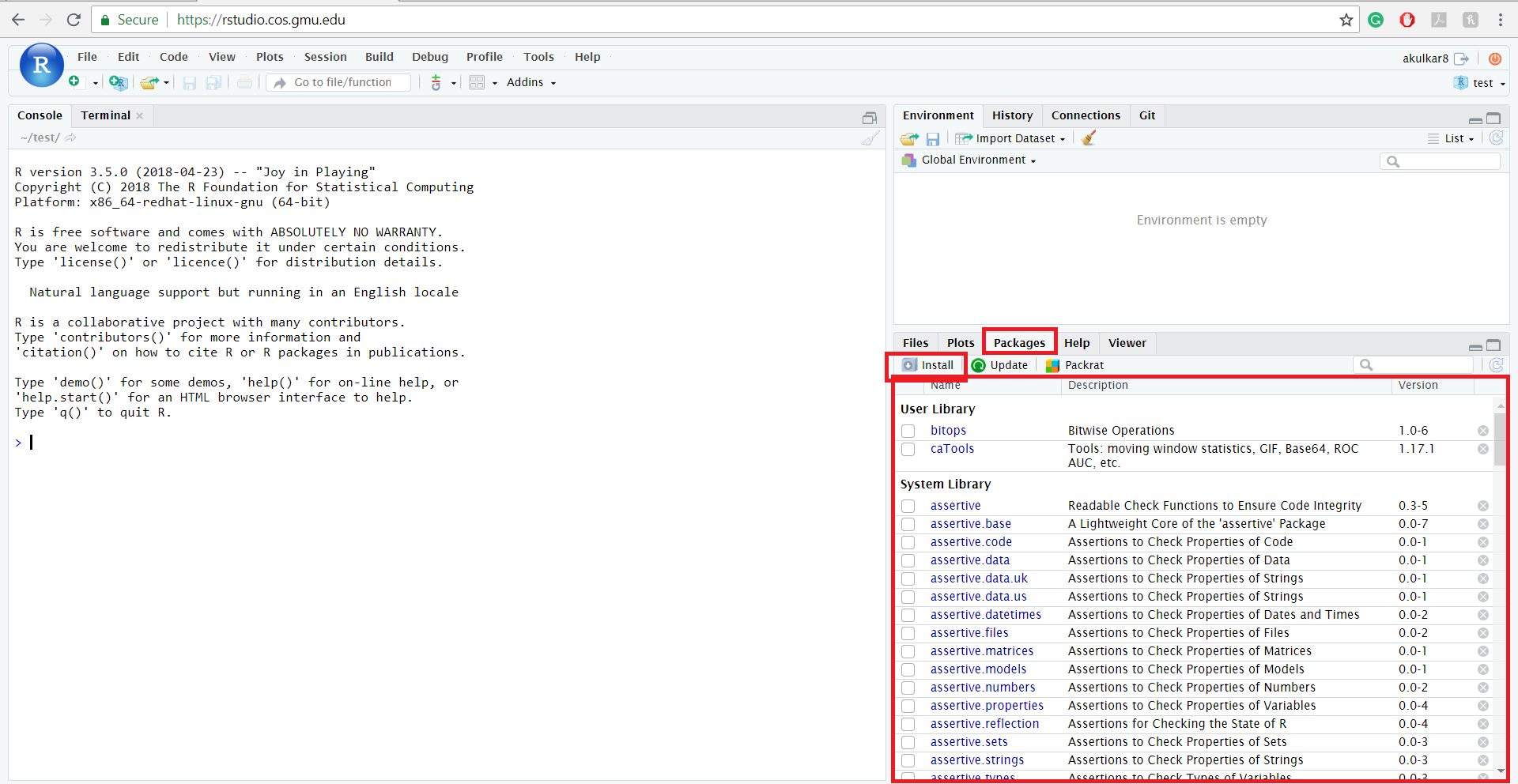
This comprehensive guide is crafted for anyone looking to navigate the intricacies of R package installation, whether you’re a beginner taking your first steps into the R environment or an experienced user encountering installation hurdles. We’ll demystify the process, from standard CRAN installations to advanced methods involving Bioconductor and GitHub, and provide practical solutions for common troubleshooting scenarios. By the end of this article, you’ll be well-equipped to confidently integrate any R package into your workflow, enhancing your analytical prowess and staying ahead in the fast-paced world of technology and data.
Understanding the R Ecosystem and Package Essentials
Before diving into the mechanics of installation, it’s crucial to grasp what R packages are and why they are so integral to the R experience. This foundational understanding will set the stage for a smoother and more effective journey into R’s extensive capabilities.
What are R Packages and Why Do We Need Them?
At its core, R is a powerful statistical language, but its base installation provides only fundamental functions. R packages are collections of functions, data, and compiled code that are distributed in a standardized format to extend the functionality of base R. Think of them as modular add-ons that can be easily plugged into your R environment, much like apps on a smartphone.
The utility of R packages is immense. They allow users to:
- Access specialized algorithms: From advanced statistical modeling (e.g., linear mixed models, survival analysis) to cutting-edge machine learning techniques (e.g., neural networks, support vector machines).
- Create sophisticated visualizations: Packages like
ggplot2transform data plotting into an art form, enabling the creation of publication-quality graphics with minimal code. - Streamline data manipulation: Tools like
dplyranddata.tableprovide highly optimized and intuitive functions for data wrangling, cleaning, and transformation, saving countless hours of manual coding. - Connect to external data sources: Packages exist for seamlessly importing data from databases, web APIs, Excel, CSV, and more.
- Develop interactive applications: With packages like
shiny, users can build dynamic web applications directly from R, making data analysis interactive and shareable.
Without packages, many common data science tasks would be cumbersome, if not impossible, within R. They represent the collective intelligence and contributions of a vibrant global community, making R an incredibly adaptable and powerful tool for a wide array of analytical challenges.
Prerequisites: Setting Up Your R Environment
To install and use R packages, you first need a working R environment. If you haven’t already, the foundational steps involve installing R itself and, ideally, an Integrated Development Environment (IDE) like RStudio.
- Install R: R is free and open-source software available for Windows, macOS, and various Linux distributions. You can download the latest version from the official CRAN website (cran.r-project.org). Follow the installation instructions specific to your operating system.
- Install RStudio (Recommended): While you can use R directly from its command-line interface, RStudio provides a user-friendly and feature-rich environment that significantly enhances productivity. It offers a console, script editor, plot viewer, help pane, and package management tools, making it the de facto standard IDE for most R users. Download RStudio Desktop (Open Source Edition) from rstudio.com.
- Internet Connection: Most R package installations require an active internet connection to download files from online repositories. Ensure your network is stable and not blocked by strict firewalls, especially in corporate or academic settings.
Having R and RStudio installed provides a robust foundation. RStudio, in particular, simplifies many aspects of package management, including installation, loading, and updating, through its intuitive interface and integration with R’s core functions.
The Standard Way: Installing Packages from CRAN
The most common and straightforward method for installing R packages involves using the Comprehensive R Archive Network (CRAN). CRAN is the primary repository for R packages, hosting thousands of user-contributed extensions that have undergone a vetting process for quality and stability.
Using install.packages() Function
The install.packages() function is your go-to command for fetching and installing packages from CRAN. It’s remarkably simple to use and handles many underlying complexities, such as resolving dependencies, automatically.
The basic syntax is:
install.packages("package_name")
Replace "package_name" with the actual name of the package you wish to install. For example, to install ggplot2, one of the most popular packages for data visualization, you would type:
install.packages("ggplot2")
When you execute this command, R will:
- Connect to CRAN: R will communicate with the CRAN network to find the specified package.
- Download package files: It will download the package’s compressed file (a
.tar.gzfor source code, or a binary.zipfor Windows,.tgzfor macOS) along with any necessary dependencies (other packages thatggplot2relies on to function correctly). - Compile and install: On some systems or for certain packages, R might compile the source code. It then installs the package into your R library directory, which is a specific folder on your computer where R stores all installed packages.
A crucial feature of install.packages() is its automatic dependency resolution. If ggplot2 requires other packages (like scales, RColorBrewer, or plyr), R will automatically detect these dependencies and attempt to install them alongside ggplot2. This greatly simplifies the installation process, preventing manual dependency tracking.
Specifying a CRAN Mirror (and Why It Matters)
CRAN operates through a network of “mirrors”—servers located worldwide that host identical copies of the CRAN repository. When you call install.packages(), R needs to know which server to download from.
By default, R might prompt you to choose a mirror interactively, or it might use a default mirror based on your geographic location. However, explicitly choosing a mirror can significantly impact download speed and reliability, especially if the default mirror is distant or heavily loaded.
You can set your preferred CRAN mirror programmatically using the options() function:
options(repos = "https://cran.rstudio.com/")
install.packages("dplyr")
In this example, we’ve set the RStudio CRAN mirror as the default, which is generally a fast and reliable option for many users. You can also explore a list of available mirrors by calling chooseCRANmirror() without arguments, which will open an interactive selection dialog in your R console. Selecting a mirror geographically closer to you or known for good performance can lead to quicker and more stable installations, enhancing your productivity by minimizing waiting times.
Loading and Unloading Packages: library() and require()
It’s a common misconception among beginners that once install.packages() is run, the package is immediately ready for use. While installation places the package files on your system, you must “load” the package into your current R session before you can use its functions. This is where library() and require() come into play.
The library() function is the primary way to load an installed package into your current R session.
# Install the package (only needs to be done once)
install.packages("ggplot2")

# Load the package into the current session (needs to be done every new R session where you want to use it)
library(ggplot2)
After executing library(ggplot2), all the functions and datasets provided by ggplot2 become accessible. For example, you can then use ggplot() or geom_point() without needing to prefix them with ggplot2::.
The require() function serves a similar purpose but behaves slightly differently, particularly in how it handles errors and returns a logical value.
# Using require()
require(ggplot2)
require() returns TRUE if the package is successfully loaded and FALSE if not, whereas library() will throw an error if the package cannot be found or loaded. For most interactive use and in scripts where you want to halt execution if a package isn’t available, library() is preferred. require() is often used in package development or in scripts where you might want to conditionally load packages and handle the absence gracefully.
To detach or unload a package from your current R session (e.g., to free up memory or avoid function name conflicts), you can use detach():
detach("package:ggplot2", unload = TRUE)
This removes the package from your search path, making its functions unavailable until you load it again with library(). Understanding the distinction between installing and loading is critical for effective R package management and ensures your R scripts run smoothly and efficiently.
Beyond CRAN: Advanced Package Installation Methods
While CRAN serves as the bedrock for R package distribution, not all packages reside there. For specialized domains, development versions, or niche contributions, R offers alternative installation methods. These advanced techniques provide flexibility and access to a broader spectrum of tools.
Installing from Bioconductor for Bioinformatics Packages
Bioconductor is a specialized repository catering primarily to packages used in bioinformatics, genomics, and computational biology. It hosts high-quality, extensively documented, and interoperable software for the analysis of high-throughput genomic data. If your work involves gene expression analysis, single-cell sequencing, or similar biological data, you’ll likely encounter Bioconductor packages.
Installing packages from Bioconductor follows a slightly different protocol than CRAN:
-
Install
BiocManager: First, you need to install theBiocManagerpackage from CRAN, which provides the necessary tools to manage Bioconductor installations.install.packages("BiocManager") -
Install Bioconductor Package: Once
BiocManageris installed, you use itsinstall()function to fetch packages from the Bioconductor repository.BiocManager::install("GenomicRanges")Replace
"GenomicRanges"with the name of the Bioconductor package you need.BiocManager::install()handles the complexities of ensuring compatibility between your R version and the Bioconductor version, making the process relatively seamless. Bioconductor packages are often large and may have many dependencies, so a stable internet connection is vital. This method is crucial for researchers and data scientists working in life sciences, as it provides access to cutting-edge tools specific to their domain.
Leveraging GitHub for Development Versions and Niche Packages
GitHub is a widely used platform for version control and collaborative software development. Many R packages are developed on GitHub before (or sometimes instead of) being published to CRAN or Bioconductor. This means you can often access the latest development versions, bug fixes, or entirely new packages that haven’t yet passed CRAN’s submission process, or perhaps never will.
To install packages directly from GitHub, you’ll typically use the devtools package, developed by Hadley Wickham and his team:
-
Install
devtools: If you don’t already have it, install thedevtoolspackage from CRAN.install.packages("devtools") -
Install from GitHub: Once
devtoolsis installed, use itsinstall_github()function. The syntax requires the GitHub user/organization name and the repository name.devtools::install_github("tidyverse/ggplot2") # Installs the development version of ggplot2 devtools::install_github("myusername/mypackage") # Installs a package from your own GitHub repoThis method is invaluable for:
- Accessing the latest features: Often, new functionalities or critical bug fixes are available on GitHub before they reach CRAN.
- Beta testing: Contributing to or testing packages still under active development.
- Niche packages: Some packages might be too specialized for CRAN or maintained by a smaller community, making GitHub their primary distribution channel.
- Private or internal packages: Companies often host their proprietary R packages on internal GitHub instances, which can be installed using this method (with appropriate authentication).
It’s important to note that packages installed from GitHub might be less stable than CRAN versions, as they are often in active development. Use them with caution, especially in production environments, but embrace them for exploring new functionalities and contributing to the R community.
Installing from Local Files or Specific URLs
There are situations where you might need to install an R package from a local file on your computer or directly from a URL that isn’t a CRAN mirror or GitHub. This is common when:
- You are working offline or in an environment without direct internet access to CRAN.
- You have received a package as a
.tar.gz(source) or.zip/.tgz(binary) file. - You want to install a specific version of a package that’s hosted at a unique URL.
For local files, use install.packages() with repos = NULL and type = "source" (for .tar.gz files) or type = "binary" (for .zip or .tgz files):
# For a source package (typically .tar.gz)
install.packages("C:/Users/YourUser/Downloads/mypackage_1.0.0.tar.gz", repos = NULL, type = "source")

# For a Windows binary package (typically .zip)
install.packages("C:/Users/YourUser/Downloads/mypackage_1.0.0.zip", repos = NULL, type = "win.binary")

# For a macOS binary package (typically .tgz)
install.packages("/Users/YourUser/Downloads/mypackage_1.0.0.tgz", repos = NULL, type = "mac.binary")
When installing from a specific URL, you can often use install.packages() directly, provided the URL points to a valid package archive file, or sometimes devtools::install_url() for more complex scenarios.
This flexibility ensures that even in non-standard deployment scenarios, R users can successfully integrate necessary tools into their analytical workflows, promoting robust and adaptable data solutions.
Troubleshooting Common R Package Installation Issues
Despite R’s user-friendly installation mechanisms, users occasionally encounter hurdles. Understanding the common pitfalls and their solutions is a critical skill for any R user, ensuring uninterrupted productivity and a smoother data analysis experience.
Compiler Tools and System Dependencies
Many R packages, especially those that include C, C++, or Fortran code for performance, require system-level compiler tools to be present on your machine during installation. If these tools are missing, R will often fail to compile and install the package from source, resulting in errors.
- Windows (RTools): On Windows, you need to install RTools (R for Windows toolchain). This is a collection of compilers and utilities essential for building R packages from source. You can download the appropriate RTools version for your R installation from the CRAN website (cran.r-project.org/bin/windows/Rtools/). After installation, ensure it’s added to your system’s PATH variable, or follow the RTools documentation for proper setup in R.
- macOS (Xcode Command Line Tools): On macOS, you typically need the Xcode Command Line Tools. You can install them by running
xcode-select --installin your terminal. This provides the necessary compilers likeclangand other development utilities. - Linux (
build-essentialand other libraries): On Debian-based Linux distributions (like Ubuntu), you can install thebuild-essentialpackage, which includesgcc,g++, andmake:sudo apt-get install build-essential. Other Linux distributions will have similar meta-packages. Additionally, some packages might require specific development libraries (e.g.,libcurl-dev,libxml2-dev). Always check the package’s documentation or the error messages for clues about missing system dependencies.
Without these compiler tools, installing source packages (which is the default if a binary isn’t available for your OS and R version) will consistently fail.
Permissions and Directory Access Problems
R packages are installed into “library” directories on your computer. By default, R tries to install packages into a user-specific library path or a system-wide library path. If R doesn’t have the necessary write permissions to these directories, installation will fail.
-
Error Message Clues: Look for messages like “permission denied,” “cannot create directory,” or “cannot open file.”
-
Check Default Library Paths: You can see where R is trying to install packages by running
.libPaths()in your R console. -
Change Default Library: If the default paths are problematic, you can specify an alternative library location where you have write permissions. You can create a new folder (e.g.,
C:/R_Librarieson Windows or~/R_Librarieson Linux/macOS) and then tell R to use it:# Create the directory if it doesn't exist dir.create("C:/R_Libraries", showWarnings = FALSE) # Add it to your library paths (for the current session) .libPaths("C:/R_Libraries") # Now install the package install.packages("mypackage")For a persistent change, you might need to modify your
.Rprofilefile. -
Administrator/Root Privileges: On Windows, sometimes running RStudio “as administrator” can resolve permission issues. On Linux, while
sudocan force installations, it’s generally discouraged for R packages as it can lead to ownership conflicts. It’s better to manage user permissions or use a user-specific library.
Internet Connectivity and Firewall Issues
R package installation requires downloading files, making a stable internet connection crucial. Network-related problems can manifest as download failures, timeouts, or an inability to connect to CRAN mirrors.
- Basic Checks: Ensure your internet connection is active. Try browsing a website to confirm general connectivity.
- Firewalls and Proxies: In corporate or academic environments, strict firewalls or proxy servers can block R’s access to external repositories.
- Proxy Settings: If you are behind a proxy, you might need to configure R to use it. This often involves setting environment variables like
http_proxyandhttps_proxybefore starting R, or usingSys.setenv()within R. Consult your network administrator for the correct proxy address and port. - Firewall Exceptions: You might need to add exceptions for R or RStudio in your firewall software to allow outgoing connections.
- Proxy Settings: If you are behind a proxy, you might need to configure R to use it. This often involves setting environment variables like
R Version Compatibility and Dependency Conflicts
R and its packages are constantly evolving. A package might require a newer (or sometimes older) version of R, or it might conflict with another package already loaded.
- R Version Requirements: Package documentation or CRAN pages often list the minimum R version required. If your R is too old,
install.packages()might fail or install an outdated version of the package. Keep your R installation relatively up-to-date. - Dependency Conflicts: Occasionally, two packages might rely on different versions of a third common dependency, leading to conflicts. While
install.packages()generally manages this well, complex scenarios might arise.renvorpak: For robust dependency management and reproducible environments, especially in project-based work, consider using tools likerenvorpak.renvcreates a project-specific R library, isolating your project’s dependencies and ensuring that collaborators use the exact same package versions. This is a powerful tool for productivity and collaboration in teams.pakis a newer, faster package installer that offers better dependency resolution and can handle complex installations more efficiently.
- Outdated R or RStudio Versions: While not always a direct cause of installation failure, an outdated R or RStudio can lead to compatibility issues, especially with newer packages. Keeping your software updated ensures access to the latest features and bug fixes.
By systematically checking these common areas, you can efficiently diagnose and resolve most R package installation problems, ensuring a smooth and productive workflow.
Maintaining Your R Package Library
Installing packages is just the first step; effective maintenance of your R package library is equally important for long-term productivity and project stability. Regularly updating, removing, and managing package versions ensures that your R environment remains efficient, secure, and compatible with your analytical needs.
Updating Installed Packages
Keeping your R packages up-to-date is crucial for several reasons:
- Bug Fixes: Developers constantly identify and fix bugs, improving the stability and reliability of their packages.
- New Features: Updates often introduce new functionalities, making packages more powerful and versatile.
- Performance Improvements: Optimized code in newer versions can lead to faster execution times.
- Compatibility: Staying current helps maintain compatibility with the latest R versions and other packages.
You can update all installed packages with a single command:
update.packages()
This function checks for newer versions of all currently installed packages on CRAN (or your specified repository). If updates are available, it will prompt you to select which packages to update or update them all automatically, depending on your choices.
To update a specific package, you can simply reinstall it using install.packages():
install.packages("ggplot2")
R will detect that ggplot2 is already installed and offer to update it to the latest version available on CRAN. It’s good practice to perform a full update.packages() periodically to keep your environment fresh.
Removing Unwanted Packages
Just as you install packages, you can also remove them. This is useful for:
- Freeing up disk space: Packages, especially those with many dependencies, can consume significant storage.
- Cleaning up your library: Removing unused packages can make your library easier to manage.
- Resolving conflicts: In rare cases, removing a problematic package might resolve conflicts.
To remove a package, use the remove.packages() function:
remove.packages("mypackage")
This command will remove the specified package and its associated files from your R library. It’s important to note that remove.packages() only removes the specified package, not its dependencies that might have been installed alongside it. Those dependencies might be used by other packages, so R doesn’t remove them automatically unless you explicitly remove all packages that depend on them.
Managing Package Versions for Reproducibility
One of the most significant challenges in data science is ensuring reproducibility. An analysis that works perfectly today might fail months later if the underlying R packages have been updated, introducing breaking changes or altering function behavior. This is where managing package versions for specific projects becomes critical.
Tools like renv (R environments) are designed precisely for this purpose. renv allows you to create isolated, project-specific R libraries. Instead of relying on your global R library, each project gets its own set of packages with their exact versions.
Here’s a simplified workflow with renv:
-
Initialize
renvin a project:# In your project's RStudio session or R console install.packages("renv") renv::init()This creates an
renv/directory in your project, whererenvstores its state and a copy of the packages used by your project. -
Install packages as usual:
R

install.packages("dplyr")

library(dplyr)
renvwill intercept these calls and installdplyrinto your project’s local library. -
Snapshot the environment: When you’re happy with your project’s dependencies, create a snapshot to record the exact versions of all packages used:
R

renv::snapshot()
This generates anrenv.lockfile, which is essentially a manifest of all your project’s packages and their versions. -
Restore the environment: If you or a collaborator opens the project later,
renvcan use therenv.lockfile to restore the exact environment:
R

renv::restore()
This ensures that everyone working on the project, or even your future self, is using the identical package versions, guaranteeing reproducibility and consistency in your analytical outcomes.
renv aligns perfectly with modern software development best practices, enhancing productivity and reliability, especially for collaborative and long-term data projects. It helps you manage your tech stack effectively, ensuring that your R projects deliver consistent results across different environments and over time.
Conclusion
The journey through R package installation, from standard CRAN downloads to advanced methods and troubleshooting, underscores a fundamental truth about R: its strength lies in its community and the expansive ecosystem of packages they contribute. Mastering these installation techniques is more than just learning a few commands; it’s about gaining independence, enhancing your problem-solving capabilities, and ensuring you can always access the latest and most specialized tools for your data analysis endeavors.
By understanding the install.packages() function for CRAN, navigating the unique requirements of Bioconductor, leveraging GitHub for cutting-edge development versions, and confidently tackling common troubleshooting scenarios, you position yourself as a more capable and efficient R user. Furthermore, adopting best practices for package maintenance, such as regular updates and utilizing tools like renv for reproducible environments, transforms your R workflow from reactive to proactive, ensuring the longevity and reliability of your analytical projects.
As you continue your journey in data science, remember that the ability to effectively manage your R packages is a cornerstone skill that will save you countless hours, prevent frustration, and unlock new possibilities. Embrace the dynamic world of R packages, keep exploring, and empower your data analysis with the full spectrum of tools available. Now, go forth and install some R packages – the next big insight awaits!
aViewFromTheCave is a participant in the Amazon Services LLC Associates Program, an affiliate advertising program designed to provide a means for sites to earn advertising fees by advertising and linking to Amazon.com. Amazon, the Amazon logo, AmazonSupply, and the AmazonSupply logo are trademarks of Amazon.com, Inc. or its affiliates. As an Amazon Associate we earn affiliate commissions from qualifying purchases.