
In the vast and ever-evolving landscape of Linux distributions, efficient software management is paramount for maintaining a stable, secure, and productive system. Among the various package management systems, RPM (Red Hat Package Manager) stands out as a foundational technology, especially prevalent in Red Hat Enterprise Linux (RHEL) and its derivatives like Fedora, CentOS, Rocky Linux, and AlmaLinux, as well as openSUSE. Understanding how to correctly install an RPM file is a crucial skill for any Linux user, from system administrators to developers and everyday enthusiasts.
This guide will demystify the process of installing RPM packages, diving deep into the methods, best practices, and troubleshooting techniques. Whether you’re a seasoned Linux veteran looking for a refresher or a newcomer navigating the command line for the first time, this article will equip you with the knowledge to manage your software effectively, ensuring your system remains robust and tailored to your needs. We’ll explore why RPMs are vital for system integrity, how to leverage powerful tools like YUM and DNF, and what to do when things don’t go as planned.
Understanding RPM and the Linux Software Ecosystem
Before diving into the mechanics of installation, it’s essential to grasp what an RPM file is and why it forms the backbone of software distribution on many Linux platforms. This foundational understanding will illuminate the nuances of package management and help you make informed decisions when interacting with your system.
What is an RPM Package?
RPM stands for Red Hat Package Manager, though it is often colloquially referred to as “RPM Package Manager” due to its widespread adoption beyond just Red Hat’s ecosystem. At its core, an RPM file is an archive containing a bundle of files necessary for a piece of software, along with metadata that describes the package. This metadata includes information such as:
- Package Name: The unique identifier for the software (e.g.,
firefox,nginx). - Version: The specific iteration of the software (e.g.,
100.0.1). - Release: A package-specific identifier, often incremented for bug fixes or minor updates to the RPM itself (e.g.,
1.fc36). - Architecture: The CPU architecture it’s compiled for (e.g.,
x86_64,aarch64). - Dependencies: A list of other packages that this software requires to function correctly (e.g., libraries, other utilities).
- Scripts: Pre-installation, post-installation, pre-uninstallation, and post-uninstallation scripts that execute during the package lifecycle.
- Files: All the executable binaries, configuration files, documentation, and data files that make up the software.
RPM files serve as a standardized, efficient, and secure way to distribute, install, upgrade, and remove software on Linux systems. They streamline the deployment process, ensuring that software is installed consistently across different machines and that all necessary components are present.
The Importance of Package Managers
In the early days of Linux, installing software often involved manually compiling source code, a complex and error-prone process. Package managers like RPM revolutionized this by introducing a more automated and robust system. Their importance cannot be overstated for several reasons:
- Dependency Resolution: Perhaps the most significant advantage is automated dependency management. Software rarely exists in isolation; it often relies on other libraries and utilities. Package managers automatically identify, download, and install these dependencies, preventing the dreaded “dependency hell” that plagued manual installations. This is a massive productivity boost for system administrators and users alike.
- System Stability and Consistency: RPM packages are built to integrate seamlessly with the target system. They ensure files are placed in standard locations, configuration settings are applied correctly, and system libraries are respected. This consistency leads to greater system stability and reduces conflicts.
- Simplified Updates and Upgrades: Keeping software up-to-date is crucial for security and performance. Package managers make it trivial to update all installed software with a single command, pulling the latest versions from official repositories. This contributes directly to digital security by patching vulnerabilities promptly.
- Security and Integrity: RPM packages often include GPG (GNU Privacy Guard) signatures. These cryptographic signatures allow users to verify the authenticity and integrity of a package, ensuring it hasn’t been tampered with and comes from a trusted source. This is a critical feature for maintaining digital security.
- Clean Uninstallation: When software is no longer needed, package managers can remove it cleanly, deleting all associated files and configurations without leaving behind orphaned data that could clutter the system.
While RPM is the format, tools like YUM (Yellowdog Updater, Modified) and DNF (Dandified YUM) are the actual package managers that interact with RPM files and repositories. They provide the high-level interface that handles dependency resolution, repository management, and other complex tasks, making RPM installation user-friendly.
RPM vs. Other Package Formats
It’s worth noting that RPM is not the only package format in the Linux world. Debian-based systems (like Ubuntu, Debian, Mint) use .deb packages with tools like APT (Advanced Package Tool). In recent years, universal packaging formats like Snap and Flatpak have emerged, aiming to provide sandboxed applications that run across various distributions, abstracting away the underlying package system.
While these newer formats offer benefits like application isolation and cross-distribution compatibility, RPM remains deeply integrated into the core system utilities and server environments of RHEL-based distributions. Understanding RPM is therefore fundamental for anyone working with these powerful and widely used operating systems.
Prerequisites and System Preparation
Before you can confidently install an RPM file, it’s crucial to ensure your system is properly set up and that you understand the basic operational environment. This section covers the necessary prerequisites, from compatible Linux distributions to acquiring the right permissions.
Linux Distribution Compatibility
RPM packages are designed for Linux distributions that utilize the RPM package management system. The primary distributions you’ll encounter are:
- Fedora: The upstream, community-driven distribution that serves as a testing ground for RHEL.
- Red Hat Enterprise Linux (RHEL): The enterprise-grade, commercially supported distribution.
- CentOS Stream: A rolling-release distribution that tracks just ahead of RHEL releases.
- Rocky Linux: A community-driven, open-source successor to CentOS Linux, aiming for 100% compatibility with RHEL.
- AlmaLinux: Another community-driven, open-source successor to CentOS Linux, also aiming for 100% compatibility with RHEL.
- openSUSE: A distinct, community-driven distribution that also uses RPM but has its own unique ecosystem and tools (like
zypperinstead ofdnffor repository management, thoughrpmcommand works similarly).
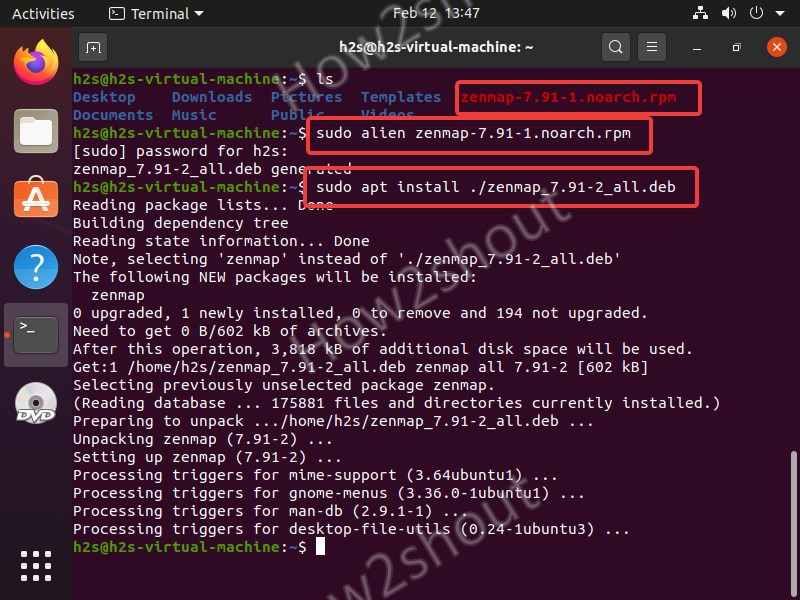
Attempting to install an RPM package on a Debian-based system (like Ubuntu) will not work directly, as they use .deb packages and the APT package manager. While tools like alien can convert packages, it’s generally not recommended for system-critical software due to potential instability.
To verify your Linux distribution, you can use commands like:
cat /etc/os-release
or
hostnamectl
These will provide details about your operating system, including its name and version.
Gaining Root Privileges
Installing software on a Linux system typically requires administrative (root) privileges. This is a security measure to prevent unauthorized changes to the operating system’s core files and configurations. There are two primary ways to gain these privileges:
- Using
sudo: This is the most common and recommended method for daily operations.sudo(substitute user do) allows an authorized user to execute commands as the superuser (root) or another user. You will be prompted for your own user password when usingsudo. Most modern Linux installations configure the initial user withsudocapabilities.
bash

sudo command_to_execute
- Switching to the Root User: While possible, logging in directly as root or using
su -to switch to the root user (su -then root password) is generally discouraged for routine tasks. It poses a greater security risk as any mistake could have catastrophic system-wide consequences. It should be reserved for specific administrative tasks wheresudomight not be sufficient or convenient.
Throughout this guide, we will assume you are using sudo for all commands that require root privileges.
Basic Terminal Navigation
While not strictly a prerequisite for installing an RPM, familiarity with basic terminal commands can greatly aid in locating your downloaded RPM files and navigating your file system.
pwd: Print Working Directory (shows your current location).ls: List files and directories in the current location.cd [directory]: Change Directory (e.g.,cd Downloadsto go to your Downloads folder).ls -l *.rpm: List all files ending with.rpmin the current directory with detailed information.
Before attempting to install an RPM file, ensure you have downloaded it to a known location, typically your Downloads folder, or directly into your home directory.
Step-by-Step RPM Installation Methods
With the foundational knowledge and prerequisites covered, let’s explore the practical methods for installing RPM packages. We will cover the two primary command-line tools: DNF (or YUM, its predecessor) and the rpm command itself, along with a brief mention of graphical approaches.
Method 1: Installing RPMs with YUM/DNF (The Recommended Approach)
DNF (Dandified YUM) is the modern, next-generation package manager for RPM-based distributions like Fedora, CentOS Stream, Rocky Linux, and AlmaLinux. It replaced YUM (Yellowdog Updater, Modified), which is still present on older RHEL 7 and CentOS 7 systems. DNF/YUM is the preferred method for installing software because it automatically resolves and installs dependencies, making the process much smoother and less prone to errors.
A. Installing a package from official repositories:
This is the most common scenario. When you install software this way, DNF/YUM pulls the package from configured online repositories, ensuring you get a trusted, compatible version.
- Update your package list: It’s good practice to update your system’s package information before installing new software. This ensures DNF/YUM has the latest repository data.
bash

sudo dnf update

# or for older systems:

sudo yum update
- Install the package: Use the
installcommand followed by the package name. DNF/YUM will search its configured repositories.
bash

sudo dnf install package_name

# Example: sudo dnf install firefox

# or for older systems:

sudo yum install package_name
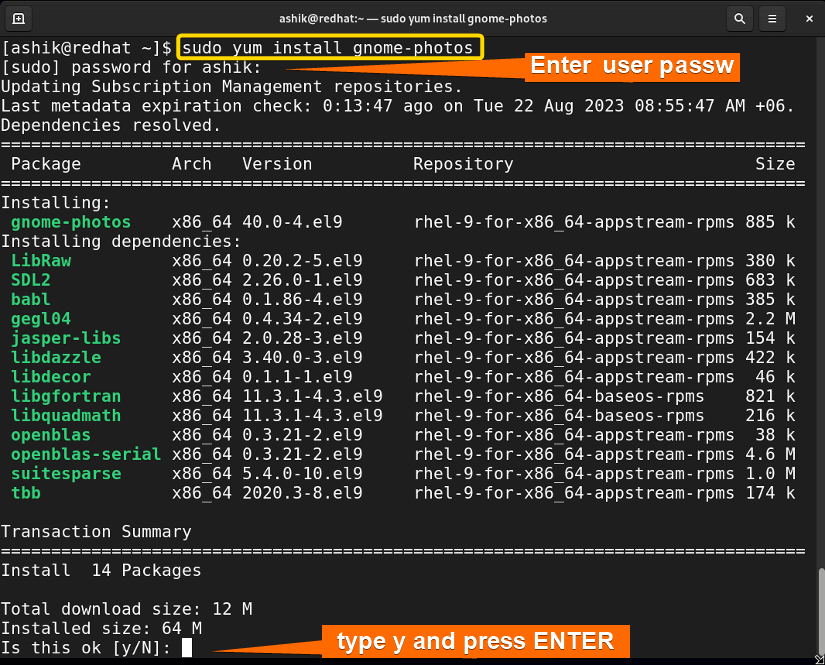
DNF/YUM will list the package and its dependencies, ask for confirmation (y/N), and then proceed with the download and installation.
B. Installing a locally downloaded RPM file:
Sometimes you might download an RPM file directly from a vendor’s website or a third-party source (e.g., Google Chrome’s RPM). You can still use DNF/YUM to install these local files, and it will still attempt to resolve any dependencies from your configured repositories. This is a significant advantage over the raw rpm command.
- Navigate to the directory containing the RPM file:
bash

cd /path/to/your/downloaded/files

# Example: cd ~/Downloads
- Install the local RPM file:
bash

sudo dnf install ./package_name.rpm

# Example: sudo dnf install google-chrome-stable_current_x86_64.rpm

# The './' is important to tell dnf/yum it's a local file in the current directory.

# or for older systems:

sudo yum install ./package_name.rpm
DNF/YUM will check the local RPM file, determine its dependencies, and then download and install any missing dependencies from its repositories before installing the local RPM. This is usually the safest and most convenient way to install third-party RPMs.
Method 2: Using the rpm Command (Direct but Advanced)
The rpm command is the low-level tool that directly interacts with the RPM database and packages. While powerful, it does not automatically resolve dependencies. This means if a package requires other software that isn’t already installed, the rpm command will fail, and you’ll have to find and install those dependencies manually. For this reason, rpm is generally not recommended for routine package installation unless you explicitly know and manage all dependencies.
This method is more often used by system administrators for specific tasks like querying package information, verifying packages, or installing packages in highly controlled environments where dependency resolution is handled externally.
-
Navigate to the directory containing the RPM file:
bash

cd /path/to/your/downloaded/files

# Example: cd ~/Downloads
-
Install the RPM file using
rpm:
The common flags for installation are:-i: Install the package.-v: Verbose output (shows what’s happening).-h: Show hash marks (#) as the package unpacks (progress indicator).
sudo rpm -ivh package_name.rpm
# Example: sudo rpm -ivh zoom_x86_64.rpm
If the installation fails due to missing dependencies, you will see an error message similar to:
error: Failed dependencies:
    libXScrnSaver.so.1()(64bit) is needed by zoom-5.12.9-1.x86_64
    ...
In such cases, you would typically use
dnf installto install those missing dependencies one by one or, better yet, just usednf install ./package_name.rpmfrom the start, as described in Method 1.Cautionary Flags (Use with Extreme Care):
--nodeps: Force installation without checking dependencies. This can break your system if dependencies are truly missing. Use ONLY if you are absolutely sure about what you’re doing.--force: Force installation even if files conflict or the package is already installed. Also highly risky.--import /path/to/gpg/key: Import a GPG public key. This is used when an RPM package is signed with a key that your system doesn’t trust. Importing unknown keys can be a security risk.
Method 3: Graphical Package Managers (User-Friendly Approach)
For desktop Linux users, many distributions provide graphical interfaces that simplify software installation, often abstracting away the command-line complexities of DNF/YUM or RPM. Examples include:
- GNOME Software Center (or “Software”): Common in Fedora Workstation, CentOS Stream Workstation, and other GNOME-based environments.
- KDE Discover: Found in openSUSE KDE Plasma, Fedora KDE Spin, etc.
These tools allow you to browse, search for, and install software packages with a few clicks. If you’ve downloaded an RPM file, you can often simply double-click it in your file manager, and the graphical package manager will open, providing an “Install” button. These graphical tools usually leverage DNF/YUM (or Zypper on openSUSE) in the background, so they generally handle dependencies correctly.
While user-friendly, graphical package managers might not always provide the detailed error messages or control that the command line offers, which can be important for troubleshooting.
Common Challenges and Troubleshooting
Even with the best tools, you might occasionally encounter issues when installing RPM packages. Understanding common problems and how to troubleshoot them is key to maintaining a healthy Linux system and enhancing your digital security posture.
Resolving Dependency Conflicts (“Dependency Hell”)
The most frequent challenge with RPM installations (especially when using the raw rpm command) is dependency resolution. If a package requires a specific version of another library, and your system has a different, incompatible version, or the required library isn’t installed at all, you’ll hit a dependency conflict.
Why DNF/YUM is Superior:
This is precisely why DNF/YUM is recommended. It maintains a database of available packages and their dependencies from all configured repositories. When you request an installation, DNF/YUM calculates the entire dependency tree and attempts to find a compatible set of packages. If it cannot, it will tell you before making any changes.
Troubleshooting with DNF/YUM:
If DNF/YUM reports dependency errors when installing a local RPM, it usually means:
- Missing Repository: The required dependency isn’t available in your currently enabled repositories. You might need to enable a new repository (e.g., EPEL – Extra Packages for Enterprise Linux, or a third-party repository).
bash

# Example to enable EPEL on RHEL/CentOS-like systems:

sudo dnf install epel-release

sudo dnf update
- Conflicting Versions: The local RPM might require a dependency that conflicts with a version already installed or available in your repositories. DNF/YUM is usually good at handling this, but sometimes manual intervention (e.g., removing a conflicting package, which should be done with extreme caution) might be necessary.
- Corrupted Metadata: Very rarely, DNF/YUM’s cache or metadata can become corrupted. Cleaning it can help:
bash

sudo dnf clean all

sudo dnf makecache
Troubleshooting with rpm (if you insist):
If you used rpm -ivh and got dependency errors, you’d have to:
- Read the error message carefully to identify the missing libraries/packages.
- Search for those packages using
dnf search [dependency_name]. - Install them using
sudo dnf install [dependency_name]. - Then retry your
rpm -ivhcommand. This iterative process is time-consuming and highlights why DNF/YUM is superior.
GPG Key Verification Errors
When you download an RPM package, it’s common practice for it to be digitally signed with a GPG key. This signature allows you to verify two things:
- Authenticity: The package genuinely comes from the stated vendor.
- Integrity: The package has not been tampered with since it was signed.
If you try to install a signed RPM and get a GPG key error (e.g., “GPG key not found” or “public key for X is not installed”), it means your system doesn’t trust the signature.
Solution:
You need to import the public GPG key of the package vendor into your system’s RPM keyring. The vendor usually provides this key on their download page or within their repository configuration files.
- Download the GPG key: It’s usually a
.gpg,.asc, or.keyfile.
bash

wget https://example.com/RPM-GPG-KEY-VendorName -O /tmp/RPM-GPG-KEY-VendorName
- Import the key:
bash

sudo rpm --import /tmp/RPM-GPG-KEY-VendorName
After importing, retry the installation. Be extremely cautious about importing GPG keys from untrusted sources, as this essentially tells your system to trust software signed by that key. This is a critical digital security practice.
Conflicting Packages and File Conflicts
Sometimes, an RPM package might try to install files that already exist or conflict with files owned by another installed package. This leads to file conflict errors.
Troubleshooting:
- Identify the conflicting package/file: The error message will usually tell you which file is causing the conflict and which package currently owns it.
- Consider removal: If the conflicting package is not essential, you might consider removing it (using
sudo dnf remove conflicting_package_name) before installing the new one. This is risky and should be done with caution. --replacefiles(DANGEROUS): With therpmcommand, you can use--replacefilesto force the new package to overwrite existing files. This is almost never a good idea as it can break the functionality of the package that originally owned those files and compromise system stability. Avoid this unless you are fully aware of the consequences.- Find an alternative: The best solution is often to find a version of the software that doesn’t conflict, or investigate if there’s a specific repository or configuration that resolves the conflict.
RPM Database Corruption
The RPM database stores information about all installed packages, their files, and dependencies. If this database becomes corrupted, DNF/YUM and rpm commands can start behaving erratically or fail.
Solution:
You can rebuild the RPM database. This is a relatively safe operation and often resolves obscure RPM-related issues.
sudo rpm --rebuilddb
This command rebuilds the RPM database from the package headers stored in /var/lib/rpm, which might fix inconsistencies.
Managing Your RPM Packages (Beyond Installation)
Installing an RPM is just one part of the lifecycle of software on your Linux system. Effective package management also involves verifying, updating, and removing software. Mastering these operations contributes to better system maintenance and productivity.
Verifying Installed Packages
After installing a package, or at any point, you might want to verify its status or get more information about it.
- List all installed RPM packages:
bash

rpm -qa | less

# The 'less' command allows you to scroll through the long list.

# To search for a specific package:

rpm -qa | grep "package_name"

# Example: rpm -qa | grep "firefox"
- Query detailed information about a specific package:
This command provides a wealth of information including version, release, installation date, summary, description, and more.
bash

rpm -qi package_name

# Example: rpm -qi firefox
- List files installed by a package:
bash

rpm -ql package_name

# Example: rpm -ql firefox
- Verify the integrity of installed files:
This command checks if any files owned by the package have been modified since installation. It’s useful for detecting potential tampering or accidental deletions.
bash

rpm -V package_name

# Example: rpm -V firefox
Updating RPM Packages
Keeping your software up-to-date is crucial for security, performance, and accessing new features. DNF/YUM makes this incredibly easy.
-
Update all installed packages:
This command checks all enabled repositories for newer versions of your installed packages and installs them.sudo dnf update # or for older systems: sudo yum updateIt’s generally recommended to run
sudo dnf updateregularly (e.g., weekly or monthly) to ensure your system is patched against known vulnerabilities and has the latest stable software. -
Update a specific package:
If you only want to update one package, you can specify its name.
bash

sudo dnf update package_name

# Example: sudo dnf update firefox
However, a full system update is usually preferable to avoid dependency mismatches.
Uninstalling RPM Packages
When software is no longer needed, you should remove it to free up disk space and reduce potential attack surfaces.
-
Remove a package using DNF/YUM (Recommended):
DNF/YUM will not only remove the specified package but also any dependencies that were installed solely for that package and are no longer needed by anything else (autoremove).sudo dnf remove package_name # Example: sudo dnf remove firefox # or for older systems: sudo yum remove package_nameDNF/YUM will list the packages it intends to remove and ask for confirmation.
-
Remove a package using
rpm(Use with Caution):
Therpm -ecommand removes a package, but it does not handle dependencies. If other packages rely on the one you’re trying to remove,rpmwill refuse the uninstallation (unless forced with--nodeps, which is highly dangerous). It also won’t automatically remove orphaned dependencies.
bash

sudo rpm -e package_name

# Example: sudo rpm -e zoom
Given the risks and lack of dependency handling, always preferdnf removeoverrpm -e.
Reinstalling and Upgrading Specific Packages
Sometimes, a package might become corrupted, or you might want to force a reinstallation to fix issues.
-
Reinstall a package:
sudo dnf reinstall package_nameThis command uninstalls and then reinstalls the package, which can fix issues caused by corrupted files.
-
Downgrade a package:
In rare cases, you might need to revert to an older version of a package. This is generally discouraged as it can introduce security vulnerabilities or dependency conflicts, but it’s possible.
bash

sudo dnf downgrade package_name
You might need to specify the exact version you want to downgrade to:sudo dnf downgrade package_name-version-release.arch.
Conclusion
Mastering the art of installing and managing RPM files is an indispensable skill for anyone working with Red Hat-based Linux distributions. From understanding the structure of an RPM package to leveraging the robust capabilities of DNF/YUM, this guide has provided a comprehensive overview of the processes involved. We’ve explored the critical role of package managers in ensuring system stability, security, and productivity, emphasizing how tools like DNF automate complex dependency resolution to save you time and prevent system headaches.
Remember to prioritize sudo dnf install for all your installation needs, as it is the most intelligent and safest method. Reserve the rpm command for specific, advanced queries or installations where you fully understand the implications of manual dependency management. Always pay attention to GPG key verification for digital security, and keep your system updated regularly to maintain optimal performance and patch against vulnerabilities.
By diligently applying these practices, you’ll ensure your Linux environment remains robust, secure, and perfectly tailored to support your technology endeavors, whether you’re developing cutting-edge AI tools, managing critical server infrastructure, or simply enjoying a powerful, open-source operating system. The ability to confidently manage your software is a cornerstone of effective tech utilization, empowering you to harness the full potential of your Linux machine.
aViewFromTheCave is a participant in the Amazon Services LLC Associates Program, an affiliate advertising program designed to provide a means for sites to earn advertising fees by advertising and linking to Amazon.com. Amazon, the Amazon logo, AmazonSupply, and the AmazonSupply logo are trademarks of Amazon.com, Inc. or its affiliates. As an Amazon Associate we earn affiliate commissions from qualifying purchases.