
In today’s digitally driven world, smartphones are more than just communication devices; they are indispensable tools for productivity, entertainment, and connection. At the heart of this utility lies the vast ecosystem of mobile applications. For Android users, mastering the art of installing apps is fundamental to unlocking the full potential of their devices. Whether you’re a seasoned tech enthusiast or new to the Android platform, understanding the various methods of app installation, along with critical security considerations, is paramount. This comprehensive guide will walk you through the primary ways to get applications onto your Android phone, from the official, secure channels to alternative methods, while emphasizing best practices for digital security and efficient device management.

The Official and Safest Route: Installing Apps via the Google Play Store
For the vast majority of Android users, the Google Play Store is the quintessential gateway to the world of applications. As Google’s official app marketplace, it offers unparalleled convenience, a staggering selection of apps, and robust security measures designed to protect users from malicious software. Utilizing the Play Store is not just about ease; it’s a foundational aspect of maintaining a secure and high-performing Android device.
Navigating the Play Store: Your Digital Hub
The Google Play Store is more than just a download portal; it’s a meticulously curated digital storefront where developers can showcase their creations to billions of Android users worldwide. From productivity suites and innovative AI tools to immersive games and essential utilities, the Play Store acts as a centralized, trusted repository. Its stringent review process for apps, continuous security scans (Google Play Protect), and seamless update mechanisms make it the most recommended method for app installation. For individuals and businesses alike, leveraging the Play Store ensures that apps are generally vetted for safety, compatibility, and functionality, contributing to a more stable and secure mobile experience. This focus on reliability and security aligns perfectly with the contemporary emphasis on digital security and robust software solutions within the tech landscape.
Step-by-Step Guide to Installation
Installing an app from the Google Play Store is a straightforward process, designed for intuitive user interaction.
- Open the Google Play Store App: Locate the Play Store icon on your home screen or in your app drawer, typically represented by a colorful triangle. Tap to open it.
- Search or Browse for Apps:
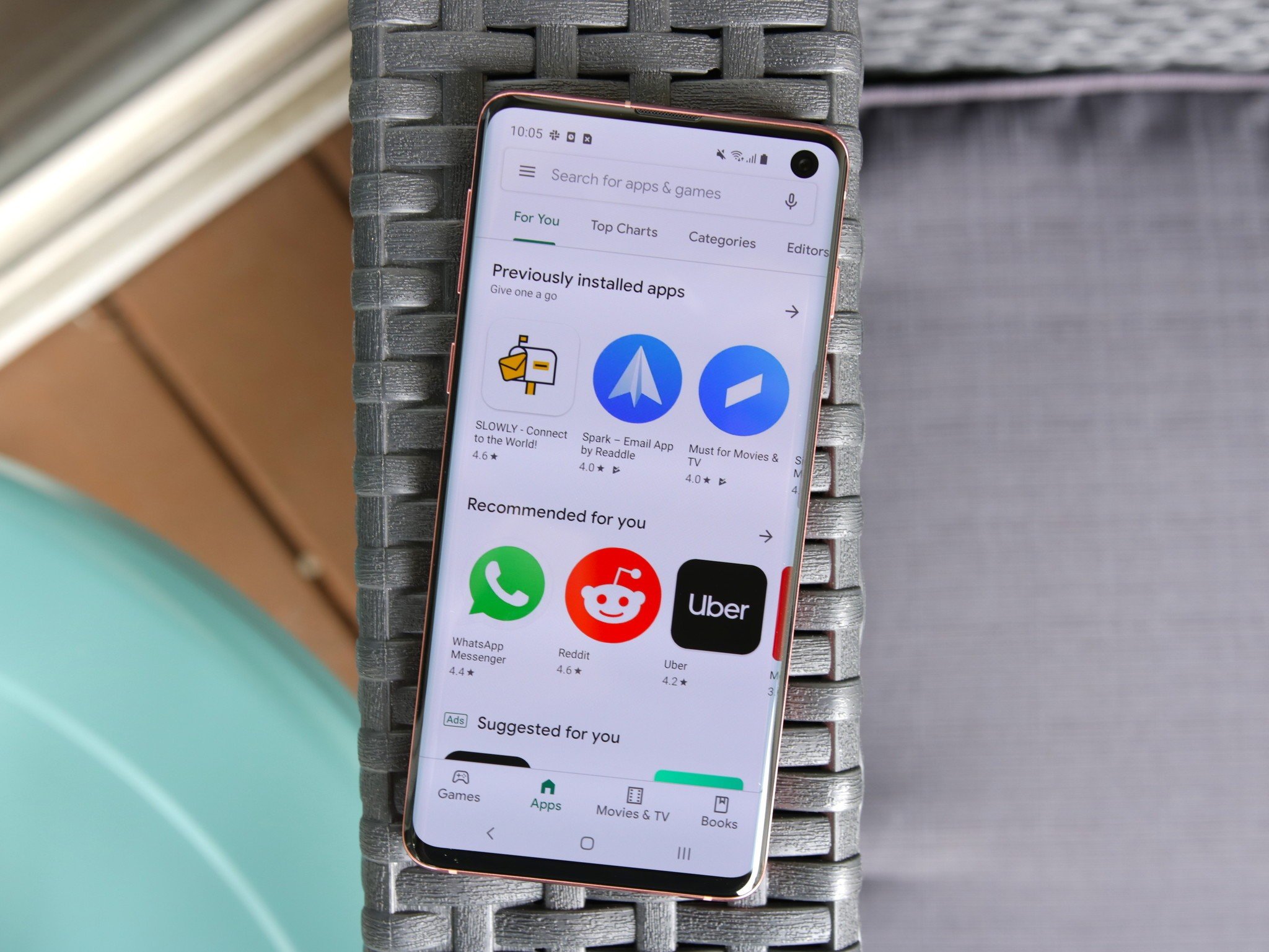
- Search: If you know the name of the app you want, tap the search bar at the top of the screen (often labeled “Search for apps & games”) and type the app’s name or keywords.
- Browse: Explore categories, trending apps, editor’s picks, or top charts by scrolling through the main page or using the category tabs.
- Select an App: Once you find an app that interests you, tap on its icon to open its dedicated page. Here, you’ll find essential information, including a description, screenshots, user reviews, ratings, and the app’s size. Pay close attention to the developer’s name and user reviews to gauge an app’s credibility and functionality, a crucial step in evaluating any digital product.
- Initiate Installation: On the app’s page, you’ll see a prominent “Install” button. For paid apps, this button will display the price. Tap “Install” (or the price button).
- Review Permissions (Optional but Recommended): Before the download begins, some apps may ask for specific permissions to access features on your phone (e.g., camera, location, contacts). While Android’s permission model has evolved, it’s still wise to review these requests. Ensure the requested permissions align logically with the app’s stated function. For example, a camera app legitimately needs camera access, but a simple calculator app likely does not.
- Download and Install: The app will begin downloading. Once the download is complete, it will automatically install on your device. The progress is usually indicated by a percentage or a circular progress bar.
- Open the App: After successful installation, the “Install” button will change to “Open.” You can tap this to launch the app immediately. Alternatively, a new icon for the app will appear on your home screen or in your app drawer, ready for future use.
Keeping Your Apps Up-to-Date and Organized
Effective app management extends beyond initial installation. Regularly updating and organizing your apps ensures optimal performance, enhanced security, and a clutter-free digital environment.
- Automatic Updates: Most Android phones are set to update apps automatically over Wi-Fi by default. This is a crucial security feature, as updates often include patches for vulnerabilities and performance improvements. To manage this setting, go to Play Store > Profile icon (top right) > Settings > Network preferences > Auto-update apps.
- Manual Updates: If you prefer more control, you can disable automatic updates and update apps manually. To do this, go to Play Store > Profile icon > Manage apps & device > Updates available. Here, you can choose to update individual apps or “Update all.”
- Uninstalling Apps: To remove an app you no longer need, find its icon on your home screen or in the app drawer, long-press it, and drag it to the “Uninstall” option that appears (or tap the “i” icon for App Info and select Uninstall). Alternatively, go to Settings > Apps & notifications > See all apps, select the app, and tap “Uninstall.” Regularly decluttering your device by removing unused apps frees up storage space and can improve overall phone performance, contributing to digital productivity.
- Managing App Permissions: Even after installation, you can review and revoke permissions for any app. Go to Settings > Apps & notifications > See all apps, select the app, then tap “Permissions.” Here, you can toggle permissions on or off based on your privacy preferences. This granular control is vital for safeguarding your personal data and maintaining digital security.
Venturing Beyond: Sideloading Apps Using APK Files
While the Google Play Store is the primary and recommended source for apps, Android’s open nature allows for alternative installation methods. Sideloading, the process of installing applications from sources other than the official Play Store, is one such method. This typically involves using an Android Package Kit (APK) file, which is the package file format used by the Android operating system for distribution and installation of mobile apps.
Understanding APKs and Why Sideloading Exists
An APK file is essentially a complete package containing all the elements an app needs to install correctly on an Android device. Think of it as the .exe file for Windows or .dmg for macOS. Sideloading with APKs offers flexibility and access to a broader range of applications. Reasons for sideloading might include:
- Accessing Geo-Restricted Apps: Some apps are not available in certain regions through the Play Store.
- Downloading Beta Versions or Pre-Release Apps: Developers often distribute beta versions of their apps via APKs for testing before a wider public release.
- Apps Not Available on Play Store: Some legitimate apps might not meet Google’s Play Store policies or are niche tools developed for specific purposes outside the mainstream.
- Restoring Older App Versions: If an update introduces unwanted changes or bugs, users might sideload an older, stable version.
- Open-Source or Custom Apps: Many open-source projects or highly customized apps are distributed directly by their developers.
The Inherent Risks and Security Considerations
While sideloading offers flexibility, it comes with significant security risks that are crucial to understand. When you bypass the Google Play Store, you also bypass its robust security vetting processes (Google Play Protect) and continuous malware scanning.
- Malware and Viruses: The most significant risk is downloading malicious software. Unofficial sources are often a breeding ground for apps embedded with malware, spyware, ransomware, or adware. These can compromise your personal data, steal banking information, or hijack your device for illicit activities.
- Privacy Concerns: Unvetted apps might request excessive permissions and collect far more data than necessary, potentially selling it to third parties or using it for intrusive advertising.
- Lack of Updates: Sideloaded apps typically don’t receive automatic updates. This means you could be running outdated versions with unpatched security vulnerabilities, making your device susceptible to new threats.
- Incompatibility and Instability: Apps from unofficial sources might not be optimized for your device model or Android version, leading to crashes, performance issues, or instability.
For these reasons, exercising extreme caution when sideloading is paramount. It demands a heightened awareness of digital security and a commitment to verifying the source of every APK file.
A Step-by-Step Guide to Sideloading Safely (with caveats)
If you must sideload an app, follow these steps with caution:
-
Enable “Install unknown apps” (or “Unknown sources”):
- This critical security setting prevents your phone from installing apps from non-Play Store sources by default. You’ll need to enable it for the specific app (e.g., your browser or file manager) you’ll use to download and open the APK.
- For Android 8.0 (Oreo) and newer: Go to
Settings > Apps & notifications > Special app access > Install unknown apps. Here, you’ll see a list of apps (like Chrome, Files, or your preferred browser). Tap on the app you’ll use to download the APK and toggle “Allow from this source” ON. - For Android 7.0 (Nougat) and older: Go to
Settings > Securityand toggle “Unknown sources” ON. You’ll receive a warning message; read and acknowledge it. - Crucial Caveat: As soon as you finish installing your APK, it is strongly recommended to disable this permission immediately to minimize ongoing security risks.
-
Find a Reliable APK Source: This is the most critical step. Only download APKs from reputable websites that have a strong track record for providing safe files. Look for well-known Android tech sites, trusted open-source repositories, or the official website of the app developer itself. Avoid obscure forums, suspicious download links, or sites that bombard you with pop-ups. Check for HTTPS in the URL to ensure a secure connection.
-
Download the APK File: Use your phone’s browser to navigate to your chosen source and download the APK file. Your browser will likely warn you that “This type of file can harm your device”; this is a standard warning for any APK downloaded outside the Play Store. Proceed only if you trust the source.
-
Install the APK File:
- Once the download is complete, you’ll usually see a “Open” notification in your browser or notification shade. Tap on it.
- Alternatively, open your phone’s file manager app, navigate to the “Downloads” folder, and tap on the downloaded APK file.
- Your phone will then ask if you want to install the application. Tap “Install.”
- The app will install, and once complete, you’ll see “App installed” and options to “Open” or “Done.”
-
Disable “Install unknown apps” (CRITICAL): After the app is installed, immediately return to
Settings > Apps & notifications > Special app access > Install unknown apps(orSettings > Securityfor older versions) and toggle OFF “Allow from this source” for the app you enabled, or “Unknown sources” generally. This minimizes the window of vulnerability.
Best Practices for Secure and Efficient App Management
Whether you’re installing from the Play Store or cautiously sideloading, a proactive approach to app management is essential for maintaining your device’s security, privacy, and performance. This isn’t just about avoiding threats; it’s about optimizing your digital workflow and protecting your personal brand in the online sphere.
Vetting Apps Before Installation
Prevention is always better than cure. Before hitting that “Install” button, take a moment to evaluate the app.
- Read Reviews and Ratings: The Google Play Store features user reviews and ratings prominently. Look for patterns in feedback: do many users report bugs, excessive ads, or suspicious behavior? A high rating with many recent positive reviews is a good sign. Be wary of apps with very few reviews or suspiciously generic five-star ratings.
- Check Developer Reputation: Who developed the app? Is it a well-known company or an independent developer with a solid portfolio? Tap on the developer’s name in the Play Store to see other apps they’ve created. A reputable developer is less likely to publish malicious or poorly made software.
- Scrutinize App Permissions: As mentioned earlier, understand what permissions an app requests. Does a flashlight app really need access to your contacts or location? If the permissions seem excessive or unrelated to the app’s core functionality, it’s a red flag. Reviewing privacy policies, if available, can also provide insight into how your data will be handled. This meticulous approach to app selection directly ties into digital security and personal data protection, vital elements for any tech-savvy individual.
- Consider “Freemium” Models: Many free apps rely on in-app purchases or ads. Understand the business model before installing. While not inherently bad, some apps can be overly aggressive with ads or push intrusive subscription models.
The Importance of Regular Updates
Keeping your apps and your Android operating system updated is arguably the single most important action you can take to ensure digital security and optimal device performance.
- Security Patches: Software vulnerabilities are constantly discovered. Developers and Google regularly release updates that “patch” these security holes, preventing malicious actors from exploiting them. Running outdated software is like leaving your front door unlocked.
- Bug Fixes and Performance Improvements: Updates often address bugs, fix compatibility issues, and enhance an app’s stability and speed. This leads to a smoother, more reliable user experience.
- New Features: Developers frequently introduce new features and functionalities through updates, enriching your app experience and keeping you abreast of the latest tech trends.
- Compatibility: Updates ensure that your apps remain compatible with the latest Android operating system versions and other system changes, preventing crashes or unexpected behavior.
Make sure your phone is set to receive system updates automatically, and regularly check for app updates in the Google Play Store.
Troubleshooting Common App Installation Issues
Even with the best practices, you might occasionally encounter an issue when trying to install an app. Understanding how to troubleshoot common problems can save you time and frustration, getting you back to leveraging your device’s full potential.

Addressing Installation Problems
- Insufficient Storage Space: This is perhaps the most common reason for installation failures. Android apps can be quite large, and if your phone’s internal storage is full, new installations will fail.
- Solution: Go to
Settings > Storageto see what’s consuming space. Delete unnecessary files, clear app caches (Settings > Apps > [App Name] > Storage > Clear cache), or uninstall unused apps. Consider moving photos/videos to cloud storage or an SD card if your phone supports it.
- Solution: Go to
- Network Connectivity Issues: A stable internet connection (Wi-Fi or mobile data) is required to download apps.
- Solution: Check your Wi-Fi or data connection. Try toggling Airplane Mode on and off, or restart your router. Test your internet connection by trying to load a webpage.
- Google Play Store Cache/Data Corruption: Sometimes, the Play Store itself can become buggy due to corrupted cache or data.
- Solution: Go to
Settings > Apps & notifications > See all apps > Google Play Store > Storage & cache. Tap “Clear cache” first, and if that doesn’t work, try “Clear storage” (this will reset the Play Store app but won’t delete your apps or data). Restart your phone afterward.
- Solution: Go to
- Incompatible App Version: The app you’re trying to install might not be compatible with your Android version or device hardware. This is more common with sideloaded APKs.
- Solution: Check the app’s requirements on its Play Store page or the APK source. Ensure your device meets the minimum Android version and hardware specifications.
- SD Card Issues: If you’re attempting to install an app directly to an SD card (though this is less common with modern Android versions), a corrupted or improperly formatted SD card can cause issues.
- Solution: Remove and reinsert the SD card. If problems persist, try formatting it (backing up data first) or test installing to internal storage.
- Parental Controls or Restrictions: If parental controls are enabled on your device or Google account, they might be preventing certain app installations.
- Solution: Check
Google Play Store > Profile icon > Settings > Family > Parental controlsand adjust settings as needed.
- Solution: Check
By systematically addressing these potential issues, you can quickly diagnose and resolve most app installation problems, ensuring a smooth and uninterrupted experience with your Android device.
In conclusion, installing apps on your Android phone is a fundamental aspect of the modern mobile experience. While the Google Play Store remains the safest, most convenient, and highly recommended method, understanding alternative approaches like sideloading, along with their associated risks, empowers you to make informed decisions. By prioritizing digital security, diligently vetting apps, and maintaining regular updates, you can ensure a secure, efficient, and personalized Android experience that truly enhances your digital life. Staying informed about app management best practices is not just about convenience; it’s a vital component of protecting your digital footprint in an ever-evolving technological landscape.
aViewFromTheCave is a participant in the Amazon Services LLC Associates Program, an affiliate advertising program designed to provide a means for sites to earn advertising fees by advertising and linking to Amazon.com. Amazon, the Amazon logo, AmazonSupply, and the AmazonSupply logo are trademarks of Amazon.com, Inc. or its affiliates. As an Amazon Associate we earn affiliate commissions from qualifying purchases.