
In today’s increasingly connected world, Bluetooth technology has become an indispensable part of our digital lives. From wirelessly connecting headphones and speakers to syncing smartphones and keyboards, Bluetooth offers a convenient and cable-free way to interact with our devices. However, not all computers come with Bluetooth pre-installed. If you find yourself wondering, “How do I install Bluetooth on my computer?”, you’re in the right place. This comprehensive guide will walk you through the process, covering various scenarios and providing clear, actionable steps. Whether you’re a seasoned tech enthusiast or a novice user, you’ll be able to add this essential functionality to your PC.

Understanding Bluetooth and Your Computer’s Needs
Before diving into the installation process, it’s crucial to understand what Bluetooth is and why your computer might not have it. Bluetooth is a short-range wireless technology standard used for exchanging data between fixed and mobile devices over short distances. It operates in the unlicensed 2.4 GHz industrial, scientific, and medical (ISM) band.
Why Your Computer Might Lack Bluetooth
Historically, Bluetooth was not a standard feature on all desktop computers. While most laptops have included it for years, many desktops, especially older models or those built with a focus on cost savings, may omit this functionality. You might also have a computer that used to have Bluetooth, but the hardware has since failed, or the drivers have become corrupted.
Identifying Your Computer’s Bluetooth Status
The first step in installing Bluetooth is to determine if your computer already has it. This is a straightforward process that can save you from unnecessary purchases or troubleshooting.
Checking Device Manager
The most reliable way to check for existing Bluetooth hardware is through your computer’s Device Manager.
-
Access Device Manager:
- Windows 10/11: Right-click the Start button and select “Device Manager.” Alternatively, press
Windows Key + R, typedevmgmt.msc, and press Enter. - Older Windows versions: Go to Control Panel > System > Hardware tab > Device Manager.
- Windows 10/11: Right-click the Start button and select “Device Manager.” Alternatively, press
-
Look for Bluetooth: In the Device Manager window, scroll through the list of devices. Look for a category named “Bluetooth.” If you see it, your computer likely has Bluetooth hardware. You might also find Bluetooth-related devices under “Network adapters” or “Other devices” (if drivers are missing).
-
Inspect for Errors: If you find a “Bluetooth” category, expand it. Check for any yellow exclamation marks or red ‘X’ symbols next to the Bluetooth adapter. These indicate a problem with the driver or hardware.
Other Indicators
- System Tray: On some Windows versions, a Bluetooth icon might appear in the system tray (the area next to the clock on the taskbar) if Bluetooth is enabled and functioning.
- Settings Menu: In Windows 10/11, go to Settings > Devices > Bluetooth & other devices. If you see a toggle switch for Bluetooth, it means it’s present, though it might not be working correctly if it’s greyed out or you can’t connect devices.
If you don’t find any Bluetooth entries in Device Manager or the Settings menu, it’s highly probable that your computer does not have built-in Bluetooth hardware.
Methods for Installing Bluetooth on Your Computer
Once you’ve confirmed your computer lacks Bluetooth, you have several options to add this functionality. These methods vary in complexity and cost, allowing you to choose the best fit for your needs and budget.
Method 1: Using a USB Bluetooth Adapter (The Easiest and Most Common Solution)
This is by far the most popular and simplest method for adding Bluetooth to a desktop or laptop computer. A USB Bluetooth adapter is a small, external dongle that plugs into a USB port on your computer and provides Bluetooth connectivity.
What You’ll Need:
- A USB Bluetooth adapter (available at most electronics stores or online retailers).
- An available USB port on your computer.
Steps to Install:
-
Purchase a USB Bluetooth Adapter: When buying an adapter, consider the Bluetooth version it supports (e.g., Bluetooth 4.0, 5.0, 5.3). Newer versions offer better speed, range, and power efficiency. For most users, a Bluetooth 5.0 or 5.3 adapter is a good choice. Ensure it’s compatible with your operating system (Windows, macOS, Linux).
-
Insert the Adapter: Plug the USB Bluetooth adapter into an available USB port on your computer. It’s generally recommended to plug it directly into the computer rather than through a USB hub, especially if the hub is unpowered.
-
Driver Installation (Automatic or Manual):
- Automatic: In most modern operating systems (Windows 10/11, recent macOS versions), plugging in a USB Bluetooth adapter will trigger an automatic driver installation process. You might see a notification indicating that “Device driver software was successfully installed.”
- Manual: If the driver doesn’t install automatically, or if you encounter issues, you’ll need to install the drivers manually. The adapter should come with a small CD containing drivers, or you can visit the manufacturer’s website and download the latest drivers for your specific model and operating system. Follow the on-screen instructions provided by the driver installer.
-
Verify Installation:
- Windows: Open Device Manager again. You should now see a “Bluetooth” category, and within it, your Bluetooth adapter. If there are no error symbols, the installation was successful.
- macOS: Go to System Preferences > Bluetooth. If Bluetooth is installed and enabled, you’ll see the Bluetooth settings panel.
-
Enable Bluetooth:
- Windows 10/11: Go to Settings > Devices > Bluetooth & other devices. Ensure the Bluetooth toggle switch is turned ON.
- macOS: In the Bluetooth preferences, ensure Bluetooth is turned ON.
Advantages of USB Bluetooth Adapters:
- Easy Installation: Typically plug-and-play.
- Cost-Effective: Generally inexpensive.
- Portability: Easy to move between computers.
- Upgradability: Allows you to use newer Bluetooth standards without replacing your computer.
Disadvantages of USB Bluetooth Adapters:
- Occupies a USB Port: Consumes one of your valuable USB ports.
- External Component: Can be a minor aesthetic concern for some users.
Method 2: Internal Bluetooth Card (For Desktops with Available Expansion Slots)
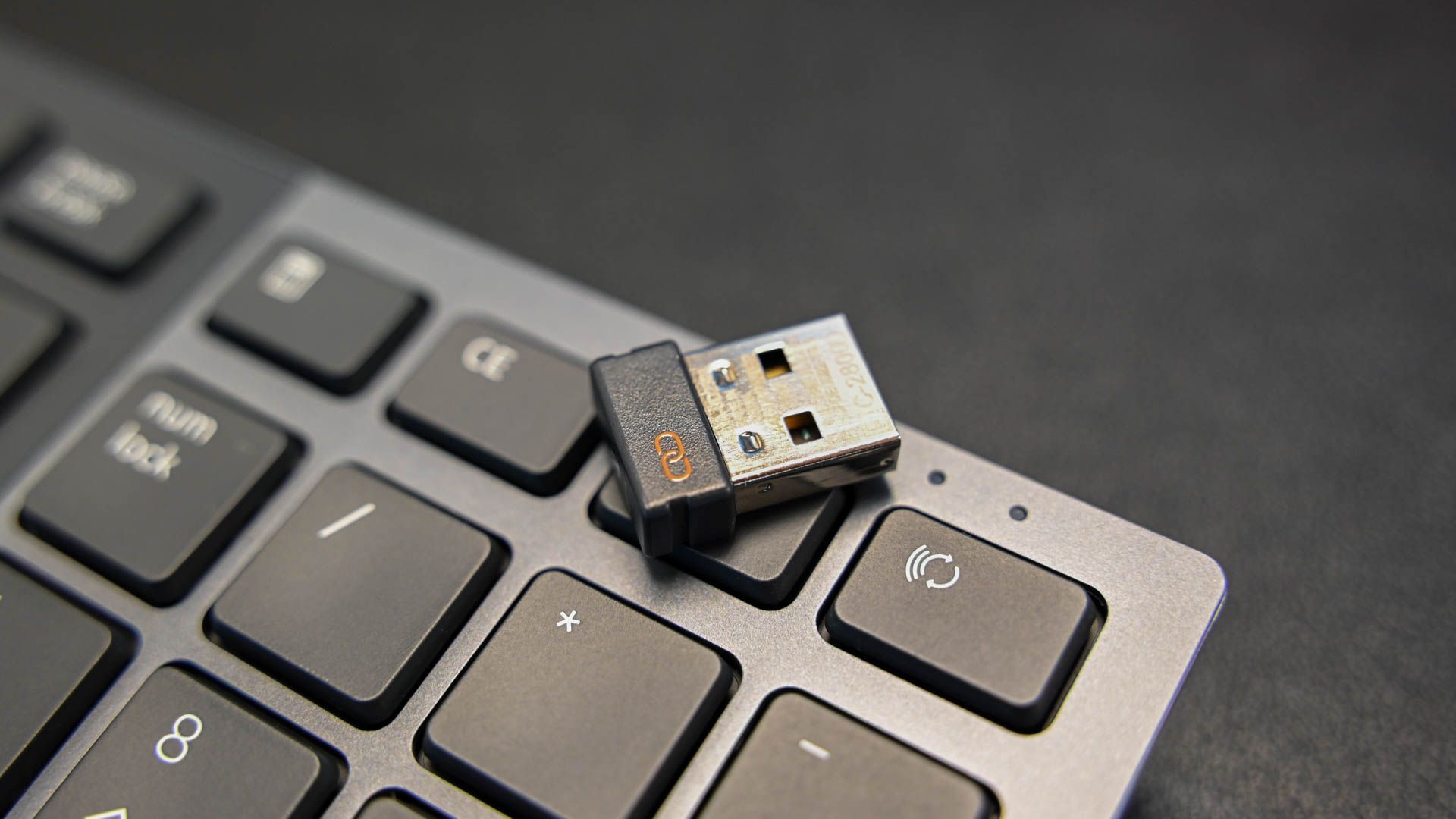
For desktop users who prefer a more integrated solution and have available expansion slots, an internal Bluetooth card (often a PCIe card that also includes Wi-Fi) is an option. This method is more involved than a USB adapter and is generally not applicable to laptops.
What You’ll Need:
- A PCIe Bluetooth and Wi-Fi combo card.
- An available PCIe slot on your motherboard.
- Screwdriver for opening your computer case.
- Anti-static wrist strap (recommended).
Steps to Install:
-
Purchase a PCIe Bluetooth/Wi-Fi Card: These cards typically bundle Wi-Fi and Bluetooth functionality. Ensure the card is compatible with your motherboard and operating system.
-
Prepare Your Computer:
- Shut Down and Unplug: Power off your computer completely and unplug the power cord.
- Ground Yourself: Wear an anti-static wrist strap to prevent electrostatic discharge, which can damage computer components. Alternatively, touch a grounded metal object (like the unpainted metal part of your computer case) before handling any internal components.
- Open the Case: Remove the side panel of your computer case. Consult your computer or case manual if you’re unsure how to do this.
-
Locate an Available PCIe Slot: Identify an available PCIe slot on your motherboard. These are usually the longest slots. Ensure the card you purchased fits the slot type (e.g., PCIe x1, x4, x16).
-
Install the Card: Carefully align the PCIe card with the chosen slot and press down firmly until it clicks into place. Secure the card to the case with a screw.
-
Connect Antennae (if applicable): Many Wi-Fi/Bluetooth cards come with external antennae. Screw these into the appropriate ports on the back of the card before closing the case.
-
Close the Case and Power On: Reattach the computer case side panel, plug in the power cord, and turn on your computer.
-
Driver Installation: Similar to USB adapters, your operating system will likely try to detect the new hardware and install drivers automatically. If not, you will need to insert the driver CD that came with the card or download the latest drivers from the manufacturer’s website.
-
Verify and Enable: Once drivers are installed, check Device Manager for the Bluetooth entry and enable it through your system’s settings as described in Method 1.
Advantages of Internal PCIe Cards:
- Integrated Solution: Looks cleaner than an external adapter.
- Potentially Better Performance: Can offer stable connectivity, especially if it includes Wi-Fi.
- Frees up USB Ports: Does not consume USB ports.
Disadvantages of Internal PCIe Cards:
- More Complex Installation: Requires opening the computer case and some technical comfort.
- Primarily for Desktops: Not suitable for laptops.
- Requires Available Slot: Your motherboard must have an available PCIe slot.
- Cost: Can be more expensive than USB adapters.
Method 3: Bluetooth-Integrated Motherboards or Laptops (Upgrade/Replacement)
For users with older desktops or laptops that lack Bluetooth and do not have available expansion slots (or if they want to replace existing Wi-Fi with a combined module), the option is to replace the existing Wi-Fi card with a newer, combined Wi-Fi/Bluetooth module. This is a more advanced procedure, often involving swapping out an M.2 or Mini PCIe card.
For Laptops:
- Identify Existing Wi-Fi Card: Laptops typically use M.2 or Mini PCIe Wi-Fi cards. You’ll need to open the laptop’s access panel (usually on the bottom) to identify your current card.
- Purchase a Combined Module: Buy an M.2 or Mini PCIe card that offers both Wi-Fi and Bluetooth. Ensure it’s physically compatible with your laptop’s slot and electrically compatible (check specifications for keying and interface type).
- Replace the Card: Carefully remove the old Wi-Fi card (usually held by a screw) and install the new combined module.
- Driver Installation: Install drivers as usual.
For Desktops:
- Check Motherboard Specifications: Some modern motherboards come with built-in Wi-Fi and Bluetooth. If yours doesn’t, and you’re considering a motherboard upgrade anyway, look for one that includes these features.
- M.2 Slot on Motherboard: Many desktop motherboards also have M.2 slots that can accommodate Wi-Fi/Bluetooth modules. You can purchase an M.2 Wi-Fi/Bluetooth card and install it in this slot. This is similar to the laptop process but performed within a desktop.
This method requires a good understanding of computer hardware and is not recommended for beginners.
Troubleshooting Common Bluetooth Installation Issues
Even with straightforward installation methods, you might encounter problems. Here are some common issues and their solutions:
Bluetooth Not Showing Up in Device Manager
- Reseat the Adapter/Card: If you’re using a USB adapter or internal card, remove it and plug it back in firmly.
- Try a Different Port/Slot: The USB port or PCIe slot might be faulty. Test with another.
- Check Manufacturer’s Website: Ensure you have the correct, latest drivers for your operating system.
- BIOS/UEFI Settings: In rare cases, an onboard Bluetooth controller (if your motherboard has one) might be disabled in the BIOS/UEFI. You can access this during boot-up (usually by pressing Del, F2, or F12).
Bluetooth is Present but Not Working (e.g., Error Code in Device Manager)
- Update Drivers: Go to the adapter/card manufacturer’s website and download the latest drivers. Uninstall the existing driver from Device Manager (check “Delete the driver software for this device” if prompted) before installing the new one.
- Windows Troubleshooter: Windows has built-in troubleshooters. Go to Settings > Update & Security > Troubleshoot > Additional troubleshooters, and run the Bluetooth troubleshooter.
- Check Bluetooth Services: In Windows, search for “Services.” Find “Bluetooth Support Service,” “Bluetooth Audio Gateway Service,” and similar Bluetooth-related services. Ensure they are running and set to “Automatic” startup.
- Hardware Failure: If all else fails, the adapter or card itself might be defective.
Devices Not Pairing or Connecting
- Ensure Devices are Discoverable: Make sure the device you’re trying to connect (headphones, speaker, phone) is in pairing mode.
- Remove and Re-pair: In your computer’s Bluetooth settings, remove the problematic device and then try pairing it again.
- Update Bluetooth Drivers: Outdated drivers can cause pairing issues.
- Check for Interference: Other wireless devices or physical obstructions can interfere with Bluetooth signals. Try moving closer to the device or turning off other wireless devices temporarily.
Conclusion
Installing Bluetooth on your computer, whether it’s a desktop or a laptop, is a relatively accessible process thanks to modern hardware solutions. For most users, a simple USB Bluetooth adapter offers the most convenient and cost-effective way to gain wireless connectivity. If you’re comfortable opening your computer case and have an available slot, an internal PCIe card can provide a more integrated experience. By following the steps outlined in this guide, you can overcome the hurdle of a Bluetooth-less computer and enjoy the freedom and convenience of wireless device interaction. Remember to always ensure you’re using the latest drivers and to consult your device or computer manuals for specific instructions when needed. Happy connecting!
aViewFromTheCave is a participant in the Amazon Services LLC Associates Program, an affiliate advertising program designed to provide a means for sites to earn advertising fees by advertising and linking to Amazon.com. Amazon, the Amazon logo, AmazonSupply, and the AmazonSupply logo are trademarks of Amazon.com, Inc. or its affiliates. As an Amazon Associate we earn affiliate commissions from qualifying purchases.