
In an era where digital flexibility reigns supreme, the ability to run different operating systems on a single machine has become a highly sought-after capability. For Mac users, this often translates to the desire to install and run Windows 10 alongside their macOS. Whether you’re a creative professional needing specific Windows-only software, a gamer looking to expand your library, or simply someone who requires the familiarity of the Windows environment for certain tasks, installing Windows 10 on your Mac is an achievable and increasingly popular endeavor. This comprehensive guide will walk you through the process, covering the essential tools, considerations, and step-by-step instructions to ensure a smooth and successful installation.
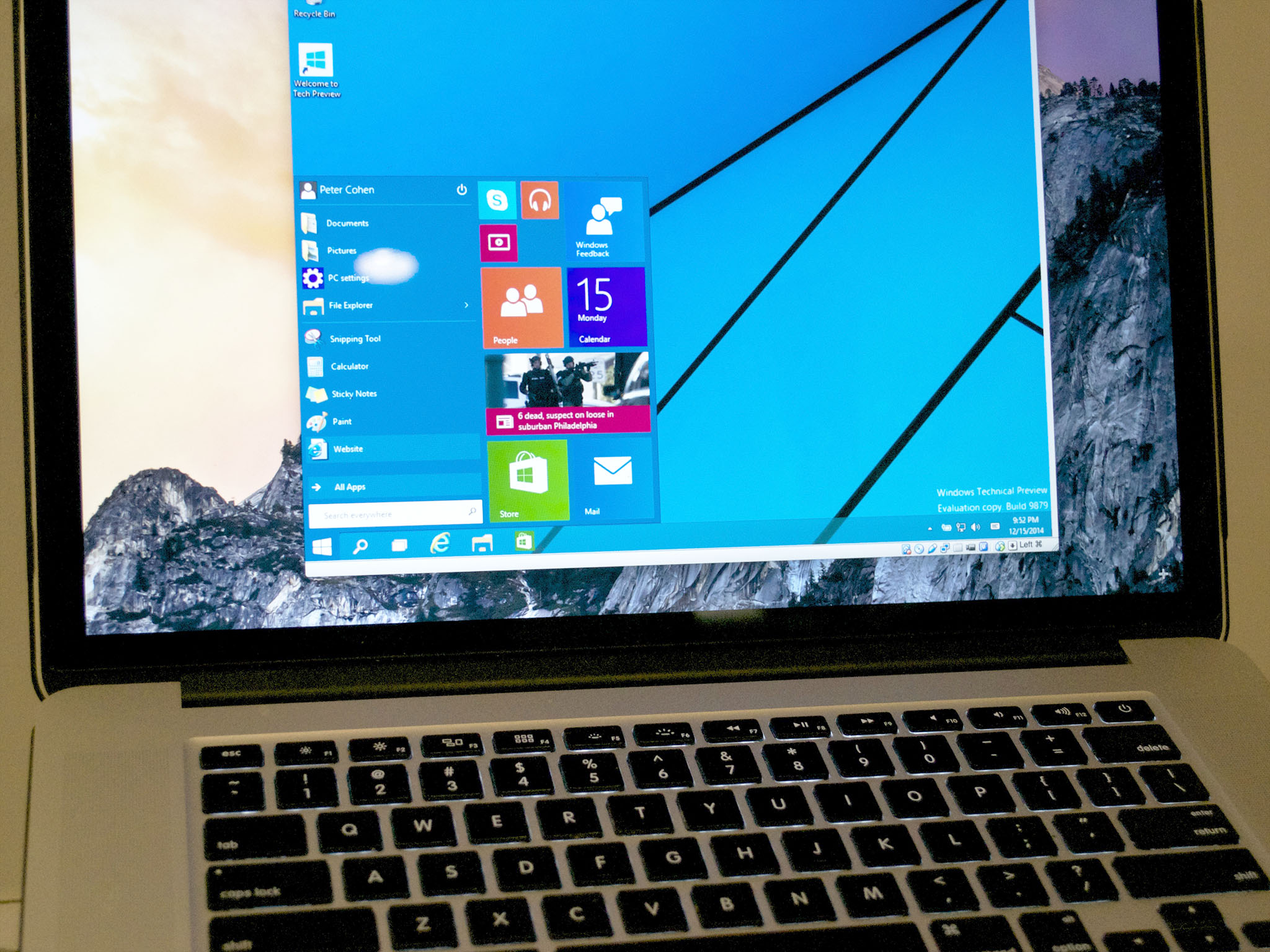
Understanding Your Options: Boot Camp vs. Virtualization
Before diving into the installation process, it’s crucial to understand the two primary methods for running Windows 10 on a Mac: Boot Camp and virtualization software. Each approach offers distinct advantages and disadvantages, catering to different user needs and priorities.
Boot Camp: Native Performance for a Dedicated Experience
Boot Camp is Apple’s built-in utility that allows you to partition your Mac’s hard drive and install Windows directly onto a separate partition. This means Windows 10 will run natively on your Mac hardware, without any performance overhead from an intermediary operating system.
Advantages of Boot Camp:
- Unparalleled Performance: Because Windows runs directly on the hardware, you’ll experience the full power of your Mac’s processor, graphics card, and RAM. This is ideal for demanding applications like high-end gaming, video editing suites, or complex CAD software that require significant resources.
- Full Hardware Compatibility: Boot Camp drivers ensure that all your Mac’s hardware components, including Wi-Fi, Bluetooth, webcam, and function keys, work seamlessly with Windows.
- No Performance Degradation: Unlike virtual machines, there’s no shared resource contention, meaning Windows operates as if it were installed on a dedicated Windows PC.
Disadvantages of Boot Camp:
- Requires Restart to Switch: The most significant drawback of Boot Camp is that you can only run one operating system at a time. To switch between macOS and Windows, you must restart your Mac and select the desired startup disk. This can be inconvenient if you frequently need to access applications or files from both operating systems.
- Disk Partitioning: Boot Camp requires you to allocate a dedicated portion of your hard drive to Windows. You’ll need to decide on the size of this partition beforehand, and while it can be resized later, it’s a more involved process.
- Not Ideal for Frequent Switching: If your workflow involves constantly jumping between macOS and Windows applications, Boot Camp’s restart requirement can be a significant bottleneck.
Virtualization Software: Seamless Multitasking and Flexibility
Virtualization software, such as Parallels Desktop or VMware Fusion, allows you to run Windows 10 as an application within macOS. This creates a “virtual machine” (VM) that simulates a separate computer, allowing you to run Windows applications side-by-side with your Mac applications without needing to restart.
Advantages of Virtualization Software:
- Simultaneous Operation: The primary advantage is the ability to run macOS and Windows concurrently. You can drag and drop files between operating systems, copy and paste text, and even run Windows applications in a window on your macOS desktop.
- Easy Switching: Switching between operating systems is as simple as clicking on a different window. This offers unparalleled flexibility for users who need to access both environments frequently.
- Snapshots and Rollbacks: Most virtualization software allows you to take “snapshots” of your virtual machine’s state. This is incredibly useful for testing software or making system changes, as you can easily revert to a previous stable state if something goes wrong.
- No Disk Repartitioning (Typically): While you still need to allocate storage space for the virtual machine, it’s usually handled by creating a large disk image file that resides within your macOS file system, making it more dynamic than Boot Camp partitioning.
Disadvantages of Virtualization Software:
- Performance Overhead: Running an operating system within another operating system inherently introduces some performance overhead. While modern virtualization software is highly optimized, you may not achieve the same raw performance as with Boot Camp, especially for graphics-intensive applications or games.
- Resource Consumption: Both macOS and the virtualized Windows 10 will be consuming your Mac’s RAM and CPU resources. You’ll need a Mac with ample RAM and processing power to run both operating systems smoothly.
- Cost: While some virtualization software offers free tiers or trials, the most feature-rich and performant options, like Parallels Desktop and VMware Fusion, are paid applications.
Preparing for Installation: Essential Requirements and Downloads
Regardless of the method you choose, there are a few essential prerequisites and downloads you’ll need to gather before commencing the installation of Windows 10 on your Mac.
System Requirements for Windows 10 on Mac
Before you begin, ensure your Mac meets the basic system requirements for running Windows 10. While Macs are generally powerful machines, it’s always good practice to check:
- Processor: A compatible 64-bit processor (most modern Macs have this).
- RAM: At least 4GB of RAM (8GB or more is highly recommended for a smoother experience, especially with virtualization).
- Storage Space:
- For Boot Camp: Apple recommends at least 64GB of free space for Windows, but 128GB or more is advisable for installing applications and updates.
- For Virtualization: The required space will vary depending on the virtualization software and how much storage you allocate to the virtual machine, but a minimum of 50-60GB is a good starting point.
- USB Drive (for Boot Camp): A USB flash drive with at least 16GB of storage is typically required for creating the Windows installation media.
- Internet Connection: A stable internet connection is necessary for downloading the Windows 10 ISO file and any necessary drivers.
Downloading the Windows 10 ISO Image
The core of your Windows 10 installation is the ISO image file. This is a single file that contains the complete operating system installation package.
- Visit the Official Microsoft Download Page: Navigate to the official Microsoft Windows 10 download page. You can usually find this by searching for “Download Windows 10” on your preferred search engine.
- Select Edition and Language: Choose the edition of Windows 10 you wish to download (e.g., Windows 10 Home, Windows 10 Pro). Ensure you select the correct language.
- Download the Media Creation Tool: Microsoft provides a “Media Creation Tool” which simplifies the process of downloading the ISO file. Download and run this tool.
- Choose “Create installation media (USB flash drive, DVD, or ISO file) for another PC.”
- Select Architecture and Edition: The tool will often auto-detect your current system’s architecture (64-bit is standard for modern Macs). You can also manually select your preferred edition and language.
- Choose “ISO file” as the media type.
- Save the ISO File: Choose a location on your Mac where you want to save the Windows 10 ISO file. This will take some time depending on your internet speed.
Installing Boot Camp Assistant (if using Boot Camp)
Boot Camp Assistant is a built-in macOS application that guides you through the process of partitioning your drive and installing Windows.
- Locate Boot Camp Assistant: You can find Boot Camp Assistant in your Mac’s
Applicationsfolder, within theUtilitiessubfolder. - Open Boot Camp Assistant: Launch the application. It will typically present you with a welcome screen and explain what it does.
- Continue: Click “Continue” to proceed. Boot Camp Assistant will then prompt you to select the Windows 10 ISO file you downloaded and to choose the size of the partition for Windows.
Installing Windows 10 Using Boot Camp: A Step-by-Step Guide
Using Boot Camp is the most direct way to achieve native Windows performance on your Mac. Follow these steps carefully:
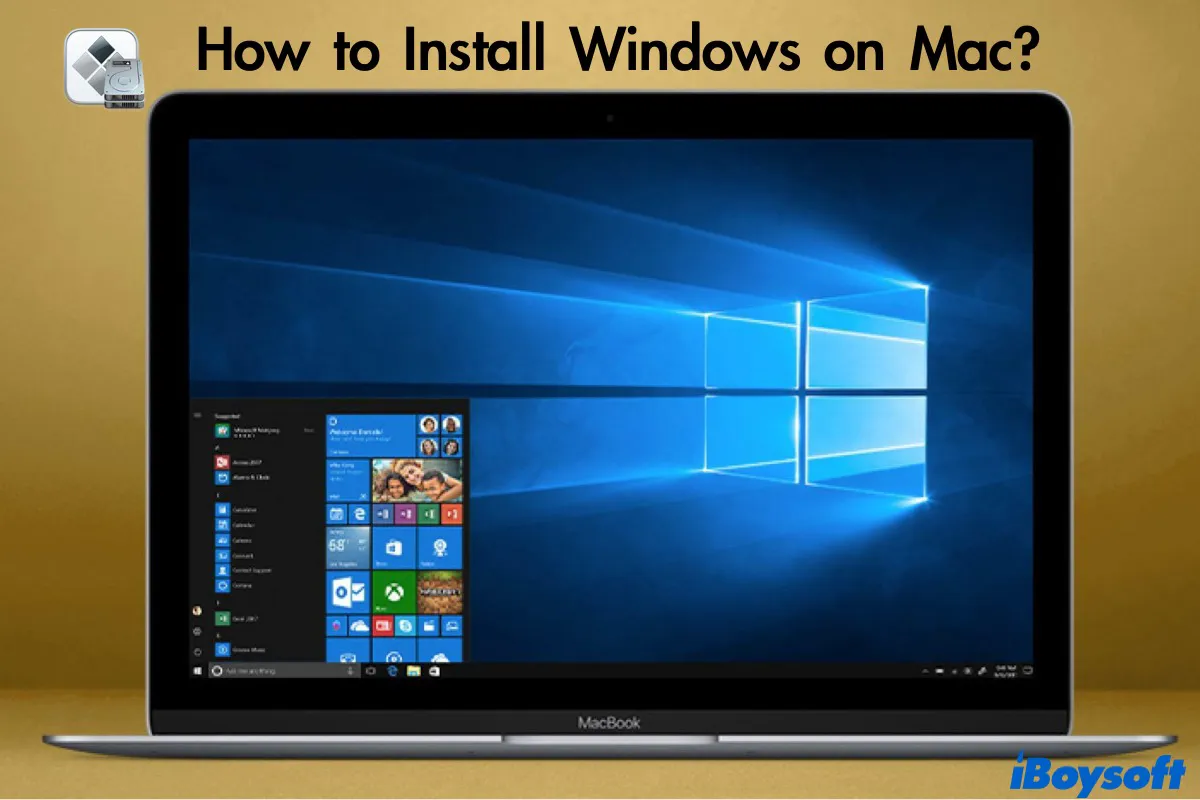
Step 1: Launch Boot Camp Assistant and Prepare Your Drive
- Open Boot Camp Assistant: As mentioned above, locate and launch Boot Camp Assistant from
Applications > Utilities. - Select the Windows 10 ISO: Boot Camp Assistant will automatically detect the ISO file you downloaded. If it doesn’t, you’ll be prompted to select it.
- Partition Your Drive: This is a crucial step. You’ll see a slider that allows you to allocate space for macOS and Windows. Drag the slider to determine the size of your Windows partition. Remember, this space is dedicated to Windows, so choose wisely. As a general rule, aim for at least 128GB for Windows 10 to accommodate the operating system, updates, and common applications.
- Start Installation: Once you’ve set the partition size, click “Install.” Boot Camp Assistant will begin creating the Windows partition and preparing your Mac for the installation. This process can take some time.
Step 2: Install Windows 10
- Mac Restarts: Your Mac will restart and boot from the Windows 10 installer media.
- Follow Windows Setup: You’ll be presented with the familiar Windows 10 setup screen.
- Language, Time, and Keyboard: Select your preferred language, time format, and keyboard layout.
- Install Now: Click “Install now.”
- Product Key: If prompted for a product key, you can enter it now or select “I don’t have a product key” to activate Windows later.
- Choose Installation Type: Select “Custom: Install Windows only (advanced).”
- Select the Windows Partition: You will see a list of drives and partitions. Crucially, select the partition labeled “BOOTCAMP.” Do NOT select any other partition, as this could lead to data loss on your macOS.
- Format the BOOTCAMP Partition: Once you’ve selected the “BOOTCAMP” partition, click “Format.” This prepares the partition for the Windows installation.
- Begin Installation: Click “Next.” Windows will now begin installing. Your Mac may restart several times during this process.
Step 3: Install Boot Camp Drivers
- Windows Startup: After the Windows installation is complete and your Mac boots into Windows, you should see the Boot Camp installer automatically launch. If it doesn’t, navigate to the USB drive that Boot Camp Assistant created (if it prompted you to create one) or look for a drive labeled “OSXRESERVED” and run the
Setup.exefile within theBootCampfolder. - Install Drivers: Follow the on-screen instructions to install the Boot Camp drivers. These drivers are essential for your Mac’s hardware (Wi-Fi, graphics, audio, keyboard, trackpad, etc.) to function correctly within Windows.
- Restart: Once the driver installation is complete, you will be prompted to restart your Mac.
Step 4: Configuring Startup Disk and Switching Between OSs
- Setting Default Startup Disk: To choose which operating system boots by default, go to
System Preferencesin macOS, findStartup Disk, and select either macOS or Windows. Alternatively, when your Mac is starting up, hold down theOption(Alt) key to bring up the Startup Manager, where you can choose which OS to boot from. - Switching Operating Systems: To switch between macOS and Windows, you need to restart your Mac. During the startup chime or when the Apple logo appears, hold down the
Option(Alt) key. This will display the Startup Manager, allowing you to select either macOS or Windows.
Installing Windows 10 Using Virtualization Software (e.g., Parallels Desktop)
For those who prioritize flexibility and the ability to run both operating systems simultaneously, virtualization software is the way to go. We’ll use Parallels Desktop as an example, as it’s a popular and highly effective choice.
Step 1: Download and Install Virtualization Software
- Download Parallels Desktop: Visit the official Parallels website and download the latest version of Parallels Desktop for Mac. You can often download a free trial to test it out.
- Install Parallels Desktop: Run the downloaded installer and follow the on-screen instructions to install the software on your macOS.
Step 2: Create a New Virtual Machine and Install Windows 10
- Launch Parallels Desktop: Open the Parallels Desktop application.
- Create a New Virtual Machine: Click on “File” > “New…” or the “+” icon to create a new virtual machine.
- Install Windows or Another OS: Parallels Desktop will present you with options. Select “Install Windows or another OS from a DVD or image file.”
- Select the Windows 10 ISO: Parallels Desktop is intelligent and will often detect your downloaded Windows 10 ISO file automatically. If not, click “Select Manually” and browse to the location where you saved the ISO.
- Enter Windows Product Key (Optional): If you have a Windows 10 product key, you can enter it now. Otherwise, you can skip this and activate Windows later within the virtual machine.
- Choose Installation Profile: Parallels Desktop offers pre-configured profiles for different uses (Productivity, Gaming, etc.). Select the one that best suits your needs.
- Name and Location: Give your virtual machine a name (e.g., “Windows 10 VM”) and choose where to save its files.
- Customize Settings (Optional): Before starting the installation, you can click “Customize” to adjust the virtual machine’s RAM, CPU cores, and hard disk size. Ensure you allocate enough resources for smooth operation.
- Start Installation: Click “Create” or “Continue” to begin the virtual machine creation and Windows 10 installation process. Parallels Desktop will automatically boot from the ISO and start the Windows setup.
Step 3: Complete Windows 10 Installation within the Virtual Machine
- Follow Windows Setup: The Windows 10 setup process will proceed within the Parallels Desktop window, similar to the Boot Camp installation.
- Language, Time, and Keyboard: Select your preferences.
- Install Now: Click “Install now.”
- Product Key: Enter if you have one, or select “I don’t have a product key.”
- Edition: Choose your Windows 10 edition.
- License Terms: Accept the license terms.
- Installation Type: Select “Custom: Install Windows only (advanced).”
- Disk Selection: You will see a virtual hard disk created by Parallels. Select this disk and click “Next.”
- Windows Installation: Windows will install on the virtual hard disk.
- Initial Windows Setup: Once the installation is complete, Windows will boot up, and you’ll go through the initial Windows setup (creating an account, privacy settings, etc.).
Step 4: Install Parallels Tools
- Automatic Installation: After Windows 10 is up and running within the virtual machine, Parallels Tools should start installing automatically. These tools are analogous to Boot Camp drivers and are crucial for seamless integration between macOS and your Windows virtual machine. They enable features like shared folders, drag-and-drop, copy-paste, and better graphics performance.
- Manual Installation (if needed): If Parallels Tools don’t install automatically, go to the Parallels Desktop menu bar, click on “Actions,” and then select “Install Parallels Tools.” Follow the on-screen prompts.
- Restart Virtual Machine: After installing Parallels Tools, you’ll be prompted to restart your Windows virtual machine.
Post-Installation: Optimizing and Maintaining Your Windows Environment
Once Windows 10 is successfully installed on your Mac, whether via Boot Camp or virtualization, there are a few post-installation steps and ongoing maintenance practices that will ensure a smooth and efficient experience.
Updating Windows and Drivers
Regular updates are critical for security, stability, and performance.
- Windows Updates:
- Boot Camp: Navigate to
Settings>Update & Security>Windows Updateand click “Check for updates.” Install all available updates. - Virtualization: Within your Windows virtual machine, access
Settings>Update & Security>Windows Updateand check for updates.
- Boot Camp: Navigate to
- Boot Camp Drivers (for Boot Camp): While Boot Camp Assistant installs initial drivers, Apple occasionally releases updated drivers. You can check for these by running Boot Camp Assistant again in macOS and looking for an option to download drivers, or by visiting Apple’s support website and searching for Boot Camp drivers specific to your Mac model.
- Virtualization Software Updates: Keep your virtualization software (Parallels Desktop, VMware Fusion) updated to the latest version. These updates often include performance improvements, bug fixes, and enhanced compatibility with newer versions of Windows.
Optimizing Performance
To ensure your Windows 10 environment runs as smoothly as possible:
- Resource Allocation (Virtualization): If you notice sluggish performance in your virtual machine, consider increasing the RAM or CPU cores allocated to it through your virtualization software’s settings. Ensure you don’t over-allocate resources, as this can impact macOS performance.
- Disk Cleanup: Periodically run Disk Cleanup in Windows to remove temporary files, old update files, and other unnecessary data that can consume disk space and slow down your system.
- Startup Programs: Review and disable unnecessary startup programs in Windows’ Task Manager (
Ctrl+Shift+Esc>Startuptab). This can significantly speed up boot times and reduce background resource consumption. - Graphics Settings: For gaming or graphics-intensive applications, ensure you’ve selected the correct graphics settings within Windows and any application-specific settings.
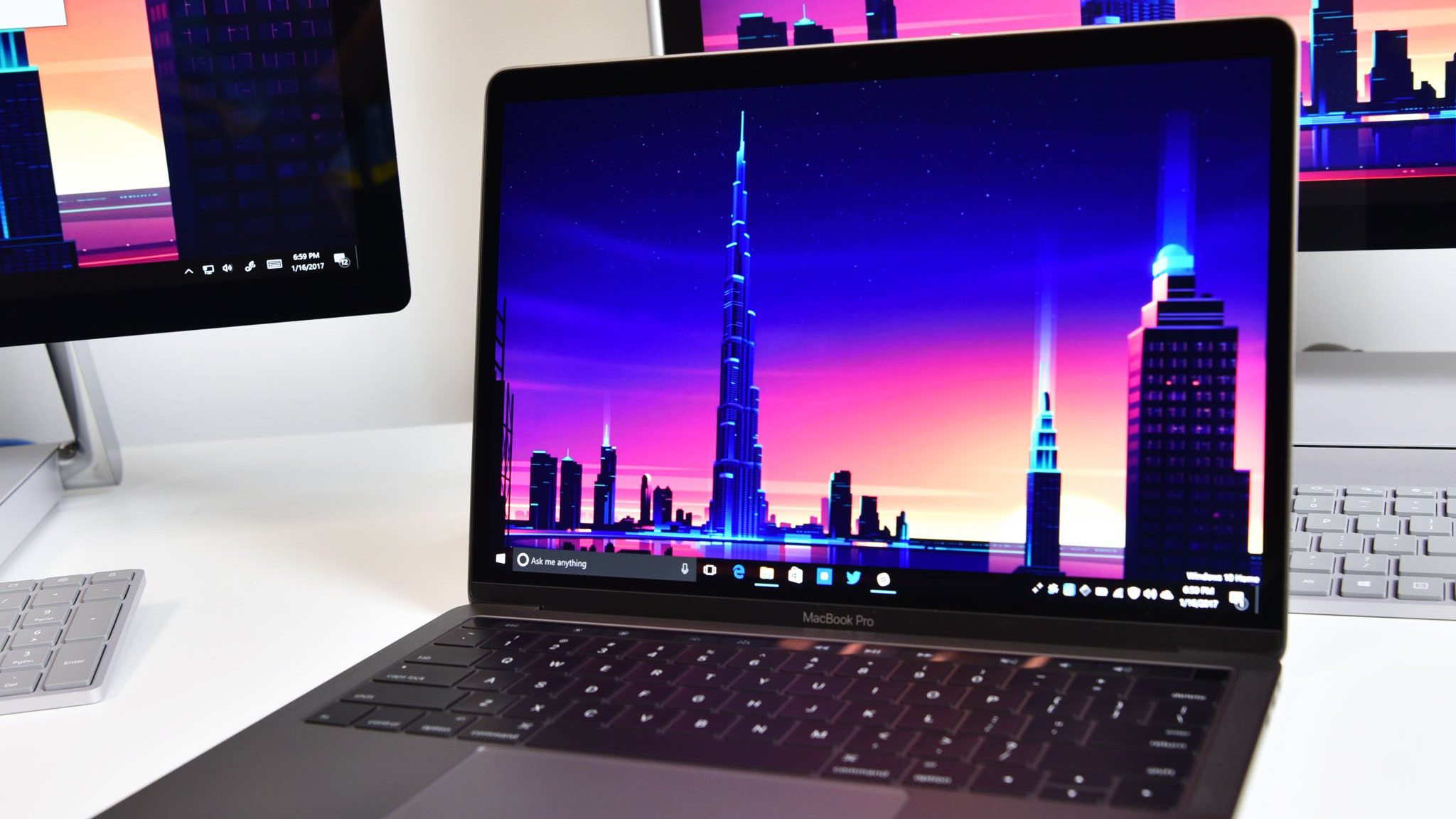
File Sharing and Integration
Seamlessly transferring files between macOS and Windows is key for productivity.
- Boot Camp:
- Shared Folders: Boot Camp drivers usually enable access to your macOS drive from within Windows. You can typically find your macOS drive under “This PC” in Windows Explorer.
- External Drives: Using external hard drives or USB drives formatted in a compatible file system (like exFAT) is a straightforward way to share files.
- Virtualization Software:
- Shared Folders: Parallels Desktop and VMware Fusion offer robust shared folder capabilities, allowing you to designate folders on your macOS that are accessible from within your Windows virtual machine, and vice-versa.
- Drag and Drop: The ability to drag and drop files and folders directly between macOS and your Windows virtual machine is a hallmark of good virtualization software.
- Copy and Paste: Similarly, the clipboard should be synchronized, allowing you to copy text and images between operating systems.
By following these steps, you can successfully install and configure Windows 10 on your Mac, unlocking a new level of versatility for your computing experience. Whether you opt for the raw power of Boot Camp or the seamless multitasking of virtualization, the ability to run Windows alongside macOS opens up a world of possibilities for productivity, entertainment, and beyond.
aViewFromTheCave is a participant in the Amazon Services LLC Associates Program, an affiliate advertising program designed to provide a means for sites to earn advertising fees by advertising and linking to Amazon.com. Amazon, the Amazon logo, AmazonSupply, and the AmazonSupply logo are trademarks of Amazon.com, Inc. or its affiliates. As an Amazon Associate we earn affiliate commissions from qualifying purchases.