
In today’s hyper-connected world, staying in touch with loved ones, colleagues, and communities is paramount. Among the plethora of communication platforms available, WhatsApp stands out as a universally recognized and widely adopted application. Its simplicity, end-to-end encryption, and rich feature set have made it an indispensable tool for billions worldwide. Whether you’re looking to send a quick text message, share photos and videos, make voice or video calls, or join group chats, understanding how to install WhatsApp on your phone is the first step to unlocking this powerful communication hub. This article will guide you through the entire process, ensuring you can get up and running with WhatsApp in no time, regardless of your phone’s operating system.
The ease with which WhatsApp can be installed makes it accessible to a broad audience, from the tech-savvy to those who are new to smartphones. This accessibility is a key reason for its widespread adoption. We’ll cover the specific steps for both Android and iOS devices, addressing common scenarios and providing solutions for potential hiccups. Beyond the installation itself, we’ll also touch upon initial setup, essential features, and some tips to get the most out of your WhatsApp experience, all within the context of the broader technological landscape.
Getting Started: Downloading and Installing WhatsApp on Your Device
The process of installing WhatsApp is remarkably similar across most modern smartphones, primarily revolving around accessing your device’s official app store. The two dominant mobile operating systems, Android and iOS, have dedicated marketplaces where you can securely download and install applications. We will delve into the specifics for each platform.
For Android Users: Navigating the Google Play Store
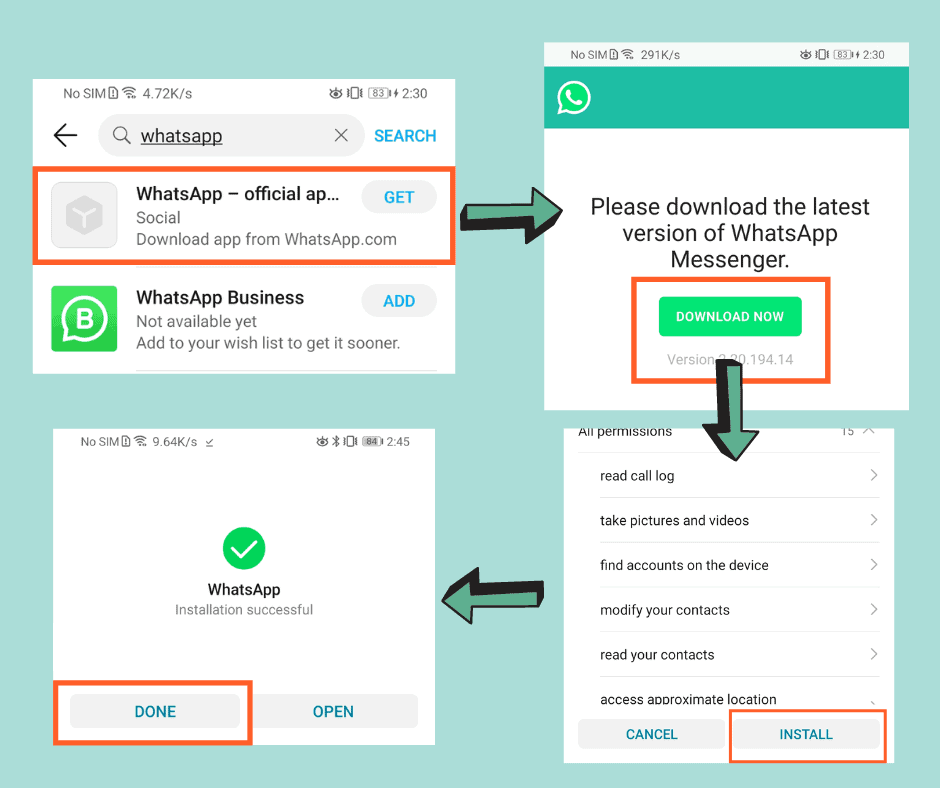
For the vast majority of Android users, the Google Play Store is the central hub for all application downloads. It’s pre-installed on most Android devices and provides a secure and reliable way to acquire software.
Step 1: Access the Google Play Store
Locate the Google Play Store icon on your home screen or in your app drawer. It typically looks like a colorful play button. Tap on it to open the store.
Step 2: Search for WhatsApp
Once the Play Store is open, you’ll see a search bar at the top. Tap on this search bar and type “WhatsApp Messenger” or simply “WhatsApp”. As you type, the Play Store will suggest relevant results. Select “WhatsApp Messenger” from the suggestions, usually the first or most prominent option.
Step 3: Initiate the Installation
On the WhatsApp Messenger app page, you’ll see an “Install” button. Tap this button. The Play Store will then display the permissions that WhatsApp requires to function. Review these permissions and tap “Accept” or “Install” again to proceed. The download and installation process will begin automatically.
Step 4: Wait for Installation to Complete
The Play Store will download the WhatsApp application to your device. The time taken will depend on your internet connection speed and the size of the app. You’ll see a progress bar indicating the download and installation status. Once complete, the “Install” button will change to “Open”.
Step 5: Launch WhatsApp
Tap the “Open” button to launch WhatsApp for the first time. You’re now ready to proceed with the setup process.
For iOS Users: Exploring the App Store
Apple’s iOS operating system utilizes the App Store as its exclusive platform for downloading applications. Similar to the Google Play Store, it’s a secure and streamlined environment.
Step 1: Open the App Store
Find the App Store icon on your iPhone’s home screen. It’s typically represented by a blue icon with a white “A” inside a circle. Tap on it to open the App Store.
Step 2: Search for WhatsApp
At the bottom of the App Store, you’ll find a “Search” tab. Tap on it. In the search bar that appears at the top, type “WhatsApp Messenger”. Similar to Android, you’ll see suggestions; select “WhatsApp Messenger” from the results.
Step 3: Download and Install
On the WhatsApp Messenger app page, you’ll see a “Get” button. Tap this button. For free apps like WhatsApp, this might be represented by a cloud icon with a downward arrow if you’ve downloaded it previously. You may be prompted to authenticate your download using your Apple ID password, Face ID, or Touch ID. After authentication, the app will begin to download and install.
Step 4: Installation Progress
The App Store will show a progress circle as WhatsApp downloads and installs. Once the process is complete, the “Get” button will transform into an “Open” button.
Step 5: Launch WhatsApp
Tap the “Open” button to start WhatsApp. You’re now ready for the setup phase.
Setting Up Your WhatsApp Account: Personalization and Verification
Once WhatsApp is successfully installed on your phone, the next crucial step is to set up your account. This involves verifying your phone number, setting up your profile, and granting necessary permissions. This stage is vital for the app to function correctly and connect you with your contacts.
Verifying Your Phone Number: The Gateway to Connection
WhatsApp is fundamentally linked to your phone number, acting as your unique identifier on the platform. This verification process ensures that your account is legitimate and that you are the owner of the provided number.
Step 1: Agree to Terms and Conditions
Upon launching WhatsApp for the first time, you’ll be presented with the Terms of Service and Privacy Policy. It’s important to read these (or at least skim them) and then tap “Agree and Continue” to proceed.
Step 2: Enter Your Phone Number
You’ll be prompted to enter your phone number. Make sure to select your country code (it usually defaults correctly based on your location) and then type in your full phone number, including the area code. Crucially, ensure that the SIM card associated with this number is active and in the phone you are using.
Step 3: Receive and Enter the Verification Code
WhatsApp will send a six-digit verification code to your phone number via SMS. You should receive this message within a minute or two. The app often automatically detects the SMS and fills in the code for you. If it doesn’t, you’ll need to manually enter the code into the designated fields within WhatsApp. If you don’t receive the code, there’s usually an option to “Resend SMS” or “Call Me” to receive the code via an automated phone call.
Step 4: Grant Permissions
After successful verification, WhatsApp will request various permissions to function optimally. These typically include:
- Contacts: To access your phone’s contact list and identify which of your contacts are already using WhatsApp. This is essential for building your contact list within the app.
- Notifications: To alert you when you receive new messages or calls.
- Microphone & Camera: For making voice and video calls, and for sending media like photos and videos.
- Storage: To save media files you send and receive, and to back up your chat history.
It’s highly recommended to grant these permissions for a seamless WhatsApp experience. You can manage these permissions later in your phone’s settings if needed.
Setting Up Your Profile: Personalizing Your Identity
Once your phone number is verified, you can set up your personal profile. This is how other WhatsApp users will identify you.
Step 1: Add Your Name
Enter the name you wish to be displayed on your WhatsApp profile. This can be your full name, a nickname, or whatever you prefer.
Step 2: Choose a Profile Picture
Tap on the profile picture icon. You’ll have the option to take a new photo using your camera or select an existing one from your phone’s gallery. A clear and recognizable profile picture is always recommended.
Step 3: Explore Additional Settings (Optional)
After setting your name and picture, you can explore further settings like “About” (a short status message) and privacy options. For now, you can tap “Next” or “Done” to complete the initial profile setup.
Exploring WhatsApp’s Core Features: Beyond Basic Messaging
With WhatsApp installed and your account set up, you’re ready to dive into its rich ecosystem of features. While messaging is its core function, WhatsApp offers much more to enhance your communication.
Staying Connected: Messaging, Calls, and Groups
The primary purpose of WhatsApp is to facilitate communication, and it excels in providing diverse methods for users to connect.
- One-on-One Chats: The most basic function is sending and receiving text messages, photos, videos, documents, and voice messages to individual contacts. You can see when your messages are sent, delivered, and read (depending on recipient’s privacy settings).
- Voice and Video Calls: WhatsApp allows you to make free voice and video calls over your internet connection (Wi-Fi or mobile data) to any WhatsApp user anywhere in the world. This is a significant cost-saver compared to traditional international calls.
- Group Chats: Create or join group chats with multiple participants. This is perfect for family updates, project discussions, or organizing events. Group admins have control over adding and removing members.
Enhancing Communication: Media Sharing and Status Updates
WhatsApp goes beyond simple text, offering ways to enrich your conversations and share your daily life.
- Sharing Media: Easily share photos, videos, audio files, and documents directly within chats. You can also share your live location or contact information.
- Status Updates: Similar to social media stories, WhatsApp Status allows you to share photos, videos, text, and GIFs that disappear after 24 hours. It’s a great way to share moments from your day with your contacts.
Troubleshooting Common Installation and Setup Issues
While the installation process is generally straightforward, occasional hiccups can occur. Understanding common problems and their solutions can save you time and frustration.
Network Connectivity Problems
A stable internet connection is crucial for downloading and installing any app.
- Check Your Wi-Fi/Mobile Data: Ensure your Wi-Fi is connected and functioning, or that your mobile data is enabled and you have sufficient data allowance. Try browsing a website to confirm your internet is working.
- Restart Your Device: Sometimes, a simple device restart can resolve temporary network glitches.
App Store Errors
You might encounter errors directly from the app store.
- Clear App Store Cache (Android): Go to your phone’s Settings > Apps > Google Play Store > Storage > Clear Cache and Clear Data. Restart your phone and try again.
- Insufficient Storage Space: If your phone is low on storage, you won’t be able to download new apps. Free up space by deleting unused apps, photos, or videos.
- Check for System Updates: Ensure your phone’s operating system is up to date. Outdated systems can sometimes cause compatibility issues.
Verification Code Issues
Trouble receiving the SMS verification code is a common concern.
- Wait a Few Minutes: SMS messages can sometimes be delayed.
- Check Your Signal: Ensure you have good mobile network signal.
- Verify Your Phone Number: Double-check that you entered your phone number correctly, including the country code.
- Use the “Call Me” Option: If SMS isn’t arriving, the automated call option is usually a reliable alternative.
By following these steps and being aware of potential issues, you can confidently install and set up WhatsApp on your phone, opening the door to seamless and efficient communication with your world. This app, born from the evolution of technology, has fundamentally reshaped how we connect, bridging distances and fostering communities with unparalleled ease.
aViewFromTheCave is a participant in the Amazon Services LLC Associates Program, an affiliate advertising program designed to provide a means for sites to earn advertising fees by advertising and linking to Amazon.com. Amazon, the Amazon logo, AmazonSupply, and the AmazonSupply logo are trademarks of Amazon.com, Inc. or its affiliates. As an Amazon Associate we earn affiliate commissions from qualifying purchases.