
The dream of transforming a sleek, portable laptop into a powerhouse gaming rig or a high-performance workstation often leads users to a fundamental question: can you install a dedicated graphics card on a laptop? Unlike desktop PCs, where upgrading components is often a straightforward process, laptops present a unique set of challenges. This article delves into the realities of laptop graphics upgrades, explores the revolutionary solution of external Graphics Processing Units (eGPUs), and helps you determine if this technology is the right path for unlocking your laptop’s true potential, all while considering the technological, financial, and brand implications.
The Reality of Internal Laptop GPU Upgrades
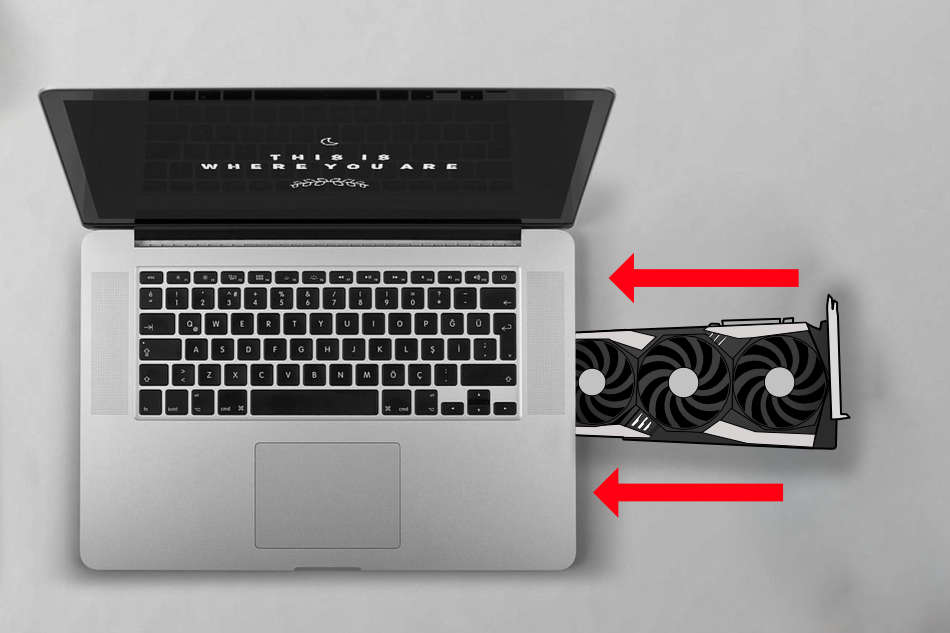
For many users accustomed to the modularity of desktop computers, the idea of swapping out a laptop’s graphics card seems like a logical upgrade path. However, the compact and integrated nature of laptops paints a very different picture.
Why Laptops Differ from Desktops
Desktops are designed with upgradeability in mind. Their spacious chassis, standardized motherboard designs, and ample power supplies allow for easy installation of new components like larger hard drives, more RAM, and, crucially, dedicated graphics cards. These GPUs typically slot into a PCIe (Peripheral Component Interconnect Express) slot, drawing power directly from the PSU and communicating efficiently with the CPU.
Laptops, on the other hand, prioritize portability, thinness, and battery life. This dictates an entirely different internal architecture. Components are tightly packed, often soldered directly onto the motherboard, and designed with stringent thermal and power constraints. There’s simply no physical space for a standard desktop graphics card, nor are there the necessary PCIe slots or power connectors. The thermal design power (TDP) of a high-end desktop GPU alone would overwhelm a laptop’s cooling system, leading to immediate overheating and potential damage.
The Integrated Graphics Conundrum
Most standard laptops come with either integrated graphics or a dedicated, but soldered-on, mobile GPU. Integrated graphics, typically found in ultrabooks and budget laptops, are part of the CPU (e.g., Intel Iris Xe, AMD Radeon Graphics). They share system RAM and are designed for everyday tasks like web browsing, office applications, and streaming video, offering minimal performance for demanding tasks like 3D rendering or modern gaming.
Laptops marketed for gaming or professional work often feature dedicated mobile GPUs (e.g., NVIDIA GeForce RTX 40-series Laptop, AMD Radeon RX 7000M-series). While significantly more powerful than integrated graphics, these GPUs are custom-designed for the laptop’s specific thermal envelope and power delivery. They are permanently soldered onto the motherboard, making them impossible to remove or replace. This means that, for 99% of laptops, directly “installing” or “upgrading” an internal graphics card is simply not an option. Your laptop’s internal graphics are largely fixed for its lifespan.
Enter the External Graphics Processing Unit (eGPU)
While internal upgrades are a dead end, technological innovation has provided a powerful workaround: the External Graphics Processing Unit, or eGPU. This solution allows laptops with the right connectivity to tap into the power of a full-sized desktop graphics card.
What Exactly is an eGPU?
An eGPU system comprises a desktop graphics card housed within a dedicated external enclosure, connected to your laptop via a high-bandwidth cable. This setup essentially bypasses the laptop’s internal graphics, allowing the external, more powerful GPU to handle all the heavy lifting for graphics-intensive applications. It’s a remarkable fusion of laptop portability with desktop-class performance, offering a compelling proposition for gamers, video editors, 3D artists, and anyone needing serious graphical horsepower on the go and at home.
The Technology Underpinning eGPUs: Thunderbolt
The viability of eGPUs hinges almost entirely on a single, crucial piece of technology: Thunderbolt. Developed by Intel in collaboration with Apple, Thunderbolt is a high-speed data transfer interface that combines PCI Express and DisplayPort into a single serial signal. Its key features for eGPUs are:
- High Bandwidth: Modern Thunderbolt 3 and Thunderbolt 4 ports offer 40 Gigabits per second (Gbps) of bandwidth. This is fast enough to transfer the vast amounts of data required by a powerful GPU to and from the laptop’s CPU, albeit with some performance overhead compared to a direct internal PCIe connection.
- PCI Express Lanes: Crucially, Thunderbolt provides direct access to the laptop’s PCI Express lanes. This is the same communication protocol used by internal GPUs in desktop PCs, making it possible for an external graphics card to function as if it were internally connected.
- Power Delivery: Many Thunderbolt ports also support power delivery, allowing some eGPU enclosures to charge the laptop while connected, simplifying cable management.
Without Thunderbolt 3 or 4, an eGPU setup is generally not possible, or at least not practical due to insufficient bandwidth. Older interfaces like USB-C (without Thunderbolt) or standard USB ports simply lack the necessary speed to drive a modern GPU effectively. Therefore, checking your laptop’s port specifications is the first and most critical step in considering an eGPU.
Components of an eGPU Setup
To get an eGPU system up and running, you’ll need three primary components:
- A Compatible Laptop: Your laptop must have a Thunderbolt 3 or Thunderbolt 4 port. Ideally, it should also have a decent CPU (an i5 or Ryzen 5 equivalent or better) to avoid CPU bottlenecks, as even the fastest GPU can be limited by a slow processor.
- An eGPU Enclosure: This is the external box that houses the desktop graphics card. Enclosures vary in size, features, and brand reputation. Popular brands like Razer (Razer Core series), Sonnet (eGPU Breakaway Box), AKiTiO (Node series), and Mantiz (Saturn Pro) offer robust solutions. These enclosures contain a power supply unit (PSU) to power the GPU, a PCIe slot for the graphics card, and a Thunderbolt controller to facilitate the connection to your laptop. Choosing a reputable brand ensures better build quality, thermal management, and driver compatibility.
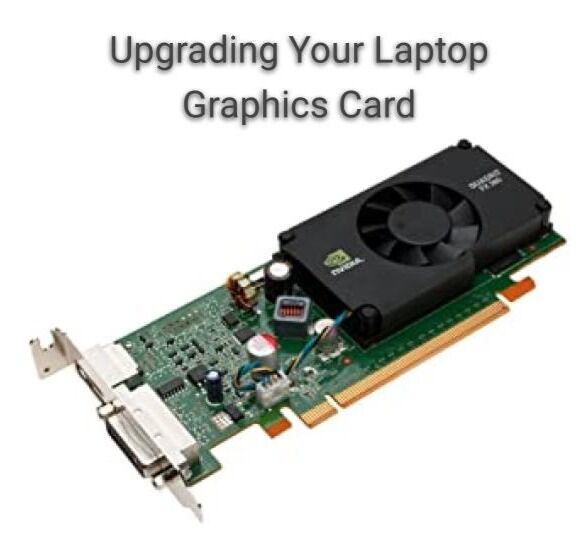
- A Desktop Graphics Card: This is the heart of your eGPU system. You can choose virtually any standard desktop GPU, from NVIDIA’s GeForce RTX series to AMD’s Radeon RX series. The choice depends on your budget, performance requirements (gaming at 1080p, 1440p, 4K, or professional rendering), and the physical dimensions and power requirements supported by your chosen eGPU enclosure.
Weighing the Benefits and Drawbacks of eGPUs
Like any advanced technological solution, eGPUs come with a unique set of advantages and disadvantages. Understanding these can help you decide if this investment is truly worthwhile for your specific needs.
The Performance Leap and Versatility
The most obvious benefit of an eGPU is the dramatic increase in graphical performance. A thin-and-light ultrabook, previously limited to integrated graphics, can suddenly run demanding AAA games at high settings or accelerate complex video rendering and CAD tasks. This transforms a general-purpose laptop into a versatile machine capable of handling professional workloads and entertainment.
Furthermore, an eGPU offers incredible versatility. You can connect your laptop to the eGPU at your desk for maximum performance, then unplug and take your lightweight machine on the go. This hybrid approach caters to both portability and power, eliminating the need for two separate, expensive machines (a powerful desktop and a portable laptop). For professionals in creative fields, this means having access to rendering power at the office and a portable editing suite for client meetings.
Portability, Future-Proofing, and Cost Efficiency
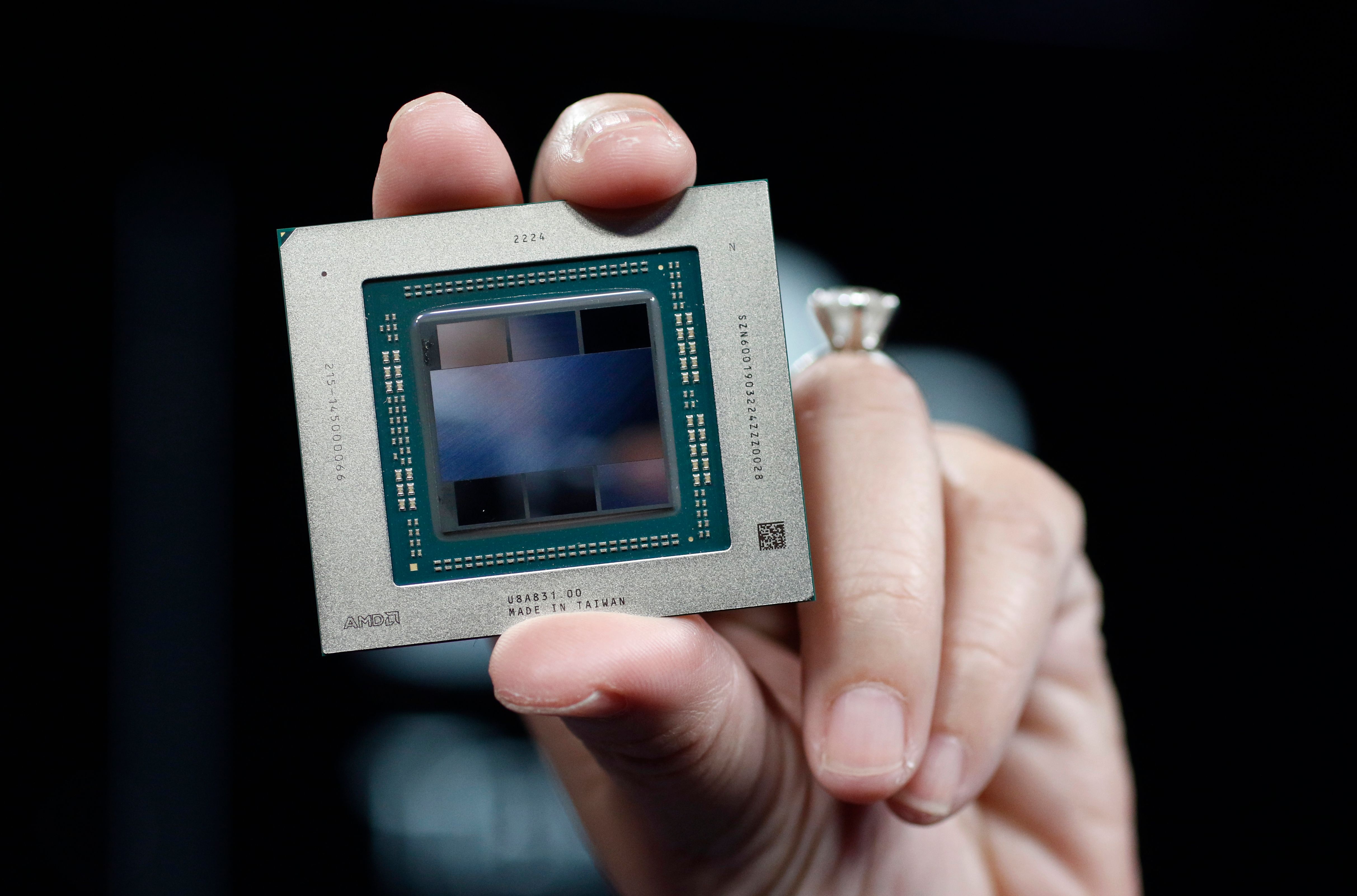
While the eGPU enclosure itself isn’t designed for constant travel, the fact that you can use a powerful desktop GPU with your existing laptop provides a form of “portable power” when needed. More importantly, an eGPU setup offers a degree of future-proofing. When a new generation of graphics cards is released, you can simply upgrade the GPU within the enclosure, extending the life and capability of your laptop without needing to buy an entirely new machine. This modularity can be a significant financial advantage over time.
From a monetary perspective, an eGPU can be a more cost-effective solution than buying a high-end gaming laptop or building a dedicated desktop PC, especially if you already own a laptop with a Thunderbolt port. While the initial investment in an enclosure and a GPU can be substantial, it often comes in less than a top-tier gaming laptop with comparable performance, which also typically suffers from significantly shorter battery life and greater bulk. For those focused on personal finance and shrewd tech investments, an eGPU can represent a smart allocation of resources.
Understanding Performance Limitations and Compatibility
Despite their advantages, eGPUs are not without limitations. The primary bottleneck is the Thunderbolt interface itself. While fast, 40 Gbps is still less bandwidth than a full PCIe x16 slot found in a desktop (which can offer around 128 Gbps for PCIe 4.0 or 256 Gbps for PCIe 5.0). This bandwidth limitation can lead to a performance overhead, meaning a desktop GPU will perform slightly worse in an eGPU enclosure than in a native desktop PC, often ranging from a 10% to 20% drop, particularly in CPU-bound scenarios or when using the laptop’s internal display.
Compatibility is another hurdle. Not all Thunderbolt 3/4 laptops are created equal. Some manufacturers implement Thunderbolt with fewer PCIe lanes, further exacerbating the bandwidth bottleneck. Driver issues can occasionally arise, and not all eGPU enclosures are compatible with all GPUs or laptops. It’s crucial to research specific model compatibility before making a purchase. The “Brand” aspect here extends to the synergy between laptop, enclosure, and GPU brands – sometimes, certain combinations are known to work better than others.
The Investment and Setup Nuances
While potentially more cost-effective in the long run, the initial investment for an eGPU setup can be significant. A decent eGPU enclosure can range from $200-$500, and a powerful desktop GPU can cost anywhere from $300 to over $1000. This is a substantial “Money” decision. Additionally, setting up an eGPU isn’t always plug-and-play. It requires installing the GPU into the enclosure, connecting it to the laptop, installing specific drivers, and sometimes troubleshooting software conflicts. While not overly complex for tech-savvy individuals, it can be a steeper learning curve for novices. The physical footprint of an eGPU enclosure and a large desktop GPU also means it’s not as compact as a simple laptop dock.
Making the Right Choice: Is an eGPU for You?
Deciding whether an eGPU is the right solution requires careful consideration of your needs, budget, and existing hardware.
Ideal Scenarios for an eGPU
An eGPU shines brightest for specific user profiles:
- Ultrabook Owners: If you have a sleek, lightweight ultrabook with a good CPU and a Thunderbolt 3/4 port, but its integrated graphics hold you back, an eGPU is an excellent way to unleash its full potential for gaming or creative work without sacrificing portability.
- Existing Laptop Users Needing an Upgrade: If your current laptop’s CPU is still powerful enough but its integrated or low-end dedicated GPU is outdated, an eGPU offers a path to significant graphical improvement without buying a whole new machine. This is a financially prudent move.
- Creative Professionals: Video editors, 3D artists, and CAD designers who use lightweight laptops for client meetings or on-the-go work can leverage an eGPU at their desk for rendering and intensive processing, providing a dual-purpose setup.
- Budget-Conscious Gamers: For gamers who already own a Thunderbolt-equipped laptop, an eGPU can offer desktop-level gaming performance at a potentially lower overall cost than a dedicated gaming laptop or a custom-built desktop from scratch.
Practical Steps for Setting Up Your eGPU
If you decide an eGPU is for you, here’s a simplified guide to the setup process:
- Verify Laptop Compatibility: Double-check your laptop’s specifications for a Thunderbolt 3 or 4 port. Ensure your CPU is powerful enough to avoid significant bottlenecks.
- Acquire Components: Purchase a reputable eGPU enclosure (e.g., Razer Core X, Sonnet eGPU Breakaway Box) and a desktop graphics card that fits your performance needs and the enclosure’s power/size limits. Consider popular GPU brands like NVIDIA (GeForce RTX series) or AMD (Radeon RX series).
- Assembly and Connection: Install the graphics card into the eGPU enclosure. Connect the enclosure to your laptop via the Thunderbolt cable. Connect your monitor to the eGPU’s display outputs (DisplayPort, HDMI). While you can use your laptop’s internal display, connecting to an external monitor often yields better performance due to reduced data transfer back through the Thunderbolt cable.
- Driver Installation and Configuration: Install the latest drivers for your new desktop GPU. This will typically involve downloading them directly from NVIDIA or AMD’s website. You may also need to install drivers for the eGPU enclosure itself.
Exploring Alternatives and Brand Considerations
Before committing to an eGPU, consider the alternatives. If maximum performance and upgradeability are your absolute priorities, a custom-built desktop PC remains the gold standard. For those who need powerful graphics and portability combined, a dedicated gaming laptop might be a simpler, albeit often more expensive and less upgradeable, solution.
When selecting an eGPU enclosure, brand reputation plays a significant role. Brands like Razer, Sonnet, and AKiTiO have established themselves in the eGPU market, offering reliable products with decent support. Researching reviews for specific models and checking their compatibility lists is essential. Similarly, for the GPU itself, sticking with well-known brands like ASUS, MSI, Gigabyte, EVGA, or Sapphire for NVIDIA and AMD cards often guarantees quality and access to driver updates. This brand loyalty isn’t just about recognition; it’s about assurance of performance, durability, and customer service.
Maximizing Your eGPU Experience and Final Thoughts
Once your eGPU setup is operational, a few practices can help you get the most out of your investment.
Tips for Optimal Performance
- External Monitor: As mentioned, connecting your monitor directly to the eGPU’s display outputs will generally provide better performance than running visuals back through the Thunderbolt cable to your laptop’s internal screen. This reduces the data flow over the already bandwidth-limited Thunderbolt connection.
- Driver Management: Always keep your GPU drivers updated to the latest versions from NVIDIA or AMD. These updates often include performance optimizations and bug fixes for the latest games and applications.
- Power Settings: Ensure your laptop is plugged in and set to a high-performance power plan when using the eGPU.
- CPU Pairing: For the best experience, ensure your laptop’s CPU is relatively modern and powerful. A very old or weak CPU will bottleneck even the most powerful external GPU.
The Financial and Brand Perspective
From a financial perspective, an eGPU represents a strategic investment. It extends the life of your existing laptop, delays the need for a full system upgrade, and offers a more modular path to performance improvements. Considering the total cost of ownership, including future GPU upgrades, an eGPU can be a savvy decision.
From a brand standpoint, the eGPU market reinforces the importance of interoperability. Success often hinges on how well different brands (laptop manufacturer, eGPU enclosure manufacturer, GPU manufacturer) integrate. A positive user experience with an eGPU can also enhance the brand perception of a laptop manufacturer that actively supports and promotes Thunderbolt 3/4 capabilities.
In conclusion, while you cannot physically install a graphics card inside most laptops, the advent of external GPU technology offers a compelling and increasingly viable alternative. For users with compatible laptops, eGPUs provide a powerful pathway to unlock desktop-class graphical performance, making your portable machine a truly versatile powerhouse for both work and play. It’s a testament to innovation, bridging the gap between laptop portability and desktop power, and changing how we think about upgrading our computing experience.
aViewFromTheCave is a participant in the Amazon Services LLC Associates Program, an affiliate advertising program designed to provide a means for sites to earn advertising fees by advertising and linking to Amazon.com. Amazon, the Amazon logo, AmazonSupply, and the AmazonSupply logo are trademarks of Amazon.com, Inc. or its affiliates. As an Amazon Associate we earn affiliate commissions from qualifying purchases.