
In an increasingly digital world, our choice of web browser is more than just a preference; it’s a statement about our digital philosophy, our productivity habits, and our commitment to online security and privacy. For users navigating the sleek, cloud-centric environment of a Chromebook, the default experience is, predictably, Google Chrome. But what if you’re looking for an alternative, specifically Mozilla Firefox, a browser renowned for its privacy features, robust customization, and independent spirit? The question “Can you install Firefox on a Chromebook?” is not merely a technical query; it delves into the expanding capabilities of Chrome OS and the growing desire for user choice.
This article will explore the definitive answer to this question, offering a comprehensive guide through the various methods of bringing Firefox to your Chromebook. We’ll examine the technical pathways, discuss the user experience implications, and help you decide which approach best suits your needs, all while considering the broader landscape of technology trends, software choices, and digital security that define our modern online lives.
The Evolving Landscape of Chrome OS and Browser Choices
Chromebooks have come a long way since their inception as minimalist, web-only devices. Today, they are powerful, versatile machines capable of running a diverse array of applications, from Android apps to full-fledged Linux software. This evolution has significantly broadened the possibilities for users who once felt tethered exclusively to the Google ecosystem.
Why Look Beyond Google Chrome?
While Google Chrome is an excellent browser—fast, integrated with Google services, and feature-rich—it’s not for everyone. Many users seek alternatives for a multitude of reasons, often rooted in concerns that align with core aspects of modern tech discourse:
- Privacy and Data Control: Mozilla Firefox has built its brand around a strong commitment to user privacy. Features like Enhanced Tracking Protection, DNS over HTTPS, and a transparent approach to data handling appeal greatly to individuals wary of extensive data collection practices by large corporations. In an era where digital security and personal data are paramount, this emphasis on privacy is a significant draw.
- Customization and Extensibility: Firefox offers a highly customizable interface and a vast library of add-ons and extensions that can significantly enhance productivity and tailor the browsing experience to specific workflows. While Chrome also has extensions, Firefox’s open-source nature fosters a vibrant community of developers contributing unique tools.
- Performance and Resource Usage: Depending on usage patterns and system specifications, some users find Firefox to be more efficient with system resources, particularly RAM, which can be a critical factor on Chromebooks with more modest hardware specifications.
- Breaking the Monoculture: Supporting alternative browsers like Firefox contributes to a healthier, more competitive web ecosystem. A diversity of browser engines and rendering technologies can foster innovation and prevent any single entity from dictating web standards, aligning with the broader technology trend of open-source advocacy and decentralization.
- Cross-Platform Consistency: For users who rely on Firefox on their Windows, macOS, or Linux desktops, having the same browser with synchronized history, bookmarks, and passwords on their Chromebook provides a seamless, consistent experience across all their devices, enhancing overall digital productivity.
Chromebooks: More Capable Than Ever
The ability to install Firefox on a Chromebook is a direct result of two major enhancements to Chrome OS:
- Google Play Store Integration: Modern Chromebooks gained the ability to run Android applications natively through the Google Play Store. This instantly opened up a massive library of mobile apps, including the Android version of Firefox.
- Linux (Crostini) Support: Perhaps the most significant game-changer for power users, Crostini allows Chromebooks to run a full Linux environment in a virtual machine. This means you can install and run standard desktop Linux applications, including the full-featured desktop version of Firefox, complete with its comprehensive set of features and capabilities.
These advancements transform Chromebooks from simple web terminals into versatile computing platforms, making the quest for browser alternatives not just a possibility, but a practical reality.
Method 1: Harnessing the Android Ecosystem for Firefox
The simplest and most direct way to get Firefox on a Chromebook is through the Google Play Store, leveraging the device’s ability to run Android applications. This method requires minimal technical expertise and provides an experience that many users will find familiar and intuitive.
Installing Firefox from the Google Play Store
The process is virtually identical to installing any other Android app on your Chromebook:
- Ensure Play Store is Enabled: Most modern Chromebooks come with Google Play Store enabled by default. If it’s not, you can usually activate it via your Chromebook’s settings: Go to Settings > Apps > Google Play Store > Turn on.
- Open the Google Play Store: Locate the Play Store icon in your app launcher (it looks like a colorful triangle).
- Search for Firefox: In the Play Store search bar, type “Firefox” and press Enter.
- Select and Install: You’ll typically see “Firefox Browser: fast, private & safe” as the primary result. Click on it, then click the “Install” button.
- Launch Firefox: Once installed, the Firefox icon will appear in your Chromebook’s app launcher. Click it to open the browser.
Understanding the Android App Experience on a Chromebook
Using the Android version of Firefox on a Chromebook offers several advantages, but also comes with certain limitations that are important to understand:
- Pros:
- Ease of Installation: It’s a one-click process, requiring no command-line interaction or advanced setup.
- Familiar Interface: If you’ve used Firefox on an Android phone or tablet, the interface will be immediately recognizable. It’s optimized for touch input, which works well on touchscreen Chromebooks.
- Basic Functionality: You get core Firefox features like private browsing, tracking protection, password management, and syncing with your Firefox Account.
- Lightweight: Android apps are generally less resource-intensive than their desktop counterparts, making this a good option for lower-spec Chromebooks.
- Integration with Android Ecosystem: It can integrate with other Android apps for sharing, opening links, and more.
- Cons:
- Not a Full Desktop Experience: The primary limitation is that this is fundamentally a mobile browser. It’s designed for smaller screens and touch interaction, which can feel less robust on a larger Chromebook display, especially if you’re accustomed to a desktop browser’s layout and feature set.
- Limited Extension Support: While the Android version of Firefox does support some extensions (specifically a curated list of recommended add-ons), it does not have the full breadth of the desktop Firefox add-on ecosystem. Many popular desktop extensions will not be available. This can impact productivity for users who rely heavily on specific browser tools.
- Scaling Issues: On some Chromebooks, Android apps might not scale perfectly, leading to a slightly pixelated or stretched appearance.
- Keyboard and Mouse Integration: While usable with a keyboard and mouse, the touch-first design might not feel as optimized for these input methods compared to a native desktop application.
For users primarily seeking a privacy-focused alternative for general web browsing, email, and social media, the Android version of Firefox offers a perfectly functional and easily accessible solution. However, those needing advanced features, extensive extension support, or a traditional desktop UI might find it lacking.
Method 2: Unleashing the Full Desktop Experience with Linux (Crostini)
For users who demand the full power and flexibility of the desktop Firefox browser, complete with its extensive add-on ecosystem, developer tools, and traditional user interface, installing the Linux version via Crostini is the way to go. This method unlocks a much more robust experience, albeit with a slightly steeper learning curve.
Enabling Linux on Your Chromebook
Before you can install Firefox for Linux, you need to enable the Linux development environment on your Chromebook. This process virtualizes a Debian Linux container within Chrome OS.
- Open Chromebook Settings: Click on the time/status bar in the bottom-right corner, then click the gear icon (Settings).
- Navigate to Linux Development Environment: In the Settings menu, scroll down to the “Developers” section and find “Linux development environment (Beta).”
- Turn On: Click “Turn on.” A setup wizard will appear.
- Follow the Setup Wizard: You’ll be prompted to choose a username and allocate disk size. It’s generally recommended to allocate at least 10-15 GB if you plan to install several Linux applications, including Firefox. The installation process can take several minutes.
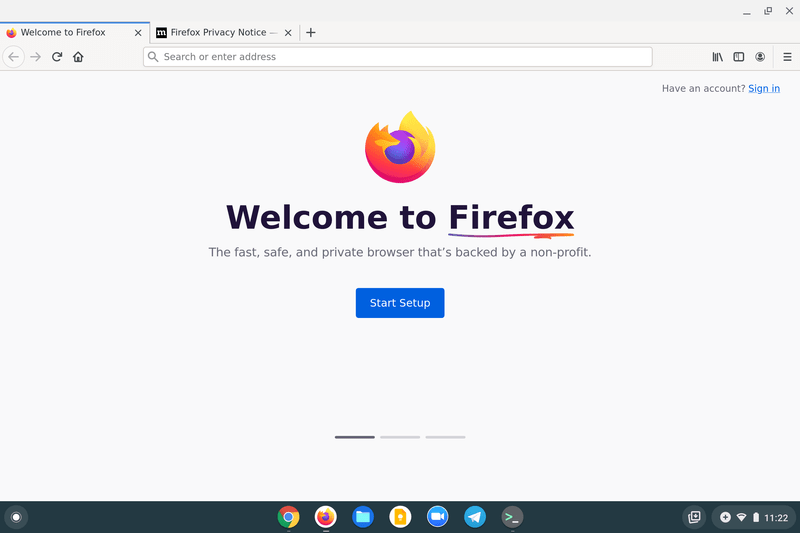
- Open the Linux Terminal: Once the setup is complete, a “Terminal” app will appear in your app launcher (often in a folder labeled “Linux apps”). Click on it to open the Linux command line.
Installing Firefox ESR via the Terminal

With the Linux environment up and running, you can now install Firefox. The most common and recommended version to install is Firefox ESR (Extended Support Release), which offers a balance of stability and features, making it ideal for most users.
- Update Linux Packages: Before installing new software, it’s good practice to update your Linux package list and any existing software. In the Terminal, type the following commands, pressing Enter after each:
bash

sudo apt update

sudo apt upgrade
You may be prompted for your Linux password (the one you set during the setup wizard). - Install Firefox ESR: Now, install Firefox ESR. Use the following command:
bash

sudo apt install firefox-esr
The system will ask you to confirm the installation and indicate how much disk space will be used. TypeYand press Enter. - Launch Firefox: Once the installation is complete, Firefox will appear in your Chromebook’s app launcher under the “Linux apps” folder. You can click on it to launch the full desktop version of Firefox.
Alternatively, some users might prefer the very latest Firefox release. While firefox-esr is in the default Debian repositories, the absolute latest versions might be available via Flatpak or Snap, or by adding Mozilla’s own repositories. For simplicity and stability, firefox-esr is usually sufficient for most users.
The Advantages and Considerations of Firefox for Linux
Running Firefox through the Linux container offers the most complete desktop browser experience on a Chromebook, but it comes with its own set of trade-offs:
- Pros:
- Full Desktop Features: This is the identical Firefox you’d run on a Windows, macOS, or Linux desktop. You get the full user interface, all advanced settings, and complete access to developer tools.
- Extensive Add-on Support: The entire Firefox Add-ons library is available, allowing you to install any extension, theme, or privacy tool you desire, vastly enhancing productivity and customization.
- Seamless Sync: Full integration with Firefox Sync allows for seamless synchronization of bookmarks, history, passwords, and open tabs across all your Firefox instances on different devices.
- Enhanced Productivity: With desktop-grade features and extensions, this version is ideal for power users, web developers, and anyone who relies on a highly customized and feature-rich browsing environment.
- Digital Security: Firefox’s strong focus on privacy and security is fully realized in its desktop version, offering robust tracking protection and security features.
- Cons:
- Resource Intensive: Running a full Linux environment and a desktop browser requires more system resources (RAM, CPU, storage) than the Android app. This might be noticeable on Chromebooks with less RAM (e.g., 4GB or less).
- Storage Footprint: The Linux container itself takes up several gigabytes, and then Firefox adds to that. Ensure you have sufficient storage on your Chromebook.
- Slight Performance Overhead: As Firefox runs in a virtualized environment, there might be a minor performance overhead compared to a native application. It’s usually negligible for most tasks but could be observed under heavy load.
- Learning Curve: Enabling Linux and using the terminal requires a basic understanding of command-line operations, which can be a barrier for less technically inclined users.
- Integration Quirks: While integration has improved, Linux apps can sometimes have minor quirks with clipboard sharing, file system access, or notification handling compared to native Chrome OS or Android apps.
For power users, developers, or privacy advocates who want an uncompromised Firefox experience, the Linux method is undeniably the superior choice. The initial setup time and resource usage are often a small price to pay for the significant boost in functionality and control.
Method 3: Exploring Specialized Firefox Versions for Specific Needs
Beyond the standard Firefox Browser for Android and the full desktop Firefox for Linux, Mozilla also offers specialized versions that cater to particular user needs, especially in the realm of privacy and streamlined browsing. These can be valuable additions to your Chromebook’s app arsenal.
Firefox Focus: Prioritizing Privacy and Simplicity
Firefox Focus (known as Firefox Klar in some regions) is a mobile browser designed with an extreme emphasis on privacy and speed. It automatically blocks a wide range of web trackers and removes browsing history, passwords, and cookies at the end of each session.
- Installation: Like the regular Firefox Android app, Firefox Focus is available directly from the Google Play Store. Simply search for “Firefox Focus” and install it.
- Pros:
- Excellent Privacy: Focus automatically blocks ads and trackers, providing a cleaner, faster browsing experience with enhanced privacy out of the box.
- Speed: By blocking unnecessary content, pages often load much faster.
- Simplicity: It’s a minimalist browser with a straightforward interface, ideal for quick, private searches or reading articles without distractions.
- Disposable Sessions: Each session essentially starts fresh, ensuring no lingering cookies or history if you forget to clear them.
- Cons:
- Limited Features: Focus is intentionally bare-bones. It lacks many standard browser features like tab management (though it has a basic tab view), bookmarks, and extensive customization options. It’s not designed as a primary, full-featured browser.
- No Extensions: Due to its minimalist design, there is no support for browser extensions.
Firefox Focus is an excellent secondary browser for those moments when you need to quickly look something up without leaving a trace, or when you want to bypass trackers and enjoy a clutter-free web page view. It’s a strong tool for digital security and maintaining personal privacy.
Firefox Beta and Nightly: For the Enthusiast and Early Adopter
For users who like to stay on the cutting edge and contribute to the development process, Mozilla offers Beta and Nightly versions of Firefox. These are experimental builds that include the very latest features and bug fixes before they are rolled out to the stable release.
- Installation: These versions are also available on the Google Play Store (e.g., “Firefox Beta,” “Firefox Nightly for Developers”) or can be downloaded for Linux as specific builds from Mozilla’s website.
- Pros:
- Early Access to Features: Be the first to try out new features and improvements.
- Bug Reporting: Contribute to the development process by finding and reporting bugs.
- Advanced Options: Nightly, especially, often includes experimental settings that aren’t exposed in stable builds.
- Cons:
- Instability: These versions are not stable and may crash frequently or exhibit unexpected behavior. They are not recommended for critical tasks.
- Bugs: You are essentially volunteering to test pre-release software, so encountering bugs is part of the experience.
- Resource Demanding: Sometimes, beta or nightly builds can be less optimized and more resource-intensive.
These versions are niche options, primarily for developers, tech enthusiasts, and power users who are comfortable dealing with potential instability for the sake of exploring new frontiers in web browsing technology.
Making Your Choice: Which Firefox for Your Chromebook?
The decision of which Firefox version to install on your Chromebook ultimately depends on your individual needs, technical comfort level, and the specifications of your device. Each method offers a distinct balance of convenience, features, and performance.
Balancing Convenience, Features, and Performance
To help you decide, consider these scenarios:
- For the Casual User / Basic Web Browsing: If you simply want an alternative browser for occasional use, email, social media, and don’t rely heavily on extensions, the Firefox Android App from the Play Store is the easiest and most straightforward option. It offers a good balance of privacy features and convenience without requiring any technical setup.
- For the Privacy-Conscious / Distraction-Free Browsing: If your primary concern is privacy and you want a minimalist, fast browsing experience for quick lookups or reading, Firefox Focus is an excellent companion browser.
- For the Power User / Developer / Full Desktop Experience: If you demand full access to Firefox’s extensive add-on ecosystem, developer tools, and a traditional desktop interface, the Firefox for Linux (Crostini) method is your best bet. Be prepared for a slightly more involved setup and potentially higher resource usage, but the payoff in functionality is substantial. This is the choice for maximum digital productivity and customization.
- For the Tech Enthusiast / Early Adopter: If you enjoy experimenting with the latest features and are willing to tolerate occasional instability, consider Firefox Beta or Nightly, especially the Linux versions for the full desktop experience.
The Broader Implications for Digital Productivity and Security
Choosing to install Firefox on your Chromebook is more than just picking a different app; it reflects a conscious decision about your digital life.
- Digital Security: Firefox’s commitment to privacy (Enhanced Tracking Protection, VPN integration, password managers) directly enhances your digital security posture, regardless of the method you choose. This aligns with modern tech trends emphasizing data protection and user agency.
- Productivity: The availability of a full desktop browser with a vast library of extensions (via Linux) can significantly boost productivity for professionals, students, and developers alike. Tools for research, writing, coding, and design often rely on specific browser extensions that only the desktop version can provide.
- Open Source and Brand Values: Opting for Firefox supports an open-source project and a brand that champions an open, accessible, and user-controlled internet. This aligns with a growing movement towards ethical technology and moving beyond the walled gardens of dominant tech giants.
- Flexibility and Investment: By diversifying your browser choice, you invest in a more flexible and adaptable computing environment. Your Chromebook becomes a more versatile tool, capable of meeting a wider array of personal and professional demands.
Conclusion: Embracing Browser Diversity on Chrome OS
The question “Can you install Firefox on a Chromebook?” is unequivocally answered with a resounding “Yes!” What’s more, you have multiple viable pathways to choose from, each tailored to different user preferences and technical requirements. From the effortless installation of the Android app to the robust, full-featured desktop experience offered through Linux, Chromebooks are increasingly versatile platforms that empower users to select the software that best fits their digital lifestyle.
This growing flexibility on Chrome OS not only enhances user choice but also contributes to a healthier web ecosystem by promoting browser diversity. Whether you prioritize privacy, customization, raw power, or simply a different aesthetic, bringing Firefox to your Chromebook is a straightforward process that unlocks a world of possibilities. Embrace the choice, customize your experience, and enjoy the robust, privacy-focused browsing that Firefox offers, right on your Chromebook.
aViewFromTheCave is a participant in the Amazon Services LLC Associates Program, an affiliate advertising program designed to provide a means for sites to earn advertising fees by advertising and linking to Amazon.com. Amazon, the Amazon logo, AmazonSupply, and the AmazonSupply logo are trademarks of Amazon.com, Inc. or its affiliates. As an Amazon Associate we earn affiliate commissions from qualifying purchases.