
For digital artists, designers, and creatives of all stripes, an XP-PEN tablet is more than just a peripheral; it’s an extension of their hand, a gateway to their imagination. Yet, the seamless experience these devices promise often hinges on a crucial, yet frequently overlooked, component: the driver. The question, “Which XP-PEN driver version do I install?” might seem simple, but its answer can dramatically impact your workflow, productivity, and overall satisfaction with your tablet. In the fast-paced world of technology, where software updates, operating system changes, and new hardware iterations are constant, understanding how to select and manage your XP-PEN drivers is paramount.

This comprehensive guide delves into the nuances of XP-PEN driver selection, offering insights that transcend mere installation instructions. We’ll explore why the right driver is a linchpin for performance, navigate the various scenarios that dictate your choice, provide a detailed walkthrough of the installation process, and equip you with the knowledge to troubleshoot common issues. By optimizing this often-underestimated aspect of your digital toolkit, you’re not just ensuring your tablet works; you’re safeguarding your creative investment, minimizing frustrating interruptions, and unlocking the full potential of your artistic journey.
The Unseen Architect: Why Your XP-PEN Driver Version Matters More Than You Think
At the heart of every successful interaction between your XP-PEN tablet and your computer lies a piece of software known as a driver. Far from being a mere formality, this small but mighty program is the critical interpreter, allowing your operating system and creative applications to communicate effectively with your hardware. Without the correct driver, your tablet might be an inert slab of plastic; with the wrong one, it could become a source of endless frustration.
Bridging Hardware and Software: The Driver’s Essential Role
Think of the driver as the universal translator between your XP-PEN tablet and your computer. Your tablet generates a multitude of data points—pen position, pressure level, tilt sensitivity, button presses—in a language specific to its internal hardware. Your computer’s operating system (Windows, macOS, Linux) and applications (Photoshop, Clip Studio Paint, Krita) speak a different language, one they understand and can process to render strokes on your digital canvas. The driver’s primary role is to accurately translate these hardware signals into commands and data that the software can understand and utilize.
This translation process isn’t just about basic functionality; it’s about nuance. A well-designed, compatible driver ensures that every subtle variation in your pen stroke—from the lightest touch to the firmest press, from a delicate tilt to a quick flick—is accurately conveyed and reproduced on screen. This fidelity is what separates a frustrating, unresponsive drawing experience from a fluid, intuitive one. It’s the difference between a tool that feels like an extension of your hand and one that feels like a barrier to your creativity.
Performance, Stability, and Features: The Triad of a Good Driver
The impact of the right XP-PEN driver extends far beyond mere communication; it directly influences three critical aspects of your digital workflow:
- Performance: An optimized driver minimizes latency, ensuring that your pen strokes appear on screen almost instantaneously, mirroring the responsiveness of traditional drawing. It allocates system resources efficiently, preventing slowdowns or stuttering, even during complex tasks in demanding applications. Lag and choppy lines are often direct symptoms of an outdated or incompatible driver struggling to keep up.
- Stability: A stable driver is one that doesn’t crash, doesn’t freeze, and doesn’t cause conflicts with other software or your operating system. Frequent disconnections, sudden loss of pressure sensitivity, or applications unexpectedly quitting are all red flags that your driver might be unstable. A reliable driver ensures that your creative flow remains uninterrupted, protecting your work and your peace of mind.
- Features: Modern XP-PEN tablets come packed with advanced features: customizable express keys, tilt recognition, multi-touch gestures, and sophisticated pressure curves. These functionalities are not inherent to the hardware alone; they are unlocked and managed by the driver. An outdated driver might not support these features at all, or it might implement them poorly, leaving you unable to fully leverage the capabilities you paid for. The latest drivers often include enhancements for existing features, support for new operating system functionalities, and bug fixes that refine the user experience.
In essence, the XP-PEN driver isn’t just a technical requirement; it’s a fundamental aspect of your tablet’s user experience. Investing a little time in understanding and correctly managing your drivers is an investment in your productivity, your creativity, and the longevity of your digital tools.
Charting Your Course: Identifying the Right Driver for Your Scenario
The quest for the “right” XP-PEN driver isn’t a one-size-fits-all solution. Your optimal choice depends heavily on your specific circumstances, including whether you’re setting up a new tablet, troubleshooting an existing one, dealing with older hardware, or ensuring compatibility with your preferred creative software. Understanding these scenarios is key to making an informed decision and avoiding unnecessary headaches.
First-Time Setup: Laying the Foundation
When you unbox a brand-new XP-PEN tablet, the instinct might be to plug it in and start drawing. However, a crucial first step is to install the appropriate driver. While your operating system might recognize the tablet as a generic mouse, it won’t unlock pressure sensitivity, express keys, or other advanced features without the dedicated XP-PEN driver.
For first-time setups, the general rule of thumb is to always download the latest stable driver version directly from the official XP-PEN website. Avoid using any drivers that might come on a bundled CD (if your tablet even includes one) as these are almost certainly outdated. XP-PEN’s support page for your specific tablet model will list the recommended drivers, often categorized by operating system. This ensures you’re starting with the most current features, bug fixes, and compatibility improvements. Prior to installation, it’s also wise to check your operating system version to ensure full compatibility.
Upgrading or Troubleshooting: When to Seek a New Version
If you already have an XP-PEN tablet and are encountering issues or simply want to ensure optimal performance, the decision to update your driver becomes more nuanced.
-
When to Update:
- New OS Version: If you’ve updated your operating system (e.g., from Windows 10 to Windows 11, or a major macOS update), your existing driver might become incompatible or unstable. XP-PEN typically releases new drivers to support major OS changes.
- Performance Issues: Experiencing lag, inconsistent pressure sensitivity, pen disconnects, or express keys not working as expected are strong indicators that a driver update or reinstallation might be necessary.
- New Software/Features: If you start using a new creative application, or XP-PEN releases a driver that promises new features or improved compatibility with existing software, an update is warranted.
- Security Patches: Although less common for tablet drivers, sometimes updates include security enhancements.
-
When to Be Cautious:
- “If it ain’t broke, don’t fix it.” If your tablet is working perfectly with an older driver version, and you’re not experiencing any of the above issues, there might be no urgent need to update immediately. Sometimes, newer drivers can introduce new bugs, though rare.
- Reading Release Notes: Before updating, always check the release notes on the XP-PEN website. These notes will detail what bugs have been fixed, what new features have been added, and any known issues with the new version. This can help you decide if the update is relevant to your needs.
The Legacy Dilemma: Older Tablets and OS Compatibility
Owners of older XP-PEN tablet models might face a specific challenge: driver support for legacy devices. As technology progresses, XP-PEN, like many hardware manufacturers, eventually ceases to provide new driver updates for very old models. This can become problematic if you upgrade your operating system to a version released after the tablet’s end-of-life support.
- For older tablets: You might need to install an older driver version that specifically states compatibility with your tablet model and your current operating system. Searching the XP-PEN support archives or community forums for your specific model and OS combination is crucial.
- Operating System Downgrade/Virtual Machine: In extreme cases, if a critical legacy tablet becomes entirely incompatible with your modern OS, you might consider running an older version of your OS in a virtual machine (VM) or maintaining a dual-boot setup specifically for that tablet and its compatible software. This is a more advanced solution for specific professional needs.
Software Synergy: Ensuring Seamless Application Integration
Your XP-PEN tablet doesn’t operate in a vacuum; it interacts intimately with your creative applications. The chosen driver version plays a vital role in this synergy. Certain applications might perform better with specific driver versions, or new driver updates might be released specifically to improve compatibility with major software updates (e.g., a new version of Adobe Photoshop or Corel Painter).
- Check Application Requirements: Sometimes, creative software developers will list recommended tablet drivers.
- Test and Observe: After a driver update, always test your tablet in your primary creative applications. Pay close attention to pressure sensitivity, tilt, express keys, and overall responsiveness.
- Community Feedback: Before updating, check online forums or communities dedicated to your creative software or XP-PEN tablets. Other users might have already reported experiences, both positive and negative, with specific driver versions and application combinations. This collective knowledge can be invaluable in making your decision.
By carefully considering these scenarios, you can move beyond simply installing a driver to installing the right driver, ensuring a harmonious and productive relationship between your XP-PEN tablet and your digital creative environment.
The Installation Imperative: A Step-by-Step Guide to Driver Management
Successfully installing and managing your XP-PEN driver goes beyond a simple double-click. It requires a methodical approach, especially when dealing with updates or troubleshooting. Following best practices ensures a clean installation, minimizes conflicts, and maximizes the chances of your tablet working flawlessly.
Locating Your Driver: The Official XP-PEN Hub
The single most important rule for acquiring XP-PEN drivers is to always download them directly from the official XP-PEN website. This is crucial for several reasons:
- Authenticity and Security: Downloading from unofficial sources risks installing malware or corrupted files, potentially compromising your system’s security and stability.
- Latest Versions: The official website is always the first place to find the most current and stable driver releases.
- Correct Model Specificity: XP-PEN’s website allows you to easily navigate to the support page for your specific tablet model, ensuring you download the correct driver.
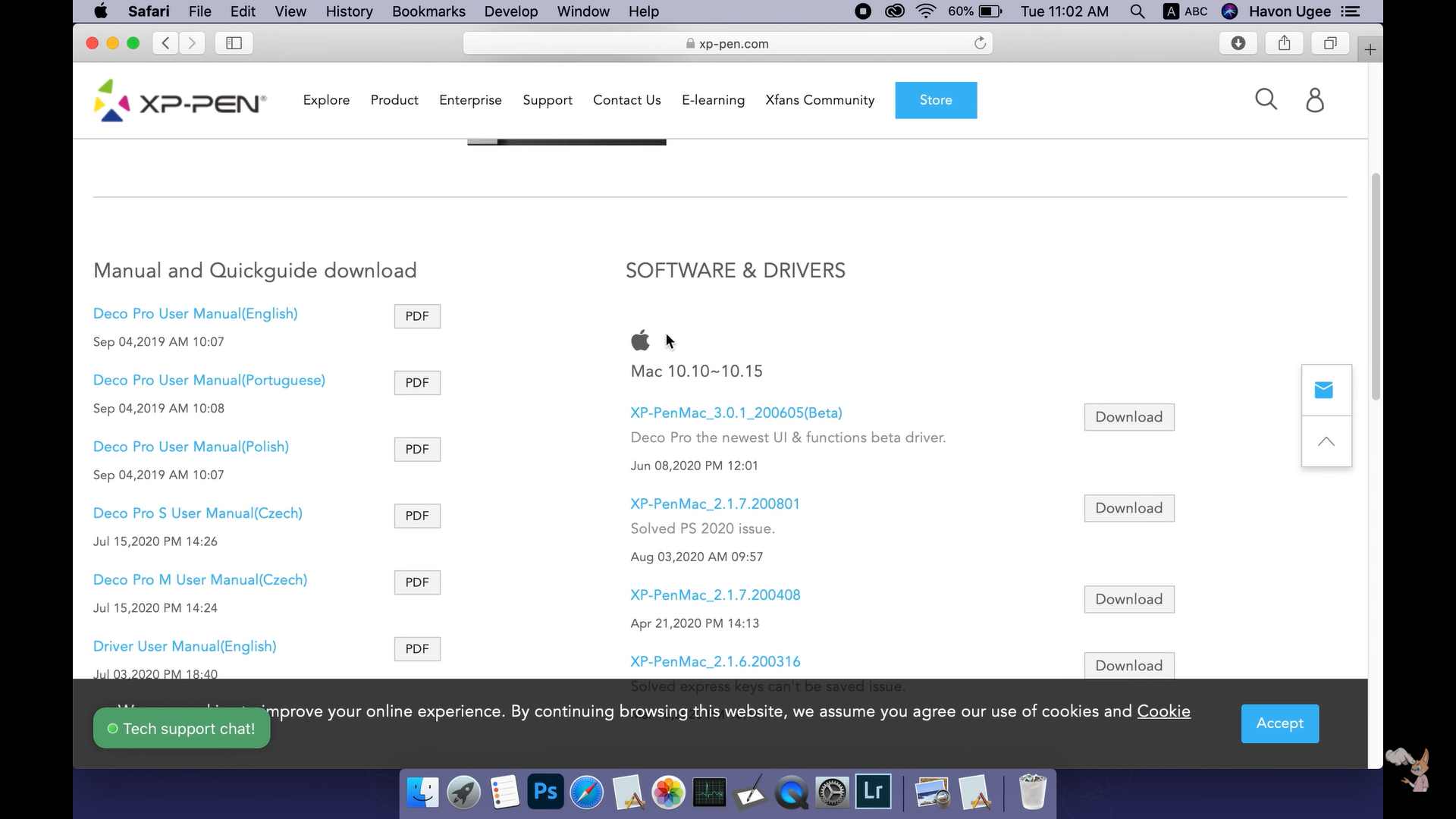
Steps to Locate:
- Navigate to
www.xppen.com. - Look for a “Support,” “Downloads,” or “Drivers” section.
- You’ll typically be asked to select your product category (e.g., Pen Display, Pen Tablet) and then your specific model number (e.g., Artist 12, Deco 01 V2).
- Once on your product’s page, you’ll find a list of drivers, usually categorized by operating system (Windows, macOS, sometimes Linux or Android) and version number, along with their release dates and often, release notes.
- Choose the latest stable version compatible with your operating system.
The Clean Sweep: Uninstalling Previous Drivers
Before installing a new driver, particularly if you’re upgrading or troubleshooting, it is absolutely essential to completely uninstall any existing XP-PEN tablet drivers on your system. Skipping this step is a common cause of driver conflicts, which can manifest as erratic behavior, loss of functionality, or even system crashes.
Steps for Uninstallation:
- Disconnect Your Tablet: Unplug your XP-PEN tablet from your computer. This prevents the system from trying to load a driver for a connected device during the uninstallation process.
- Close All Creative Software: Ensure all drawing applications (Photoshop, Clip Studio Paint, etc.) and any XP-PEN driver software (like the “TabletSetting” utility) are completely closed.
- Uninstall Driver (Windows):
- Go to “Control Panel” > “Programs” > “Programs and Features” (or “Settings” > “Apps” > “Apps & features” in Windows 10/11).
- Look for entries like “XP-PEN Tablet,” “PentabletDriver,” or similar.
- Select the XP-PEN driver and click “Uninstall.” Follow the on-screen prompts.
- Uninstall Driver (macOS):
- Open “Finder,” navigate to “Applications.”
- Look for an “XP-PEN Tablet” folder or an uninstaller application within it.
- If no specific uninstaller is provided, you may need to manually delete the “PentabletDriver” or “TabletDriver” app from your Applications folder. Additionally, check
~/Library/Application Support/PenTabletand~/Library/Preferences/com.TabletDriver.plistand delete relevant files if they exist (be cautious when deleting from Library folders). Many XP-PEN drivers on macOS come with a dedicated “Uninstall PenTablet Driver” utility. Always use this if available.
- Restart Your Computer: This crucial step clears any lingering driver files or settings from your system’s memory, ensuring a truly clean slate for the new installation. Do not skip this.
The Installation Process: A Fresh Start
Once your system is clean and restarted, you’re ready for the new driver installation.
Steps for Installation:
- Run the Installer: Locate the downloaded driver file (usually an
.exefor Windows or a.dmgfor macOS). Double-click to run it. - Follow On-Screen Instructions: The installer will guide you through the process. Accept the license agreement, choose an installation location (usually the default is fine), and allow the installer to make changes to your system.
- Grant Permissions (macOS Specific): On macOS, you will almost certainly be prompted to grant specific accessibility and security permissions for the XP-PEN driver to function correctly. This typically involves going to “System Settings/Preferences” > “Security & Privacy” > “Accessibility” and “Input Monitoring” and explicitly allowing the “PenTabletDriver” or “TabletDriver” application. Without these permissions, the tablet may not work or may lack pressure sensitivity.
- Restart Your Computer (Again): After the installation is complete, another restart is highly recommended to ensure all driver components are properly loaded and initialized by the operating system.
- Reconnect Your Tablet: After the second restart, connect your XP-PEN tablet to your computer.
Verification and Customization: Beyond the Install Button
Installation isn’t the final step; verifying proper functionality and customizing your settings are equally important.
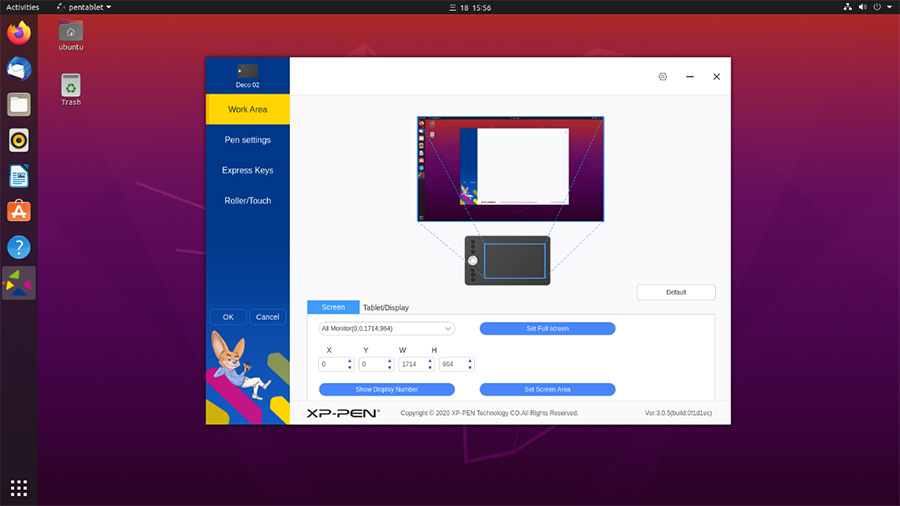
- Open the XP-PEN Tablet Setting Application: After connecting your tablet, you should find a “PenTablet” or “XP-PEN Tablet Setting” application in your system tray (Windows) or Applications folder (macOS). Open this utility.
- Test Functionality:
- Pen Movement: Move your pen across the tablet. The cursor on your screen should follow smoothly.
- Pressure Sensitivity: Most driver utilities include a test area where you can draw to see the pressure sensitivity working. If not, open a drawing application and make some strokes. Vary your pressure to ensure it registers correctly.
- Express Keys/Scroll Wheel: Test each customizable button or scroll wheel on your tablet.
- Customize Settings: This utility is where you fine-tune your tablet experience:
- Mapping: Adjust the active area of the tablet to your screen(s).
- Pen Buttons: Assign functions to your pen’s buttons (e.g., right-click, undo).
- Express Keys: Program the tablet’s express keys to your most frequently used shortcuts.
- Pressure Curve: Adjust the sensitivity of the pen to better match your drawing style.
- Monitor Configuration: For pen displays, ensure it’s correctly mapped to the desired monitor.
By meticulously following these steps, you lay a robust foundation for an optimal XP-PEN experience, minimizing the chances of driver-related issues hindering your creative process.
Troubleshooting Common Pitfalls and Sustaining Peak Performance
Even with the correct driver installed, digital tools can sometimes present unexpected challenges. Understanding how to diagnose and resolve common XP-PEN driver issues is an invaluable skill that protects your productivity and ensures your investment continues to pay off. Moreover, establishing best practices for driver maintenance can help prevent problems before they even arise.
Diagnosing Driver-Related Issues: Signs and Symptoms
Identifying that a problem is indeed driver-related is the first step toward a solution. Here are common symptoms that often point to a driver issue:
- No Pressure Sensitivity: The pen moves the cursor, but all lines are uniform, regardless of how hard you press. This is perhaps the most common driver-related complaint.
- Pen Not Recognized: The tablet is connected, but the cursor doesn’t move, or the XP-PEN software reports “device disconnected.”
- Lag or Jittery Lines: Cursor movement is delayed, or drawn lines appear wobbly or erratic, especially when drawing slowly.
- Express Keys Not Working: Customizable buttons on the tablet or pen fail to perform their assigned functions.
- Intermittent Disconnections: The tablet randomly stops working and then reconnects, often accompanied by system sounds.
- Software Conflicts: Other applications crash or behave erratically when the tablet is connected or when an XP-PEN driver setting is changed.
- Cursor Offset/Incorrect Mapping: The cursor doesn’t align with the pen tip, or the tablet’s active area is mapped incorrectly to your screen.
- Tablet Settings Not Saving: Any custom settings you apply in the XP-PEN driver utility revert to default after a restart or reconnection.
When experiencing any of these issues, it’s prudent to consider the driver as a primary suspect before delving into hardware diagnostics.
Common Solutions: From Reinstallation to Compatibility Mode
Once you suspect a driver issue, here’s a hierarchy of solutions to try, ranging from simple fixes to more involved troubleshooting:
- Restart Everything: The classic tech support advice for a reason. Restart your computer and reconnect your tablet. This can often resolve temporary glitches.
- Check Physical Connections: Ensure all cables (USB, HDMI/VGA/DisplayPort for pen displays) are securely seated at both the tablet and computer ends. Try a different USB port.
- Run as Administrator (Windows): Right-click the XP-PEN Tablet Setting application and choose “Run as administrator.” Sometimes, insufficient permissions can prevent the driver from functioning fully.
- Re-install the Driver (The Gold Standard): If basic troubleshooting fails, a clean reinstallation (following the “Clean Sweep” and “Installation Process” steps outlined previously) is often the most effective solution. This clears out any corrupted files or conflicting settings.
- Try an Older/Different Driver Version: If the latest driver causes issues, or if you have an older tablet/OS combination, try installing a slightly older, known-stable driver version from XP-PEN’s archives. Conversely, if you’re on an older driver, try updating to the latest stable one.
- Check for OS Updates: Ensure your operating system is fully up to date. Sometimes, OS-level patches can resolve compatibility issues that affect peripheral drivers.
- Disable Antivirus/Firewall Temporarily: Occasionally, overly aggressive security software can interfere with driver installation or operation. Temporarily disable them during installation or troubleshooting to see if it resolves the issue (remember to re-enable them afterwards).
- Compatibility Mode (Windows): If an older driver is the only option for a legacy tablet on a newer OS, try running the installer or the XP-PEN Tablet Setting utility in compatibility mode for an older version of Windows. Right-click the executable, go to “Properties,” then “Compatibility.”
- Check for Software Conflicts: If the issue only occurs in a specific creative application, check that application’s settings for tablet or pen input (e.g., “Windows Ink” settings in Photoshop can sometimes conflict with XP-PEN drivers, requiring adjustment). Try disabling other non-essential background applications.
Embracing Best Practices: Regular Updates and Backups
Proactive maintenance can save you significant time and frustration down the line.
- Regular, Informed Updates: Keep an eye on the XP-PEN support page for your tablet model. Don’t blindly update, but be aware of new releases, especially if they address known issues or improve compatibility with new OS versions or major creative software updates. Always read release notes.
- Driver Backup (Advanced): For critical production environments, some users might consider backing up a known working driver installer file or even a system restore point before major driver or OS updates. This allows for a quicker rollback if a new driver introduces unforeseen problems.
- Dedicated USB Port: If possible, use a dedicated USB port for your XP-PEN tablet and try to avoid frequently plugging and unplugging other devices from that port, as this can sometimes lead to minor power fluctuations or recognition issues.
- Keep Your OS Clean: Regularly maintain your operating system, running disk cleanups and general performance optimizations, as a healthy OS provides a stable environment for all drivers.
When All Else Fails: Reaching Out to the XP-PEN Community and Support
If you’ve exhausted all troubleshooting steps and are still facing persistent issues, it’s time to leverage external resources:
- XP-PEN Community Forums: Many tech companies, including XP-PEN, host active online forums. Search for your specific tablet model and the issue you’re facing. Chances are, someone else has encountered and potentially resolved it. These communities are also excellent sources of tips, tricks, and user-tested driver recommendations.
- XP-PEN Official Support: As a last resort, contact XP-PEN’s customer support directly. Provide them with as much detail as possible: your tablet model, operating system version, current driver version, the steps you’ve already taken, and clear descriptions of the symptoms. Screenshots or short video clips can also be incredibly helpful. Their technical support team can offer tailored advice and escalate issues if necessary.
Remember, your XP-PEN tablet is an investment in your creative output. Dedicating time to understanding, installing, and maintaining its drivers is not just about troubleshooting; it’s about optimizing your tool, safeguarding your workflow, and ensuring that your digital canvas remains a space for unhindered imagination.
Conclusion: Empowering Your Artistic Journey with the Right Driver
The journey through the intricacies of XP-PEN driver versions reveals a fundamental truth about digital creativity: the seemingly small details of software configuration can have a monumental impact on the artistic experience. The question “Which XP-PEN driver version do I install?” transforms from a simple technical query into a strategic decision that directly affects your productivity, the stability of your workflow, and the ultimate realization of your creative vision.
By understanding the driver’s role as the indispensable translator between your hardware and software, you gain insight into why performance, stability, and features hinge on this crucial component. Navigating the various installation scenarios—from the excitement of a new tablet to the challenge of troubleshooting an older model—empowers you to make informed choices. The methodical steps of locating, cleanly uninstalling, and meticulously installing drivers are not mere chores but essential practices that lay the groundwork for a seamless digital drawing experience. And finally, equipping yourself with troubleshooting techniques and adopting proactive maintenance habits ensures that minor glitches don’t escalate into significant creative roadblocks.
Your XP-PEN tablet is a powerful instrument, designed to bring your imagination to life. By mastering the art of driver management, you’re not just ensuring its basic functionality; you’re unlocking its full potential, protecting your investment in this critical tool, and dedicating yourself to uninterrupted, fluid, and inspiring creative sessions. So, take control of your drivers, optimize your setup, and let your artistic journey flourish on the digital canvas with confidence and precision.
aViewFromTheCave is a participant in the Amazon Services LLC Associates Program, an affiliate advertising program designed to provide a means for sites to earn advertising fees by advertising and linking to Amazon.com. Amazon, the Amazon logo, AmazonSupply, and the AmazonSupply logo are trademarks of Amazon.com, Inc. or its affiliates. As an Amazon Associate we earn affiliate commissions from qualifying purchases.