
In an increasingly mobile-first world, the ability to perform essential tasks directly from our smartphones is no longer a luxury but a necessity. From managing emails and editing documents to running entire businesses, our Android devices have become powerful command centers. Yet, for many, the simple act of printing a document or photo still feels tethered to a traditional desktop computer. This perception, however, is largely outdated. Thanks to rapid advancements in connectivity and software, installing and using a printer with your Android phone is now remarkably straightforward, unlocking a new level of productivity and convenience.
This guide will demystify the process, offering a comprehensive look at how to connect your Android phone to a printer, regardless of your printer’s brand or connection type. We’ll delve into the various methods, provide step-by-step instructions, troubleshoot common issues, and highlight how seamless mobile printing can integrate into your daily life, enhancing efficiency for both personal and professional endeavors. By understanding these technologies, you can leverage your Android device’s full potential, ensuring that your digital files can effortlessly transition to physical prints whenever and wherever you need them.
The Evolution of Mobile Printing: Why Print Directly from Your Android?
The shift from desktop-centric computing to an increasingly mobile ecosystem has reshaped how we interact with technology and manage our workflows. For years, printing remained a stronghold of desktop PCs, often requiring specific drivers and cumbersome setups. However, as Android phones evolved into powerful handheld computers, the demand for direct mobile printing capabilities surged. Today, printing directly from your Android phone isn’t just about convenience; it’s about maintaining workflow continuity, enhancing productivity, and embracing the full spectrum of mobile technology.
Bridging the Digital-Physical Divide for Enhanced Productivity
The primary advantage of mobile printing lies in its ability to bridge the digital and physical worlds without interruption. Imagine receiving an important contract via email on your phone, signing it digitally, and then needing a physical copy for your records or a meeting. Without mobile printing, this might involve transferring the file to a computer, opening it, and then printing. With an Android-connected printer, you can print directly from your email app in a matter of seconds. This seamless transition saves valuable time and eliminates unnecessary steps, making you more efficient whether you’re at home, in the office, or even on the go if you have access to a portable printer.
Furthermore, for professionals managing various tasks – from preparing presentations and reports to printing shipping labels or invoices – the agility offered by mobile printing is invaluable. It transforms your smartphone into a versatile productivity tool, capable of handling end-to-end document management from creation to physical output. This aligns perfectly with modern “Tech” trends that prioritize flexibility and on-demand capabilities, moving away from rigid, location-dependent workflows.
Key Scenarios for Android Printing
The applications of printing directly from your Android device are vast and varied, touching upon personal, educational, and business needs.
- Personal Use:
- Photos: Print cherished memories directly from your phone’s gallery to a photo printer, creating physical albums or gifts.
- Documents: Quickly print flight tickets, event passes, recipes, or bank statements without needing to boot up a computer.
- Creative Projects: Print digital artwork, craft templates, or school assignments with ease.
- Educational Settings:
- Students can print notes, research papers, or assignments directly from their devices, especially useful in campus environments with shared printers.
- Business and Professional Use:
- Field Work: Salespeople or technicians can print invoices, contracts, or service reports on-site using portable printers.
- Small Business Owners: Print shipping labels, receipts, or marketing materials without being tied to a desk.
- Remote Work: Maintain a productive home office setup where your Android phone can serve as your primary interface for printing needs.
The ability to print instantly from your pocket opens up new possibilities, reducing reliance on public printing services (which can also save “Money” in the long run) and offering greater control over your documents and images. It’s a testament to how far mobile “Tech” has come, making complex tasks simpler and more accessible for everyone.
Core Methods for Connecting Your Android Phone to a Printer
Connecting your Android phone to a printer can be achieved through several reliable methods, each suited to different scenarios and printer types. The most common and versatile approaches involve wireless connections (Wi-Fi) and direct wired connections (USB OTG). Understanding these methods is key to choosing the best setup for your needs.
Wireless Printing via Wi-Fi Network and Manufacturer Apps
Wireless printing is by far the most popular and convenient method, allowing you to print from anywhere within your Wi-Fi network’s range without the clutter of cables. Most modern printers come equipped with Wi-Fi capabilities, enabling them to connect to your home or office network.
How it Works:
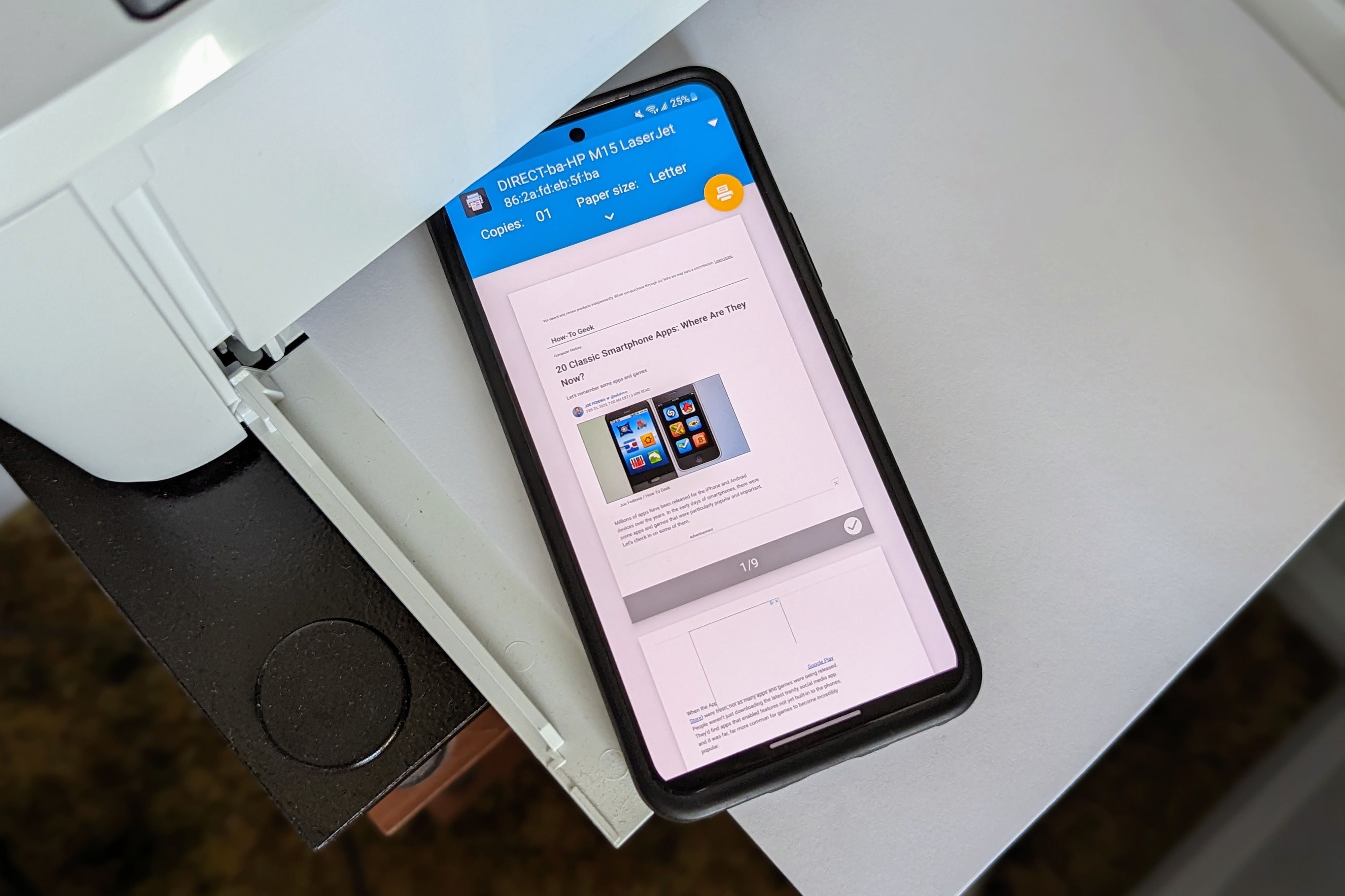
Your Android phone and the Wi-Fi-enabled printer both connect to the same local Wi-Fi network (router). This network acts as a bridge, allowing them to communicate and send print jobs wirelessly. Many printers also support “Wi-Fi Direct,” which allows your phone to connect directly to the printer without needing an intermediary router, ideal for ad-hoc printing or when no network is available.
Step-by-Step Guide for Network Printing:
- Ensure Printer is Connected: First, make sure your printer is powered on and successfully connected to your Wi-Fi network. Refer to your printer’s manual for specific instructions on connecting it to Wi-Fi; this usually involves using the printer’s control panel or a setup CD/utility on a computer.
- Connect Android Phone to Same Wi-Fi: Ensure your Android phone is also connected to the same Wi-Fi network as your printer.
- Install a Print Service or Manufacturer App:
- Android’s Built-in Print Service (Mopria Print Service): Many Android phones come with a default print service, often based on Mopria technology. Mopria Alliance is a global non-profit membership organization that develops universal standards and solutions for mobile printing, supporting over 3,000 printer models from leading “Brand” manufacturers like HP, Canon, Epson, Brother, and Samsung.
- To check/enable: Go to your phone’s Settings > Connected devices > Connection preferences > Printing. Here, you’ll likely see “Default Print Service” enabled. Tap it, and it will search for printers on your network.
- Manufacturer-Specific Apps: For enhanced features and better control, it’s highly recommended to download the official app from your printer’s manufacturer. These apps often provide advanced settings, ink level monitoring, scanning capabilities, and cloud integration.
- HP Smart: For HP printers. Offers printing, scanning, mobile fax, and troubleshooting.
- Epson iPrint: For Epson printers. Allows printing photos, documents, web pages, and supports cloud services.
- Canon PRINT Inkjet/SELPHY: For Canon inkjet and SELPHY printers. Enables printing photos and documents, scanning, and accessing cloud services.
- Brother iPrint&Scan: For Brother printers. Provides printing, scanning, and copying functions.
- Samsung Mobile Print / SmartThings: For Samsung printers. SmartThings now often incorporates printing for Samsung devices.
- Search for your printer’s “Brand” app on the Google Play Store and install it.
- Android’s Built-in Print Service (Mopria Print Service): Many Android phones come with a default print service, often based on Mopria technology. Mopria Alliance is a global non-profit membership organization that develops universal standards and solutions for mobile printing, supporting over 3,000 printer models from leading “Brand” manufacturers like HP, Canon, Epson, Brother, and Samsung.
- Add Printer (if not auto-detected):
- Via Android Settings: If using the Default Print Service, it should automatically detect compatible printers on your network. If not, look for an “Add printer” option within the printing settings and follow the prompts (usually by IP address or manual search).
- Via Manufacturer App: Open the manufacturer’s app. It will typically guide you through the process of finding and connecting to your printer on the network.
- Print a Document:
- Open the document, photo, or web page you wish to print.
- Look for the “Share” icon (usually three connected dots) or a “Print” option within the app’s menu (often represented by three vertical dots or a hamburger menu).
- Select “Print.”
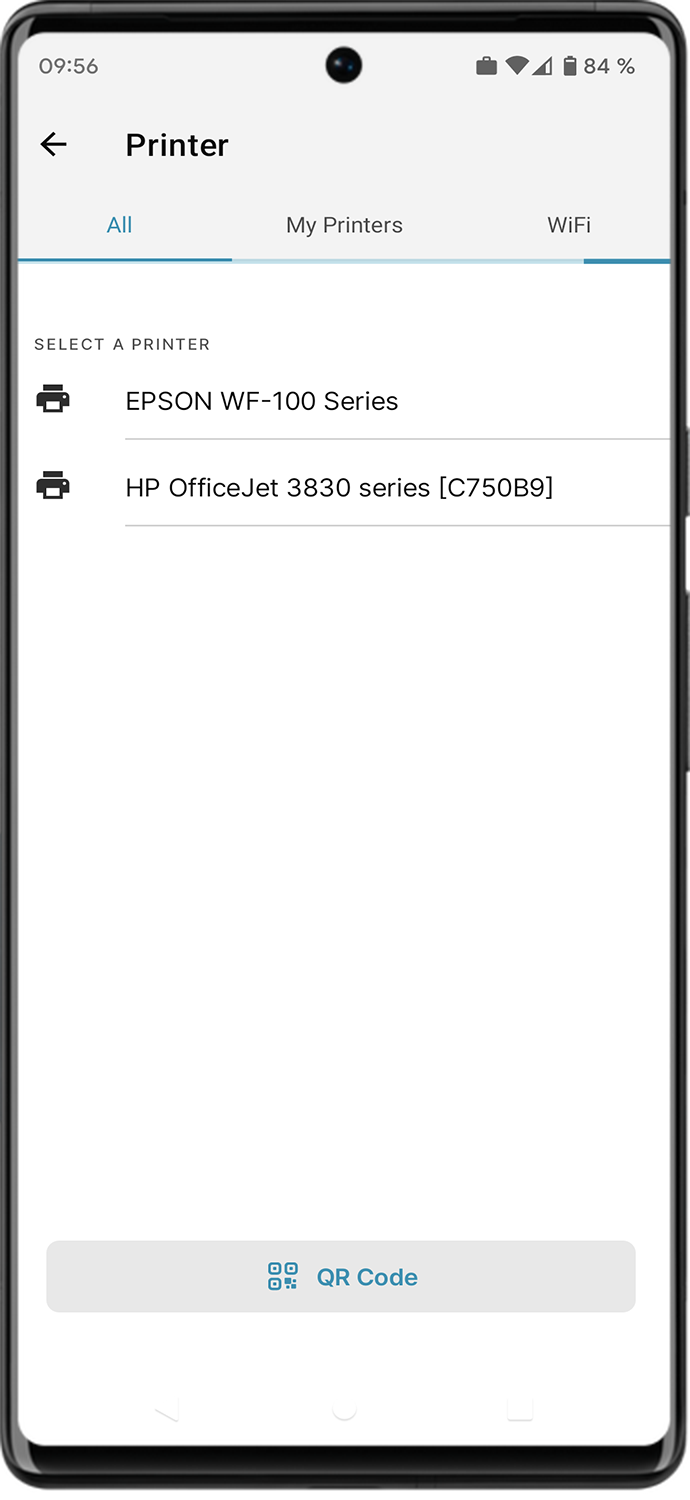
- Choose your connected printer from the list.
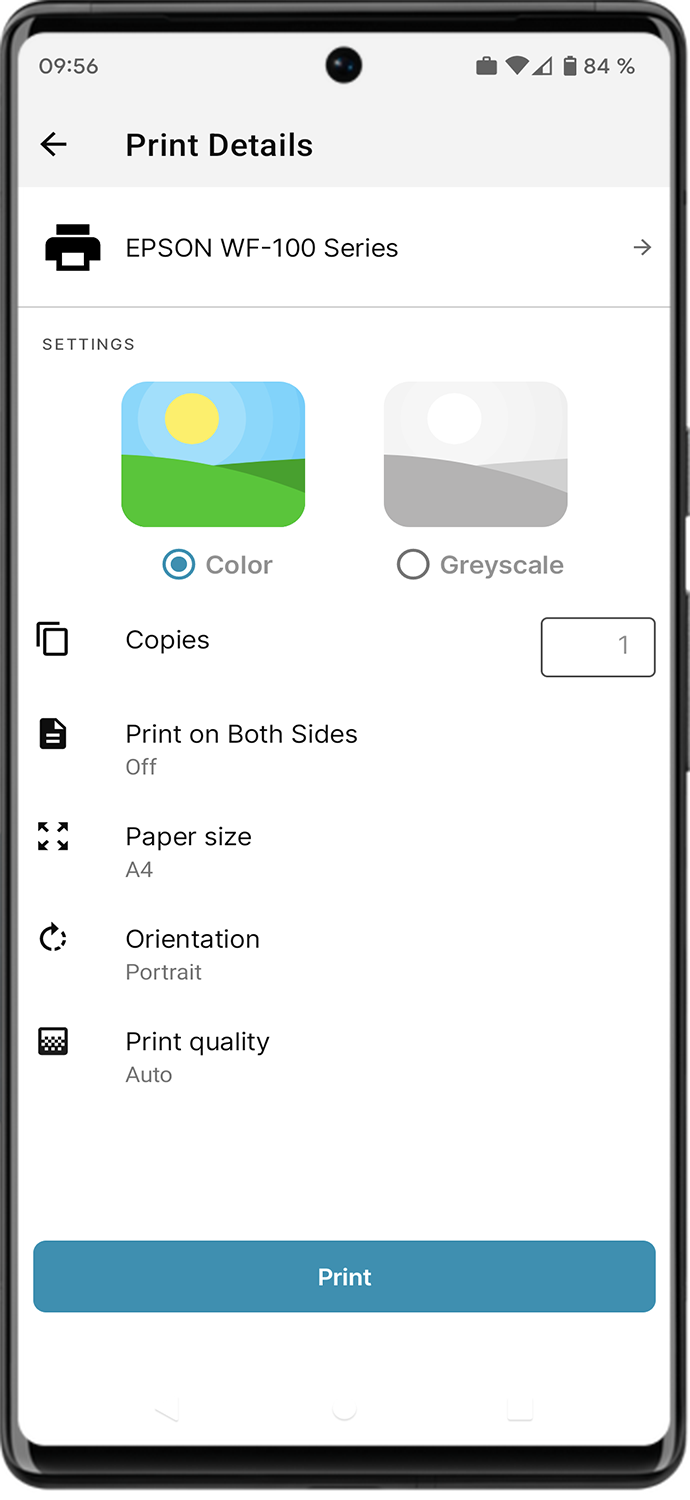
- Adjust print settings (number of copies, paper size, color/grayscale, orientation, etc.).
- Tap the “Print” button.
Security Considerations for Wireless Printing:
Ensure your Wi-Fi network is secured with a strong password (WPA2/WPA3 encryption). Using manufacturer apps or the Mopria service generally provides secure communication, but always download apps from official sources like the Google Play Store to mitigate “Digital Security” risks.
Direct USB OTG Connection for Wired Reliability
While wireless printing offers unparalleled convenience, there are situations where a direct wired connection via USB On-The-Go (OTG) is preferable or even necessary. This method is particularly useful if you don’t have a Wi-Fi network available, your printer lacks Wi-Fi capabilities, or you prefer a direct, uninterrupted connection for sensitive print jobs.
What You Need:
- USB OTG Cable: This is a special adapter that allows you to connect standard USB devices (like a printer’s USB cable) to your phone’s USB-C or Micro-USB port.
- USB Printer: Your printer must have a standard USB-B port (the square-shaped port often used for printers).
- Android Phone with OTG Support: Most modern Android phones support USB OTG, but it’s worth checking your device’s specifications if you have an older model.
- Printing App: You’ll likely need a third-party app that supports USB printing, as Android’s default print service might not fully support direct USB connections without a network. Popular options include “PrintHand Mobile Print” or “USB Printer” from the Play Store.
Step-by-Step Guide for USB OTG Printing:
- Connect the OTG Cable: Plug the small end of the USB OTG cable into your Android phone’s charging port.
- Connect Printer’s USB Cable: Plug one end of your printer’s standard USB-A to USB-B cable into the USB-A port on the OTG adapter. Plug the other end (USB-B) into your printer.
- Power On Printer: Ensure your printer is powered on.
- Install/Open a USB Printing App: Download and open a suitable USB printing app from the Google Play Store (e.g., PrintHand Mobile Print).
- Configure App to Detect Printer: Within the app, follow its instructions to detect and connect to your USB-connected printer. You might need to grant the app permissions to access USB devices. Some apps may require specific drivers to be downloaded within the app itself.
- Print Document: Once the printer is detected and configured in the app, you can select the document or image you want to print from within that app or share it to the app from another application.
- Adjust Settings and Print: Set your desired print options (copies, color, paper size) and initiate the print job.
USB OTG offers a robust, direct connection, ensuring print jobs go through even in challenging network environments. It’s an excellent fallback and a primary option for those with non-Wi-Fi printers.
The Legacy of Google Cloud Print and Modern Alternatives
For many years, Google Cloud Print was a popular solution for printing from Android devices and Chrome OS. It allowed users to print to any “classic” or “cloud-ready” printer from anywhere with an internet connection, bypassing local network requirements by routing print jobs through Google’s servers.
However, Google Cloud Print was officially deprecated at the end of December 2020. It is no longer supported or functional. If you were relying on it, you would need to transition to modern alternatives.
Modern Alternatives to Google Cloud Print:
The good news is that the functionality provided by Google Cloud Print has largely been absorbed and improved upon by the methods described above:
- Manufacturer Apps: As highlighted, nearly every major printer “Brand” now offers its own robust mobile printing app with cloud integration. Many allow you to print to your registered printer even when you’re away from your home network, provided both your phone and printer have internet access. These apps often offer a richer printing experience with more control over printer features.
- Mopria Print Service: This universal print solution provides a seamless printing experience for Android users to Mopria-certified printers (which includes most modern printers). It’s often built into Android devices and works locally over Wi-Fi, making it a direct and reliable replacement for many Cloud Print use cases, especially within a local network.
- Third-Party Cloud Printing Services: Some specialized third-party services offer cloud printing solutions, though they might require more complex setup or subscriptions. However, for most users, the combination of manufacturer apps and Mopria is more than sufficient.
Therefore, when considering how to install a printer on your Android phone today, focus entirely on the Wi-Fi-based solutions (manufacturer apps, Mopria) and USB OTG, as Google Cloud Print is no longer a viable option.
Step-by-Step Guide: Printing Your First Document from Android
Once your printer is successfully connected to your Android phone via Wi-Fi (through a print service or manufacturer app) or USB OTG, the actual printing process follows a largely universal workflow, making it incredibly intuitive.
The Universal Printing Workflow
This section outlines the general steps you’ll follow almost every time you initiate a print job from your Android device.
-
Open the Document/Image: Navigate to the file you wish to print. This could be:
- A document in Google Docs, Microsoft Word, or a PDF reader.
- A photo in your Gallery or Google Photos.
- An email in Gmail or Outlook.
- A web page in Chrome or another browser.
- A file in a cloud storage app like Google Drive or Dropbox.
-
Locate the Print Option:
- Within most apps, look for a “Share” icon (often three connected dots or an arrow pointing right/up) or a menu icon (three vertical dots or a hamburger menu).
- Tapping this icon usually reveals a list of options, including “Print.” In some apps, “Print” might be directly visible or nested under “More options.”
-
Select Your Printer:
- After tapping “Print,” your phone’s print preview screen will appear.
- At the top of this screen, there’s usually a dropdown menu or button indicating the currently selected printer (or “Save as PDF”). Tap this.
- A list of available printers (those connected via your print service or manufacturer app) will appear. Select the one you wish to use.
-
Adjust Print Settings:
- Before printing, you’ll have options to customize your print job. These typically include:
- Copies: Number of identical prints.
- Pages: Select specific pages or a range (e.g., 1-5, 7).
- Color/Black & White: Choose between full color or grayscale printing.
- Paper Size: Common sizes like Letter, A4, Legal, Photo sizes.
- Orientation: Portrait or Landscape.
- Duplex/Two-sided: Print on both sides of the paper (if your printer supports it).
- Paper Type: Plain, Photo Glossy, etc.
- Take a moment to review these settings to ensure your printout meets your requirements, potentially saving “Money” on wasted paper or ink from incorrect settings.
- Before printing, you’ll have options to customize your print job. These typically include:
-
Initiate Printing:
- Once all settings are correct, tap the “Print” button (often a printer icon or a text button) usually located at the top right or bottom right of the screen.
- Your Android phone will send the print job to the selected printer.
You should then hear your printer whir to life, producing your physical document. This streamlined process underscores how “Tech” has evolved to make formerly complex tasks simple and accessible directly from your Android device.
Troubleshooting Common Android Printing Issues
While printing from your Android phone is generally a smooth experience, you might occasionally encounter issues. Knowing how to diagnose and resolve these common problems can save you time and frustration, ensuring your “Productivity” remains uninterrupted.
Diagnosing Connectivity Problems
Many printing problems stem from connectivity issues between your phone and printer.
- Printer Not Found:
- Check Power: Ensure the printer is powered on.
- Verify Wi-Fi Connection (for wireless):
- Is your printer successfully connected to your Wi-Fi network? Check the printer’s display or status lights.
- Is your Android phone connected to the same Wi-Fi network as the printer?
- Try restarting both your router, printer, and Android phone.
- Wi-Fi Direct Issues: If using Wi-Fi Direct, ensure it’s enabled on your printer and that your phone is directly connected to the printer’s Wi-Fi Direct network (this will appear as a separate Wi-Fi network in your phone’s settings).
- USB OTG Check (for wired):
- Ensure the USB OTG cable and printer’s USB cable are securely connected to both your phone and printer.
- Verify your phone supports OTG and the USB printing app has necessary permissions.
- Print Job Stuck in Queue:
- Restart Printer: Turn the printer off, wait 10 seconds, then turn it back on.
- Clear Print Spooler: On your Android phone, go to Settings > Apps (or Apps & notifications) > See all apps. Find “Print Spooler” (you might need to tap “Show system apps”). Tap on it, then Storage & cache > Clear cache and Clear storage. Restart your phone.
- Check App Status: If using a manufacturer app, check if it shows any errors or warnings.
Resolving Software and Driver Glitches
Sometimes, the issue isn’t with the hardware but with the software components.
- App Crashes or Freezes:
- Update App: Ensure your manufacturer’s printing app or the third-party USB printing app is updated to the latest version from the Google Play Store.
- Clear App Cache: Go to Settings > Apps > [Your Printer App] > Storage & cache > Clear cache. If problems persist, try “Clear storage” (note: this will reset app settings).
- Reinstall App: If clearing cache/storage doesn’t help, uninstall and then reinstall the app.
- Default Print Service Not Working:
- Check for Updates: Ensure your Android OS is updated.
- Toggle On/Off: Go to Settings > Connected devices > Connection preferences > Printing > Default Print Service. Try toggling it off and then back on.
- Consider Manufacturer App: If the default service consistently fails, your printer’s “Brand” app often provides a more robust and feature-rich experience.
Optimizing Print Quality and Settings
Problems aren’t always about getting the print out, but getting it out correctly.
- Poor Print Quality:
- Check Ink/Toner Levels: Low ink or toner is a common culprit. Use your manufacturer’s app or the printer’s control panel to check levels. This also helps manage “Money” by replacing cartridges only when truly needed.
- Run Print Head Cleaning: Most manufacturer apps or printer control panels offer a utility to clean print heads or nozzles, which can resolve streaking or faded prints.
- Use Correct Paper Type: Ensure you’ve selected the correct paper type in the print settings (e.g., photo paper for photos).
- Incorrect Layout or Sizing:
- Verify Print Settings: Double-check paper size, orientation, and scaling options in the print preview screen before printing.
- Application-Specific Settings: Some apps might have their own layout options that override or interact with the printer settings.
By systematically working through these troubleshooting steps, you can resolve most common Android printing issues, ensuring that your digital files reliably make the jump to physical copies. If you continue to face problems, consulting your printer’s manual or the manufacturer’s support website for specific models can provide further assistance.
Conclusion: Embracing the Future of Mobile-First Printing
The journey of printing from a simple desktop utility to a sophisticated mobile capability underscores the dynamic evolution of “Tech.” What once required dedicated hardware and complex setups is now accessible directly from the Android phone in your pocket. As this guide illustrates, installing and utilizing a printer with your Android device is not only feasible but also incredibly straightforward, offering a wealth of benefits for “Productivity” and convenience.
From leveraging robust Wi-Fi connections with intuitive manufacturer apps and universal standards like Mopria, to utilizing the reliable direct connection of USB OTG, the options for seamless mobile printing are diverse and powerful. We’ve seen how these methods cater to various scenarios, whether you’re printing photos for personal enjoyment, critical documents for work, or even managing small business logistics on the go. Moreover, understanding how to troubleshoot common issues ensures that you remain empowered to resolve minor setbacks and maintain an uninterrupted workflow.
As we move forward, the integration of “AI Tools” and smarter features into printers and mobile operating systems will likely make printing even more intuitive and anticipatory. Expect advancements in voice commands, automated document recognition, and even more secure, cloud-based solutions that further blur the lines between our digital and physical environments.
Embracing the capabilities of mobile printing with your Android phone means more than just sending a document to paper; it’s about reclaiming time, enhancing efficiency, and unlocking a new dimension of mobile freedom. By adopting these methods, you’re not just installing a printer; you’re upgrading your personal and professional digital toolkit, ensuring that your Android device remains at the forefront of your productivity journey, ready to bring your digital world to life, one print at a time.
aViewFromTheCave is a participant in the Amazon Services LLC Associates Program, an affiliate advertising program designed to provide a means for sites to earn advertising fees by advertising and linking to Amazon.com. Amazon, the Amazon logo, AmazonSupply, and the AmazonSupply logo are trademarks of Amazon.com, Inc. or its affiliates. As an Amazon Associate we earn affiliate commissions from qualifying purchases.