
Neovim, a modern, extensible fork of the venerable Vim text editor, has surged in popularity within the tech community. Its promise of improved performance, enhanced extensibility through modern APIs, and a cleaner codebase makes it an attractive proposition for developers, system administrators, and anyone who spends significant time in a terminal. While the core principles of Vim remain, Neovim introduces a fresh perspective, aiming to streamline your workflow and boost your productivity.
This guide is designed for both seasoned Vim users looking to upgrade and newcomers curious about what makes Neovim so compelling. We’ll walk you through the installation process across various operating systems, explore essential post-installation steps, and offer insights into why Neovim is quickly becoming a go-to tool in the tech arsenal. Whether you’re a budding programmer delving into code, a content creator crafting documentation, or a power user optimizing your digital environment, understanding how to get Neovim up and running is your first step towards a more efficient and enjoyable text editing experience.

Understanding the Neovim Advantage
Before we dive into the installation, let’s briefly touch upon what sets Neovim apart. At its heart, Neovim is an evolution. It retains the modal editing paradigm that Vim is famous for – a system that separates modes for inserting text, commanding the editor, and selecting text. This modal nature, once mastered, allows for incredibly rapid and efficient text manipulation.
Neovim builds upon this foundation with several key improvements:
- Modern Plugin Architecture: Neovim’s plugin system is designed to be more robust and easier to manage than Vim’s traditional system. It supports asynchronous operations, allowing plugins to run without blocking the editor, which significantly improves responsiveness.
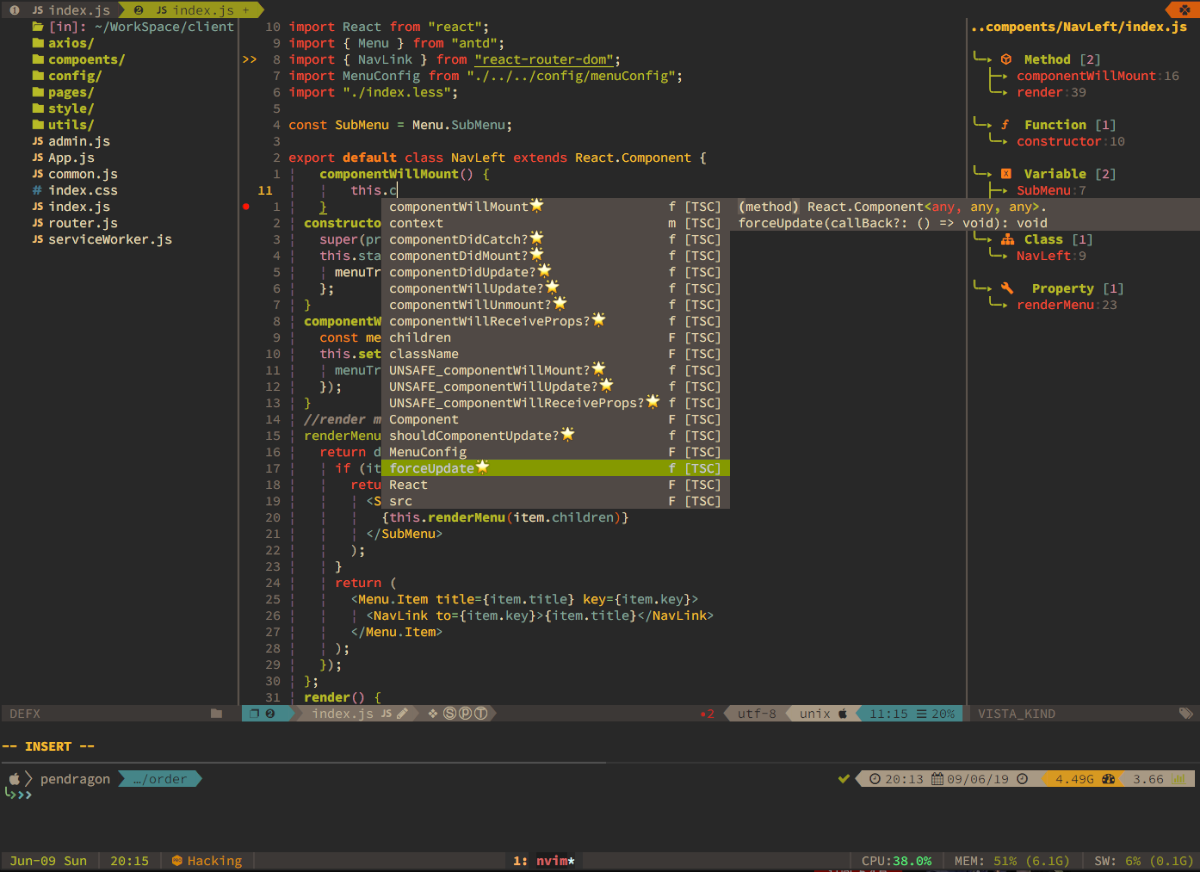
- Language Server Protocol (LSP) Support: This is a game-changer for modern development. LSP allows editors to communicate with language-specific servers, providing features like code completion, diagnostics, go-to definition, and refactoring in a standardized way. Neovim’s native LSP support makes it a formidable IDE-like experience.
- Improved Extensibility: Neovim exposes a more modern and flexible API, making it easier for developers to create powerful plugins and customizations.
- Performance Enhancements: Neovim often boasts faster startup times and better overall performance compared to older Vim versions, especially with complex configurations.
- Community-Driven Development: As an open-source project with a strong community, Neovim is actively developed and iterated upon, ensuring it stays relevant with emerging technologies and user needs.
These advancements translate into a more powerful, more responsive, and more integrated editing experience, especially when paired with the right plugins and configurations.
Installing Neovim: A Platform-Specific Approach
The installation process for Neovim varies depending on your operating system. Fortunately, it’s generally straightforward across all major platforms. We’ll cover the most common methods for Linux, macOS, and Windows.
Installing Neovim on Linux
Linux users have several convenient ways to install Neovim.
Using Your Distribution’s Package Manager
This is the most recommended and easiest method for most Linux users.
-
Debian/Ubuntu-based systems:
Open your terminal and run:sudo apt update sudo apt install neovimIf you’re on an older Ubuntu version that might not have the latest Neovim in its default repositories, you might consider adding a PPA (Personal Package Archive). A popular one is the Neovim nightly PPA:
sudo add-apt-repository ppa:neovim-ppa/stable sudo apt update sudo apt install neovim -
Fedora:
sudo dnf install neovim -
Arch Linux:
sudo pacman -S neovim -
openSUSE:
bash

sudo zypper install neovim
After installation, you can verify by typing nvim in your terminal.
Installing from Source (Advanced)
For users who want the absolute latest development version or specific customization options, compiling Neovim from source is an option. This requires development tools like git, cmake, and a C compiler.
-
Install Dependencies:
The specific dependencies vary slightly between distributions, but generally includecmake,gcc,g++,make,git, andpython3-dev(or equivalent for Python development).
For Debian/Ubuntu:sudo apt update sudo apt install build-essential cmake git python3-dev python3-pipFor Fedora:
sudo dnf groupinstall "Development Tools" sudo dnf install cmake git python3-devel python3-pip -
Clone the Neovim Repository:
git clone https://github.com/neovim/neovim.git cd neovim git checkout stable # Or a specific release tag -
Build and Install:
bash

make CMAKE_BUILD_TYPE=Release

sudo make install
This method provides more control but is generally more complex than using a package manager.
Installing Neovim on macOS
macOS users can easily install Neovim using Homebrew, the de facto package manager for macOS.
Using Homebrew
If you don’t have Homebrew installed, you can install it by following the instructions on their official website (brew.sh). Once Homebrew is set up:
-
Update Homebrew:
brew update -
Install Neovim:
bash

brew install neovim
Homebrew will handle downloading, compiling (if necessary), and installing Neovim, placing it in your PATH so you can access it by typing nvim in the Terminal.
Installing from Source (Advanced)
Similar to Linux, you can build Neovim from source on macOS.
-
Install Dependencies:
You’ll need Xcode Command Line Tools and Homebrew.xcode-select --install # Then use brew to install cmake and other potential build tools brew install cmake git -
Clone and Build:
bash

git clone https://github.com/neovim/neovim.git

cd neovim

git checkout stable

make CMAKE_BUILD_TYPE=Release

sudo make install
Installing Neovim on Windows
Installing Neovim on Windows can be done through a few methods, including a dedicated installer, package managers, or even the Windows Subsystem for Linux (WSL).
Using the Official Installer
The Neovim project provides official releases for Windows, which can be downloaded from their GitHub repository.
-
Download the Latest Release:
Navigate to the Neovim releases page. Find the latest stable release and download the.msiinstaller file (e.g.,nvim-win64.msi). -
Run the Installer:
Double-click the downloaded.msifile and follow the on-screen instructions. The installer will typically add Neovim to your system’s PATH, allowing you to runnvimfrom Command Prompt or PowerShell.
Using Package Managers (Chocolatey/Winget)
-
Chocolatey (Recommended for many Windows users):
If you have Chocolatey installed, open PowerShell or Command Prompt as an administrator and run:choco install neovim -
Winget (Windows Package Manager):
If you have Winget installed (it’s usually pre-installed on modern Windows 10/11 versions), you can use:
cmd

winget install neovim
Or if you want to search for it first:
cmd

winget search neovim

winget install --id Neovim.Neovim
Using Windows Subsystem for Linux (WSL)
For developers who prefer a Linux-like environment on Windows, WSL is an excellent option.
- Install WSL: Follow Microsoft’s official guide to install WSL and a Linux distribution (like Ubuntu) of your choice.
- Install Neovim within WSL: Once your Linux distribution is set up in WSL, you can follow the Linux installation instructions (using
apt,dnf, etc.) within your WSL terminal.
Verifying Your Installation
After completing the installation on your chosen platform, open your terminal or command prompt and type:
nvim --version
This command should output detailed information about your Neovim installation, including its version number and build configuration. If you see this output, Neovim is successfully installed and ready to be used. If you get a “command not found” error, you might need to restart your terminal or command prompt, or ensure that Neovim’s executable directory has been added to your system’s PATH environment variable.
Essential Post-Installation Steps: Setting Up Your Neovim Environment
Installing Neovim is just the beginning. To truly leverage its power and customize it to your workflow, there are several crucial post-installation steps.
The init.vim or init.lua Configuration File
Neovim, like Vim, uses configuration files to customize its behavior, key bindings, and appearance. For Neovim, these files are typically located in:
- Linux/macOS:
~/.config/nvim/init.vim(for Vimscript) or~/.config/nvim/init.lua(for Lua) - Windows:
~/AppData/Local/nvim/init.vimor~/AppData/Local/nvim/init.lua
Neovim favors Lua for its configuration due to its speed and modern features, but Vimscript is still fully supported. You’ll need to create these directories and files if they don’t exist.
You can create and open your configuration file directly within Neovim:
nvim ~/.config/nvim/init.lua
(Replace ~/.config/nvim/init.lua with the appropriate path for your OS if needed).
Basic Configuration Examples
Let’s look at a few fundamental configurations you might want to set up.
Setting Up Basic Options (using init.lua)
-- Basic settings
vim.opt.number = true           -- Show line numbers
vim.opt.relativenumber = true   -- Show relative line numbers
vim.opt.tabstop = 4             -- Number of spaces for a tab
vim.opt.shiftwidth = 4          -- Number of spaces for auto-indent
vim.opt.expandtab = true        -- Use spaces instead of tabs
vim.opt.smartindent = true      -- Enable smart indentation
vim.opt.wrap = false            -- Disable line wrapping
vim.opt.clipboard = "unnamedplus" -- Use system clipboard
vim.opt.incsearch = true        -- Highlight search matches as you type
vim.opt.hlsearch = true         -- Highlight all search matches

-- UI Enhancements
vim.opt.guifont = "Hack Nerd Font Mono:h12" -- Set a nice font (if using GUI)
vim.opt.termguicolors = true    -- Enable true color support in terminal
These are just a few examples. You can find extensive lists of Neovim options online and in :help options within Neovim itself.
Custom Key Mappings
Key mappings allow you to bind custom commands to key combinations, drastically speeding up common actions.
-- Example: Leader key for custom mappings (often mapped to space or )
vim.g.mapleader = " " -- Sets the leader key to spacebar

-- Save file with <Leader>w
vim.keymap.set("n", "<leader>w", ":w<CR>", { desc = "Save file" })

-- Quit Neovim with <Leader>q
vim.keymap.set("n", "<Leader>q", ":q<CR>", { desc = "Quit Neovim" })

-- Easier navigation between split windows
vim.keymap.set("n", "<C-h>", "<C-w>h", { desc = "Move left" })
vim.keymap.set("n", "<C-j>", "<C-w>j", { desc = "Move down" })
vim.keymap.set("n", "<C-k>", "<C-w>k", { desc = "Move up" })
vim.keymap.set("n", "<C-l>", "<C-w>l", { desc = "Move right" })
Plugin Management
Neovim’s extensibility is one of its greatest strengths, and plugins are key to this. A plugin manager simplifies the process of installing, updating, and removing plugins. Popular choices include:
packer.nvim: A fast, Lua-based plugin manager.lazy.nvim: A modern, fast, and feature-rich plugin manager for Neovim.vim-plug: A classic and widely used Vim plugin manager.
Let’s illustrate with lazy.nvim as it’s a modern and highly recommended choice.
Setting Up lazy.nvim
-
Install
lazy.nvim:
You’ll typically place this code snippet at the beginning of yourinit.luato bootstraplazy.nvim.-- Ensure you have a plugin manager installed. -- For lazy.nvim: -- 1. Create the directory for plugins: -- mkdir -p ~/.config/nvim/lua/plugins -- 2. Download the lazy.nvim plugin manager: -- Use curl or wget, or clone it from GitHub. -- Example using curl: -- sh -c 'curl -fLo "${XDG_CONFIG_HOME:-$HOME/.config}/nvim/pack/lazy/start/lazy.nvim/`git rev-parse --show-toplevel`/lazy.nvim.lua" https://github.com/folke/lazy.nvim/blob/main/lazy.nvim.lua?raw=true' -- Then, in your init.lua: local lazypath = vim.fn.stdpath("data") .. "/lazy/lazy.nvim" if not vim.loop.fs_stat(lazypath) then vim.fn.system({ "git", "clone", "--filter=blob:none", "https://github.com/folke/lazy.nvim.git", "--branch=stable", -- latest stable release lazypath, }) end vim.opt.rtp:prepend(lazypath .. "/rplugin/python3") -- For older plugins local lazy_opts = {} require("lazy").setup("plugins", lazy_opts) -- "plugins" is the directory where your plugin specs will live. -
Create Plugin Specifications:
Create a directory namedpluginsinside~/.config/nvim/lua/. Inside this directory, you can create files (e.g.,core.lua,ui.lua) to organize your plugin configurations.Example
~/.config/nvim/lua/plugins/core.lua:return { -- Example: Vim-fugitive for Git integration { "tpope/vim-fugitive" }, -- Example: A nice colorscheme { "folke/tokyonight.nvim" }, -- Example: Autopairs for automatically closing brackets/quotes { "windwp/nvim-autopairs", config = true }, -- Example: Essential for LSP setup { "williamboman/nvim-lspconfig", dependencies = { -- Prefer the nvim-treevent plugin for autocompletion in LSP "hrsh7th/cmp-nvim-lsp", "hrsh7th/cmp-buffer", "hrsh7th/cmp-path", "saadparwaiz1/cmp_luasnip", -- Snippet engine "L3MON4D3/LuaSnip", -- Snippet engine }, }, } -
Install Plugins:
After setting uplazy.nvimand your plugin specifications, restart Neovim. You should see thelazy.nvimUI prompting you to install the plugins. You can also run:Lazyin Neovim to manage your plugins.
Configuring Language Server Protocol (LSP)
LSP is a crucial feature for modern development, providing IDE-like features directly in your terminal editor.
- Install
nvim-lspconfig: As shown above, addwilliamboman/nvim-lspconfigto yourlazy.nvimsetup. - Install Language Servers: Each programming language requires its own language server executable to be installed separately. For example, for Python, you might install
pylsporpyright:
bash

pip install 'python-lsp-server[all]'

# Or for pyright

npm install -g pyright
Refer to thenvim-lspconfigdocumentation or the specific language server’s documentation for installation instructions. - Configure LSP in
init.lua:
lua

-- ~/.config/nvim/lua/plugins/lsp.lua (example)

return {

  {

    "williamboman/nvim-lspconfig",

    config = function()

      -- Setup language servers

      require("lspconfig").tsserver.setup({}) -- For TypeScript/JavaScript

      require("lspconfig").pyright.setup({}) -- For Python

      -- Add more language servers as needed

    end,

    dependencies = {

      "williamboman/completion-nvim", -- For completion-ui

      "hrsh7th/cmp-nvim-lsp",

      "hrsh7th/cmp-buffer",

      "hrsh7th/cmp-path",

      "saadparwaiz1/cmp_luasnip",

      "L3MON4D3/LuaSnip",

    },

  },

  -- Completion plugin setup (e.g., nvim-cmp)

  {

    "hrsh7th/nvim-cmp",

    config = function()

      local cmp = require("cmp")

      cmp.setup({

        snippet = {

          expand = function(args)

            require("luasnip").lsp_expand(args.body)

          end,

        },

        mapping = cmp.mapping.preset.insert({

          ["<C-b>"] = cmp.mapping.scroll_docs(-4),

          ["<C-f>"] = cmp.mapping.scroll_docs(4),

          ["<C-Space>"] = cmp.mapping.complete(),

          ["<C-e>"] = cmp.mapping.abort(),

          ["<CR>"] = cmp.mapping.confirm({ select = true }), -- Accept currently selected item. Set `select` to `false` to only confirm after each item.

        }),

        sources = cmp.config.sources({

          { name = "nvim_lsp" },

          { name = "luasnip" },

          { name = "buffer" },

          { name = "path" },

        }),

      })

    end,

  },

}
This setup will enable features like code completion, diagnostics, and go-to-definition for the languages you configure.

Conclusion: Embracing the Neovim Workflow
Installing Neovim is the first step into a more powerful and efficient text editing paradigm. By carefully following the installation steps for your operating system and investing time in configuring your init.lua (or init.vim) file with essential settings and plugins, you unlock a truly personalized and highly productive development environment.
The journey doesn’t end with installation. The true magic of Neovim lies in its customizability. Experiment with different plugins, explore advanced configuration options, and adapt Neovim to your specific coding language and workflow. As you become more comfortable with its modal editing, its extensive command set, and its powerful extensibility, you’ll find that Neovim can significantly enhance your coding speed, reduce errors, and make your overall interaction with code and text a more fluid and enjoyable experience. Welcome to the world of Neovim!
aViewFromTheCave is a participant in the Amazon Services LLC Associates Program, an affiliate advertising program designed to provide a means for sites to earn advertising fees by advertising and linking to Amazon.com. Amazon, the Amazon logo, AmazonSupply, and the AmazonSupply logo are trademarks of Amazon.com, Inc. or its affiliates. As an Amazon Associate we earn affiliate commissions from qualifying purchases.