
In the ecosystem of modern computing, the mouse remains one of the most critical interfaces between human intent and digital execution. Whether you are a creative professional navigating complex timelines in a video editor, a competitive gamer requiring millisecond precision, or a standard office user managing spreadsheets, the functionality of your peripheral depends heavily on a small but vital piece of software: the driver. While many modern devices claim “plug-and-play” compatibility, understanding how to properly install, update, and manage mouse drivers is essential for unlocking the full potential of your hardware and ensuring system stability.
Understanding the Role of Drivers in Peripheral Management
Before diving into the technical steps of installation, it is crucial to understand what a driver actually does. In technical terms, a driver is a translator. Your operating system (OS) and your hardware speak different languages; the driver acts as the intermediary that allows the Windows or macOS kernel to understand the signals being sent by the mouse’s optical sensor and buttons.
What is a Mouse Driver?
A mouse driver is a specialized software component that enables communication between the computer’s operating system and the pointing device. While basic drivers handle simple X and Y axis movement and primary clicks, advanced drivers manage complex features such as programmable macro buttons, RGB lighting synchronization, adjustable DPI (dots per inch) settings, and polling rate adjustments. Without the correct driver, a high-end $150 gaming mouse may function no differently than a generic $5 office mouse.
Plug-and-Play vs. Proprietary OEM Drivers
Most modern operating systems come pre-loaded with “Generic HID (Human Interface Device)” drivers. These are designed to work with almost any USB or Bluetooth mouse immediately upon connection. This is known as “plug-and-play.” However, proprietary drivers—developed by Original Equipment Manufacturers (OEMs) like Logitech, Razer, SteelSeries, or Microsoft—are necessary to access the advanced hardware features. Relying solely on generic drivers often leaves significant performance on the table.
How to Install Mouse Drivers on Windows 10 and 11
The Windows environment provides several pathways for driver installation. Depending on your level of technical comfort and the specific needs of your hardware, you might choose an automated update or a manual intervention.
Using Windows Update for Automatic Installation
For most users, Windows Update is the first line of defense. Microsoft maintains a massive catalog of verified drivers from various manufacturers.
- Connect your mouse to a functional USB port.
- Navigate to Settings > Update & Security > Windows Update.
- Click Check for updates.
- If a specific driver is available, Windows will download and install it automatically.
- In some cases, you may need to look under “View optional updates” to find specific hardware drivers that aren’t deemed “critical” by the system.
Manual Installation via Device Manager
If your mouse is malfunctioning or not performing as expected, the Device Manager is the most effective tool for a manual refresh. This method allows you to target the specific device without affecting the rest of the system.
- Right-click the Start button and select Device Manager.
- Locate the section labeled Mice and other pointing devices and expand it.
- Right-click your specific device (it may be listed as “HID-compliant mouse”) and select Update driver.
- You will be prompted with two choices: “Search automatically for drivers” or “Browse my computer for drivers.”
- If you have downloaded a specific driver file from the manufacturer’s website, select the latter and navigate to the folder containing the
.infor.sysfiles.
Installing Manufacturer-Specific Software Suites
For users of high-performance peripherals, the standard Windows driver is rarely sufficient. To gain full control over the hardware, you must install the manufacturer’s dedicated software suite. These applications act as a graphical interface for the driver, allowing for deep customization.

The Benefits of Proprietary Software
Proprietary software, such as Logitech G Hub, Razer Synapse, or Corsair iCUE, provides a layer of functionality that generic drivers cannot match.
- DPI Customization: High-end sensors can reach 25,000+ DPI. Software allows you to toggle between sensitivity stages for different tasks.
- Macro Programming: You can assign complex keystroke sequences to side buttons, which is invaluable for productivity in software like Photoshop or AutoCAD.
- Firmware Updates: Beyond the driver, the hardware itself has “firmware.” These software suites are the only way to update the mouse’s internal logic to fix bugs or improve sensor tracking.
- Surface Calibration: Some drivers allow the mouse to “scan” your mousepad to optimize the lift-off distance and tracking accuracy for that specific surface.
Step-by-Step Installation for OEM Software
- Identify your model: Look at the bottom of the mouse for the specific model name or number.
- Visit the official support page: Always download software directly from the manufacturer (e.g., logitech.com/support). Avoid third-party “driver downloader” sites, as these often contain bloatware or malware.
- Download the Installer: Choose the version compatible with your OS (Windows 11, Windows 10, or macOS).
- Run the Executable: Follow the on-screen prompts. Most modern installers will automatically detect the connected mouse and fetch the latest driver version during the installation process.
- Restart the System: While not always mandatory, a system reboot ensures that the new driver stack is loaded into the memory correctly.
Troubleshooting Common Mouse Driver Issues
Even with the best hardware, driver conflicts can occur. Software updates, OS patches, or hardware interference can lead to stuttering cursors, unrecognized devices, or “Driver Error” notifications in the system tray.
Resolving “Device Not Recognized” Errors
If Windows fails to see the mouse entirely, the issue may lie with the USB stack or a corrupted driver entry.
- Power Management Settings: Sometimes, Windows “sleeps” USB ports to save power. In Device Manager, right-click your USB Root Hub, go to Properties > Power Management, and uncheck “Allow the computer to turn off this device to save power.”
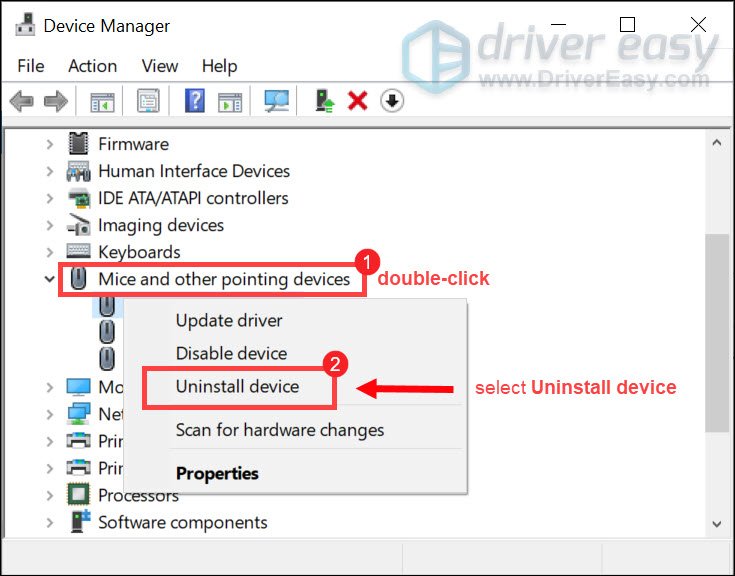
- Uninstall and Reinstall: In Device Manager, right-click your mouse and select Uninstall device. Unplug the mouse, restart your computer, and plug it back in. Windows will be forced to reinstall the driver from scratch, which often clears up corruption.
Rolling Back Drivers
Occasionally, a new driver update might be unstable or incompatible with your specific hardware revision. If your mouse starts acting up immediately after an update, you can perform a “Roll Back.”
- Open Device Manager.
- Right-click your mouse and select Properties.
- Navigate to the Driver tab.
- Click Roll Back Driver. This will revert the system to the previously installed version that was functioning correctly.
Maintaining System Health and Driver Security
In the digital age, hardware drivers are a common vector for security vulnerabilities. Because drivers operate at a high level of privilege (often having direct access to the system kernel), keeping them secure is as important as keeping them functional.
The Dangers of Third-Party Driver Updaters
Many users are tempted by “all-in-one” driver update tools that claim to keep your entire system current with one click. In the tech industry, these are generally discouraged. Many of these tools distribute unsigned drivers or versions that have not been tested for your specific hardware configuration. Furthermore, some are designed to collect user data or serve advertisements. The safest practice is to stick to Windows Update and official manufacturer websites.
Ensuring Driver Authenticity
When manually installing a driver, ensure it is digitally signed. A digital signature is an electronic security mark that certifies the driver comes from a legitimate publisher and that its code hasn’t been tampered with. Windows will usually warn you if you attempt to install an unsigned driver; unless you are a developer or a highly advanced user, you should heed these warnings to prevent system instability or security breaches.
Conclusion
The installation of a mouse driver may seem like a trivial task, but it is a fundamental aspect of system maintenance that dictates your daily computing experience. By moving beyond the basics of plug-and-play and embracing manufacturer-specific software, you can significantly enhance your precision, productivity, and enjoyment. Whether you are troubleshooting an old device or setting up a cutting-edge peripheral, the key lies in using official sources, understanding the nuances of the Device Manager, and keeping your software environment clean and updated. Proper driver management ensures that your hardware remains an extension of your intent, rather than a hurdle to your workflow.
aViewFromTheCave is a participant in the Amazon Services LLC Associates Program, an affiliate advertising program designed to provide a means for sites to earn advertising fees by advertising and linking to Amazon.com. Amazon, the Amazon logo, AmazonSupply, and the AmazonSupply logo are trademarks of Amazon.com, Inc. or its affiliates. As an Amazon Associate we earn affiliate commissions from qualifying purchases.