
In today’s digitally driven educational landscape, online assessments have become a cornerstone of learning. Ensuring the integrity and fairness of these exams is paramount for both institutions and students. This is where specialized tools like Respondus Lockdown Browser come into play. Designed to create a secure testing environment, it restricts access to other applications, websites, and system functions during an exam, effectively mimicking the controlled conditions of a physical test center.
For Mac users, installing and setting up Respondus Lockdown Browser is a straightforward process, but it requires careful attention to detail to ensure a smooth, stress-free experience come exam time. This comprehensive guide will walk you through every step, from understanding its purpose to troubleshooting common issues, ensuring you’re fully prepared to tackle your online assessments with confidence and integrity. As a critical piece of software for digital security in education, understanding its installation and functionality aligns perfectly with the “Tech” focus of our website, covering software tutorials, digital security, and productivity tools for academic success.
Understanding Respondus Lockdown Browser: A Crucial Tool for Academic Integrity
Before diving into the technicalities of installation, it’s beneficial to grasp what Respondus Lockdown Browser is, why it’s used, and how it contributes to a secure online learning environment.
What is Respondus Lockdown Browser?
Respondus Lockdown Browser is a custom browser that locks down the testing environment within a learning management system (LMS) like Canvas, Blackboard, Moodle, or Brightspace. When an online exam requires its use, students are unable to print, copy, access other applications, or visit other websites. It’s designed specifically to prevent cheating and maintain the academic integrity of online tests.
Think of it as a digital shield that encapsulates your exam, preventing any external interference or unauthorized information access. It’s not a generic web browser; rather, it’s a specialized application that only functions within the context of an online exam initiated by your educational institution.
Why Academic Institutions Rely on Lockdown Browser
The shift to online learning brought unprecedented challenges for maintaining academic honesty. Without proctoring, students could easily access notes, search engines, or communicate with others during an exam. Respondus Lockdown Browser addresses these concerns by:
- Preventing unauthorized access: It blocks students from opening new tabs, switching applications, or accessing files on their computer during an exam.
- Enhancing fairness: By creating a uniform and secure testing environment for all students, it ensures that no one has an unfair advantage, promoting equitable assessment.
- Deterring cheating: The knowledge that such restrictions are in place often acts as a deterrent, encouraging students to prepare thoroughly rather than relying on illicit means.
- Integrating with Respondus Monitor: Often, Lockdown Browser is paired with Respondus Monitor, an additional feature that uses a student’s webcam to record their testing session. This video, combined with facial detection and movement tracking, provides further assurance of academic integrity, helping instructors identify suspicious behaviors.
Key Features and Benefits
Beyond its core function, Respondus Lockdown Browser offers several features beneficial for both students and institutions:
- Streamlined Exam Access: It automatically directs students to the correct exam page within their LMS, simplifying the process.
- Full-Screen Display: Exams are displayed in full-screen mode, removing desktop distractions and maximizing focus.
- Robust Security: Designed with robust security protocols, it minimizes vulnerabilities that could be exploited.
- Ease of Use: Despite its advanced capabilities, the user interface is designed to be intuitive and straightforward, minimizing technical hurdles for students.
Understanding these aspects sets the stage for a smooth installation, as you’ll appreciate the purpose behind each step and the security considerations involved.
Preparing Your Mac for Installation: System Requirements and Pre-Checks
Before you begin the installation process, it’s crucial to ensure your Mac meets the necessary system requirements and to perform a few pre-checks. These steps will prevent potential installation issues and ensure the browser functions optimally during your exam.
Essential System Requirements for macOS
Respondus Lockdown Browser is designed to be compatible with a wide range of macOS versions. However, staying up-to-date is always recommended for optimal performance and security.
- Operating System (OS): Typically, Respondus Lockdown Browser supports recent macOS versions. As of most current updates, macOS 10.12 (Sierra) or newer is generally required. Always check the specific requirements provided by your institution or on the Respondus support page, as these can evolve. Running the latest stable version of macOS compatible with your hardware is advisable.
- RAM: A minimum of 4 GB of RAM is usually recommended for smooth operation, especially if you’re also using Respondus Monitor (which records video). More RAM will always improve overall system responsiveness.
- Hard Disk Space: You’ll need a modest amount of free disk space, typically around 200 MB, for the application itself. Ensure you have ample space for temporary files and system updates.
- Internet Connection: A reliable, stable internet connection is absolutely critical. Wired connections (Ethernet) are preferred over Wi-Fi if available, especially when using Respondus Monitor, to avoid drops during your exam.
- Webcam (for Respondus Monitor): If your exam requires Respondus Monitor, an internal or external webcam is mandatory. Ensure it’s functional and that your Mac grants necessary permissions for Respondus Lockdown Browser to access it.
- Microphone (for Respondus Monitor): Similar to the webcam, a functional microphone (internal or external) is needed for Respondus Monitor to record audio during your session.
Pre-Installation Checklist for a Smooth Setup
Once you’ve confirmed your system meets the requirements, run through this checklist to prepare your Mac for installation:
- Close All Unnecessary Applications: Before downloading or installing, close all other open applications. This frees up system resources and prevents conflicts during the installation process.
- Ensure Stable Internet Connection: Verify your internet connection is stable and strong. A fluctuating connection can lead to incomplete downloads or corrupted installation files.
- Check for System Updates: Make sure your macOS is up to date. Go to
System Settings(orSystem Preferenceson older macOS versions) >General>Software Updateto check for and install any pending updates. - Admin Privileges: You might need administrator privileges to install new software on your Mac. Ensure you’re logged into an account with admin rights or have the admin password ready.
- Disable Antivirus/Firewall (Temporarily if necessary): While generally not required, some overly aggressive antivirus or firewall software might interfere with the installation. If you encounter issues, you might temporarily disable them during installation, remembering to re-enable them immediately afterward.
- Charge Your Battery: If you’re using a MacBook, ensure it’s fully charged or, even better, plugged into power during installation and especially during your exam.
By meticulously following these preparatory steps, you significantly reduce the likelihood of encountering technical glitches, paving the way for a smooth and successful installation.
Step-by-Step Guide: Installing Respondus Lockdown Browser on Your Mac
The actual installation process for Respondus Lockdown Browser on a Mac is quite user-friendly, typically involving a drag-and-drop action. However, it’s crucial to obtain the correct installer and follow the prompts carefully.
Downloading the Installer: The Right Source Matters
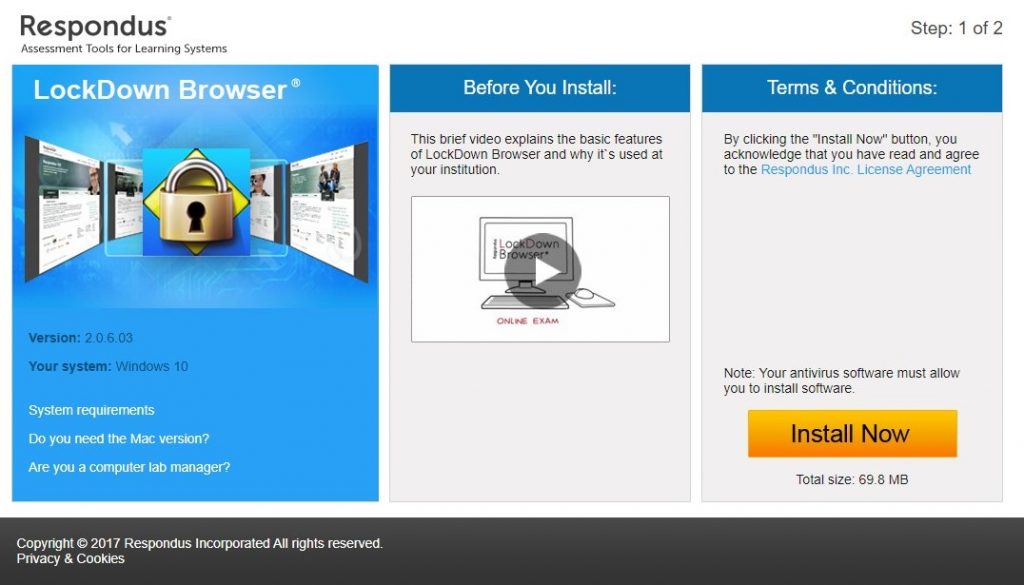
This is arguably the most critical step. Unlike many applications, you should NOT download Respondus Lockdown Browser directly from the Respondus website or a generic download portal. Instead, you must obtain the installer link from your specific educational institution’s learning management system (LMS) or IT support page.
Why? Because institutions often have custom versions configured for their specific LMS environment. Using a generic installer might lead to compatibility issues or prevent you from accessing your exams.
- Access Your Institution’s LMS: Log in to your university or college’s learning management system (e.g., Canvas, Blackboard, Moodle).
- Locate the Download Link: Navigate to a course that uses Lockdown Browser, or look for a dedicated “Respondus Lockdown Browser” section, a “Help” section, or an “IT Support” page. Your instructor or the LMS will typically provide a direct download link.
- Download the
.dmgFile: Click the provided link. This will usually download a file with a.dmgextension (e.g.,LockDownBrowser-2-0-Setup-Mac-xxxx.dmg). Save it to your Downloads folder or another easily accessible location.
Executing the Installation File
Once the .dmg file has finished downloading:
- Locate and Open the
.dmgFile: Go to your Downloads folder (or wherever you saved it) and double-click the.dmgfile. This will “mount” the disk image, opening a new Finder window. - Drag to Applications Folder: In the newly opened Finder window, you will typically see the Respondus Lockdown Browser application icon and an alias to your Applications folder. Simply click and drag the Respondus Lockdown Browser icon into the Applications folder alias. This copies the application to your Mac’s Applications directory.
- Eject the Disk Image: After the copy process is complete, you can “eject” the disk image. You can do this by dragging the “Respondus Lockdown Browser” volume icon from your desktop or Finder sidebar to the Trash, or by right-clicking (Control-click) it and selecting “Eject ‘Respondus Lockdown Browser'”.
First Launch and Essential Configuration
With the application installed, it’s time to launch it for the first time and configure any initial settings.
- Launch from Applications Folder: Open your Applications folder (either from the Dock or by going to Finder > Applications). Locate the “LockDown Browser” application and double-click it.
- Security Prompts (Gatekeeper): The first time you launch an application downloaded from the internet, macOS Gatekeeper might present a security warning: “LockDown Browser” is an application downloaded from the internet. Are you sure you want to open it?”. Click “Open.”
- Initial Setup and Updates: Upon its first launch, Respondus Lockdown Browser may perform an initial setup or check for updates. Allow it to complete any necessary updates. This ensures you’re running the latest, most secure version.
- Grant Permissions (Webcam/Microphone): If your exams use Respondus Monitor, the browser will likely prompt you to grant access to your webcam and microphone. It is crucial to grant these permissions. Go to
System Settings(orSystem Preferences) >Privacy & Security>CameraandMicrophoneto ensure “LockDown Browser” is checked. Without these permissions, Respondus Monitor will not function.
At this point, Respondus Lockdown Browser is fully installed and ready for use. It’s a good idea to perform a quick test or review any “Start Up Sequence” instructions provided by your instructor before your actual exam.
Navigating Your First Exam with Lockdown Browser on Mac
Once Respondus Lockdown Browser is installed, the process of actually taking an exam within it is designed to be as straightforward as possible. However, understanding the flow, especially with Respondus Monitor, can alleviate anxiety.
Launching the Browser and Selecting Your Institution
Unlike a regular web browser, you won’t typically navigate to your LMS through a regular browser first. For Respondus Lockdown Browser exams:
- Start Lockdown Browser Directly: Locate and double-click the “LockDown Browser” application icon in your Applications folder. Do not open your usual web browser (Safari, Chrome, etc.) beforehand.
- Select Your Institution: The first time you launch it, or if you attend multiple institutions, Lockdown Browser will prompt you to select your university or college from a drop-down list. This step links the browser to your institution’s specific LMS instance. Search for your institution’s name and select it. This selection will usually be remembered for subsequent uses.
- Login to Your LMS: After selecting your institution, the browser will direct you to your institution’s LMS login page. Log in using your standard university credentials.
- Navigate to Your Course and Exam: Once logged in, navigate to the specific course where your exam is located, and then click on the exam link. Respondus Lockdown Browser will recognize that it’s a secure exam and will begin the pre-exam checks.
The Pre-Exam Environment Check (with Respondus Monitor)
If your exam requires Respondus Monitor (webcam proctoring), a series of mandatory checks will commence before you can access the exam. This sequence is designed to verify your identity and ensure a secure testing environment.
- Webcam Check: Respondus Monitor will first check your webcam functionality. Ensure your face is clearly visible within the frame. If prompted, allow access to your camera and microphone.
- Terms of Use: You’ll be asked to review and agree to the Respondus Monitor Terms of Use. Read them carefully before proceeding.
- System Check: The system will quickly verify your computer’s readiness.
- Student Photo: You’ll be asked to take a clear photo of yourself. This is used for identification by your instructor.
- Show ID: You might be prompted to hold up a valid photo ID (e.g., student ID, driver’s license) to the camera for verification. Ensure it’s clear and readable.
- Environment Check: This crucial step involves performing a 360-degree scan of your testing area using your webcam. You’ll be instructed to slowly pan your camera around your room to show your desk, surrounding area, and ensure no unauthorized materials or persons are present. This recording is reviewed by your instructor.
- Facial Detection Check: Respondus Monitor will confirm that your face is detected and centered in the frame.
- Begin Exam: After all checks are complete, you’ll be able to click a button to “Begin Exam.”
It’s vital to complete each step of the startup sequence accurately. Rushing or failing to follow instructions can lead to delays or flagged assessments.
During and After Your Secure Assessment
Once you’ve started the exam:
- Focus on the Exam: You’ll be in a locked-down environment. You cannot switch applications, copy text, print, or access other websites. Concentrate solely on your exam questions.
- Stay in View (Monitor): If Respondus Monitor is active, ensure your face remains visible to the webcam throughout the exam. Avoid looking away from the screen for extended periods, or speaking aloud (unless explicitly permitted by the instructor).
- Submitting the Exam: When you’ve finished, click the “Submit” or “Finish” button within the LMS exam interface.
- Exiting Lockdown Browser: After submitting your exam, Respondus Lockdown Browser will typically confirm submission and allow you to exit. There might be a brief post-exam review or survey. Once fully exited, your Mac will return to its normal state, and you can access other applications.
Always double-check that your exam has been successfully submitted before closing Lockdown Browser. A common mistake is closing the browser before the LMS registers the submission, which can lead to your exam not being graded.
Troubleshooting Common Issues and Ensuring a Seamless Experience
Even with careful preparation, technical hiccups can sometimes occur. Knowing how to troubleshoot common issues with Respondus Lockdown Browser on your Mac can save valuable time and reduce stress, especially on exam day.
Addressing Installation and Launch Problems
- Installer Won’t Open (
.dmgfile):- Incomplete Download: The
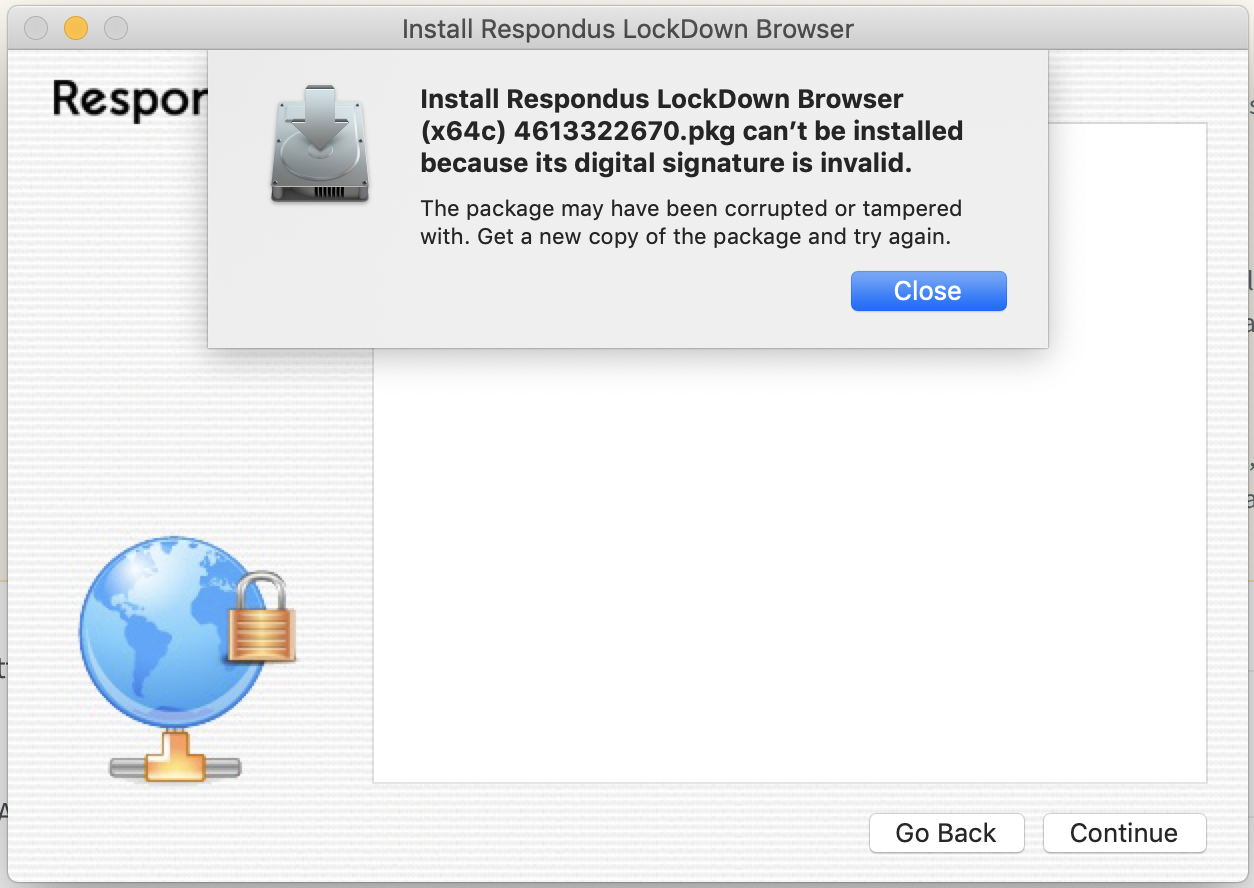
.dmgfile might be corrupted due to an unstable internet connection during download. Delete the file and re-download it from your institution’s link. - Gatekeeper Blocking: Ensure you’re allowing apps from “identified developers.” Go to
System Settings>Privacy & Security>Securityand look for options related to “Allow applications downloaded from.” If it only allows “App Store,” you might need to temporarily change it or right-click the.dmgfile and select “Open” to override the block.
- Incomplete Download: The
- Lockdown Browser Won’t Launch After Installation:
- Incorrect Installation: Verify that you dragged the application icon directly into the Applications folder. If it’s just on your desktop, it might not launch correctly. Reinstall if necessary.
- Permissions Issue: If you copied the app as a non-admin user, there might be permission issues. Try moving it to the Applications folder while logged in as an administrator.
- Restart Mac: A simple restart can often resolve minor software glitches.
- “Application Cannot Be Opened” Error: This often indicates a corrupted installation or a serious system conflict. Try completely uninstalling Respondus Lockdown Browser (drag it from Applications to Trash, then empty Trash) and then reinstalling from scratch using the latest installer from your institution.
Resolving Webcam and Connectivity Glitches
- Webcam Not Detected / Not Working (Respondus Monitor):
- Permissions: This is the most common cause. Go to
System Settings>Privacy & Security>Cameraand ensure “LockDown Browser” has been granted access. If it’s already checked, try unchecking and re-checking it. - Other Applications Using Webcam: Ensure no other application (e.g., Zoom, FaceTime, Photo Booth) is currently using your webcam. Close all other apps.
- Restart Browser/Mac: Close Lockdown Browser and reopen it. If that doesn’t work, restart your entire Mac.
- External Webcam: If using an external webcam, ensure it’s securely connected and recognized by your Mac (check in
System InformationunderUSBorCamera).
- Permissions: This is the most common cause. Go to
- Microphone Not Detected / Not Working (Respondus Monitor):
- Permissions: Similar to the webcam, check
System Settings>Privacy & Security>Microphoneand grant “LockDown Browser” access. - Input Source: Ensure your preferred microphone is selected as the input source in
System Settings>Sound>Input.
- Permissions: Similar to the webcam, check
- Internet Connection Drops During Exam:
- Restart Router: If possible, restart your internet router before the exam.
- Wired Connection: Use an Ethernet cable instead of Wi-Fi for maximum stability, especially during critical exams.
- Minimize Bandwidth Usage: Ensure no other devices on your network are heavily streaming or downloading during your exam time.
- Contact ISP: If persistent, contact your Internet Service Provider.
Best Practices for a Stress-Free Online Exam
To prevent issues before they even arise, adopt these best practices:
- Perform a Practice Test: If your instructor provides a practice exam using Lockdown Browser, take it seriously. This is your chance to identify and resolve any technical issues without penalty.
- Test Environment Preparation: Clear your desk, ensure proper lighting, and inform housemates not to disturb you.
- Stable Power: Always use your MacBook plugged into power during an exam to avoid battery depletion.
- Quiet Environment: Minimize background noise and distractions to avoid flagging by Respondus Monitor.
- Check All Equipment: Test your webcam, microphone, and internet connection well in advance.
- Read Instructions Carefully: Always review your instructor’s specific exam guidelines, as they may have unique requirements for Lockdown Browser.
- Have Support Contacts Ready: Keep your institution’s IT help desk number or email handy in case of emergencies. Respondus also offers a robust support knowledge base.
Digital Security and Privacy Considerations
It’s natural to have questions about the security and privacy implications of using proctoring software. Respondus Lockdown Browser and Monitor are designed with these considerations in mind:
- Data Collection: Respondus Monitor records video and audio of your testing environment and activity on your screen. This data is primarily used by your institution’s instructors to verify academic integrity.
- Data Storage: Recordings are stored securely on Respondus servers and are typically accessible only to authorized personnel at your institution for a defined period, as determined by your university’s policies.
- Privacy Policy: Respondus maintains a comprehensive privacy policy outlining how data is collected, used, and protected. It’s advisable to review this policy, often linked from your institution’s LMS.
- Security for Education: From a “Digital Security” perspective, these tools are integral to maintaining the value and credibility of online credentials, ensuring that the hard work of honest students is not undermined by those who attempt to cheat. They represent a necessary measure in the ongoing effort to secure digital learning environments.
By understanding and adhering to these troubleshooting tips and best practices, Mac users can ensure a reliable and secure testing experience, empowering them to focus on demonstrating their knowledge during online assessments.
In conclusion, installing Respondus Lockdown Browser on your Mac is a vital step for any student engaging in online proctored exams. By carefully following the installation guide, conducting thorough pre-checks, and familiarizing yourself with the exam process, you can transform a potentially stressful situation into a smooth and efficient one. Remember, this tool is designed to uphold academic integrity, fostering a fair environment for everyone. Should you encounter any issues, leverage the troubleshooting advice provided and don’t hesitate to reach out to your institution’s IT support or Respondus’s extensive knowledge base. With these resources at your disposal, you’ll be well-prepared for any online assessment that comes your way.
aViewFromTheCave is a participant in the Amazon Services LLC Associates Program, an affiliate advertising program designed to provide a means for sites to earn advertising fees by advertising and linking to Amazon.com. Amazon, the Amazon logo, AmazonSupply, and the AmazonSupply logo are trademarks of Amazon.com, Inc. or its affiliates. As an Amazon Associate we earn affiliate commissions from qualifying purchases.