
The digital landscape is constantly evolving, and with it, the tools we use to navigate and secure it. For cybersecurity professionals, penetration testers, and digital forensics enthusiasts, Kali Linux stands as a cornerstone, offering a powerful suite of specialized tools. However, many users are accustomed to the Windows environment and may not want to dedicate an entire machine to a separate Linux installation. The good news is that the lines between operating systems are blurring, and integrating Kali Linux with your existing Windows 11 setup is not only possible but increasingly straightforward. This guide will walk you through the most effective methods for installing and running Kali Linux on Windows 11, ensuring you can leverage its capabilities without sacrificing your familiar Windows experience.

Understanding Your Options for Kali Linux on Windows 11
Before diving into the installation process, it’s crucial to understand the different approaches available. Each method offers distinct advantages and disadvantages, catering to varying needs for performance, integration, and isolation. The primary methods we’ll explore are:
- Windows Subsystem for Linux (WSL): This is arguably the most popular and integrated method for running Linux distributions on Windows. WSL allows you to install a full Linux environment directly within Windows, enabling you to run command-line tools and applications without the overhead of a traditional virtual machine.
- Virtual Machines (VMs): This classic approach involves creating a virtual computer within your Windows 11 operating system. You can then install Kali Linux on this virtual machine, providing a completely isolated and independent environment. This method offers maximum control and resource allocation.
- Dual Booting: This involves partitioning your hard drive and installing Kali Linux alongside Windows 11. When you start your computer, you’ll be presented with a choice of which operating system to boot into. This provides the best performance as Kali Linux will have direct access to your hardware.
We will delve into the specifics of WSL and Virtual Machines in detail, as they are the most common and recommended approaches for users who primarily work within Windows 11. Dual booting, while an option, requires more advanced disk management and is typically suited for users who intend to use Kali Linux as their primary OS or for specific, intensive hardware-dependent tasks.
The Advantages of Integrating Kali Linux with Windows 11
Integrating Kali Linux into your Windows 11 environment offers several compelling benefits. For many, the primary advantage is the ability to access Kali’s specialized security tools without leaving their comfortable Windows desktop. This means you can seamlessly switch between your Windows applications and Kali’s powerful command-line utilities and graphical interfaces.
- Accessibility to Specialized Tools: Kali Linux is a treasure trove of penetration testing, digital forensics, and security auditing tools. Integrating it allows you to readily access this ecosystem for research, learning, and practical application.
- Learning and Development: For aspiring cybersecurity professionals, Kali Linux provides an invaluable learning platform. By having it readily available on your primary machine, you can experiment, practice techniques, and gain hands-on experience with industry-standard tools.
- Efficiency and Workflow: Instead of managing multiple physical machines or booting into different operating systems, you can maintain a single, streamlined workflow. This saves time and reduces the complexity of managing your digital toolkit.
- Cost-Effectiveness: Running Kali Linux on your existing Windows 11 hardware, especially through WSL or VMs, eliminates the need to purchase additional hardware. This makes it a very cost-effective solution for acquiring powerful security capabilities.
Method 1: Installing Kali Linux via Windows Subsystem for Linux (WSL)
The Windows Subsystem for Linux (WSL) is a feature that enables you to run Linux environments, including command-line tools, utilities, and applications, directly on Windows, unmodified, without the overhead of a traditional virtual machine. Kali Linux is officially supported on WSL, making this a highly recommended and convenient method.
Prerequisites for WSL Installation
Before you begin, ensure your Windows 11 system meets the following requirements:
- Windows 11: WSL is best supported on the latest versions of Windows. Ensure your Windows 11 is up-to-date.
- Virtualization Enabled: Your computer’s BIOS/UEFI must have virtualization technology (VT-x for Intel, AMD-V for AMD) enabled. This is usually enabled by default, but it’s worth checking if you encounter issues.
- Sufficient Disk Space: While Kali Linux itself is not excessively large, you’ll need adequate space for the installation, updates, and any additional tools or projects you plan to undertake. A minimum of 20GB is recommended, but more is always better.
- Internet Connection: A stable internet connection is required to download the Kali Linux distribution and its associated packages.
Step-by-Step Installation of Kali Linux on WSL
The installation process for Kali Linux on WSL has been significantly simplified with the introduction of WSL 2 and the ability to install distributions directly from the Microsoft Store.
Enabling WSL and Virtual Machine Platform
First, you need to enable the necessary Windows features.
- Open PowerShell as Administrator: Right-click on the Start button and select “Windows Terminal (Admin)” or “PowerShell (Admin)”.
- Install WSL: Run the following command:
powershell

wsl --install
This command will automatically enable the required optional features, download the latest Linux kernel, set WSL 2 as the default, and install a Linux distribution (Ubuntu by default). If you want to install Kali specifically, you’ll proceed to the next step. - Restart Your Computer: After the command completes, you will be prompted to restart your computer to complete the installation.
Installing Kali Linux from the Microsoft Store
After your computer restarts, you can proceed to install Kali Linux.
- Open the Microsoft Store: Search for “Microsoft Store” in the Start menu and open it.
- Search for Kali Linux: In the search bar of the Microsoft Store, type “Kali Linux” and press Enter.
- Select and Install: You should see an official Kali Linux app listed. Click on it and then click the “Get” or “Install” button.
- Launch Kali Linux: Once the download and installation are complete, you can launch Kali Linux by searching for “Kali Linux” in the Start menu.
- Initial Setup: The first time you launch Kali Linux, it will perform some initial setup, which may take a few minutes. You will be prompted to create a username and password for your Kali Linux environment. Important: This username and password are for your Kali Linux instance and are separate from your Windows credentials.
Configuring Kali Linux for Optimal Use
Once you have Kali Linux installed and running, there are a few important configurations to consider:
- Updating Kali Linux: It’s crucial to keep your Kali Linux installation up-to-date to ensure you have the latest security patches and tool versions. Open the Kali Linux terminal and run the following commands:
bash

sudo apt update

sudo apt full-upgrade -y
Thesudocommand grants administrator privileges,apt updaterefreshes the package lists, andapt full-upgradeinstalls available updates. The-yflag automatically confirms any prompts. - Installing Additional Tools: Kali Linux comes with a vast array of tools pre-installed, but you can install more as needed. For example, to install the Metasploit Framework, you would use:
bash

sudo apt install metasploit-framework -y
You can search for available packages usingapt search <tool_name>. - Accessing Windows Files: WSL allows you to access your Windows file system. Your Windows drives are typically mounted under
/mnt/. For example, your C: drive will be accessible at/mnt/c/. - Running GUI Applications (Experimental): While WSL is primarily command-line focused, there is growing support for running graphical Linux applications. This feature, known as WSLg, is generally available on newer versions of Windows 11. If it’s enabled, you can install graphical Kali tools directly from the terminal, and they should launch as if they were native Windows applications.
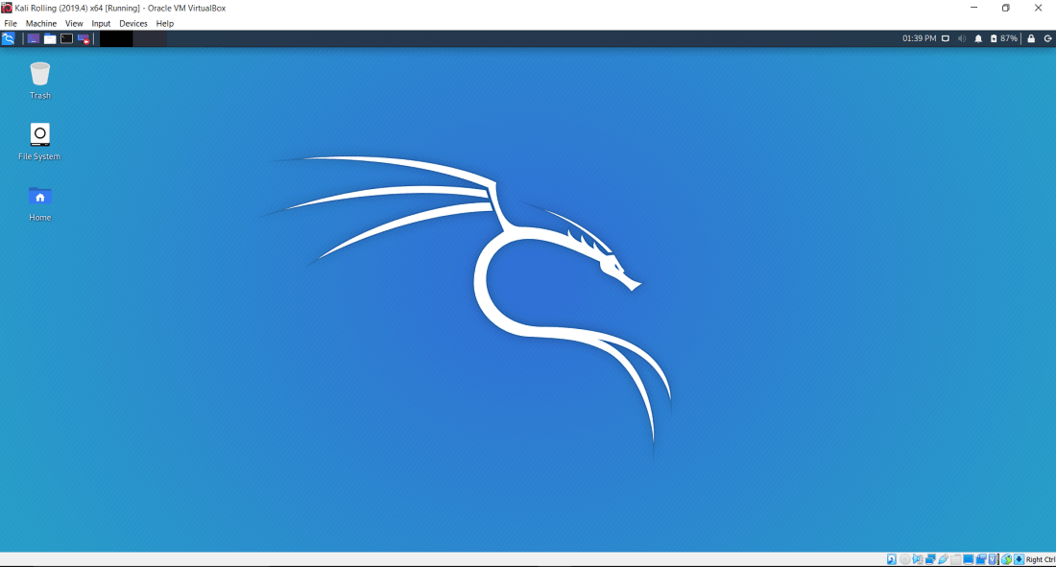
Method 2: Running Kali Linux in a Virtual Machine
For users who require a more isolated environment, greater control over system resources, or want to experiment with advanced networking configurations, running Kali Linux in a virtual machine (VM) is an excellent option. This method involves using virtualization software like Oracle VM VirtualBox or VMware Workstation Player to create a virtual computer within your Windows 11 operating system, on which you then install Kali Linux.
Choosing a Virtualization Platform
Several robust virtualization platforms are available, each with its strengths:
- Oracle VM VirtualBox: This is a free and open-source hypervisor that is user-friendly and widely adopted. It’s an excellent choice for beginners and for most general-purpose VM needs.
- VMware Workstation Player: VMware offers a free version of its Workstation product that is suitable for personal use. It’s known for its performance and advanced features.
- Hyper-V: Built into Windows 11 Pro, Enterprise, and Education editions, Hyper-V is Microsoft’s native hypervisor. It offers excellent integration with Windows but might have a slightly steeper learning curve for some.
For the purpose of this guide, we will outline the general steps involved in using VirtualBox, as it’s a popular and accessible choice. The process for other platforms will be similar.
Steps to Install Kali Linux on a Virtual Machine
-
Download Kali Linux ISO:
- Visit the official Kali Linux download page: https://www.kali.org/get-kali/
- Download the “Installer” image for your architecture (usually 64-bit). This will be an
.isofile.
-
Install Virtualization Software (VirtualBox Example):
- Go to the official VirtualBox website: https://www.virtualbox.org/wiki/Downloads
- Download the VirtualBox installer for your Windows host operating system.
- Run the installer and follow the on-screen prompts to install VirtualBox.
-
Create a New Virtual Machine:
- Open Oracle VM VirtualBox.
- Click on the “New” button to create a new virtual machine.
- Name: Give your virtual machine a descriptive name (e.g., “Kali Linux VM”).
- Machine Folder: Choose where you want to store the VM files.
- Type: Select “Linux”.
- Version: Select “Debian (64-bit)” (Kali Linux is based on Debian).
- Click “Next”.
-
Allocate Memory (RAM):
- Choose the amount of RAM to allocate to your VM. It’s recommended to allocate at least 2GB (2048MB), but 4GB or more will provide a smoother experience, especially if you plan to run graphical applications. Ensure you don’t allocate more than half of your host system’s RAM.
- Click “Next”.
-
Create a Virtual Hard Disk:
- Select “Create a virtual hard disk now”.
- Click “Create”.
- Hard disk file type: Choose “VDI (VirtualBox Disk Image)” (or VHD/VMDK if you plan to use it with other virtualization software).
- Storage on physical hard disk: Select “Dynamically allocated”. This means the disk file will only grow as data is added to it, saving space on your host.
- File location and size: Choose where to save the virtual disk file and set the maximum size. For Kali Linux, 25GB is a minimum, but 50GB or more is recommended.
- Click “Create”.
-
Install Kali Linux in the VM:
- With your new VM selected in VirtualBox, click on “Start”.
- You will be prompted to select a startup disk. Click on the folder icon and navigate to the Kali Linux
.isofile you downloaded earlier. - Click “Start”.
-
Kali Linux Installation Wizard:
- The Kali Linux installer will boot from the ISO.
- Choose “Graphical install” or “Install” from the boot menu.
- Follow the on-screen instructions for the Kali Linux installation. This will include:
- Language, Location, and Keyboard Layout: Select your preferences.
- Network Configuration: You can usually leave these at default if you’re using NAT networking in VirtualBox.
- Hostname and Domain Name: You can use defaults or set custom ones.
- User and Password: Create a root password and a regular user account.
- Partitioning: For simplicity, choose “Guided – Use entire disk”. Select the virtual disk you created for the VM. You can choose “All files in one partition” or separate partitions as needed.
- Software Selection: Choose the desktop environment (e.g., XFCE, GNOME) and the tools you want to install. A standard installation is recommended for beginners.
- GRUB Bootloader: Install the GRUB bootloader to the master boot record (MBR) of the virtual disk.
-
Post-Installation:
- Once the installation is complete, remove the Kali Linux ISO from the virtual optical drive (Machine -> Settings -> Storage -> Remove disk from virtual drive).
- Click “Finish” and restart the VM.
- You will boot into your newly installed Kali Linux system.
Optimizing Your Kali Linux VM
- Install Guest Additions/VMware Tools: These are special drivers that improve the performance and usability of your VM, enabling features like better graphics, shared folders, and seamless mouse integration.
- VirtualBox: In the VM window, go to “Devices” -> “Insert Guest Additions CD image…”. Then, in the Kali terminal, run the commands provided by the prompt to install them.
- VMware: Similar steps apply for installing VMware Tools.
- Update Kali Linux: Just like with WSL, it’s crucial to update your VM:
bash

sudo apt update

sudo apt full-upgrade -y
- Snapshots: Virtualization software allows you to take snapshots of your VM at any given point. This is incredibly useful for backing up your system’s state before making significant changes or installing new tools, allowing you to revert if something goes wrong.
Beyond Installation: Leveraging Kali Linux on Windows 11
Once you have Kali Linux installed and configured on your Windows 11 system, either via WSL or a virtual machine, the real power lies in how you utilize its extensive capabilities. Kali Linux is not just an operating system; it’s a gateway to a sophisticated ecosystem of security tools designed for a wide range of applications.
Practical Applications and Use Cases
- Penetration Testing: This is Kali Linux’s primary forte. Tools like Nmap for network scanning, Metasploit Framework for exploiting vulnerabilities, Burp Suite for web application security testing, and Wireshark for network protocol analysis are readily available. Whether you’re a professional pentester or an aspiring one learning the ropes, Kali provides an unparalleled environment for practicing and performing security assessments.
- Digital Forensics: Kali Linux includes tools for data recovery, disk imaging, memory analysis, and malware analysis. This makes it indispensable for investigators looking to reconstruct digital events, recover lost data, or analyze compromised systems. Tools like Autopsy, Sleuth Kit, and Volatility are key components in this domain.
- Security Auditing and Vulnerability Assessment: Kali Linux empowers you to proactively identify weaknesses in your own systems or networks. Regularly scanning and auditing your infrastructure with Kali’s tools can help prevent breaches and ensure compliance with security standards.
- Learning and Education: For students and enthusiasts in cybersecurity, Kali Linux serves as an interactive textbook. The ability to experiment safely within a controlled environment (especially in a VM) allows for hands-on learning of complex security concepts and tool usage. Platforms like Hack The Box and TryHackMe often utilize Kali Linux as a recommended platform for their challenges.
- Network Analysis and Monitoring: Understanding network traffic is fundamental to cybersecurity. Tools like tcpdump, Kismet, and the aforementioned Wireshark provide deep insights into network communications, helping to identify anomalies, diagnose network issues, and detect malicious activity.
- Wireless Security Testing: Kali Linux is equipped with tools specifically designed for auditing wireless networks, such as Aircrack-ng. This allows for testing the security of Wi-Fi networks, identifying weak encryption, and understanding potential attack vectors.

Best Practices for Using Kali Linux
To maximize the benefits and maintain a secure and efficient setup, adhere to these best practices:
- Keep Your System Updated: As mentioned repeatedly, regular updates are paramount for security. New vulnerabilities are discovered daily, and Kali Linux’s developers are diligent in providing patches and tool updates.
- Use a Separate User Account: While Kali Linux is often used with root privileges for certain tools, it’s a good practice to perform daily tasks with a non-root user account. This limits the potential damage if your account is compromised.
- Understand the Tools You Use: Kali Linux is powerful, but with power comes responsibility. Never use these tools on systems you do not have explicit permission to test. Understand the ethical and legal implications of penetration testing and security auditing.
- Isolate Sensitive Operations: For highly sensitive operations or when dealing with potentially dangerous payloads, consider using a dedicated VM or even a separate physical machine to prevent accidental damage to your primary operating system.
- Backup Regularly: Whether it’s through VM snapshots or system backups for your WSL distribution, ensure you have a reliable backup strategy in place.
- Learn the Command Line: While Kali Linux offers graphical interfaces, its true power is unleashed through the command line. Investing time in learning Linux commands and shell scripting will significantly enhance your proficiency.
- Explore the Kali Linux Documentation and Community: The official Kali Linux documentation is an excellent resource. Furthermore, active online communities and forums can provide support, advice, and insights into using specific tools and troubleshooting issues.
By following these guidelines and choosing the installation method that best suits your needs, you can effectively integrate the formidable capabilities of Kali Linux into your Windows 11 environment, empowering yourself for a wide array of cybersecurity and technical tasks.
aViewFromTheCave is a participant in the Amazon Services LLC Associates Program, an affiliate advertising program designed to provide a means for sites to earn advertising fees by advertising and linking to Amazon.com. Amazon, the Amazon logo, AmazonSupply, and the AmazonSupply logo are trademarks of Amazon.com, Inc. or its affiliates. As an Amazon Associate we earn affiliate commissions from qualifying purchases.