
Chromebooks, known for their speed, simplicity, and cloud-centric approach, have become increasingly popular for students, professionals, and everyday users alike. Running on Google’s Chrome OS, they are designed to be lightweight and efficient, relying heavily on web applications and the Google Play Store for software. However, for some users, the built-in Chrome browser, while robust, may not offer the specific features or customization options they desire. This is where the appeal of alternative browsers like Mozilla Firefox comes in.
While Chrome OS is built around the Google Chrome browser, installing other desktop applications, including full-fledged web browsers like Firefox, is not as straightforward as on Windows or macOS. This article will guide you through the process of installing Firefox on your Chromebook, ensuring you can enjoy its unique features and a different browsing experience. We’ll explore the primary method available, discuss potential benefits, and touch upon what makes this a worthwhile endeavor for certain users.
Understanding the Chromebook Ecosystem and Browser Options
Before diving into the installation process, it’s crucial to understand why installing Firefox on a Chromebook requires a specific approach. Chrome OS is fundamentally different from traditional operating systems. It’s designed with security and simplicity in mind, which means applications are typically sandboxed and managed through controlled channels.
The Chrome Browser: The Default Experience
Google Chrome is the native browser on all Chromebooks. It’s deeply integrated with the Chrome OS, offering seamless synchronization with your Google account, access to Google services, and a vast library of Chrome extensions. For many users, Chrome provides more than enough functionality for their daily browsing needs. Its performance is optimized for the hardware typically found in Chromebooks, making it a fast and reliable choice.
Why Consider an Alternative Browser Like Firefox?
Despite the strengths of Chrome, there are compelling reasons why users might seek out Firefox:
- Privacy Focus: Mozilla, the organization behind Firefox, has a strong reputation for prioritizing user privacy. Firefox offers advanced tracking protection features that can be more granular and customizable than those in Chrome.
- Customization and Extensions: While Chrome has an extensive extension library, Firefox also boasts a robust selection of add-ons that cater to various user needs, including productivity enhancements, theme customization, and specialized tools. Some users prefer the way Firefox handles its extension management or find certain Firefox-specific add-ons indispensable.
- Different Rendering Engine and User Interface: Some users simply prefer the look, feel, and rendering behavior of Firefox. Different browsers use different engines (e.g., Gecko for Firefox, Blink for Chrome) to display web pages, and these can sometimes result in subtle differences in how websites appear or perform.
- Developer Tools: While Chrome’s developer tools are excellent, some web developers find Firefox’s developer tools to be more intuitive or feature-rich for specific debugging tasks.
- Cross-Platform Consistency: If you use Firefox on other devices (Windows, macOS, Linux, Android), maintaining a consistent browsing environment and syncing your preferences, bookmarks, and history across all platforms can be a significant advantage.
The Role of Linux (Beta) on Chromebooks
The key to installing desktop applications like Firefox on a Chromebook lies in the Linux (Beta) feature, formerly known as Crostini. This feature allows you to run a full Linux environment directly within your Chrome OS. This is not a virtual machine in the traditional sense but rather a containerized Linux distribution (typically Debian) that integrates with your Chromebook’s hardware and file system.
By enabling Linux (Beta), you gain access to the Linux command line and the ability to install a wide range of Linux applications using the standard package manager (APT). This unlocks a world of software that wouldn’t otherwise be available on Chrome OS, including full desktop browsers like Firefox.
Enabling Linux (Beta) on Your Chromebook
The first and most crucial step to installing Firefox is to enable the Linux (Beta) environment on your Chromebook. This process is relatively straightforward and is a built-in feature of Chrome OS.
Step-by-Step Guide to Enabling Linux (Beta):
- Open Settings: Click on the time in the bottom-right corner of your screen, then click the gear icon (Settings).
- Navigate to Advanced: In the Settings menu, scroll down and click on “Advanced.”
- Find “Developers”: Under the “Advanced” section, look for the “Developers” option.
- Turn On Linux (Beta): You will see an option for “Linux development environment.” Click “Turn on.”
- Follow the On-Screen Prompts: A setup wizard will appear. Click “Next.”
- Username: You’ll be asked to choose a username for your Linux environment. This can be anything you like, but it’s generally recommended to stick to lowercase letters and numbers.
- Disk Size: You’ll also need to allocate disk space for your Linux environment. The default is usually sufficient for most users, but if you plan on installing many large applications, you might consider increasing it. You can adjust this later if needed.
- Installation: Click “Install.” Chrome OS will now download and set up the Linux container. This process can take several minutes, depending on your internet speed and Chromebook’s performance.
- Terminal Opens: Once the installation is complete, a Linux terminal window will automatically open. This signifies that your Linux environment is ready to go.
Important Note: Enabling Linux (Beta) will require some free disk space on your Chromebook. Ensure you have enough available storage before proceeding.
Installing Firefox via the Linux Terminal
With your Linux (Beta) environment set up, you can now install Firefox. This is done using the command-line interface (CLI) within the Linux terminal.
Updating Your Linux Package List
Before installing any new software, it’s always a good practice to update your Linux package list. This ensures that you’re getting the latest information about available software and their dependencies.
-
Open the Terminal: If the terminal isn’t already open, you can find it by searching for “Terminal” in the app launcher.
-
Run the Update Command: Type the following command and press Enter:
sudo apt updatesudo(superuser do) is used to run commands with administrative privileges, which are necessary for system-wide changes like software installation.aptis the package manager for Debian-based Linux distributions (which Chrome OS uses).updatefetches the latest package information from the software repositories.
You might be prompted to enter your Chromebook’s password. This is the same password you use to log into your Chromebook.
-
Run the Upgrade Command: After the update is complete, it’s recommended to upgrade any existing packages to their latest versions:
bash

sudo apt upgrade
This command will download and install any available updates for your existing Linux software. You might be asked to confirm the upgrade process by typingYand pressing Enter.
Installing Firefox
Now that your system is up-to-date, you can proceed with installing Firefox.
-
Run the Firefox Installation Command: In the Linux terminal, type the following command and press Enter:
sudo apt install firefox-esrinstallis the command to install a package.firefox-esris the package name for the Extended Support Release (ESR) of Firefox. The ESR version is generally recommended for Linux environments as it receives long-term support and stability updates, making it a reliable choice for a desktop browser.
The system will again ask for confirmation. Type
Yand press Enter to proceed with the installation. -
Wait for Installation to Complete: The terminal will display the progress of the download and installation. This might take a few minutes depending on your internet connection.
Launching Firefox
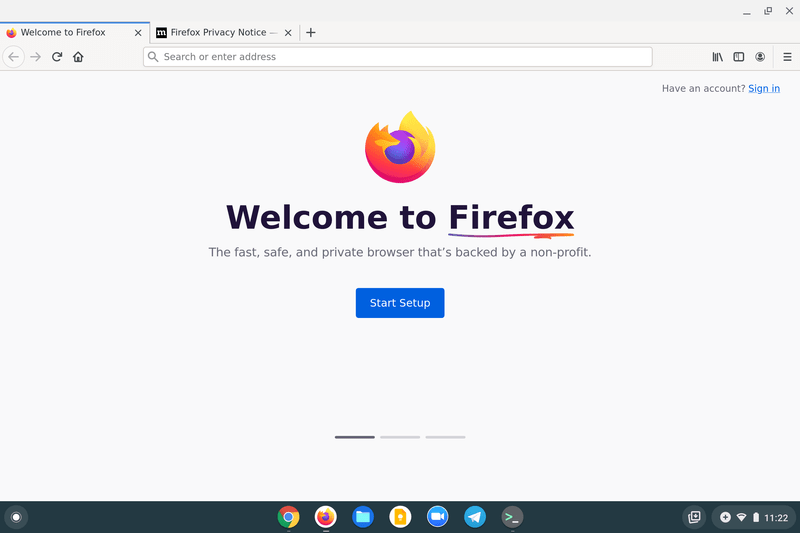
Once the installation is finished, Firefox should appear in your Chromebook’s app launcher.
- Find Firefox: Open your app launcher (usually by clicking the circle icon in the bottom-left corner or pressing the Search key).
- Launch: You should see the Firefox icon. Click on it to launch the browser.
The first time you launch Firefox, it might take a moment to start up as it initializes its profile. You can then set it as your default browser if you wish and begin customizing it to your preferences.
Optimizing Your Firefox Experience on Chromebook
Now that Firefox is installed, you can tailor it to your specific needs and ensure a smooth experience.
Setting Firefox as Your Default Browser
To ensure that all web links you click open in Firefox automatically, you can set it as your default browser within Chrome OS.
- Open Firefox: Launch Firefox if it’s not already open.
- Access Firefox Settings: Click on the menu button (three horizontal lines) in the top-right corner of Firefox, then select “Settings.”
- General Tab: In the Settings menu, navigate to the “General” tab.
- Default Browser: Under the “Startup” section, you’ll find an option that says “Make Firefox your default browser.” Click the “Make Default” button.
- Confirm: Chrome OS may prompt you to confirm this change. Follow the on-screen instructions.
From now on, when you click on a web link in any application on your Chromebook, it should open in Firefox.
Syncing Your Firefox Data
If you’re already a Firefox user on another device, you’ll want to sync your bookmarks, history, passwords, and add-ons to your new Chromebook installation.
- Sign In to Firefox Sync: In Firefox on your Chromebook, click the menu button (three horizontal lines) and select “Sign in to Firefox Account.”
- Enter Your Credentials: Enter your Firefox Account email and password.
- Choose What to Sync: After signing in, you can manage your sync settings by going to Menu > Settings > Sync. Here, you can select which data categories (bookmarks, history, passwords, open tabs, add-ons, etc.) you want to sync. Ensure the options you desire are checked.
Your data will then synchronize across your devices, providing a seamless browsing experience.
Managing Extensions and Add-ons
Firefox’s extensibility is one of its key strengths. You can enhance its functionality with a vast array of add-ons.
- Access the Add-ons Manager: Click on the menu button (three horizontal lines) in Firefox and select “Add-ons and themes.”
- Find and Install Add-ons: From here, you can search for recommended add-ons, discover new ones, or directly search the Firefox Add-ons website (addons.mozilla.org).
- Install: Once you find an add-on you want, click “Add to Firefox” and follow the prompts.
- Manage: In the “Add-ons and themes” manager, you can enable, disable, or remove installed add-ons. Some add-ons also have their own settings that can be accessed from this page.
Keeping Firefox Updated
While Firefox ESR is designed for stability, it’s still important to keep it updated. Updates often include security patches, performance improvements, and new features.
The beauty of installing Firefox through the Linux (Beta) environment is that it can be updated using the same APT package manager.
- Open the Terminal: Launch the Linux terminal.
- Update Package Lists: Run
sudo apt update. - Upgrade Packages: Run
sudo apt upgrade.
These commands will check for and install any available updates for Firefox and all other Linux applications on your Chromebook. It’s a good habit to run these commands periodically to ensure your Linux environment remains secure and up-to-date.

Conclusion: Expanding Your Chromebook’s Browsing Horizons
Installing Firefox on your Chromebook, while requiring the activation of the Linux (Beta) feature, opens up a new dimension of browsing possibilities. It allows users who value Firefox’s privacy-centric approach, extensive customization options, or cross-platform consistency to enjoy their preferred browser on their Chrome OS device.
By enabling Linux (Beta) and utilizing the simple apt commands within the terminal, you can bring a powerful and versatile alternative browser to your Chromebook. Remember to keep your Linux environment updated to benefit from the latest security patches and performance enhancements. With Firefox installed, you can now tailor your browsing experience precisely to your liking, making your Chromebook even more adaptable to your digital life, whether for productivity, learning, or personal enjoyment. This capability underscores the growing flexibility and power of modern Chromebooks, bridging the gap between lightweight cloud-based operating systems and the full potential of desktop applications.