
The modern world prides itself on connectivity and digital convenience, yet the humble printer driver remains a common source of frustration. For Lexmark USB printer users, the challenge can be particularly acute when the traditional resources — the installation CD, a stable internet connection for downloads, or even an official, readily available installer — are missing. This guide is designed to empower you with the knowledge and steps to install your Lexmark USB printer drivers “without” these conventional aids, ensuring your printer becomes a functional tool rather than a digital paperweight.

We understand the scenario: you’ve got an important document to print, a Lexmark printer hooked up via USB, but your computer just isn’t recognizing it. The old installation CD is long gone, your internet connection is flaky, or perhaps you’re working on a new machine without an optical drive. Don’t despair. By leveraging Windows’ built-in capabilities, understanding manual installation techniques, and employing smart troubleshooting, you can often get your Lexmark printer up and running efficiently. This article delves into various methods, from simple plug-and-play to more advanced manual interventions, all aimed at solving the common problem of “how to install drivers for Lexmark printer USB without” the expected resources.
Understanding the “Without” Challenge: Why Traditional Methods Fall Short
The phrase “without the usual hassle” in our title encapsulates a very real problem many users face. While printer manufacturers generally provide straightforward installation processes, these often rely on specific conditions that aren’t always met. When you’re trying to get a Lexmark USB printer to work, encountering one or more of these common roadblocks can halt your progress before it even begins.
The Missing Installation CD
This is perhaps the most common scenario. Installation CDs are small, easily misplaced, or get scratched over time. Furthermore, many modern computers, especially laptops, no longer come equipped with optical drives. This renders the primary installation method provided by the manufacturer obsolete from the outset. Without the CD, users are immediately forced to seek alternative avenues, which can be daunting if they don’t know where to look. The absence of the physical media means you cannot simply insert the disc and run the setup wizard, making the driver installation process inherently more challenging.
Limited or No Internet Access
In an increasingly connected world, it’s easy to assume internet access is ubiquitous. However, this is far from the truth for everyone, everywhere. You might be in a location with unreliable Wi-Fi, using a computer that isn’t connected to the network, or simply trying to install a driver during an internet outage. Lexmark printer drivers, especially full software suites, can be quite large, making downloads impractical or impossible without a stable, high-speed connection. This forces users to find ways to install drivers without relying on online downloads, pushing them towards pre-downloaded files or system-integrated solutions.
Incompatible or Corrupted Downloads
Even if you manage to find an internet connection and locate a driver online, there’s no guarantee it will work flawlessly. Downloads can become corrupted during transfer, or you might inadvertently download a driver meant for a different operating system version (e.g., a 32-bit driver for a 64-bit system, or a Windows 7 driver for Windows 10). Attempting to install an incompatible or corrupted driver can lead to error messages, incomplete installations, or even system instability, leaving you back at square one and potentially more frustrated. Verifying the integrity and compatibility of downloaded drivers becomes a critical step.
Generic Driver Limitations
Windows operating systems come with a robust set of generic drivers that allow basic functionality for a wide range of hardware. When you plug in a Lexmark USB printer, Windows might detect it and install a generic driver automatically. While this can provide basic printing capabilities, it often means sacrificing advanced features specific to your Lexmark model, such as duplex printing, specific paper tray controls, ink level monitoring, or advanced scanning functions (if it’s an all-in-one). Relying solely on a generic driver might get you by, but it prevents you from fully utilizing your printer’s potential, making a proper, specific driver installation essential for optimal performance.
Method 1: Harnessing Windows’ Built-In Capabilities and Plug & Play
When faced with the absence of a driver CD or reliable internet, the first and often most effective approach is to leverage the operating system itself. Windows, particularly newer versions, has become quite sophisticated at identifying and installing drivers for a vast array of hardware. These built-in capabilities can often resolve your Lexmark USB printer driver woes without any external assistance.
Automatic Driver Installation (Plug and Play)
The simplest and most ideal scenario for installing a Lexmark USB printer driver without a CD or internet is through Windows’ Plug and Play functionality. This feature is designed to automatically detect new hardware, identify its requirements, and install the necessary drivers from its internal repository.
How it works:
- Connect the Printer: Ensure your Lexmark printer is powered off. Connect the USB cable from the printer directly to a free USB port on your computer. Avoid using USB hubs initially, as they can sometimes complicate the detection process.
- Power On: Turn on your Lexmark printer.
- Wait for Detection: Windows should typically detect the new hardware almost immediately. You might see a notification in the system tray saying “Installing device driver software” or “New hardware found.”
- Completion: If Windows has a compatible driver internally, it will install it automatically. You’ll receive a notification once the device is ready for use.
- Check in Devices and Printers: Navigate to
Control Panel > Hardware and Sound > Devices and Printers. Your Lexmark printer should appear here. If it does, try printing a test page.
When it works and when it doesn’t: This method is highly effective for newer Lexmark models and widely supported older models, especially if your Windows installation is relatively up-to-date. However, it might fail if the specific driver for your exact Lexmark model isn’t pre-loaded in your Windows version, or if the printer model is very old or very new.
Using Windows Update (Even with Limited Connectivity)
Windows Update is not just for operating system patches; it’s also a vast repository for hardware drivers. Even if you have limited internet connectivity, you might still be able to leverage Windows Update, or use a clever workaround for truly offline scenarios.
Steps to Initiate Windows Update Driver Search:
- Connect your Printer: Ensure your Lexmark printer is connected and powered on.
- Open Device Manager: Right-click on the Start button (or press
Windows Key + X) and select “Device Manager.” - Locate the Printer: Look under “Printers,” “Print queues,” or “Other devices.” Your Lexmark printer might appear with an exclamation mark or as an “Unknown device.”
- Update Driver: Right-click on your Lexmark printer entry and select “Update driver.”
- Search Automatically: Choose “Search automatically for updated driver software.” If you have any internet connection, even a slow one, Windows will attempt to find a driver online via Windows Update.
- Offline Workaround (WSUS Offline Updater Concept): If you truly have no internet, this requires advanced preparation. You can download Windows Update packages (including drivers) on another internet-connected computer using tools like “WSUS Offline Updater” or manually searching Microsoft’s Update Catalog. These packages can then be transferred via USB to your offline machine and installed. This is a more complex solution but viable for complete internet blackouts.
The Add a Printer Wizard
When automatic detection fails, Windows provides a manual “Add a Printer” wizard that allows you to guide the system through the installation process. This is particularly useful if Windows has a driver for your Lexmark printer tucked away in its internal driver store, but didn’t automatically associate it.
Navigating the Wizard:
- Open Devices and Printers: Go to
Control Panel > Hardware and Sound > Devices and Printers. - Start Adding a Printer: Click “Add a printer” at the top of the window.
- My Printer Isn’t Listed: When the wizard appears, click “The printer that I want isn’t listed.” This opens more options.
- Add a Local Printer: Select “Add a local printer or network printer with manual settings” and click “Next.”
- Choose a Printer Port: This is crucial for USB printers.
- From the “Use an existing port” dropdown, look for ports like
USB001,USB002,DOT4_001,LPT1(less common for modern USB), orVirtual printer port for USB. Select the appropriate USB port where your Lexmark printer is connected. If unsure, tryUSB001first. - Click “Next.”
- From the “Use an existing port” dropdown, look for ports like
- Install Printer Driver:
- In the next window, you’ll see a list of manufacturers and printers.
- Under “Manufacturer,” scroll down and select “Lexmark.”
- On the right-hand side, look for your specific Lexmark printer model in the “Printers” list.
- If you find it, select it and click “Next” to complete the installation.
- If you don’t see your specific model, try selecting a similar Lexmark model from the same series, as they often share compatible drivers.
- Name and Share: Give your printer a name and decide if you want to share it.
- Print Test Page: Finish the wizard and print a test page to confirm functionality.
This method effectively searches the drivers pre-installed with your Windows operating system, offering a robust solution when internet access is not an option and the CD is missing.
Method 2: Manual Driver Installation from Downloaded Files (When You Can Get Them Elsewhere)
Sometimes, Windows’ built-in drivers aren’t enough, or your Lexmark printer is too new or too old for its drivers to be included in the OS repository. In such cases, obtaining the driver files from an external source and installing them manually becomes the most reliable approach. This method assumes you have a way to download the driver files, even if it’s not directly on the target computer.
Downloading Drivers from Another Device
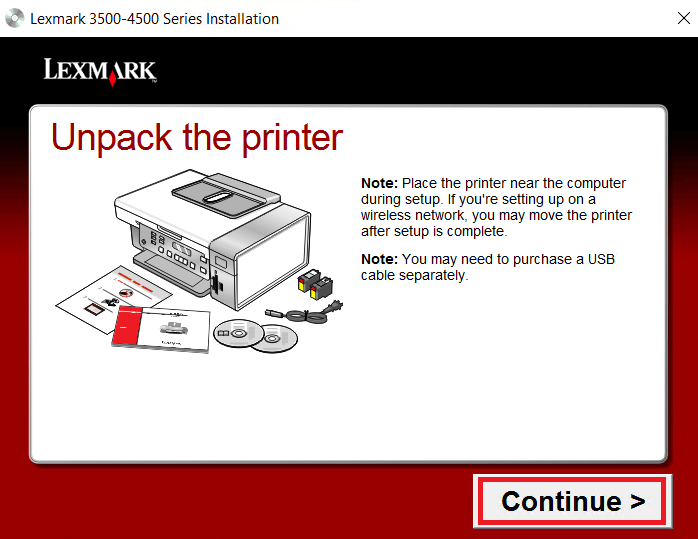
This scenario is common: your computer is offline, but you have access to another internet-connected device (a smartphone, a friend’s computer, a public library PC). The key here is to safely acquire the necessary driver files and transfer them.
Steps for Acquisition and Transfer:
- Identify Your Printer and OS: Note your exact Lexmark printer model number (usually found on a label on the printer itself) and the precise version and architecture of your Windows operating system (e.g., Windows 10, 64-bit). This is crucial for downloading the correct driver.
- Find the Official Source: Always prioritize the official Lexmark support website (
support.lexmark.com). This is the safest and most reliable place to find genuine drivers. Avoid third-party driver sites as they can often host outdated, incorrect, or even malicious software. - Download the Driver: On the internet-connected device, navigate to Lexmark’s support page, enter your printer model, and download the appropriate driver package for your operating system. If there are multiple options, choose the full driver and software package if possible, or at least the basic driver.
- Transfer the Files: Once downloaded, transfer the driver file(s) to a portable storage device, such as a USB flash drive.
- Extract (If Necessary): The downloaded file might be a
.exe(self-extracting archive), a.zipfile, or another compressed format. If it’s a.zipfile, extract its contents to a new folder on your USB drive or the target computer’s hard drive. If it’s an.exe, running it on the target machine might initiate an installer, or it might extract files to a temporary location (oftenC:LexmarkorC:Drivers) before starting the installation process. Note the location where the files are extracted.
Installing via Device Manager
Once you have the driver files accessible on your target computer (either unzipped or extracted from an .exe installer), you can use the Device Manager to point Windows directly to them. This method bypasses the need for an automated installer and provides granular control.
Steps for Device Manager Installation:
- Open Device Manager: Right-click on the Start button (
Windows Key + X) and select “Device Manager.” - Locate the Printer/Unknown Device: Your Lexmark printer might appear under “Printers,” “Print queues,” or “Other devices.” It could also be listed as an “Unknown device” or have a yellow exclamation mark next to it, indicating a driver issue.
- Initiate Driver Update: Right-click on the relevant Lexmark entry (or the unknown device) and select “Update driver.”
- Browse for Drivers: Choose “Browse my computer for driver software.” This option allows you to manually specify the location of the driver files.
- Specify Location: Click “Browse…” and navigate to the folder where you saved or extracted the Lexmark driver files. Ensure you point to the folder containing the
.inffile(s), which are crucial for driver installation. It’s often best to point to the main folder you extracted, and let Windows search subfolders. - Install: Click “Next.” Windows will search the specified folder for compatible drivers. If found, it will install them.
- Confirm Installation: After installation, the device should move to the “Printers” or “Print queues” category in Device Manager, and the yellow exclamation mark (if present) should disappear.
- Test Printer: Go to
Devices and Printersand print a test page to verify full functionality.
Using Extracted Driver Files Directly (Advanced)
Sometimes, a driver package comes as an executable (.exe) that doesn’t simply run an installer but rather extracts driver files to a temporary location before prompting you to continue. If the installer fails or you prefer a cleaner method, you can often extract these files yourself.
Steps for Direct Extraction:
- Extract the Executable: Use a file compression utility like 7-Zip or WinRAR (freely available and can be downloaded on another PC and transferred) to extract the contents of the Lexmark driver
.exefile. Right-click the.exeand look for an “Extract to…” option. - Locate Driver Files: This will create a folder containing all the components of the driver package. Within this folder, you’ll typically find subfolders named “Drivers,” “PCL,” “PS,” or similar, which contain the core driver files (e.g.,
.inf,.sys,.dll). - Install via Device Manager: Once you have these extracted files, follow the “Installing via Device Manager” steps outlined above, pointing the Device Manager to the specific subfolder containing the
.inffiles. This ensures Windows installs only the essential driver components without any potentially unwanted bloatware from the full installer package.
This method gives you the most control and is particularly useful for stubborn installations or when you want to avoid running a full, potentially problematic, executable installer.
Troubleshooting Common Issues and Best Practices
Even with the right drivers and methods, issues can arise. Troubleshooting is an essential part of getting your Lexmark USB printer to function correctly without all the standard resources. A systematic approach can save you significant time and frustration.
USB Port and Cable Issues
It’s surprising how often the simplest hardware connections are the culprits behind installation failures. Before delving into complex driver solutions, rule out the basics.
- Try Different USB Ports: Your computer’s USB ports can vary in power delivery or internal routing. If your Lexmark printer isn’t detected in one port, try another. Some motherboards have different USB controllers, and one might work better than another.
- Test with Another USB Cable: USB cables can go bad, especially if they’re old, kinked, or have been frequently plugged/unplugged. A faulty cable might prevent the printer from communicating correctly with the computer. If you have a spare USB A-to-B printer cable, try using it.
- Avoid USB Hubs: For initial installation and troubleshooting, connect your Lexmark printer directly to a USB port on your computer, bypassing any USB hubs. Hubs, especially unpowered ones, can sometimes interfere with device detection or sufficient power supply, leading to erratic behavior or non-recognition.
Driver Signature Enforcement
Modern Windows versions (Windows 7, 8, 10, 11) implement driver signature enforcement, which prevents the installation of drivers that are not digitally signed by a trusted authority (like Microsoft). This is a security feature, but it can sometimes hinder the installation of older Lexmark drivers or custom/generic drivers.
- Explanation: If a driver isn’t signed, Windows will either block its installation or issue a strong warning.
- Temporary Disablement (Windows 10/11): This should be a last resort and performed with caution, as it temporarily lowers your system’s security.
- Go to
Settings > Update & Security > Recovery(orSystem > Recoveryin Windows 11). - Under “Advanced startup,” click “Restart now.”
- After restart, select
Troubleshoot > Advanced options > Startup Settings. - Click “Restart.”
- When the Startup Settings menu appears, press
7orF7to “Disable driver signature enforcement.” - Your computer will restart. You can now attempt to install the unsigned Lexmark driver. Remember to restart your computer normally afterward to re-enable driver signature enforcement.
- Go to
Remaining Software Remnants
If you’ve previously attempted to install Lexmark drivers and the process failed or was interrupted, there might be residual software components or corrupted entries left behind. These remnants can interfere with new installation attempts.
- Manual Cleanup:
- Uninstall Existing Drivers: In
Devices and Printers, right-click on any existing Lexmark printer entry and select “Remove device.” - Remove Driver Packages: In
Print Server Properties(accessible fromDevices and Printersby clicking on an empty space and selecting “Run as administrator” > “Server Properties”), go to the “Drivers” tab. Select any Lexmark drivers listed and click “Remove…” choosing “Remove driver and driver package.” - Check Device Manager: Look for any Lexmark entries or unknown devices and uninstall them.
- Registry Cleanup (Advanced/Caution!): For advanced users, searching the Windows Registry (using
regedit.exe) for Lexmark entries underHKEY_LOCAL_MACHINESYSTEMCurrentControlSetControlPrintor similar paths can help, but extreme caution is advised as incorrect modifications can damage your system.
- Uninstall Existing Drivers: In
Running in Compatibility Mode
For older Lexmark printers where the only available driver package is designed for an older Windows version (e.g., Windows XP or 7), running the installer in compatibility mode can sometimes force it to work on newer operating systems.
- Steps:
- Locate the Lexmark driver installer
.exefile (downloaded from an official source). - Right-click on the
.exefile and select “Properties.” - Go to the “Compatibility” tab.
- Check “Run this program in compatibility mode for:” and select an older Windows version from the dropdown list (e.g., Windows 7).
- You might also check “Run this program as an administrator.”
- Click “Apply” then “OK” and try running the installer again.
- Locate the Lexmark driver installer
Seeking Generic or Universal Drivers (with Caution)
When all specific Lexmark driver options have been exhausted, and you still can’t get your printer to function, universal printer drivers might offer a glimmer of hope for basic functionality.
- When to Use: This is a last-resort option. Some printer manufacturers (and third parties) offer universal printer drivers designed to work with a broad range of their models. Lexmark might have a “Universal Print Driver” available on its support site.
- Strong Warning: Exercise extreme caution when downloading universal drivers from non-official sources. Many websites offer “driver updater utilities” or “universal drivers” that can bundle malware, spyware, or simply incorrect software. Always prioritize Lexmark’s official website. If you must use a third-party source, ensure it’s reputable and scan any downloaded files with robust antivirus software. Universal drivers typically provide only basic print functionality, so don’t expect advanced features.

Conclusion
Installing drivers for your Lexmark USB printer without the convenience of an installation CD or a readily available internet connection can initially seem like a daunting task. However, as we’ve explored, several robust strategies exist that leverage Windows’ inherent capabilities and smart manual intervention. From the simplicity of Plug and Play and the Add a Printer Wizard to the more advanced techniques of sourcing and installing drivers via Device Manager from a different machine, there’s often a viable path to getting your printer operational.
The key takeaways are patience, systematic troubleshooting, and a commitment to using trusted sources for any driver files you acquire. Always prioritize the official Lexmark support website for downloads, even if it means using another device for the initial download and transferring files via a USB drive. Avoiding untrustworthy third-party sites is crucial to protect your system from potential malware or incorrect drivers.
A functional printer is more than just a convenience; it’s a vital tool for productivity, whether you’re printing important documents for work, school assignments, or even just family photos. Getting your Lexmark printer up and running efficiently ensures you can meet deadlines, avoid the cost and inconvenience of public print services, and fully harness the capabilities of your hardware. Don’t let the absence of a simple CD or a fleeting internet connection keep you from achieving your printing goals. With the comprehensive methods outlined in this guide, you’re well-equipped to overcome the challenges and get your Lexmark USB printer back to doing what it does best – printing!
aViewFromTheCave is a participant in the Amazon Services LLC Associates Program, an affiliate advertising program designed to provide a means for sites to earn advertising fees by advertising and linking to Amazon.com. Amazon, the Amazon logo, AmazonSupply, and the AmazonSupply logo are trademarks of Amazon.com, Inc. or its affiliates. As an Amazon Associate we earn affiliate commissions from qualifying purchases.