
In an increasingly connected world, where digital content reigns supreme, the ability to effortlessly bridge the gap between our personal devices and the communal big screen has become a cornerstone of modern entertainment and even productivity. Enter Chromecast, Google’s ingeniously simple yet powerful device that has revolutionized how millions consume media. Far more than just a dongle, Chromecast embodies a fundamental shift in how we interact with technology, acting as a gateway to an expansive universe of streaming content. This guide will walk you through every step of installing your Chromecast, from unboxing to advanced tips, ensuring you unlock its full potential for entertainment, information, and even enhanced productivity, all while keeping in mind the broader tech trends, digital security, and smart financial choices that define our digital age.
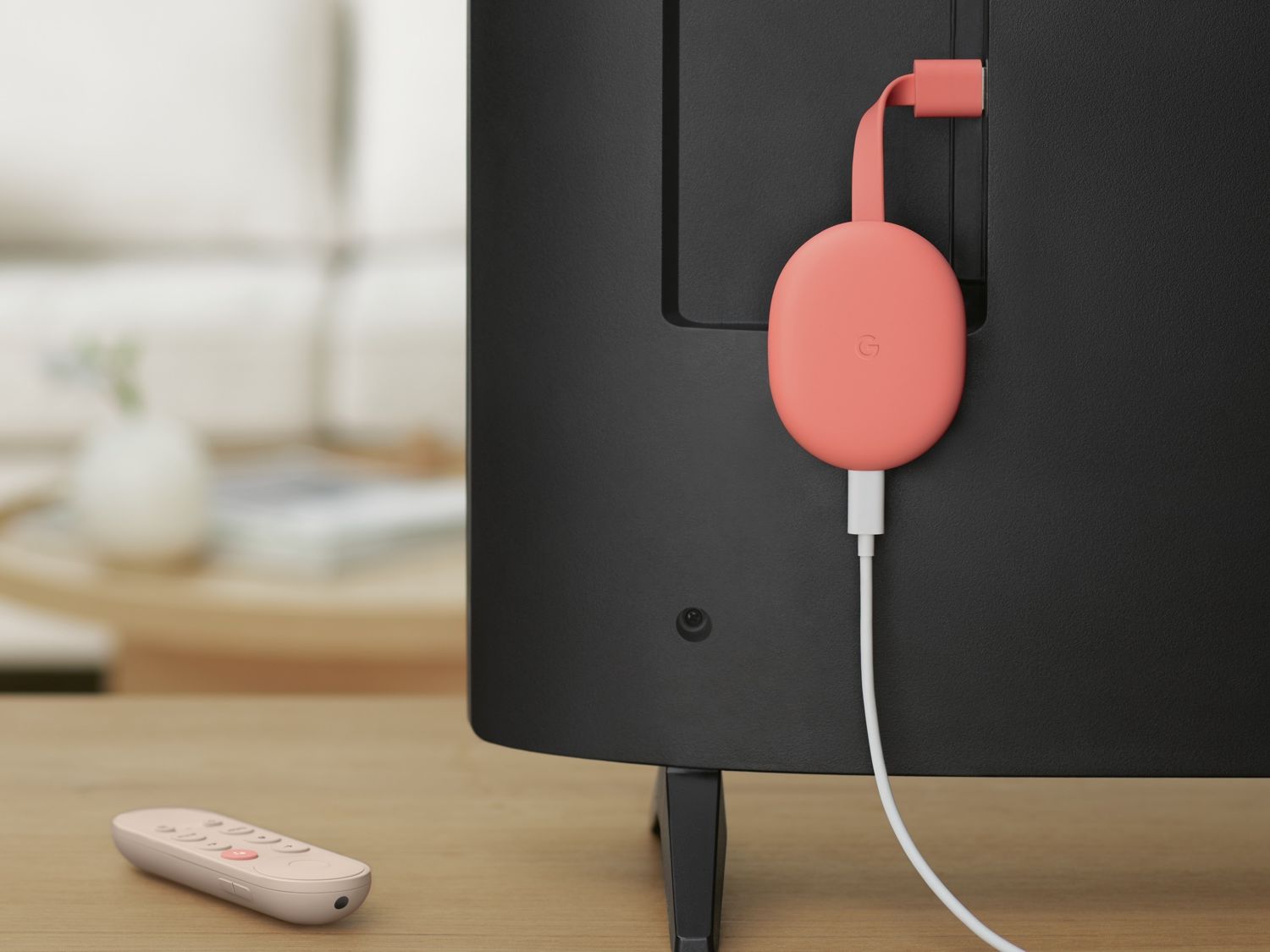
At its core, Chromecast is a media streaming device developed by Google. It allows users to cast content from their mobile devices or computers to a television or home audio system. Since its introduction, it has evolved through several iterations, including the standard Chromecast, Chromecast Ultra (for 4K streaming), and the latest Chromecast with Google TV, which offers a full smart TV experience with a remote control and integrated interface. Regardless of the model, the fundamental premise remains the same: to provide an intuitive, affordable, and highly versatile solution for bringing online content to your largest display.
The appeal of Chromecast lies not just in its functionality but also in its integration within Google’s expansive ecosystem. For many, it represents a cost-effective alternative to purchasing an expensive smart TV, offering similar capabilities without the hefty price tag. For others, it’s about the sheer convenience of controlling media playback directly from their familiar smartphone or tablet, transforming these devices into powerful remote controls. From a broader perspective, Chromecast aligns perfectly with current technology trends, emphasizing connectivity, user-friendly interfaces, and the intelligent management of digital assets, making it an indispensable gadget for the contemporary household or even a compact travel companion for the digital nomad. This article aims to demystify the installation process, empowering you to integrate this remarkable device into your digital life with confidence.
Preparing for a Seamless Setup Experience
Before diving into the technical steps of connecting and configuring your Chromecast, taking a few moments to gather the necessary components and optimize your environment can significantly smooth the installation process. Think of this as laying a solid foundation for a robust and reliable streaming experience, preventing common hiccups and ensuring that your foray into the world of casting is as effortless as possible.
The Essentials: What You’ll Need
Successfully setting up your Chromecast requires a handful of key items. While most are readily available in any modern home, it’s worth double-checking each one to avoid interruptions midway through the process.
- Your Chromecast Device: Naturally, the star of the show. Whether it’s an original Chromecast, a Chromecast Ultra, or a Chromecast with Google TV, ensure it’s fresh out of the box or factory reset if you’re repurposing an old one. Each model shares a similar core setup process, though Chromecast with Google TV might introduce a few extra steps for its dedicated interface and remote.
- A Compatible TV or Display: Your target screen must have an available HDMI input port. Most modern TVs, monitors, and projectors come equipped with multiple HDMI ports. It’s also beneficial if your TV has an easily accessible power outlet nearby. For 4K streaming with Chromecast Ultra or Chromecast with Google TV (4K version), your TV must also support 4K resolution and often HDR (High Dynamic Range) to fully utilize the device’s capabilities.
- A Reliable Wi-Fi Network: Chromecast relies entirely on Wi-Fi for its functionality. A stable, relatively fast internet connection is crucial for smooth streaming, especially for high-definition or 4K content. Most home networks operating on 2.4GHz or 5GHz bands will work, but stability and speed are paramount. Consider your network’s digital security: ensure your Wi-Fi is password-protected with WPA2 or WPA3 encryption to prevent unauthorized access and potential privacy breaches. An open or insecure network is a significant vulnerability.
- A Smartphone, Tablet, or Computer: This is your control center for the initial setup.
- For Android and iOS devices: You’ll need to download and install the Google Home app. This application is the central hub for setting up and managing all your Google-connected smart home devices, including Chromecast. Ensure your device is running a reasonably recent version of its operating system (e.g., Android 8.0+ or iOS 12.0+) to guarantee compatibility with the latest Google Home app features.
- For Computers: While the Google Home app is the primary method, you can also set up some older Chromecast models using the Google Chrome web browser on a desktop or laptop. However, the app-based method is generally recommended for its ease of use and comprehensive features.
- A Google Account: Essential for using the Google Home app and linking your Chromecast to your personalized Google ecosystem. If you don’t have one, it’s free and easy to create. A Google account allows for personalized recommendations, voice commands (with compatible devices), and integration with various Google services.
- Power Source: Your Chromecast requires power. It typically comes with a USB cable and a wall adapter. While some TVs have USB ports that can power the Chromecast, it’s generally recommended to use the provided wall adapter for more consistent and reliable power delivery, especially for Chromecast Ultra or 4K versions that demand more power. Insufficient power can lead to intermittent disconnections or performance issues.
Optimizing Your Environment
Beyond gathering the right gear, a quick environmental check can prevent common setup headaches and enhance your casting experience.
- Proximity to Your Wi-Fi Router: The closer your Chromecast is to your Wi-Fi router, the stronger and more stable its connection will be. Walls, large appliances, and other electronics can interfere with Wi-Fi signals. If your TV is far from the router, consider a Wi-Fi extender or a mesh Wi-Fi system to ensure robust connectivity. For Chromecast with Google TV or Chromecast Ultra, an Ethernet adapter (sold separately) offers the most stable connection, directly addressing potential Wi-Fi interference.
- Clear Line of Sight (Optional but Helpful): While not strictly necessary, minimizing physical obstructions between your Chromecast and your router can improve signal integrity.
- Ensuring TV Input Accessibility: Know which HDMI port you’re plugging your Chromecast into and how to switch to that input on your TV using your TV’s remote control. Labeling your HDMI ports (e.g., “Chromecast”) can be a simple yet effective productivity hack for busy households with multiple devices connected.
- Brief Mention of Network Configuration: For advanced users, ensure your router’s settings aren’t blocking device-to-device communication (AP Isolation or Client Isolation). While rare in standard home setups, some corporate or university networks might have these security features enabled, which can prevent your phone from finding the Chromecast. Similarly, if you’re using a VPN on your router, ensure it’s configured to allow local network traffic.
By preparing thoroughly, you’re not just setting up a device; you’re establishing a reliable entertainment hub that seamlessly integrates with your digital lifestyle, offering both convenience and peace of mind regarding digital security and network performance.
The Step-by-Step Installation Guide
With your essentials gathered and your environment optimized, it’s time to bring your Chromecast to life. The installation process is designed to be user-friendly, guided largely by the intuitive Google Home app. We’ll break it down into logical stages, ensuring clarity and addressing key considerations at each juncture.
Physical Connection: Powering Up Your Chromecast
The first interaction with your Chromecast involves simple physical connections. This stage prepares the hardware for digital configuration.
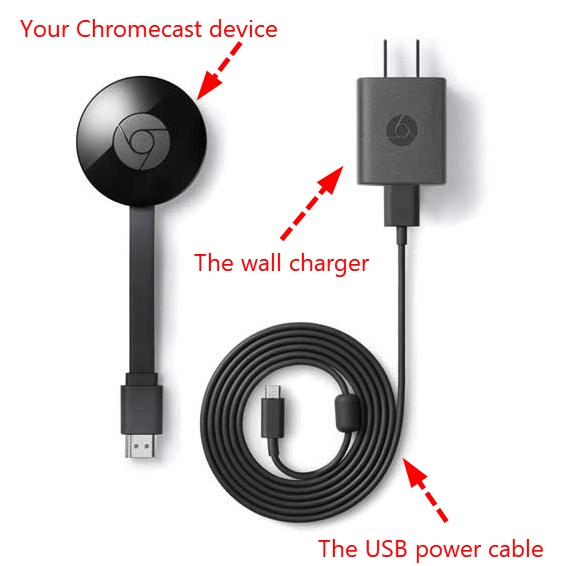
- Unpack Your Chromecast: Carefully remove your Chromecast device, USB power cable, and wall adapter from its packaging. For Chromecast with Google TV, you’ll also have a remote control.
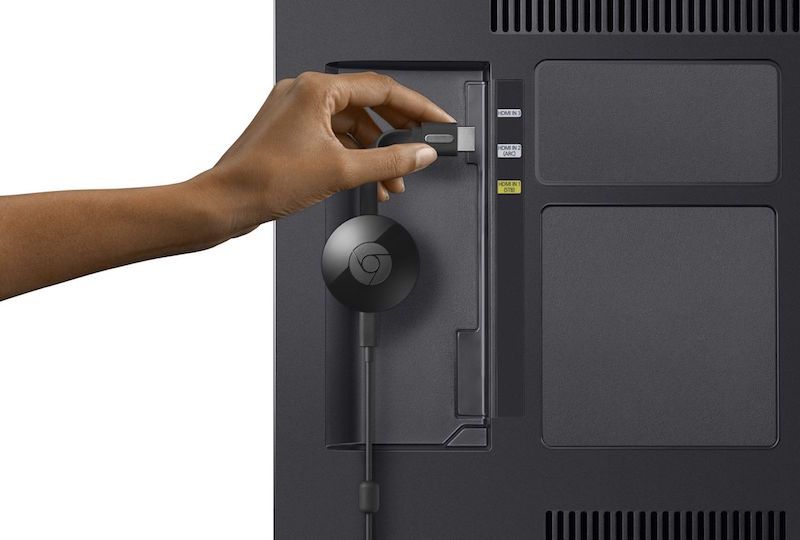
- Connect to Your TV’s HDMI Port: Locate an available HDMI port on your television. Gently plug the Chromecast directly into this port. If your TV is wall-mounted or has limited space, some Chromecast models (especially older ones) might require a short HDMI extender (sometimes included in the box) to fit comfortably. Ensure the device is securely seated in the port.
- Provide Power to Your Chromecast:
- Connect one end of the USB power cable to your Chromecast device.
- Connect the other end of the USB cable to the provided wall power adapter.
- Plug the wall power adapter into a nearby electrical outlet.
- Important Consideration: While some TVs offer USB ports that can power the Chromecast, it is strongly recommended to use the dedicated wall adapter. USB ports on TVs often don’t supply enough consistent power, especially for 4K streaming devices like Chromecast Ultra or Chromecast with Google TV. Insufficient power can lead to unstable performance, frequent disconnections, or a slower boot-up time, diminishing your overall user experience and potentially impacting the device’s longevity. This small investment in a stable power supply is crucial for optimal device performance and reliability, aligning with the “Tech” topic of ensuring robust gadget functionality.
- Switch Your TV’s Input: Using your TV remote control, change the input source to the HDMI port where your Chromecast is connected. You should see the Chromecast logo, a setup message, and possibly a unique code appear on your screen. This confirms the physical connection is successful and the device is powered on. If you see a blank screen or “No Signal,” double-check your HDMI connection and ensure you’ve selected the correct input.
Digital Configuration: The Google Home App
Now that your Chromecast is physically connected and powered, the next step involves using your mobile device to configure its software. The Google Home app acts as the central brain for this process.
- Download the Google Home App: On your smartphone or tablet (Android or iOS), open the respective app store (Google Play Store or Apple App Store). Search for “Google Home” and download/install the official application. This app is more than just a setup tool; it’s a comprehensive dashboard for managing your entire smart home ecosystem, from lights to thermostats and security cameras, embodying the “Tech Trends” of integrated smart living.
- Open the Google Home App and Log In: Launch the app. If you’re not already logged in with your Google account, you’ll be prompted to do so. Use the same Google account you intend to associate with your Chromecast. If you have multiple Google accounts, choose the one you want to use for managing your home devices.
- Start the Setup Process:
- In the Google Home app, look for a “plus” (+) icon or an “Add device” button, typically found in the top-left corner or center of the screen. Tap it.
- Select “Set up device” -> “New device.”
- The app will then prompt you to choose a “home” if you’ve already set up smart devices, or create a new one. Select or create the relevant home.
- The app will now scan for nearby devices. Your Chromecast should appear in the list. Tap on it.
- Verify Device Connection: The Google Home app will display a unique code on your phone screen. Simultaneously, the same code should be visible on your TV screen. This step is a critical digital security measure, ensuring that you’re connecting to your specific Chromecast and not inadvertently setting up a neighbor’s device. Confirm that the codes match, then tap “Yes” on your phone.
- Location and Privacy Settings: The app will ask for your consent to improve services by sharing device stats and crash reports. You’ll also be asked to grant location access, which helps the app find nearby devices and provide relevant services. Review these privacy settings carefully and make your choices. Understanding what data is collected and how it’s used is vital for maintaining personal digital security.
- Assign a Room (Optional but Recommended): The app will suggest assigning your Chromecast to a specific room (e.g., “Living Room TV,” “Bedroom”). This helps organize your smart home devices within the Google Home app, a subtle productivity booster, especially if you plan to expand your smart home ecosystem.
Connecting to Your Network and Personalizing Your Device
The final phase of setup involves getting your Chromecast online and giving it a unique identity.
- Connect to Wi-Fi:
- The Google Home app will display a list of available Wi-Fi networks in your vicinity.
- Select your home Wi-Fi network from the list.
- Enter your Wi-Fi password when prompted. Double-check for typos, as an incorrect password is a common source of connectivity issues.
- Tap “Connect.” The Chromecast will now attempt to join your network. Once connected, it will receive an IP address, essentially getting its own digital address on your network.
- Note on Wi-Fi Bands: Most Chromecasts support both 2.4GHz and 5GHz Wi-Fi bands. The 2.4GHz band offers wider coverage but slower speeds, while 5GHz provides faster speeds over a shorter range. If you have both, for optimal streaming quality, especially for 4K content, aim for the 5GHz network if your Chromecast is close enough to the router.
- Link Your Google Account (if not already done): For many features, especially personalization and voice commands (with Google TV models or Google Assistant integration), your Chromecast needs to be linked to your Google account. The app will guide you through this, essentially confirming the account you used to log into the Google Home app.
- Name Your Chromecast: This is an important step for usability and productivity. The app will suggest a default name (e.g., “Chromecast 1234”). Rename it to something descriptive and easy to remember, especially if you plan to have multiple Chromecasts in your home (e.g., “Living Room Chromecast,” “Kids Room TV”). This simple act makes it far easier to select the correct device when you want to cast content.
- Confirm Setup Completion: Once all these steps are complete, the Google Home app will usually confirm that your Chromecast is ready. Your TV screen will typically switch from the setup message to the Ambient Mode, displaying photos, weather, and time, indicating successful installation.
Congratulations! Your Chromecast is now installed and ready to transform your TV into a smart display, bringing an endless stream of digital entertainment and information to your fingertips.
Unleashing Chromecast’s Potential: Beyond Installation
With your Chromecast successfully installed, the real fun begins. It’s time to explore how this versatile gadget can elevate your entertainment experience, enhance productivity, and seamlessly integrate into your smart home ecosystem.
First Cast: Enjoying Your Content
The core function of Chromecast is, of course, casting. This is how you send videos, music, photos, and even web pages from your small screen to your big screen.
- Identify the Cast Icon: In most compatible apps (Netflix, YouTube, Spotify, Disney+, Hulu, etc.), you’ll find a distinctive “Cast” icon. It looks like a rectangle with a Wi-Fi signal radiating from its bottom-left corner. This icon is your gateway to casting.
- Initiate a Cast:
- Open a cast-enabled app on your smartphone, tablet, or Chrome browser on your computer.
- Start playing the content you wish to cast.
- Tap the Cast icon.
- A list of available Chromecast devices on your network will appear. Select the name you gave your Chromecast (e.g., “Living Room Chromecast”).
- Almost instantly, the content will begin playing on your TV. Your mobile device or computer then transforms into a remote control, allowing you to pause, play, adjust volume, skip tracks, or even queue up more content without interrupting the TV display.
- Casting a Chrome Browser Tab: A particularly powerful feature for productivity and information sharing is the ability to cast an entire tab from your Google Chrome browser on a computer. This is invaluable for presentations, sharing web articles, or demonstrating software on a larger screen. Simply click the three-dot menu in Chrome, select “Cast,” and choose your Chromecast.
- Mirroring Your Device Screen (Screen Cast): While casting from specific apps is optimized for content delivery, you can also mirror your entire Android device screen to your TV via the Google Home app. This is useful for displaying apps that don’t have built-in cast support or for showing off photos directly from your gallery. Navigate to your Chromecast in the Google Home app, tap “Cast my screen,” and then “Cast screen.”
Advanced Features and Maintenance
Chromecast offers more than just basic streaming. Exploring its advanced capabilities and performing routine maintenance will ensure you get the most out of your device.
- Guest Mode: This is a fantastic feature for social gatherings. When enabled in the Google Home app, guests can cast to your Chromecast without needing to connect to your Wi-Fi network. They simply open a cast-enabled app, tap the Cast icon, and if they’re close enough, a prompt will appear allowing them to cast using a PIN displayed on your TV screen. This enhances privacy and digital security by not requiring guests to know your Wi-Fi password.
- Ambient Mode: When not actively casting, your Chromecast displays “Ambient Mode.” You can customize this in the Google Home app to show a personalized slideshow of your Google Photos, beautiful art galleries, satellite imagery, weather information, or even a subtle clock. This transforms your TV into a dynamic digital canvas, adding aesthetic appeal and utility to your living space.
- Firmware Updates: Like all tech gadgets, your Chromecast regularly receives firmware updates from Google. These updates often bring new features, performance improvements, and crucial digital security patches. Chromecasts update automatically when connected to Wi-Fi and not in use. Ensuring your device is always updated is vital for optimal performance and protection against emerging vulnerabilities, keeping your technology robust and secure.
- Integration with Other Smart Home Devices: Chromecast is a cornerstone of the Google Home ecosystem. If you have Google Assistant-enabled speakers or smart displays (like a Nest Hub), you can use voice commands to control your Chromecast. For example, “Hey Google, play [show name] on Netflix on the Living Room TV.” This AI-powered integration epitomizes modern smart home convenience, bridging various tech devices for a unified experience.
- Casting Local Files: While Chromecast primarily streams from online sources, several third-party apps (e.g., Plex, VLC Media Player with casting support) allow you to cast local video or audio files stored on your computer or network-attached storage (NAS) directly to your TV. This expands your entertainment options significantly.
Troubleshooting Common Chromecast Issues
Even with the most meticulous setup, technology can sometimes present challenges. Understanding how to diagnose and resolve common Chromecast issues can save you time and frustration, getting you back to your streaming in no time. Most problems can be resolved with a few simple steps, often related to network connectivity or device communication.
“Device Not Found” and Connectivity Woes
One of the most frequent issues users encounter is their phone or app failing to detect the Chromecast device. This usually points to a network or communication problem.
- Restart Everything (The Golden Rule of Tech Troubleshooting): This is often the simplest and most effective solution.
- Restart Your Chromecast: Unplug the Chromecast from its power source, wait for about 30 seconds, and then plug it back in. Allow it a minute or two to fully boot up.
- Restart Your Router/Modem: Unplug your Wi-Fi router and modem from their power outlets, wait 30-60 seconds, then plug them back in. Wait for them to fully power on and re-establish an internet connection (this might take a few minutes). A router reboot can clear network caches and resolve IP conflicts.
- Restart Your Casting Device: Power off your smartphone, tablet, or computer, then turn it back on.
- Check Wi-Fi Network Consistency:
- Ensure your smartphone/tablet/computer is connected to the same Wi-Fi network as your Chromecast. If your router broadcasts both 2.4GHz and 5GHz bands (e.g., “MyWiFi” and “MyWiFi5G”), both devices must be on the same band and network name. For example, if your Chromecast is on “MyWiFi5G,” your phone must also be on “MyWiFi_5G.”
- Confirm your Wi-Fi password is correct and your network is active. Try connecting another device to the internet to confirm your Wi-Fi is working.
- Disable AP Isolation/Client Isolation: Some Wi-Fi routers, especially those in public places, hotels, or those with advanced security settings, may have “AP Isolation” or “Client Isolation” enabled. This feature prevents devices connected to the same Wi-Fi network from communicating with each other, which will prevent your phone from finding the Chromecast. You’ll need to access your router’s settings (usually via a web browser using its IP address like
192.168.1.1) to disable this. Refer to your router’s manual or manufacturer’s website for specific instructions. - Move Closer to the Router: If your Chromecast or casting device is too far from the Wi-Fi router, the signal might be weak. Try moving them closer, or consider a Wi-Fi extender.
- Factory Reset Your Chromecast (Last Resort): If all else fails, a factory reset will return your Chromecast to its out-of-the-box state, requiring you to go through the setup process again.
- For standard Chromecast: With the Chromecast plugged into the TV and powered on, press and hold the button on the side of the device (usually near the power port) for at least 15 seconds. The LED light will flash, then turn solid. Release the button when the TV screen goes blank and restarts.
- For Chromecast with Google TV: Go to Settings > System > About > Factory Reset.
- This is a drastic step, but it often resolves persistent software glitches or corrupted settings.
Casting Interruptions and Quality Problems
Once casting, you might experience buffering, choppy video, or unexpected disconnections.
- Check Internet Speed and Bandwidth:
- Network Congestion: If multiple devices on your home network are simultaneously streaming, downloading, or gaming, it can hog bandwidth and impact your Chromecast’s performance. Consider temporarily pausing other network-intensive activities.
- Internet Service Provider (ISP) Issues: Run an internet speed test on your phone or computer to ensure your ISP is delivering the advertised speeds. If speeds are consistently low, contact your ISP.
- Wi-Fi Interference: Other electronic devices (microwaves, cordless phones, baby monitors, even neighbor’s Wi-Fi networks) can interfere with your Wi-Fi signal. Try changing your router’s Wi-Fi channel settings if you suspect interference.
- Router Distance and Obstructions: A weak Wi-Fi signal due to distance or physical barriers (walls, furniture) can lead to buffering. Refer back to the environmental optimization tips regarding router proximity.
- App-Specific Issues: Sometimes, the problem lies with the streaming app itself.
- Clear App Cache/Data: Go into your phone’s app settings, find the streaming app (e.g., Netflix), and clear its cache and data. This can resolve corrupted app data.
- Reinstall the App: If clearing cache doesn’t work, uninstall and reinstall the streaming app.
- Check for App Updates: Ensure the streaming app and the Google Home app are updated to their latest versions.
- HDMI CEC (Consumer Electronics Control): Some TVs have a feature called HDMI CEC (often branded as Bravia Sync, Anynet+, Simplink, etc.). While useful for controlling multiple devices with one remote, it can sometimes interfere with Chromecast. If you’re experiencing random input switching or control issues, try disabling HDMI CEC in your TV’s settings.
- Power Supply: As mentioned earlier, ensure your Chromecast is receiving adequate power, preferably from its dedicated wall adapter, not a TV’s USB port.
By systematically working through these troubleshooting steps, you can resolve the vast majority of Chromecast issues, ensuring a consistently smooth and enjoyable streaming experience. Understanding these common pitfalls and their solutions is a valuable skill in navigating today’s technology-rich environment.
Conclusion: The Future of Connected Entertainment
The journey from unboxing a Chromecast to enjoying seamless streaming on your television is a testament to the elegant simplicity and powerful functionality of modern technology. What began as a mere streaming dongle has evolved into a sophisticated gateway to digital content, a core component of the smart home ecosystem, and a remarkably cost-effective solution for entertainment and productivity. By following this comprehensive guide, you’ve not only learned “how to install Chromecast” but also gained insights into optimizing its performance, understanding its place within broader tech trends, safeguarding your digital security, and making smart financial choices in your digital life.
Chromecast’s enduring appeal lies in its ability to democratize access to an ever-expanding universe of online content. It transforms any HDMI-equipped display into a smart display, bypassing the need for expensive smart TVs or complex media centers. This affordability, combined with its ease of use, makes it an excellent personal finance decision for enhancing your home entertainment without breaking the bank. It represents a powerful example of how intelligent gadgets can deliver immense value, allowing you to pay for content subscriptions (Money) rather than costly hardware.
From a technology perspective, Chromecast embodies the shift towards cloud-based services and interconnected devices. Its integration with the Google Home app and Google Assistant highlights the growing prevalence of AI tools in our daily lives, making content discovery and control more intuitive than ever. The continuous firmware updates ensure that your device remains secure (Digital Security) and up-to-date with the latest features, a crucial aspect of responsible technology ownership. Google’s consistent branding and development around Chromecast reinforces its commitment to a cohesive and user-friendly smart home experience, where various gadgets work harmoniously.
As we look to the future, the capabilities of devices like Chromecast will only expand. We can anticipate even deeper integration with emerging AI technologies, more personalized content delivery, and greater interoperability with a wider array of smart home devices. The lines between entertainment, communication, and productivity will continue to blur, and devices like Chromecast will be at the forefront, enabling us to effortlessly transition between work presentations, family photos, and blockbuster movies with a simple tap or voice command.
Ultimately, your Chromecast is more than just a piece of hardware; it’s an investment in a more connected, convenient, and enjoyable digital lifestyle. By understanding its installation, capabilities, and troubleshooting, you’re not just setting up a device – you’re mastering a tool that empowers you to fully embrace the future of connected entertainment and beyond. So, sit back, cast your favorite show, and enjoy the fruits of your newly installed tech prowess.
aViewFromTheCave is a participant in the Amazon Services LLC Associates Program, an affiliate advertising program designed to provide a means for sites to earn advertising fees by advertising and linking to Amazon.com. Amazon, the Amazon logo, AmazonSupply, and the AmazonSupply logo are trademarks of Amazon.com, Inc. or its affiliates. As an Amazon Associate we earn affiliate commissions from qualifying purchases.