
Chromebooks have revolutionized personal computing by offering a lightweight, secure, and cloud-centric alternative to traditional operating systems. Their simplicity and ease of use are major selling points, making them incredibly popular for students, remote workers, and casual users alike. However, for newcomers, one common question often arises: “How do I install my printer on this thing?” The printing landscape for Chromebooks has evolved significantly, particularly with the retirement of Google Cloud Print, making it crucial to understand the current best practices.
This guide will demystify the process of connecting your printer to a Chromebook, ensuring you can seamlessly handle all your printing needs. We’ll explore various connection methods, delve into compatibility nuances, offer practical troubleshooting tips, and even touch upon how to optimize your printing workflow to enhance productivity in your digital life. Whether you’re setting up a brand-new printer or trying to connect an older model, consider this your definitive resource for hassle-free printing on Chrome OS.

Understanding Chromebook Printer Compatibility
Before diving into the setup process, it’s essential to grasp how Chromebooks interact with printers. Unlike Windows or macOS, Chrome OS doesn’t rely on installing specific device drivers for every printer model. Instead, it leverages standardized protocols and direct network communication, which simplifies things considerably but also means certain older or niche printers might require a workaround.
Cloud-Ready Printers vs. Legacy Printers
The term “Cloud-Ready Printer” often refers to printers that can connect directly to the internet and offer web-based printing services without needing an intermediary computer. While this concept gained prominence with Google Cloud Print, most modern network-enabled printers from brands like HP, Canon, Epson, and Brother now incorporate their own proprietary cloud printing solutions or support universal protocols like IPP (Internet Printing Protocol). These printers are typically the easiest to set up with a Chromebook, as they are designed for direct network discovery and operation.
Legacy printers, on the other hand, might pose a slight challenge. These are often older models that primarily connect via USB and lack Wi-Fi capabilities, or those that have Wi-Fi but predate modern direct network printing protocols. While Chrome OS has improved its support for USB printers, it’s still not as universally compatible as traditional desktop operating systems that maintain vast driver libraries. For a smooth experience, especially for those heavily invested in the Chrome OS ecosystem, investing in a modern, Wi-Fi-enabled printer from a reputable brand that explicitly mentions Chrome OS compatibility is highly recommended. This not only ensures seamless integration but also often comes with dedicated apps or services that enhance functionality, aligning well with the ‘Brand’ aspect of optimizing your tech choices.
The Role of Google Cloud Print (and its Legacy)
For many years, Google Cloud Print was the cornerstone of printing from Chromebooks. It allowed users to print to any internet-connected printer from anywhere, regardless of whether it was a “cloud-ready” model or a legacy printer shared by a Windows/macOS machine. However, Google officially retired this service at the end of 2020. This retirement necessitated a shift in how Chromebooks handle printing, pushing users towards more direct and modern methods.
The good news is that Chrome OS has evolved significantly since then, incorporating robust native support for most modern Wi-Fi and USB printers. While Google Cloud Print is gone, its legacy lives on in the emphasis on network-based and driverless printing, which remains a core philosophy for Chromebooks. This transition has largely streamlined the process, making direct printer connections more reliable and secure than ever before, further enhancing the productivity aspects tied to seamless technology integration.
Methods for Connecting Your Printer to a Chromebook
Chrome OS offers several straightforward methods for connecting a printer. The best method for you will depend on your printer’s capabilities and your personal setup.
Wi-Fi (Wireless) Printer Setup
The most common and recommended method for connecting a modern printer to a Chromebook is via Wi-Fi. This method allows for maximum flexibility, enabling you to print from anywhere within your network without being tethered to the printer.
Prerequisites:
- Your printer must be connected to the same Wi-Fi network as your Chromebook.
- Your printer must be turned on and properly configured for network access.
Step-by-Step Guide:
- Ensure Printer is Network-Ready: First, make sure your printer is connected to your Wi-Fi network. This process varies by printer brand and model. Typically, you’ll use the printer’s control panel or a companion mobile app to connect it to your Wi-Fi. Consult your printer’s manual for specific instructions.
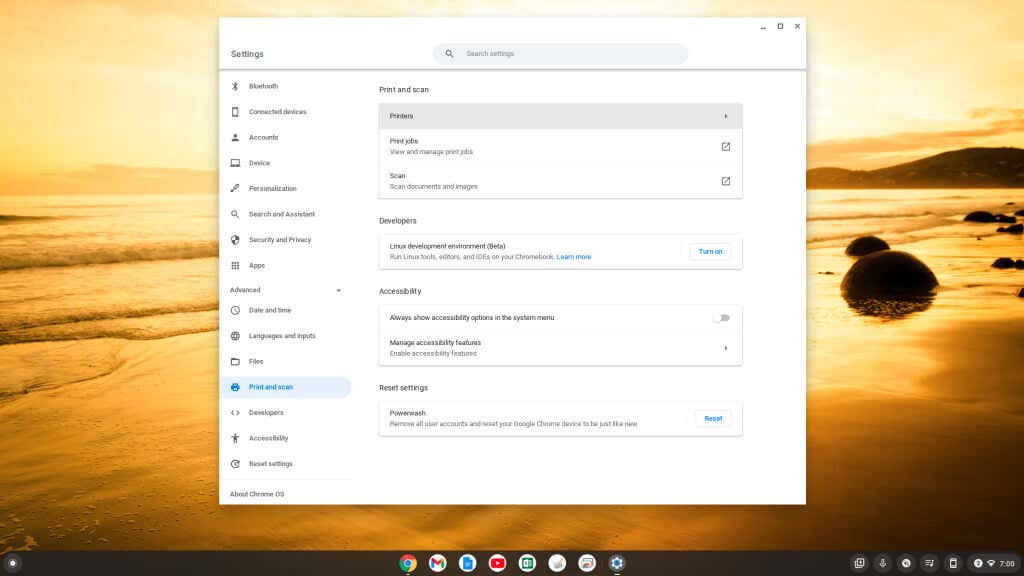
- Open Chromebook Settings: On your Chromebook, click on the time in the bottom-right corner of the screen to open the Quick Settings panel. Then, click on the “Settings” gear icon.
- Navigate to Printing Settings: In the Settings menu, scroll down or use the search bar to find “Advanced” and click on it. Under the “Printing” section, select “Printers.”
- Add Your Printer: Chrome OS is designed to automatically detect Wi-Fi printers on the same network. Look for your printer listed under “Available printers.” If you see it, simply click “Save” next to its name.
- Manual Addition (If Not Detected): If your printer doesn’t appear automatically, you might need to add it manually.
- Click the “Add Printer” button.
- Enter a “Name” for your printer (e.g., “Home Office Printer”).
- For “Make” and “Model,” you can often leave “Generic” if your specific model isn’t listed, or search for it. Chrome OS has a good database.
- The most crucial part is the “Address” field. This is typically your printer’s IP address. You can usually find the IP address by printing a network configuration page from your printer’s control panel, checking your router’s connected devices list, or using the printer’s companion app. Enter the IP address (e.g.,
192.168.1.100). - Select the appropriate “Protocol.” The most common is
IPP (Internet Printing Protocol)orHTTP. Often,IPP (Internet Printing Protocol)works best for modern printers. - Click “Add.”
- Test Your Printer: Once added, open any document, image, or webpage, and try to print it. Select your newly added printer from the print dialog. This confirms the connection and ensures everything is working correctly.
This wireless setup leverages standard network protocols, making it a robust and convenient option that aligns perfectly with the ‘Tech’ focus on seamless connectivity.
USB Printer Setup (Wired Connection)
For printers without Wi-Fi capabilities or when you prefer a direct wired connection, USB is the alternative. Chrome OS has improved its support for USB printers significantly, making it a viable option for many.
Prerequisites:
- A USB cable compatible with your printer and Chromebook.
- Your Chromebook must be physically close to the printer.
Step-by-Step Guide:
- Connect the Printer: Plug one end of the USB cable into your printer and the other end into an available USB port on your Chromebook.
- Turn On Printer: Ensure your printer is powered on.
- Chromebook Detection: Your Chromebook should automatically detect the connected USB printer. A notification might appear, or you can proceed directly to the Settings.
- Add Printer via Settings:
- Go to “Settings” > “Advanced” > “Printing” > “Printers.”
- Look for your USB printer under “Available printers.” It should often appear with a name indicating a USB connection (e.g., “HP LaserJet via USB”).
- Click “Save” next to its name.
- If it doesn’t appear, click “Add Printer” and Chrome OS might offer a “USB” option or detect it by manufacturer and model if drivers are available in its internal database.
- Test Your Printer: Just like with Wi-Fi setup, print a test page to confirm the connection.
While USB printing offers a direct and reliable connection, it does limit the mobility and flexibility inherent in a Chromebook’s design. It’s often best for situations where a network connection isn’t feasible or for older, non-networked printers.
Utilizing Cloud Printing Services (Beyond Google Cloud Print)
Even with Google Cloud Print’s demise, the concept of cloud printing remains highly relevant. Many printer manufacturers now offer their own cloud printing services or mobile apps that facilitate printing from various devices, including Chromebooks, often by acting as a bridge between your device and your Wi-Fi printer.
Examples of Manufacturer Services:
- HP Smart: For HP printers, the HP Smart app (available on the Google Play Store for Android apps on Chromebooks) allows you to set up, monitor, and print to your HP printer over Wi-Fi, often including remote printing capabilities.
- Epson Connect / iPrint: Epson offers similar services for its printers, enabling cloud printing and mobile device management.
- Canon PRINT Inkjet/SELPHY: Canon provides apps for managing and printing from its compatible printers.
How to Use Them:
- Check for Android App Compatibility: If your Chromebook supports Android apps (most modern ones do), check the Google Play Store for your printer manufacturer’s official app.
- Install and Configure: Download and install the app. Follow the in-app instructions to connect to your printer. This usually involves linking your printer to an online account provided by the manufacturer.
- Print from App: Once configured, you can often print directly from within these apps, or they might integrate with the Chromebook’s native print dialog, appearing as an available printer option.
These manufacturer-specific solutions offer extended functionality like ink level monitoring, scanning to cloud services, and more, making them valuable tools for productivity and managing your tech assets.
Manufacturer-Specific Apps and Services
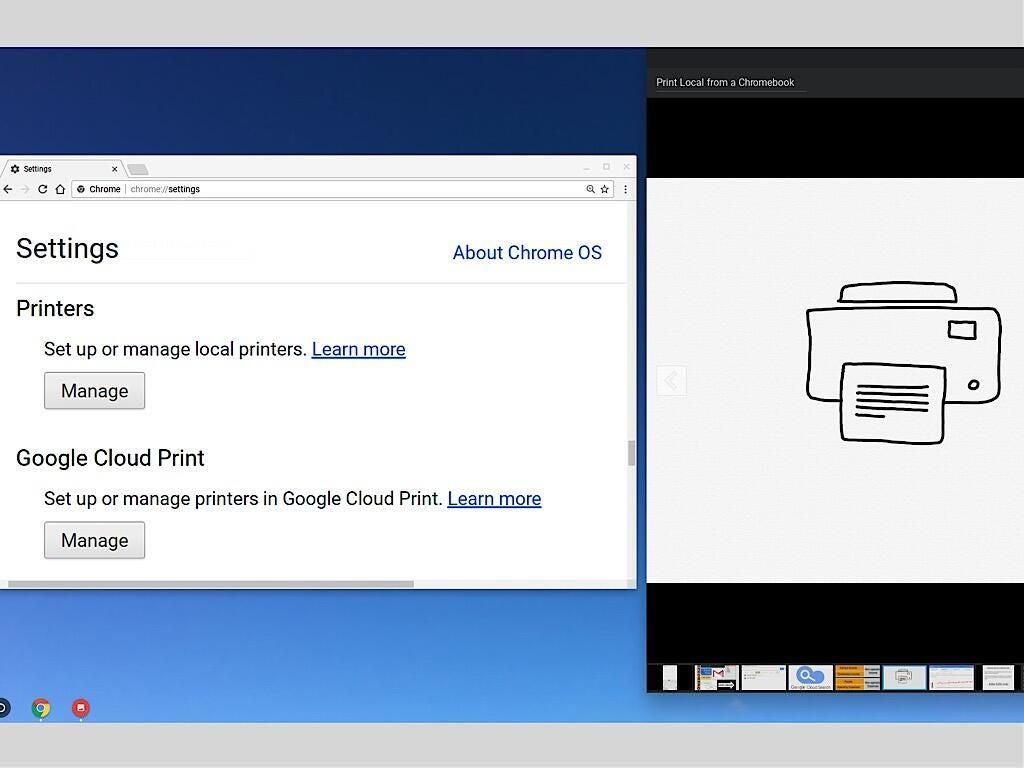
Beyond generic cloud printing, many modern printers integrate tightly with manufacturer-provided applications and services. These can often be downloaded from the Google Play Store on your Chromebook (if your device supports Android apps) or accessed via web portals.
- Enhanced Control: These apps typically offer more granular control over printer settings, maintenance tasks (like cleaning print heads), and even advanced features like scanning to cloud storage or reordering ink directly from the app.
- Remote Printing: Many enable true remote printing, allowing you to send print jobs to your home printer even when you’re away, which is a fantastic productivity booster for users on the go.
- Firmware Updates: They can also facilitate firmware updates for your printer, ensuring it has the latest features and security patches – a critical aspect of digital security.
For optimal performance and access to all features, checking for an official app from your printer’s brand is always a good step, especially for users who value a comprehensive tech experience.
Troubleshooting Common Printer Connection Issues
Even with the straightforward nature of Chrome OS, you might occasionally encounter issues connecting or printing to your printer. Here are some common problems and their solutions.
Network Connectivity Problems
The vast majority of wireless printing issues stem from network problems.
- Printer and Chromebook on Different Networks: Ensure both your printer and Chromebook are connected to the same Wi-Fi network. If you have multiple networks (e.g., a 2.4GHz and a 5GHz band with different names), confirm both devices are on the same one.
- Weak Wi-Fi Signal: If your printer is far from your Wi-Fi router, the signal might be weak, leading to intermittent connections. Try moving the printer closer to the router or using a Wi-Fi extender.
- Router Issues: Sometimes, a simple router reboot can resolve many network communication problems. Unplug your router for 30 seconds, then plug it back in.
- Firewall Interference: Less common for home users, but corporate networks or specific router settings might have firewalls blocking printer discovery. Check your router settings or contact your network administrator.
- Printer IP Address Change: If you manually added a printer using an IP address, and your router assigns dynamic IP addresses, the printer’s IP might have changed. Check the printer’s new IP and update it in your Chromebook’s printer settings. Setting a static IP for your printer within your router’s settings can prevent this.
Driver-Related Hiccups (and Chromebook’s Solution)
As mentioned, Chromebooks don’t use traditional drivers. This largely eliminates driver installation headaches but can sometimes lead to issues if a printer’s specific functions aren’t universally supported by Chrome OS’s built-in protocols.
- Generic Driver Selection: If your specific printer model isn’t listed when adding it manually, try selecting a “Generic” option, such as “Generic PCL Laser Printer” or “Generic PCL PCL3/PCL5c/PCL5e.” This often provides basic print functionality.
- Update Chrome OS: Ensure your Chromebook is running the latest version of Chrome OS. Google frequently releases updates that improve printer compatibility and add support for new models. Go to “Settings” > “About Chrome OS” > “Check for updates.”
- Printer Firmware: Check your printer manufacturer’s website for any available firmware updates for your printer. Updating the printer’s firmware can resolve bugs and improve compatibility with modern operating systems like Chrome OS.
- Manufacturer App: If basic printing works but advanced features don’t, check if your printer brand offers an Android app on the Google Play Store. These apps often provide more direct control and access to all features.
Printer Not Appearing in Settings
This is a common frustration, especially with wireless setups.
- Power Cycle Everything: Turn off your printer, Chromebook, and Wi-Fi router. Wait a minute, then turn them back on in this order: router, then printer, then Chromebook. This can often clear temporary glitches.
- Verify Wi-Fi Connection: Double-check that your printer is indeed connected to your Wi-Fi network. Many printers have a network status light or a display that shows Wi-Fi connectivity. Print a network configuration page from the printer itself if possible.
- Run Printer Diagnostics: Some printers have built-in diagnostic tools that can help identify network issues or other problems.
- Try USB (Temporary Workaround): If Wi-Fi consistently fails, try connecting via USB cable as a temporary measure to confirm the printer itself is functional.
- Reset Printer Network Settings: As a last resort, you might need to reset your printer’s network settings to factory defaults and then reconfigure its Wi-Fi connection from scratch. Consult your printer’s manual for instructions.
Addressing these issues systematically can save you time and ensure your printing experience remains smooth and productive.
Optimizing Your Printing Experience on Chrome OS
Beyond merely getting your printer to work, there are ways to optimize your printing workflow on a Chromebook, enhancing both convenience and efficiency.
Managing Print Jobs and Settings
Chrome OS provides a simple interface for managing your print jobs and configuring print settings.
- Print Preview: Always utilize the print preview feature. Before you print, the print dialog box will show you a preview of your document. This allows you to catch formatting errors, check page orientation, and ensure you’re printing exactly what you intend, thereby saving ink and paper (a subtle nod to ‘Money’ and resourcefulness).
- Common Print Options: Within the print dialog, you’ll find options for:
- Destination: Select your desired printer.
- Pages: Choose to print all pages, a custom range, or specific pages.
- Copies: Specify the number of copies.
- Color/Black & White: Toggle between color and grayscale printing.
- Two-sided: Enable duplex printing if your printer supports it.
- Paper Size/Orientation: Adjust these as needed.
- Margins/Scale: Fine-tune how the content fits on the page.
- Print Queue: While Chrome OS doesn’t have a visible “print queue” window like other operating systems, you can usually see the status of a current print job as a notification. If a job is stuck, you may need to power cycle your printer to clear its internal queue. For more robust queue management, manufacturer-specific apps can sometimes offer more control.
Enhancing Productivity with Chromebook Printing
A well-integrated printing setup contributes directly to your productivity, especially in hybrid work or study environments.
- Quick Access: Once your printer is set up, printing from any application (Google Docs, Sheets, Slides, web pages, PDFs) is just a few clicks away, often initiated by
Ctrl + P. This speed and consistency are key productivity drivers. - Scanning Functionality: Many modern multi-function printers also offer scanning capabilities. If your printer has a scanning feature and is connected via Wi-Fi or USB, you can often access it directly through the Chrome OS “Scan” app (search for it in your app launcher) or through your printer manufacturer’s Android app. This allows you to digitize documents quickly and easily, integrating physical documents into your digital workflow.
- Google Drive Integration: Print directly to Google Drive (Save as PDF) as an option in the print dialog. This is incredibly useful for archiving documents, sharing them digitally, or accessing them from any device, aligning with the cloud-first nature of Chromebooks and enhancing digital organization.
Choosing the Right Printer for Your Chromebook
When considering a new printer, especially if you’re primarily a Chromebook user, a few factors are crucial, touching on both ‘Tech’ and ‘Brand’ considerations.
- Wi-Fi Connectivity: Prioritize Wi-Fi enabled printers. They offer the most flexibility and are easiest to integrate with Chrome OS.
- Chrome OS Compatibility: Look for printers explicitly marketed as “Chrome OS compatible” or “Works with Chromebook.” Major brands like HP, Canon, Epson, and Brother often highlight this. Checking reviews from other Chromebook users can also provide valuable insights.
- Manufacturer Apps: Consider brands that offer robust Android apps for their printers. These apps can significantly enhance functionality, offering advanced settings, remote printing, and scanning features that complement the Chromebook experience.
- Cost-Effectiveness (‘Money’): Beyond the initial purchase price, consider the cost of consumables (ink or toner). Some printers have higher upfront costs but cheaper per-page printing, while others are inexpensive to buy but have costly cartridges. Evaluate your printing volume to make an economically sound decision.
- Features: Decide if you need an all-in-one (print, scan, copy) or just a dedicated printer. For most home office or student needs, an all-in-one offers excellent value.
Making an informed choice here ensures long-term satisfaction and seamless integration with your Chromebook workflow.
Conclusion: Seamless Printing in a Cloud-First World
The process of installing a printer on a Chromebook has evolved, moving from reliance on Google Cloud Print to a more direct, native integration with modern network and USB printers. While the initial setup might seem a little different from traditional operating systems, the underlying principle is one of simplicity and efficiency, perfectly aligned with the Chromebook ethos.
By understanding the various connection methods – primarily Wi-Fi for modern convenience and USB for direct reliability – and knowing how to troubleshoot common issues, you can ensure a smooth and productive printing experience. Leveraging manufacturer-specific apps and optimizing your print settings further enhances this, turning what might seem like a complex task into a straightforward part of your digital life. With the right approach and a little patience, your Chromebook can effortlessly handle all your printing needs, empowering you to print with confidence and focus on what truly matters.
aViewFromTheCave is a participant in the Amazon Services LLC Associates Program, an affiliate advertising program designed to provide a means for sites to earn advertising fees by advertising and linking to Amazon.com. Amazon, the Amazon logo, AmazonSupply, and the AmazonSupply logo are trademarks of Amazon.com, Inc. or its affiliates. As an Amazon Associate we earn affiliate commissions from qualifying purchases.