
The world of PC gaming is often made richer and more diverse through the vibrant community of modders. From minor aesthetic tweaks to colossal gameplay overhauls, modifications (mods) breathe new life into beloved titles like The Elder Scrolls V: Skyrim, Fallout 4, and many others. However, managing these intricate additions can quickly become a daunting task. This is where mod managers step in, acting as essential tools to streamline installation, manage conflicts, and ensure game stability. Among the most popular and powerful mod managers available today are Mod Organizer 2 (MO2) and Vortex.

A common question that arises for seasoned modders and newcomers alike, particularly when considering a shift in their modding philosophy or encountering specific challenges, is: “Can you install Vortex after using MO2?” This article will delve deep into the technical nuances, practical implications, and best practices surrounding this query, guiding you through the considerations necessary for a smooth and stable modding experience. We’ll explore the distinct methodologies of MO2 and Vortex, highlight potential pitfalls, and offer clear strategies for either transitioning between them or even having them coexist under specific circumstances, all while keeping game integrity and digital security at the forefront.
Understanding the Modding Landscape: MO2 vs. Vortex
Before we address the feasibility of installing one manager after the other, it’s crucial to understand the fundamental differences in how MO2 and Vortex operate. Their contrasting approaches to mod deployment are the root cause of many compatibility questions and the key to navigating a successful transition. Grasping these mechanics is not just about avoiding issues; it’s about making informed choices that align with your modding style and comfort level.
Mod Organizer 2 (MO2): The Power User’s Choice
Mod Organizer 2 stands as a titan in the modding community, particularly revered by those who manage extensive and complex mod lists. Its core strength lies in its unique implementation of a “Virtual File System” (VFS). Unlike traditional mod managers that directly install mod files into your game’s data folder, MO2 employs a sophisticated system where mods are kept in separate directories outside the game’s installation. When you launch a game through MO2, it creates a virtual data folder on the fly, presenting the game with a unified collection of all enabled mods, along with the vanilla game files.
This virtualization offers several profound advantages:
- Pristine Game Directory: Your actual game folder remains untouched. This means you can easily switch between different mod setups, troubleshoot problems, or even revert to a completely vanilla game state without tedious reinstallation or manual file deletion.
- Isolated Mod Files: Each mod exists in its own separate folder. This makes identifying and resolving conflicts incredibly straightforward. If two mods modify the same file, MO2’s intuitive interface allows you to dictate which mod “wins” the conflict with remarkable precision, at the individual file level.
- Robust Profile Management: MO2 allows users to create multiple independent profiles, each with its own enabled mods, load order, and even save games. This is invaluable for experimenting with different mod collections or playing different characters with distinct mod setups without interfering with each other.
- Advanced Troubleshooting: The VFS, combined with MO2’s detailed conflict reporting, makes it an unparalleled tool for diagnosing and fixing mod-related issues. You can disable mods one by one, adjust load order, and pinpoint problems with ease.
However, MO2’s power comes with a steeper learning curve. Its interface, while incredibly functional, can appear intimidating to newcomers. Understanding concepts like file priority, load order, and conflict resolution requires dedication, but the payoff in terms of control and stability for large mod lists is immense.
Vortex: Streamlined Modding for Everyone
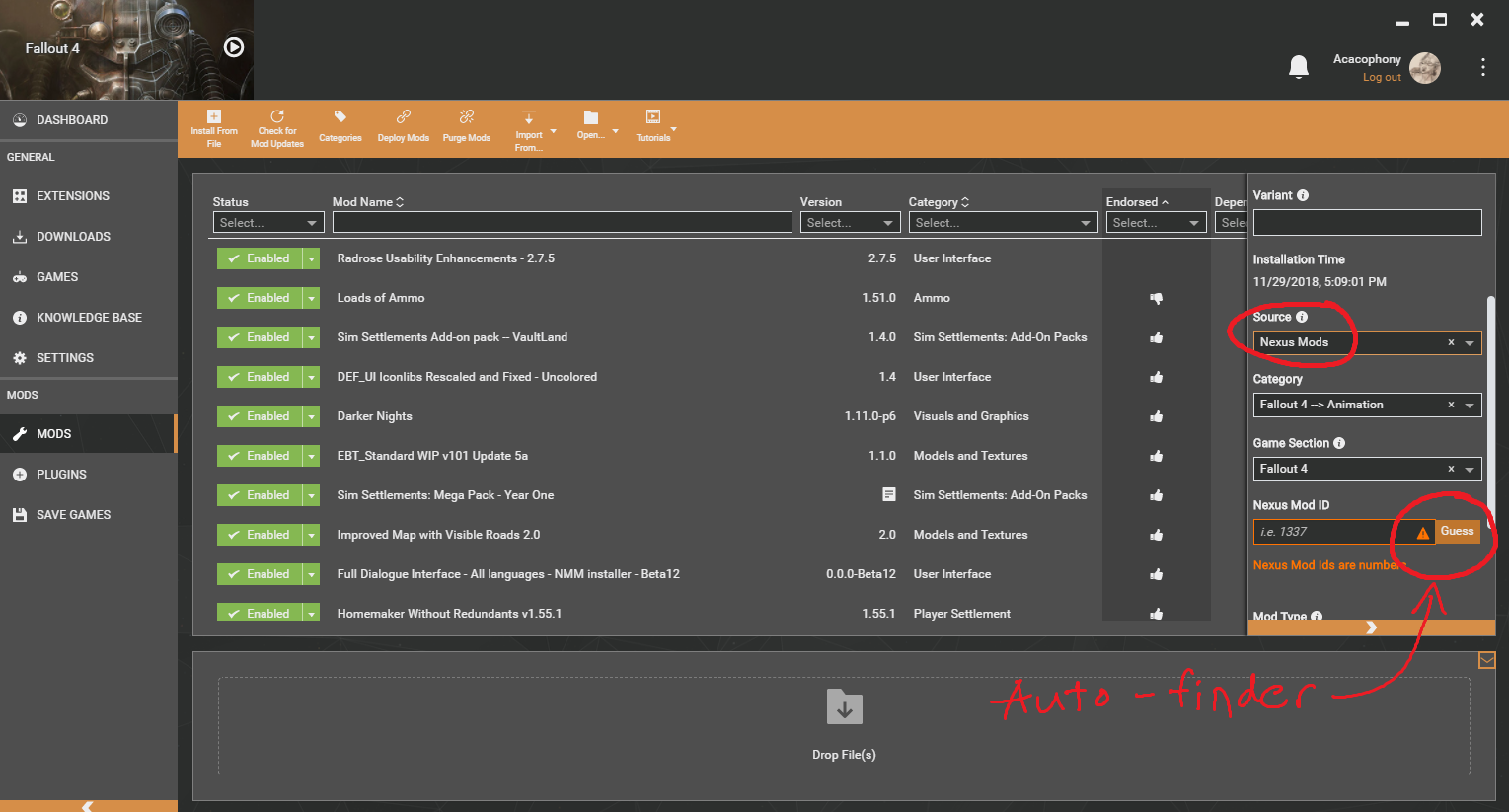
Vortex, developed by Nexus Mods, the largest hub for game modifications, aims to provide a more user-friendly and automated modding experience. Its philosophy centers around simplicity and integration, making it an excellent choice for those new to modding or who prefer a less hands-on approach. Instead of a VFS, Vortex utilizes a system of “hard links” and “junctions” (also known as symbolic links or symlinks) to deploy mods.
Here’s how Vortex operates and its key features:
- Staging Folder and Deployment: When you download a mod through Vortex, it’s stored in a dedicated “staging folder.” When you enable a mod, Vortex creates symbolic links from its staging folder into your game’s data directory. These links effectively trick the game into thinking the mod files are directly present in its folder, even though they physically reside elsewhere.
- Nexus Mods Integration: As the official manager for Nexus Mods, Vortex boasts seamless integration with the website. Downloading, installing, and updating mods are often just a click away, making the process incredibly smooth for users of the Nexus platform.
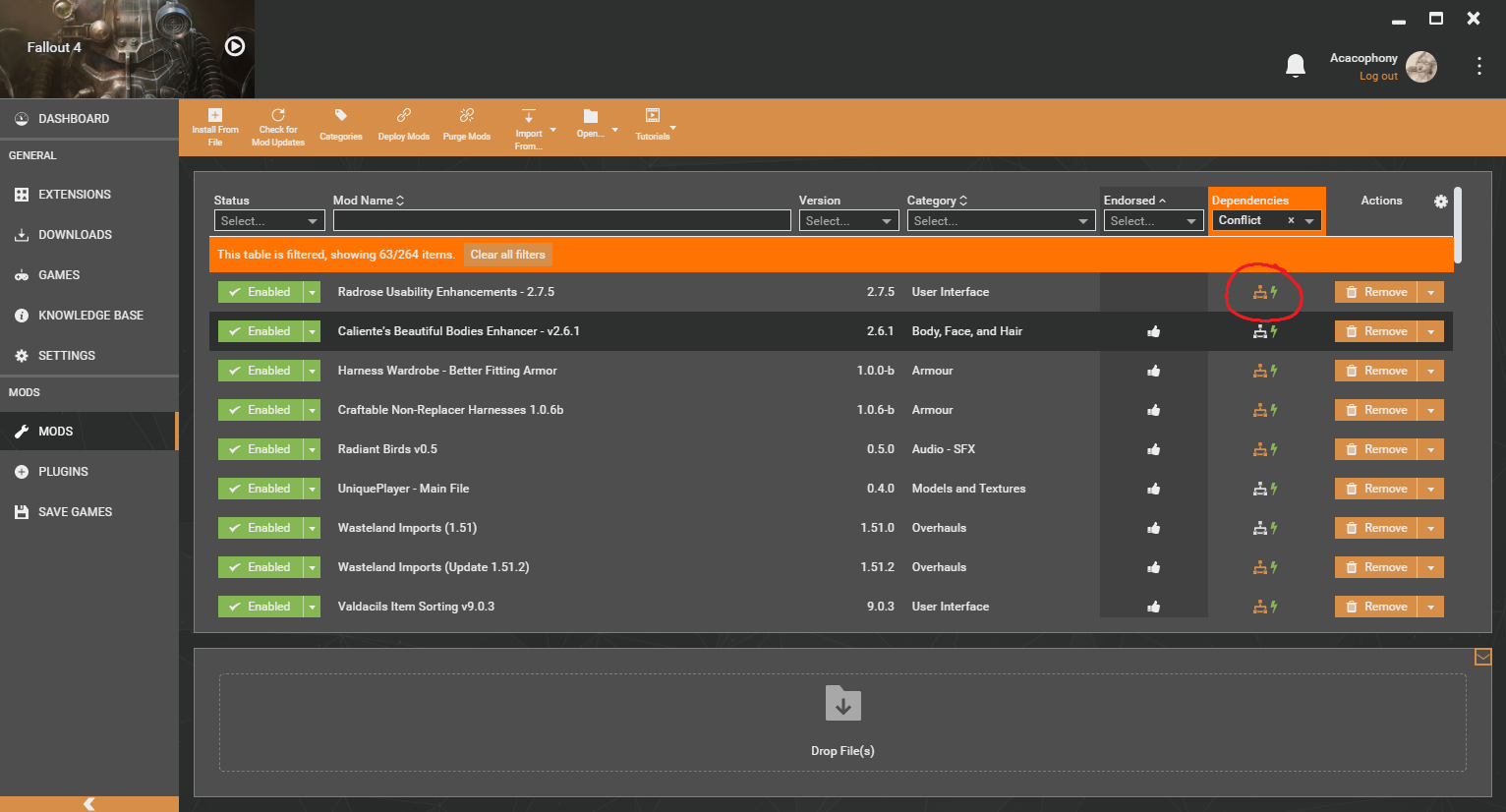
- Automated Conflict Resolution: Vortex attempts to automatically resolve simple mod conflicts based on user-defined rules and priorities. While it might not offer the same granular control as MO2, its automated suggestions often suffice for moderate mod lists and simplify the decision-making process for less experienced users.
- User-Friendly Interface: Vortex’s interface is generally cleaner and more intuitive than MO2’s, designed to guide users through the modding process with fewer technical hurdles.
- Extension System: Vortex supports an extension system, allowing for community-driven enhancements and additional functionality, further expanding its capabilities.
While easier to use, Vortex’s symlink approach can sometimes be less transparent than MO2’s VFS, especially when troubleshooting complex conflicts. Users also have slightly less direct control over file priority compared to MO2’s drag-and-drop system.
The Core Question: Installing Vortex After Using MO2
With a clear understanding of each manager’s operational philosophy, we can now directly address the central question: “Can you install Vortex after using MO2?” The short answer is yes, you absolutely can install Vortex on a system that has previously hosted MO2. However, the more critical nuance lies in whether you can successfully use Vortex to manage the same game instance that MO2 was previously managing, and what steps are necessary to ensure stability.
Technical Compatibility: Yes, But Not Without Nuance
From a purely technical standpoint, installing the Vortex application after MO2 is not an issue. Both are standalone software applications that reside in their own directories and operate independently. Your operating system won’t prevent you from installing one simply because the other was present.
The challenge arises when these two distinct mod managers attempt to interact with, or take over management of, the same game installation. Since MO2 relies on a virtual file system and Vortex uses symbolic links to deploy mods, their underlying mechanisms are fundamentally different. They do not natively understand or interpret each other’s mod deployment structures.
Consider this: if MO2 was managing Skyrim SE, it effectively “intercepted” the game’s requests for files and presented them with a virtualized data folder. The physical game directory remained largely vanilla. If you then install Vortex and point it to that same Skyrim SE installation, Vortex will expect to create its own symbolic links into a clean game data folder. It won’t understand MO2’s virtual structure or any remnants that MO2 might have left behind or ignored. This almost inevitably leads to mod conflicts, missing files, or an unstable game environment.
Why the Hesitation? Understanding Potential Conflicts
The primary reason for caution when transitioning between MO2 and Vortex on the same game instance stems from the potential for a myriad of conflicts and inconsistencies:
- Residual Mod Files: Even though MO2 keeps the game directory clean, if you manually installed any mods before using MO2, or if certain mod installers (especially older ones) placed files directly into the game folder, these might interfere with Vortex. Vortex would not be aware of MO2’s virtual files, and MO2’s virtual files would not be linked by Vortex.
- Plugin Load Order: Both managers generate and manage the
plugins.txtfile (or equivalent) that dictates the load order of.esp,.esm, and.eslfiles. If you switch managers, the new manager will generate its own load order based on the mods it detects (or links), potentially ignoring or overwriting the meticulously crafted load order from the previous manager. This is a recipe for crashes and broken mods. - Configuration Files: Many mods come with configuration files (e.g.,
.inifiles) that are also managed or customized. Each manager handles these differently, and a switch without a clean reset can lead to incorrect settings being applied or previous customizations being lost. - Game Folder Integrity: While MO2 keeps the game folder pristine, if an incomplete or improper uninstallation of MO2 occurred, or if you previously used another manager that did place files directly, Vortex might encounter unexpected files or links, causing it to misbehave or incorrectly report mod status.
- Data Bloat and Confusion: Having both managers attempt to manage the same pool of mod archives, or confusingly intermingling their deployment methods, can lead to wasted disk space, difficulty in identifying active mods, and general system instability.
In essence, neither manager is designed to pick up where the other left off. They each require a “clean slate” to function optimally with a given game installation.
Strategies for a Smooth Transition (or Coexistence)
Given the potential for conflicts, successfully installing and using Vortex after MO2 (or vice-versa) requires a deliberate strategy. The key is to ensure that each mod manager operates within its own defined space, preventing interference and maximizing game stability.
The Clean Slate Approach: The Recommended Path
For most users, especially those migrating their primary modding setup from MO2 to Vortex for a particular game, the “clean slate” approach is by far the safest and most recommended method. This ensures that you start fresh, eliminating any potential conflicts from residual files or conflicting deployment methods.
Here’s a step-by-step guide:
- Backup Everything: Before you begin, create backups of your game saves, MO2 profiles (if you wish to preserve them for future reference or another game), and any custom configuration files you’ve painstakingly created. Store these backups in a safe location outside your game and mod manager folders.
- Uninstall MO2 Completely:
- First, deactivate all mods within MO2 and close the application.
- Uninstall MO2 using its uninstaller (if available) or simply delete its installation folder.
- Crucially, delete MO2’s “mods” folder, “downloads” folder (unless you want to keep the archives for later use), and “profiles” folder. These contain all the actual mod files that MO2 managed.
- Check your
AppDatafolder (usuallyC:Users[Your Username]AppDataLocalandRoaming) for any remaining MO2 configuration files and delete them.
- Uninstall the Game: Use your platform’s (Steam, GOG, Epic Games Store) uninstallation utility to remove the game in question. This is vital to remove any potential lingering files that might have been placed directly in the game directory.
- Manually Delete Remaining Game Files: Even after an official uninstall, game folders sometimes leave behind small files or empty directories. Navigate to where your game was installed (e.g.,
SteamsteamappscommonSkyrim Special Edition) and manually delete the entire game folder to ensure it’s truly pristine. - Reinstall the Game Fresh: Re-download and install a completely fresh copy of the game. Ensure no mods are present in its directory.
- Install Vortex: Now, install Vortex and configure it to manage your newly installed, vanilla game. You can then begin downloading and installing your mods anew through Vortex.
This method guarantees that Vortex begins with a clean environment, free from the ghosts of previous modding attempts, leading to a much more stable and predictable experience.
Managing Multiple Game Instances with Different Managers
For advanced users or those who wish to maintain different modding environments, it is possible to have MO2 and Vortex installed and managing different copies of the same game, or different games entirely. This is a common strategy for individuals who prefer MO2 for highly modded games like Skyrim or Fallout, but find Vortex simpler for less complex titles or newer games.
Key considerations for coexistence:
- Dedicated Game Installations: Never point both MO2 and Vortex to the exact same physical game folder. Instead, install a game (e.g., Fallout 4), let MO2 manage it. Then, make a complete copy of that vanilla Fallout 4 installation to a new location (e.g.,
Fallout 4 - Vortex Edition). Install Vortex and configure it to manage this separate copy. - Separate Staging/Mod Folders: Ensure that each mod manager has its own distinct staging folder (for Vortex) and mod archives folder. Do not allow them to share the same pool of downloaded mod files unless you are meticulously managing which manager “owns” which archive.
- Independent Configuration: Each manager should maintain its own independent profiles, save games, and configuration files. Do not attempt to merge or transfer these directly between MO2 and Vortex without significant manual adjustment.
This approach requires more disk space (as you’ll have multiple copies of games) and diligent organization, but it offers the flexibility to leverage the strengths of each manager for different modding needs.
Uninstalling MO2 and Cleaning Up
Whether you’re going for a clean slate or preparing for coexistence, a thorough uninstallation of MO2 is paramount if you no longer intend to use it for a particular game. Simply deleting the MO2 application folder is often insufficient, as its associated mod folders, downloads, profiles, and potentially some configuration files can remain.
- MO2 Data Location: By default, MO2 keeps its “mods,” “downloads,” and “profiles” folders within its installation directory, or sometimes in a separate location you specified during setup (often alongside the game it’s managing). Make sure to locate and delete these if you are doing a full clean sweep.
overwriteFolder: MO2 creates anoverwritefolder which temporarily stores files generated by tools launched through MO2 (e.g., Nemesis PCEA, BodySlide). This folder needs to be emptied or its contents explicitly moved into a mod before uninstalling MO2, otherwise, those changes will be lost.- Nexus Mod Manager (NMM) Transition (Historical Note): If you’re coming from a very old setup where you might have transitioned from NMM to MO2, remember that NMM directly installed files into the game folder. Any remnants from an NMM era must be cleaned from the game directory before MO2 or Vortex can operate properly.
Best Practices for Modding Success and Digital Security
Beyond the technicalities of switching mod managers, a robust modding strategy incorporates general best practices that enhance productivity, ensure digital security, and ultimately lead to a more enjoyable gaming experience.
The Golden Rule: Back Up Everything
This cannot be stressed enough. Before making any significant changes to your mod setup, game installation, or even installing large new mods, back up your game saves, your entire mod folder (if possible), and any critical configuration files. A solid backup strategy is your ultimate safeguard against corrupted saves, broken games, or irreversible errors. Cloud storage, external hard drives, or even creating compressed archives of key folders can save you hours of troubleshooting and frustration.
Understanding Your Mod Manager’s Mechanics
Whether you choose MO2 or Vortex, take the time to truly understand how it works. Familiarize yourself with its interface, its deployment method (VFS vs. symlinks), how it handles conflicts, and its tools for managing load order. Reading the official documentation, watching tutorials, and engaging with the modding community can significantly deepen your understanding and empower you to troubleshoot effectively. This investment in knowledge is crucial for digital productivity in managing complex software environments.
Patience and Troubleshooting
Modding, by its very nature, is an iterative process of experimentation and adjustment. Issues will arise, conflicts will appear, and games will occasionally crash. Develop patience and a methodical approach to troubleshooting:
- Install mods incrementally: Don’t install dozens of mods at once. Add a few, test your game, and then add more.
- Read mod descriptions: Always read the full mod description, installation instructions, and compatibility notes on Nexus Mods. Many conflicts are explicitly stated there.
- Utilize diagnostic tools: Mod managers often come with built-in tools for conflict resolution or integration with external tools like LOOT for load order optimization. Learn to use them.
Digital Security and Source Vigilance
While not directly related to MO2 vs. Vortex compatibility, maintaining digital security is paramount when downloading files from the internet. Always download mods from reputable sources like Nexus Mods. Be wary of unofficial sites or direct downloads from unfamiliar sources, as they may harbor malware or outdated, buggy versions of mods. Keeping your operating system and antivirus software up to date also forms a critical part of your overall digital security posture.
Conclusion
The question “Can you install Vortex after using MO2?” is not simply a yes or no answer; it’s an invitation to understand the sophisticated world of game modding and the tools that facilitate it. While technically possible to install both applications on your system, successfully transitioning a game from MO2’s management to Vortex’s requires a disciplined approach, ideally involving a complete clean slate for the game installation itself.
By understanding the distinct virtual file system of MO2 and the symlink approach of Vortex, users can make informed decisions. The clean slate method, involving a full uninstall of the game and previous manager, followed by a fresh game install and new manager setup, remains the gold standard for stability. Alternatively, managing separate copies of games with different managers offers flexibility for experienced modders.
Ultimately, successful modding is a blend of technical understanding, meticulous organization, and a healthy dose of patience. With the right strategy and adherence to best practices, you can navigate the intricacies of mod manager transitions, ensuring your favorite games remain stable, secure, and wonderfully customized. Happy modding!
aViewFromTheCave is a participant in the Amazon Services LLC Associates Program, an affiliate advertising program designed to provide a means for sites to earn advertising fees by advertising and linking to Amazon.com. Amazon, the Amazon logo, AmazonSupply, and the AmazonSupply logo are trademarks of Amazon.com, Inc. or its affiliates. As an Amazon Associate we earn affiliate commissions from qualifying purchases.