
The world of gaming is constantly evolving, offering new and exciting experiences to players of all ages. For Chromebook users, the question of how to access popular titles like Roblox has been a persistent one. Historically, Chromebooks, with their focus on web-based applications and a lighter operating system, haven’t always been the first choice for demanding PC games. However, with advancements in Chrome OS and the growing accessibility of various platforms, installing and playing Roblox on your Chromebook is now a very achievable goal. This guide will walk you through the most effective methods, ensuring you can jump into the vast universe of user-created games with minimal hassle.
Understanding Your Chromebook’s Capabilities for Roblox
Before diving into the installation process, it’s crucial to understand that not all Chromebooks are created equal, and this directly impacts your Roblox experience. Roblox is a game that, while accessible on many devices, can still be resource-intensive, especially when running more graphically demanding games within its platform.
Chrome OS and Android App Compatibility
The primary way most Chromebooks can run Roblox is through the Android app. Google has been progressively integrating Android app support into Chrome OS, allowing users to download and run applications from the Google Play Store. This is a significant development, as it opens up a world of mobile gaming to Chromebook users. Roblox has a well-established Android app, which is designed to be relatively efficient and playable on a range of mobile devices. Therefore, if your Chromebook supports Android apps, this is the most straightforward and recommended method.
System Requirements and Performance Considerations
While the Android app is designed for broad compatibility, your Chromebook’s hardware will ultimately determine the smoothness of your Roblox gameplay.
- Processor (CPU): A more powerful processor will lead to better overall performance, faster loading times, and the ability to run more complex Roblox games without lag. Look for Chromebooks with at least an Intel Celeron processor, and ideally an Intel Core i3 or higher for a significantly better experience.
- RAM (Memory): 4GB of RAM is the bare minimum for a decent experience. For smoother multitasking and better in-game performance, 8GB of RAM is highly recommended. If your Chromebook has less than 4GB, you might encounter significant slowdowns, especially in busy Roblox environments.
- Storage: While Roblox itself doesn’t take up an enormous amount of space initially, remember that individual Roblox games (experiences) and updates will consume storage. Ensure you have sufficient free space on your Chromebook. Many Chromebooks come with limited onboard storage, so consider cloud storage or external drives if you plan to download many games or large applications.
- Graphics (GPU): Integrated graphics are common on Chromebooks. While they can handle basic graphics, more demanding Roblox experiences might strain these integrated solutions. There are no Chromebooks with dedicated GPUs, so you’ll be relying on the integrated graphics capabilities of the CPU.
Verifying Android App Support on Your Chromebook
The first step to installing Roblox via the Android app is to confirm that your Chromebook is capable of running Android applications. Most modern Chromebooks released in the last few years have this capability.
-
Check Your Chromebook’s Settings:
- Open your Chromebook’s Settings.
- Look for a section labeled “Apps” or “Google Play Store”.
- If you see an option to enable or access the Google Play Store, your Chromebook supports Android apps.
-
Visit the Google Play Store Website:
- Open the Google Chrome browser.
- Navigate to the Google Play Store.
- Search for “Roblox.” If the app is compatible with your device, you will see an option to install it. If it says “Your device isn’t compatible,” then your Chromebook likely does not support Android apps or the app itself is not optimized for your specific Chromebook model.
If your Chromebook does not natively support Android apps, don’t despair. There are alternative, albeit more complex, methods, which we will explore later in this guide.
Installing Roblox Through the Google Play Store (Recommended Method)
For the vast majority of Chromebook users, the Google Play Store offers the most direct and user-friendly way to install Roblox. This method leverages the built-in Android app compatibility of Chrome OS.
Step-by-Step Installation Guide
-
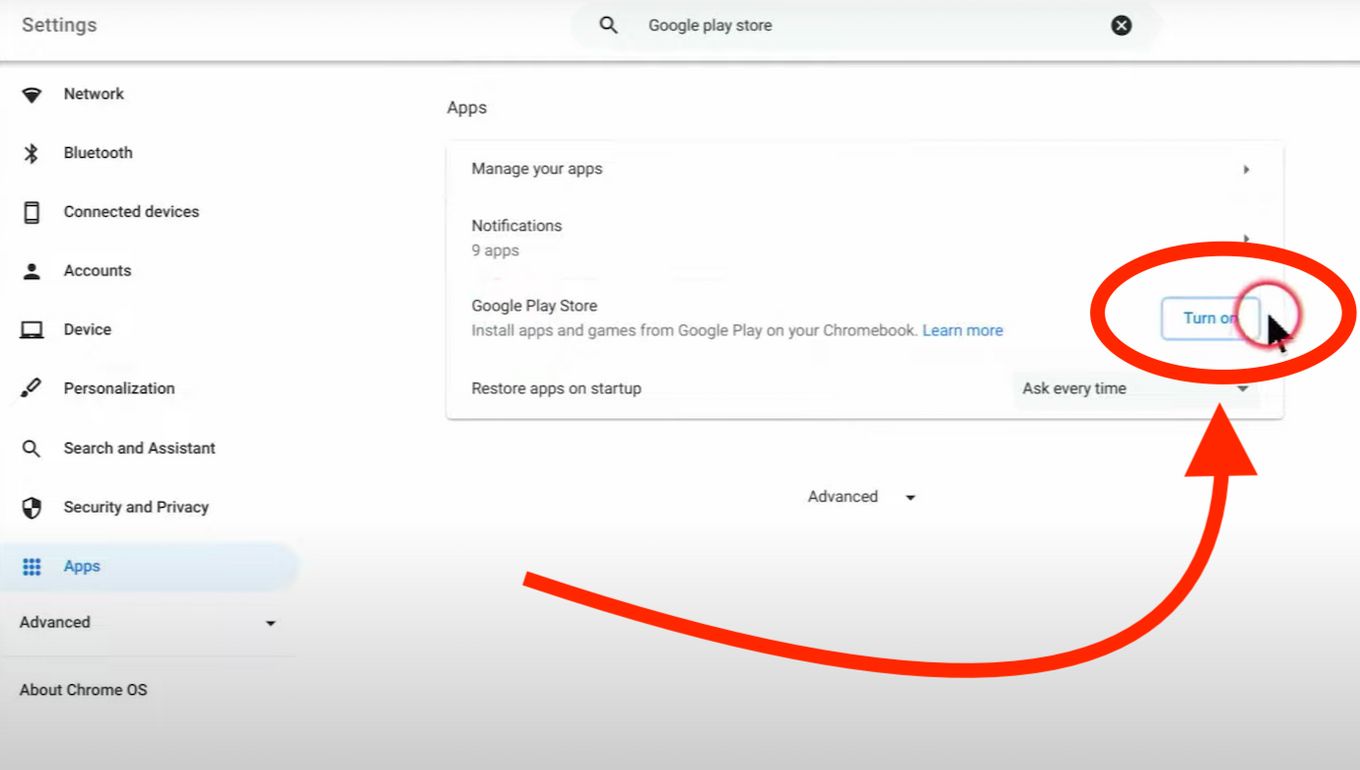
Enable the Google Play Store (If Not Already Enabled):
- Click on the time in the bottom-right corner of your screen to open the system tray.
- Click on the gear icon (Settings).
- In the Settings menu, scroll down and find the “Apps” section.
- Under “Apps,” you should see an option for “Google Play Store.”
- Click “Turn on” next to “Google Play Store.”
- Follow the on-screen prompts to set up the Play Store.
-
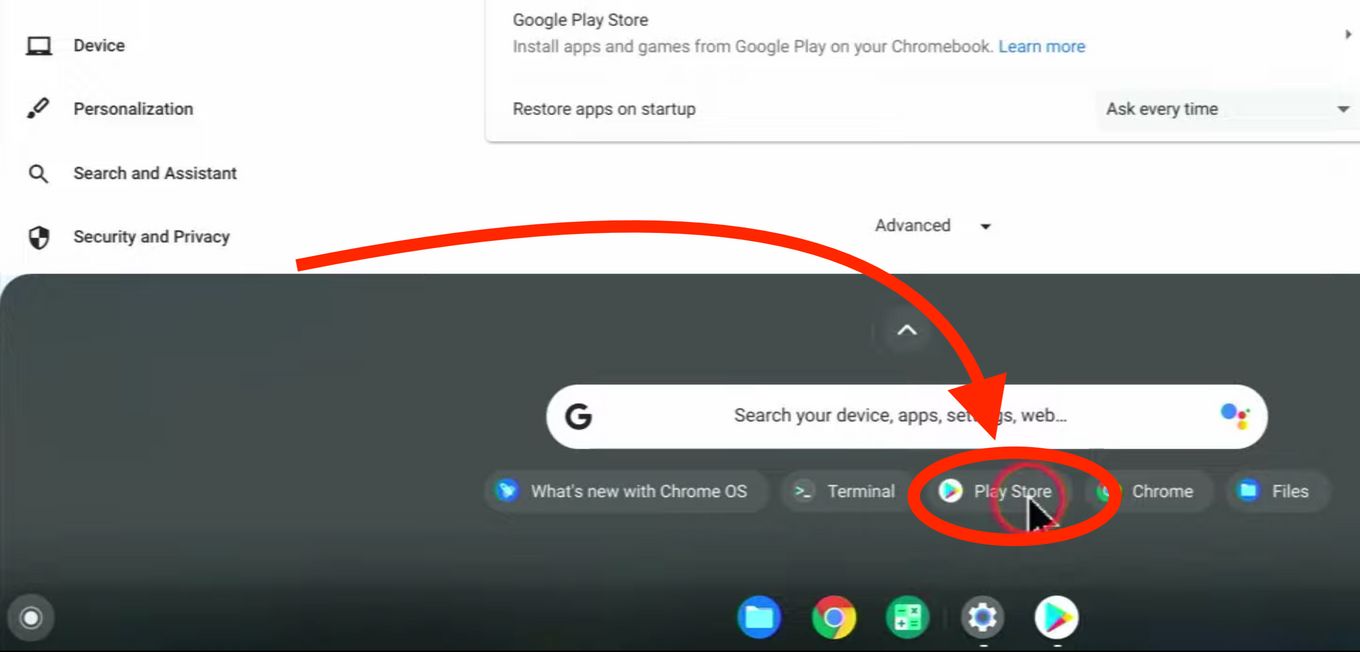
Open the Google Play Store:
- Once enabled, you can find the Google Play Store app in your Chromebook’s app launcher (click the circle icon in the bottom-left corner, then search for “Play Store”).
- Open the Play Store.
-
Search for Roblox:
- In the search bar at the top of the Play Store, type “Roblox” and press Enter.
-
Install the Roblox App:
- Locate the official “Roblox” app in the search results. It should have the familiar Roblox logo.
- Click on the app.
- Click the “Install” button.
- The app will download and install automatically. You may need to grant certain permissions during the installation process.
-
Launch Roblox:
- Once the installation is complete, the Roblox app will appear in your app launcher.
- Click on the Roblox icon to open it.
-
Log In or Sign Up:
- You will be prompted to either log in to your existing Roblox account or create a new one.
- Enter your username and password if you have an account, or follow the steps to create a new account.
Troubleshooting Common Play Store Installation Issues
While generally seamless, you might encounter a few hiccups:
- “App not compatible”: As mentioned, this usually means your Chromebook doesn’t support Android apps or the specific app version isn’t optimized for it.
- Download errors: Ensure you have a stable internet connection and sufficient storage space. Try clearing the Play Store cache and data by going to Settings > Apps > Google Play Store > Advanced > Storage & cache.
- App crashes upon launch: This can sometimes be due to outdated Chrome OS. Make sure your Chromebook is updated to the latest version by going to Settings > About Chrome OS > Check for updates. Restarting your Chromebook can also resolve temporary glitches.
Alternative Methods for Installing Roblox on Chromebooks
If your Chromebook doesn’t support Android apps directly, or if you’re looking for more advanced options, there are a couple of alternative routes you can take. These methods generally involve more technical setup and might have performance implications.
Linux (Beta) Environment for Running Roblox
Many modern Chromebooks come with a Linux (Beta) environment that allows you to run Linux applications. While Roblox doesn’t have an official Linux client, there are community-developed wrappers or workarounds that can enable you to run it. This method is more complex and less guaranteed to work smoothly.
-
Enabling Linux (Beta):
- Go to your Chromebook’s Settings.
- Scroll down to “Linux (Beta).”
- Click “Turn on” and follow the on-screen instructions to set up the Linux environment. This will download and install a Debian-based Linux distribution.
-
Installing Roblox via Linux: This process typically involves:
- Downloading a Linux-compatible Roblox launcher: Search online for projects like “Roblox Linux Client” or “Ferramenta para rodar Roblox no Linux.” These are third-party tools.
- Installing necessary dependencies: You might need to install specific libraries or packages using the Linux terminal (e.g.,
sudo apt update && sudo apt install [package-name]). - Running the launcher: Follow the specific instructions provided by the third-party launcher you choose. This often involves executing a script from the terminal.
Important Considerations for the Linux Method:
- Complexity: This method requires comfort with the command line and understanding of Linux package management.
- Performance: Performance can vary significantly and might be worse than the Android app due to the overhead of running in a virtualized environment.
- Security: Be cautious about downloading and running third-party software. Ensure you are downloading from reputable sources and understand the potential risks.
- Updates: Roblox updates might break these third-party launchers, requiring you to wait for them to be updated or find new workarounds.
Using a Virtual Machine (Advanced Users Only)
For a truly dedicated Roblox experience on a Chromebook, you could set up a virtual machine (VM) running a full Windows operating system. This is the most resource-intensive and complex method and is only recommended for advanced users with powerful Chromebooks.
- VM Software: You would need VM software that can run on Chrome OS, such as Crouton (for dual-booting with Linux) or potentially cloud-based VM services.
- Windows Installation: You would then need to install a full version of Windows within the VM.
- Roblox Installation: Once Windows is running in the VM, you can download and install the standard Roblox Windows client.
Drawbacks of the Virtual Machine Method:
- Resource Hog: Running a full operating system within another operating system demands significant CPU, RAM, and storage.
- Performance Limitations: Even with powerful hardware, there will be a performance penalty compared to running natively.
- Complexity and Setup Time: This is a time-consuming and technically demanding process.
- Licensing: You will need a valid Windows license.
Given the availability and relative ease of the Android app method, these advanced options are generally not the preferred route for most users wanting to play Roblox on their Chromebook.
Optimizing Your Roblox Experience on Chromebook
Once you have Roblox successfully installed, you’ll want to ensure the best possible gaming experience. Optimizing your settings and understanding your Chromebook’s limitations are key.
In-Game Settings for Performance
Roblox itself offers various graphical settings that you can adjust to balance visual quality with performance.
-
Accessing Roblox Settings:
- Launch Roblox and log in.
- Once in a game, look for the Roblox menu (usually accessed by clicking the Roblox icon in the top-left corner or by pressing
Esc). - Navigate to the “Settings” or “Graphics” tab.
-
Key Settings to Adjust:
- Graphics Quality: This is the most impactful setting. Set it to “Manual” and lower the sliders for things like “Render Distance,” “Texture Quality,” and “Shadows.” A lower setting will reduce the load on your Chromebook’s graphics processing.
- Visual Effects: Turn off or reduce settings like “Bloom,” “Color Correction,” and “Vsync” if they are causing lag.
- Frame Rate: While Roblox often aims for a high frame rate, if you’re experiencing stuttering, you might try capping the frame rate at a stable level (e.g., 30 or 60 FPS) if the option is available.

Maintaining Your Chromebook for Better Performance
Beyond in-game settings, keeping your Chromebook in good condition will contribute to a smoother gaming experience.
- Close Unnecessary Apps: Before launching Roblox, close any other applications running in the background. This frees up RAM and CPU resources. This includes multiple Chrome tabs, other Android apps, and any Linux applications.
- Keep Chrome OS Updated: Regularly check for and install Chrome OS updates. These updates often include performance improvements and bug fixes.
- Free Up Storage Space: If your Chromebook’s storage is nearly full, it can slow down the entire system. Delete old files, uninstall unused apps, or move data to cloud storage.
- Restart Your Chromebook: A simple restart can resolve temporary performance issues and clear out background processes.
- Check for Overheating: Chromebooks can get warm, especially during demanding tasks. Ensure good ventilation and avoid placing it on soft surfaces that block vents. If it overheats, performance will throttle.
By following these steps, you can significantly enhance your ability to enjoy Roblox on your Chromebook, transforming it into a viable gaming platform for countless hours of fun and creativity.
aViewFromTheCave is a participant in the Amazon Services LLC Associates Program, an affiliate advertising program designed to provide a means for sites to earn advertising fees by advertising and linking to Amazon.com. Amazon, the Amazon logo, AmazonSupply, and the AmazonSupply logo are trademarks of Amazon.com, Inc. or its affiliates. As an Amazon Associate we earn affiliate commissions from qualifying purchases.